> ## Documentation Index
> Fetch the complete documentation index at: https://docs.coverbase.com/llms.txt
> Use this file to discover all available pages before exploring further.
# Certificate Vault and prequalification
> Read the Certificates page and a vendor's Certificates tab, add or request a certificate, connect ISNetworld, Avetta and EcoVadis, write a prequalification rule set, override a result with a rationale, and connect licensed rating providers to Radar.
For AI agents: a documentation index is available at [https://docs.coverbase.com/llms.txt](https://docs.coverbase.com/llms.txt). This page is also available in markdown by appending .md to the URL.
This guide is part of the [User Guides](/user-guides/overview) collection. It covers **Certificates** in the left navigation, a vendor's **Certificates** tab, and the licensed connector panels under **Configuration → External Integrations**. It sits beside [The vendor record](/user-guides/vendor-record) and [Document expiry reminders](/user-guides/document-expiry-reminders). For what the module is, see [Certificate Vault and prequalification](/products/certificate-vault).
Your Coverbase representative turns on the third-party lifecycle features, including the Certificate Vault, for your organization.
The Certificate Vault is one list of every certificate your vendors hold, however it reached Coverbase. Prequalification rule sets read the vault to decide which vendors may be used.
The mistake people make most often is writing a rule that the vault cannot satisfy yet. A rule reads only current certificates, so a vendor whose certificate of insurance has lapsed fails an insurance rule even if the new one is sitting in someone's inbox. Upload or request it, and the result updates.
## Step 1: Read the vault
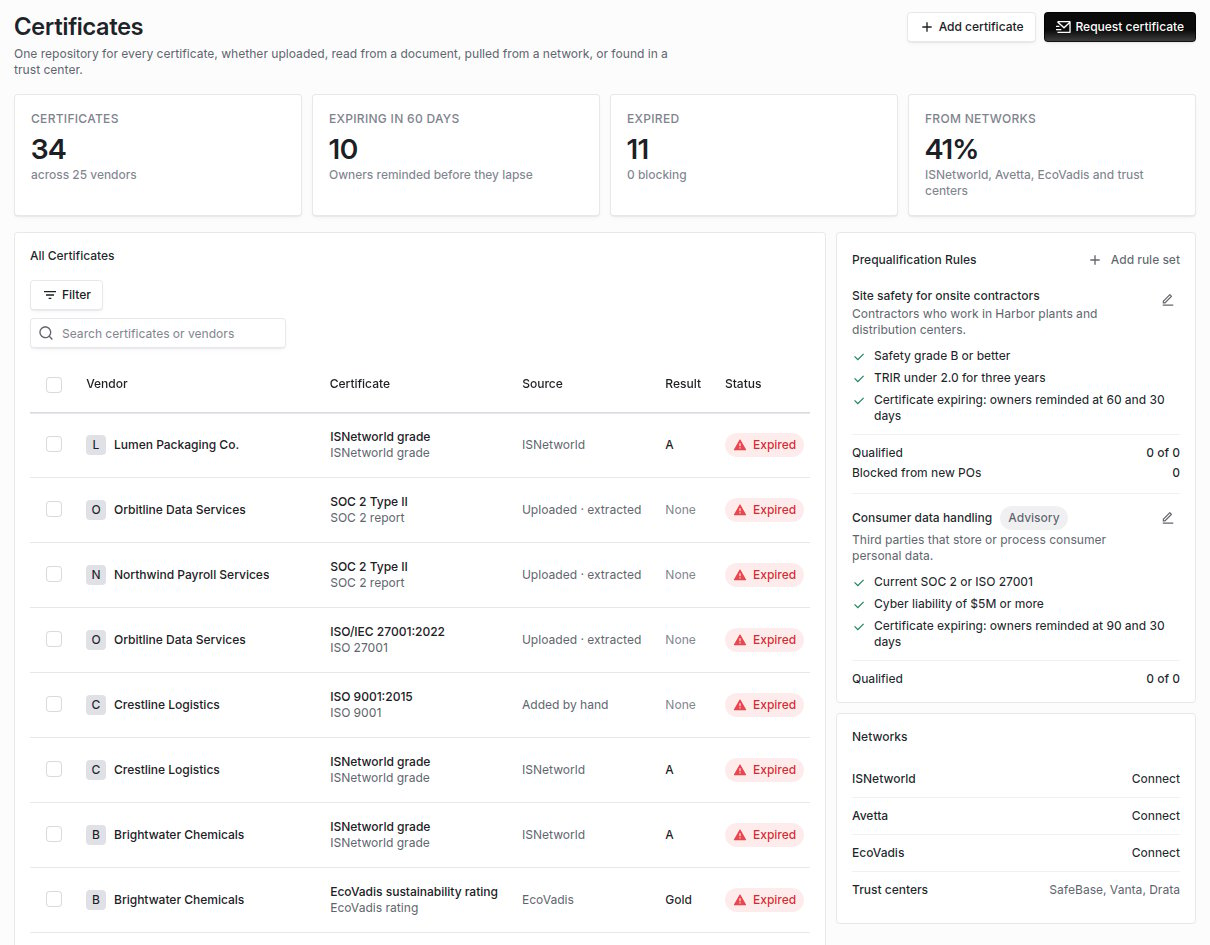
Open **Certificates** in the left navigation. The top row counts **Certificates** across vendors, those **Expiring in 60 Days**, those **Expired** (and how many are blocking), and the share **From Networks**.
**All Certificates** lists each one with its **Vendor**, **Certificate**, **Source**, **Result**, **Status**, **Expires** and **Verification**. Search by certificate or vendor.
| Source | How it got there |
| - | - |
| **Uploaded · extracted** | Read from a document when it was analyzed: certifications, PCI, SOC 1 and SOC 2 reports, ACORD 25 certificates and insurance policies. |
| **Trust center** | A document collected from the vendor's trust center, such as SafeBase. |
| **Network** | Pulled from ISNetworld, Avetta or EcoVadis. |
| **Added by hand** | Entered with **Add certificate**. |
**Status** is **Valid**, **Expiring** (within 60 days) or **Expired**, worked out when you look. A SOC report counts for a year past the end of its period, and a certificate of insurance only until its first policy lapses.
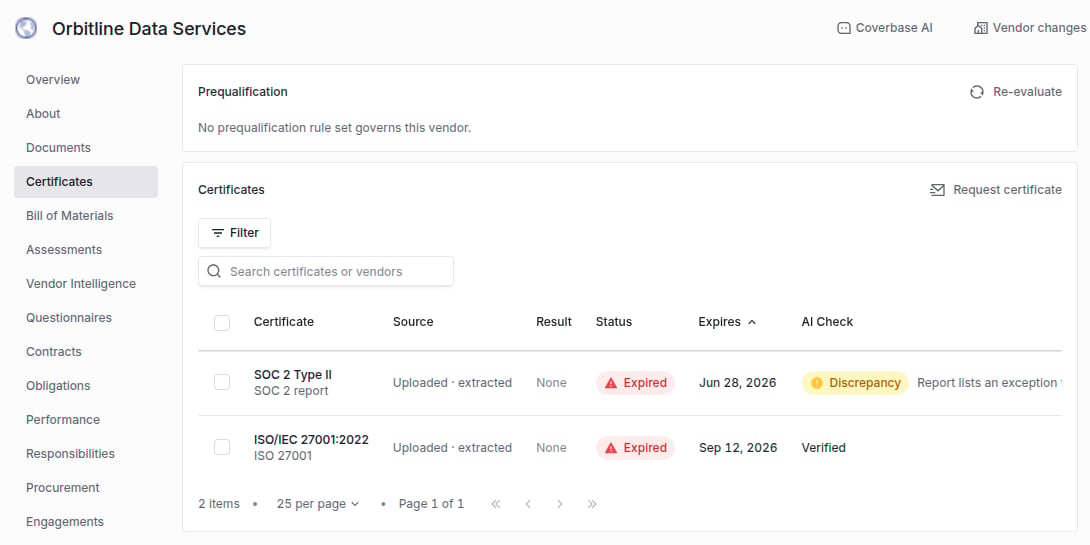
 A vendor's **Certificates** tab shows the same list for that vendor, with its **Prequalification** standing and any **Licensed Ratings**.
 ## Step 2: Add or request a certificate
* **Add certificate** records one that no document or network supplies. Choose the **Vendor**, **Type**, **Name**, **Issuer**, **Result or grade** and **Valid To**.
* **Request certificate** asks the vendor to upload it. Choose the **Vendor** and the **Certificate**, add a **Message**, and click **Create request**. Send it to the vendor from the request drawer. The document they return is read into the vault like any other upload. Network grades cannot be requested.
A daily refresh adds certificates from documents that were analyzed before your organization had the Certificate Vault.
### Request renewals in bulk
Filter **All Certificates** (for example, to those expiring within 60 days), select up to 500, and click **Request renewal**. Add an optional **Message** and **Due Date**, both shown to the vendor, and click **Request renewals**. Each vendor gets one supplier portal request covering all of its selected certificates, sent to its contacts.
The requests go out in the background, and the page shows progress, then a summary such as "14 sent, 2 skipped, 0 failed". Each skipped certificate gives its reason. Network grades come from their network, not the vendor, and a vendor with no contact on file cannot be asked. The returned documents fill the vault like any other upload.
## Step 3: Connect networks
Open **Configuration → External Integrations** and find **ISNetworld** and **Avetta** under **Contractor Prequalification**, and **EcoVadis** under sustainability. Each opens a panel:
| Network | Fields | What syncs daily |
| - | - | - |
| [ISNetworld](/integrations/guides/isnetworld) | **Client ID**, **Client Secret**, and **Account ID** (your hiring client ID) | Grades, safety statistics and insurance |
| [Avetta](/integrations/guides/avetta) | **API Token**, **Account ID** (your client ID) | Compliance status, statistics and insurance |
| [EcoVadis](/integrations/guides/ecovadis) | **Username**, **Password** | Scorecards |
Click **Save**, then **Test connection**. The **Networks** card on the Certificates page shows each network's status, certificate count and last sync, with **Sync now**. If a sync fails, the panel and the card show **The last sync failed** with the reason.
## Step 4: Write a prequalification rule set
On the Certificates page, under **Prequalification Rules**, click **Add rule set**.
Give a **Name**, such as "On-site contractors", and a **Description**. Under **Applies to vendors**, add filters. With no filter, the rule set governs every vendor.
Every rule must pass for a vendor to qualify. Click **Add rule**, give it a label, and add a condition. Click **Add alternative** for another condition that would also pass it: **Passes when any of these holds**.
Choose a **Condition**:
* **Network grade**: a **Network** and a **Minimum grade**.
* **Network status**: a **Network** and an **Accepted status**.
* **Certificate held**: a **Certificate type**.
* **Insurance coverage**: a **Coverage** type, a **Minimum limit (USD)** and whether **Additional insured** is required.
* **Safety or ESG figure**: a **Figure** (TRIR, EMR, DART rate or ESG score), a **Comparison**, a **Threshold** and optionally a number of **Years**. Every one of the latest years must be reported, or the condition fails.
Under **Expiry Reminders**, list the days before a certificate lapses that relationship owners are reminded, comma separated. Turn on **Block new purchase orders until the vendor qualifies or someone overrides** to make the rule set blocking.
Click **Save rule set**. Results update shortly. Each rule set shows **Qualified** and **Blocked** counts.
## Step 5: Override a result
A vendor's **Prequalification** card shows each rule set as **Qualified**, **Blocked** or **Overridden**. A failing rule set that does not block reads as **Advisory**.
To let a blocked vendor proceed, click **Override with rationale**, write the **Rationale**, and click **Override**. The override lapses as soon as the result changes: a vendor that later qualifies no longer needs it, and one that fails a different rule needs a fresh decision. **Clear override** removes it. **Re-evaluate** runs the rule sets again now.
The same card appears on the Front Door review of an intake request. Issuing a purchase order in Coverbase for a blocked vendor is refused, and workflows can branch on a vendor's prequalification standing.
## Step 6: Connect licensed ratings
Under **Configuration → External Integrations**, the **Bitsight**, **SecurityScorecard**, **RapidRatings** and **Moody's** panels each take credentials. Saving them the first time adds a Radar source for the provider and a rating drop detector on it. Each pull matches the provider's portfolio to your vendors, records the rating, and raises a Radar signal only when a stored rating moved. The first pull is a baseline. A rating the provider reports as zero is recorded as zero. On the detector, **Rating fell by at least**, **New rating below** and **Grade worsened** are requirements in the provider's own units. A rating change alerts only when it clears every requirement that is switched on, and at least one must be on. **Rating fell by at least** and **New rating below** take zero or more. See each provider's guide for the fields and the default drop that alerts.
## Troubleshooting
| What you see | Cause | Fix |
| - | - | - |
| No **Certificates** in the left navigation | The third-party lifecycle features are not on for your organization. | Ask your Coverbase representative. |
| An uploaded SOC 2 is not in the vault | The document has not finished analysis, or was classified as another type. | Wait for analysis, or correct the document type. |
| A certificate disappeared | Its document was reclassified, archived or its analysis cleared, or the network no longer returns it. | Expected. Upload or re-sync to restore it. |
| A vendor fails an insurance rule though it is insured | The certificate is expired, the limit is below the minimum, or **Additional insured** is required but not on the ACORD 25. | Request a current certificate. |
| A TRIR rule fails | One of the latest years is missing. | Ask the network or vendor for the missing year. |
| An override vanished | The result changed. | Expected. Decide again. |
| **The last sync failed** on a network | Wrong credentials, or the network's response did not have the expected shape. | Check credentials with **Test connection**. A shape error stops the pull without archiving certificates. Contact your Coverbase representative. |
| No Radar signals after connecting a rating provider | The first pull is a baseline. | Expected. Signals come from later changes. |
## Related
Prequalification on the intake review.
Where rating changes appear.
Reminders for documents outside the vault.
Branch on prequalification standing.
This documentation is built and hosted on [Mintlify](https://mintlify.com), a developer documentation platform.
## Step 2: Add or request a certificate
* **Add certificate** records one that no document or network supplies. Choose the **Vendor**, **Type**, **Name**, **Issuer**, **Result or grade** and **Valid To**.
* **Request certificate** asks the vendor to upload it. Choose the **Vendor** and the **Certificate**, add a **Message**, and click **Create request**. Send it to the vendor from the request drawer. The document they return is read into the vault like any other upload. Network grades cannot be requested.
A daily refresh adds certificates from documents that were analyzed before your organization had the Certificate Vault.
### Request renewals in bulk
Filter **All Certificates** (for example, to those expiring within 60 days), select up to 500, and click **Request renewal**. Add an optional **Message** and **Due Date**, both shown to the vendor, and click **Request renewals**. Each vendor gets one supplier portal request covering all of its selected certificates, sent to its contacts.
The requests go out in the background, and the page shows progress, then a summary such as "14 sent, 2 skipped, 0 failed". Each skipped certificate gives its reason. Network grades come from their network, not the vendor, and a vendor with no contact on file cannot be asked. The returned documents fill the vault like any other upload.
## Step 3: Connect networks
Open **Configuration → External Integrations** and find **ISNetworld** and **Avetta** under **Contractor Prequalification**, and **EcoVadis** under sustainability. Each opens a panel:
| Network | Fields | What syncs daily |
| - | - | - |
| [ISNetworld](/integrations/guides/isnetworld) | **Client ID**, **Client Secret**, and **Account ID** (your hiring client ID) | Grades, safety statistics and insurance |
| [Avetta](/integrations/guides/avetta) | **API Token**, **Account ID** (your client ID) | Compliance status, statistics and insurance |
| [EcoVadis](/integrations/guides/ecovadis) | **Username**, **Password** | Scorecards |
Click **Save**, then **Test connection**. The **Networks** card on the Certificates page shows each network's status, certificate count and last sync, with **Sync now**. If a sync fails, the panel and the card show **The last sync failed** with the reason.
## Step 4: Write a prequalification rule set
On the Certificates page, under **Prequalification Rules**, click **Add rule set**.
Give a **Name**, such as "On-site contractors", and a **Description**. Under **Applies to vendors**, add filters. With no filter, the rule set governs every vendor.
Every rule must pass for a vendor to qualify. Click **Add rule**, give it a label, and add a condition. Click **Add alternative** for another condition that would also pass it: **Passes when any of these holds**.
Choose a **Condition**:
* **Network grade**: a **Network** and a **Minimum grade**.
* **Network status**: a **Network** and an **Accepted status**.
* **Certificate held**: a **Certificate type**.
* **Insurance coverage**: a **Coverage** type, a **Minimum limit (USD)** and whether **Additional insured** is required.
* **Safety or ESG figure**: a **Figure** (TRIR, EMR, DART rate or ESG score), a **Comparison**, a **Threshold** and optionally a number of **Years**. Every one of the latest years must be reported, or the condition fails.
Under **Expiry Reminders**, list the days before a certificate lapses that relationship owners are reminded, comma separated. Turn on **Block new purchase orders until the vendor qualifies or someone overrides** to make the rule set blocking.
Click **Save rule set**. Results update shortly. Each rule set shows **Qualified** and **Blocked** counts.
## Step 5: Override a result
A vendor's **Prequalification** card shows each rule set as **Qualified**, **Blocked** or **Overridden**. A failing rule set that does not block reads as **Advisory**.
To let a blocked vendor proceed, click **Override with rationale**, write the **Rationale**, and click **Override**. The override lapses as soon as the result changes: a vendor that later qualifies no longer needs it, and one that fails a different rule needs a fresh decision. **Clear override** removes it. **Re-evaluate** runs the rule sets again now.
The same card appears on the Front Door review of an intake request. Issuing a purchase order in Coverbase for a blocked vendor is refused, and workflows can branch on a vendor's prequalification standing.
## Step 6: Connect licensed ratings
Under **Configuration → External Integrations**, the **Bitsight**, **SecurityScorecard**, **RapidRatings** and **Moody's** panels each take credentials. Saving them the first time adds a Radar source for the provider and a rating drop detector on it. Each pull matches the provider's portfolio to your vendors, records the rating, and raises a Radar signal only when a stored rating moved. The first pull is a baseline. A rating the provider reports as zero is recorded as zero. On the detector, **Rating fell by at least**, **New rating below** and **Grade worsened** are requirements in the provider's own units. A rating change alerts only when it clears every requirement that is switched on, and at least one must be on. **Rating fell by at least** and **New rating below** take zero or more. See each provider's guide for the fields and the default drop that alerts.
## Troubleshooting
| What you see | Cause | Fix |
| - | - | - |
| No **Certificates** in the left navigation | The third-party lifecycle features are not on for your organization. | Ask your Coverbase representative. |
| An uploaded SOC 2 is not in the vault | The document has not finished analysis, or was classified as another type. | Wait for analysis, or correct the document type. |
| A certificate disappeared | Its document was reclassified, archived or its analysis cleared, or the network no longer returns it. | Expected. Upload or re-sync to restore it. |
| A vendor fails an insurance rule though it is insured | The certificate is expired, the limit is below the minimum, or **Additional insured** is required but not on the ACORD 25. | Request a current certificate. |
| A TRIR rule fails | One of the latest years is missing. | Ask the network or vendor for the missing year. |
| An override vanished | The result changed. | Expected. Decide again. |
| **The last sync failed** on a network | Wrong credentials, or the network's response did not have the expected shape. | Check credentials with **Test connection**. A shape error stops the pull without archiving certificates. Contact your Coverbase representative. |
| No Radar signals after connecting a rating provider | The first pull is a baseline. | Expected. Signals come from later changes. |
## Related
Prequalification on the intake review.
Where rating changes appear.
Reminders for documents outside the vault.
Branch on prequalification standing.
This documentation is built and hosted on [Mintlify](https://mintlify.com), a developer documentation platform.