> ## Documentation Index
> Fetch the complete documentation index at: https://docs.coverbase.com/llms.txt
> Use this file to discover all available pages before exploring further.
# Contract dates and reminders
> How the contract timeline works: which dates Coverbase tracks, which ones it calculates for you, who gets the reminder emails, and how to turn a reminder off for a single contract.
For AI agents: a documentation index is available at [https://docs.coverbase.com/llms.txt](https://docs.coverbase.com/llms.txt). This page is also available in markdown by appending .md to the URL.
This guide is part of the [User Guides](/user-guides/overview) collection. It covers the dates on a contract record and the reminders that fire off them. For pulling those dates out of the paper in the first place, see the [Document Insights guide](/user-guides/document-insights).
Every contract record carries a **Contract timeline**: the dates that matter for renewals, notice, and audits, laid out in order. Reminder emails fire off those dates. This guide explains what each date means, which ones Coverbase calculates, and how to stop a reminder on one contract without touching anything else.
## The timeline at a glance
Open a contract and look at the **Contract timeline** card in the sidebar. Six dates can appear:
| Date | What it means |
| ------------------------ | ------------------------------------------------------------- |
| **Effective date** | When the agreement takes legal effect. |
| **Term start** | When the current term began. |
| **Term end** | When the current term expires. |
| **Notice due to vendor** | The last day you can give notice to terminate or not renew. |
| **Internal action** | Your team's own deadline to decide, ahead of the notice date. |
| **Audit date** | When you have committed to review or audit the vendor. |
Three of the six (**Notice due to vendor**, **Internal action**, and **Audit date**) are optional. They appear when they are relevant, and you can turn them off per contract. Effective date, term start, and term end are always shown.
Optional does not mean unimportant. The date makes sense on some contracts and not others, so you decide contract by contract.
## Fixed dates versus calculated dates
Most surprises come from this distinction.
A date you or the document states outright. It sits there until someone changes it. Renewals do not move it: a date the agreement names is a fact, and Coverbase does not rewrite it.
A date Coverbase works out from other values. **Notice due to vendor** can be calculated as term end minus your notice period. **Internal action** is calculated as the notice date minus your lead time. Both update automatically when the contract renews.
To see which one you are on, click the date in the timeline. The editor opens on two choices: **Based on term end** (calculated) or **Fixed date**.
**A calculated date cannot be deleted.** If **Notice due to vendor** is set to *Based on term end*, deleting it does nothing. It is re-derived from term end minus the notice period when you save, and it comes back for as long as those two values exist. This is the usual cause of a date that will not go away.
The notice date has a third setting for exactly that situation: **No notice date**. Pick it when the contract has no notice deadline to track, or when the deadline would only ever be derived from a term end you are guessing at. It leaves the date blank, stops its reminders, and keeps your term end and notice period intact.
**No notice date** and hiding the milestone answer different questions. Choose **No notice date** when the statement is about the *agreement*: there is no such deadline. Hide the milestone when the statement is about *your attention*: the deadline is real, but you do not want to be reminded on this contract. Either one stops the emails.
## What makes a contract renew
A renewal needs two things on the record, and it is the second one people forget.
The setting that says renewal happens without anyone doing anything.
The length each renewal adds. Without it there is nothing to move the term end to.
Both live in the **Commercial terms** card on the contract. A nightly job looks at every contract whose term end has passed, and each one either renews or is marked expired.
**Set to auto-renew with no renewal term, a contract gets marked expired.** Not renewed, and not left alone: the job has no term to roll it into, so it does the only other thing it can. The status flips to expired on the term end the paperwork names, which on a long-running agreement can be a date years in the past.
This is the most common cause of "our contracts show the wrong dates". The contracts really are renewing in the world. Coverbase was never told what they renew into.
Filling in the renewal term fixes it going forward and backward at once. The next nightly run renews the contract, moves the term end, sets the status back to active, and re-derives the notice and internal action dates that hang off the term end.
To find these across the portfolio in one go, filter the contracts list on **Auto Renewal** is `automatic` and **Renewal Term** is empty.
### Where the renewal term comes from
Three paths fill it, so most contracts arrive with it already set:
* **Document extraction.** Coverbase reads the renewal term out of the agreement along with the other dates, with a page citation.
* **Spreadsheet import.** The contract import template has a **Renewal Term** column. Fill it in the same shape as the other term columns, for example `1 year` or `12 months`.
* **By hand.** Type it into **Renewal term** on the **Commercial terms** card.
### Recording what you intend to do
A renewal date tells you when to decide. It does not record what you decided, which is why renewals get re-litigated in the week they are due.
The **Renewal decision** section of the **Commercial terms** card takes that answer: **Not decided**, **Renew**, **Terminate**, or **Under review**, with a note for the reasoning. The decision shows in the renewal runway hover and the runway's readiness dot, and it is filterable across the portfolio.
**A renewal clears the decision.** When a contract rolls into a new term, the decision and its note go back to empty on purpose. The old answer was about the term that just ended, and the new one deserves its own look.
Nothing is lost: every decision is filed in the contract's activity trail with the note, who recorded it, which term it was about, and that term's end date. The card shows the current term, the trail shows the history.
## Who gets reminded, and when
Reminders are email, and they come from two places:
Set once for the whole org from the **Contracts** page. For example: "email 60, 30, and 7 days before the notice due date." Every contract inherits these unless it has its own rules.
Set on one contract from the **Notifications** card, using the gear icon. These replace the org-wide rules for that trigger on that contract, which is useful for a contract that needs six months of warning instead of one.
Recipients are the contract's relationship owners and watchers, plus any extra addresses on the rule. The **Notifications** card shows exactly what is queued and who will receive it.
The org-wide notification settings apply to every contract. Changing them to silence one contract silences it everywhere. Use the per-contract control below instead.
## Turning off a reminder for one contract
There are two ways, and neither touches any other contract. Use **No notice date** (above) when the contract has no notice deadline. Use the steps below (hiding the milestone) when the deadline is real but you do not want to be reminded about it here. Hiding works on all three optional dates, whether they are fixed or calculated.
Go to the contract record and look at the **Contract timeline** card in the sidebar.
Click **Notice due to vendor**, **Internal action**, or **Audit date**. The editor opens.
At the bottom of the editor, select **Hide and stop reminders**. The row disappears from the timeline and its reminder emails stop for this contract.
What that does, precisely:
* **The reminders stop for this contract only.** Your org-wide rules are untouched, and every other contract keeps reminding as before.
* **Nothing is deleted.** The date, the notice period, and the page citation from the source document all survive.
* **It is reversible.** Use **Add milestone** at the top of the timeline card to bring the date back, with its value and reminders intact.
Silencing **Notice due to vendor** also silences both notice reminders (the notice-due one and the older termination-notice one, which name the same date) and the **Internal action** reminder when that date is set to *Based on notice due*, because it is only a lead time on the notice deadline.
An **Internal action** date you have pinned to a *Fixed date* is a commitment of its own and keeps reminding. Hide it separately if you do not want it.
The **Notifications** card will tell you when this is in effect: if a date is hidden, a line at the bottom of the card names it, so a rule that looks configured but never fires is explained.
### Which one to reach for
The clearest case is an **estimated term end**. If the term end is your best guess rather than a date the contract states, a notice deadline calculated from it is also a guess, and being reminded to act on a guess is noise. **No notice date** is the right choice here: the derived deadline is not real. Keep the estimated term end for planning; switch the notice date back to *Based on term end* if the term end firms up.
Hiding fits when the deadline is real and you do not want to be reminded of it:
* A contract that auto-renews on terms you are happy with, where you do not intend to give notice.
* An audit date that belongs to a different team's process and should not page yours.
* A contract in the middle of renegotiation, where the current dates are about to be replaced.
## Seeing every contract's dates at once
The dates on one contract drive its reminders. To see them across the portfolio, use the **renewal runway** on the contracts list page.
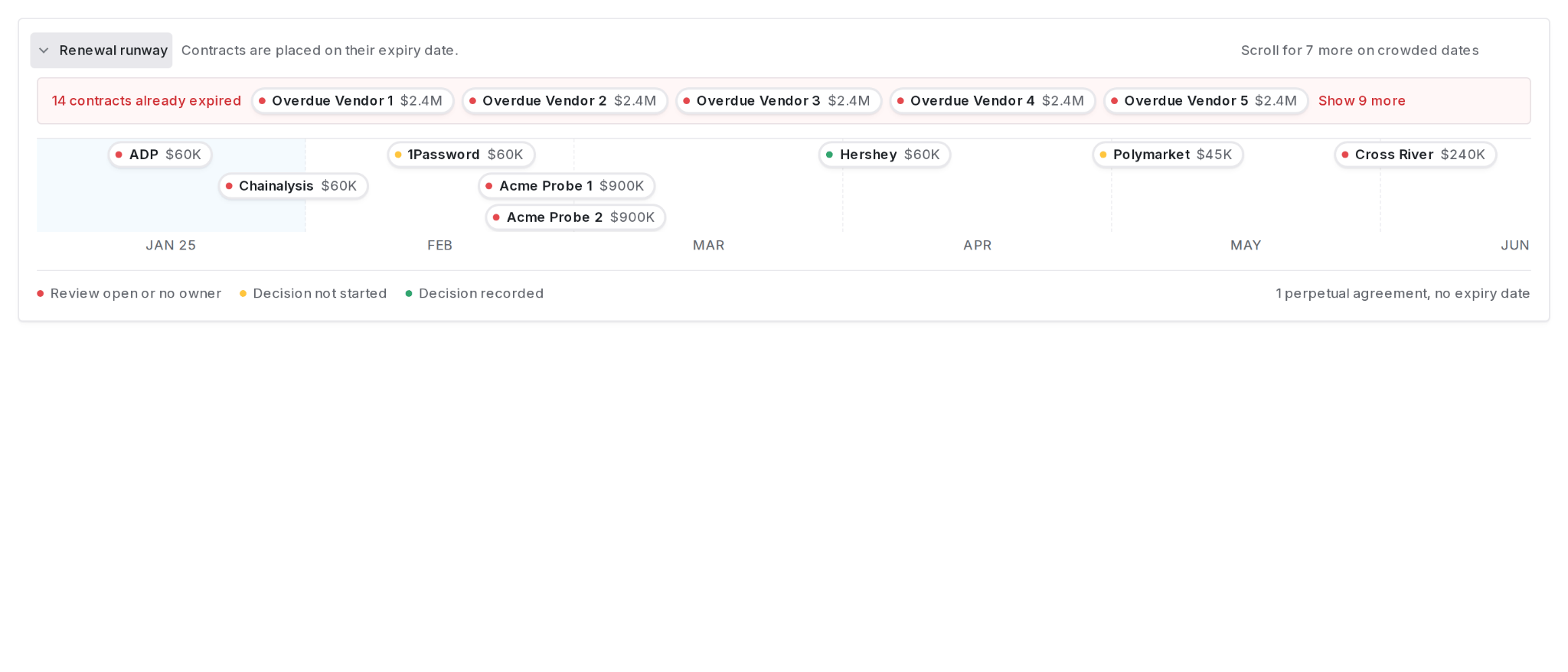 The runway places each contract on its **term end**, over a twelve month band. Contracts that have already expired sit in the lane above it, and perpetual agreements are counted below it.
Hover a chip to see the contract name, its expiry date, its **notice due to vendor** date, the relationship owner, and whether a decision has been recorded. That gives you the acting deadline next to the date people search for.
The runway is placed on expiry, but the notice date is the one that binds. A contract sitting in April on the band may need notice in January. The hover tells you which.
For collapsing, hiding, and restoring the runway, see the [Contracts workspace guide](/user-guides/contracts-workspace).
## Troubleshooting
| What you see | What is happening |
| --------------------------------------------------------------------------- | -------------------------------------------------------------------------------------------------------------------------------------------------------------------------------- |
| "I only see **Edit**, no on/off switch." | The switch is inside the editor. Click the date, then look at the bottom of the panel for **Hide and stop reminders**. |
| "It won't let me clear the date." | The date is calculated, so deleting it re-derives it on save. Open the notice date and choose **No notice date** instead. |
| "The date came from the uploaded document." | That does not lock it. Hiding the milestone overrides the extracted date, and you do not need to re-upload or edit the document. |
| "I turned it off in the org notification settings and it's still emailing." | Org-wide settings apply to every contract. To silence one contract, hide the date on that contract. |
| "I still want to see the date, just not the emails." | Today, hiding does both. If you need the date visible but silent, tell your Coverbase contact; the distinction is on our radar. |
| "I hid the notice date but I'm still getting internal action reminders." | That action date is pinned to a fixed date, so it stands on its own. Only an action date set to *Based on notice due* follows the notice date. Hide **Internal action** as well. |
## Related
Where the dates come from: define the fields Coverbase extracts from every document, each with a page citation.
The language-level half of contract intelligence: clause sets, risk tiers, and clause reviews.
The runway places each contract on its **term end**, over a twelve month band. Contracts that have already expired sit in the lane above it, and perpetual agreements are counted below it.
Hover a chip to see the contract name, its expiry date, its **notice due to vendor** date, the relationship owner, and whether a decision has been recorded. That gives you the acting deadline next to the date people search for.
The runway is placed on expiry, but the notice date is the one that binds. A contract sitting in April on the band may need notice in January. The hover tells you which.
For collapsing, hiding, and restoring the runway, see the [Contracts workspace guide](/user-guides/contracts-workspace).
## Troubleshooting
| What you see | What is happening |
| --------------------------------------------------------------------------- | -------------------------------------------------------------------------------------------------------------------------------------------------------------------------------- |
| "I only see **Edit**, no on/off switch." | The switch is inside the editor. Click the date, then look at the bottom of the panel for **Hide and stop reminders**. |
| "It won't let me clear the date." | The date is calculated, so deleting it re-derives it on save. Open the notice date and choose **No notice date** instead. |
| "The date came from the uploaded document." | That does not lock it. Hiding the milestone overrides the extracted date, and you do not need to re-upload or edit the document. |
| "I turned it off in the org notification settings and it's still emailing." | Org-wide settings apply to every contract. To silence one contract, hide the date on that contract. |
| "I still want to see the date, just not the emails." | Today, hiding does both. If you need the date visible but silent, tell your Coverbase contact; the distinction is on our radar. |
| "I hid the notice date but I'm still getting internal action reminders." | That action date is pinned to a fixed date, so it stands on its own. Only an action date set to *Based on notice due* follows the notice date. Hide **Internal action** as well. |
## Related
Where the dates come from: define the fields Coverbase extracts from every document, each with a page citation.
The language-level half of contract intelligence: clause sets, risk tiers, and clause reviews.