> ## Documentation Index
> Fetch the complete documentation index at: https://docs.coverbase.com/llms.txt
> Use this file to discover all available pages before exploring further.
# Contract Guardian guide
> Set up and run Contract Guardian: build a clause set from the library or your own paper, write risk-tier variants, run clause reviews, and triage the results.
This guide is part of the [User Guides](/user-guides/overview) collection. It covers the clause-review half of Contract Guardian. For the field-extraction half (pulling dates, caps, and terms out of every document), see the [Document Insights guide](/user-guides/document-insights).
Contract Guardian answers a question your legal and risk teams ask on every agreement: **how far is this contract from language we'd accept?**
You answer that question once, by writing down your standard. Coverbase then reads each contract, finds the vendor's language for each of your standards, decides which tier of acceptability it lands in, and hands your reviewer a short list of deviations with the source text quoted and highlighted. Reviewers triage that list instead of reading agreements end to end.
This is **materiality analysis, not redlining**. Guardian tells you which clauses deviate and how badly. The actual redline still happens in Word.
## The two halves of contract intelligence
Field-level. Pulls values out of every document (effective date, liability cap, notice period, governing law), each with a page citation. Runs automatically on upload.
Language-level. Compares the vendor's actual clause language against the tiers you've defined as acceptable, negotiable, and unacceptable. Runs when you start a review.
They stack. Insights populate the contract record and the AI summary; clause review scores the paper against your playbook. Set up insights first if you only have time for one; it's faster and pays off on every document. Set up clause review when you're ready to standardize legal review.
## Before you start
You need the **Contracts** module, and **Clause review** on top of it. If your contract records don't show a **Review** tab, clause review isn't enabled for your organization yet, so ask your Coverbase contact.
Building clause sets requires the contract-update permission. If **Configuration → Clause Sets** isn't in your navigation, an admin needs to grant it.
You'll want two or three executed agreements to test your clause set against, plus, ideally, a copy of your own standard paper (your template MSA or DPA), which Guardian can turn into a clause set for you.
***
## Step 1: Get contract documents in
Clause review runs against a **contract record** and the documents linked to it.
1. Upload the agreement from **Contracts → Upload Documents**, or from the vendor's Documents tab.
2. **Set the document type deliberately.** Types like Master Service Agreement, Order Form, Statement of Work, NDA, DPA, Terms of Service, SLA, Software License Agreement, Contract Amendment, and Contract Addendum are what mark a document as contract paper. Type inference is good but not infallible on unusual formats. Confirm it, because scope decisions downstream key off the type.
3. Link every document that makes up the agreement to the same contract record: the MSA, the order form, the DPA, the security addendum, the amendments. Guardian analyzes the set, not the file.
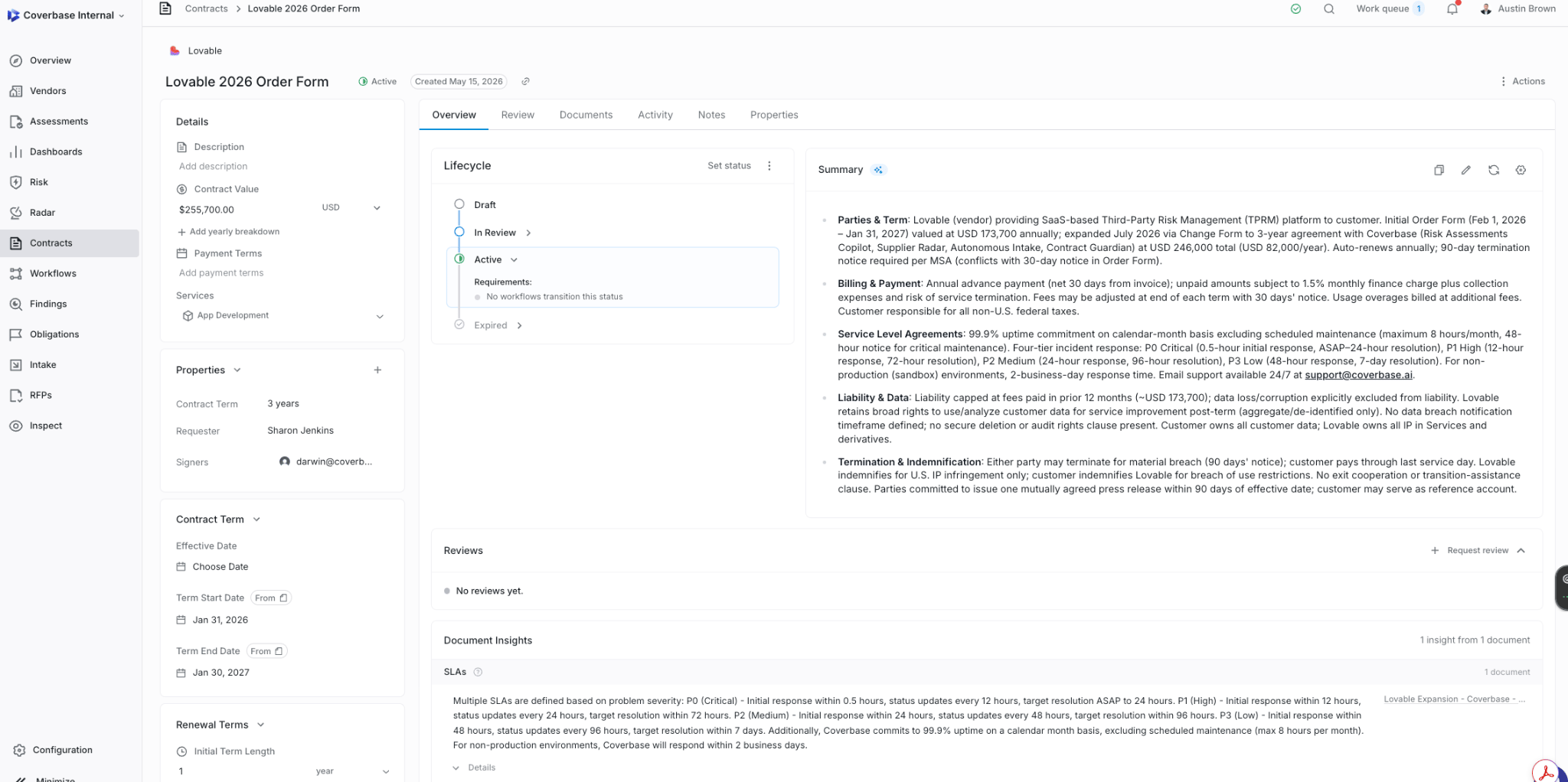 Amendments and addendums matter here. Guardian detects the logical components inside your linked documents. It will tell an order form apart from the MSA it hangs off, and an AI addendum apart from the DPA, and it scopes each of your clause standards to the components where that clause belongs.
***
## Step 2: Build your clause set
A **clause set** is your playbook: a named collection of reference clauses, each with the language tiers you're willing to accept. You can have several: a standard SaaS set, a stricter set for vendors touching regulated data, a professional-services set.
Go to **Configuration → Clause Sets**. There are three ways to start, and most teams use the first two together.
### Start from the clause set library
**This is the template you may have missed.** Coverbase ships a packaged clause set you can copy into your org in one click, pre-written with severities, guidance, and full multi-tier variant language.
Choose **Clause Set Library**, pick **SaaS Vendor Risk Clause Set**, name your copy, and create it. You get 15 reference clauses, already scoped to the right contract components, already tiered:
| ID | Clause | Severity | Applies to |
| ------- | ----------------------- | -------- | ---------------------- |
| SVR-001 | Limitation of Liability | Critical | MSA, other |
| SVR-002 | Indemnification | Critical | MSA, other |
| SVR-003 | Confidentiality | High | NDA, MSA, other |
| SVR-004 | Data Protection | Critical | MSA, DPA |
| SVR-005 | Term and Termination | High | MSA, other |
| SVR-006 | Payment Terms | Medium | MSA, order form, other |
| SVR-007 | Warranties | High | MSA, other |
| SVR-008 | Intellectual Property | High | MSA, SOW, other |
| SVR-009 | Service Levels | Medium | MSA, SLA |
| SVR-010 | Assignment | Medium | MSA, other |
| SVR-011 | Governing Law | Medium | All components |
| SVR-012 | Force Majeure | Low | MSA, other |
| SVR-013 | Audit | Medium | MSA, DPA, other |
| SVR-014 | Publicity | Low | MSA |
| SVR-015 | AI Use | Critical | MSA, DPA, other |
The copy is **yours** from the moment you create it. Edit the language, retune the severities, archive the clauses you don't care about. Nothing syncs back to the library, so you can't break anything by editing.
Copy the library set, run it against three contracts you already know the answers on, and then tune. Starting from working language and adjusting beats starting from a blank page, and it shows you what a well-written reference clause looks like before you write your own.
### Generate a clause set from your own paper
If you have a standard template (your MSA, your DPA, your preferred terms), Guardian can turn it into a clause set.
On the Clause Sets page choose **Upload Baseline Contract** and submit your template as a PDF. Processing runs in the background; you can leave the page and come back.
Guardian pulls out clause candidates with exact source text from your template, plus a suggested name, category, severity, and applicable component types. Language it can't quote verbatim from your document is dropped rather than paraphrased, so what you get back is genuinely your paper.
Each generated clause arrives with a single **Tier 1 "Baseline"** variant, your preferred language. That's a floor, not a playbook: it will mark anything that isn't your exact template as needing review. Add the tiers you'd actually accept in negotiation before you use the set in anger.
Generated clause sets are created **inactive** on purpose, so a half-finished playbook can't be run against a live contract. Flip it to active once the tiers are in.
What extraction proposes, why it drops language it can't quote verbatim, and the tiering you have to finish before the set is usable.
### Import a clause set from a spreadsheet
If your standards already live in a spreadsheet, put them in the Coverbase template and upload the file instead of retyping them. One workbook can carry several clause sets, each with full multi-tier variant language.
On the Clause Sets page open **Add Clause Set**, choose **Download Import Template**, fill in the **Clauses** sheet (one row per clause, with rows sharing a **Clause Set** value grouped into one set), then come back and choose **Import from Spreadsheet**.
Every row is reported back by its spreadsheet row number as created, already existing, or an error, and one bad row never blocks the rest. Clauses whose identifier is already in the target set are skipped rather than overwritten, so a stale re-upload can't quietly replace negotiated language.
Every column explained, the variant format, what happens on re-upload, how to export a set back out, and a troubleshooting table.
### Build one by hand
Choose **Add Clause Set**, name it, then add reference clauses one at a time. Worth doing for a narrow, high-stakes set (an AI addendum standard, say), rarely worth doing for a full playbook.
***
## Step 3: Understand a reference clause
Every reference clause is one standard you hold vendors to. Its fields all do work.
| Field | What it's for |
| ------------------------------ | --------------------------------------------------------------------------------------------------------------------------------------------------------------- |
| **Clause identifier** | Your stable reference, like `SVR-001`. Use it in tickets and email so everyone means the same clause. |
| **Name** | What reviewers see. Use the heading a lawyer would recognize. |
| **Severity** | Low, Medium, High, or Critical. Drives triage order and grouping, but does *not* change the verdict. Reserve Critical for clauses that would block a signature. |
| **Rationale** | Why the clause matters. Written for humans; it's the context a reviewer needs when they hit a deviation at 5pm. |
| **Guidance** | Written for the AI. This is what tells the matcher how to find and evaluate the clause. See below. |
| **Applicable component types** | Which parts of a contract this clause should be found in. Leave empty to apply everywhere. |
| **Variants** | Your acceptability tiers, covered in the next step. |
### Writing guidance the matcher can use
Guidance is the instruction the model reads when hunting for vendor language. The library clauses are worth copying as a format. Here's the shape that works, from the packaged Limitation of Liability clause:
```text Guidance theme={null}
Aliases:
- Limitation of Liability
- Liability Cap
- Limitations on Liability
- Maximum Liability
Typical contract types:
- MSA
- SaaS Agreement
- Services Agreement
Extraction signals:
- ALL CAPS BLOCKS containing 'IN NO EVENT'
- phrases: 'aggregate liability', 'total liability', 'fees paid'
- multipliers: '1x', '2x', 'twelve (12) months'
- carve-outs: 'except for', 'notwithstanding', 'shall not apply to'
Common deviations:
- Cap is unspecified or 'unlimited'
- Cap is asymmetric (one party capped, other uncapped)
- Carve-outs are too broad
- Missing carve-outs for IP indemnity, data breach, confidentiality
```
Four sections: **aliases** the clause hides under, **contract types** it appears in, **extraction signals** (distinctive phrases, formatting quirks, numbers), and **common deviations** you've seen in the wild. You don't need all four on every clause, but aliases and signals earn their keep immediately.
***
## Step 4: Write your risk-tier variants
This is the step that determines whether Contract Guardian is useful or noisy.
A **variant** is one version of the clause language at one level of acceptability, on a scale of 1 to 5. Coverbase matches the vendor's actual language to the closest variant, and the tier of that variant becomes the verdict:
| Risk tier | Meaning | Resulting clause state |
| --------- | ---------------------------------- | ---------------------- |
| **1** | Your preferred language | **Conforming** |
| **2** | Acceptable without escalation | **Conforming** |
| **3** | Negotiable; a reviewer should look | **Needs review** |
| **4** | Materially worse than standard | **Non-conforming** |
| **5** | Unacceptable | **Non-conforming** |
Two more rules apply on top of the tier mapping:
* **Low-confidence matches never auto-pass.** If the matcher isn't confident enough in the match, the clause is set to **Needs review** regardless of which variant it landed on.
* **Language found outside its scope is escalated.** If a clause turns up in a component it wasn't scoped to, or if the language materially conflicts with the matched variant, the clause goes to **Needs review** rather than being scored.
### How many tiers do you need?
You do **not** need all five on every clause. Start with three and add as you learn:
The language you'd put in your own paper. If you generated the set from a baseline contract, this is already filled in.
What you'd sign after a round of negotiation without escalating. This tier is where most real vendor paper lands, and it's what routes a clause to a human instead of a rubber stamp.
Language you won't accept. Writing this one down explicitly is what turns "this feels bad" into a defensible, consistent verdict.
Add tiers 2 and 4 once you've seen enough contracts to know where the intermediate lines sit.
A clause with only a Tier 1 variant flags nearly everything, because almost no vendor's paper matches your template word for word. That's the most common cause of a noisy first review, and the usual state of a freshly generated baseline clause set. Add a fallback tier before you complain about the false-positive rate.
### Label your variants like a negotiator
The label shows up next to the verdict, so make it say what the tier actually is. From the library set:
* Tier 1: *"Vendor-favorable: 1x fees, 12 month lookback, broad consequential carve-out"*
* Tier 3: *"Balanced: 2x fees with carve-outs for confidentiality and data breach"*
* Tier 5: *"Unacceptable: liability disclaimed in full"*
A reviewer reading *"Balanced: 2x fees with carve-outs"* knows instantly what they're looking at. A reviewer reading *"Tier 3"* has to go find out.
***
## Step 5: Scope clauses to contract components
Guardian first detects the **components** inside your linked documents (the MSA, the DPA, the order form, the SLA, the NDA, the amendment, the SCCs, the AI addendum, and so on), then evaluates each reference clause only where it belongs.
Set **Applicable component types** on each reference clause accordingly. A data-processing standard belongs on the DPA and MSA. A pricing standard belongs on the order form. Governing law belongs everywhere, so leave it unscoped.
Scope drives what a *missing* clause means, and that distinction is the difference between a real gap and noise:
| Situation | Result |
| ----------------------------------------------------------------- | ------------------------------------------------ |
| The clause's component is present, but no matching language found | **Missing**: a genuine gap in the vendor's paper |
| The clause's component isn't in this contract at all | **Not applicable**: correctly ignored |
| A component couldn't be classified, so the answer is uncertain | **Needs review**: flagged for a human |
Unscoped clauses (empty component types) are evaluated against everything, so a missing one always reads as **Missing**. Scope the clauses that genuinely only apply to one kind of paper, and your Missing list stays meaningful.
***
## Step 6: Run a review
An inactive clause set can't be run. Flip it active on the Clause Sets page once the tiers are written.
On the contract record, the **Review** tab is where clause reviews live.
Choose **Start review**, pick the clause set to check against, and optionally assign a **reviewer**, which adds the review to their work queue. One review runs per contract at a time.
Guardian extracts the text, detects components, matches every reference clause across every linked document, and then, if the vendor has a completed assessment, layers assessment evidence onto each flagged clause. A progress indicator runs while it works; you can navigate away.
Each run takes a **snapshot** of the clause set at the moment it starts. Editing a reference clause mid-run won't change the verdicts of a review already in flight, and old runs stay readable against the standard they were actually judged by.
***
## Step 7: Work the results
Amendments and addendums matter here. Guardian detects the logical components inside your linked documents. It will tell an order form apart from the MSA it hangs off, and an AI addendum apart from the DPA, and it scopes each of your clause standards to the components where that clause belongs.
***
## Step 2: Build your clause set
A **clause set** is your playbook: a named collection of reference clauses, each with the language tiers you're willing to accept. You can have several: a standard SaaS set, a stricter set for vendors touching regulated data, a professional-services set.
Go to **Configuration → Clause Sets**. There are three ways to start, and most teams use the first two together.
### Start from the clause set library
**This is the template you may have missed.** Coverbase ships a packaged clause set you can copy into your org in one click, pre-written with severities, guidance, and full multi-tier variant language.
Choose **Clause Set Library**, pick **SaaS Vendor Risk Clause Set**, name your copy, and create it. You get 15 reference clauses, already scoped to the right contract components, already tiered:
| ID | Clause | Severity | Applies to |
| ------- | ----------------------- | -------- | ---------------------- |
| SVR-001 | Limitation of Liability | Critical | MSA, other |
| SVR-002 | Indemnification | Critical | MSA, other |
| SVR-003 | Confidentiality | High | NDA, MSA, other |
| SVR-004 | Data Protection | Critical | MSA, DPA |
| SVR-005 | Term and Termination | High | MSA, other |
| SVR-006 | Payment Terms | Medium | MSA, order form, other |
| SVR-007 | Warranties | High | MSA, other |
| SVR-008 | Intellectual Property | High | MSA, SOW, other |
| SVR-009 | Service Levels | Medium | MSA, SLA |
| SVR-010 | Assignment | Medium | MSA, other |
| SVR-011 | Governing Law | Medium | All components |
| SVR-012 | Force Majeure | Low | MSA, other |
| SVR-013 | Audit | Medium | MSA, DPA, other |
| SVR-014 | Publicity | Low | MSA |
| SVR-015 | AI Use | Critical | MSA, DPA, other |
The copy is **yours** from the moment you create it. Edit the language, retune the severities, archive the clauses you don't care about. Nothing syncs back to the library, so you can't break anything by editing.
Copy the library set, run it against three contracts you already know the answers on, and then tune. Starting from working language and adjusting beats starting from a blank page, and it shows you what a well-written reference clause looks like before you write your own.
### Generate a clause set from your own paper
If you have a standard template (your MSA, your DPA, your preferred terms), Guardian can turn it into a clause set.
On the Clause Sets page choose **Upload Baseline Contract** and submit your template as a PDF. Processing runs in the background; you can leave the page and come back.
Guardian pulls out clause candidates with exact source text from your template, plus a suggested name, category, severity, and applicable component types. Language it can't quote verbatim from your document is dropped rather than paraphrased, so what you get back is genuinely your paper.
Each generated clause arrives with a single **Tier 1 "Baseline"** variant, your preferred language. That's a floor, not a playbook: it will mark anything that isn't your exact template as needing review. Add the tiers you'd actually accept in negotiation before you use the set in anger.
Generated clause sets are created **inactive** on purpose, so a half-finished playbook can't be run against a live contract. Flip it to active once the tiers are in.
What extraction proposes, why it drops language it can't quote verbatim, and the tiering you have to finish before the set is usable.
### Import a clause set from a spreadsheet
If your standards already live in a spreadsheet, put them in the Coverbase template and upload the file instead of retyping them. One workbook can carry several clause sets, each with full multi-tier variant language.
On the Clause Sets page open **Add Clause Set**, choose **Download Import Template**, fill in the **Clauses** sheet (one row per clause, with rows sharing a **Clause Set** value grouped into one set), then come back and choose **Import from Spreadsheet**.
Every row is reported back by its spreadsheet row number as created, already existing, or an error, and one bad row never blocks the rest. Clauses whose identifier is already in the target set are skipped rather than overwritten, so a stale re-upload can't quietly replace negotiated language.
Every column explained, the variant format, what happens on re-upload, how to export a set back out, and a troubleshooting table.
### Build one by hand
Choose **Add Clause Set**, name it, then add reference clauses one at a time. Worth doing for a narrow, high-stakes set (an AI addendum standard, say), rarely worth doing for a full playbook.
***
## Step 3: Understand a reference clause
Every reference clause is one standard you hold vendors to. Its fields all do work.
| Field | What it's for |
| ------------------------------ | --------------------------------------------------------------------------------------------------------------------------------------------------------------- |
| **Clause identifier** | Your stable reference, like `SVR-001`. Use it in tickets and email so everyone means the same clause. |
| **Name** | What reviewers see. Use the heading a lawyer would recognize. |
| **Severity** | Low, Medium, High, or Critical. Drives triage order and grouping, but does *not* change the verdict. Reserve Critical for clauses that would block a signature. |
| **Rationale** | Why the clause matters. Written for humans; it's the context a reviewer needs when they hit a deviation at 5pm. |
| **Guidance** | Written for the AI. This is what tells the matcher how to find and evaluate the clause. See below. |
| **Applicable component types** | Which parts of a contract this clause should be found in. Leave empty to apply everywhere. |
| **Variants** | Your acceptability tiers, covered in the next step. |
### Writing guidance the matcher can use
Guidance is the instruction the model reads when hunting for vendor language. The library clauses are worth copying as a format. Here's the shape that works, from the packaged Limitation of Liability clause:
```text Guidance theme={null}
Aliases:
- Limitation of Liability
- Liability Cap
- Limitations on Liability
- Maximum Liability
Typical contract types:
- MSA
- SaaS Agreement
- Services Agreement
Extraction signals:
- ALL CAPS BLOCKS containing 'IN NO EVENT'
- phrases: 'aggregate liability', 'total liability', 'fees paid'
- multipliers: '1x', '2x', 'twelve (12) months'
- carve-outs: 'except for', 'notwithstanding', 'shall not apply to'
Common deviations:
- Cap is unspecified or 'unlimited'
- Cap is asymmetric (one party capped, other uncapped)
- Carve-outs are too broad
- Missing carve-outs for IP indemnity, data breach, confidentiality
```
Four sections: **aliases** the clause hides under, **contract types** it appears in, **extraction signals** (distinctive phrases, formatting quirks, numbers), and **common deviations** you've seen in the wild. You don't need all four on every clause, but aliases and signals earn their keep immediately.
***
## Step 4: Write your risk-tier variants
This is the step that determines whether Contract Guardian is useful or noisy.
A **variant** is one version of the clause language at one level of acceptability, on a scale of 1 to 5. Coverbase matches the vendor's actual language to the closest variant, and the tier of that variant becomes the verdict:
| Risk tier | Meaning | Resulting clause state |
| --------- | ---------------------------------- | ---------------------- |
| **1** | Your preferred language | **Conforming** |
| **2** | Acceptable without escalation | **Conforming** |
| **3** | Negotiable; a reviewer should look | **Needs review** |
| **4** | Materially worse than standard | **Non-conforming** |
| **5** | Unacceptable | **Non-conforming** |
Two more rules apply on top of the tier mapping:
* **Low-confidence matches never auto-pass.** If the matcher isn't confident enough in the match, the clause is set to **Needs review** regardless of which variant it landed on.
* **Language found outside its scope is escalated.** If a clause turns up in a component it wasn't scoped to, or if the language materially conflicts with the matched variant, the clause goes to **Needs review** rather than being scored.
### How many tiers do you need?
You do **not** need all five on every clause. Start with three and add as you learn:
The language you'd put in your own paper. If you generated the set from a baseline contract, this is already filled in.
What you'd sign after a round of negotiation without escalating. This tier is where most real vendor paper lands, and it's what routes a clause to a human instead of a rubber stamp.
Language you won't accept. Writing this one down explicitly is what turns "this feels bad" into a defensible, consistent verdict.
Add tiers 2 and 4 once you've seen enough contracts to know where the intermediate lines sit.
A clause with only a Tier 1 variant flags nearly everything, because almost no vendor's paper matches your template word for word. That's the most common cause of a noisy first review, and the usual state of a freshly generated baseline clause set. Add a fallback tier before you complain about the false-positive rate.
### Label your variants like a negotiator
The label shows up next to the verdict, so make it say what the tier actually is. From the library set:
* Tier 1: *"Vendor-favorable: 1x fees, 12 month lookback, broad consequential carve-out"*
* Tier 3: *"Balanced: 2x fees with carve-outs for confidentiality and data breach"*
* Tier 5: *"Unacceptable: liability disclaimed in full"*
A reviewer reading *"Balanced: 2x fees with carve-outs"* knows instantly what they're looking at. A reviewer reading *"Tier 3"* has to go find out.
***
## Step 5: Scope clauses to contract components
Guardian first detects the **components** inside your linked documents (the MSA, the DPA, the order form, the SLA, the NDA, the amendment, the SCCs, the AI addendum, and so on), then evaluates each reference clause only where it belongs.
Set **Applicable component types** on each reference clause accordingly. A data-processing standard belongs on the DPA and MSA. A pricing standard belongs on the order form. Governing law belongs everywhere, so leave it unscoped.
Scope drives what a *missing* clause means, and that distinction is the difference between a real gap and noise:
| Situation | Result |
| ----------------------------------------------------------------- | ------------------------------------------------ |
| The clause's component is present, but no matching language found | **Missing**: a genuine gap in the vendor's paper |
| The clause's component isn't in this contract at all | **Not applicable**: correctly ignored |
| A component couldn't be classified, so the answer is uncertain | **Needs review**: flagged for a human |
Unscoped clauses (empty component types) are evaluated against everything, so a missing one always reads as **Missing**. Scope the clauses that genuinely only apply to one kind of paper, and your Missing list stays meaningful.
***
## Step 6: Run a review
An inactive clause set can't be run. Flip it active on the Clause Sets page once the tiers are written.
On the contract record, the **Review** tab is where clause reviews live.
Choose **Start review**, pick the clause set to check against, and optionally assign a **reviewer**, which adds the review to their work queue. One review runs per contract at a time.
Guardian extracts the text, detects components, matches every reference clause across every linked document, and then, if the vendor has a completed assessment, layers assessment evidence onto each flagged clause. A progress indicator runs while it works; you can navigate away.
Each run takes a **snapshot** of the clause set at the moment it starts. Editing a reference clause mid-run won't change the verdicts of a review already in flight, and old runs stay readable against the standard they were actually judged by.
***
## Step 7: Work the results
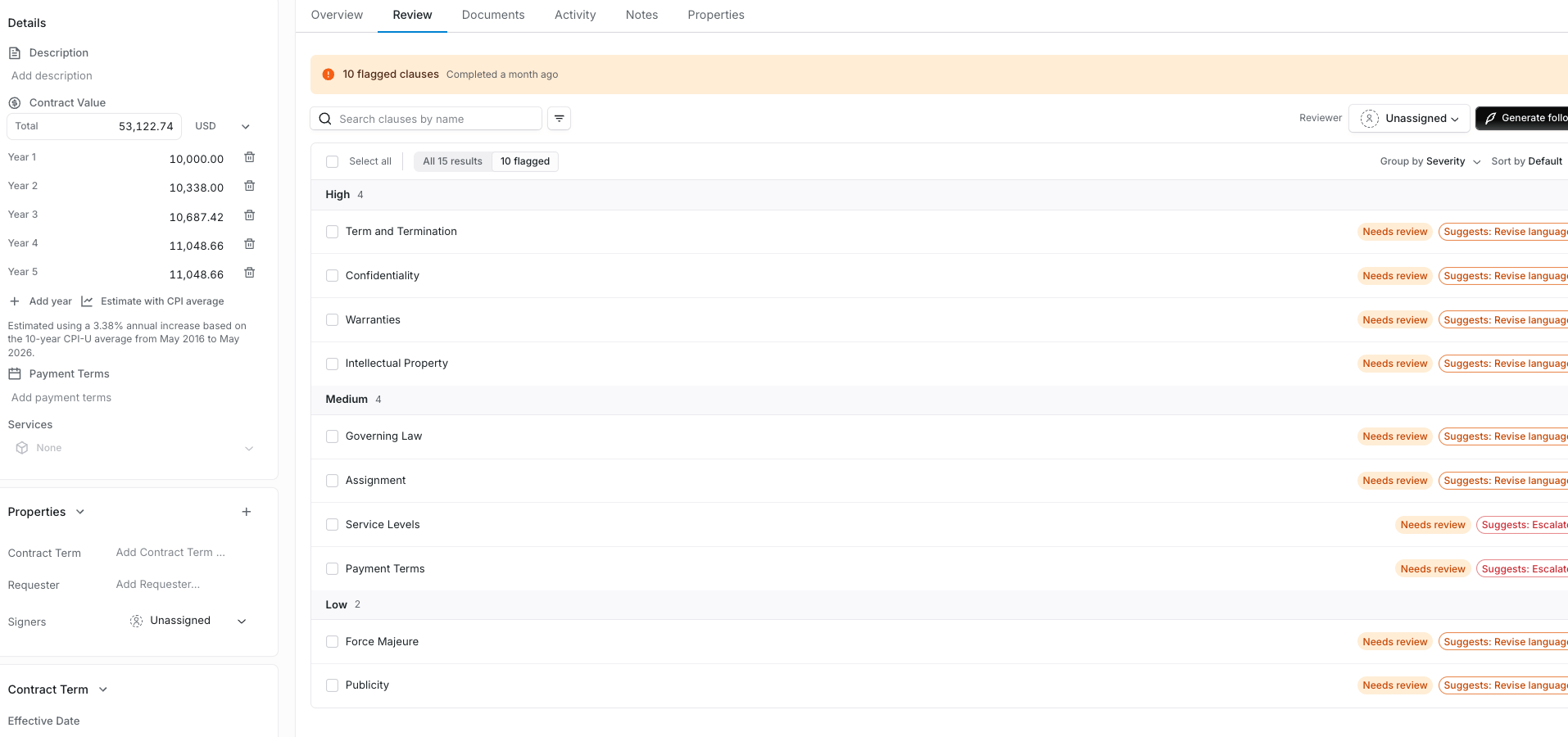 The results list opens on **Flags**: the clauses that came back Non-conforming or Needs review and haven't been triaged yet. Switch to **All** to see everything, including what conformed.
### What each row tells you
| Element | What it means |
| ----------------------- | --------------------------------------------------------------------------- |
| **State** | Conforming, Needs review, Non-conforming, Missing, or Not applicable |
| **Matched variant** | Which of your tiers the vendor's language landed on |
| **Confidence** | How sure the matcher was. Low confidence forces Needs review |
| **Source** | The document and page the language came from |
| **AI analysis** | A few bullets on why it landed where it did |
| **Assessment insights** | A suggested disposition drawn from the vendor's latest completed assessment |
Group by **status**, **severity**, or **confidence**, sort by severity, and search by clause name. On a 40-clause set against a heavily negotiated MSA, grouping by severity and working top-down is the fastest path.
### Assessment insights
When the vendor has a completed assessment, Guardian cross-references the clause against that evidence and suggests a disposition: **No action**, **Revise language**, **Add clause**, or **Escalate**, with citations back into the assessment.
This is where contract risk meets security risk. A weak audit-rights clause matters more when the vendor's assessment already shows control gaps, and less when they hold a clean SOC 2. The suggestion is input for your judgment rather than a verdict, and it sits separately from the clause state for exactly that reason.
### Triage every flag
Triaging **is** the review. Marking a clause removes it from the flagged list while leaving the system's verdict visible, so the record shows both what the AI concluded and what you decided.
Reviewed and fine as written. The most common outcome on Needs-review clauses once a human reads them.
Materially worse than your standard, and you're signing anyway. Record this one carefully: it is your audit trail for a conscious exception.
The matcher got it wrong. Feed these back into the reference clause's guidance so the next review does better.
Escalate to a tracked finding with an owner and a due date. Triage flips to **Action created** automatically, and the finding stays linked to the clauses that produced it.
Select several clauses at once to triage or create a single finding covering all of them, which is the usual move when one negotiation thread touches liability, indemnity, and insurance together.
### Draft the follow-up
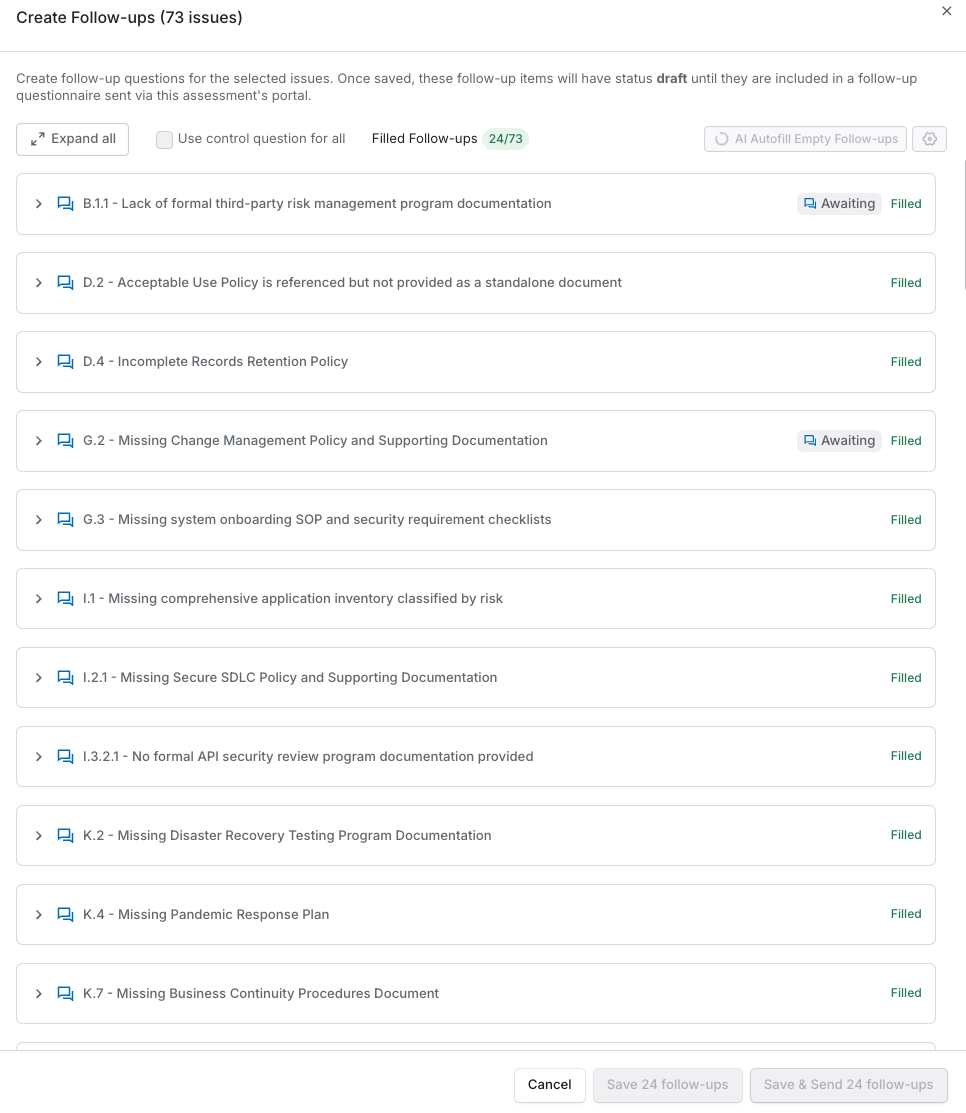
Select the clauses you want to push back on and choose **Generate follow-up draft**. Guardian writes an outbound message built from those specific deviations, quoting your standard and the vendor's language.
Nothing sends. Copy the draft into your own email or escalate it to a finding. It exists to save you the twenty minutes of writing "as discussed, our standard position on limitation of liability is…" for the fourth time this month.
The results list opens on **Flags**: the clauses that came back Non-conforming or Needs review and haven't been triaged yet. Switch to **All** to see everything, including what conformed.
### What each row tells you
| Element | What it means |
| ----------------------- | --------------------------------------------------------------------------- |
| **State** | Conforming, Needs review, Non-conforming, Missing, or Not applicable |
| **Matched variant** | Which of your tiers the vendor's language landed on |
| **Confidence** | How sure the matcher was. Low confidence forces Needs review |
| **Source** | The document and page the language came from |
| **AI analysis** | A few bullets on why it landed where it did |
| **Assessment insights** | A suggested disposition drawn from the vendor's latest completed assessment |
Group by **status**, **severity**, or **confidence**, sort by severity, and search by clause name. On a 40-clause set against a heavily negotiated MSA, grouping by severity and working top-down is the fastest path.
### Assessment insights
When the vendor has a completed assessment, Guardian cross-references the clause against that evidence and suggests a disposition: **No action**, **Revise language**, **Add clause**, or **Escalate**, with citations back into the assessment.
This is where contract risk meets security risk. A weak audit-rights clause matters more when the vendor's assessment already shows control gaps, and less when they hold a clean SOC 2. The suggestion is input for your judgment rather than a verdict, and it sits separately from the clause state for exactly that reason.
### Triage every flag
Triaging **is** the review. Marking a clause removes it from the flagged list while leaving the system's verdict visible, so the record shows both what the AI concluded and what you decided.
Reviewed and fine as written. The most common outcome on Needs-review clauses once a human reads them.
Materially worse than your standard, and you're signing anyway. Record this one carefully: it is your audit trail for a conscious exception.
The matcher got it wrong. Feed these back into the reference clause's guidance so the next review does better.
Escalate to a tracked finding with an owner and a due date. Triage flips to **Action created** automatically, and the finding stays linked to the clauses that produced it.
Select several clauses at once to triage or create a single finding covering all of them, which is the usual move when one negotiation thread touches liability, indemnity, and insurance together.
### Draft the follow-up
Select the clauses you want to push back on and choose **Generate follow-up draft**. Guardian writes an outbound message built from those specific deviations, quoting your standard and the vendor's language.
Nothing sends. Copy the draft into your own email or escalate it to a finding. It exists to save you the twenty minutes of writing "as discussed, our standard position on limitation of liability is…" for the fourth time this month.
 ***
## Step 8: Iterate
Your first review is a draft of your playbook, not a verdict on the vendor.
Almost always missing middle tiers. If your clauses only have Tier 1 and Tier 5, everything realistic lands in between and gets escalated. Add Tier 3 fallback language for the clauses generating the most noise.
Either the component scope is wrong (the clause is scoped to DPA but the language lives in the MSA), or the guidance doesn't name the alias the vendor used. Fix the guidance first; it's the cheaper change.
Usually a text-quality problem. Scanned or image-only PDFs give the matcher little to work with. Re-upload text-based versions where you can.
Reviews don't re-run themselves when you edit a clause set or add a document. Use **Rerun** from the run actions menu on the Review tab. The rerun snapshots your current clause set.
Editing a reference clause creates a new version and marks it current. Older reviews still show the version they ran against, and you can open a clause's version history at any time. Edit freely; you're not destroying the record.
Track your false-positive triages for the first month. Each one points at a specific reference clause whose guidance or variants need work, and fixing them is what takes a clause set from "interesting" to "trusted".
***
## A workable rollout
Copy the **SaaS Vendor Risk Clause Set** from the library. Run it against three executed contracts you already know well. Compare Guardian's verdicts to your own and note every disagreement.
Fix the five clauses that produced the most disagreement: add fallback tiers, sharpen guidance, correct component scope. Ignore the clauses that already work.
Upload your template MSA as a baseline contract to generate a second clause set reflecting your actual standard, then merge the best of both into the set you'll run day to day.
Start assigning reviewers on new contracts so reviews land in work queues, and make triage the definition of done for legal review.
## What's next
The field-extraction half: what to define, and when to use Extract vs Synthesize.
How contracts fit into the wider assessment and findings workflow.
***
## Step 8: Iterate
Your first review is a draft of your playbook, not a verdict on the vendor.
Almost always missing middle tiers. If your clauses only have Tier 1 and Tier 5, everything realistic lands in between and gets escalated. Add Tier 3 fallback language for the clauses generating the most noise.
Either the component scope is wrong (the clause is scoped to DPA but the language lives in the MSA), or the guidance doesn't name the alias the vendor used. Fix the guidance first; it's the cheaper change.
Usually a text-quality problem. Scanned or image-only PDFs give the matcher little to work with. Re-upload text-based versions where you can.
Reviews don't re-run themselves when you edit a clause set or add a document. Use **Rerun** from the run actions menu on the Review tab. The rerun snapshots your current clause set.
Editing a reference clause creates a new version and marks it current. Older reviews still show the version they ran against, and you can open a clause's version history at any time. Edit freely; you're not destroying the record.
Track your false-positive triages for the first month. Each one points at a specific reference clause whose guidance or variants need work, and fixing them is what takes a clause set from "interesting" to "trusted".
***
## A workable rollout
Copy the **SaaS Vendor Risk Clause Set** from the library. Run it against three executed contracts you already know well. Compare Guardian's verdicts to your own and note every disagreement.
Fix the five clauses that produced the most disagreement: add fallback tiers, sharpen guidance, correct component scope. Ignore the clauses that already work.
Upload your template MSA as a baseline contract to generate a second clause set reflecting your actual standard, then merge the best of both into the set you'll run day to day.
Start assigning reviewers on new contracts so reviews land in work queues, and make triage the definition of done for legal review.
## What's next
The field-extraction half: what to define, and when to use Extract vs Synthesize.
How contracts fit into the wider assessment and findings workflow.