> ## Documentation Index
> Fetch the complete documentation index at: https://docs.coverbase.com/llms.txt
> Use this file to discover all available pages before exploring further.
# Contract intake and approval
> Raise a contract request from a vendor, confirm what the AI read off the draft, route it through your approval chain, and send the approved agreement to DocuSign.
For AI agents: a documentation index is available at [https://docs.coverbase.com/llms.txt](https://docs.coverbase.com/llms.txt). This page is also available in markdown by appending .md to the URL.
This guide is part of the [User Guides](/user-guides/overview) collection. It covers a contract from the first request to the filing of the signed copy. For the screens you work in afterwards, see the [Contracts workspace guide](/user-guides/contracts-workspace). For the DocuSign connection itself, see the [DocuSign integration guide](/integrations/guides/docusign).
A new contract goes through four stages: somebody raises a request, a person confirms the values read off the draft, the request walks an approval chain, and the approved agreement goes out for signature. Each stage has its own screen, and a contract cannot skip one.
**Contracts that predate this flow are unaffected.** Every historical and bulk-imported contract sits in **Draft** and stays there. Nothing about a draft implies it is unsigned. If you are migrating a back catalog, keep using [bulk import](/import); it does not route anything through approvals.
## The four stages
From the vendor's **Contracts** tab, click **New Contract**. Fill in what you know and attach the draft agreement.
Coverbase reads the draft and fills in what it can. Open the contract's **Approval** section and confirm the values are right. The request cannot proceed until somebody does.
The request enters the approval chain your organization configured. Each approver is emailed in turn and records a decision.
Once the chain clears, the contract's **Execution** section offers **Send to DocuSign**. The signed copy comes back and is filed on the same contract.
## Raising a request
Start from the vendor, not the contracts list. The vendor's **Contracts** tab already knows which vendor you mean, and it shows what else you hold with them. That is usually what tells you whether this is a new agreement or an amendment.
Click **New Contract** and fill in:
| Field | What it is |
| ---------------------------- | --------------------------------------------------------------------------------------- |
| **Title** | What people will call this agreement. |
| **Contract type** | MSA, SOW, order form, amendment, NDA, DPA, and the rest. |
| **Total value** | What the agreement is worth. Enter the committed floor separately if it bills on usage. |
| **Start and end dates** | When it takes effect and when it lapses. |
| **Renewal and notice dates** | When it renews, and the last day to give notice if you do not want it to. |
| **Parent agreement** | The governing paper: an order form's MSA, an amendment's master. |
Attach the pre-execution draft on the same screen. You can attach more documents later from the contract's **Documents** section.
**Name the parent agreement now, not later.** An order form with no MSA behind it reads as a standalone commitment in every report that follows.
### Starting a draft nobody is told about
Most requests are raised from a document you already have in front of you, and you can fill the record in one sitting. Some are not. When you are raising the record before the terms are settled, tick **Hold for intake review** on the create form.
 While the hold is on:
* **No approver is emailed.** Approval routing is what puts this record in front of other people, and it cannot start.
* **It cannot be submitted for approval.** The attempt is refused, not merely hidden, so the hold cannot be worked around by a direct link.
* **You can still edit everything.** That is the point: finish entering the terms, attach the draft, fix the dates.
A banner at the top of the contract says it is held. Click **Release for routing** when the record is ready to be looked at. Approval routing is then available in the normal way, and the release is recorded in the contract's activity trail with who did it.
**Releasing says the record is ready to read, not that it is approved.** It is a separate statement from confirming the metadata, which still happens afterwards. Any colleague who can edit contracts can release the hold, so a request does not stall when the person who raised it is away.
A held contract still shows in the contracts list. Filter on **Held For Intake Review** is `Yes` to find drafts that have been sitting unreleased.
## Confirming the metadata
Coverbase analyzes the attached draft and fills in the values it can read: dates, amounts, notice periods, term length. Scanned PDFs are put through OCR first, so a photographed signature page is read the same as a native one.
**Everything the AI writes is a draft value.** It is never treated as confirmed, and a contract whose values nobody has confirmed cannot be submitted for approval.
Open the contract and go to its **Approval** section. The **Metadata sign-off** card shows:
* Which required values are still empty. The card lists them by name, and submission stays blocked until each has a value.
* Whether anybody has confirmed the set, and who.
While the hold is on:
* **No approver is emailed.** Approval routing is what puts this record in front of other people, and it cannot start.
* **It cannot be submitted for approval.** The attempt is refused, not merely hidden, so the hold cannot be worked around by a direct link.
* **You can still edit everything.** That is the point: finish entering the terms, attach the draft, fix the dates.
A banner at the top of the contract says it is held. Click **Release for routing** when the record is ready to be looked at. Approval routing is then available in the normal way, and the release is recorded in the contract's activity trail with who did it.
**Releasing says the record is ready to read, not that it is approved.** It is a separate statement from confirming the metadata, which still happens afterwards. Any colleague who can edit contracts can release the hold, so a request does not stall when the person who raised it is away.
A held contract still shows in the contracts list. Filter on **Held For Intake Review** is `Yes` to find drafts that have been sitting unreleased.
## Confirming the metadata
Coverbase analyzes the attached draft and fills in the values it can read: dates, amounts, notice periods, term length. Scanned PDFs are put through OCR first, so a photographed signature page is read the same as a native one.
**Everything the AI writes is a draft value.** It is never treated as confirmed, and a contract whose values nobody has confirmed cannot be submitted for approval.
Open the contract and go to its **Approval** section. The **Metadata sign-off** card shows:
* Which required values are still empty. The card lists them by name, and submission stays blocked until each has a value.
* Whether anybody has confirmed the set, and who.
 Fix anything that is wrong, then click **Confirm metadata**. Coverbase records who confirmed it and when.
**Editing a confirmed value clears the sign-off.** If you change the total value, the dates, the type, or the vendor after confirming, the confirmation is withdrawn and somebody has to confirm again. Approvers decide on the values they were shown, so a request that changed after the sign-off has to be confirmed again.
### Where a value came from
Each field records whether it was entered by a person or suggested by the AI. The contract's **Properties** section shows the source per field. A reviewer can see which numbers a person typed and which came off the paper.
## The approval chain
### Setting up policies
Approval policies live under **Settings → Organization → Contract Approvals**. Reading them needs permission to read organization settings, and editing them needs permission to change organization settings. Being able to read contracts is not enough for either: the list names every approver and every value threshold in your organization, and it is not tied to any one contract.
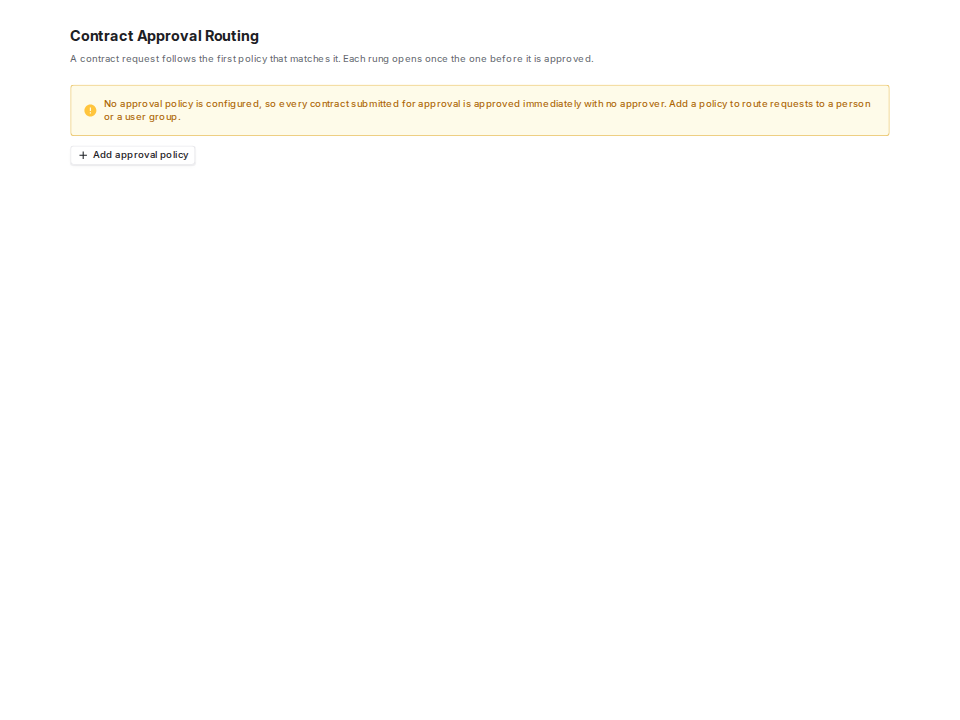
Until there is at least one policy, the page says so, and every contract submitted for approval is approved on the spot with no approver.
Fix anything that is wrong, then click **Confirm metadata**. Coverbase records who confirmed it and when.
**Editing a confirmed value clears the sign-off.** If you change the total value, the dates, the type, or the vendor after confirming, the confirmation is withdrawn and somebody has to confirm again. Approvers decide on the values they were shown, so a request that changed after the sign-off has to be confirmed again.
### Where a value came from
Each field records whether it was entered by a person or suggested by the AI. The contract's **Properties** section shows the source per field. A reviewer can see which numbers a person typed and which came off the paper.
## The approval chain
### Setting up policies
Approval policies live under **Settings → Organization → Contract Approvals**. Reading them needs permission to read organization settings, and editing them needs permission to change organization settings. Being able to read contracts is not enough for either: the list names every approver and every value threshold in your organization, and it is not tied to any one contract.
Until there is at least one policy, the page says so, and every contract submitted for approval is approved on the spot with no approver.
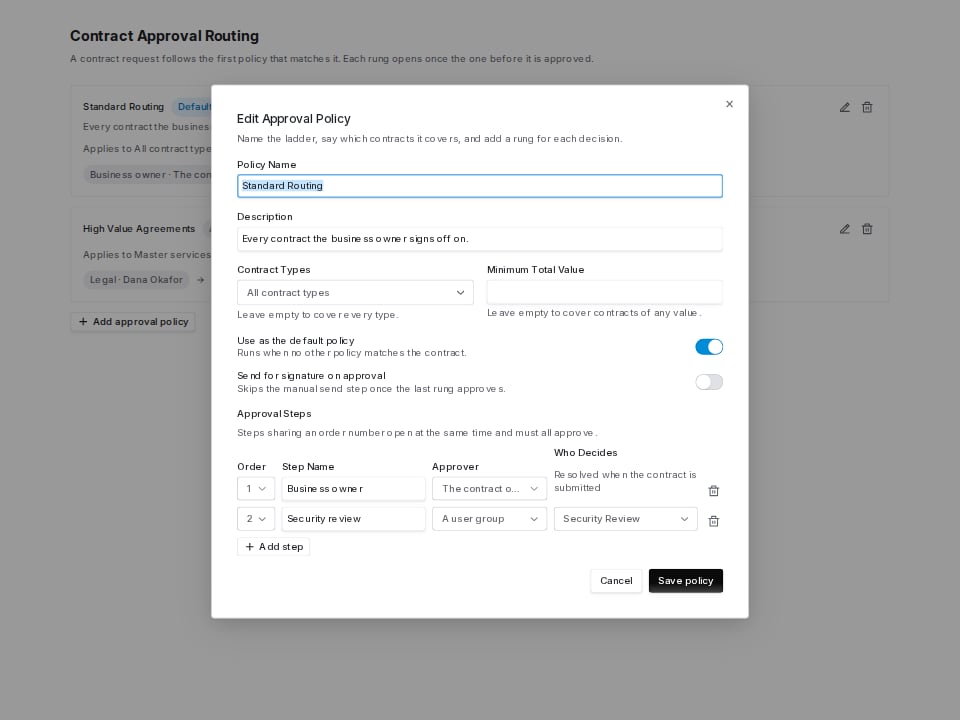
 **Add approval policy** opens the editor. Give it a name, say which contracts it covers, and add a row for each decision.
| Field | What it does |
| ---------------------------------- | ---------------------------------------------------------------------------------------------------------------------------- |
| **Contract types** | Only applies to the types listed. Empty covers every type. |
| **Minimum total value** | Only applies at or above this amount. Empty covers any value. |
| **Use as the default policy** | Runs when no other policy matches. |
| **Send for signature on approval** | Sends the agreement out automatically once the last approver signs off. See [Sending automatically](#sending-automatically). |
| **Approval steps** | One row per decision: the order number, a name, and who decides. |
**Add approval policy** opens the editor. Give it a name, say which contracts it covers, and add a row for each decision.
| Field | What it does |
| ---------------------------------- | ---------------------------------------------------------------------------------------------------------------------------- |
| **Contract types** | Only applies to the types listed. Empty covers every type. |
| **Minimum total value** | Only applies at or above this amount. Empty covers any value. |
| **Use as the default policy** | Runs when no other policy matches. |
| **Send for signature on approval** | Sends the agreement out automatically once the last approver signs off. See [Sending automatically](#sending-automatically). |
| **Approval steps** | One row per decision: the order number, a name, and who decides. |
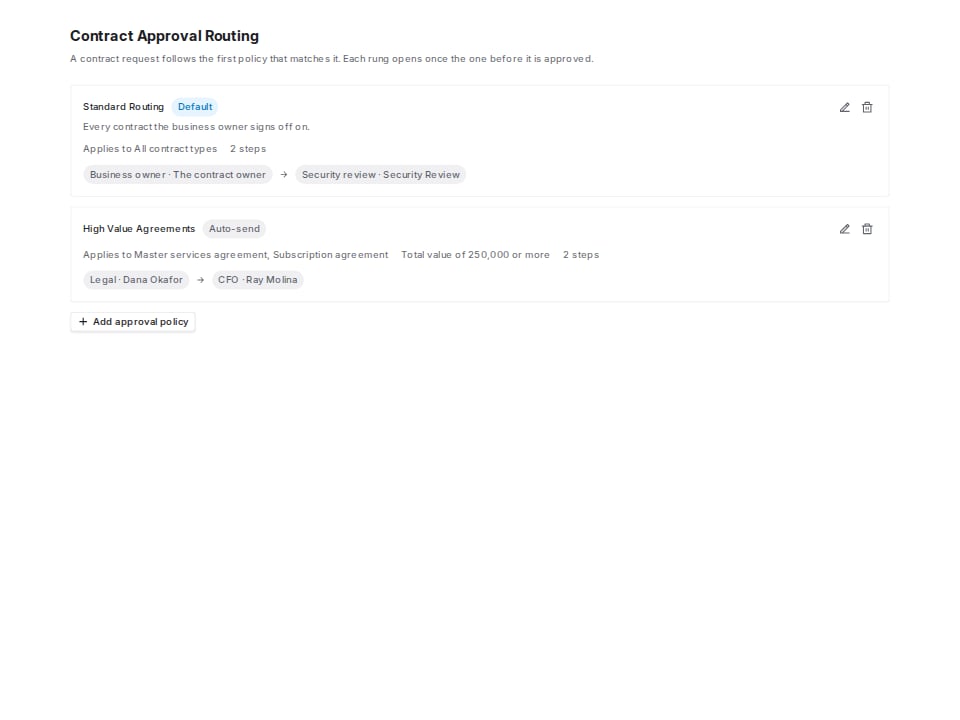
 Saved policies read back as a ladder, which shows the order a contract will go through.
 **Editing a policy does not change an approval already running.** A contract copies each step's name and approver when it is submitted. Changing the policy afterwards does not change a decision already recorded.
### How a chain is chosen
Your organization configures approval policies. Each policy has conditions and an ordered list of steps.
When you submit, Coverbase picks the policy that fits, most specific first: a policy naming your contract's type beats one that names none, and among equals the higher value floor wins. **Default** breaks whatever tie is left.
You cannot choose the policy yourself. Submission takes no arguments, and the conditions above are the only thing that decides. Otherwise a requester could pick the shortest chain.
### How steps work
Each step names who decides:
* **A named person.** That user, and nobody else.
* **A user group.** Any active member of the group may decide, and Coverbase records which one did.
* **The contract owner** or **the vendor owner.** Resolved when you submit, from whoever holds that role at that moment.
Steps are numbered. **Steps sharing a number decide together**, and the chain does not advance until all of them have. Increasing numbers run one after another.
Two steps sharing a number cannot name the same approver, and the editor refuses to save that. One person clearing both would count as two approvals while being one decision. This applies to user groups too: the same group twice at one number is refused, though two different groups at one number is fine and is the normal way to ask legal and security together.
**Every policy needs at least one step.** A policy that matches contracts and then approves all of them has the same effect as no policy, while looking in settings like routing is configured. The editor will not save one.
**A step that resolves to nobody refuses the whole submission.** Coverbase does not skip the step and run the rest, because a chain missing a rung still reports itself as approved. Two ways a step reaches nobody:
* The policy asks for the contract owner or the vendor owner, and there is none.
* The policy names a user group that has no active members. An empty group would open a step that nobody can approve and that sends no mail, leaving the request stuck until somebody withdrew it.
The refusal names the step it could not fill. Give the contract an owner, add somebody to the group, or point the policy at approvers it can reach, then submit again.
A contract submitted when your org has configured no policy at all is approved immediately, and its Approval section says so rather than showing a bare **Approved** badge. If that is not what you expect, configure a policy.
### Submitting
From the **Approval** section, click **Submit for approval**. The button appears only when the metadata is confirmed and no required value is empty.
Coverbase emails the approvers on the first step. Later steps are emailed as the chain reaches them, so nobody is asked before it is their turn.
### Deciding
An approver opens the contract's **Approval** section and sees **Approve** and **Reject** on the step waiting on them. The buttons appear only for the person being asked, so an approver who is not on this step sees the chain but no controls.
**Approving does not require permission to edit the contract.** An approver is frequently somebody who would never otherwise edit a contract record, such as a finance reviewer signing off on spend. Being named on the step is what authorizes the decision.
**Editing a policy does not change an approval already running.** A contract copies each step's name and approver when it is submitted. Changing the policy afterwards does not change a decision already recorded.
### How a chain is chosen
Your organization configures approval policies. Each policy has conditions and an ordered list of steps.
When you submit, Coverbase picks the policy that fits, most specific first: a policy naming your contract's type beats one that names none, and among equals the higher value floor wins. **Default** breaks whatever tie is left.
You cannot choose the policy yourself. Submission takes no arguments, and the conditions above are the only thing that decides. Otherwise a requester could pick the shortest chain.
### How steps work
Each step names who decides:
* **A named person.** That user, and nobody else.
* **A user group.** Any active member of the group may decide, and Coverbase records which one did.
* **The contract owner** or **the vendor owner.** Resolved when you submit, from whoever holds that role at that moment.
Steps are numbered. **Steps sharing a number decide together**, and the chain does not advance until all of them have. Increasing numbers run one after another.
Two steps sharing a number cannot name the same approver, and the editor refuses to save that. One person clearing both would count as two approvals while being one decision. This applies to user groups too: the same group twice at one number is refused, though two different groups at one number is fine and is the normal way to ask legal and security together.
**Every policy needs at least one step.** A policy that matches contracts and then approves all of them has the same effect as no policy, while looking in settings like routing is configured. The editor will not save one.
**A step that resolves to nobody refuses the whole submission.** Coverbase does not skip the step and run the rest, because a chain missing a rung still reports itself as approved. Two ways a step reaches nobody:
* The policy asks for the contract owner or the vendor owner, and there is none.
* The policy names a user group that has no active members. An empty group would open a step that nobody can approve and that sends no mail, leaving the request stuck until somebody withdrew it.
The refusal names the step it could not fill. Give the contract an owner, add somebody to the group, or point the policy at approvers it can reach, then submit again.
A contract submitted when your org has configured no policy at all is approved immediately, and its Approval section says so rather than showing a bare **Approved** badge. If that is not what you expect, configure a policy.
### Submitting
From the **Approval** section, click **Submit for approval**. The button appears only when the metadata is confirmed and no required value is empty.
Coverbase emails the approvers on the first step. Later steps are emailed as the chain reaches them, so nobody is asked before it is their turn.
### Deciding
An approver opens the contract's **Approval** section and sees **Approve** and **Reject** on the step waiting on them. The buttons appear only for the person being asked, so an approver who is not on this step sees the chain but no controls.
**Approving does not require permission to edit the contract.** An approver is frequently somebody who would never otherwise edit a contract record, such as a finance reviewer signing off on spend. Being named on the step is what authorizes the decision.
 A comment can go with either decision and is shown on the step afterwards.
**A rejection ends the round.** Every step after it is canceled rather than left open, and the requester is emailed with the reviewer's comment. Fix what was raised, confirm the metadata again, and submit. That starts a new round; the previous round's decisions stay readable.
### Withdrawing
The requester can click **Withdraw** while a request is in approval. The open steps are canceled and the contract returns to draft.
## Who gets emailed
| Event | Who hears about it |
| ---------------- | ----------------------------------------------------------------------- |
| A step opens | The person or group that step is waiting on, and only them. |
| The chain clears | The requester, the contract owners, and the watchers. |
| A step rejects | The requester, the contract owners, and the watchers, with the comment. |
Date-based reminders, such as an approaching expiry or notice deadline, are configured separately. See [Contract dates and reminders](/user-guides/contract-dates-and-reminders).
## Sending for signature
Once the chain clears, the contract's **Execution** section offers **Send to DocuSign**. Before then the button is disabled and the section says why.
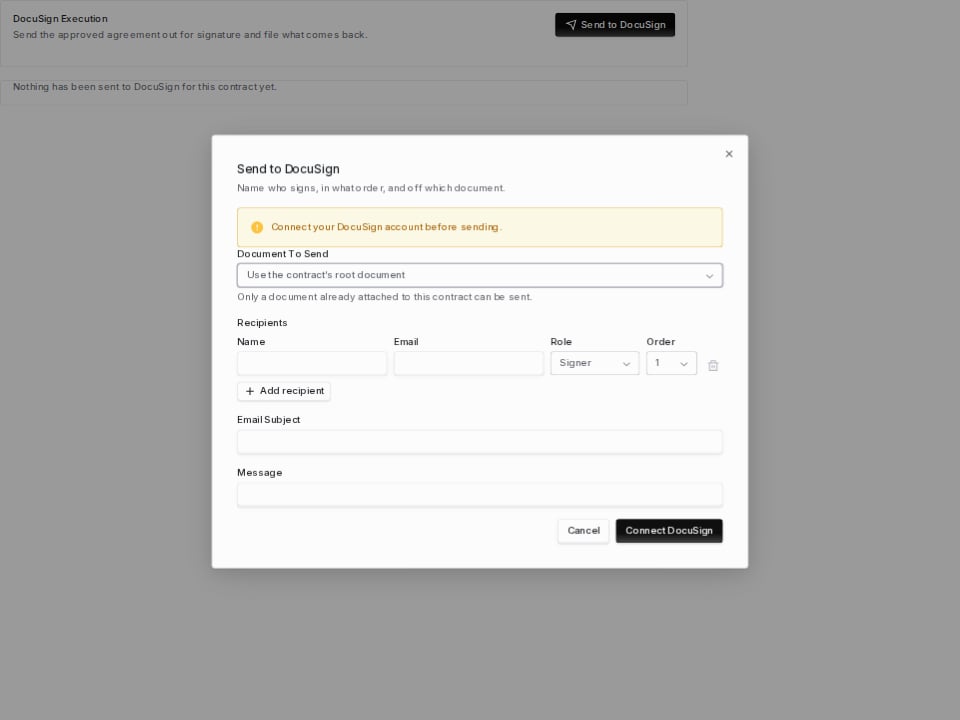
You need a connected DocuSign account. See [connecting DocuSign](/integrations/guides/docusign#connecting-your-account) if you have not done that.
On **Send to DocuSign** you choose:
* **The document to send.** Only a document already attached to this contract can be sent. This is the approved draft, not a fresh upload.
* **Recipients**, each with a name, an email, a role, and an order.
* **Subject and message** for the DocuSign email.
A comment can go with either decision and is shown on the step afterwards.
**A rejection ends the round.** Every step after it is canceled rather than left open, and the requester is emailed with the reviewer's comment. Fix what was raised, confirm the metadata again, and submit. That starts a new round; the previous round's decisions stay readable.
### Withdrawing
The requester can click **Withdraw** while a request is in approval. The open steps are canceled and the contract returns to draft.
## Who gets emailed
| Event | Who hears about it |
| ---------------- | ----------------------------------------------------------------------- |
| A step opens | The person or group that step is waiting on, and only them. |
| The chain clears | The requester, the contract owners, and the watchers. |
| A step rejects | The requester, the contract owners, and the watchers, with the comment. |
Date-based reminders, such as an approaching expiry or notice deadline, are configured separately. See [Contract dates and reminders](/user-guides/contract-dates-and-reminders).
## Sending for signature
Once the chain clears, the contract's **Execution** section offers **Send to DocuSign**. Before then the button is disabled and the section says why.
You need a connected DocuSign account. See [connecting DocuSign](/integrations/guides/docusign#connecting-your-account) if you have not done that.
On **Send to DocuSign** you choose:
* **The document to send.** Only a document already attached to this contract can be sent. This is the approved draft, not a fresh upload.
* **Recipients**, each with a name, an email, a role, and an order.
* **Subject and message** for the DocuSign email.
 | Role | What it means |
| ---------- | ------------------------------------- |
| **Signer** | Signs the agreement. |
| **CC** | Receives a copy. Never asked to sign. |
**Order controls routing.** Recipients sharing an order are asked together. Increasing orders are asked one after another, which is how you route the counterparty first and your own signatory second.
Give the vendor signer order `1` and your own authorized signatory order `2`. The envelope reaches your side only once the counterparty has signed.
### Sending automatically
A policy with **Send for signature on approval** sends the agreement as soon as its last approver signs off, with nobody at a screen.
Coverbase needs to know who signs before the approval finishes. While the contract is still moving through its chain, **Execution → Set up automatic send** asks the same questions the Send dialog asks: which document, who signs, in what order, and who is copied.
| Role | What it means |
| ---------- | ------------------------------------- |
| **Signer** | Signs the agreement. |
| **CC** | Receives a copy. Never asked to sign. |
**Order controls routing.** Recipients sharing an order are asked together. Increasing orders are asked one after another, which is how you route the counterparty first and your own signatory second.
Give the vendor signer order `1` and your own authorized signatory order `2`. The envelope reaches your side only once the counterparty has signed.
### Sending automatically
A policy with **Send for signature on approval** sends the agreement as soon as its last approver signs off, with nobody at a screen.
Coverbase needs to know who signs before the approval finishes. While the contract is still moving through its chain, **Execution → Set up automatic send** asks the same questions the Send dialog asks: which document, who signs, in what order, and who is copied.
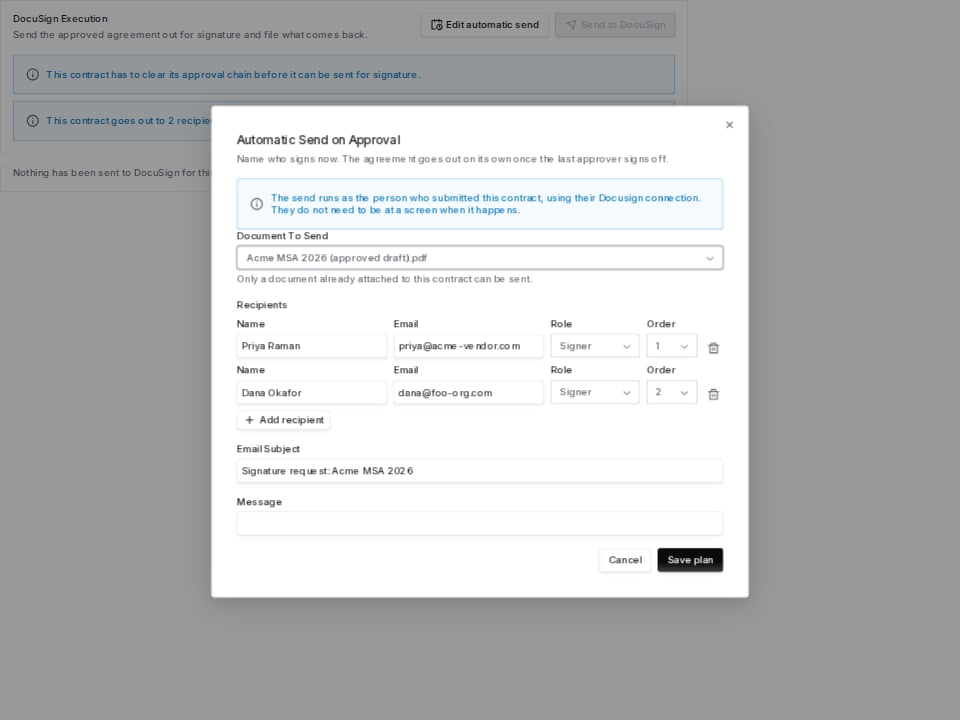 Once it is set up, the Execution section says what is about to happen.
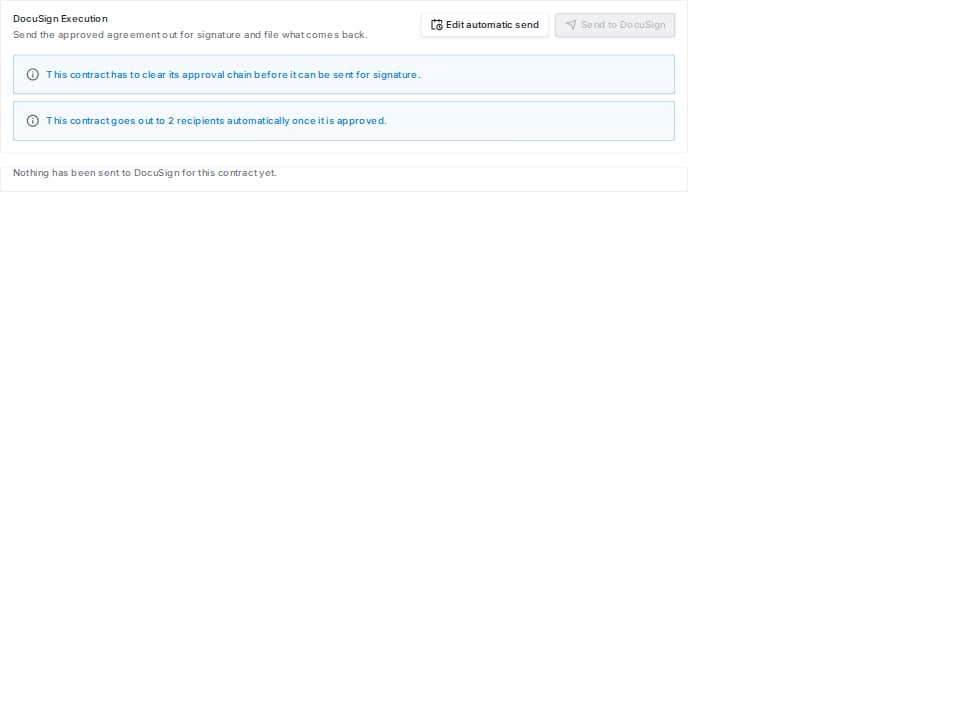 The envelope goes out **as the person who set up the automatic send**, using the DocuSign connection they made. They do not have to be at a screen when it happens, but they do have to have connected: see [Connecting DocuSign](/integrations/guides/docusign).
**Whoever last saved the plan is who it is sent as.** Anybody who can edit the contract can change the recipient list, and doing so also moves the send to their own Docusign account. Nobody can send an agreement under somebody else's name.
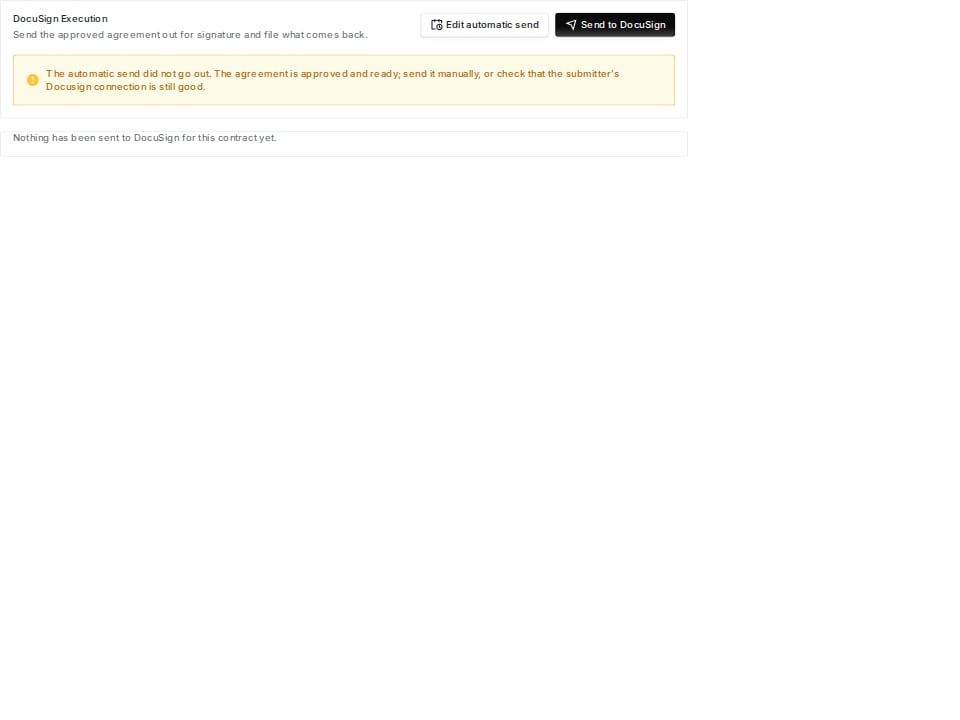
**A send that does not go out never undoes an approval.** If DocuSign is unreachable, or the plan author's connection has lapsed, the contract stays approved and the plan stays on it. The Execution section says the automatic send did not go out, and **Send to DocuSign** remains available to send it by hand. The one exception is a send that got as far as DocuSign and lost its answer, covered under [When a send loses its answer](#when-a-send-loses-its-answer).
The envelope goes out **as the person who set up the automatic send**, using the DocuSign connection they made. They do not have to be at a screen when it happens, but they do have to have connected: see [Connecting DocuSign](/integrations/guides/docusign).
**Whoever last saved the plan is who it is sent as.** Anybody who can edit the contract can change the recipient list, and doing so also moves the send to their own Docusign account. Nobody can send an agreement under somebody else's name.
**A send that does not go out never undoes an approval.** If DocuSign is unreachable, or the plan author's connection has lapsed, the contract stays approved and the plan stays on it. The Execution section says the automatic send did not go out, and **Send to DocuSign** remains available to send it by hand. The one exception is a send that got as far as DocuSign and lost its answer, covered under [When a send loses its answer](#when-a-send-loses-its-answer).
 Clearing the recipient list and saving turns the automatic send back off. You can do that at any point while the contract is still in its chain, and until the send starts.
Once the agreement has gone out, Coverbase refuses the change and tells you the envelope is already with your signers. Turning the plan off at that point would report the send as canceled while a copy sat in front of the counterparty. To stop an envelope that is already out, void it in DocuSign and choose **Sync status**.
### Tracking the envelope
The **Execution** section shows every DocuSign envelope raised on this contract, each recipient's state, and when the status was last read from DocuSign.
| Envelope status | What it means |
| -------------------- | ---------------------------------------------------------------------------------------- |
| **Draft** | Created in Coverbase, not yet accepted by DocuSign. |
| **Sent** | Out with the first routing step. |
| **Delivered** | Everybody in the current step has opened it. Nobody has signed. |
| **Partially signed** | At least one signer has signed, at least one has not. |
| **Completed** | Everybody has signed. |
| **Declined** | A recipient refused. The contract returns to approved. |
| **Voided** | Canceled in DocuSign. The contract returns to approved. |
| **Expired** | DocuSign's own expiry ran out before everybody signed. The contract returns to approved. |
Every ending but **Completed** returns the contract to approved. It is ready to send again without anybody editing a record by hand.
Clearing the recipient list and saving turns the automatic send back off. You can do that at any point while the contract is still in its chain, and until the send starts.
Once the agreement has gone out, Coverbase refuses the change and tells you the envelope is already with your signers. Turning the plan off at that point would report the send as canceled while a copy sat in front of the counterparty. To stop an envelope that is already out, void it in DocuSign and choose **Sync status**.
### Tracking the envelope
The **Execution** section shows every DocuSign envelope raised on this contract, each recipient's state, and when the status was last read from DocuSign.
| Envelope status | What it means |
| -------------------- | ---------------------------------------------------------------------------------------- |
| **Draft** | Created in Coverbase, not yet accepted by DocuSign. |
| **Sent** | Out with the first routing step. |
| **Delivered** | Everybody in the current step has opened it. Nobody has signed. |
| **Partially signed** | At least one signer has signed, at least one has not. |
| **Completed** | Everybody has signed. |
| **Declined** | A recipient refused. The contract returns to approved. |
| **Voided** | Canceled in DocuSign. The contract returns to approved. |
| **Expired** | DocuSign's own expiry ran out before everybody signed. The contract returns to approved. |
Every ending but **Completed** returns the contract to approved. It is ready to send again without anybody editing a record by hand.
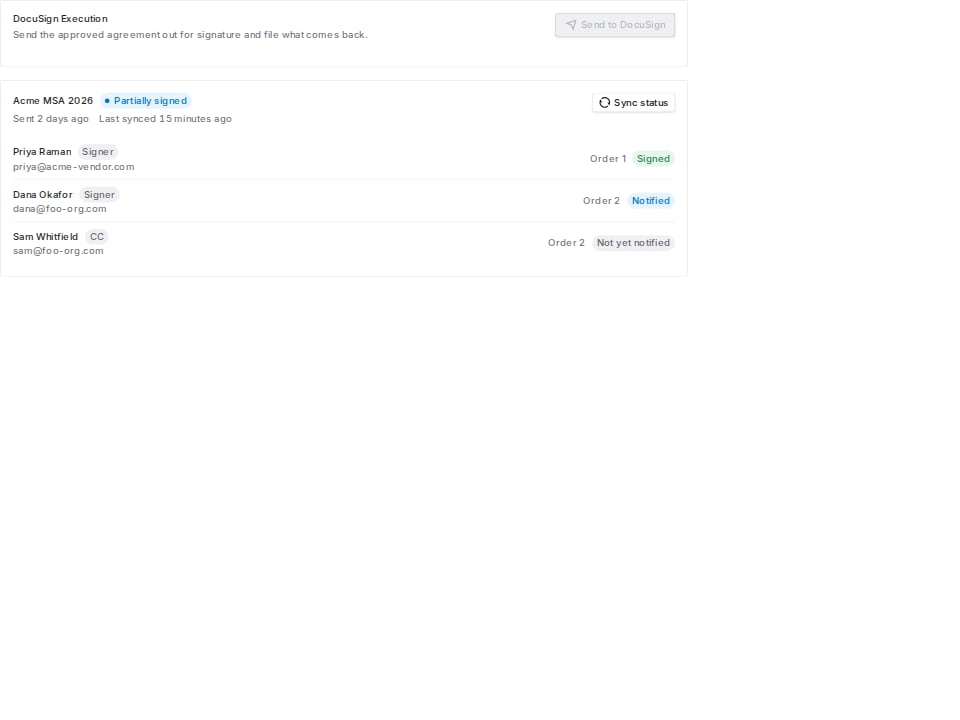 Status arrives on its own. DocuSign notifies Coverbase as the envelope moves, and a scheduled pass re-reads every in-flight envelope in case a notification was missed. **Sync status** on the envelope reads it back immediately, for when you are watching a signature land and do not want to wait.
### When a send loses its answer
Very occasionally a send reaches DocuSign and the reply never comes back. Coverbase cannot tell that apart from DocuSign refusing the send outright, so it assumes the riskier of the two: the envelope may be out there with your signers. The contract is held as sent for signature, the envelope shows as failed, and the Execution section explains what happened instead of offering **Sync status**, which has nothing to ask about.
Status arrives on its own. DocuSign notifies Coverbase as the envelope moves, and a scheduled pass re-reads every in-flight envelope in case a notification was missed. **Sync status** on the envelope reads it back immediately, for when you are watching a signature land and do not want to wait.
### When a send loses its answer
Very occasionally a send reaches DocuSign and the reply never comes back. Coverbase cannot tell that apart from DocuSign refusing the send outright, so it assumes the riskier of the two: the envelope may be out there with your signers. The contract is held as sent for signature, the envelope shows as failed, and the Execution section explains what happened instead of offering **Sync status**, which has nothing to ask about.
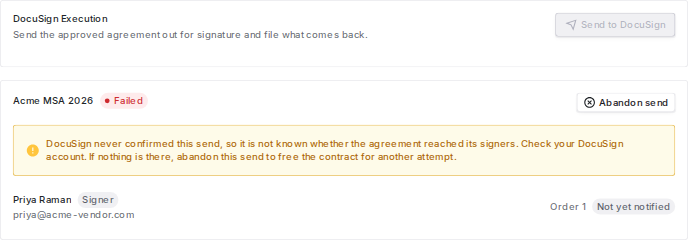 Only a person can settle it. Open DocuSign and look for the envelope:
Choose **Abandon send** on the envelope. The contract returns to approved and can be sent again. The button appears once: an envelope that has already been abandoned shows no action, so a second click cannot free a contract whose retry is out with its signers.
Leave it. It is a real envelope and it will report its own status. If you do not want it signed, void it in DocuSign and choose **Sync status** so Coverbase picks the void up, which returns the contract to approved.
**Do not abandon an envelope you can still see in DocuSign.** Abandoning says the agreement never went out. Doing that while a copy sits in front of your signers frees the contract for a second send, and you end up with two signed copies of one agreement. Coverbase refuses **Abandon send** on any envelope DocuSign acknowledged.
### The executed copy
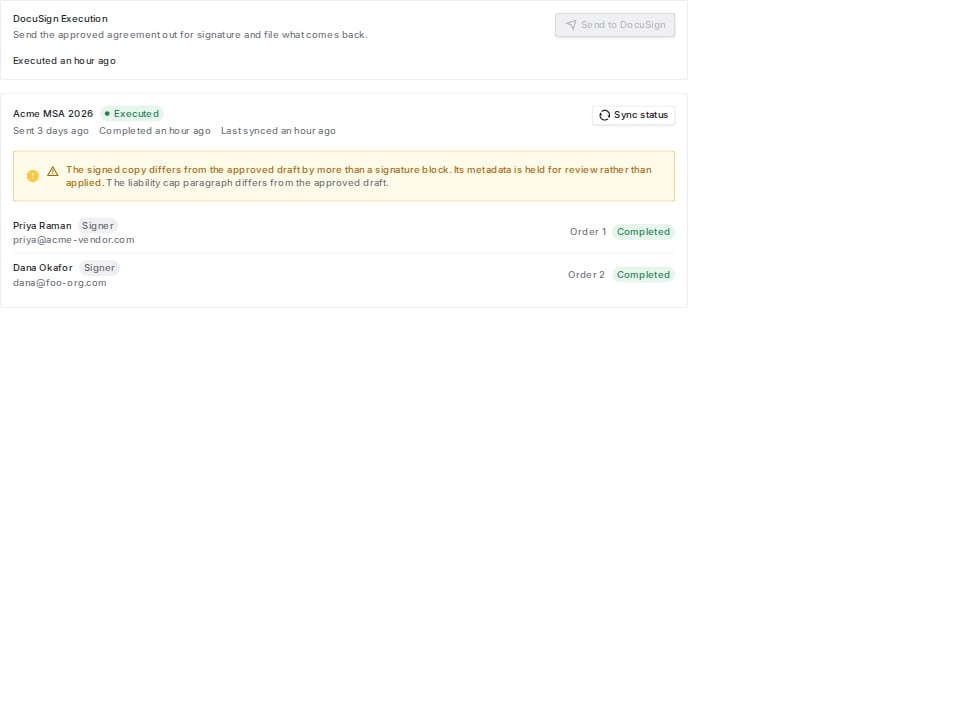
When an envelope completes, Coverbase downloads the signed PDF and the DocuSign certificate of completion and attaches both to the contract. The unsigned draft is kept rather than replaced. The record still shows what was sent out.
**A signed copy that differs from the approved draft is flagged, not applied.** Coverbase compares the returned text with the draft the approvers read, and the envelope is marked for review whenever either check fires: the paper grew or shrank by more than a signature block can account for, or a figure the draft stated no longer appears anywhere in the signed copy. The second check catches a term rewritten in place: net 30 becoming net 90 does not change the length, so only the missing figure reveals it. When an envelope is flagged the contract's metadata is left alone and somebody has to look at it.
Only a person can settle it. Open DocuSign and look for the envelope:
Choose **Abandon send** on the envelope. The contract returns to approved and can be sent again. The button appears once: an envelope that has already been abandoned shows no action, so a second click cannot free a contract whose retry is out with its signers.
Leave it. It is a real envelope and it will report its own status. If you do not want it signed, void it in DocuSign and choose **Sync status** so Coverbase picks the void up, which returns the contract to approved.
**Do not abandon an envelope you can still see in DocuSign.** Abandoning says the agreement never went out. Doing that while a copy sits in front of your signers frees the contract for a second send, and you end up with two signed copies of one agreement. Coverbase refuses **Abandon send** on any envelope DocuSign acknowledged.
### The executed copy
When an envelope completes, Coverbase downloads the signed PDF and the DocuSign certificate of completion and attaches both to the contract. The unsigned draft is kept rather than replaced. The record still shows what was sent out.
**A signed copy that differs from the approved draft is flagged, not applied.** Coverbase compares the returned text with the draft the approvers read, and the envelope is marked for review whenever either check fires: the paper grew or shrank by more than a signature block can account for, or a figure the draft stated no longer appears anywhere in the signed copy. The second check catches a term rewritten in place: net 30 becoming net 90 does not change the length, so only the missing figure reveals it. When an envelope is flagged the contract's metadata is left alone and somebody has to look at it.
 Everything is recorded on the contract's **Activity** section: the submission, each review and decision, the comments, the status changes, the send, and the filing of the executed copy.
## The vendor's contract overview
The vendor's **Contracts** tab shows every contract you hold with that vendor in one list, with the title, type, status, value, dates, renewal, notice deadline, owner, and the parent agreement.
Above the list:
* **Committed value** across active contracts. Contracts that bill on usage are counted at their committed floor and reported separately, because a usage forecast added to signed commitments would give a total that is part estimate.
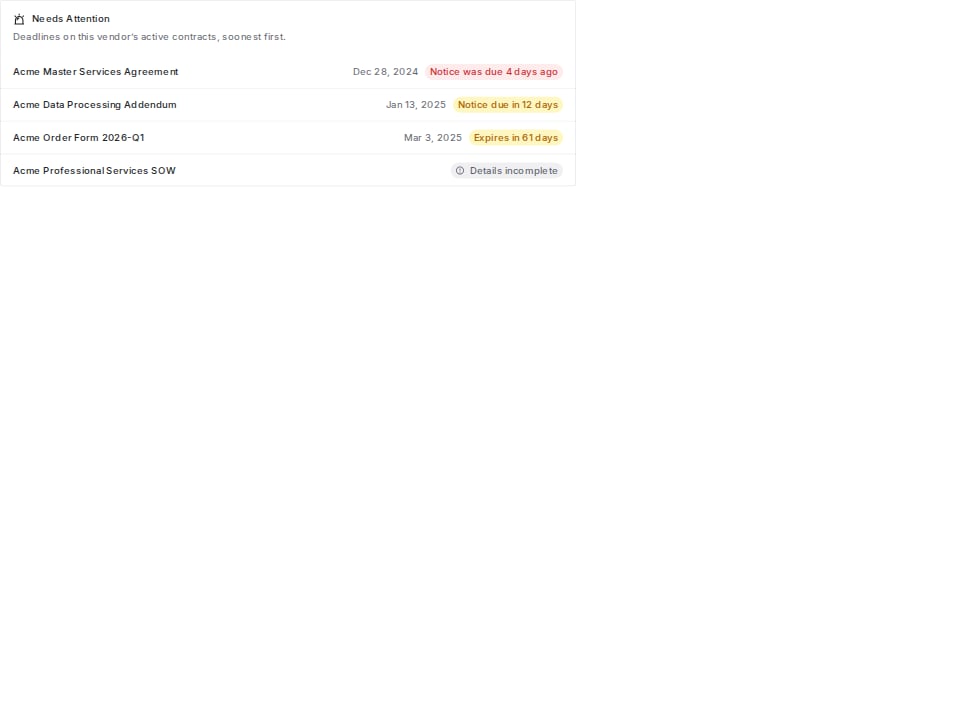
* **Needs attention.** Contracts with a notice deadline or expiry inside the next ninety days, soonest first, plus any whose required details are still incomplete. An overdue notice deadline is shown in red and stays in the list.
Everything is recorded on the contract's **Activity** section: the submission, each review and decision, the comments, the status changes, the send, and the filing of the executed copy.
## The vendor's contract overview
The vendor's **Contracts** tab shows every contract you hold with that vendor in one list, with the title, type, status, value, dates, renewal, notice deadline, owner, and the parent agreement.
Above the list:
* **Committed value** across active contracts. Contracts that bill on usage are counted at their committed floor and reported separately, because a usage forecast added to signed commitments would give a total that is part estimate.
* **Needs attention.** Contracts with a notice deadline or expiry inside the next ninety days, soonest first, plus any whose required details are still incomplete. An overdue notice deadline is shown in red and stays in the list.
 The **Actions** menu exports the vendor's contract list to Excel. The export respects the filters and columns you are looking at.
## Related
Connecting your account, anchor tags, and what lives in your DocuSign tenant.
The list page and the contract record you work in afterwards.
Notice windows, renewal deadlines, and who gets reminded.
How approvals work elsewhere in Coverbase.
The **Actions** menu exports the vendor's contract list to Excel. The export respects the filters and columns you are looking at.
## Related
Connecting your account, anchor tags, and what lives in your DocuSign tenant.
The list page and the contract record you work in afterwards.
Notice windows, renewal deadlines, and who gets reminded.
How approvals work elsewhere in Coverbase.