> ## Documentation Index
> Fetch the complete documentation index at: https://docs.coverbase.com/llms.txt
> Use this file to discover all available pages before exploring further.
# Contracts workspace
> How to read the contracts list page and the contract record: the key statistics row, the renewal runway, and the cards on a contract.
For AI agents: a documentation index is available at [https://docs.coverbase.com/llms.txt](https://docs.coverbase.com/llms.txt). This page is also available in markdown by appending .md to the URL.
This guide is part of the [User Guides](/user-guides/overview) collection. It covers the screens you work in every day. For what Coverbase reads each document into, see the [Contract components guide](/user-guides/contract-components). For running clause reviews, see the [Contract Guardian guide](/user-guides/contract-guardian). For the dates behind reminders, see [Contract dates and reminders](/user-guides/contract-dates-and-reminders). For raising a new contract and getting it approved and signed, see [Contract intake and approval](/user-guides/contract-intake-and-approval).
The contracts module has two screens: the list page, where you see the whole portfolio at once, and the contract record, where you work one agreement. This guide covers what each part shows and what you can change.
## The contracts list page
 Three sections stack down the page. Read them top to bottom: the numbers, then the calendar, then the list.
### Key statistics
Three sections stack down the page. Read them top to bottom: the numbers, then the calendar, then the list.
### Key statistics
 Five cards sit in one row. The first is portfolio value. The other four are queues that need someone to act.
| Card | What it counts |
| -------------------------------------- | ----------------------------------------------------------------- |
| **Portfolio value** | Committed value across your contracts, in your base currency. |
| **Notice deadline in 60 days** | Contracts whose notice date falls inside the next 60 days. |
| **Clauses need a decision** | Clause review results waiting on a human verdict. |
| **Assignment clause needs re-reading** | Contracts where Radar reported a change of control at the vendor. |
| **Value disagrees with document** | Contracts whose recorded amount does not match the extracted fee. |
Hover a card to see what it counts and why it matters. The card does not expand or move on hover.
Click any of the four queue cards to filter the table below to exactly those contracts. Click it again to clear the filter.
**Portfolio value counts one currency.** Contracts in other currencies are excluded unless your organization has pinned exchange rates. Hover the card to see which currencies were left out and how many contracts that covers.
### Renewal runway
Five cards sit in one row. The first is portfolio value. The other four are queues that need someone to act.
| Card | What it counts |
| -------------------------------------- | ----------------------------------------------------------------- |
| **Portfolio value** | Committed value across your contracts, in your base currency. |
| **Notice deadline in 60 days** | Contracts whose notice date falls inside the next 60 days. |
| **Clauses need a decision** | Clause review results waiting on a human verdict. |
| **Assignment clause needs re-reading** | Contracts where Radar reported a change of control at the vendor. |
| **Value disagrees with document** | Contracts whose recorded amount does not match the extracted fee. |
Hover a card to see what it counts and why it matters. The card does not expand or move on hover.
Click any of the four queue cards to filter the table below to exactly those contracts. Click it again to clear the filter.
**Portfolio value counts one currency.** Contracts in other currencies are excluded unless your organization has pinned exchange rates. Hover the card to see which currencies were left out and how many contracts that covers.
### Renewal runway
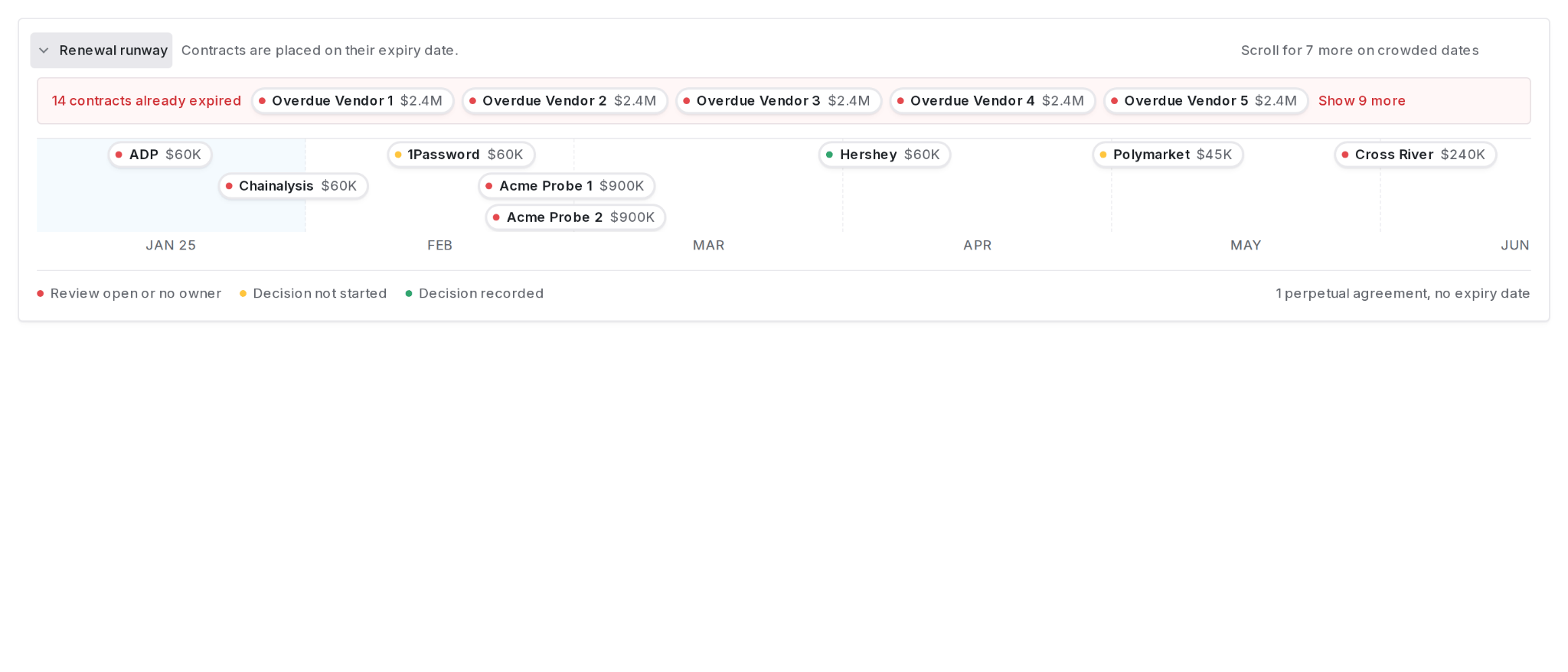 The runway is a twelve month calendar of what expires when. Each contract sits on its **expiry date**, which is the date most people recognize when they talk about a renewal.
Three lanes carry different things:
* **The band** holds contracts expiring inside the next twelve months, placed on the month they expire.
* **The row above the band** holds contracts that have already expired.
* **The line below the band** counts perpetual agreements, which have no expiry date and so cannot be placed.
Hover a chip to see the contract name, its expiry date, its notice deadline, the relationship owner if one is assigned, and where the decision stands. Click a chip to open the contract.
The dot on each chip shows how ready that renewal is:
| Dot | Meaning |
| ----- | ---------------------------------------- |
| Red | Review open, or nobody owns the contract |
| Amber | Owned, but no decision recorded yet |
| Green | Decision recorded |
The notice deadline is the last day you can act, and it always comes before the expiry date. The runway places contracts on expiry because that is the date people search for, and carries the notice date in the hover so you still see the real deadline.
#### Hide or restore the runway
The runway takes vertical space. One control changes that, and it remembers your choice in this browser.
Hover the runway and click the **X** in its top-right corner. The whole section disappears.
A **Show renewal runway** button appears on the header row, to the left of **Actions**. Click it and the runway returns.
These are your own view preferences, stored in your browser. They do not change anything for your colleagues, and they do not touch the contracts.
### The contract table
Below the runway is the full list, with sorting, filtering, and pagination. Columns marked **AI** hold values Coverbase extracted from the documents rather than values someone typed.
Seven more columns are available from the column picker, so the renewal questions can be answered from the list instead of one record at a time: **Notice due date**, **Auto renewal**, **Initial term**, **Renewal term**, **Renewals applied**, **Renewal decision**, and **Contract type**.
To find the contracts that cannot renew, filter on **Auto Renewal** is `automatic` and **Renewal Term** is empty. Those are the ones that will be marked expired instead of rolling forward.
## The contract record
The runway is a twelve month calendar of what expires when. Each contract sits on its **expiry date**, which is the date most people recognize when they talk about a renewal.
Three lanes carry different things:
* **The band** holds contracts expiring inside the next twelve months, placed on the month they expire.
* **The row above the band** holds contracts that have already expired.
* **The line below the band** counts perpetual agreements, which have no expiry date and so cannot be placed.
Hover a chip to see the contract name, its expiry date, its notice deadline, the relationship owner if one is assigned, and where the decision stands. Click a chip to open the contract.
The dot on each chip shows how ready that renewal is:
| Dot | Meaning |
| ----- | ---------------------------------------- |
| Red | Review open, or nobody owns the contract |
| Amber | Owned, but no decision recorded yet |
| Green | Decision recorded |
The notice deadline is the last day you can act, and it always comes before the expiry date. The runway places contracts on expiry because that is the date people search for, and carries the notice date in the hover so you still see the real deadline.
#### Hide or restore the runway
The runway takes vertical space. One control changes that, and it remembers your choice in this browser.
Hover the runway and click the **X** in its top-right corner. The whole section disappears.
A **Show renewal runway** button appears on the header row, to the left of **Actions**. Click it and the runway returns.
These are your own view preferences, stored in your browser. They do not change anything for your colleagues, and they do not touch the contracts.
### The contract table
Below the runway is the full list, with sorting, filtering, and pagination. Columns marked **AI** hold values Coverbase extracted from the documents rather than values someone typed.
Seven more columns are available from the column picker, so the renewal questions can be answered from the list instead of one record at a time: **Notice due date**, **Auto renewal**, **Initial term**, **Renewal term**, **Renewals applied**, **Renewal decision**, and **Contract type**.
To find the contracts that cannot renew, filter on **Auto Renewal** is `automatic` and **Renewal Term** is empty. Those are the ones that will be marked expired instead of rolling forward.
## The contract record
 Open a contract from the table, the runway, or a search result. The **Overview** tab is laid out in two columns.
The main column holds, in order:
1. **Details** and **Properties**, the contract's own facts
2. **Commercial terms**, the term, renewal, notice, cost, and legal summary in one form
3. **Summary**, the AI read of the agreement
4. The document block: key documents, document family, contract components, and document insights
5. **Reviews**
The right rail holds:
1. **Vendor**
2. **Lifecycle**
3. **Contract timeline**
4. **Notifications**
5. **Renewal notes**
6. **Team**
### The details card
The details card shows one row per field that has an answer. A field the contract does not carry is not drawn, so the card stays short on a thin record and grows as extraction fills it in.
Eight fields are available: description, contract value, payment terms, services, term start date, effective date, term end date, and auto renewal.
Click the **+** in the card header and pick the field. It appears as an empty row you can type into. Only fields not already shown are offered.
Hover the row and click the **X**. The row disappears from this contract's card.
Hover **Contract value**. An option to add a year-by-year breakdown appears next to it.
Removing a field hides it on that one contract, in your browser. It does not delete the value, does not affect other contracts, and does not change what anyone else sees. Add it back from the **+** menu at any time.
### Saving, and undoing a save
The editable rows on a contract commit when you click away. There is no **Save** button, so the confirmation is the toast that appears in the corner: "Description saved", "Renewal term saved", and so on.
Every confirmation carries **Undo**. Click it and the field goes back to the value it held before that save.
**Undo is offered for one save at a time.** Once you edit the same field again, the earlier offer disappears, because putting back a value from two edits ago would throw away the edit in between. Finish an edit, check the confirmation, then move on.
If a save fails, the toast says so and names the field. The value stays in the box, so you can click away again to retry rather than retyping it.
### The commercial terms card
Open a contract from the table, the runway, or a search result. The **Overview** tab is laid out in two columns.
The main column holds, in order:
1. **Details** and **Properties**, the contract's own facts
2. **Commercial terms**, the term, renewal, notice, cost, and legal summary in one form
3. **Summary**, the AI read of the agreement
4. The document block: key documents, document family, contract components, and document insights
5. **Reviews**
The right rail holds:
1. **Vendor**
2. **Lifecycle**
3. **Contract timeline**
4. **Notifications**
5. **Renewal notes**
6. **Team**
### The details card
The details card shows one row per field that has an answer. A field the contract does not carry is not drawn, so the card stays short on a thin record and grows as extraction fills it in.
Eight fields are available: description, contract value, payment terms, services, term start date, effective date, term end date, and auto renewal.
Click the **+** in the card header and pick the field. It appears as an empty row you can type into. Only fields not already shown are offered.
Hover the row and click the **X**. The row disappears from this contract's card.
Hover **Contract value**. An option to add a year-by-year breakdown appears next to it.
Removing a field hides it on that one contract, in your browser. It does not delete the value, does not affect other contracts, and does not change what anyone else sees. Add it back from the **+** menu at any time.
### Saving, and undoing a save
The editable rows on a contract commit when you click away. There is no **Save** button, so the confirmation is the toast that appears in the corner: "Description saved", "Renewal term saved", and so on.
Every confirmation carries **Undo**. Click it and the field goes back to the value it held before that save.
**Undo is offered for one save at a time.** Once you edit the same field again, the earlier offer disappears, because putting back a value from two edits ago would throw away the edit in between. Finish an edit, check the confirmation, then move on.
If a save fails, the toast says so and names the field. The value stays in the box, so you can click away again to retry rather than retyping it.
### The commercial terms card
 These are the questions people ask together, so they sit in one card rather than across the timeline rail, the details card, and the value card. Four sections stack down it.
**Initial term** is how long the first term runs. **Renewal term** is what each renewal adds. **Auto-renews** is whether renewal happens by itself, needs a manual step, or does not happen. **Notice period (days)** is how much warning the vendor is owed.
Below them, read-only, are the two dates those values produce: **Notice due to vendor** and **Current term ends**.
A badge in the card header shows which term you are on. **Term 4** means the contract has renewed three times.
Four buttons: **Not decided**, **Renew**, **Terminate**, **Under review**. The current decision is the filled one.
Under them is a free-text note for why, and who you asked. Both are visible on the renewal runway and filterable across the portfolio, so "which renewals has nobody decided yet" is a question you can answer without opening records one at a time.
The contract value and its currency, plus the year-by-year breakdown when the spend is not flat across the term.
The AI read of the agreement, shown here so you do not have to scroll to it while you are confirming the terms above. It is read-only in this card. Edit or regenerate it from the **Summary** card below.
**A contract set to auto-renew with no renewal term cannot renew.** Renewal needs both: the setting that says it renews, and a term to renew into. With only the first, the contract is marked expired on the term end its paperwork names, which can be years in the past.
The card says so at the top when it applies, and filling in **Renewal term** clears it. The next nightly run then renews the contract and puts its status back to active.
These are the questions people ask together, so they sit in one card rather than across the timeline rail, the details card, and the value card. Four sections stack down it.
**Initial term** is how long the first term runs. **Renewal term** is what each renewal adds. **Auto-renews** is whether renewal happens by itself, needs a manual step, or does not happen. **Notice period (days)** is how much warning the vendor is owed.
Below them, read-only, are the two dates those values produce: **Notice due to vendor** and **Current term ends**.
A badge in the card header shows which term you are on. **Term 4** means the contract has renewed three times.
Four buttons: **Not decided**, **Renew**, **Terminate**, **Under review**. The current decision is the filled one.
Under them is a free-text note for why, and who you asked. Both are visible on the renewal runway and filterable across the portfolio, so "which renewals has nobody decided yet" is a question you can answer without opening records one at a time.
The contract value and its currency, plus the year-by-year breakdown when the spend is not flat across the term.
The AI read of the agreement, shown here so you do not have to scroll to it while you are confirming the terms above. It is read-only in this card. Edit or regenerate it from the **Summary** card below.
**A contract set to auto-renew with no renewal term cannot renew.** Renewal needs both: the setting that says it renews, and a term to renew into. With only the first, the contract is marked expired on the term end its paperwork names, which can be years in the past.
The card says so at the top when it applies, and filling in **Renewal term** clears it. The next nightly run then renews the contract and puts its status back to active.
 If a contract renews while you are recording a decision about the term that just ended, the save is refused and the card tells you the term moved. That is deliberate: the decision was about the old term, and the new one deserves a fresh look. Read the new term, then record the decision again.
### The vendor card
If a contract renews while you are recording a decision about the term that just ended, the save is refused and the card tells you the term moved. That is deliberate: the decision was about the old term, and the new one deserves a fresh look. Read the new term, then record the decision again.
### The vendor card
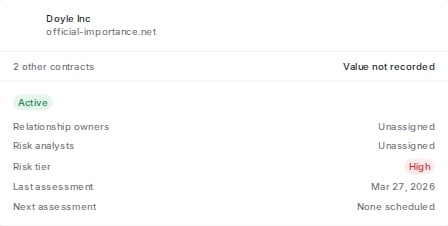 The top of the right rail answers the questions that decide how carefully the rest of the page should be read. The same 90 day notice period is routine on a design tool and a board-level problem on the vendor holding your customer data.
| Row | What it tells you |
| --------------------------------------------- | ------------------------------------------------------------------------------------------------------------- |
| **Other contracts** | How many other live agreements you have with this vendor, and what they are worth. Click through to see them. |
| **Relationship owners** and **Risk analysts** | Who to ask. |
| **Risk tier** | The vendor's inherent risk rating. |
| **Last assessment** and **Next assessment** | When you last looked at them, and when you look again. |
Click the vendor name to open the full vendor record.
**Unavailable** in the risk tier or last assessment row means the lookup failed, not that the vendor is unrated or never assessed. Reload the page. If it keeps saying **Unavailable**, the vendor record itself will tell you.
### The documents tab
The top of the right rail answers the questions that decide how carefully the rest of the page should be read. The same 90 day notice period is routine on a design tool and a board-level problem on the vendor holding your customer data.
| Row | What it tells you |
| --------------------------------------------- | ------------------------------------------------------------------------------------------------------------- |
| **Other contracts** | How many other live agreements you have with this vendor, and what they are worth. Click through to see them. |
| **Relationship owners** and **Risk analysts** | Who to ask. |
| **Risk tier** | The vendor's inherent risk rating. |
| **Last assessment** and **Next assessment** | When you last looked at them, and when you look again. |
Click the vendor name to open the full vendor record.
**Unavailable** in the risk tier or last assessment row means the lookup failed, not that the vendor is unrated or never assessed. Reload the page. If it keeps saying **Unavailable**, the vendor record itself will tell you.
### The documents tab
 The **Documents** tab opens on the document table. Below it sits the same document block you see on the Overview tab: key documents beside the document family, then contract components, then document insights.
Both tabs render the same block, so the two views cannot disagree about the same files.
## What's next
Build a clause set, run a review against the documents you choose, and work the results.
What each date on the timeline means, which ones Coverbase calculates, and who gets the reminder emails.
The **Documents** tab opens on the document table. Below it sits the same document block you see on the Overview tab: key documents beside the document family, then contract components, then document insights.
Both tabs render the same block, so the two views cannot disagree about the same files.
## What's next
Build a clause set, run a review against the documents you choose, and work the results.
What each date on the timeline means, which ones Coverbase calculates, and who gets the reminder emails.