> ## Documentation Index
> Fetch the complete documentation index at: https://docs.coverbase.com/llms.txt
> Use this file to discover all available pages before exploring further.
# Document types
> Choose which document types Coverbase detects, turn off the ones you never collect, and teach it your own types from a few example files.
For AI agents: a documentation index is available at [https://docs.coverbase.com/llms.txt](https://docs.coverbase.com/llms.txt). This page is also available in markdown by appending .md to the URL.
This guide covers the list of types Coverbase sorts documents into. For the values Coverbase reads out of each document, see the [Document Insights guide](/user-guides/document-insights). For reminders before a document lapses, see [Document expiry reminders](/user-guides/document-expiry-reminders).
**Configuration → Document types** controls which types Coverbase can give a document, and lets you add custom types of your own. Every uploaded document gets a type, such as SOC 2 Type 2 Report or Certificate of Insurance. Coverbase detects the type when the file arrives, and you can change it by hand.
The most common mistake is creating a custom type with one example and no description review. Detection learns from your examples and from the description, so a type made from one scanned file tends to miss documents or pull in the wrong ones. Give it three or more examples and read the drafted description before you save.
Only people who can edit organization settings can change this page. Everyone else can view it.
## The Document types page
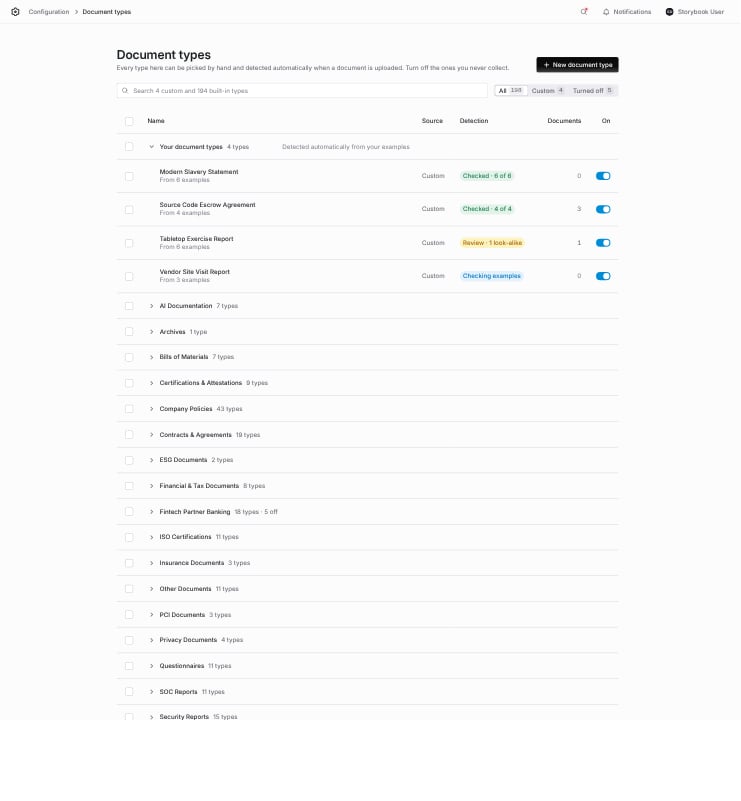 The page is one table:
| Column | What it shows |
| - | - |
| **Name** | The type. Under a custom type, how many examples it learned from. |
| **Source** | **Custom** for a type your organization made, **Coverbase** for a type Coverbase set up for you, **Built-in** for everything else. |
| **Detection** | For a custom type, the result of its last check (see [The detection check](#the-detection-check)). |
| **Documents** | How many of your documents have this type today. |
| **On** | Whether detection and the pickers can use the type. |
To find a type or group by name, use the search box. To narrow the table, pick a tab: **All**, **Custom**, or **Turned off**.
## Turning a type off
Every type is on until you turn it off, except the types in the **Fintech Partner Banking** group. Those start off unless your organization already uses them, and turning one on turns on only that type. Turn off the types your organization never collects, so detection has fewer wrong answers to choose from and pickers stay short.
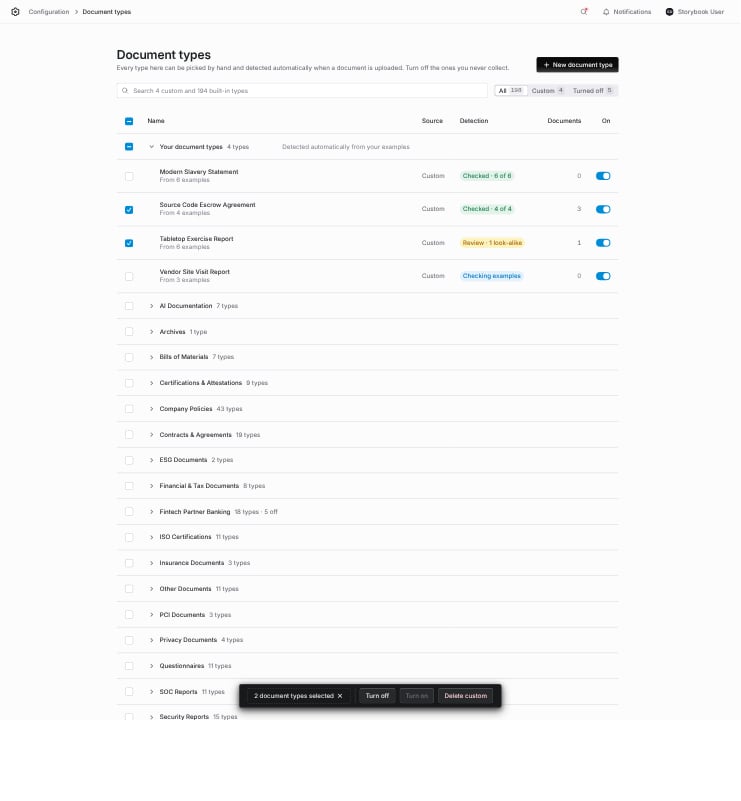
To turn off one type, click its switch. To turn off several, select their rows and click **Turn off** in the bar at the bottom of the page.
The page is one table:
| Column | What it shows |
| - | - |
| **Name** | The type. Under a custom type, how many examples it learned from. |
| **Source** | **Custom** for a type your organization made, **Coverbase** for a type Coverbase set up for you, **Built-in** for everything else. |
| **Detection** | For a custom type, the result of its last check (see [The detection check](#the-detection-check)). |
| **Documents** | How many of your documents have this type today. |
| **On** | Whether detection and the pickers can use the type. |
To find a type or group by name, use the search box. To narrow the table, pick a tab: **All**, **Custom**, or **Turned off**.
## Turning a type off
Every type is on until you turn it off, except the types in the **Fintech Partner Banking** group. Those start off unless your organization already uses them, and turning one on turns on only that type. Turn off the types your organization never collects, so detection has fewer wrong answers to choose from and pickers stay short.
To turn off one type, click its switch. To turn off several, select their rows and click **Turn off** in the bar at the bottom of the page.
 Before anything changes, Coverbase lists the types and how many documents each one has.
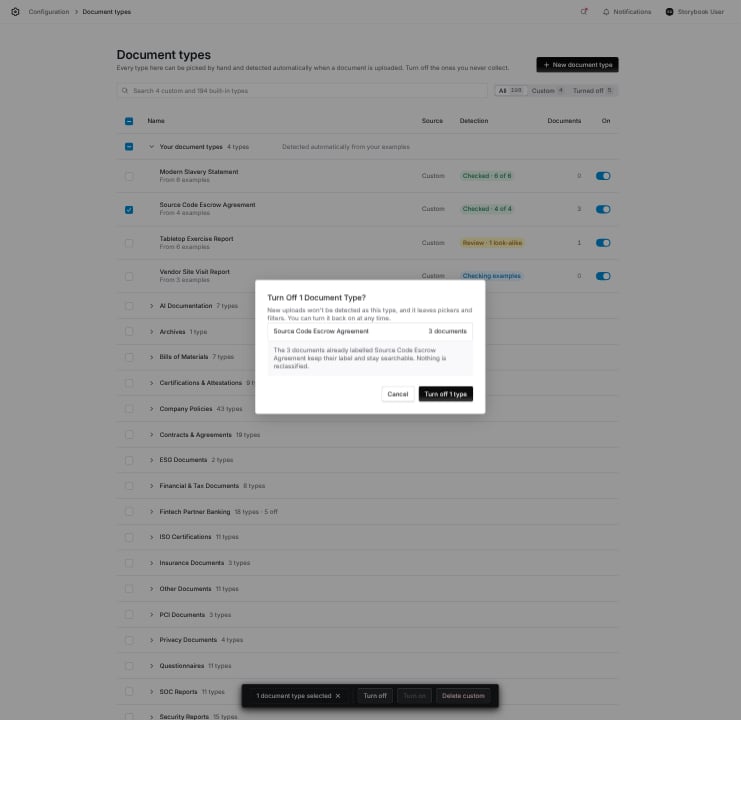 When a type is off:
* New uploads are never detected as that type.
* It leaves the type pickers and the document filters.
* Documents that already have the type keep it and stay searchable. Coverbase reclassifies nothing.
To turn a type back on, click its switch or select it and click **Turn on**.
**Unknown**, **ZIP Archive**, **Image** and **Email Correspondence** cannot be turned off. Coverbase needs them to file documents it cannot otherwise place.
## Creating your own document type
Create a custom type when your vendors send something Coverbase does not have a type for, for example a Modern Slavery Statement, a Source Code Escrow Agreement or a Tabletop Exercise Report.
Click **New document type**. If you searched for a name and nothing matched, you can also click **Create "…" as a new type** under the empty result.
Use the name your team already uses. It must differ from every built-in type and from your other custom types. Under the name, Coverbase lists the closest built-in types it found.
Drop in 1 to 10 real examples: PDF, Word, Excel or text. Three or more examples make detection more reliable. Pick examples that look different from each other (different vendors, years, layouts), because detection learns what they have in common.
Coverbase reads your examples and drafts **How to recognize it**: what the document is and how it differs from the types closest to it. This text is what detection reads, so edit it until it is right. Coverbase also suggests a **Group**, which you can change.
Click **Create and check**. The type is on straight away, and the [detection check](#the-detection-check) starts.
When a type is off:
* New uploads are never detected as that type.
* It leaves the type pickers and the document filters.
* Documents that already have the type keep it and stay searchable. Coverbase reclassifies nothing.
To turn a type back on, click its switch or select it and click **Turn on**.
**Unknown**, **ZIP Archive**, **Image** and **Email Correspondence** cannot be turned off. Coverbase needs them to file documents it cannot otherwise place.
## Creating your own document type
Create a custom type when your vendors send something Coverbase does not have a type for, for example a Modern Slavery Statement, a Source Code Escrow Agreement or a Tabletop Exercise Report.
Click **New document type**. If you searched for a name and nothing matched, you can also click **Create "…" as a new type** under the empty result.
Use the name your team already uses. It must differ from every built-in type and from your other custom types. Under the name, Coverbase lists the closest built-in types it found.
Drop in 1 to 10 real examples: PDF, Word, Excel or text. Three or more examples make detection more reliable. Pick examples that look different from each other (different vendors, years, layouts), because detection learns what they have in common.
Coverbase reads your examples and drafts **How to recognize it**: what the document is and how it differs from the types closest to it. This text is what detection reads, so edit it until it is right. Coverbase also suggests a **Group**, which you can change.
Click **Create and check**. The type is on straight away, and the [detection check](#the-detection-check) starts.
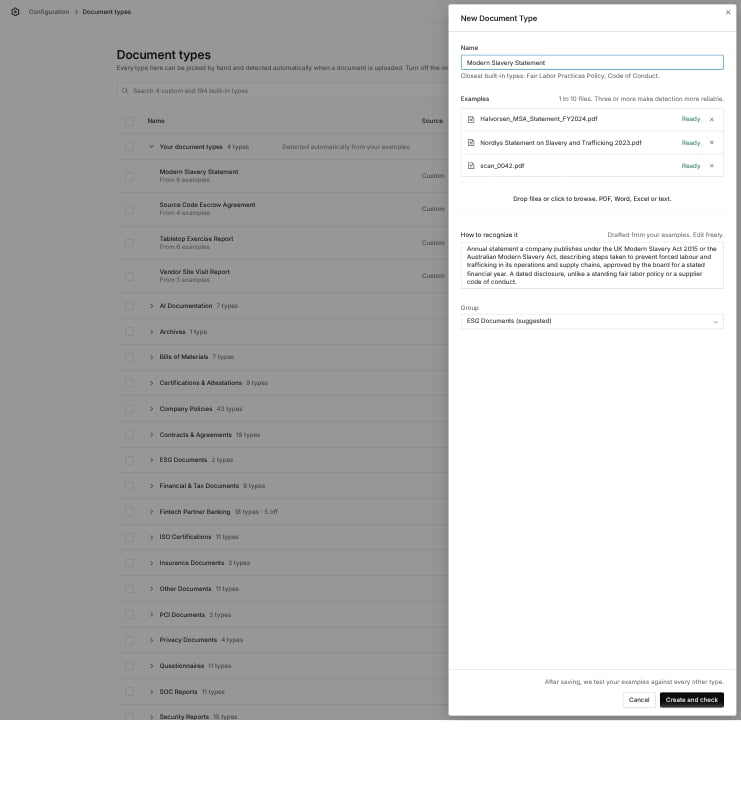 If your examples look like a type Coverbase already has, the drawer says so. Create a new type only if it means something different for your organization.
### Writing a good description
A good description says what the document is, what is usually in it, and what it is **not**. The "not" sentence matters most when a built-in type is close.
| Weak | Strong |
| - | - |
| Tabletop exercise documents. | After-action report from a discussion-based tabletop exercise in which staff walk through a simulated incident such as ransomware, with scenario injects, participant discussion, observed strengths and gaps, and an improvement plan. Not a technical failover test that measures RTO and RPO; that is a BC/DR Test Report. |
| Modern slavery. | Annual statement a company publishes under the UK Modern Slavery Act 2015 or the Australian Modern Slavery Act, describing steps taken to prevent forced labour and trafficking in its operations and supply chains, approved by the board for a stated financial year. A dated disclosure, unlike a standing fair labor policy or a supplier code of conduct. |
## The detection check
Coverbase checks a custom type in the background after you create it and whenever you change its examples or description. A check takes 1 to 2 minutes, and the page updates on its own.
If your examples look like a type Coverbase already has, the drawer says so. Create a new type only if it means something different for your organization.
### Writing a good description
A good description says what the document is, what is usually in it, and what it is **not**. The "not" sentence matters most when a built-in type is close.
| Weak | Strong |
| - | - |
| Tabletop exercise documents. | After-action report from a discussion-based tabletop exercise in which staff walk through a simulated incident such as ransomware, with scenario injects, participant discussion, observed strengths and gaps, and an improvement plan. Not a technical failover test that measures RTO and RPO; that is a BC/DR Test Report. |
| Modern slavery. | Annual statement a company publishes under the UK Modern Slavery Act 2015 or the Australian Modern Slavery Act, describing steps taken to prevent forced labour and trafficking in its operations and supply chains, approved by the board for a stated financial year. A dated disclosure, unlike a standing fair labor policy or a supplier code of conduct. |
## The detection check
Coverbase checks a custom type in the background after you create it and whenever you change its examples or description. A check takes 1 to 2 minutes, and the page updates on its own.
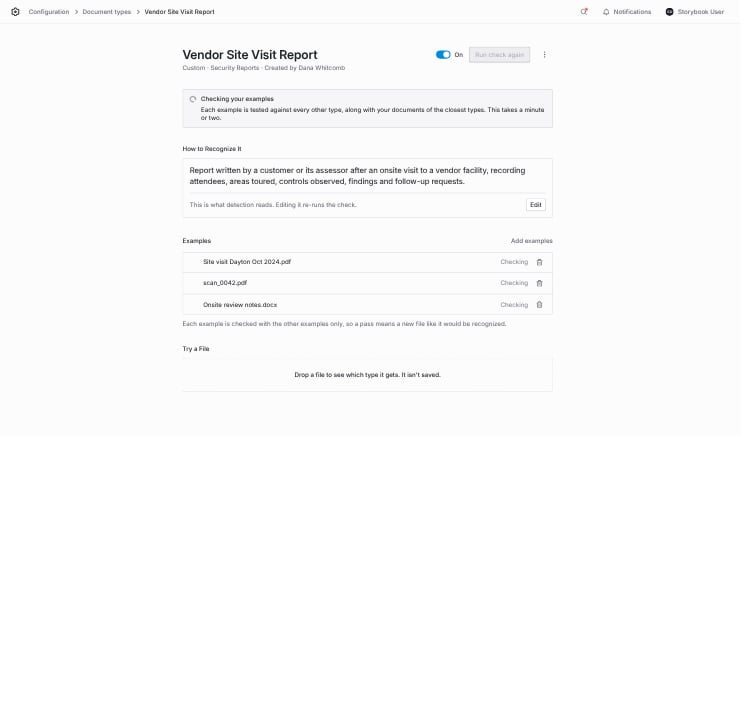 The check answers two questions:
1. **Does it recognize your examples?** Coverbase classifies each example against every type, leaving that example out of what detection learned from. A pass means detection would recognize a new file like it.
2. **Does it pull in documents that belong elsewhere?** Coverbase classifies up to nine of your recent documents of the closest built-in types. Any that would now be detected as your new type are **look-alikes**.
On the Document types page, the **Detection** column shows the result:
| Result | Meaning |
| - | - |
| **Checked · 6 of 6** | Every example recognized and no look-alikes. Nothing to do. |
| **Review · 1 look-alike** | Detection would move one of your documents to the new type. Open the type to decide. |
| **Review · 4 of 6** | Some examples were detected as another type. Improve the description or the examples. |
| **Checking examples** | The check is still running. |
| **Check failed** | The check could not finish. Open the type and click **Run check again**. |
The check answers two questions:
1. **Does it recognize your examples?** Coverbase classifies each example against every type, leaving that example out of what detection learned from. A pass means detection would recognize a new file like it.
2. **Does it pull in documents that belong elsewhere?** Coverbase classifies up to nine of your recent documents of the closest built-in types. Any that would now be detected as your new type are **look-alikes**.
On the Document types page, the **Detection** column shows the result:
| Result | Meaning |
| - | - |
| **Checked · 6 of 6** | Every example recognized and no look-alikes. Nothing to do. |
| **Review · 1 look-alike** | Detection would move one of your documents to the new type. Open the type to decide. |
| **Review · 4 of 6** | Some examples were detected as another type. Improve the description or the examples. |
| **Checking examples** | The check is still running. |
| **Check failed** | The check could not finish. Open the type and click **Run check again**. |
 ### Reviewing look-alikes
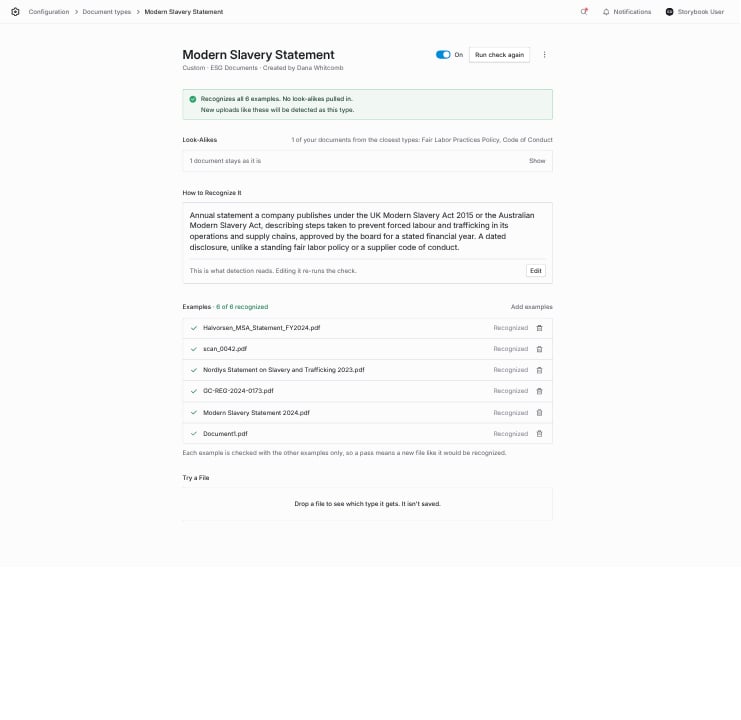
Open the type to see each look-alike, the type it has today, and what it would become. For each one, choose:
* **Keep as …**: the document is not your new type. It keeps its current type.
* **It is a …**: the document really is your new type. Coverbase changes its type now.
When the check finds a miss or a look-alike, Coverbase also suggests a change to **How to recognize it**, highlighted in green. To accept it, click **Apply and re-check**. To adjust it first, click **Edit**.
### Reviewing look-alikes
Open the type to see each look-alike, the type it has today, and what it would become. For each one, choose:
* **Keep as …**: the document is not your new type. It keeps its current type.
* **It is a …**: the document really is your new type. Coverbase changes its type now.
When the check finds a miss or a look-alike, Coverbase also suggests a change to **How to recognize it**, highlighted in green. To accept it, click **Apply and re-check**. To adjust it first, click **Edit**.
 ## Testing a single file
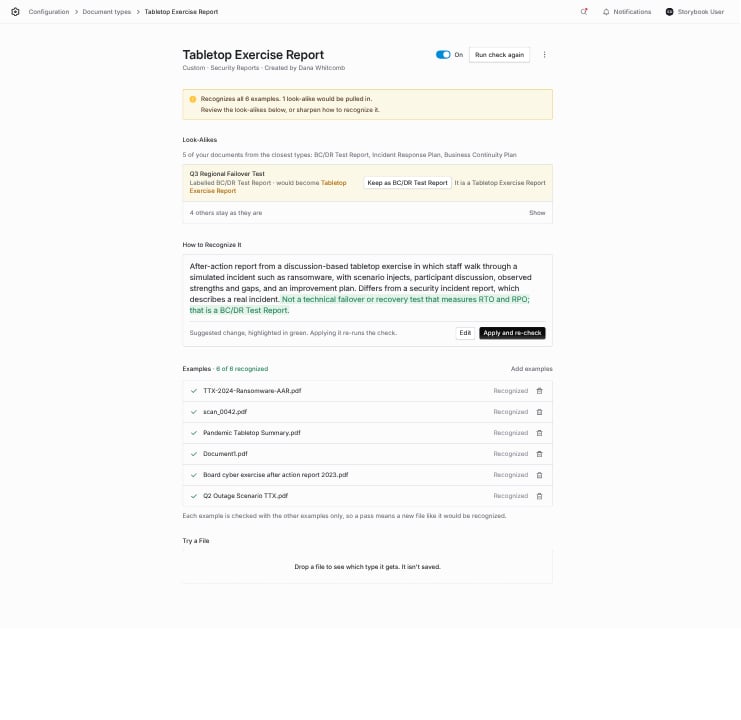
To see which type a file would get, drop it into **Try a file** at the bottom of a custom type's page. Coverbase detects its type exactly as it would for an upload and shows the result. Coverbase does not save the file.
## Testing a single file
To see which type a file would get, drop it into **Try a file** at the bottom of a custom type's page. Coverbase detects its type exactly as it would for an upload and shows the result. Coverbase does not save the file.
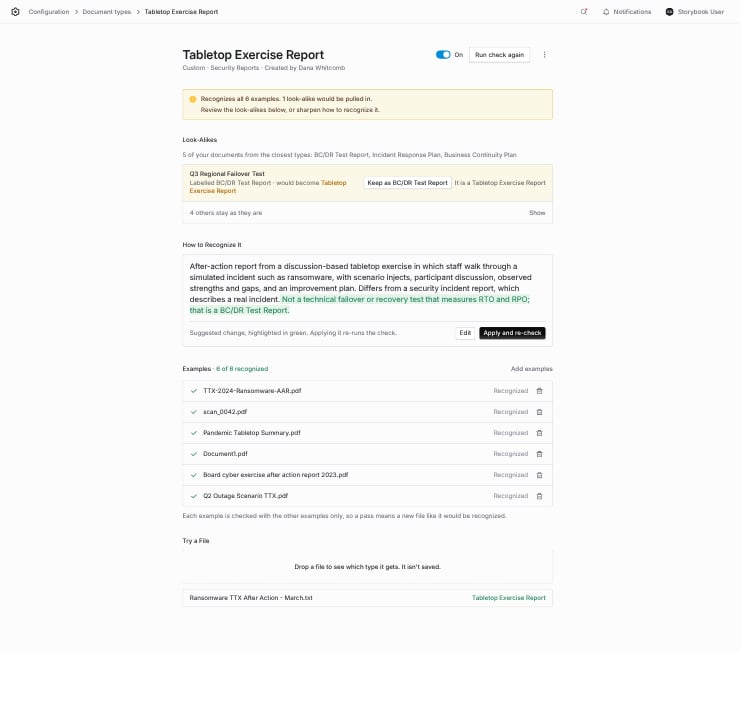 Test the edge cases you care about: a scanned copy, a draft, or a document from a neighboring type that detection should leave alone.
## Changing or deleting a custom type
From a custom type's page:
| To | Do this | Re-runs the check |
| - | - | - |
| Rename it or move it to another group | **More actions → Edit name and group** | No |
| Change how it is recognized | **Edit** under **How to recognize it** | Yes |
| Add examples | **Add examples** (up to 10 in total) | Yes |
| Remove an example | The bin icon on the example (a type keeps at least one) | Yes |
| Stop detecting it for now | The **On** switch | No |
| Delete it | **More actions → Delete type** | No |
To delete several custom types at once, select them on the Document types page and click **Delete custom**. Deleting a type removes it from detection, pickers and filters. Documents that already have the type keep it.
## Where custom types appear
A custom type works like a built-in type everywhere Coverbase uses document types:
| Where | What you can do |
| - | - |
| Detection | Coverbase can detect the type on every new upload, including bulk uploads, files unzipped from an archive, and uploads through the supplier portal. |
| Type pickers | Pick the type on a document, when you stage files to upload, and in the supplier portal. |
| Filters | Filter the Documents page and a vendor's documents with the **Custom Type** filter. |
| Document expiry reminders | Set a reminder for the type. Reminders for a custom type count from the expiration date you enter on the document. |
| Document Insights | Scope an insight or an insight group to the type. The coverage matrix, extractions and backfills list it by name. |
| Questionnaires | In a questionnaire spreadsheet, put the custom type's name in the **Document Type Slug Override** column. Files a vendor attaches to that question get the type. |
Test the edge cases you care about: a scanned copy, a draft, or a document from a neighboring type that detection should leave alone.
## Changing or deleting a custom type
From a custom type's page:
| To | Do this | Re-runs the check |
| - | - | - |
| Rename it or move it to another group | **More actions → Edit name and group** | No |
| Change how it is recognized | **Edit** under **How to recognize it** | Yes |
| Add examples | **Add examples** (up to 10 in total) | Yes |
| Remove an example | The bin icon on the example (a type keeps at least one) | Yes |
| Stop detecting it for now | The **On** switch | No |
| Delete it | **More actions → Delete type** | No |
To delete several custom types at once, select them on the Document types page and click **Delete custom**. Deleting a type removes it from detection, pickers and filters. Documents that already have the type keep it.
## Where custom types appear
A custom type works like a built-in type everywhere Coverbase uses document types:
| Where | What you can do |
| - | - |
| Detection | Coverbase can detect the type on every new upload, including bulk uploads, files unzipped from an archive, and uploads through the supplier portal. |
| Type pickers | Pick the type on a document, when you stage files to upload, and in the supplier portal. |
| Filters | Filter the Documents page and a vendor's documents with the **Custom Type** filter. |
| Document expiry reminders | Set a reminder for the type. Reminders for a custom type count from the expiration date you enter on the document. |
| Document Insights | Scope an insight or an insight group to the type. The coverage matrix, extractions and backfills list it by name. |
| Questionnaires | In a questionnaire spreadsheet, put the custom type's name in the **Document Type Slug Override** column. Files a vendor attaches to that question get the type. |
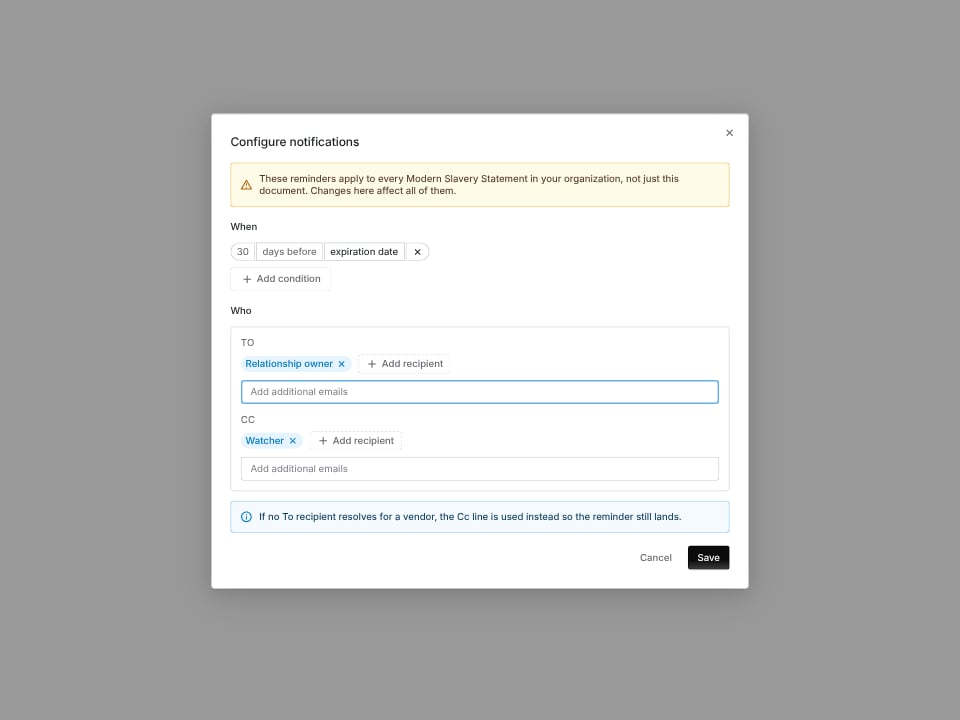
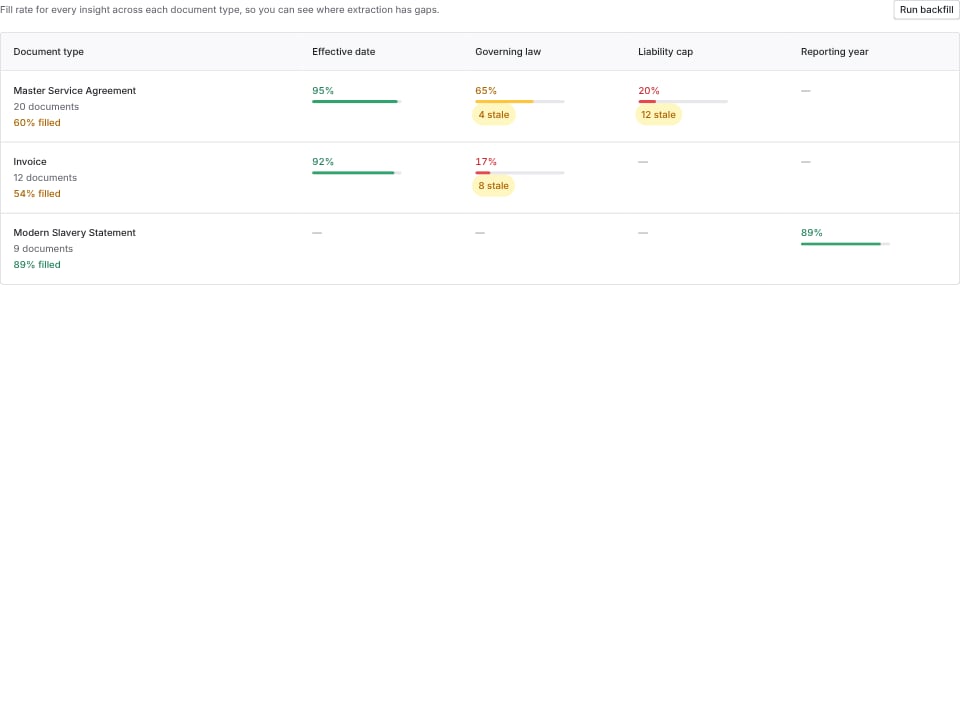 When you turn a custom type off, insights and reminders scoped to it keep working for the documents that already have it. The Reminders tab and insight group summaries then show the type as **Turned off or deleted type**.
## Examples
**A bank that collects beneficial ownership forms.** The compliance team creates **Beneficial Ownership Certification** with four completed FinCEN certification forms from different vendors. The check recognizes all four and finds no look-alikes among their business registration documents. Analysts stop relabelling these forms by hand.
**A team that runs tabletop exercises with vendors.** They create **Tabletop Exercise Report** from six after-action reports. The check recognizes every example but pulls in one disaster recovery failover test. They click **Keep as BC/DR Test Report**, apply the suggested sentence about RTO and RPO tests, and the re-check comes back clean.
**A software company that never collects insurance certificates.** On the **All** tab they search "Insurance", select those types, and click **Turn off**. Those types leave every picker, and detection can no longer choose them.
## Troubleshooting
| Problem | Fix |
| - | - |
| **Create and check** stays disabled. | Add a name, at least one example that finished uploading, a description and a group. |
| "… is already a built-in document type" or "Your organization already has a document type named …" | Choose another name, or use the existing type. Coverbase compares names without regard to case. |
| An example shows **No text found, matched by file name**. | The file is a scan or image without readable text. Replace it with a text-based copy, or add more examples. |
| The check keeps saying **Review · 2 of 6**. | Open the type, look at what the missed examples were detected as, and add a sentence to the description that tells your type apart from that one. |
| Good documents are still detected as the old type. | Detection applies to new uploads. Change existing documents with the type picker, or use **It is a …** on the look-alikes the check found. |
| I cannot see **New document type**. | You need permission to edit organization settings. Ask an admin. |
| A type I turned off still appears on old documents. | Documents keep their type when you turn it off. To change one, use the type picker on the document. |
## Related
The values Coverbase reads out of each document.
Reminders before a vendor document lapses.
The rest of the Configuration settings.
Find the passage in a vendor's documents that answers a question.
This documentation is built and hosted on [Mintlify](https://mintlify.com), a developer documentation platform.
When you turn a custom type off, insights and reminders scoped to it keep working for the documents that already have it. The Reminders tab and insight group summaries then show the type as **Turned off or deleted type**.
## Examples
**A bank that collects beneficial ownership forms.** The compliance team creates **Beneficial Ownership Certification** with four completed FinCEN certification forms from different vendors. The check recognizes all four and finds no look-alikes among their business registration documents. Analysts stop relabelling these forms by hand.
**A team that runs tabletop exercises with vendors.** They create **Tabletop Exercise Report** from six after-action reports. The check recognizes every example but pulls in one disaster recovery failover test. They click **Keep as BC/DR Test Report**, apply the suggested sentence about RTO and RPO tests, and the re-check comes back clean.
**A software company that never collects insurance certificates.** On the **All** tab they search "Insurance", select those types, and click **Turn off**. Those types leave every picker, and detection can no longer choose them.
## Troubleshooting
| Problem | Fix |
| - | - |
| **Create and check** stays disabled. | Add a name, at least one example that finished uploading, a description and a group. |
| "… is already a built-in document type" or "Your organization already has a document type named …" | Choose another name, or use the existing type. Coverbase compares names without regard to case. |
| An example shows **No text found, matched by file name**. | The file is a scan or image without readable text. Replace it with a text-based copy, or add more examples. |
| The check keeps saying **Review · 2 of 6**. | Open the type, look at what the missed examples were detected as, and add a sentence to the description that tells your type apart from that one. |
| Good documents are still detected as the old type. | Detection applies to new uploads. Change existing documents with the type picker, or use **It is a …** on the look-alikes the check found. |
| I cannot see **New document type**. | You need permission to edit organization settings. Ask an admin. |
| A type I turned off still appears on old documents. | Documents keep their type when you turn it off. To change one, use the type picker on the document. |
## Related
The values Coverbase reads out of each document.
Reminders before a vendor document lapses.
The rest of the Configuration settings.
Find the passage in a vendor's documents that answers a question.
This documentation is built and hosted on [Mintlify](https://mintlify.com), a developer documentation platform.