> ## Documentation Index
> Fetch the complete documentation index at: https://docs.coverbase.com/llms.txt
> Use this file to discover all available pages before exploring further.
# Due diligence methods and the portal
> Choose how an assessment gathers evidence and schedule review sessions, let suppliers delegate questions, carry last year's answers forward, have the supplier approve reviewer edits, send service-level questions only, and raise a finding on a question.
For AI agents: a documentation index is available at [https://docs.coverbase.com/llms.txt](https://docs.coverbase.com/llms.txt). This page is also available in markdown by appending .md to the URL.
This guide is part of the [User Guides](/user-guides/overview) collection. It covers the **Assessment Method** card on an assessment, service-level questions in the questionnaire editor, and the due diligence features of the supplier portal. It sits beside [How to run an assessment](/user-guides/running-an-assessment) and [The issue acceptance chain](/user-guides/issue-acceptance-chain). For what the module is, see [Due diligence](/products/due-diligence).
Your Risk Groups gather evidence in more than one way, and vendors answer through more than one person. This guide covers the parts of due diligence that change how that happens: the assessment's method and review sessions, delegation and carried-forward answers in the portal, reviewer edits the supplier approves, and service-level sends.
Your Coverbase representative turns on the third-party lifecycle features for your organization.
The mistake people make most often is wondering why a vendor cannot submit a questionnaire they have clearly finished. A request with carried-forward answers cannot be submitted until every one of them is confirmed or changed.
## Choose the assessment method
Open the assessment. The **Assessment Method** card in the sidebar offers:
| Method | When to use it |
| - | - |
| **Questionnaire** | The vendor answers a questionnaire through the portal. The default. |
| **Remote review** | Reviewers walk through controls with the vendor in scheduled remote sessions. |
| **Onsite** | Reviewers visit the vendor, upload what they collect, and record control effectiveness by hand. |
Changing the method needs permission to update the assessment. With **Onsite**, the card adds **Upload onsite evidence** and **Record control effectiveness**.
## Schedule a review session
On a remote or onsite assessment, click **Schedule session** on the card.
Give a **Title**, choose the **Format** (**Remote** or **Onsite**), pick **When** (shown in your time zone) and the length in **Minutes**.
Enter a **Location or Link**: a meeting link or a site address.
Choose **Internal Participants**, and type each **Vendor Attendees** email address followed by Enter. Add the **Agenda and Notes**.
Click **Schedule session**. Participants are notified with the time, place and agenda, and vendor attendees get an email.
The card lists **Upcoming sessions** and **Past sessions**. Use the session's menu to **Edit** it, which notifies participants again, or **Cancel session**, which tells them by email. The next session also appears on the engagement's tracker.
## Let the supplier delegate questions
In the supplier portal, a respondent can hand parts of a questionnaire to colleagues who are portal members.
* **Who Is Answering What** lists each section with its **Owner** and **Progress**. Click **Assign** on a section to hand it to one colleague.
* **Assign several questions** lets the respondent select questions and assign them together. **Done** ends the selection.
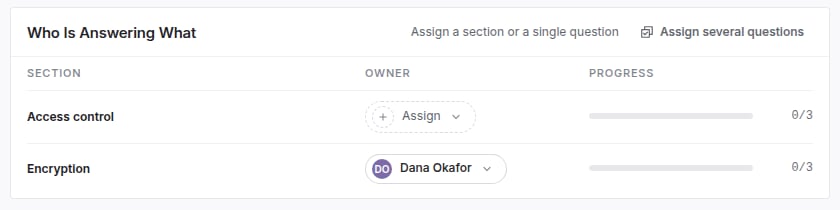 A question assignment wins over its section's, and a section's wins over the whole form's. Each answer shows **Answered by** with the people who answered it. Nothing on your side needs configuring.
## Carry answers forward
When a vendor receives a questionnaire they have submitted before, their previous answers are copied into the new request, marked **Carried forward**. Questions are matched across versions of the questionnaire, so an edited question keeps its answer, while a question added since starts empty. Nothing already answered on the new request is overwritten.
In the portal, the vendor sees how many answers were carried forward, from which submission, and **Still accurate?** beside each. They **Confirm** an answer, or click **Confirm all** with the count, or change it. A changed answer stays marked **Updated since last time**.
On your side, the review workbench labels each answer **Carried forward, not confirmed**, **Carried forward, confirmed** or **Changed since last time**, so you can go straight to what moved.
## Have the supplier approve your edits
When a reviewer edits a vendor's answer, the vendor is asked to agree. In the portal, **Changes From** followed by your organization's name shows each edit with **Your answer** and your organization's edit. The vendor clicks **Approve edit**, or **Suggest a change** with **Suggested wording**. **Approve all** with the count approves every waiting edit at once.
A question assignment wins over its section's, and a section's wins over the whole form's. Each answer shows **Answered by** with the people who answered it. Nothing on your side needs configuring.
## Carry answers forward
When a vendor receives a questionnaire they have submitted before, their previous answers are copied into the new request, marked **Carried forward**. Questions are matched across versions of the questionnaire, so an edited question keeps its answer, while a question added since starts empty. Nothing already answered on the new request is overwritten.
In the portal, the vendor sees how many answers were carried forward, from which submission, and **Still accurate?** beside each. They **Confirm** an answer, or click **Confirm all** with the count, or change it. A changed answer stays marked **Updated since last time**.
On your side, the review workbench labels each answer **Carried forward, not confirmed**, **Carried forward, confirmed** or **Changed since last time**, so you can go straight to what moved.
## Have the supplier approve your edits
When a reviewer edits a vendor's answer, the vendor is asked to agree. In the portal, **Changes From** followed by your organization's name shows each edit with **Your answer** and your organization's edit. The vendor clicks **Approve edit**, or **Suggest a change** with **Suggested wording**. **Approve all** with the count approves every waiting edit at once.
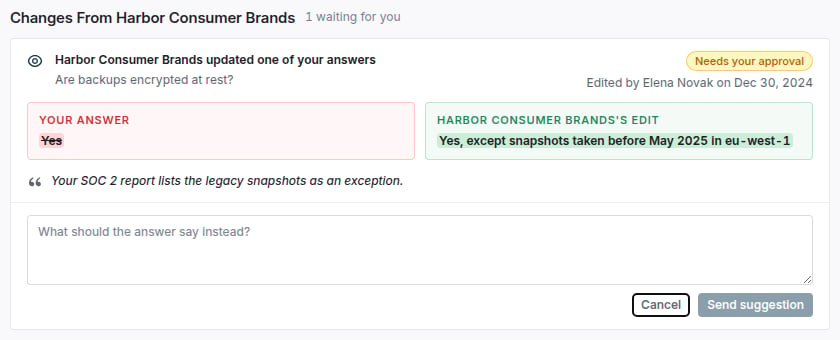 In the workbench, the answer shows **Edit awaiting supplier**, **Edit approved by supplier**, **Supplier suggested a change** or **Edit superseded** (when a later edit replaced it).
## Send service-level questions only
A vendor whose company-wide due diligence is current should not answer company-wide questions again for every new service.
In the questionnaire editor, turn on **Service-level question** for each question that is about the service rather than the company. Save the questionnaire first if it is new.
When you send the questionnaire for a new service, turn on **Send service-level questions only**. The vendor sees, and must answer, only the marked questions.
The option is available only when the vendor has a completed assessment and its next assessment date has not passed. Otherwise it reads **Available once the vendor has a completed, current assessment.**
## Raise a finding on a question
In the review workbench, open an answer and choose **Raise finding on this question**. The dialog quotes the vendor's answer, and the finding records the question it was raised on. On the finding, **Raised On** shows the level (question, domain, questionnaire, assessment, service or vendor), and **Other Open Findings** lists the vendor's other open findings across assessments. A finding can also name the **Service** it applies to.
What happens next to the finding's risk is covered in [The issue acceptance chain](/user-guides/issue-acceptance-chain).
## Troubleshooting
| What you see | Cause | Fix |
| - | - | - |
| No **Assessment Method** card | The third-party lifecycle features are not turned on for your organization. | Ask your Coverbase representative. |
| A vendor attendee did not get the invitation | The address was not followed by Enter, so it was not added. | **Edit** the session and add the address. Invalid addresses are listed under the field. |
| The vendor cannot submit | Carried-forward answers are still unconfirmed. | Ask them to **Confirm all** or change each answer. |
| An answer was not carried forward | The question was added after the vendor's last submission. | Expected. The vendor answers it fresh. |
| **Send service-level questions only** is disabled | The vendor has no completed assessment, or its next assessment date has passed. | Run or complete the vendor's company-wide assessment first. |
| The vendor sees every question on an abbreviated send | No question is marked **Service-level question**. | Mark the questions in the editor and send again. |
| The vendor has not responded to an edit | Edits wait for the vendor in the portal. | Remind the vendor, or leave the edit waiting. The edited answer stands while it waits. |
## Related
The full assessment lifecycle.
Routing a decision to accept a finding's risk.
What your vendor sees.
Building and sending questionnaires.
This documentation is built and hosted on [Mintlify](https://mintlify.com), a developer documentation platform.
In the workbench, the answer shows **Edit awaiting supplier**, **Edit approved by supplier**, **Supplier suggested a change** or **Edit superseded** (when a later edit replaced it).
## Send service-level questions only
A vendor whose company-wide due diligence is current should not answer company-wide questions again for every new service.
In the questionnaire editor, turn on **Service-level question** for each question that is about the service rather than the company. Save the questionnaire first if it is new.
When you send the questionnaire for a new service, turn on **Send service-level questions only**. The vendor sees, and must answer, only the marked questions.
The option is available only when the vendor has a completed assessment and its next assessment date has not passed. Otherwise it reads **Available once the vendor has a completed, current assessment.**
## Raise a finding on a question
In the review workbench, open an answer and choose **Raise finding on this question**. The dialog quotes the vendor's answer, and the finding records the question it was raised on. On the finding, **Raised On** shows the level (question, domain, questionnaire, assessment, service or vendor), and **Other Open Findings** lists the vendor's other open findings across assessments. A finding can also name the **Service** it applies to.
What happens next to the finding's risk is covered in [The issue acceptance chain](/user-guides/issue-acceptance-chain).
## Troubleshooting
| What you see | Cause | Fix |
| - | - | - |
| No **Assessment Method** card | The third-party lifecycle features are not turned on for your organization. | Ask your Coverbase representative. |
| A vendor attendee did not get the invitation | The address was not followed by Enter, so it was not added. | **Edit** the session and add the address. Invalid addresses are listed under the field. |
| The vendor cannot submit | Carried-forward answers are still unconfirmed. | Ask them to **Confirm all** or change each answer. |
| An answer was not carried forward | The question was added after the vendor's last submission. | Expected. The vendor answers it fresh. |
| **Send service-level questions only** is disabled | The vendor has no completed assessment, or its next assessment date has passed. | Run or complete the vendor's company-wide assessment first. |
| The vendor sees every question on an abbreviated send | No question is marked **Service-level question**. | Mark the questions in the editor and send again. |
| The vendor has not responded to an edit | Edits wait for the vendor in the portal. | Remind the vendor, or leave the edit waiting. The edited answer stands while it waits. |
## Related
The full assessment lifecycle.
Routing a decision to accept a finding's risk.
What your vendor sees.
Building and sending questionnaires.
This documentation is built and hosted on [Mintlify](https://mintlify.com), a developer documentation platform.