> ## Documentation Index
> Fetch the complete documentation index at: https://docs.coverbase.com/llms.txt
> Use this file to discover all available pages before exploring further.
# Email and notifications
> Every email Coverbase sends, who gets it, and how to change how it looks. Covers the notification catalog, per-person delivery settings, email layouts, and applying your own branding.
For AI agents: a documentation index is available at [https://docs.coverbase.com/llms.txt](https://docs.coverbase.com/llms.txt). This page is also available in markdown by appending .md to the URL.
This guide is part of the [User Guides](/user-guides/overview) collection. It covers what Coverbase emails out and how to control it. For the vendor-facing invitation copy itself, see **Step 8** of the [Admin and setup guide](/user-guides/admin-setup).
Coverbase sends two kinds of email. **Notifications** go to your own team and are driven by things happening in the platform: a finding assigned to you, an assessment ready for review, an export finishing. **Vendor emails** go outside your organization: portal invitations, reminders, follow-up questions.
Both kinds share one visual system, so a reminder to a vendor and a notification to an analyst look like they came from the same company. This guide covers what gets sent, who receives it, and the three levers you have over the appearance.
## What an email looks like
Every email is built from two pieces. The **content** is what that particular email says. The **layout** is everything around it: the background, the card, the header with your logo, the footer.
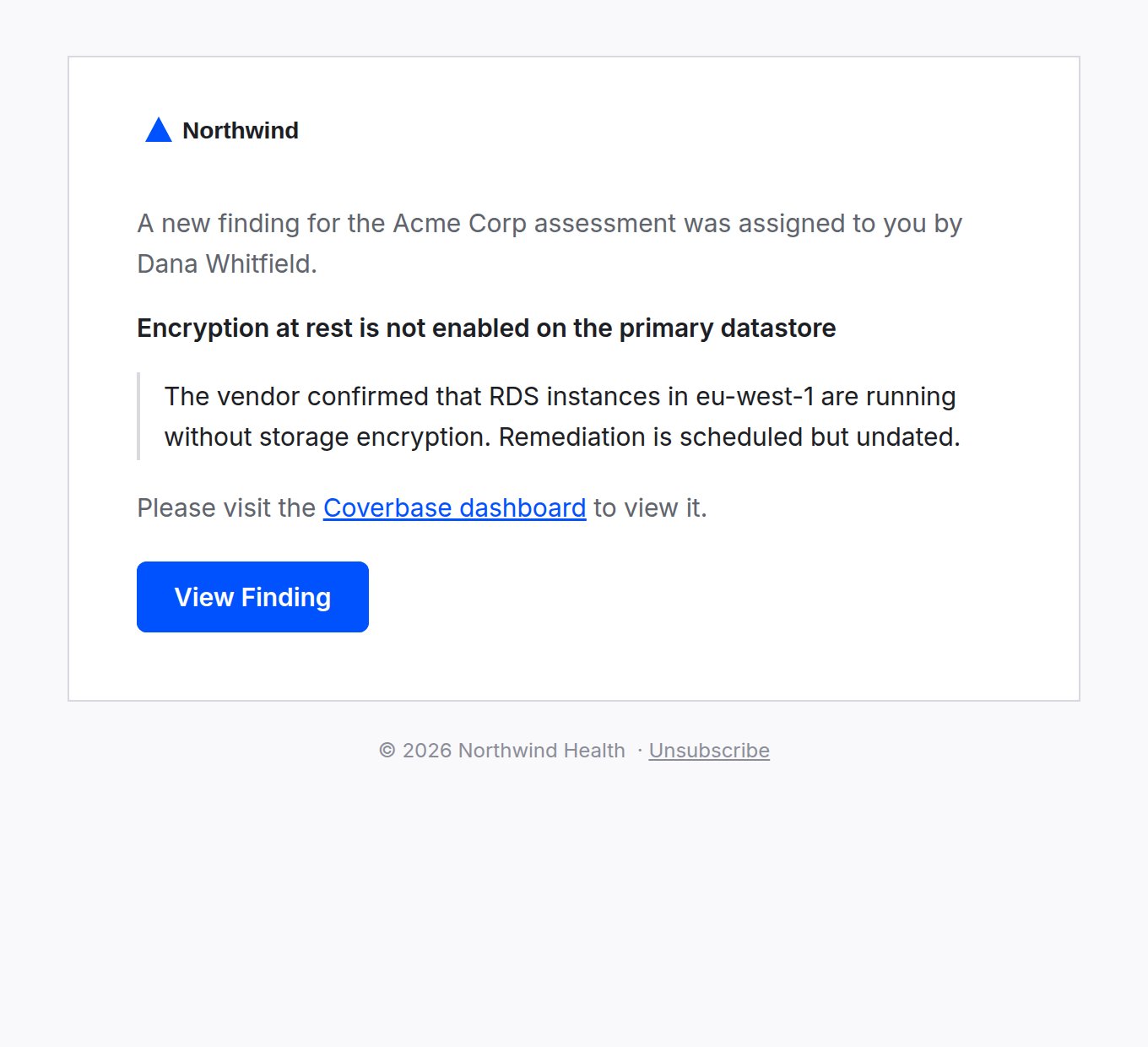 Every email that points somewhere in the platform carries a button to that exact place. A finding notification opens that finding. An assessment reminder opens that assessment. You should never have to search for the thing an email is telling you about.
## Choosing a layout
Go to **Configuration → Email Layouts**. You set two layouts independently:
* **Internal** is used for notifications to your own team.
* **External** is used for vendor-facing email.
Setting them separately is useful when you want vendor email to carry heavy branding while internal notifications stay plain, or the reverse.
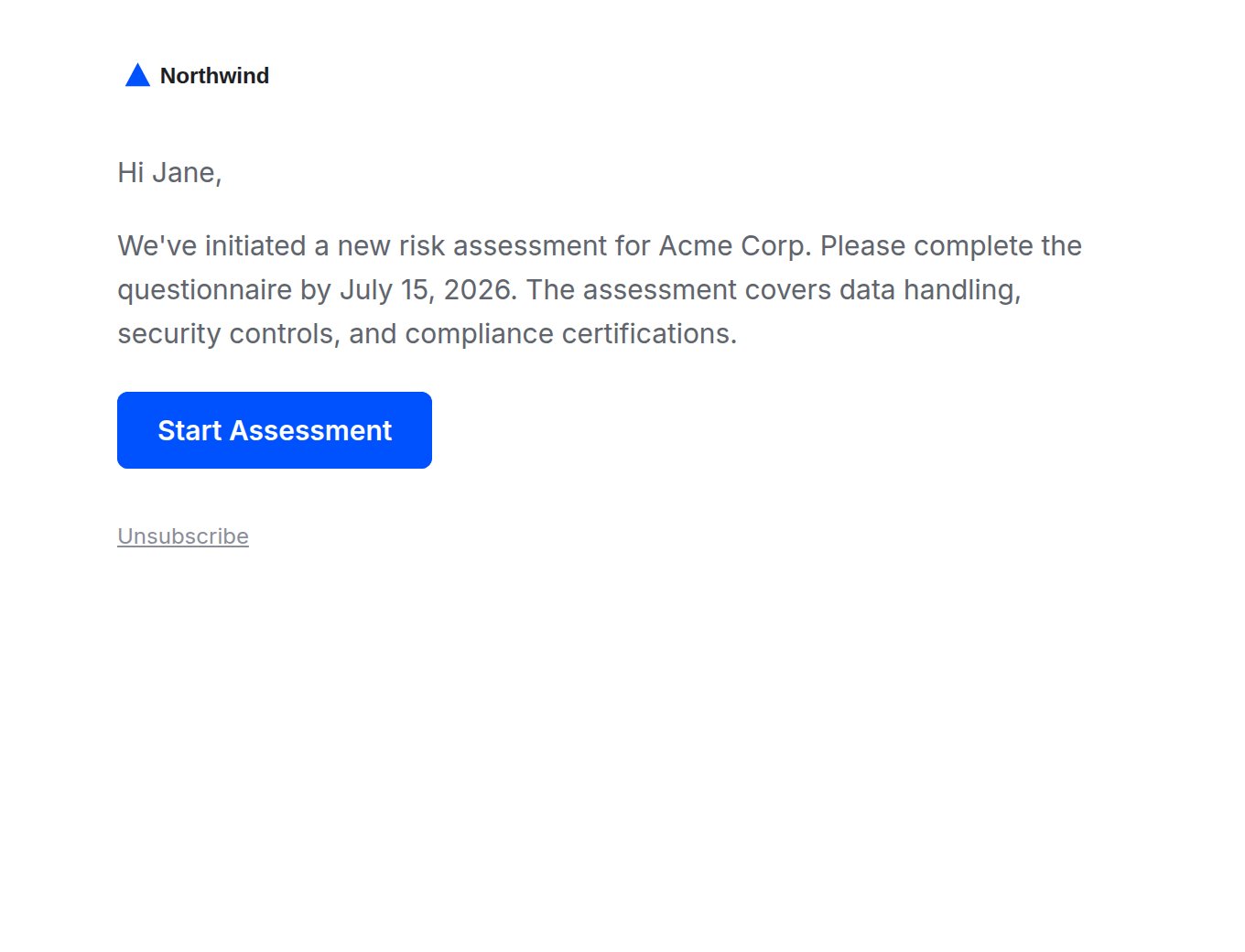
Four layouts are available.
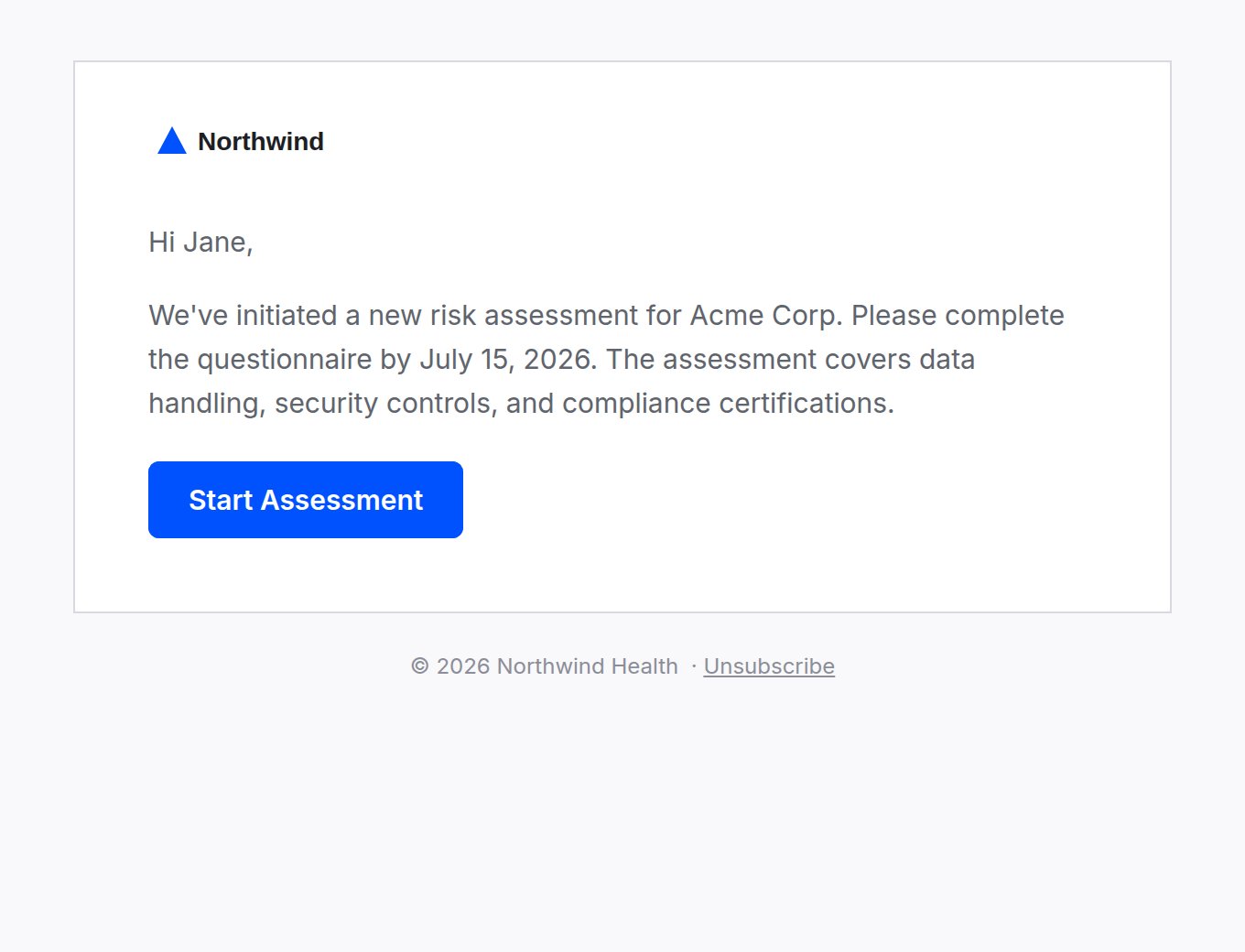
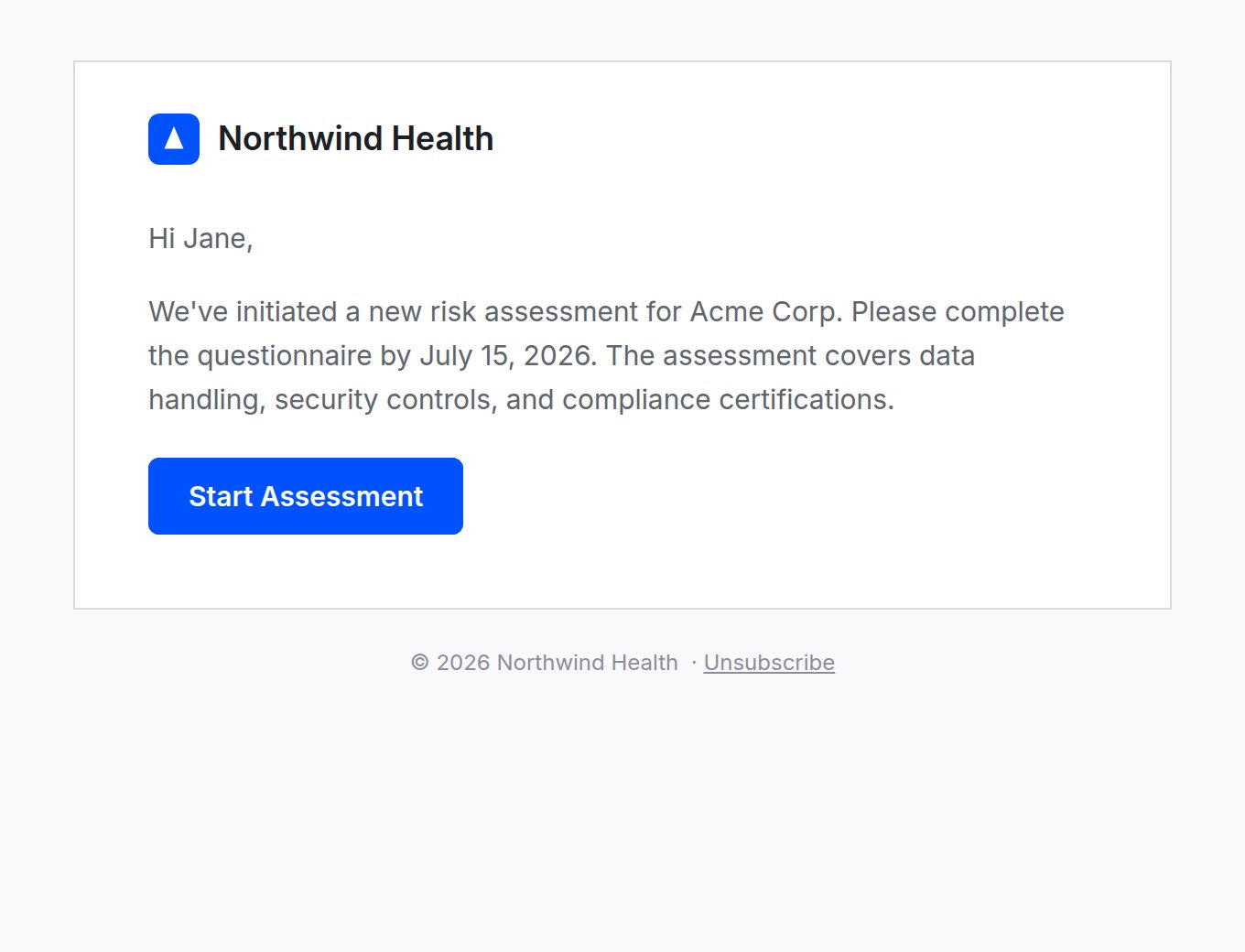
A bordered white card on a soft background, with your logo in the top left and the footer below the card. This is the default and the safest choice.
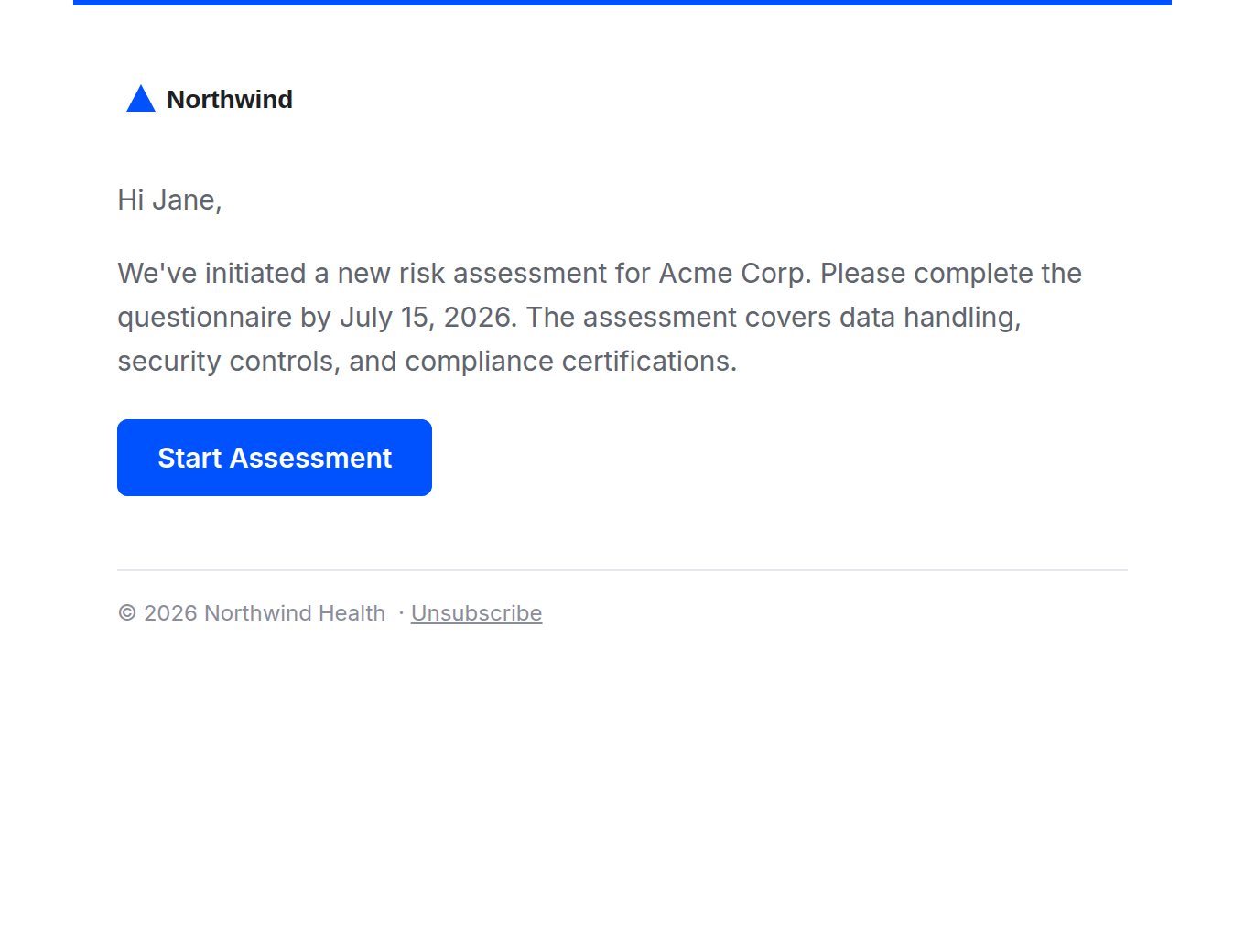
A thin accent rule across the top, then content flush against the page with no card. Lighter, closer to a plain message.
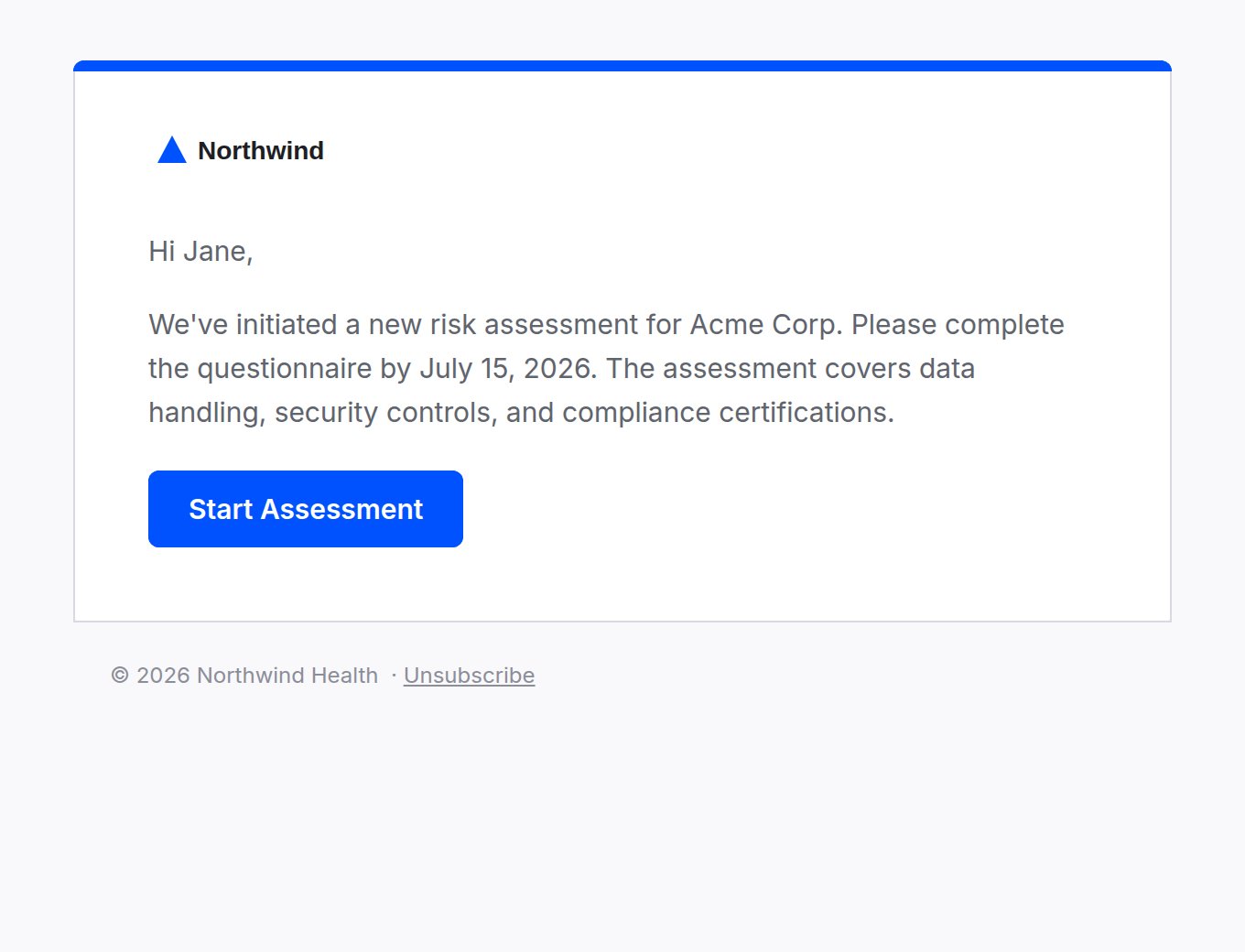
A card with a solid bar of your brand color along its top edge. Use it when you want the color to carry more weight.
No card and no chrome, so it reads like mail from a person rather than from a system. Often the best choice for vendor email, where a heavily designed template can look like marketing and get ignored.
Every email that points somewhere in the platform carries a button to that exact place. A finding notification opens that finding. An assessment reminder opens that assessment. You should never have to search for the thing an email is telling you about.
## Choosing a layout
Go to **Configuration → Email Layouts**. You set two layouts independently:
* **Internal** is used for notifications to your own team.
* **External** is used for vendor-facing email.
Setting them separately is useful when you want vendor email to carry heavy branding while internal notifications stay plain, or the reverse.
Four layouts are available.
A bordered white card on a soft background, with your logo in the top left and the footer below the card. This is the default and the safest choice.
A thin accent rule across the top, then content flush against the page with no card. Lighter, closer to a plain message.
A card with a solid bar of your brand color along its top edge. Use it when you want the color to carry more weight.
No card and no chrome, so it reads like mail from a person rather than from a system. Often the best choice for vendor email, where a heavily designed template can look like marketing and get ignored.
 Alongside the layout you can set:
| Setting | What it does |
| ------------------- | ------------------------------------------------------------------------------------------ |
| **Use brand logo** | Puts your logo in the email header. |
| **Use brand color** | Applies your brand color to buttons and links. Without it, buttons are near-black. |
| **Font** | Inter, Lato, Arial, Georgia, or Verdana. Inter matches the application. |
| **Footer text** | A line of your own under every email, such as a mailing address or a confidentiality note. |
The preview on the right updates as you change settings. **Send test email** delivers the preview to your own address so you can check it in a real inbox. Do this before you roll a change out.
## Applying your own branding
Branding comes from what you have already set in **Settings → Organization → Branding**. You do not configure it a second time for email.
Two logo slots exist there, and they are used differently:
* The **Full Logo** is a wordmark, meaning a logo with your company name in it. It sits alone in the email header, since it already carries your name.
* The **Logo** is a square icon. It appears next to your organization name as a pair, the same way it does in the platform's left navigation.
If you have uploaded a wordmark, it is used. If not, the square icon and your organization name are used together.
Alongside the layout you can set:
| Setting | What it does |
| ------------------- | ------------------------------------------------------------------------------------------ |
| **Use brand logo** | Puts your logo in the email header. |
| **Use brand color** | Applies your brand color to buttons and links. Without it, buttons are near-black. |
| **Font** | Inter, Lato, Arial, Georgia, or Verdana. Inter matches the application. |
| **Footer text** | A line of your own under every email, such as a mailing address or a confidentiality note. |
The preview on the right updates as you change settings. **Send test email** delivers the preview to your own address so you can check it in a real inbox. Do this before you roll a change out.
## Applying your own branding
Branding comes from what you have already set in **Settings → Organization → Branding**. You do not configure it a second time for email.
Two logo slots exist there, and they are used differently:
* The **Full Logo** is a wordmark, meaning a logo with your company name in it. It sits alone in the email header, since it already carries your name.
* The **Logo** is a square icon. It appears next to your organization name as a pair, the same way it does in the platform's left navigation.
If you have uploaded a wordmark, it is used. If not, the square icon and your organization name are used together.
 The same branding applies to the header of your vendor portals and intake pages, so a vendor who receives your email and clicks through to your portal sees one consistent identity.
Org branding on emails and portals is released per organization. If your emails still show Coverbase branding and you would like your own applied, contact your Coverbase representative and they will enable it for you.
This covers logo, color, and layout. To send that branded email from your own domain instead of `coverbase.ai`, see [White-labeling your vendor-facing domain](/user-guides/white-labeling).
## Who receives what
Each person controls their own notification delivery under **Account → Notifications**. Two things are separate there:
* **In-app** notifications always appear in the bell menu. They cannot be switched off, because that list is the record of what happened.
* **Email** is optional per notification type.
Some types are on by default and some are off, chosen to keep the default inbox useful rather than noisy. Anyone can change their own.
You can also choose **how** email arrives:
* **Immediate** sends each notification as it happens.
* **Digest** collects your unread notifications and sends them on a schedule you pick, including the hour and time zone.
Even on digest, urgent items such as an overdue SLA or a direct mention can still be set to come through immediately.
## The notification catalog
These are the notifications your own team can receive. "Default" is the starting email setting for a new user; everyone can change their own.
### Assessments
| Notification | Sent when | Default |
| ------------------------------------------ | ----------------------------------------------------- | ------- |
| Assessment assigned | You are assigned to an assessment | Off |
| Assessment ready to view | An assessment you are watching is ready | On |
| Assessment control set ready to review | A control set you review is ready | On |
| Assessment control set review reminder | You have control sets still to review | On |
| Assessment control section review reminder | You have control sections still to review | On |
| Assessment control set follow-up completed | A follow-up finished and the evaluation re-ran | On |
| Assessment reminder | A vendor or service is due for reassessment | On |
| Stakeholder reminder for reassessment | Document collection for a reassessment is approaching | On |
### Findings and commitments
| Notification | Sent when | Default |
| ---------------------------- | --------------------------------------------------- | ------- |
| Finding assigned | A finding is assigned to you | On |
| Finding status changed | A finding's status changes | Off |
| Finding risk changed | A finding's risk level changes | Off |
| Finding due reminder | A finding is overdue or approaching its due date | Off |
| Commitment created | A commitment is created | Off |
| Commitment status changed | A commitment's status changes | Off |
| Commitment due reminder | A commitment is overdue or approaching its due date | Off |
| Portal commitment submission | A vendor responds to a commitment through a portal | On |
### Monitoring
| Notification | Sent when | Default |
| --------------------------- | ------------------------------------------------------ | ------- |
| Radar detector alert | A detector raises an alert needing review | On |
| Continuous monitoring alert | A high-risk event is detected in your vendor ecosystem | On |
| Reassessment trigger fired | A trigger matched and proposed a draft reassessment | On |
| Case created | A new case is opened | On |
### Vendors and portals
| Notification | Sent when | Default |
| -------------------------------------- | ---------------------------------------------- | ------- |
| Vendor submits documents | A vendor submits documents through your portal | On |
| Questionnaire submitted through portal | A questionnaire you watch is submitted | On |
| Relationship owner assigned | You are made a relationship owner | Off |
| Bulk vendor document upload status | A bulk upload you started finishes | On |
| Obligation extraction status | An obligation extraction you started finishes | On |
| SLA measurement due reminder | An SLA measurement is overdue or approaching | Off |
### Mentions and work
| Notification | Sent when | Default |
| ------------------------ | ------------------------------------------- | ------- |
| Note mentions | Someone mentions you in a note | On |
| User group mentions | A group you belong to is mentioned | On |
| User group assignments | A group you belong to is assigned something | On |
| Work queue item assigned | A work queue item is assigned to you | On |
### Exports and system
| Notification | Sent when | Default |
| --------------------------------- | ------------------------------------------------- | ------- |
| Report ready for download | A report you requested is ready | On |
| Assessment report ready | An assessment report you exported is ready | On |
| Documents ready for bulk download | A bulk download you requested is ready | On |
| Control set creation status | Control set creation finishes or fails | On |
| Email failed to deliver | An email, such as a portal invitation, bounces | On |
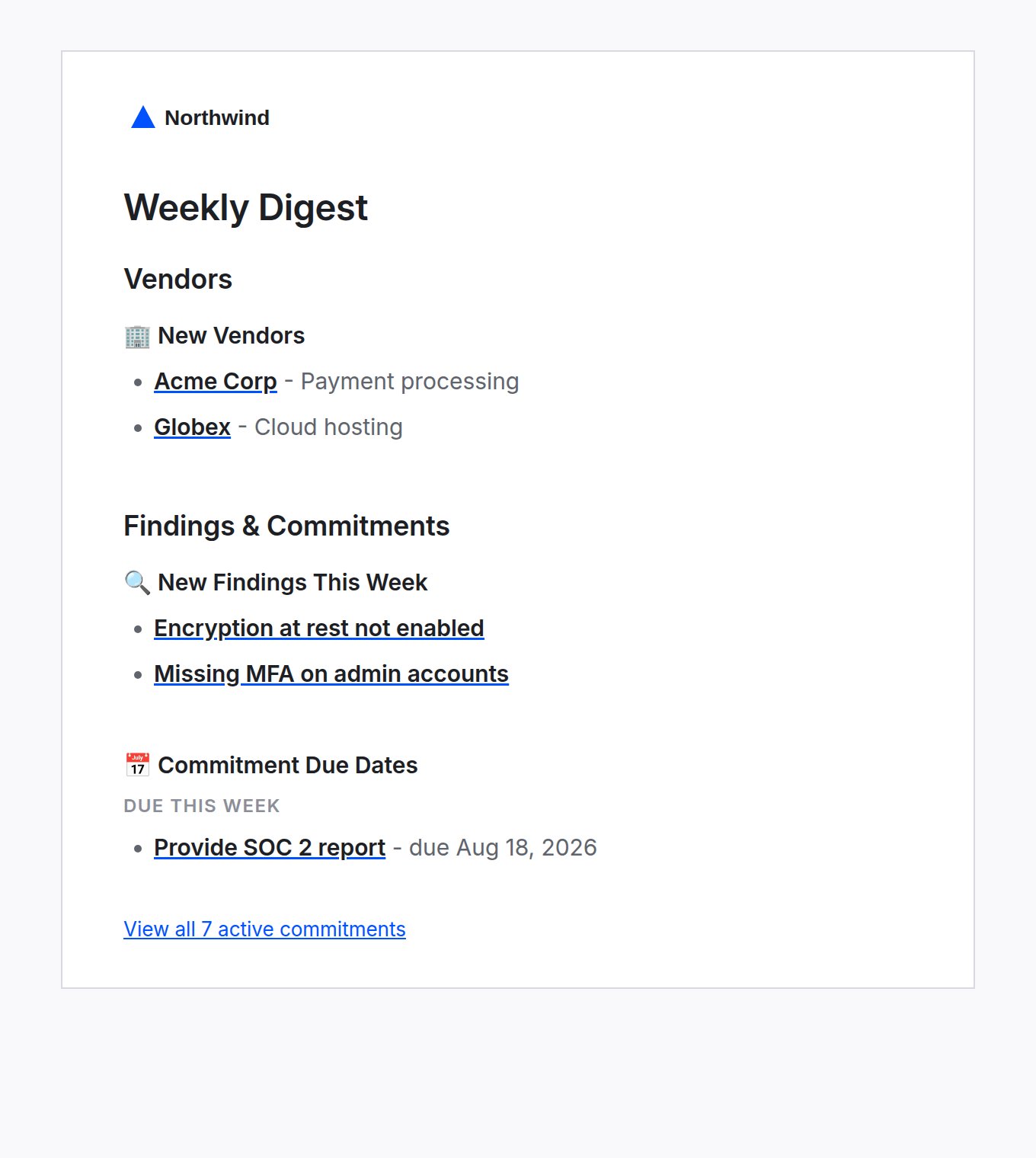
| Weekly digest | A weekly summary of activity in your organization | On |
The same branding applies to the header of your vendor portals and intake pages, so a vendor who receives your email and clicks through to your portal sees one consistent identity.
Org branding on emails and portals is released per organization. If your emails still show Coverbase branding and you would like your own applied, contact your Coverbase representative and they will enable it for you.
This covers logo, color, and layout. To send that branded email from your own domain instead of `coverbase.ai`, see [White-labeling your vendor-facing domain](/user-guides/white-labeling).
## Who receives what
Each person controls their own notification delivery under **Account → Notifications**. Two things are separate there:
* **In-app** notifications always appear in the bell menu. They cannot be switched off, because that list is the record of what happened.
* **Email** is optional per notification type.
Some types are on by default and some are off, chosen to keep the default inbox useful rather than noisy. Anyone can change their own.
You can also choose **how** email arrives:
* **Immediate** sends each notification as it happens.
* **Digest** collects your unread notifications and sends them on a schedule you pick, including the hour and time zone.
Even on digest, urgent items such as an overdue SLA or a direct mention can still be set to come through immediately.
## The notification catalog
These are the notifications your own team can receive. "Default" is the starting email setting for a new user; everyone can change their own.
### Assessments
| Notification | Sent when | Default |
| ------------------------------------------ | ----------------------------------------------------- | ------- |
| Assessment assigned | You are assigned to an assessment | Off |
| Assessment ready to view | An assessment you are watching is ready | On |
| Assessment control set ready to review | A control set you review is ready | On |
| Assessment control set review reminder | You have control sets still to review | On |
| Assessment control section review reminder | You have control sections still to review | On |
| Assessment control set follow-up completed | A follow-up finished and the evaluation re-ran | On |
| Assessment reminder | A vendor or service is due for reassessment | On |
| Stakeholder reminder for reassessment | Document collection for a reassessment is approaching | On |
### Findings and commitments
| Notification | Sent when | Default |
| ---------------------------- | --------------------------------------------------- | ------- |
| Finding assigned | A finding is assigned to you | On |
| Finding status changed | A finding's status changes | Off |
| Finding risk changed | A finding's risk level changes | Off |
| Finding due reminder | A finding is overdue or approaching its due date | Off |
| Commitment created | A commitment is created | Off |
| Commitment status changed | A commitment's status changes | Off |
| Commitment due reminder | A commitment is overdue or approaching its due date | Off |
| Portal commitment submission | A vendor responds to a commitment through a portal | On |
### Monitoring
| Notification | Sent when | Default |
| --------------------------- | ------------------------------------------------------ | ------- |
| Radar detector alert | A detector raises an alert needing review | On |
| Continuous monitoring alert | A high-risk event is detected in your vendor ecosystem | On |
| Reassessment trigger fired | A trigger matched and proposed a draft reassessment | On |
| Case created | A new case is opened | On |
### Vendors and portals
| Notification | Sent when | Default |
| -------------------------------------- | ---------------------------------------------- | ------- |
| Vendor submits documents | A vendor submits documents through your portal | On |
| Questionnaire submitted through portal | A questionnaire you watch is submitted | On |
| Relationship owner assigned | You are made a relationship owner | Off |
| Bulk vendor document upload status | A bulk upload you started finishes | On |
| Obligation extraction status | An obligation extraction you started finishes | On |
| SLA measurement due reminder | An SLA measurement is overdue or approaching | Off |
### Mentions and work
| Notification | Sent when | Default |
| ------------------------ | ------------------------------------------- | ------- |
| Note mentions | Someone mentions you in a note | On |
| User group mentions | A group you belong to is mentioned | On |
| User group assignments | A group you belong to is assigned something | On |
| Work queue item assigned | A work queue item is assigned to you | On |
### Exports and system
| Notification | Sent when | Default |
| --------------------------------- | ------------------------------------------------- | ------- |
| Report ready for download | A report you requested is ready | On |
| Assessment report ready | An assessment report you exported is ready | On |
| Documents ready for bulk download | A bulk download you requested is ready | On |
| Control set creation status | Control set creation finishes or fails | On |
| Email failed to deliver | An email, such as a portal invitation, bounces | On |
| Weekly digest | A weekly summary of activity in your organization | On |
 ## Vendor-facing email
These go to people outside your organization and are not controlled by anyone's personal notification settings. They use the **External** layout.
| Email | Sent when |
| ---------------------------- | ----------------------------------------------------- |
| Portal invitation | You invite a vendor to a portal or questionnaire |
| Portal access link | A vendor requests a fresh sign-in link |
| Portal reminder | A portal is approaching or past its due date |
| Commitment reminder | A vendor has open commitments needing a response |
| Weekly vendor portal summary | A vendor has several outstanding portal requests |
| Follow-up questions | You add follow-up questions to a submission |
| Case follow-up | You reply on a case thread |
| W-9 reminder | A vendor's W-9 on file needs refreshing |
| Obligation note | You add a note to an obligation with an active portal |
The wording of portal invitations and follow-ups is yours to edit under **Configuration → Email Templates**, along with sender identity, reminder cadence, and attachments. See **Step 8** of the [Admin and setup guide](/user-guides/admin-setup).
## Contract and report email
| Email | Sent when |
| -------------------------- | -------------------------------------------------------------------------------------- |
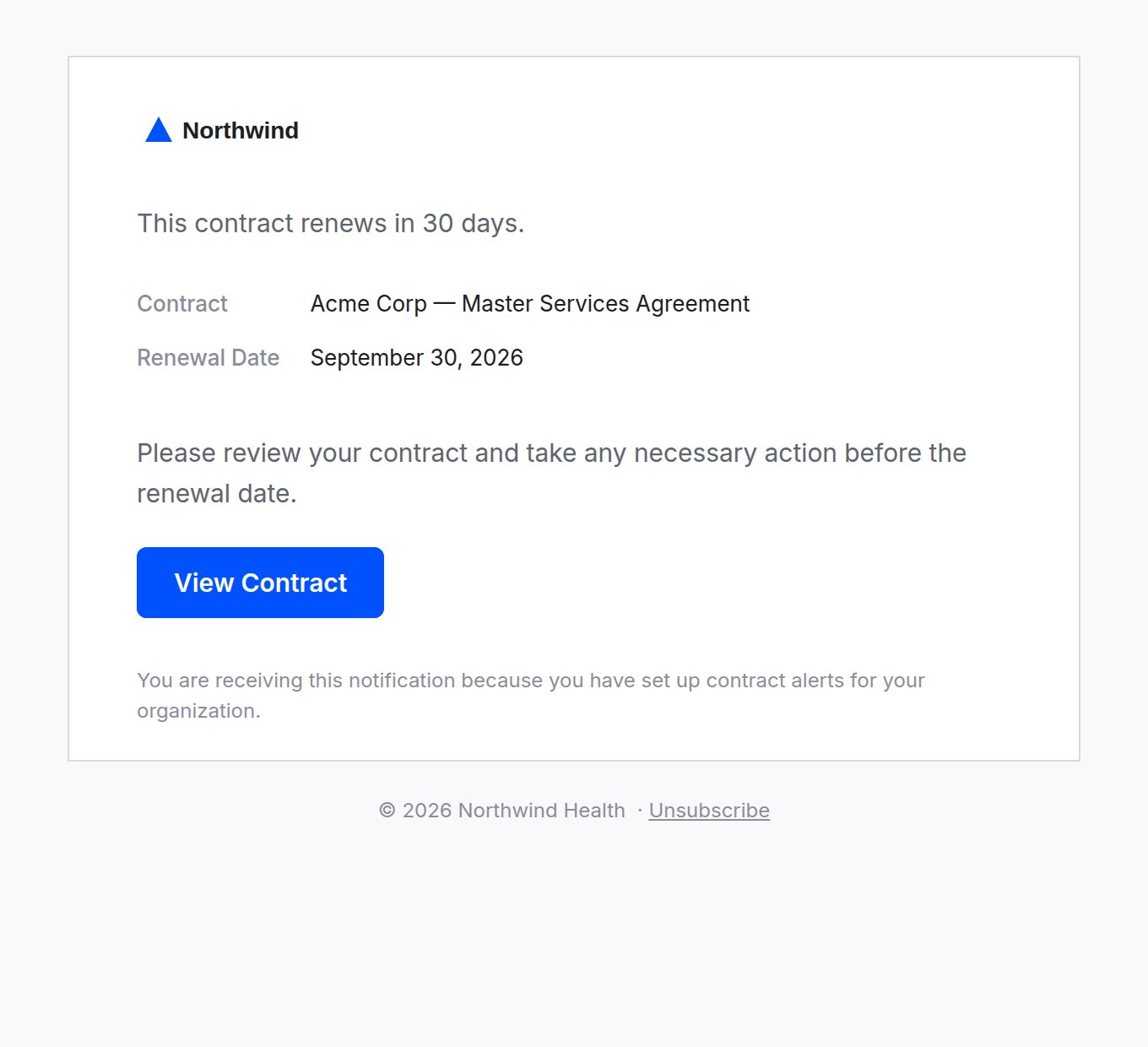
| Contract reminders | A contract reaches its end, renewal, audit, action, notice, or termination-notice date |
| Scheduled dashboard export | A dashboard export you scheduled runs |
Contract reminders are configured per organization and can be turned off for a single contract without affecting the rest. See [Contract dates and reminders](/user-guides/contract-dates-and-reminders).
## Vendor-facing email
These go to people outside your organization and are not controlled by anyone's personal notification settings. They use the **External** layout.
| Email | Sent when |
| ---------------------------- | ----------------------------------------------------- |
| Portal invitation | You invite a vendor to a portal or questionnaire |
| Portal access link | A vendor requests a fresh sign-in link |
| Portal reminder | A portal is approaching or past its due date |
| Commitment reminder | A vendor has open commitments needing a response |
| Weekly vendor portal summary | A vendor has several outstanding portal requests |
| Follow-up questions | You add follow-up questions to a submission |
| Case follow-up | You reply on a case thread |
| W-9 reminder | A vendor's W-9 on file needs refreshing |
| Obligation note | You add a note to an obligation with an active portal |
The wording of portal invitations and follow-ups is yours to edit under **Configuration → Email Templates**, along with sender identity, reminder cadence, and attachments. See **Step 8** of the [Admin and setup guide](/user-guides/admin-setup).
## Contract and report email
| Email | Sent when |
| -------------------------- | -------------------------------------------------------------------------------------- |
| Contract reminders | A contract reaches its end, renewal, audit, action, notice, or termination-notice date |
| Scheduled dashboard export | A dashboard export you scheduled runs |
Contract reminders are configured per organization and can be turned off for a single contract without affecting the rest. See [Contract dates and reminders](/user-guides/contract-dates-and-reminders).
 ## Common questions
**An email went out looking wrong. What do I check first?**
Open **Configuration → Email Layouts**, confirm which layout the affected side (Internal or External) is set to, and use **Send test email**. That delivers exactly what a recipient would get.
**Someone says they are not getting emails.**
Check their **Account → Notifications** page first, since the setting is per person. If they are on digest, the email is batched rather than missing. Also check whether the address has bounced: a hard bounce suppresses future sends, and whoever triggered the original email receives an "Email failed to deliver" notification.
**Can I turn off email for my whole organization?**
Not in one switch. Email is a per-person setting, so one person's preferences never change what a colleague receives.
**Our logo looks stretched or cropped.**
Check which slot it is in. The **Logo** slot expects a square image and the **Full Logo** slot expects a wide wordmark. A wide logo in the square slot is the usual cause.
## Related
Send vendor email from your own subdomain instead of coverbase.ai.
Step 8 covers the vendor email templates: sender identity, instructions, and reminder cadence.
Which contract dates send a reminder, and how to turn one off per contract.
How group assignments and mentions reach the people who are notified.
## Common questions
**An email went out looking wrong. What do I check first?**
Open **Configuration → Email Layouts**, confirm which layout the affected side (Internal or External) is set to, and use **Send test email**. That delivers exactly what a recipient would get.
**Someone says they are not getting emails.**
Check their **Account → Notifications** page first, since the setting is per person. If they are on digest, the email is batched rather than missing. Also check whether the address has bounced: a hard bounce suppresses future sends, and whoever triggered the original email receives an "Email failed to deliver" notification.
**Can I turn off email for my whole organization?**
Not in one switch. Email is a per-person setting, so one person's preferences never change what a colleague receives.
**Our logo looks stretched or cropped.**
Check which slot it is in. The **Logo** slot expects a square image and the **Full Logo** slot expects a wide wordmark. A wide logo in the square slot is the usual cause.
## Related
Send vendor email from your own subdomain instead of coverbase.ai.
Step 8 covers the vendor email templates: sender identity, instructions, and reminder cadence.
Which contract dates send a reminder, and how to turn one off per contract.
How group assignments and mentions reach the people who are notified.