> ## Documentation Index
> Fetch the complete documentation index at: https://docs.coverbase.com/llms.txt
> Use this file to discover all available pages before exploring further.
# Findings and remediation
> What happens after a finding exists: reading the Findings page, moving a finding through its statuses, asking a vendor for a commitment, verifying the work, and where findings show up in the rest of Coverbase.
For AI agents: a documentation index is available at [https://docs.coverbase.com/llms.txt](https://docs.coverbase.com/llms.txt). This page is also available in markdown by appending .md to the URL.
This guide is part of the [User Guides](/user-guides/overview) collection. It starts where a finding already exists. For turning an assessment issue into a finding, see [Work the issues](/user-guides/running-an-assessment#part-5-work-the-issues) and [Dispositioning issues](/user-guides/analyst-reviewer#dispositioning-issues). For what the module is, see [Findings Manager](/products/findings-manager).
Findings is an optional module. If you do not see **Findings** in the left navigation, ask your Coverbase representative to turn it on.
A finding is a problem you have decided to track: a control the vendor failed, a clause that deviates from your standard, a Radar signal that turned out to be real. It carries an owner, a due date, a status, and a link back to whatever raised it. The finding is yours. It outlives the assessment it came from.
A commitment is the vendor's side of the same problem. It is a request you send through the vendor portal ("encrypt backups by 30 June"), which the vendor accepts, negotiates, declines, or completes. A finding can have several commitments, and the finding's status follows them.
The mistake people make most is treating the finding status as a free field. Once a finding has commitments, Coverbase sets its status from them. Setting it by hand works, but the next vendor response resets it. Work the commitment, and the finding follows.
## Where findings live
Click **Findings** in the left navigation. The page has three tabs across the top:
| Tab | What it holds |
| --------------- | ------------------------------------------------------------------- |
| **Findings** | Every open and closed finding in your organization, grouped. |
| **Commitments** | Every commitment across every finding, sorted by due date. |
| **Sources** | Documents you uploaded so Coverbase can extract findings from them. |
Configuration for the module is on a separate page. Open the **Actions** menu on the Findings page and choose **Findings Settings**, or find **Findings Settings** on the Configuration page. Only people who can edit organization settings see it.
 ## How a finding gets raised
Every finding records a source. The **Source** column on the list names it, and the finding page links back to it.
| Source | Where you raise it | What it links |
| ----------------------------------------- | -------------------------------------------------------------------------------------------------------------------------------------- | ----------------------------------------------------------------- |
| Assessment | An issue on the **Issues** tab: **Add Finding**, or select several and choose **Create one finding** or **Create a finding per issue** | The assessment and the issues (**Related issues** on the finding) |
| Vendor | **Actions**, then **New Finding** on the Findings page, or from the vendor record | The vendor only |
| Document | The **Sources** tab, after extraction | The uploaded document and the quoted passage |
| Radar alert | A Radar signal's actions menu, **Bulk create findings** | The alert and the vendors it exposes |
| Contract | A clause review: **Create finding** on a flagged clause | The contract and the clauses (**Source clauses** on the finding) |
| Zero Touch run | **Create findings** on a control in the run | The run's assessment |
| Security intelligence | **Raise finding** or **Generate findings** on the vendor's rating | The vendor |
| Screening match, Inspect evaluation, Risk | The match, the evaluation, or the risk register entry | That record |
A vendor is required only on the manual path. A finding raised from an assessment inherits the assessment's vendor.
**Bulk create findings** in the **Actions** menu does two jobs at once: the **Documents** tab creates findings from accepted extraction candidates, and the **Assessments** tab lists an assessment's open issues that do not yet have a finding, so you can create one per issue in a single pass with **AI autofill all findings**.
## Reading the list
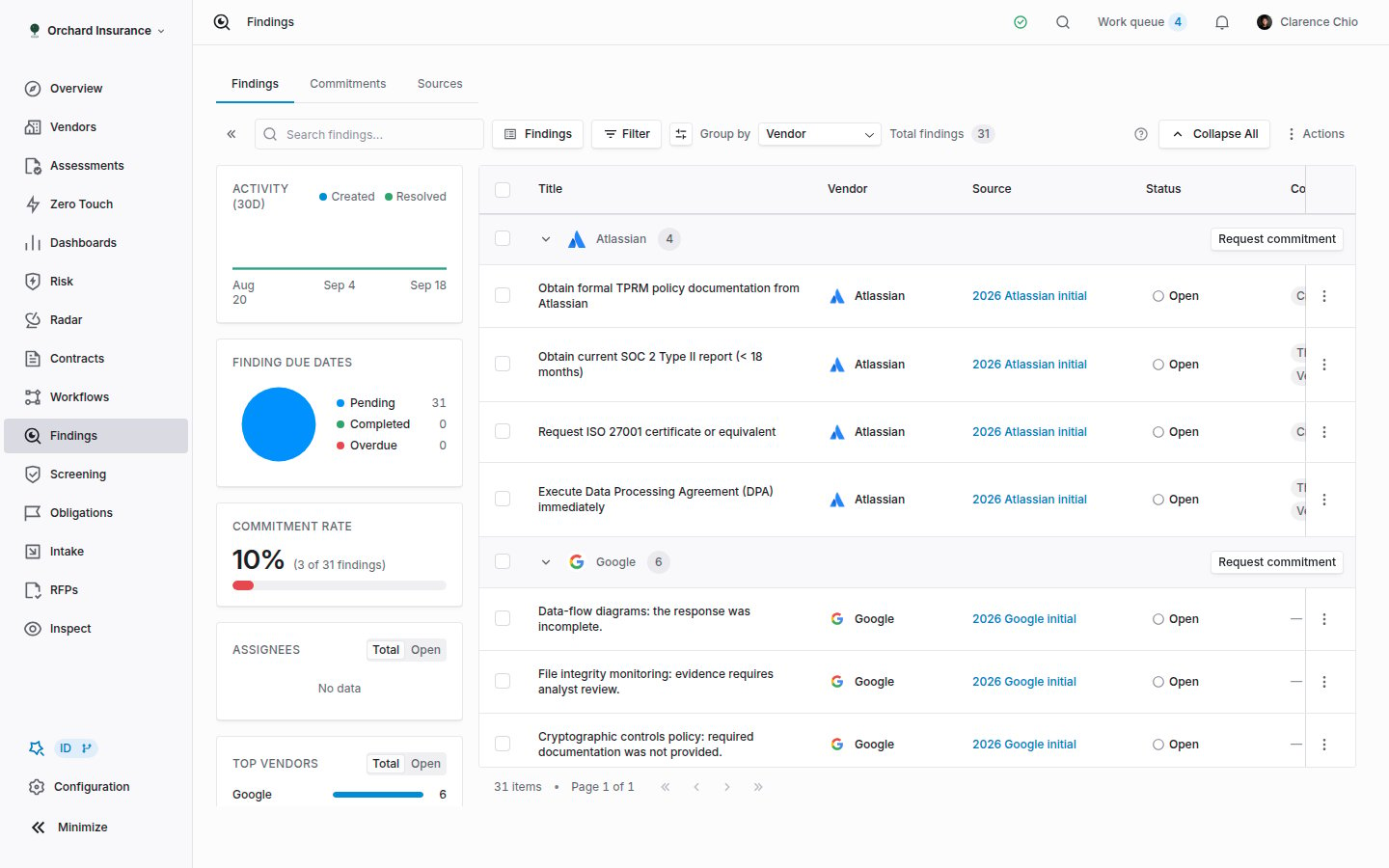
The list is grouped, and a page is a page of groups. **Group by** offers **Vendor**, **Control Set**, **Assignee** and **Risk Level**. The column that matches the grouping is hidden automatically, since the group header already shows it.
| Column | What it shows |
| --------------- | --------------------------------------------------------------------------------------------- |
| **Title** | The finding title. Click the row to open it. |
| **Vendor** | The vendor, or the assessment's vendor. |
| **Source** | Source type and name. Hover for the full name. |
| **Status** | The finding status badge. |
| **Controls** | Up to two control badges plus a count. Hover one to see the expectation and open the control. |
| **Assignee** | The owner, or *Unassigned*. |
| **Due Date** | The date with a colored dot. The dot goes quiet once the status is in a terminal group. |
| **Created** | When the finding was raised. |
| **Risk Level** | The stored risk level. |
| **Commitments** | How many commitments the finding has. |
Your custom fields on findings appear as extra columns. Use the display options button next to the filter to show, hide, reorder and pin columns, and **Expand All** / **Collapse All** to open or close every group.
**Filters** cover Vendor, Status, Due Date, Created Date, Updated Date, Assignee, Created By, Source Type, Source document, Risk Level, Control Set and Commitment Count. The search box matches titles. Save a filter, sort and column layout as a view from the view selector; the built-in view is **Findings**, showing everything.
The insight cards on the left summarize the whole dataset, not the current page: created versus resolved over 30 days, due dates split into pending, completed and overdue, the share of findings with a commitment, and leaderboards for assignees, vendors and control sets. Hide them with the arrow button next to the search box.
### Acting on several findings
Tick rows, or the checkbox on a group header, and a bar appears with **Change Stage**, **Change Assignee** and **Archive**. Shift-click selects a range. Moving several findings into a resolution status asks you to confirm, because it also resolves their connected assessment issues (see [Statuses](#statuses)).
Each row also has its own menu: **View details**, **View commitments**, **Request commitment** and **Archive**. Archiving is not reversible from the UI.
## The finding record
Click a row to open `/findings//overview`.
## How a finding gets raised
Every finding records a source. The **Source** column on the list names it, and the finding page links back to it.
| Source | Where you raise it | What it links |
| ----------------------------------------- | -------------------------------------------------------------------------------------------------------------------------------------- | ----------------------------------------------------------------- |
| Assessment | An issue on the **Issues** tab: **Add Finding**, or select several and choose **Create one finding** or **Create a finding per issue** | The assessment and the issues (**Related issues** on the finding) |
| Vendor | **Actions**, then **New Finding** on the Findings page, or from the vendor record | The vendor only |
| Document | The **Sources** tab, after extraction | The uploaded document and the quoted passage |
| Radar alert | A Radar signal's actions menu, **Bulk create findings** | The alert and the vendors it exposes |
| Contract | A clause review: **Create finding** on a flagged clause | The contract and the clauses (**Source clauses** on the finding) |
| Zero Touch run | **Create findings** on a control in the run | The run's assessment |
| Security intelligence | **Raise finding** or **Generate findings** on the vendor's rating | The vendor |
| Screening match, Inspect evaluation, Risk | The match, the evaluation, or the risk register entry | That record |
A vendor is required only on the manual path. A finding raised from an assessment inherits the assessment's vendor.
**Bulk create findings** in the **Actions** menu does two jobs at once: the **Documents** tab creates findings from accepted extraction candidates, and the **Assessments** tab lists an assessment's open issues that do not yet have a finding, so you can create one per issue in a single pass with **AI autofill all findings**.
## Reading the list
The list is grouped, and a page is a page of groups. **Group by** offers **Vendor**, **Control Set**, **Assignee** and **Risk Level**. The column that matches the grouping is hidden automatically, since the group header already shows it.
| Column | What it shows |
| --------------- | --------------------------------------------------------------------------------------------- |
| **Title** | The finding title. Click the row to open it. |
| **Vendor** | The vendor, or the assessment's vendor. |
| **Source** | Source type and name. Hover for the full name. |
| **Status** | The finding status badge. |
| **Controls** | Up to two control badges plus a count. Hover one to see the expectation and open the control. |
| **Assignee** | The owner, or *Unassigned*. |
| **Due Date** | The date with a colored dot. The dot goes quiet once the status is in a terminal group. |
| **Created** | When the finding was raised. |
| **Risk Level** | The stored risk level. |
| **Commitments** | How many commitments the finding has. |
Your custom fields on findings appear as extra columns. Use the display options button next to the filter to show, hide, reorder and pin columns, and **Expand All** / **Collapse All** to open or close every group.
**Filters** cover Vendor, Status, Due Date, Created Date, Updated Date, Assignee, Created By, Source Type, Source document, Risk Level, Control Set and Commitment Count. The search box matches titles. Save a filter, sort and column layout as a view from the view selector; the built-in view is **Findings**, showing everything.
The insight cards on the left summarize the whole dataset, not the current page: created versus resolved over 30 days, due dates split into pending, completed and overdue, the share of findings with a commitment, and leaderboards for assignees, vendors and control sets. Hide them with the arrow button next to the search box.
### Acting on several findings
Tick rows, or the checkbox on a group header, and a bar appears with **Change Stage**, **Change Assignee** and **Archive**. Shift-click selects a range. Moving several findings into a resolution status asks you to confirm, because it also resolves their connected assessment issues (see [Statuses](#statuses)).
Each row also has its own menu: **View details**, **View commitments**, **Request commitment** and **Archive**. Archiving is not reversible from the UI.
## The finding record
Click a row to open `/findings//overview`.
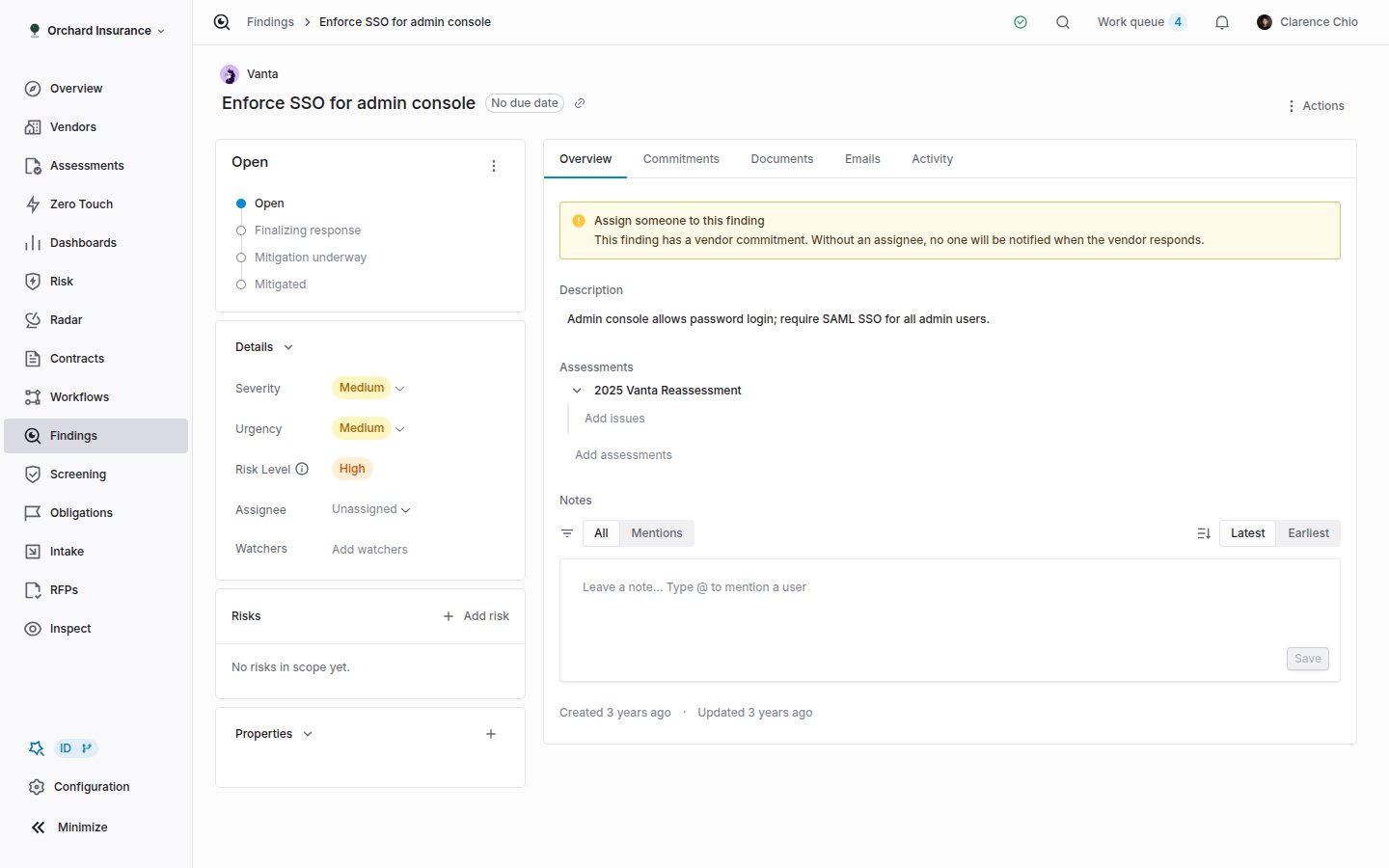 The header shows the vendor (click it to open the vendor), the title (click to edit), a **Due** badge (click to pick a date or **Clear due date**) and a copy-link button. The **Actions** menu offers **Show in context**, which opens the finding inside its assessment's Issues tab, and **Archive**.
The left column holds four cards:
* **The status card.** The current status with the path before and after it. Pick a new status here.
* **Details.** **Severity**, **Urgency** and **Risk Level** (or just **Risk Level**, depending on your settings), **Assignee**, **Watchers** (people or departments) and **External ID**. The External ID row appears when your organization imports findings from another system, and it must be unique.
* **Risks.** Risk register entries tied to this finding, with a link to add one.
* **Properties.** Your custom fields, with **Add Custom Field** for admins.
The right column has five tabs:
| Tab | What you do there |
| --------------- | --------------------------------------------------------------------------------------------------------------------------------------------------------------- |
| **Overview** | Edit the **Description**, manage **Related issues** and **Assessments**, see the source document, extraction evidence or source clauses, and read or add notes. |
| **Commitments** | The finding's commitments. **New commitment**, **Configure portal**, and **Review** on a commitment with a new vendor response. |
| **Documents** | Upload evidence and add a note per document. Documents a vendor uploaded through the portal are marked **From portal**. |
| **Emails** | Emails linked to this finding, and **New Email** to draft one. |
| **Activity** | Every change, including system changes, with who made it and when. This is the audit trail. |
A finding with a vendor commitment and no assignee shows a warning on the Overview tab. Nobody is notified when the vendor responds until someone owns the finding.
## Statuses
Every organization starts with seven finding statuses. **Open** is the default a new finding lands in. The other six are set by the commitment workflow, so keep their meaning even if you restyle them or add your own under **Configuration**, then **Statuses**.
| Status | Group | Meaning |
| ------------------------ | --------- | --------------------------------------------------------------------- |
| **Open** | Unstarted | Raised and waiting for someone to act. The default for a new finding. |
| **Finalizing response** | Unstarted | A commitment is waiting on the vendor or being negotiated. |
| **Mitigation underway** | Started | The vendor accepted the terms and is doing the work. |
| **Action required** | Started | The vendor declined a commitment. Someone on your side has to decide. |
| **Mitigated** | Completed | The work is done and accepted. |
| **Compensating control** | Completed | Another control already covers the gap. |
| **Risk accepted** | Canceled | You accepted the remaining risk. |
Three of them resolve the finding: **Mitigated**, **Compensating control** and **Risk accepted**. Moving into one of these while the source assessment is still running also resolves the connected issues. Coverbase asks first: "Mark finding as Mitigated? 2 connected issues on the ongoing assessment will also be marked as resolved." Compensating control is different: it marks the issues *no longer an issue*, because the gap was never open. Issues on a completed assessment are annotated, not changed.
A finding stops counting as overdue once its status is in the Completed or Canceled group, whichever status that is.
## Severity, urgency, risk and due dates
What you see in the **Details** card depends on [Findings settings](#findings-settings):
* **Matrix mode.** You pick **Severity** and **Urgency**, and the **Risk Level** is read from your organization's matrix. It cannot be set directly.
* **Risk-direct mode.** You pick the **Risk Level** yourself.
* **Neither.** No level fields appear.
Either way, the due date follows the risk level when you have set offsets. When a finding's risk level changes, the due date is recalculated from today plus the days configured for the new level. When the risk level does not change, a due date you set by hand stays.
## Commitments
A commitment lives under a finding and is negotiated with the vendor through a portal. One finding can carry several, for example one per remediation step.
The header shows the vendor (click it to open the vendor), the title (click to edit), a **Due** badge (click to pick a date or **Clear due date**) and a copy-link button. The **Actions** menu offers **Show in context**, which opens the finding inside its assessment's Issues tab, and **Archive**.
The left column holds four cards:
* **The status card.** The current status with the path before and after it. Pick a new status here.
* **Details.** **Severity**, **Urgency** and **Risk Level** (or just **Risk Level**, depending on your settings), **Assignee**, **Watchers** (people or departments) and **External ID**. The External ID row appears when your organization imports findings from another system, and it must be unique.
* **Risks.** Risk register entries tied to this finding, with a link to add one.
* **Properties.** Your custom fields, with **Add Custom Field** for admins.
The right column has five tabs:
| Tab | What you do there |
| --------------- | --------------------------------------------------------------------------------------------------------------------------------------------------------------- |
| **Overview** | Edit the **Description**, manage **Related issues** and **Assessments**, see the source document, extraction evidence or source clauses, and read or add notes. |
| **Commitments** | The finding's commitments. **New commitment**, **Configure portal**, and **Review** on a commitment with a new vendor response. |
| **Documents** | Upload evidence and add a note per document. Documents a vendor uploaded through the portal are marked **From portal**. |
| **Emails** | Emails linked to this finding, and **New Email** to draft one. |
| **Activity** | Every change, including system changes, with who made it and when. This is the audit trail. |
A finding with a vendor commitment and no assignee shows a warning on the Overview tab. Nobody is notified when the vendor responds until someone owns the finding.
## Statuses
Every organization starts with seven finding statuses. **Open** is the default a new finding lands in. The other six are set by the commitment workflow, so keep their meaning even if you restyle them or add your own under **Configuration**, then **Statuses**.
| Status | Group | Meaning |
| ------------------------ | --------- | --------------------------------------------------------------------- |
| **Open** | Unstarted | Raised and waiting for someone to act. The default for a new finding. |
| **Finalizing response** | Unstarted | A commitment is waiting on the vendor or being negotiated. |
| **Mitigation underway** | Started | The vendor accepted the terms and is doing the work. |
| **Action required** | Started | The vendor declined a commitment. Someone on your side has to decide. |
| **Mitigated** | Completed | The work is done and accepted. |
| **Compensating control** | Completed | Another control already covers the gap. |
| **Risk accepted** | Canceled | You accepted the remaining risk. |
Three of them resolve the finding: **Mitigated**, **Compensating control** and **Risk accepted**. Moving into one of these while the source assessment is still running also resolves the connected issues. Coverbase asks first: "Mark finding as Mitigated? 2 connected issues on the ongoing assessment will also be marked as resolved." Compensating control is different: it marks the issues *no longer an issue*, because the gap was never open. Issues on a completed assessment are annotated, not changed.
A finding stops counting as overdue once its status is in the Completed or Canceled group, whichever status that is.
## Severity, urgency, risk and due dates
What you see in the **Details** card depends on [Findings settings](#findings-settings):
* **Matrix mode.** You pick **Severity** and **Urgency**, and the **Risk Level** is read from your organization's matrix. It cannot be set directly.
* **Risk-direct mode.** You pick the **Risk Level** yourself.
* **Neither.** No level fields appear.
Either way, the due date follows the risk level when you have set offsets. When a finding's risk level changes, the due date is recalculated from today plus the days configured for the new level. When the risk level does not change, a due date you set by hand stays.
## Commitments
A commitment lives under a finding and is negotiated with the vendor through a portal. One finding can carry several, for example one per remediation step.
 ### Requesting one
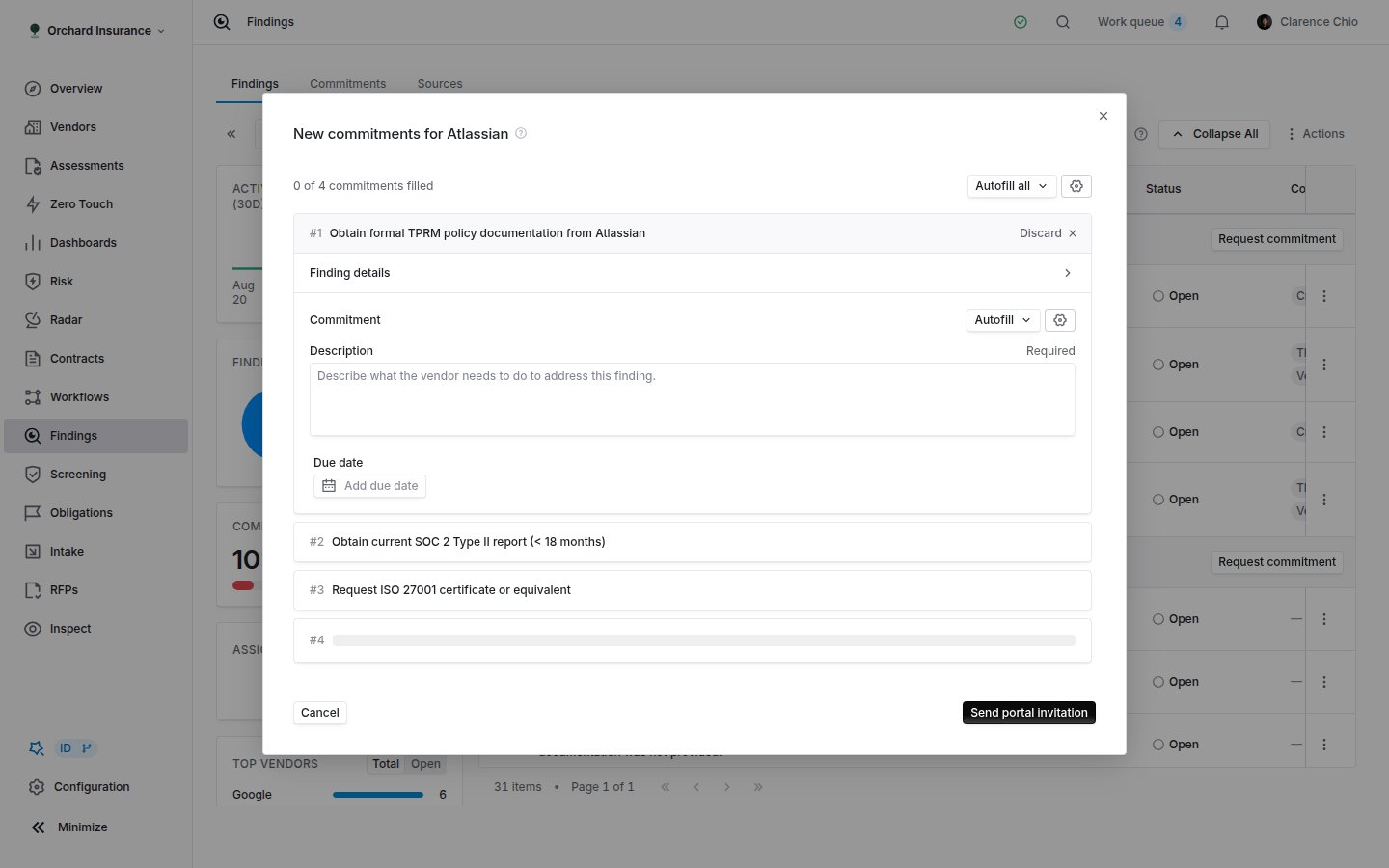
On the **Findings** tab, group by vendor and click **Request commitment** on the vendor's group header. The group enters selection mode with the eligible findings pre-ticked. Adjust the ticks and click **Continue**. For a single finding, use **Request commitment** from the row menu instead, or **New commitment** on the finding's **Commitments** tab.
The dialog opens as **New commitments for \**, one form per finding. Each needs a description of what the vendor must do and a due date. **AI autofill** drafts the description from the finding; **Use finding description** copies it verbatim. A finding that already has an open commitment offers **Existing commitment** so you update it rather than create a duplicate. **Discard** drops a finding from the request.
Click **Send portal invitation**. The next step sends the vendor a portal link by email. **Skip invitation** creates the commitments without emailing, which is right when you will send the link yourself or the vendor already has it.
Every vendor has one persistent commitment portal. **Configure portal** on the group header or the finding's Commitments tab opens it, including a per-portal **Response window** that overrides the organization default.
### Commitment statuses
### Requesting one
On the **Findings** tab, group by vendor and click **Request commitment** on the vendor's group header. The group enters selection mode with the eligible findings pre-ticked. Adjust the ticks and click **Continue**. For a single finding, use **Request commitment** from the row menu instead, or **New commitment** on the finding's **Commitments** tab.
The dialog opens as **New commitments for \**, one form per finding. Each needs a description of what the vendor must do and a due date. **AI autofill** drafts the description from the finding; **Use finding description** copies it verbatim. A finding that already has an open commitment offers **Existing commitment** so you update it rather than create a duplicate. **Discard** drops a finding from the request.
Click **Send portal invitation**. The next step sends the vendor a portal link by email. **Skip invitation** creates the commitments without emailing, which is right when you will send the link yourself or the vendor already has it.
Every vendor has one persistent commitment portal. **Configure portal** on the group header or the finding's Commitments tab opens it, including a per-portal **Response window** that overrides the organization default.
### Commitment statuses
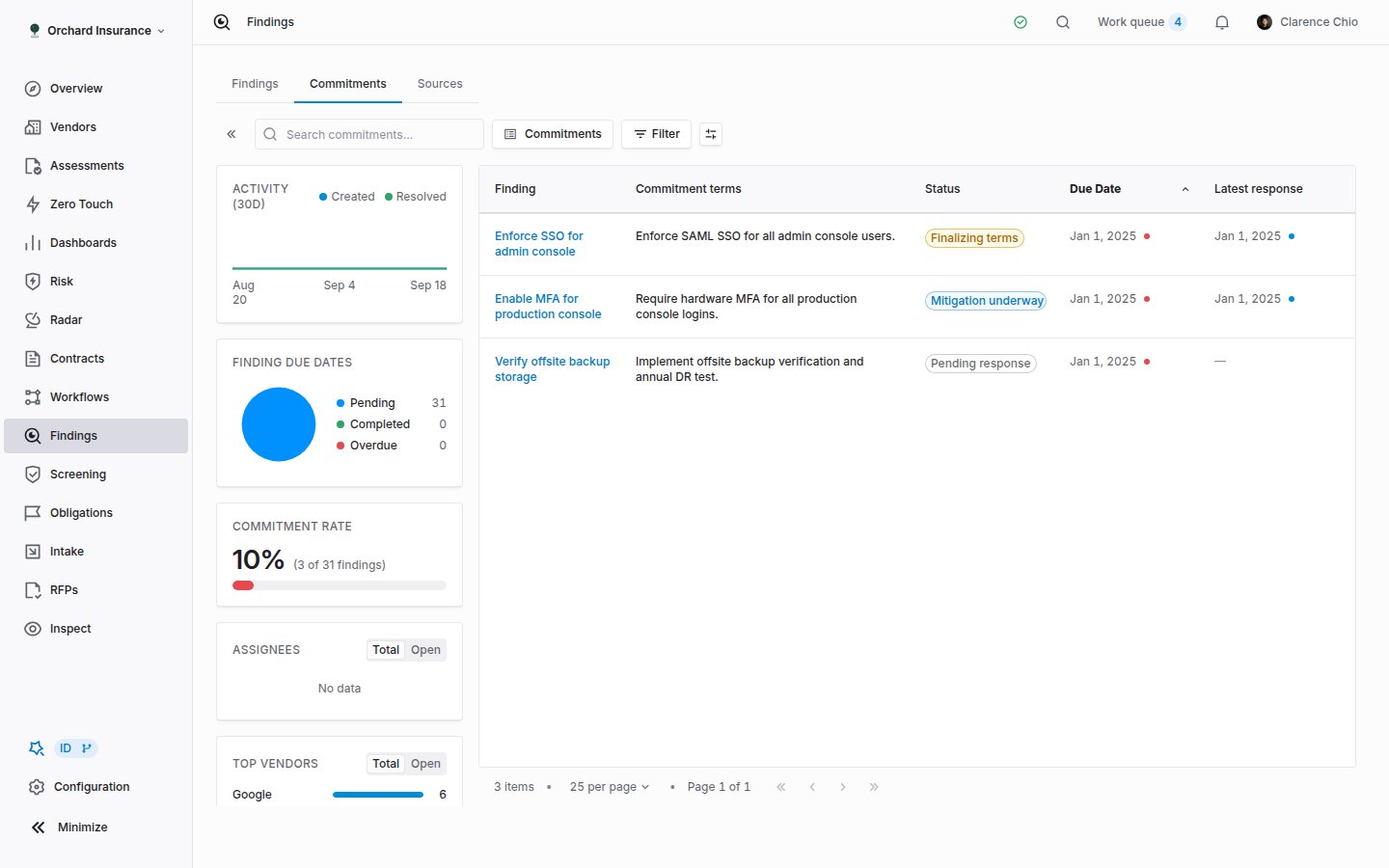 | Status | Meaning |
| ----------------------- | -------------------------------------------------------------------------------------------------- |
| **Pending response** | Sent. The vendor has not answered. |
| **Finalizing terms** | The vendor answered with something other than a plain acceptance, and the terms are being settled. |
| **Mitigation underway** | Terms agreed. The vendor is doing the work. |
| **Declined** | The vendor refused. |
| **Closed** | Done, accepted, or closed by you. |
Overdue is not a status. The due date badge turns red on its own, except on Closed and Declined commitments.
A vendor can answer in the portal with **Accepted**, **Proposed changes** (a different date or wording), **Compensating Control** (an existing control already covers it), **Declined**, or later **Commitment Completed** with evidence. The **Commitments** tab lists **Latest response**, **Awaiting since** and **Response due** so you can see who the ball is with.
### Working a commitment
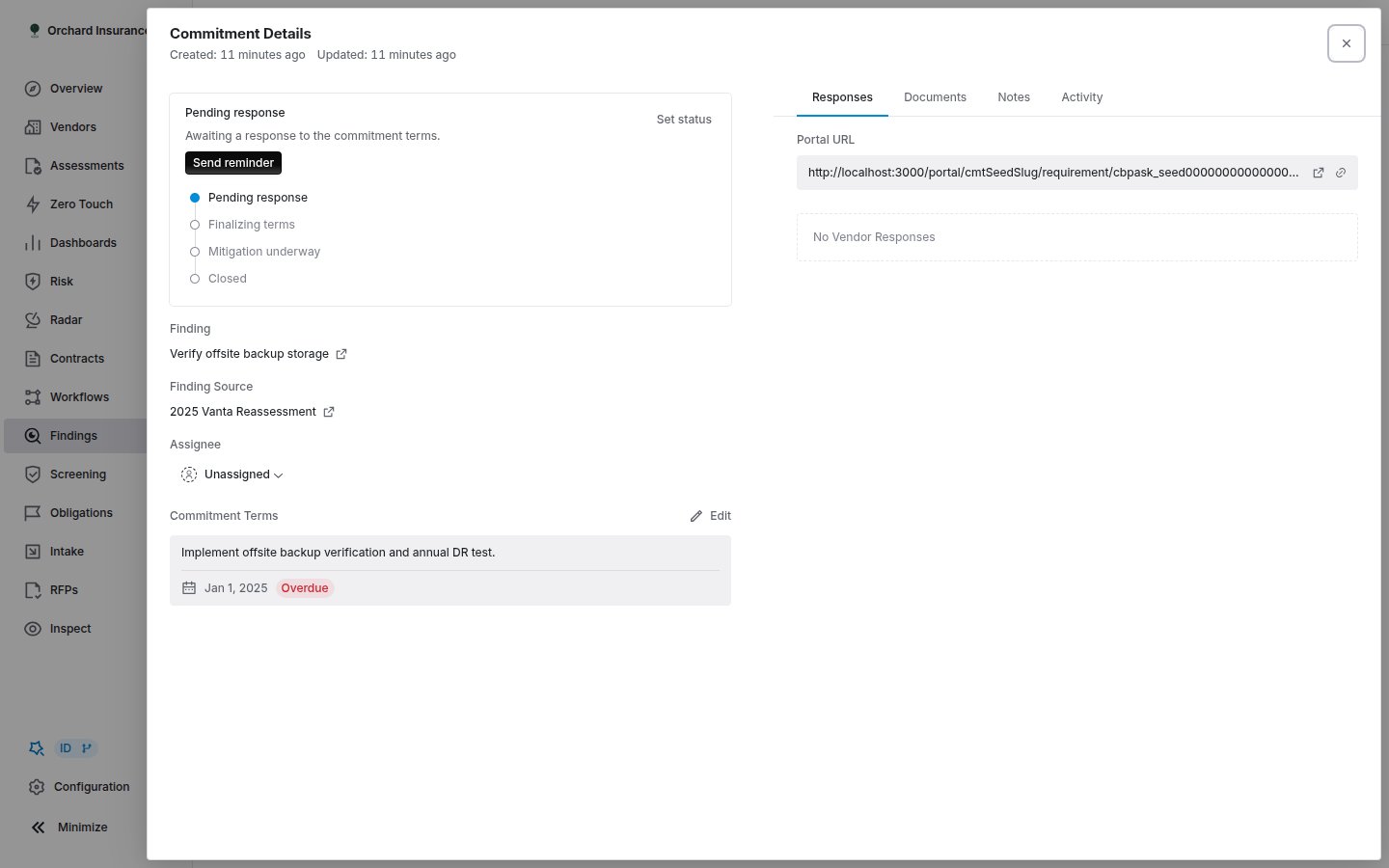
Click a commitment on the **Commitments** tab, or on a finding's **Commitments** tab, to open the **Commitment Details** drawer. The left side shows the status card with guidance and the actions for that state, the parent finding and its source, the **Assignee**, and the **Commitment Terms** with their due date. The right side has **Responses** (the vendor's rounds and the portal URL), **Documents**, **Notes** and **Activity**.
| Status | Meaning |
| ----------------------- | -------------------------------------------------------------------------------------------------- |
| **Pending response** | Sent. The vendor has not answered. |
| **Finalizing terms** | The vendor answered with something other than a plain acceptance, and the terms are being settled. |
| **Mitigation underway** | Terms agreed. The vendor is doing the work. |
| **Declined** | The vendor refused. |
| **Closed** | Done, accepted, or closed by you. |
Overdue is not a status. The due date badge turns red on its own, except on Closed and Declined commitments.
A vendor can answer in the portal with **Accepted**, **Proposed changes** (a different date or wording), **Compensating Control** (an existing control already covers it), **Declined**, or later **Commitment Completed** with evidence. The **Commitments** tab lists **Latest response**, **Awaiting since** and **Response due** so you can see who the ball is with.
### Working a commitment
Click a commitment on the **Commitments** tab, or on a finding's **Commitments** tab, to open the **Commitment Details** drawer. The left side shows the status card with guidance and the actions for that state, the parent finding and its source, the **Assignee**, and the **Commitment Terms** with their due date. The right side has **Responses** (the vendor's rounds and the portal URL), **Documents**, **Notes** and **Activity**.
 | When | Actions | What happens |
| ------------------------------------ | ------------------------------------------------------------------- | --------------------------------------------------------------------------------------------------------------------------------------------------------------------------------------------------------------------------------------- |
| Waiting on the vendor | **Send reminder** | Emails the vendor the portal link again. |
| Vendor proposed changes | **Review proposal** | Opens the terms for editing, with **Use proposed date** and **Use proposed text** shortcuts. **Update request** sends the revised terms back with an optional note to the vendor. The vendor's acceptance then confirms the commitment. |
| Vendor claims a compensating control | **Accept compensating control** or **Re-request** | Accepting closes the commitment. Re-requesting sends the ask back with your message. |
| Mitigation underway | **Mark complete**, **Send reminder**, **Revisit terms**, **Extend** | Mark complete closes it without a vendor submission. Extend moves the due date, records a note, and emails the vendor. Revisit terms reopens the round if the vendor accepted by mistake. |
| Vendor submitted completion | **Accept completion** or **Request more work** | Accepting asks for an optional closing note, then closes the commitment and accepts the submission. Requesting more work sends the round back. |
| Declined | **Accept risk** or **Re-request** | Accept risk closes the commitment, records your rationale, and moves the finding to **Risk accepted**. |
When a vendor submits completion evidence or claims a compensating control, an **AI Review** card appears on the Responses tab with a suggestion, a confidence level and the reasoning. **Accept and close** and **Send back to vendor** apply it; **Re-run review** tries again. Whether a review applies itself without you is a setting (see below).
The status picker at the top of the status card is an override. It changes the status and nothing else: no email, no portal change. Use the actions above when the vendor is involved.
### How commitments set the finding status
Every commitment change re-derives the parent finding's status from all of its open commitments:
| Commitments | Finding becomes |
| ------------------------------------------------ | ------------------------ |
| Any declined | **Action required** |
| Otherwise, any pending or finalizing | **Finalizing response** |
| Otherwise, any mitigation underway | **Mitigation underway** |
| All closed, at least one by compensating control | **Compensating control** |
| All closed, every one after a decline | **Risk accepted** |
| All closed otherwise | **Mitigated** |
## Emails and notifications
Internal notifications go to the finding's assignee and to anyone named in a user-type custom field on the finding. Each person turns them on or off in their own notification settings; the defaults are in the [notification catalog](/user-guides/email-notifications#the-notification-catalog).
| Notification | Fires when | Default |
| ---------------------------- | ---------------------------------------------------- | ------- |
| Finding assigned | A finding is assigned to you | On |
| Finding status changed | The status changes | Off |
| Finding risk changed | The risk level changes | Off |
| Finding due reminder | Due next week, due this week, and overdue | Off |
| Commitment created | A commitment is created on your finding | Off |
| Commitment status changed | A commitment changes status, including by AI review | Off |
| Commitment due reminder | A commitment is due next week, this week, or overdue | Off |
| Portal commitment submission | The vendor responds through the portal | On |
Vendor-facing email is separate: the portal invitation when you send a request, **Commitment updated** when you change the terms or extend a due date, and **Commitment reminder** when you click **Send reminder**. Coverbase also sends vendors automatic reminders on open commitments; see [Vendor-facing email](/user-guides/email-notifications#vendor-facing-email).
## Where findings show up elsewhere
* **Assessments.** The assessment's **Findings** tab and each issue's **Findings** panel list the findings raised there. A finding can be attached to more than one assessment from its Overview tab.
* **Vendors.** Archiving a vendor archives its findings that have no active linked assessment.
* **Risk register.** The finding page's risks card links register entries to the finding, and a finding can be raised from a risk.
* **Dashboards.** The [chart library](/user-guides/dashboard-library) includes findings charts, and they are available in every workspace.
* **Excel.** **Actions**, then **Download as Excel** builds a consolidated findings report, optionally with the current filters and column visibility.
* **API and integrations.** The [Findings API](/api-reference/findings) lists, creates and status-syncs findings for GRC round-trips; finding and commitment changes emit [webhook](/integrations/webhooks) events; and the [MCP server](/mcp/overview) answers questions about findings.
## Findings settings
Open **Actions**, then **Findings Settings**. Everything on this page applies to the whole organization, and only people who can edit organization settings can change it.
| When | Actions | What happens |
| ------------------------------------ | ------------------------------------------------------------------- | --------------------------------------------------------------------------------------------------------------------------------------------------------------------------------------------------------------------------------------- |
| Waiting on the vendor | **Send reminder** | Emails the vendor the portal link again. |
| Vendor proposed changes | **Review proposal** | Opens the terms for editing, with **Use proposed date** and **Use proposed text** shortcuts. **Update request** sends the revised terms back with an optional note to the vendor. The vendor's acceptance then confirms the commitment. |
| Vendor claims a compensating control | **Accept compensating control** or **Re-request** | Accepting closes the commitment. Re-requesting sends the ask back with your message. |
| Mitigation underway | **Mark complete**, **Send reminder**, **Revisit terms**, **Extend** | Mark complete closes it without a vendor submission. Extend moves the due date, records a note, and emails the vendor. Revisit terms reopens the round if the vendor accepted by mistake. |
| Vendor submitted completion | **Accept completion** or **Request more work** | Accepting asks for an optional closing note, then closes the commitment and accepts the submission. Requesting more work sends the round back. |
| Declined | **Accept risk** or **Re-request** | Accept risk closes the commitment, records your rationale, and moves the finding to **Risk accepted**. |
When a vendor submits completion evidence or claims a compensating control, an **AI Review** card appears on the Responses tab with a suggestion, a confidence level and the reasoning. **Accept and close** and **Send back to vendor** apply it; **Re-run review** tries again. Whether a review applies itself without you is a setting (see below).
The status picker at the top of the status card is an override. It changes the status and nothing else: no email, no portal change. Use the actions above when the vendor is involved.
### How commitments set the finding status
Every commitment change re-derives the parent finding's status from all of its open commitments:
| Commitments | Finding becomes |
| ------------------------------------------------ | ------------------------ |
| Any declined | **Action required** |
| Otherwise, any pending or finalizing | **Finalizing response** |
| Otherwise, any mitigation underway | **Mitigation underway** |
| All closed, at least one by compensating control | **Compensating control** |
| All closed, every one after a decline | **Risk accepted** |
| All closed otherwise | **Mitigated** |
## Emails and notifications
Internal notifications go to the finding's assignee and to anyone named in a user-type custom field on the finding. Each person turns them on or off in their own notification settings; the defaults are in the [notification catalog](/user-guides/email-notifications#the-notification-catalog).
| Notification | Fires when | Default |
| ---------------------------- | ---------------------------------------------------- | ------- |
| Finding assigned | A finding is assigned to you | On |
| Finding status changed | The status changes | Off |
| Finding risk changed | The risk level changes | Off |
| Finding due reminder | Due next week, due this week, and overdue | Off |
| Commitment created | A commitment is created on your finding | Off |
| Commitment status changed | A commitment changes status, including by AI review | Off |
| Commitment due reminder | A commitment is due next week, this week, or overdue | Off |
| Portal commitment submission | The vendor responds through the portal | On |
Vendor-facing email is separate: the portal invitation when you send a request, **Commitment updated** when you change the terms or extend a due date, and **Commitment reminder** when you click **Send reminder**. Coverbase also sends vendors automatic reminders on open commitments; see [Vendor-facing email](/user-guides/email-notifications#vendor-facing-email).
## Where findings show up elsewhere
* **Assessments.** The assessment's **Findings** tab and each issue's **Findings** panel list the findings raised there. A finding can be attached to more than one assessment from its Overview tab.
* **Vendors.** Archiving a vendor archives its findings that have no active linked assessment.
* **Risk register.** The finding page's risks card links register entries to the finding, and a finding can be raised from a risk.
* **Dashboards.** The [chart library](/user-guides/dashboard-library) includes findings charts, and they are available in every workspace.
* **Excel.** **Actions**, then **Download as Excel** builds a consolidated findings report, optionally with the current filters and column visibility.
* **API and integrations.** The [Findings API](/api-reference/findings) lists, creates and status-syncs findings for GRC round-trips; finding and commitment changes emit [webhook](/integrations/webhooks) events; and the [MCP server](/mcp/overview) answers questions about findings.
## Findings settings
Open **Actions**, then **Findings Settings**. Everything on this page applies to the whole organization, and only people who can edit organization settings can change it.
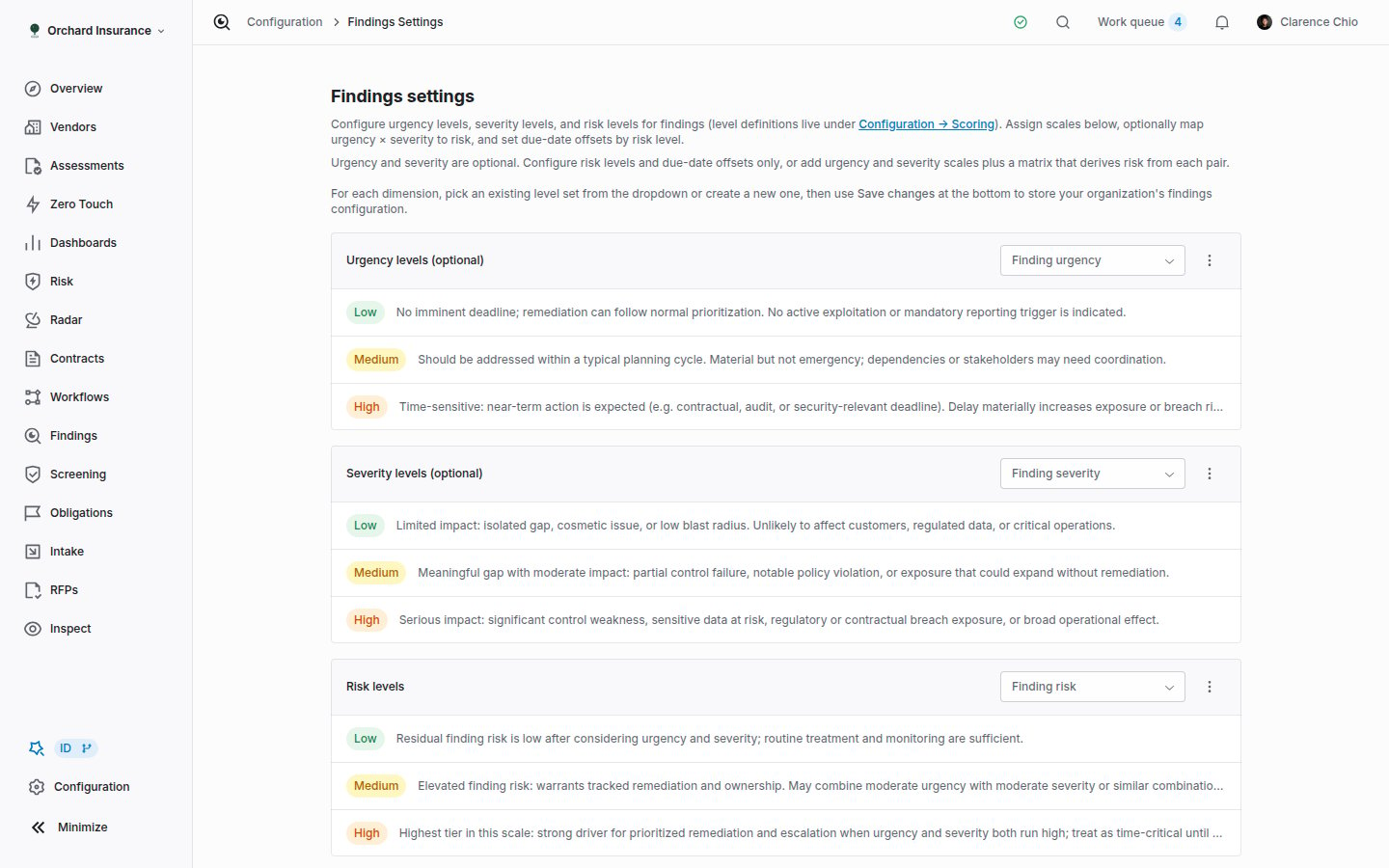 **Risk levels** is the one that matters; **Urgency levels** and **Severity levels** are optional. Pick an existing level set or create one. Configure all three for matrix mode, only risk for risk-direct mode, or none. Two out of three is rejected on save.
With all three scales set, the **Risk matrix** appears with a suggested mapping. Pick a risk level in the bar, then click or drag across cells. Every severity and urgency pair needs a value before you can save.
Under **Due dates by risk level**, enter days per level. Leave a level blank for no automatic due date.
Click **Save changes**. Leaving the page with unsaved edits prompts you.
Clearing the urgency or severity scale deletes the matrix. Clearing the risk scale also deletes the due-date offsets and removes the risk level field from every finding. Coverbase confirms before either.
Below that, **Commitment Settings** has its own **Save changes**:
* **Response window.** Days a vendor has to respond after a commitment is sent. It drives the **Response due** column and the overdue-response state. Leave it empty to track waiting time without a deadline. A portal can override it.
* **AI Review.** **Auto-Apply** decides whether an AI review acts on its own: **Suggest only** keeps a person in the loop; the high, medium and any-confidence options let it close commitments and send revision requests without review. **Review Instructions** is text added to every review, for example the evidence you require before accepting a completion.
## Permissions
Admins and Members create and edit findings and commitments. Siloed Members can only touch findings on vendors they own, watch or analyze. Archiving, exporting and creating are separate permissions in a custom role, and portal actions (sending a reminder, re-requesting, pushing back a completion) need the portal update permission. A grayed-out action shows a "no permission" tooltip. Details: [Permissions and roles](/user-guides/permissions-and-roles).
## Troubleshooting
| What you see | What is happening |
| ------------------------------------------------------------------------ | ----------------------------------------------------------------------------------------------------------------------------------------- |
| "I set the status to Mitigated and it went back to Finalizing response." | The finding has an open commitment. Its status is derived from commitments. Close the commitment instead. |
| "Risk Level is gray and I cannot pick it." | You are in matrix mode. Set **Severity** and **Urgency**; the risk level is read from the matrix. |
| "Your risk matrix is empty." | Matrix mode is configured but no cells are filled. Open **Findings Settings** and fill the matrix. |
| "No risk level is mapped for this combination." | The matrix has a gap for that severity and urgency pair. Fill it in settings. |
| "I changed the risk level and the due date moved." | Due-date offsets are on. A risk change recalculates the due date from today. Set the date by hand afterwards if you need a different one. |
| "**Request commitment** is not on the group header." | The group is not a vendor group, or the findings have no vendor. Group by **Vendor**, and give the finding a vendor. |
| "The vendor responded but nobody was told." | The finding has no assignee. Notifications go to the assignee and user-type custom fields. |
| "Two connected issues were resolved when I closed the finding." | That is the cascade. A resolution status on a running assessment resolves the issues the finding was raised from. Coverbase asked first. |
| "**Extend** is missing on the commitment." | Extend only exists while mitigation is underway. Before that, edit the terms; after Closed or Declined there is no live deadline. |
| "**Findings Settings** is not in the Actions menu." | You cannot edit organization settings. Ask an admin. |
## Related
Where most findings come from: working the issues and promoting the real gaps.
Accept the risk, keep the follow-up open, or promote to a finding.
Every email the platform sends, who receives it, and the defaults.
List, create and status-sync findings from your GRC platform.
**Risk levels** is the one that matters; **Urgency levels** and **Severity levels** are optional. Pick an existing level set or create one. Configure all three for matrix mode, only risk for risk-direct mode, or none. Two out of three is rejected on save.
With all three scales set, the **Risk matrix** appears with a suggested mapping. Pick a risk level in the bar, then click or drag across cells. Every severity and urgency pair needs a value before you can save.
Under **Due dates by risk level**, enter days per level. Leave a level blank for no automatic due date.
Click **Save changes**. Leaving the page with unsaved edits prompts you.
Clearing the urgency or severity scale deletes the matrix. Clearing the risk scale also deletes the due-date offsets and removes the risk level field from every finding. Coverbase confirms before either.
Below that, **Commitment Settings** has its own **Save changes**:
* **Response window.** Days a vendor has to respond after a commitment is sent. It drives the **Response due** column and the overdue-response state. Leave it empty to track waiting time without a deadline. A portal can override it.
* **AI Review.** **Auto-Apply** decides whether an AI review acts on its own: **Suggest only** keeps a person in the loop; the high, medium and any-confidence options let it close commitments and send revision requests without review. **Review Instructions** is text added to every review, for example the evidence you require before accepting a completion.
## Permissions
Admins and Members create and edit findings and commitments. Siloed Members can only touch findings on vendors they own, watch or analyze. Archiving, exporting and creating are separate permissions in a custom role, and portal actions (sending a reminder, re-requesting, pushing back a completion) need the portal update permission. A grayed-out action shows a "no permission" tooltip. Details: [Permissions and roles](/user-guides/permissions-and-roles).
## Troubleshooting
| What you see | What is happening |
| ------------------------------------------------------------------------ | ----------------------------------------------------------------------------------------------------------------------------------------- |
| "I set the status to Mitigated and it went back to Finalizing response." | The finding has an open commitment. Its status is derived from commitments. Close the commitment instead. |
| "Risk Level is gray and I cannot pick it." | You are in matrix mode. Set **Severity** and **Urgency**; the risk level is read from the matrix. |
| "Your risk matrix is empty." | Matrix mode is configured but no cells are filled. Open **Findings Settings** and fill the matrix. |
| "No risk level is mapped for this combination." | The matrix has a gap for that severity and urgency pair. Fill it in settings. |
| "I changed the risk level and the due date moved." | Due-date offsets are on. A risk change recalculates the due date from today. Set the date by hand afterwards if you need a different one. |
| "**Request commitment** is not on the group header." | The group is not a vendor group, or the findings have no vendor. Group by **Vendor**, and give the finding a vendor. |
| "The vendor responded but nobody was told." | The finding has no assignee. Notifications go to the assignee and user-type custom fields. |
| "Two connected issues were resolved when I closed the finding." | That is the cascade. A resolution status on a running assessment resolves the issues the finding was raised from. Coverbase asked first. |
| "**Extend** is missing on the commitment." | Extend only exists while mitigation is underway. Before that, edit the terms; after Closed or Declined there is no live deadline. |
| "**Findings Settings** is not in the Actions menu." | You cannot edit organization settings. Ask an admin. |
## Related
Where most findings come from: working the issues and promoting the real gaps.
Accept the risk, keep the follow-up open, or promote to a finding.
Every email the platform sends, who receives it, and the defaults.
List, create and status-sync findings from your GRC platform.