> ## Documentation Index
> Fetch the complete documentation index at: https://docs.coverbase.com/llms.txt
> Use this file to discover all available pages before exploring further.
# Intake Agent
> Turn on zero-form intake in Slack, Microsoft Teams, email and AI assistants, check each channel's status, and read the conversations the Intake Agent has with requesters.
For AI agents: a documentation index is available at [https://docs.coverbase.com/llms.txt](https://docs.coverbase.com/llms.txt). This page is also available in markdown by appending .md to the URL.
This guide is part of the [User Guides](/user-guides/overview) collection. It covers **Integration Hub → Intake Agent**. It sits beside [Requesting a new vendor](/user-guides/requesting-a-vendor) and [Front Door triage](/user-guides/front-door-triage). For what the agent is, see [Intake Agent](/products/intake-agent).
Your Coverbase representative turns on the third-party lifecycle features, including the Intake Agent, for your organization.
The Intake Agent lets requesters ask for a new vendor by message instead of a form. Each channel is off until you turn it on.
The mistake people make most often is turning a channel on before vendor intake is set up. The agent opens requests through your intake portal. With no portal, it has nowhere to open them, and the page says so.
## Step 1: Open the Intake Agent page
Open the [Integration Hub](/user-guides/integration-hub) and click the **Intake Agent** card. Turning channels on or off needs permission to manage integrations. Others can see the channels and conversations.
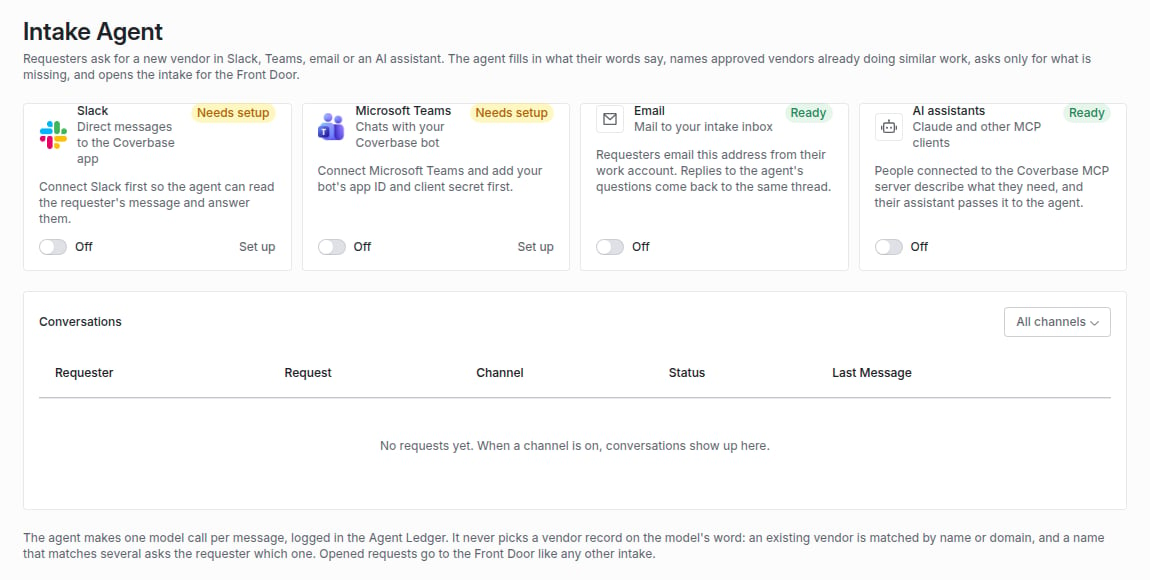
Each channel shows a status: **Ready**, **Needs setup**, **Needs reinstall** or **Not available** (not offered on this Coverbase environment).
 ## Step 2: Turn on the channels you want
| Channel | Requesters | Setup first |
| - | - | - |
| **Slack** | Send the Coverbase app a direct message, or mention it in a channel. The agent answers in a direct message. | Connect [Slack](/integrations/guides/slack). An install from before the Intake Agent was available shows **Needs reinstall**. Reinstall the app to grant it permission to read direct messages and mentions. |
| **Microsoft Teams** | Chat with your Coverbase bot. The agent answers in the same chat. | Register the bot and add its app ID and client secret on the [Microsoft Teams](/integrations/guides/microsoft-teams#register-the-bot) connection. People chat with the app in its personal scope. |
| **Email** | Email the intake inbox from their work account. Replies come back to the same thread. | Turning email on gives you the inbox address, `-intake@...`. Share it with requesters. |
| **AI assistants** | Describe what they need to Claude or another MCP client connected to Coverbase. | Connect the client to the [MCP server](/mcp/connecting). |
Switch the channel on. A toast confirms it now takes intake requests.
## Step 3: Follow the conversations
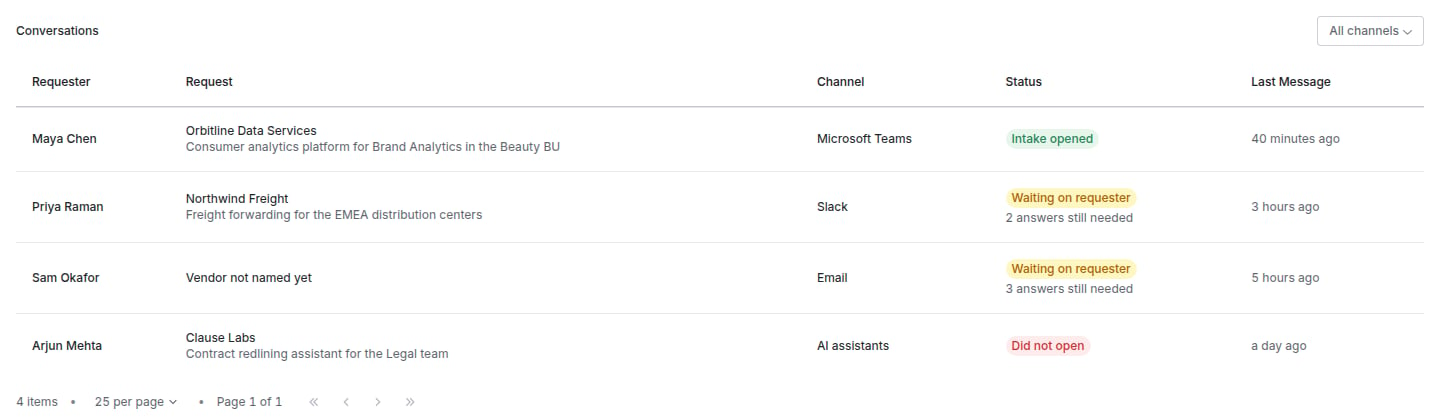
**Conversations** lists every request with the **Requester**, the **Request**, the **Channel**, the **Status** and the **Last Message**. Filter by channel.
## Step 2: Turn on the channels you want
| Channel | Requesters | Setup first |
| - | - | - |
| **Slack** | Send the Coverbase app a direct message, or mention it in a channel. The agent answers in a direct message. | Connect [Slack](/integrations/guides/slack). An install from before the Intake Agent was available shows **Needs reinstall**. Reinstall the app to grant it permission to read direct messages and mentions. |
| **Microsoft Teams** | Chat with your Coverbase bot. The agent answers in the same chat. | Register the bot and add its app ID and client secret on the [Microsoft Teams](/integrations/guides/microsoft-teams#register-the-bot) connection. People chat with the app in its personal scope. |
| **Email** | Email the intake inbox from their work account. Replies come back to the same thread. | Turning email on gives you the inbox address, `-intake@...`. Share it with requesters. |
| **AI assistants** | Describe what they need to Claude or another MCP client connected to Coverbase. | Connect the client to the [MCP server](/mcp/connecting). |
Switch the channel on. A toast confirms it now takes intake requests.
## Step 3: Follow the conversations
**Conversations** lists every request with the **Requester**, the **Request**, the **Channel**, the **Status** and the **Last Message**. Filter by channel.
 | Status | Meaning |
| - | - |
| **Waiting on requester** | The agent asked for something and is waiting. The row says how many answers are still needed. |
| **Intake opened** | The intake exists. **Open the intake** goes to it. |
| **Did not open** | The agent gave up, for example after five messages with something still missing. |
Open a conversation to see what the agent understood (**Vendor**, **What It Is For**, **Data It Touches**), what is **Still Needed**, the **Similar Approved Vendors** it named, and the whole **Thread**.
## What the requester sees
The agent replies with what it understood and a numbered question for each gap: the vendor, which existing vendor if the name matched several, what it is for, or what data it touches. "No company data" is an answer. When nothing is missing it replies with a link to the opened request. The request is not an approval: it goes to the Front Door like any other.
## Troubleshooting
| What you see | Cause | Fix |
| - | - | - |
| **Vendor intake is not set up, so the agent cannot open requests yet.** | No intake portal exists. | Click **Set up intake**. |
| Slack shows **Needs reinstall** | The app was installed without permission to read direct messages and mentions. | Reinstall the Coverbase app in Slack. |
| Teams shows **Needs setup** | The Teams connection has no bot app ID and client secret. | Register the bot on the Microsoft Teams connection. |
| A requester's email got no reply | The sender is not an active member, or the message failed SPF. | Ask them to send from their work account. |
| A requester was told the channel is off | The channel is off for your organization. | Turn it on. |
| The agent matched the wrong vendor | The name or domain matched exactly. | Correct the vendor on the Front Door review. |
## Related
The form-based way in.
What happens to the intake.
The assistant side.
Every message the agent read.
This documentation is built and hosted on [Mintlify](https://mintlify.com), a developer documentation platform.
| Status | Meaning |
| - | - |
| **Waiting on requester** | The agent asked for something and is waiting. The row says how many answers are still needed. |
| **Intake opened** | The intake exists. **Open the intake** goes to it. |
| **Did not open** | The agent gave up, for example after five messages with something still missing. |
Open a conversation to see what the agent understood (**Vendor**, **What It Is For**, **Data It Touches**), what is **Still Needed**, the **Similar Approved Vendors** it named, and the whole **Thread**.
## What the requester sees
The agent replies with what it understood and a numbered question for each gap: the vendor, which existing vendor if the name matched several, what it is for, or what data it touches. "No company data" is an answer. When nothing is missing it replies with a link to the opened request. The request is not an approval: it goes to the Front Door like any other.
## Troubleshooting
| What you see | Cause | Fix |
| - | - | - |
| **Vendor intake is not set up, so the agent cannot open requests yet.** | No intake portal exists. | Click **Set up intake**. |
| Slack shows **Needs reinstall** | The app was installed without permission to read direct messages and mentions. | Reinstall the Coverbase app in Slack. |
| Teams shows **Needs setup** | The Teams connection has no bot app ID and client secret. | Register the bot on the Microsoft Teams connection. |
| A requester's email got no reply | The sender is not an active member, or the message failed SPF. | Ask them to send from their work account. |
| A requester was told the channel is off | The channel is off for your organization. | Turn it on. |
| The agent matched the wrong vendor | The name or domain matched exactly. | Correct the vendor on the Front Door review. |
## Related
The form-based way in.
What happens to the intake.
The assistant side.
Every message the agent read.
This documentation is built and hosted on [Mintlify](https://mintlify.com), a developer documentation platform.