> ## Documentation Index
> Fetch the complete documentation index at: https://docs.coverbase.com/llms.txt
> Use this file to discover all available pages before exploring further.
# Integration Hub
> Connect Coupa, SAP Ariba, Ironclad, Icertis or Microsoft Teams, set up authentication and the signed webhook, review field mappings, read the sync log, work the steward queue, and use Spend Controls and Vendor Master Data.
For AI agents: a documentation index is available at [https://docs.coverbase.com/llms.txt](https://docs.coverbase.com/llms.txt). This page is also available in markdown by appending .md to the URL.
This guide is part of the [User Guides](/user-guides/overview) collection. It covers the **Integration Hub** pages, **Configuration → Spend Controls** and **Configuration → Vendor Master Data**. It sits beside [Warehouse data share](/user-guides/warehouse-data-share) and [Webhooks](/user-guides/webhooks). Each provider has its own setup guide: [Coupa](/integrations/guides/coupa), [SAP Ariba](/integrations/guides/sap-ariba), [Ironclad](/integrations/guides/ironclad), [Icertis](/integrations/guides/icertis) and [Microsoft Teams](/integrations/guides/microsoft-teams). For what the module is, see [Integration Hub](/products/integration-hub).
Your Coverbase representative turns on the third-party lifecycle features, including the Integration Hub, for your organization.
The Integration Hub is one page for every procurement, contract and messaging system your program touches. Each connection has the same tabs: **Field Mappings**, **Sync Log**, **Steward Queue** and **Authentication**.
The mistake people make most often is expecting a supplier to link by name. A supplier links only on a tax ID, a D-U-N-S number, an LEI or, when nothing stronger disagrees, a domain. Everything else waits in the steward queue until someone links it.
## Step 1: Open a provider
Open **Configuration**, choose **External Integrations**, and click **Coupa**, **SAP Ariba**, **Ironclad**, **Icertis**, **Archer**, **ServiceNow IRM**, **ERM Risk Register** or **Microsoft Teams**. Each card opens that provider in the Integration Hub. **Spend Controls** and **Vendor Master Data** also have **Open Integration Hub**.
The hub lists providers by category (**Procure-to-pay**, **Contract lifecycle**, **GRC and ERM**, **Messaging**) with their direction (**Two-way** or **Inbound only**), health (**Available**, **Healthy**, **Needs attention**, **Paused** or **Error**) and when each **Last synced**. Changing a connection needs permission to manage integrations. Without it, the page is read-only.
## Step 2: Authenticate
On the **Authentication** tab, fill in what the provider needs. The method is shown at the top: **OAuth 2.0 client credentials**, **API token** or **Incoming webhook**.
| Provider | Fields |
| - | - |
| Coupa | **Instance URL**, **Client ID**, **Client secret**. The scopes the OAuth client needs are listed. |
| SAP Ariba | **Client ID**, **Client secret**, **Application key**, **Realm**, and optionally the **Sourcing reporting view** |
| Ironclad | **Instance URL**, **API token** |
| Icertis | **Instance URL**, **Token URL**, **Client ID**, **Client secret**, and optionally the **Scope** |
| Archer | **Instance URL**, **Instance Name**, **User Domain**, **Service Account Username** and **Password**, and the issue and risk level and status field IDs. See [Archer](/integrations/guides/archer). |
| ServiceNow IRM | **Instance URL**, **Client ID**, **Client Secret**, and the **Issue Table** and **Risk Table**. See [ServiceNow IRM](/integrations/guides/servicenow-irm). |
| ERM risk register | **Instance URL**, **API Token**, and the register's paths, update method, ID field and token header. See [ERM risk register](/integrations/guides/erm-register). |
| Microsoft Teams | **Webhook URL**, the **Notification Types** to post, and for approvals and intake chats the bot's app ID, client secret and tenant ID. See [Microsoft Teams](/integrations/guides/microsoft-teams). |
Then choose:
* **Open an intake request for each new requisition** (Coupa and SAP Ariba), and the **Requisition Statuses** that should open one. Leave the statuses empty for all. On by default.
* **Write risk tier, approval status and contract values back to the provider** (Coupa, Ironclad and Icertis). On by default. Turn it off for a read-only connection.
* **Sync Interval (Minutes)**: 60 by default, 15 at the shortest.
Click **Save**, then **Test connection**. A stored secret is never shown again. The field reads **Stored. Enter a new value to replace it.**
## Step 3: Set up the webhook (optional)
A provider that can call a webhook can ask for a sync as soon as a record changes, instead of waiting for the interval. Under **Webhooks** on the **Authentication** tab, click **Create signing secret** and copy it at once, because it is not shown again. Give your provider, or the middleware in front of it, the webhook URL and the secret.
Each delivery must carry an `X-Coverbase-Signature` header of the form `t=,v1=`, where the digest is HMAC-SHA256 of `.` followed by the raw body, keyed by the signing secret. A delivery more than five minutes old, or with a wrong signature, is rejected. The body only identifies the record. Coverbase always re-reads the record from the provider's API. A webhook from Ironclad or Icertis that names a contract syncs only that contract, including a contract whose record ID is `0`. **Rotate signing secret** replaces the secret.
## Step 4: Review field mappings
The **Field Mappings** tab lists each mapping by **Object**, **Direction**, **Source** and **Target**. Inbound rows write provider values into Coverbase, such as a requisition's total into the intake request's value, or a supplier's tax ID into matching. Outbound rows write Coverbase values to the provider field you name, such as **Risk tier**, **Approval status**, **Residual risk**, **Risk rating**, **Required clause pack** or **Blocking issues**.
Type the provider's field name in **Target** for each outbound row, turn off **Enabled** on any row you do not want, and click **Save mappings**. **Discard changes** drops unsaved edits.
The required clause pack is the high and critical clauses of your active clause sets, up to 25, by clause ID and name. It is the same for every contract. Blocking issues are the titles of the vendor's open findings, up to 20.
## Step 5: Sync and read the log
Click **Sync now**. The **Sync Log** tab lists each run with when it **Started**, its **Trigger** (**Scheduled**, **Manual** or **Webhook**), **Status** (**Running**, **Succeeded**, **Partial** or **Failed**), record count and error. Open a run to see **Records in This Run**: each provider record, its **Outcome** (created, updated, unchanged, skipped, conflict or failed) and the detail. One bad record fails alone, and the rest of the run continues.
 **Pause** stops syncing, and **Resume** starts it again. **Disconnect** deletes the stored credentials and removes the connection's sync log, record links and steward queue.
## Step 6: Work the steward queue
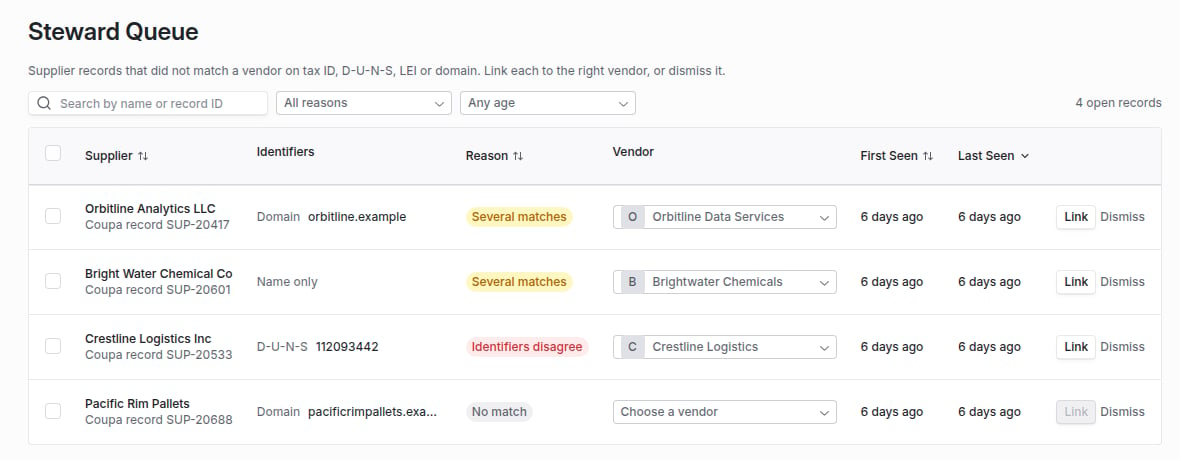
Supplier records that did not match a vendor wait on the **Steward Queue**, with their **Identifiers**, a **Reason** (**No match**, **Several matches** or **Identifiers disagree**), and when they were **First Seen** and **Last Seen**. Filter by system, reason and age (for example **Waiting over 7 days**), and search by name or record ID. Pick the right vendor under **Vendor** and click **Link**, or **Dismiss**. A banner on the hub says how many records are waiting.
To work many at once, choose a vendor on each row you are sure of, select the rows, and click **Link chosen matches**, or **Dismiss**. The work runs in the background with progress, and the result reads, for example, "12 linked, 3 need a decision", naming each record it could not handle and why. Rows with no vendor chosen stay in the queue.
**Pause** stops syncing, and **Resume** starts it again. **Disconnect** deletes the stored credentials and removes the connection's sync log, record links and steward queue.
## Step 6: Work the steward queue
Supplier records that did not match a vendor wait on the **Steward Queue**, with their **Identifiers**, a **Reason** (**No match**, **Several matches** or **Identifiers disagree**), and when they were **First Seen** and **Last Seen**. Filter by system, reason and age (for example **Waiting over 7 days**), and search by name or record ID. Pick the right vendor under **Vendor** and click **Link**, or **Dismiss**. A banner on the hub says how many records are waiting.
To work many at once, choose a vendor on each row you are sure of, select the rows, and click **Link chosen matches**, or **Dismiss**. The work runs in the background with progress, and the result reads, for example, "12 linked, 3 need a decision", naming each record it could not handle and why. Rows with no vendor chosen stay in the queue.
 A dismissed record comes back only if its identifiers change.
Linking a supplier is permanent for that record. A contract that synced before its supplier was linked is filed against the vendor, with its executed copy, as soon as you link the supplier.
## The Intake Agent
The hub's **Intake Agent** card opens zero-form intake: requests for a new vendor made in Slack, Teams, email or an AI assistant. See [Intake Agent](/user-guides/intake-agent).
## Approvals from Teams
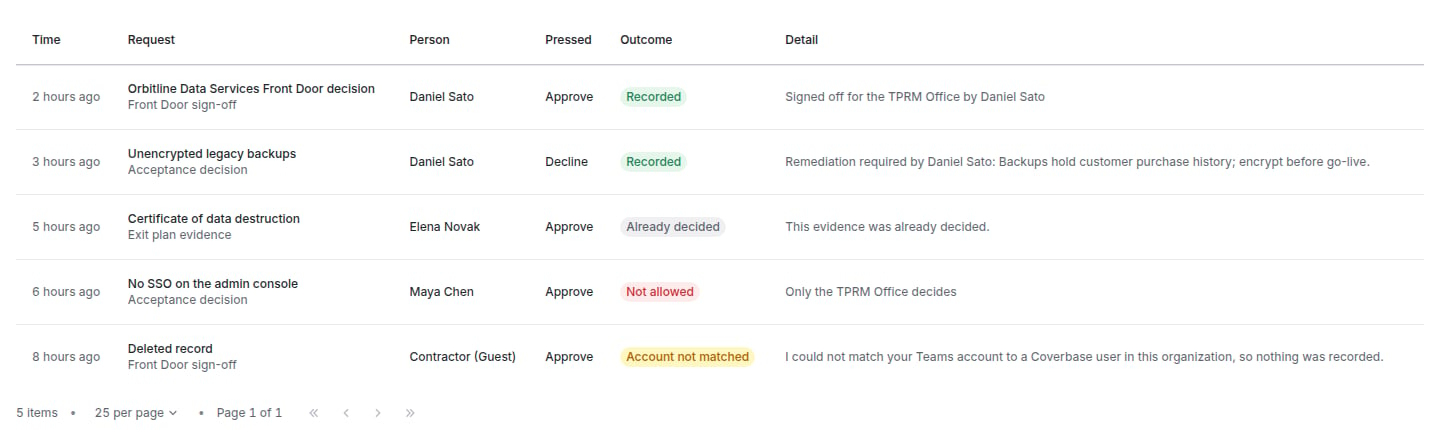
With your Coverbase bot registered, the Microsoft Teams connection posts Front Door sign-offs, acceptance decisions and exit plan evidence with **Approve** and **Decline** buttons. People decide in Teams as themselves, with their own Coverbase permissions. The connection's **Approvals** tab lists every press and what it did. A Front Door card is replaced with the outcome whether the sign-off or decline happens on the card or in Coverbase. See [Microsoft Teams](/integrations/guides/microsoft-teams) for the bot setup.
A dismissed record comes back only if its identifiers change.
Linking a supplier is permanent for that record. A contract that synced before its supplier was linked is filed against the vendor, with its executed copy, as soon as you link the supplier.
## The Intake Agent
The hub's **Intake Agent** card opens zero-form intake: requests for a new vendor made in Slack, Teams, email or an AI assistant. See [Intake Agent](/user-guides/intake-agent).
## Approvals from Teams
With your Coverbase bot registered, the Microsoft Teams connection posts Front Door sign-offs, acceptance decisions and exit plan evidence with **Approve** and **Decline** buttons. People decide in Teams as themselves, with their own Coverbase permissions. The connection's **Approvals** tab lists every press and what it did. A Front Door card is replaced with the outcome whether the sign-off or decline happens on the card or in Coverbase. See [Microsoft Teams](/integrations/guides/microsoft-teams) for the bot setup.
 ## What a synced requisition looks like
A requisition or sourcing event opens a draft intake request. The requester sees **Initiated from a Coupa purchase request** (or the provider's name), and the Front Door review shows **Started From Procurement** with the value and category. The supplier's identifiers go to the Front Door's **Is This New?** check. See [Front Door triage](/user-guides/front-door-triage).
## Spend Controls and Vendor Master Data
* **Configuration → Spend Controls** lists the budget lines synced from Coupa with **Budget**, **Committed**, **Remaining** and **Utilization**, and counts lines at or above 90% committed. Requesters map their spend to these lines during intake.
* **Configuration → Vendor Master Data** shows supplier master records from SAP Ariba or Coupa, with the steward queue and the sync log.
* A vendor's procurement tab shows its **Approved Supplier Lists** status from each connected system: **Approved**, **Not approved** or **Not stated**.
## Troubleshooting
| What you see | Cause | Fix |
| - | - | - |
| **Connection failed** after **Test connection** | Wrong credentials, instance URL or token URL, or the OAuth client lacks a scope. | Check each field against the provider guide, then test again. |
| A supplier did not link | It matched on name only, several vendors matched, or its identifiers point to different vendors. | Link it from the **Steward Queue**. |
| Spend Controls shows no budget lines | The Coupa OAuth client lacks `core.budget.read`, or the provider does not publish budgets. | Add the scope to the client, then sync. |
| Nothing is written back to the provider | Outbound sync is off, an outbound row is disabled, or its **Target** is empty. | Turn on write-back on **Authentication** and name the target fields. |
| A run is **Partial** | Some records failed. | Open the run and read each failed record's detail. |
| Webhook deliveries are rejected | The signature is wrong, uses the parsed body, or the timestamp is more than five minutes old. | Sign the raw body with the current secret and a fresh timestamp. |
| Contracts sync but no executed copy is filed | The supplier has not been linked yet. | Link the supplier in the steward queue. |
## Related
Where a synced requisition is reviewed.
Every system Coverbase connects to.
How credentials and webhooks are protected.
What happens when a contract is executed.
This documentation is built and hosted on [Mintlify](https://mintlify.com), a developer documentation platform.
## What a synced requisition looks like
A requisition or sourcing event opens a draft intake request. The requester sees **Initiated from a Coupa purchase request** (or the provider's name), and the Front Door review shows **Started From Procurement** with the value and category. The supplier's identifiers go to the Front Door's **Is This New?** check. See [Front Door triage](/user-guides/front-door-triage).
## Spend Controls and Vendor Master Data
* **Configuration → Spend Controls** lists the budget lines synced from Coupa with **Budget**, **Committed**, **Remaining** and **Utilization**, and counts lines at or above 90% committed. Requesters map their spend to these lines during intake.
* **Configuration → Vendor Master Data** shows supplier master records from SAP Ariba or Coupa, with the steward queue and the sync log.
* A vendor's procurement tab shows its **Approved Supplier Lists** status from each connected system: **Approved**, **Not approved** or **Not stated**.
## Troubleshooting
| What you see | Cause | Fix |
| - | - | - |
| **Connection failed** after **Test connection** | Wrong credentials, instance URL or token URL, or the OAuth client lacks a scope. | Check each field against the provider guide, then test again. |
| A supplier did not link | It matched on name only, several vendors matched, or its identifiers point to different vendors. | Link it from the **Steward Queue**. |
| Spend Controls shows no budget lines | The Coupa OAuth client lacks `core.budget.read`, or the provider does not publish budgets. | Add the scope to the client, then sync. |
| Nothing is written back to the provider | Outbound sync is off, an outbound row is disabled, or its **Target** is empty. | Turn on write-back on **Authentication** and name the target fields. |
| A run is **Partial** | Some records failed. | Open the run and read each failed record's detail. |
| Webhook deliveries are rejected | The signature is wrong, uses the parsed body, or the timestamp is more than five minutes old. | Sign the raw body with the current secret and a fresh timestamp. |
| Contracts sync but no executed copy is filed | The supplier has not been linked yet. | Link the supplier in the steward queue. |
## Related
Where a synced requisition is reviewed.
Every system Coverbase connects to.
How credentials and webhooks are protected.
What happens when a contract is executed.
This documentation is built and hosted on [Mintlify](https://mintlify.com), a developer documentation platform.