> ## Documentation Index
> Fetch the complete documentation index at: https://docs.coverbase.com/llms.txt
> Use this file to discover all available pages before exploring further.
# Internal controls monitoring with Inspect
> How to connect your own applications to Inspect, run an inspection against an internal control set, read the result, watch for drift between runs, keep probes and schedules running, and turn what it finds into findings.
For AI agents: a documentation index is available at [https://docs.coverbase.com/llms.txt](https://docs.coverbase.com/llms.txt). This page is also available in markdown by appending .md to the URL.
This guide is part of the [User Guides](/user-guides/overview) collection. It covers the **Inspect** screens. For what the module is and how internal and third-party risk share one model, see [Internal control monitoring](/products/internal-controls-monitoring) and [Agentic Inspect](/products/agentic-inspect). For the control sets it evaluates, see the [Control Set library](/control-library).
Inspect is an optional module. If you do not see **Inspect** in the left navigation, ask your Coverbase representative to turn it on.
Inspect signs in to an application your organization runs (your CRM, your HRIS, your identity provider) with a read-only identity, reads the admin console, and records what it saw. An **inspection** takes one application and one internal control set, collects evidence for each control, and, when you ask it to, scores the evidence against the control's expectation. A control that fails becomes a finding on the same Findings page as everything else.
The mistake people make most often is reading progress as a result. "12 of 12 controls finished" says nothing about whether any passed. Read the outcome band and the status badges, not the count.
## Where it lives
**Inspect** in the left navigation opens five tabs: **Overview**, **Inspections**, **Probes**, **Applications** and **Accounts**. **Configuration** at the right of the tab strip opens **Configuration → Inspect**, where identity providers are connected. **Schedules** is a button on the **Inspections** tab, not a tab of its own.
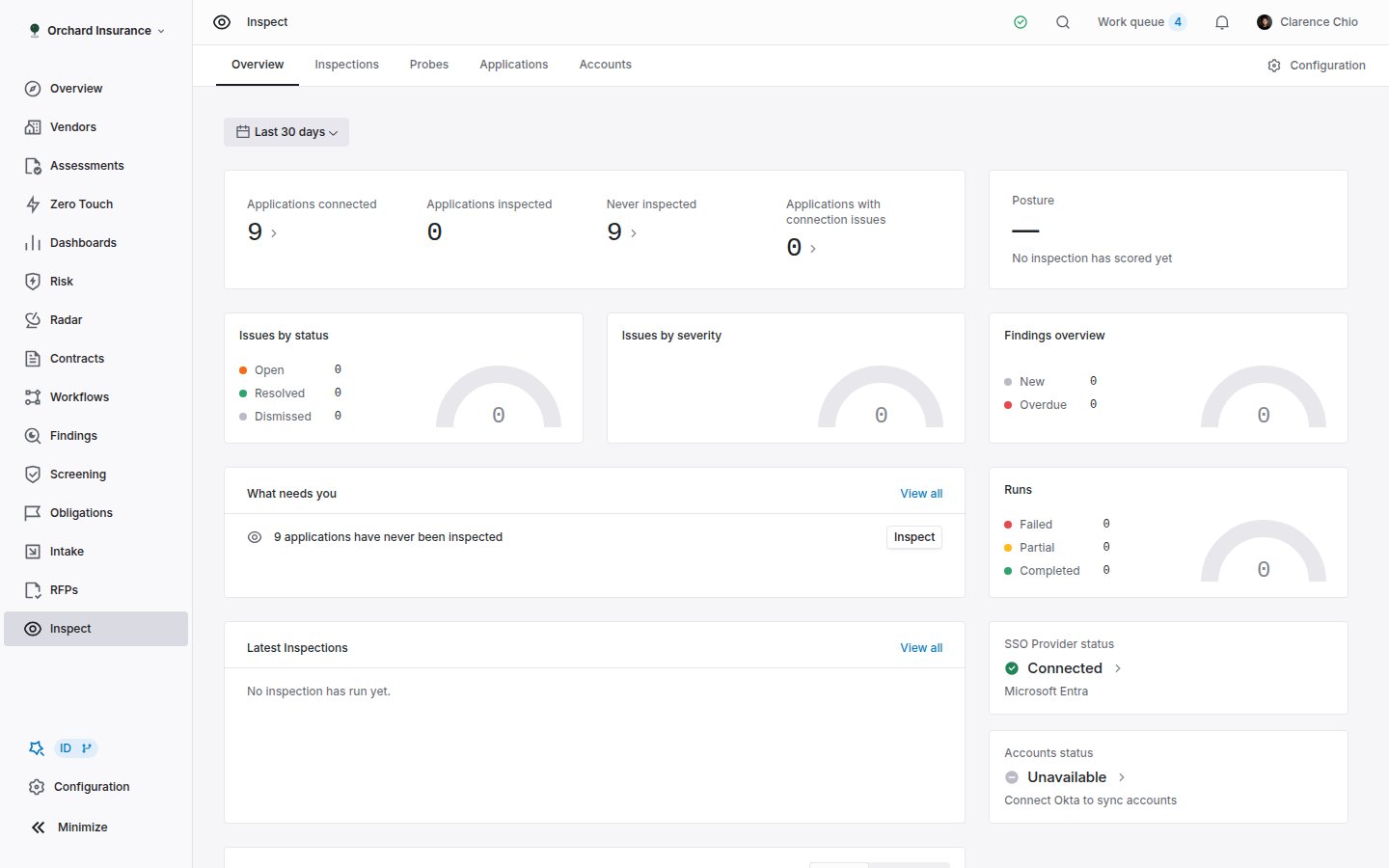 **Overview** is the place to start each week. Pick a **Time window**, then read:
| Section | What it tells you |
| ---------------------------------------------------------------------------------------------- | ------------------------------------------------------------------------------------------------------------------------------------------------------------------------------ |
| **Applications connected / inspected / Never inspected / Applications with connection issues** | How much of your estate Inspect can reach, and how much of it has been looked at. |
| **Posture** | The latest scored inspection, averaged across the applications that have one. **No inspection has scored yet** until an Evaluate run completes. |
| **What needs you** | Applications that cannot sign in (**Fix sign-in**), overdue findings (**Review**), inspections that did not finish (**Open**), and applications never inspected (**Inspect**). |
| **Runs** | Failed, partial and completed inspections in the window. |
| **Latest Inspections** and **Leaderboard** | The most recent runs, and which applications raised the most issues. |
## Connecting an application
Inspect needs two things from an application: a way to sign in, and a **Platform** so it knows which documentation and API catalog to plan from. There are two routes in.
Go to **Configuration → Inspect**. Each provider card reads **Connected**, **Needs verification**, **Connection error** or **Not connected**, and shows how many applications are **added to Inspect** against how many are **available** in the provider.
**Connect Okta** walks through **App details** (your Okta org URL and the Client ID of an API Services app you create for Coverbase Inspect), **Configure the Okta connection** (add the Coverbase JWKS URL as the app's public key, grant a Read-only Administrator role for inventory, and grant the Organization Administrator and Application Administrator roles that let Coverbase create the inspection identity), then **Choose applications to add**.
Run **Sync from Okta** to pull users, applications and assignments. When you add applications, tick the approval box: Coverbase provisions a dedicated read-only inspection identity in Okta and assigns it only the applications you selected. Afterwards, **Sign in to Okta** under **Okta sign-in** so the identity has a live session. Its status reads **Not signed in**, **Sign-in started**, **Signed in**, **Sign-in expired** or **Sign-in failed**.
**Connect Microsoft Entra** follows the same shape: **App details** for an application you register in your tenant, **Configure the Entra connection** to verify the Graph permissions, **Sync and select applications**, then **Prepare applications for inspection**. An Entra application without SAML or OIDC single sign-on shows as **Blocked** in the applications list, because Inspect has no way to sign in to it.
**Google OAuth** stores the Google account email and password Inspect signs in with, plus an optional TOTP secret. Applications that use Google sign-in are added directly (next tab) and pick up these credentials. **Run test inspection** checks that the sign-in works before you rely on it.
On **Applications**, click **Add Applications**. Choose a **Sign-in method**: **URL + password** for a custom application with its own login page, or **Google OAuth** for one behind Google sign-in. Fill in **Application name**, the **Login URL** (or **Application / SSO URL** for Google), and the **Platform**.
An application with **No platform** can be signed in to but never planned, so no control set can run against it. Choose the platform when you add the application. The **Directory platform** field in the application drawer can be changed later, but the drawer reminds you to **Rebuild attribution** on **Accounts** afterwards.
**Overview** is the place to start each week. Pick a **Time window**, then read:
| Section | What it tells you |
| ---------------------------------------------------------------------------------------------- | ------------------------------------------------------------------------------------------------------------------------------------------------------------------------------ |
| **Applications connected / inspected / Never inspected / Applications with connection issues** | How much of your estate Inspect can reach, and how much of it has been looked at. |
| **Posture** | The latest scored inspection, averaged across the applications that have one. **No inspection has scored yet** until an Evaluate run completes. |
| **What needs you** | Applications that cannot sign in (**Fix sign-in**), overdue findings (**Review**), inspections that did not finish (**Open**), and applications never inspected (**Inspect**). |
| **Runs** | Failed, partial and completed inspections in the window. |
| **Latest Inspections** and **Leaderboard** | The most recent runs, and which applications raised the most issues. |
## Connecting an application
Inspect needs two things from an application: a way to sign in, and a **Platform** so it knows which documentation and API catalog to plan from. There are two routes in.
Go to **Configuration → Inspect**. Each provider card reads **Connected**, **Needs verification**, **Connection error** or **Not connected**, and shows how many applications are **added to Inspect** against how many are **available** in the provider.
**Connect Okta** walks through **App details** (your Okta org URL and the Client ID of an API Services app you create for Coverbase Inspect), **Configure the Okta connection** (add the Coverbase JWKS URL as the app's public key, grant a Read-only Administrator role for inventory, and grant the Organization Administrator and Application Administrator roles that let Coverbase create the inspection identity), then **Choose applications to add**.
Run **Sync from Okta** to pull users, applications and assignments. When you add applications, tick the approval box: Coverbase provisions a dedicated read-only inspection identity in Okta and assigns it only the applications you selected. Afterwards, **Sign in to Okta** under **Okta sign-in** so the identity has a live session. Its status reads **Not signed in**, **Sign-in started**, **Signed in**, **Sign-in expired** or **Sign-in failed**.
**Connect Microsoft Entra** follows the same shape: **App details** for an application you register in your tenant, **Configure the Entra connection** to verify the Graph permissions, **Sync and select applications**, then **Prepare applications for inspection**. An Entra application without SAML or OIDC single sign-on shows as **Blocked** in the applications list, because Inspect has no way to sign in to it.
**Google OAuth** stores the Google account email and password Inspect signs in with, plus an optional TOTP secret. Applications that use Google sign-in are added directly (next tab) and pick up these credentials. **Run test inspection** checks that the sign-in works before you rely on it.
On **Applications**, click **Add Applications**. Choose a **Sign-in method**: **URL + password** for a custom application with its own login page, or **Google OAuth** for one behind Google sign-in. Fill in **Application name**, the **Login URL** (or **Application / SSO URL** for Google), and the **Platform**.
An application with **No platform** can be signed in to but never planned, so no control set can run against it. Choose the platform when you add the application. The **Directory platform** field in the application drawer can be changed later, but the drawer reminds you to **Rebuild attribution** on **Accounts** afterwards.
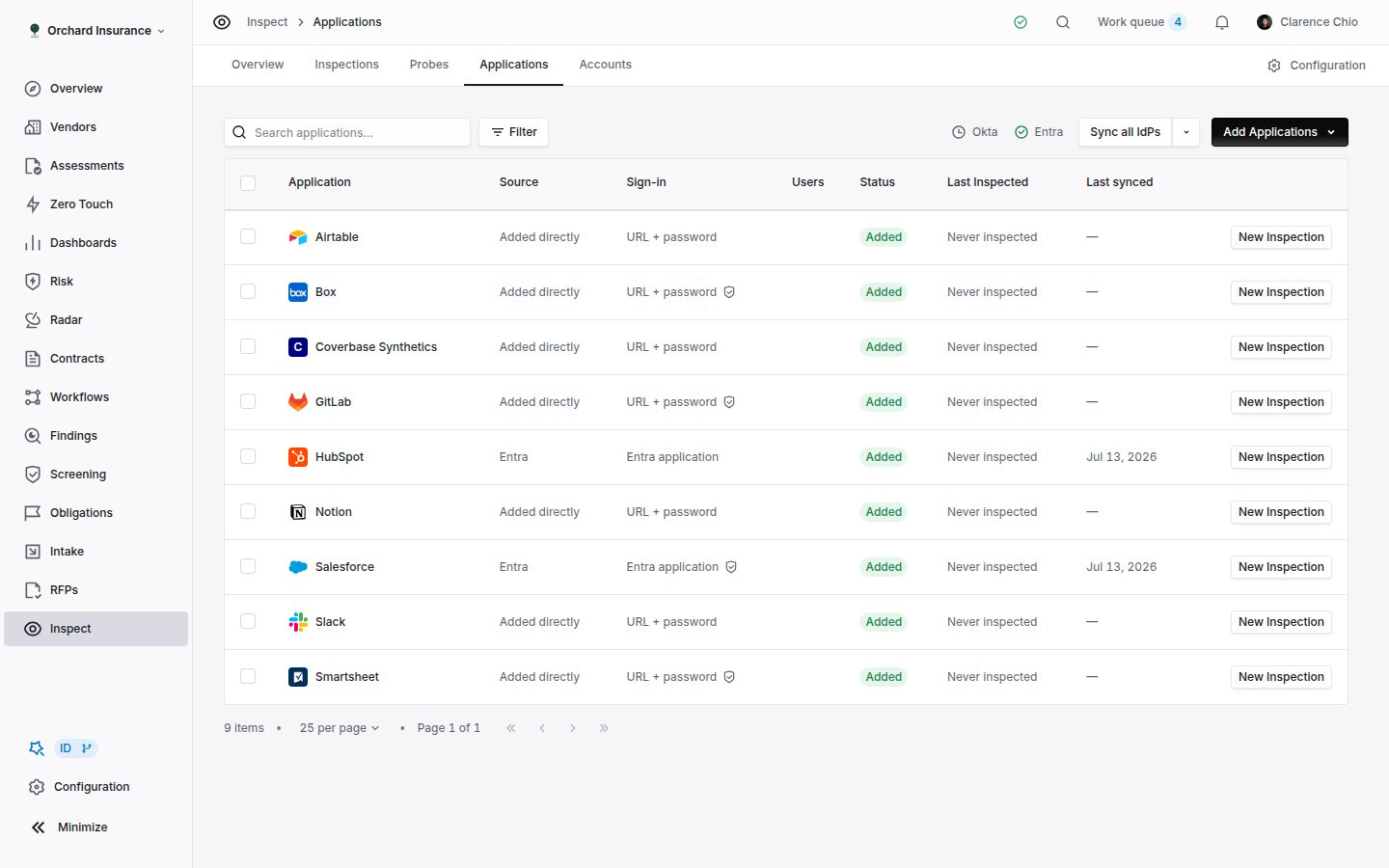 ### Reading the applications list
| Column | What it shows |
| -------------------------------------- | ------------------------------------------------------------------------------------------------------------------------------------------------------------------------------------ |
| **Source** | **Okta**, **Entra** or **Added directly**. |
| **Sign-in** | **URL + password**, **Okta application**, **Entra application** or **Google OAuth**. A discovered application that has not been added shows the provider's sign-on protocol instead. |
| **Users** | Assigned users from the provider sync. **Not synced yet** until the sync reaches that application. |
| **Status** | **Added** (Inspect can run against it), **Not added** (discovered by a provider but not yet in Inspect), **Blocked** (cannot be inspected; hover for the reason), **Archived**. |
| **Last synced** and **Last Inspected** | **Never inspected** until the first run. |
Search, filter by source or status, and select rows to **Add**, **Archive**, **Unarchive** or **Find vendor matches** in bulk. The last one links each application to the vendor record it belongs to, so internal and third-party evidence sit on the same vendor.
Click a row to open the drawer. **Summary** holds the login URL, status and a **Vendor** link. **Users** lists the assigned users, with **Admin** where the provider profile names an admin role. **Factors** manages verification factors for the inspection identity. **API Settings** holds the **API origin**, credentials and request parameters that API-based evidence needs; identity provider access does not establish API access, so an application can be signed in and still need this tab filled in. **Inspection readiness** at the foot of the drawer links to **Review readiness**, which opens the inspection setup with this application selected.
## Running an inspection
### Reading the applications list
| Column | What it shows |
| -------------------------------------- | ------------------------------------------------------------------------------------------------------------------------------------------------------------------------------------ |
| **Source** | **Okta**, **Entra** or **Added directly**. |
| **Sign-in** | **URL + password**, **Okta application**, **Entra application** or **Google OAuth**. A discovered application that has not been added shows the provider's sign-on protocol instead. |
| **Users** | Assigned users from the provider sync. **Not synced yet** until the sync reaches that application. |
| **Status** | **Added** (Inspect can run against it), **Not added** (discovered by a provider but not yet in Inspect), **Blocked** (cannot be inspected; hover for the reason), **Archived**. |
| **Last synced** and **Last Inspected** | **Never inspected** until the first run. |
Search, filter by source or status, and select rows to **Add**, **Archive**, **Unarchive** or **Find vendor matches** in bulk. The last one links each application to the vendor record it belongs to, so internal and third-party evidence sit on the same vendor.
Click a row to open the drawer. **Summary** holds the login URL, status and a **Vendor** link. **Users** lists the assigned users, with **Admin** where the provider profile names an admin role. **Factors** manages verification factors for the inspection identity. **API Settings** holds the **API origin**, credentials and request parameters that API-based evidence needs; identity provider access does not establish API access, so an application can be signed in and still need this tab filled in. **Inspection readiness** at the foot of the drawer links to **Review readiness**, which opens the inspection setup with this application selected.
## Running an inspection
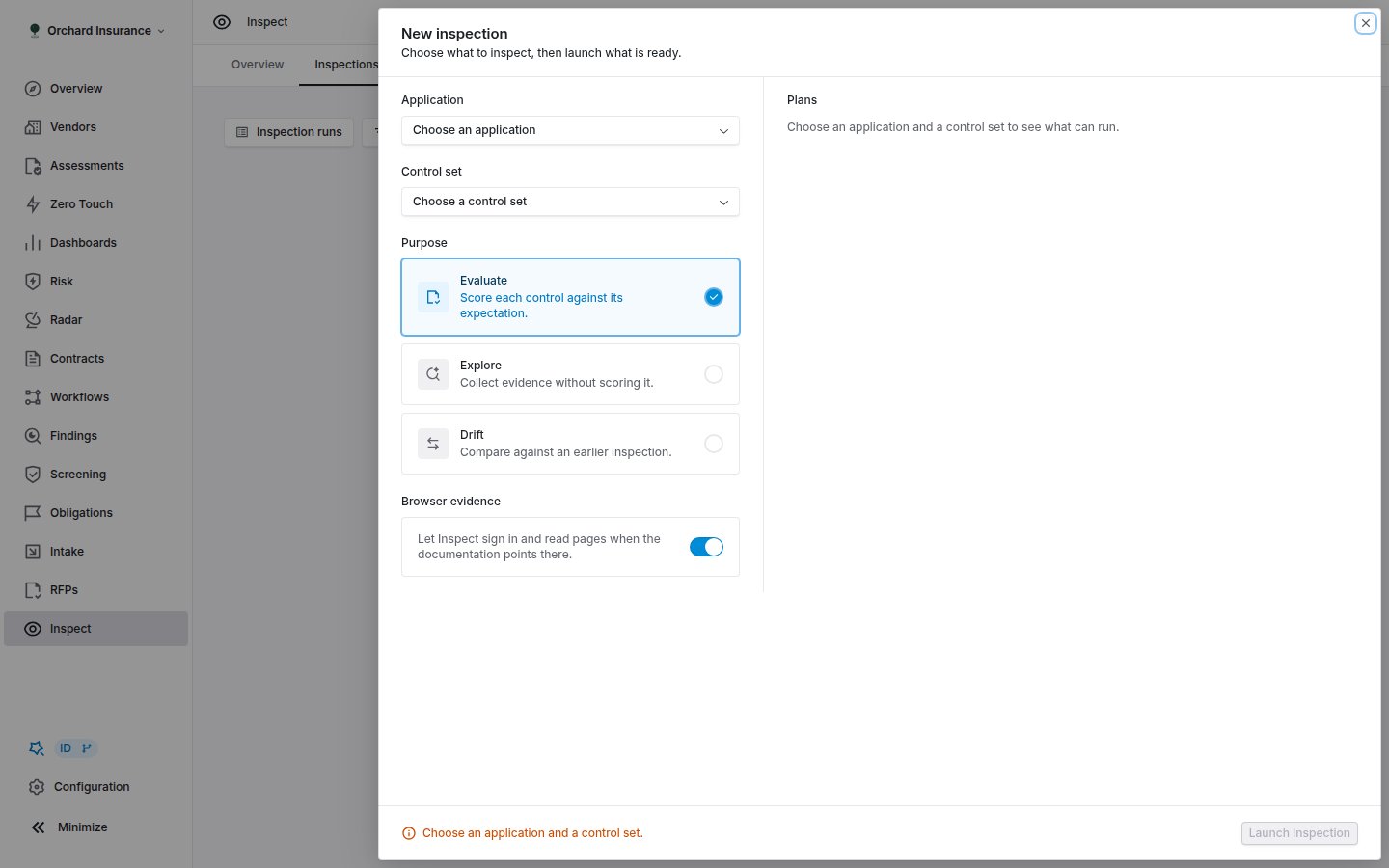 On **Inspections**, click **New Inspection**. Pick an **Application** and a **Control set**. If the application has no control sets yet, **Add Starter Controls** forks a starter set so there is something to run. The full set of internal templates lives in the [Internal Controls Library](/control-library), reached from **Controls → Internal Controls → Internal Controls Library**; a forked template is an ordinary control set you can edit.
| Purpose | What it does |
| ------------ | ---------------------------------------------------------------------------------------------------------------------------------------------------------------------------------------------------------------------------------------------------------- |
| **Evaluate** | Scores each control against its expectation and your scale. The only purpose that produces evaluations, and therefore findings. |
| **Explore** | Collects evidence without scoring it. Use it first against an unfamiliar application to learn what Inspect can reach. |
| **Drift** | Compares against an earlier inspection. **Compare against** lists earlier runs that **Succeeded** or **Partially succeeded** and share the same evidence contract. **No earlier inspection qualifies as a baseline** means you need a completed run first. |
Evaluate needs a scale with an active level on the control set. Without one the launch is refused with **None of the selected controls can be evaluated. Apply a scale with an active level, or choose Explore.**
**Browser evidence** lets Inspect sign in and read pages when the documentation points there. Leave it off and only API methods run; the panel tells you how many controls that holds back (**Allowing browser evidence releases N controls**).
Every control needs a **plan**: what evidence to collect and how. The list groups controls into **Ready**, **Preparing**, **Not prepared** and **Blocked**. Click **Prepare Plans** for the unprepared ones and wait; a blocker names what is missing (no platform, API origin or credentials not configured, plan preparation failed). **Recheck readiness** re-reads the configuration after you fix something.
**Launch Inspection** starts everything that is ready. If only some controls are ready the button says so: **X of Y controls will run. The rest will be recorded as not planned.** Those controls end as **Not planned** rather than silently dropped.
## Reading an inspection
The **Inspections** list shows **Application**, **Initiated**, **Status**, **Purpose**, **Control set**, **Controls finished**, **Outcomes**, **Score**, **Findings** and **Channel** (**API** or **Browser**). The default view, **Inspection runs**, hides probe runs; **All inspections** includes them. Open a row to read it.
### Statuses
An inspection carries one status; each control inside it carries its own.
| Inspection status | Meaning |
| ----------------- | -------------------------------------------------------------------------------------------------- |
| **Created** | Queued, nothing has started. |
| **Running** | At least one control is still collecting. |
| **Succeeded** | Every control finished. |
| **Partial** | Some controls finished and some did not. |
| **Blocked** | Stopped waiting on something you can fix: a sign-in refresh or configuration. Retrying resumes it. |
| **Failed** | Stopped without a result. |
| Control badge | Meaning |
| ----------------- | ----------------------------------------------------------------------------------------- |
| **Inspecting** | Collecting evidence. **Refreshing sign-in** replaces it while Inspect renews the session. |
| **Completed** | All evidence collected. |
| **Partial** | Some evidence collected, some not. Final. |
| **Action needed** | Blocked. **Retry** resumes it once the cause is fixed. |
| **Not planned** | The control had no plan when the inspection launched. It never ran. |
| **Failed** | Collection stopped with an error. |
A control can finish and still not pass. **How the controls turned out** is the band that matters: **with issues**, **no issues**, **not scored**, **collected** (Explore and Drift only), **no evidence**, **not planned** and **still running**. Click a segment to filter the list to it. **What needs you** under the band lists the controls that raised issues, finished without a score, collected nothing, or had no plan.
### Inside a control
Click a control to open its workspace. **Evaluation** shows the level the control landed on and the **Justification** written from the evidence; **This control has not been evaluated yet** and **This control could not be fully evaluated** are the two states short of a verdict. **Observations** lists each evidence key with its records, where it was **Collected from**, the screenshot captures, and **Watch replay** for the browser session. **Activity** is the event log.
Each observation carries a status, and an absent one is reported rather than skipped:
| Observation status | Meaning |
| ------------------ | ----------------------------------------------------------------------------- |
| **Observed** | Collected. |
| **Sign-in needed** | The application asked for a sign-in the stored credentials could not satisfy. |
| **Access denied** | Signed in, but the identity is not allowed to see this evidence. |
| **Not supported** | The application does not expose this evidence in a readable form. |
| **Inconclusive** | Reachable, but it did not answer the requirement. |
| **Failed** | Collection stopped before capture. |
Row actions: **Retry** on a failed or blocked control, **Rerun** on a finished one, **Rerun with updated control** after you edit the control (a new plan is prepared first), and **Cancel**. Select several rows to retry, rerun or cancel together. At the top of the page, **Actions → Archive** removes the inspection from the list, **Cancel Inspection** stops a running one, and **Create schedule** turns this application and control set into a monthly run.
### Drift between runs
A Drift inspection collects the same evidence as its reference and reports what moved. The header links to **View reference inspection**. Each control lands in one state:
| State | Meaning |
| ------------------------- | ------------------------------------------------------------------------ |
| **Matches reference** | Every record matches. Nothing changed. |
| **Changed · Judging** | Something moved; Inspect is deciding whether it matters. |
| **Changed · Material** | The change matters. Treat it like an issue. |
| **Changed · Immaterial** | A change that does not affect the control (a renamed label, reordering). |
| **Changed · Unclear** | Inspect reached a verdict of "cannot tell". Read the diff yourself. |
| **Changed · Not judged** | The judging attempt did not finish. **Re-run** the control to try again. |
| **Can't compare** | The control now collects different evidence than the reference did. |
| **No reference evidence** | The reference run collected nothing for this control. |
| **Nothing collected** | This run collected nothing for this control. |
| **Not compared** | The control stopped before anything could be compared. |
| **Waiting for evidence** | Still collecting. |
The comparison panel shows **Reference** beside **This inspection**, marks each record **Changed**, **Added** or **Removed**, and hides unchanged records behind **Show N unchanged records**. If a requirement does not say which fields identify a record, an edited record appears as one removed and one added; the panel says so. Editing a control changes what it collects, which is why **Can't compare** appears after a control edit: take a fresh Evaluate run as the new baseline.
## From an issue to a finding
Only **Evaluate** inspections produce evaluations. On a control whose evaluation raised an issue, **Create Finding** in the **Evaluation** panel creates a finding with the control's expectation as its title and the evaluation attached as its source. Clicking again returns the same finding rather than a duplicate; the button then reads **View Finding**. Coverbase drafts remediation guidance for the finding from the evidence the run collected, so each step can be checked against an observation.
From there it is an ordinary finding. On the **Findings** page, filter **Source** by **Inspect evaluation** to see only these. Assign an owner and due date, route it with the same workflows as third-party findings (see [Workflow templates](/user-guides/workflow-templates)), and it counts in the same dashboards (see the [Dashboard library](/user-guides/dashboard-library)). Overdue internal findings surface back on the Inspect **Overview** under **What needs you**. The Risk module can also take **Inspect** as a signal source, reading evaluations marked as issues on internal control sets.
## Plans and plan versions
A plan is what Inspect prepared for one control on one platform: each **Requirement** with its question, **Comparison focus**, **Observation contract** (what fields to record and how many records to expect) and **Evidence methods** (**Browser**, **REST**, **GraphQL**, **Query** or **Metadata**), plus the **Documented destination**, **What to record** and a **Suggested route**. Reach it with **Review Plan** in the inspection setup or **View plan** from a control.
Plans are immutable. **Edit plan** does not change the plan that ran; **Publish new version** creates the next version and marks the old one superseded. Inspections already running keep the version they started with.
| You can edit | You cannot edit |
| ---------------------------------------------------------------------------------------------------------------------------------------------------------- | ------------------------------------------------------------------------------------------------------------------------------------------------------------ |
| Plan summary, each requirement's question and comparison focus, field labels and descriptions, method titles, browser instructions and the suggested route | Which fields a requirement records, evidence keys, and the body of any API request (**Coverbase composes this API request. Only its title can be changed.**) |
**Check changes** validates before you publish. A refusal names what was wrong: an empty field, an uneditable part of the plan, a route hint with characters other than letters, numbers, hyphens and underscores, or **This plan changed while you were editing**, which means someone else published first; reload and reapply.
Two rules about whose plan it is:
* **Coverbase maintains this plan. Editing it saves your organization's own copy.** A public plan stays as it is for everyone else, and your copy starts at version 1. From then on your organization sees its own plan, not Coverbase's later improvements to the public one.
* **To edit this Coverbase plan, open it from one of your organization's controls.** Editing needs a control in your organization to hang the copy on.
**Versions** lists every version with **Latest** on the one that runs now; only that one can be edited. Editing requires the integration update permission, otherwise **You don't have permission to edit plans**.
## Probes
An inspection evaluates a control set once. A **probe** answers one small question on a cadence: is MFA still enforced, did the nightly export land, does this record show the status we expect. Probes sit on their own tab and their runs appear in **Inspections** under the **All inspections** view.
On **Probes**, click **New probe**. Give it a **Name**, pick an **Application**, and answer **What should this probe observe?** in plain language, naming the view or record and the facts to collect. Click **Prepare probe**.
Inspect turns the description into **Checkpoints** that run in order on one browser journey. Each checkpoint lists the **Evidence to Collect**, its **Collection method** (**Browser** or **API**), and an optional **Expectation**: a **Field**, a **Comparison** (**Equals**, **Greater than**, **At least**, **Less than**, **At most**, **Is recorded**), an **Expected value**, and whether it **Applies To** **All records** or **Any record**. A checkpoint with no expectation reads **Data collection only** and contributes no verdict. **On Failure** decides whether the run should **Continue to next checkpoint** or **Stop remaining checkpoints**. Reorder checkpoints, or click **Prepare a new procedure** to start over.
**Save and run** (or **Save probe**, then **Run now**) executes the procedure once so you can check each checkpoint before anything repeats. A probe that has not been run shows **In preparation**.
Choose a **Frequency** (**Every 15 minutes**, **Every hour**, **Every 6 hours** or **Every day**) and click **Enable probe**. **Pause** keeps the run history and stops scheduled runs.
Reading a run: **Progress** is **Queued**, **Running**, **Completed**, **Partially completed** or **Run failed**. **Expectation** is **Met expectation**, **Did not meet expectation**, **Could not determine** or **Not evaluated**. Each checkpoint reads **Pending**, **Completed**, **Failed** or **Not Reached**; a checkpoint after a stopping failure is **Not Reached**, so an interrupted run still reads as exactly the prefix it finished. **Recent Scheduled Attempts** shows every occasion the schedule tried to start a run, including the ones that did not: **Accepted**, **Blocked**, **Previous run still active** or **Could not start**.
**Revise procedure** publishes a new version of the procedure; earlier runs keep their original meaning. **Save as reusable definition** puts the procedure in a library so another application can run it: open the definition and **Add schedule** for each application.
## Schedules
A schedule reruns an application and control set on a calendar day every month, with no one launching it. Open **Inspections → Schedules**, then **New schedule**: choose the **Application**, **Control set**, **Purpose**, whether to **Allow browser evidence**, and the **Day of month**. **Create schedule** on a finished inspection pre-fills the same dialog.
Each row shows **Cadence** (**Monthly on the 15th**), **Next run**, **Last run** and a **Status** of **Active** or **Paused**. **Actions** offers **Edit schedule**, **Pause**, **Resume** and **Stop repeating**; the last one keeps past runs in the inspections list and runs nothing further.
Before each run Inspect checks sign-in and plan readiness. A run that cannot start is recorded as a missed check and the next occurrence still goes ahead. The inspection page names the cause:
| Missed check | Fix |
| ------------------------------------------------ | -------------------------------------------------------------------------------------------------------------------------------------------------------------------- |
| **Inspect could not sign in** | The inspection identity's session is stale. **Run now** to refresh it, or wait for the next scheduled run. |
| **The controls were not ready** | Prepare the plans for this application, then **Prepare and run**. |
| **No control could be scored** | Apply a scale to the control set. |
| **The owner lost permission to run inspections** | Restore the owner's integration permission, or have someone else create the schedule. Scheduled runs execute as the person who created or last resumed the schedule. |
| **The application was unavailable** | **Configure application**, then run. |
A monthly schedule that outlives its application keeps running until you pause or stop it. Archiving the application does not stop the schedule.
## The Accounts directory
**Accounts** is what the provider syncs and the inspections observe, joined into one directory: a person or service identity, the application accounts that belong to it, and the evidence attributed to each account. It fills after the first Okta or Entra sync (**Accounts appear once the sync finishes**) and refreshes after every inspection.
Built-in views: **Accounts & evidence** (the default: identities with at least one account), **All identities**, **Guests**, **Admin observed**, **Observed evidence** and **Needs attribution**. Save your own on top of any of them.
Expand an identity to see its **Application accounts**. Each account states how it was tied to the identity:
| Basis | Meaning |
| ------------------------ | ---------------------------------------------------------------------------------------------------------------------------------------- |
| **Directory assignment** | Matched to the provider's assignment for this application. |
| **Email match** | The observed email matches this identity. A separate application account; the match does not prove an IdP assignment or SSO enforcement. |
| **Observed only** | Known only from collected evidence. No directory assignment or confirmed owner. |
| **Needs attribution** | Identifiers match several possible owners. Nothing is asserted. |
**Admin observed** means an attributed observation once showed admin privileges on that account. It is historical, not a claim about current access. **Admin privilege hint** is weaker still: the provider's assignment profile names an admin role, and no inspection has verified the application honors it. **Latest observed admin state** reads the most recent record: **Admin**, **Not admin**, or **Unknown** when the record carried no privilege attributes.
Absence of evidence is never a negative claim here. An account with no attributed evidence has not been shown to be safe, and an account without an IdP assignment is not by itself an SSO bypass. Attribution covers a bounded window of recent observations.
**Rebuild attribution** re-derives every account link from the current provider inventory and observations. Use it after changing an application's platform or when the page says accounts need review.
## Who can do what
Inspect is switched on per organization. Within it, access follows the **integration** permission described in [Permissions and roles](/user-guides/permissions-and-roles):
| To do this | You need |
| ----------------------------------------------------------------------------------------------------------- | ----------------------------- |
| See the Inspect tabs, inspections, plans, probes, schedules and the Accounts directory | Read access to integrations |
| Launch an inspection, run a probe, enable or resume a schedule | Run access to integrations |
| Connect a provider, add or edit applications, edit plans, prepare or pause probes, create or edit schedules | Update access to integrations |
| **Create Finding** from an evaluation | Create access to findings |
## Notifications
Inspect sends one email, **Inspection needs attention**, to the person who started an inspection when it ends **Blocked** or **Failed**. It says how many controls were blocked, failed or not planned, and **Open inspection** takes you to the page. It is on by default and can be turned off under the **Inspect** category in your notification settings (see [Email notifications](/user-guides/email-notifications)). Findings created from inspections follow the ordinary finding notifications.
## Troubleshooting
| What you see | What is happening |
| ---------------------------------------------------------------------------------- | ------------------------------------------------------------------------------------------------------------------------------------------------------------------ |
| **Inspect** is missing from the left navigation | The module is not enabled for your organization, or your role has no integration access. |
| **Setup access is required** on the Applications tab | You can see Inspect but cannot connect a source. Ask an administrator with Inspect or External Integrations access. |
| An application is **Blocked** | Inspect has no supported way to sign in. For Entra, SAML or OIDC single sign-on is not configured on that application. Hover the badge for the provider's reason. |
| **This application has no platform, so Inspect has nothing to prepare plans from** | The application was added without a **Platform**. Set one in the drawer, then **Prepare Plans**. |
| **Needs API evidence, which Inspect can't collect yet** | The control's plan only has an API method Inspect cannot run here. Remove the control from the set, or configure **API Settings** on the application. |
| Controls end **Not planned** | They had no plan when you launched. Prepare their plans and **Rerun** them. |
| Observations read **Sign-in needed** | The stored session expired. For Okta, **Sign in again** under **Okta sign-in**; for a direct application, check the saved credentials. Then **Retry** the control. |
| Drift shows **Can't compare** or **Changed · Not judged** | The control was edited after the reference run, or the judging attempt timed out. Take a new Evaluate run as the baseline, or **Rerun** the control. |
| **No earlier inspection qualifies as a baseline** | Drift needs a **Succeeded** or **Partially succeeded** run of the same application and control set. Run Evaluate or Explore first. |
| **This plan changed while you were editing** | Someone published a version after you opened the editor. Reload, then reapply your edits. |
| A scheduled run is missing | Open the schedule's latest inspection; the missed-check banner names the reason (sign-in, plans, scale, owner permission, or an unavailable application). |
| Accounts shows **Sync complete · building accounts…** for a long time | Attribution is rebuilding one application at a time. Large directories finish over several runs. Reload later. |
## Related
What the module is for, and how internal and third-party risk share one model.
The internal control sets Inspect evaluates against, with counts and sources.
Where a finding created from an inspection goes next.
The integration and finding permissions this guide refers to.
On **Inspections**, click **New Inspection**. Pick an **Application** and a **Control set**. If the application has no control sets yet, **Add Starter Controls** forks a starter set so there is something to run. The full set of internal templates lives in the [Internal Controls Library](/control-library), reached from **Controls → Internal Controls → Internal Controls Library**; a forked template is an ordinary control set you can edit.
| Purpose | What it does |
| ------------ | ---------------------------------------------------------------------------------------------------------------------------------------------------------------------------------------------------------------------------------------------------------- |
| **Evaluate** | Scores each control against its expectation and your scale. The only purpose that produces evaluations, and therefore findings. |
| **Explore** | Collects evidence without scoring it. Use it first against an unfamiliar application to learn what Inspect can reach. |
| **Drift** | Compares against an earlier inspection. **Compare against** lists earlier runs that **Succeeded** or **Partially succeeded** and share the same evidence contract. **No earlier inspection qualifies as a baseline** means you need a completed run first. |
Evaluate needs a scale with an active level on the control set. Without one the launch is refused with **None of the selected controls can be evaluated. Apply a scale with an active level, or choose Explore.**
**Browser evidence** lets Inspect sign in and read pages when the documentation points there. Leave it off and only API methods run; the panel tells you how many controls that holds back (**Allowing browser evidence releases N controls**).
Every control needs a **plan**: what evidence to collect and how. The list groups controls into **Ready**, **Preparing**, **Not prepared** and **Blocked**. Click **Prepare Plans** for the unprepared ones and wait; a blocker names what is missing (no platform, API origin or credentials not configured, plan preparation failed). **Recheck readiness** re-reads the configuration after you fix something.
**Launch Inspection** starts everything that is ready. If only some controls are ready the button says so: **X of Y controls will run. The rest will be recorded as not planned.** Those controls end as **Not planned** rather than silently dropped.
## Reading an inspection
The **Inspections** list shows **Application**, **Initiated**, **Status**, **Purpose**, **Control set**, **Controls finished**, **Outcomes**, **Score**, **Findings** and **Channel** (**API** or **Browser**). The default view, **Inspection runs**, hides probe runs; **All inspections** includes them. Open a row to read it.
### Statuses
An inspection carries one status; each control inside it carries its own.
| Inspection status | Meaning |
| ----------------- | -------------------------------------------------------------------------------------------------- |
| **Created** | Queued, nothing has started. |
| **Running** | At least one control is still collecting. |
| **Succeeded** | Every control finished. |
| **Partial** | Some controls finished and some did not. |
| **Blocked** | Stopped waiting on something you can fix: a sign-in refresh or configuration. Retrying resumes it. |
| **Failed** | Stopped without a result. |
| Control badge | Meaning |
| ----------------- | ----------------------------------------------------------------------------------------- |
| **Inspecting** | Collecting evidence. **Refreshing sign-in** replaces it while Inspect renews the session. |
| **Completed** | All evidence collected. |
| **Partial** | Some evidence collected, some not. Final. |
| **Action needed** | Blocked. **Retry** resumes it once the cause is fixed. |
| **Not planned** | The control had no plan when the inspection launched. It never ran. |
| **Failed** | Collection stopped with an error. |
A control can finish and still not pass. **How the controls turned out** is the band that matters: **with issues**, **no issues**, **not scored**, **collected** (Explore and Drift only), **no evidence**, **not planned** and **still running**. Click a segment to filter the list to it. **What needs you** under the band lists the controls that raised issues, finished without a score, collected nothing, or had no plan.
### Inside a control
Click a control to open its workspace. **Evaluation** shows the level the control landed on and the **Justification** written from the evidence; **This control has not been evaluated yet** and **This control could not be fully evaluated** are the two states short of a verdict. **Observations** lists each evidence key with its records, where it was **Collected from**, the screenshot captures, and **Watch replay** for the browser session. **Activity** is the event log.
Each observation carries a status, and an absent one is reported rather than skipped:
| Observation status | Meaning |
| ------------------ | ----------------------------------------------------------------------------- |
| **Observed** | Collected. |
| **Sign-in needed** | The application asked for a sign-in the stored credentials could not satisfy. |
| **Access denied** | Signed in, but the identity is not allowed to see this evidence. |
| **Not supported** | The application does not expose this evidence in a readable form. |
| **Inconclusive** | Reachable, but it did not answer the requirement. |
| **Failed** | Collection stopped before capture. |
Row actions: **Retry** on a failed or blocked control, **Rerun** on a finished one, **Rerun with updated control** after you edit the control (a new plan is prepared first), and **Cancel**. Select several rows to retry, rerun or cancel together. At the top of the page, **Actions → Archive** removes the inspection from the list, **Cancel Inspection** stops a running one, and **Create schedule** turns this application and control set into a monthly run.
### Drift between runs
A Drift inspection collects the same evidence as its reference and reports what moved. The header links to **View reference inspection**. Each control lands in one state:
| State | Meaning |
| ------------------------- | ------------------------------------------------------------------------ |
| **Matches reference** | Every record matches. Nothing changed. |
| **Changed · Judging** | Something moved; Inspect is deciding whether it matters. |
| **Changed · Material** | The change matters. Treat it like an issue. |
| **Changed · Immaterial** | A change that does not affect the control (a renamed label, reordering). |
| **Changed · Unclear** | Inspect reached a verdict of "cannot tell". Read the diff yourself. |
| **Changed · Not judged** | The judging attempt did not finish. **Re-run** the control to try again. |
| **Can't compare** | The control now collects different evidence than the reference did. |
| **No reference evidence** | The reference run collected nothing for this control. |
| **Nothing collected** | This run collected nothing for this control. |
| **Not compared** | The control stopped before anything could be compared. |
| **Waiting for evidence** | Still collecting. |
The comparison panel shows **Reference** beside **This inspection**, marks each record **Changed**, **Added** or **Removed**, and hides unchanged records behind **Show N unchanged records**. If a requirement does not say which fields identify a record, an edited record appears as one removed and one added; the panel says so. Editing a control changes what it collects, which is why **Can't compare** appears after a control edit: take a fresh Evaluate run as the new baseline.
## From an issue to a finding
Only **Evaluate** inspections produce evaluations. On a control whose evaluation raised an issue, **Create Finding** in the **Evaluation** panel creates a finding with the control's expectation as its title and the evaluation attached as its source. Clicking again returns the same finding rather than a duplicate; the button then reads **View Finding**. Coverbase drafts remediation guidance for the finding from the evidence the run collected, so each step can be checked against an observation.
From there it is an ordinary finding. On the **Findings** page, filter **Source** by **Inspect evaluation** to see only these. Assign an owner and due date, route it with the same workflows as third-party findings (see [Workflow templates](/user-guides/workflow-templates)), and it counts in the same dashboards (see the [Dashboard library](/user-guides/dashboard-library)). Overdue internal findings surface back on the Inspect **Overview** under **What needs you**. The Risk module can also take **Inspect** as a signal source, reading evaluations marked as issues on internal control sets.
## Plans and plan versions
A plan is what Inspect prepared for one control on one platform: each **Requirement** with its question, **Comparison focus**, **Observation contract** (what fields to record and how many records to expect) and **Evidence methods** (**Browser**, **REST**, **GraphQL**, **Query** or **Metadata**), plus the **Documented destination**, **What to record** and a **Suggested route**. Reach it with **Review Plan** in the inspection setup or **View plan** from a control.
Plans are immutable. **Edit plan** does not change the plan that ran; **Publish new version** creates the next version and marks the old one superseded. Inspections already running keep the version they started with.
| You can edit | You cannot edit |
| ---------------------------------------------------------------------------------------------------------------------------------------------------------- | ------------------------------------------------------------------------------------------------------------------------------------------------------------ |
| Plan summary, each requirement's question and comparison focus, field labels and descriptions, method titles, browser instructions and the suggested route | Which fields a requirement records, evidence keys, and the body of any API request (**Coverbase composes this API request. Only its title can be changed.**) |
**Check changes** validates before you publish. A refusal names what was wrong: an empty field, an uneditable part of the plan, a route hint with characters other than letters, numbers, hyphens and underscores, or **This plan changed while you were editing**, which means someone else published first; reload and reapply.
Two rules about whose plan it is:
* **Coverbase maintains this plan. Editing it saves your organization's own copy.** A public plan stays as it is for everyone else, and your copy starts at version 1. From then on your organization sees its own plan, not Coverbase's later improvements to the public one.
* **To edit this Coverbase plan, open it from one of your organization's controls.** Editing needs a control in your organization to hang the copy on.
**Versions** lists every version with **Latest** on the one that runs now; only that one can be edited. Editing requires the integration update permission, otherwise **You don't have permission to edit plans**.
## Probes
An inspection evaluates a control set once. A **probe** answers one small question on a cadence: is MFA still enforced, did the nightly export land, does this record show the status we expect. Probes sit on their own tab and their runs appear in **Inspections** under the **All inspections** view.
On **Probes**, click **New probe**. Give it a **Name**, pick an **Application**, and answer **What should this probe observe?** in plain language, naming the view or record and the facts to collect. Click **Prepare probe**.
Inspect turns the description into **Checkpoints** that run in order on one browser journey. Each checkpoint lists the **Evidence to Collect**, its **Collection method** (**Browser** or **API**), and an optional **Expectation**: a **Field**, a **Comparison** (**Equals**, **Greater than**, **At least**, **Less than**, **At most**, **Is recorded**), an **Expected value**, and whether it **Applies To** **All records** or **Any record**. A checkpoint with no expectation reads **Data collection only** and contributes no verdict. **On Failure** decides whether the run should **Continue to next checkpoint** or **Stop remaining checkpoints**. Reorder checkpoints, or click **Prepare a new procedure** to start over.
**Save and run** (or **Save probe**, then **Run now**) executes the procedure once so you can check each checkpoint before anything repeats. A probe that has not been run shows **In preparation**.
Choose a **Frequency** (**Every 15 minutes**, **Every hour**, **Every 6 hours** or **Every day**) and click **Enable probe**. **Pause** keeps the run history and stops scheduled runs.
Reading a run: **Progress** is **Queued**, **Running**, **Completed**, **Partially completed** or **Run failed**. **Expectation** is **Met expectation**, **Did not meet expectation**, **Could not determine** or **Not evaluated**. Each checkpoint reads **Pending**, **Completed**, **Failed** or **Not Reached**; a checkpoint after a stopping failure is **Not Reached**, so an interrupted run still reads as exactly the prefix it finished. **Recent Scheduled Attempts** shows every occasion the schedule tried to start a run, including the ones that did not: **Accepted**, **Blocked**, **Previous run still active** or **Could not start**.
**Revise procedure** publishes a new version of the procedure; earlier runs keep their original meaning. **Save as reusable definition** puts the procedure in a library so another application can run it: open the definition and **Add schedule** for each application.
## Schedules
A schedule reruns an application and control set on a calendar day every month, with no one launching it. Open **Inspections → Schedules**, then **New schedule**: choose the **Application**, **Control set**, **Purpose**, whether to **Allow browser evidence**, and the **Day of month**. **Create schedule** on a finished inspection pre-fills the same dialog.
Each row shows **Cadence** (**Monthly on the 15th**), **Next run**, **Last run** and a **Status** of **Active** or **Paused**. **Actions** offers **Edit schedule**, **Pause**, **Resume** and **Stop repeating**; the last one keeps past runs in the inspections list and runs nothing further.
Before each run Inspect checks sign-in and plan readiness. A run that cannot start is recorded as a missed check and the next occurrence still goes ahead. The inspection page names the cause:
| Missed check | Fix |
| ------------------------------------------------ | -------------------------------------------------------------------------------------------------------------------------------------------------------------------- |
| **Inspect could not sign in** | The inspection identity's session is stale. **Run now** to refresh it, or wait for the next scheduled run. |
| **The controls were not ready** | Prepare the plans for this application, then **Prepare and run**. |
| **No control could be scored** | Apply a scale to the control set. |
| **The owner lost permission to run inspections** | Restore the owner's integration permission, or have someone else create the schedule. Scheduled runs execute as the person who created or last resumed the schedule. |
| **The application was unavailable** | **Configure application**, then run. |
A monthly schedule that outlives its application keeps running until you pause or stop it. Archiving the application does not stop the schedule.
## The Accounts directory
**Accounts** is what the provider syncs and the inspections observe, joined into one directory: a person or service identity, the application accounts that belong to it, and the evidence attributed to each account. It fills after the first Okta or Entra sync (**Accounts appear once the sync finishes**) and refreshes after every inspection.
Built-in views: **Accounts & evidence** (the default: identities with at least one account), **All identities**, **Guests**, **Admin observed**, **Observed evidence** and **Needs attribution**. Save your own on top of any of them.
Expand an identity to see its **Application accounts**. Each account states how it was tied to the identity:
| Basis | Meaning |
| ------------------------ | ---------------------------------------------------------------------------------------------------------------------------------------- |
| **Directory assignment** | Matched to the provider's assignment for this application. |
| **Email match** | The observed email matches this identity. A separate application account; the match does not prove an IdP assignment or SSO enforcement. |
| **Observed only** | Known only from collected evidence. No directory assignment or confirmed owner. |
| **Needs attribution** | Identifiers match several possible owners. Nothing is asserted. |
**Admin observed** means an attributed observation once showed admin privileges on that account. It is historical, not a claim about current access. **Admin privilege hint** is weaker still: the provider's assignment profile names an admin role, and no inspection has verified the application honors it. **Latest observed admin state** reads the most recent record: **Admin**, **Not admin**, or **Unknown** when the record carried no privilege attributes.
Absence of evidence is never a negative claim here. An account with no attributed evidence has not been shown to be safe, and an account without an IdP assignment is not by itself an SSO bypass. Attribution covers a bounded window of recent observations.
**Rebuild attribution** re-derives every account link from the current provider inventory and observations. Use it after changing an application's platform or when the page says accounts need review.
## Who can do what
Inspect is switched on per organization. Within it, access follows the **integration** permission described in [Permissions and roles](/user-guides/permissions-and-roles):
| To do this | You need |
| ----------------------------------------------------------------------------------------------------------- | ----------------------------- |
| See the Inspect tabs, inspections, plans, probes, schedules and the Accounts directory | Read access to integrations |
| Launch an inspection, run a probe, enable or resume a schedule | Run access to integrations |
| Connect a provider, add or edit applications, edit plans, prepare or pause probes, create or edit schedules | Update access to integrations |
| **Create Finding** from an evaluation | Create access to findings |
## Notifications
Inspect sends one email, **Inspection needs attention**, to the person who started an inspection when it ends **Blocked** or **Failed**. It says how many controls were blocked, failed or not planned, and **Open inspection** takes you to the page. It is on by default and can be turned off under the **Inspect** category in your notification settings (see [Email notifications](/user-guides/email-notifications)). Findings created from inspections follow the ordinary finding notifications.
## Troubleshooting
| What you see | What is happening |
| ---------------------------------------------------------------------------------- | ------------------------------------------------------------------------------------------------------------------------------------------------------------------ |
| **Inspect** is missing from the left navigation | The module is not enabled for your organization, or your role has no integration access. |
| **Setup access is required** on the Applications tab | You can see Inspect but cannot connect a source. Ask an administrator with Inspect or External Integrations access. |
| An application is **Blocked** | Inspect has no supported way to sign in. For Entra, SAML or OIDC single sign-on is not configured on that application. Hover the badge for the provider's reason. |
| **This application has no platform, so Inspect has nothing to prepare plans from** | The application was added without a **Platform**. Set one in the drawer, then **Prepare Plans**. |
| **Needs API evidence, which Inspect can't collect yet** | The control's plan only has an API method Inspect cannot run here. Remove the control from the set, or configure **API Settings** on the application. |
| Controls end **Not planned** | They had no plan when you launched. Prepare their plans and **Rerun** them. |
| Observations read **Sign-in needed** | The stored session expired. For Okta, **Sign in again** under **Okta sign-in**; for a direct application, check the saved credentials. Then **Retry** the control. |
| Drift shows **Can't compare** or **Changed · Not judged** | The control was edited after the reference run, or the judging attempt timed out. Take a new Evaluate run as the baseline, or **Rerun** the control. |
| **No earlier inspection qualifies as a baseline** | Drift needs a **Succeeded** or **Partially succeeded** run of the same application and control set. Run Evaluate or Explore first. |
| **This plan changed while you were editing** | Someone published a version after you opened the editor. Reload, then reapply your edits. |
| A scheduled run is missing | Open the schedule's latest inspection; the missed-check banner names the reason (sign-in, plans, scale, owner permission, or an unavailable application). |
| Accounts shows **Sync complete · building accounts…** for a long time | Attribution is rebuilding one application at a time. Large directories finish over several runs. Reload later. |
## Related
What the module is for, and how internal and third-party risk share one model.
The internal control sets Inspect evaluates against, with counts and sources.
Where a finding created from an inspection goes next.
The integration and finding permissions this guide refers to.