> ## Documentation Index
> Fetch the complete documentation index at: https://docs.coverbase.com/llms.txt
> Use this file to discover all available pages before exploring further.
# Offboarding and continuity
> Set lifecycle routing, complete the executed contract handoff, write a continuity plan for a critical engagement, file and approve an offboarding request, work the exit plan with evidence and the vendor's destruction certificate, and read what stops automatically.
For AI agents: a documentation index is available at [https://docs.coverbase.com/llms.txt](https://docs.coverbase.com/llms.txt). This page is also available in markdown by appending .md to the URL.
This guide is part of the [User Guides](/user-guides/overview) collection. It covers an engagement's **Contract** and **Exit** tabs. It sits beside [The engagement record](/user-guides/engagement-record) and [Monitoring plans](/user-guides/monitoring-plans), whose owner attestation is the usual start of an offboarding. For what the module is, see [Offboarding and continuity](/products/offboarding-and-continuity).
This guide covers the engagement's life after due diligence: filing the executed contract, planning for the day the vendor is gone, and ending the relationship with evidence that each exit step was done.
Your Coverbase representative turns on the third-party lifecycle features for your organization.
The mistake people make most often is approving an exit plan step on a note that says "done". A step closes only when its evidence is submitted and its approver approves it, and the data step needs the vendor's signed destruction certificate, not a note.
## Step 1: Set lifecycle routing
Open **Configuration**, choose **Communications**, and under **Lifecycle Routing and Reminders** choose the **TPRM Office** and **Supply Chain** user groups. Offboarding approvals and the executed contract task go to these groups, each following the group's own assignment rule (round robin gives one person the task, assign to all gives everyone one).
* With no TPRM Office group, offboarding approval goes to the vendor's first risk analyst, then the requester.
* Supply Chain approval is required only once its group is named. Left unset, the TPRM Office approves offboarding alone.
* The approvals a request needs are fixed when it is filed. Changing routing later does not change requests already filed.
## Complete the contract handoff
The **Contract** tab lists the engagement's **Contracts** and its **Execution Handoff**.
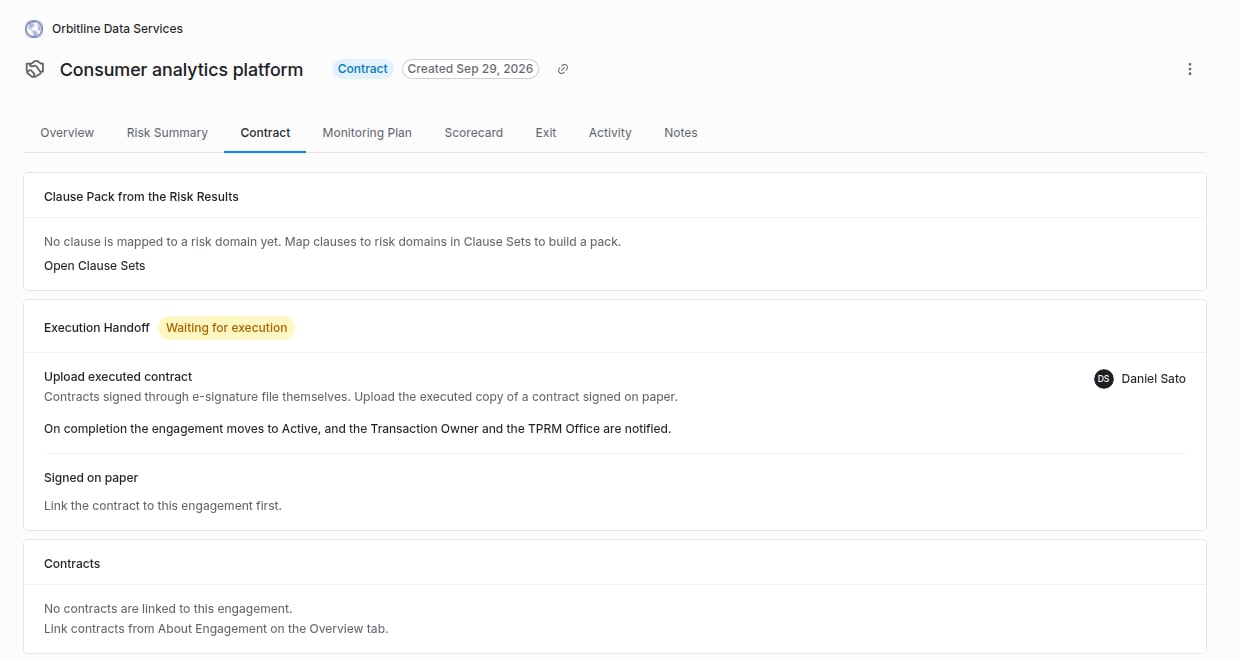 A handoff opens by itself when an assessment completes for an engagement that has not started, or when the Transaction Owner chooses **Proceed to contracting** on the Risk Summary. To start one by hand, when due diligence was decided elsewhere, click **Start handoff**. Supply Chain (or the TPRM Office) gets an **Upload executed contract** task.
* **Signed through e-signature:** nothing to do. The handoff completes when the envelope is executed.
* **Signed on paper:** under **Signed on paper**, choose the **Contract**, drop the executed copy, and click **File executed contract**. If the contract is not listed, link it from **About Engagement** on the **Overview** tab first.
On completion the engagement moves to its active status, and the Transaction Owner and the TPRM Office are notified.
## Write a continuity plan
An engagement whose inherent risk is the highest level of its scale is critical, whatever you call that level. When it reaches that level, a draft **Third-Party Continuity Plan** opens on the **Exit** tab and its Transaction Owner gets a task. Any other engagement can have a plan too.
Fill in the **Owner**, **Backup Suppliers** (with readiness notes), the **Exit Strategy**, the **Recovery Time Objective (Hours)**, **Resiliency Notes** and **Transition Steps**, one per line. **Save draft** keeps your work. **Submit plan** needs an exit strategy and a recovery time objective. **Reopen plan** makes a submitted plan editable again.
If the engagement is offboarded, each transition step becomes an exit plan step.
## Step 2: Request offboarding
On the **Exit** tab, under **Request Offboarding**, choose a **Reason** (**Consolidation**, **Contract ending**, **No longer needed**, **Performance**, **Risk**, **Cost** or **Other**), write the **Business Justification**, optionally pick a **Requested Date**, and click **Request offboarding**.
An engagement has at most one open request. One also opens automatically when:
* an owner answers **Start offboarding** on a monitoring plan attestation, or
* someone marks the engagement not in use (a canceled status, or a status labeled Inactive or Not in use), or marks every service it uses not in use.
## Step 3: Approve it
The **Offboarding Request** card shows **Waiting for TPRM Office** and, if required, **Waiting for Supply Chain**. A member of each group, or an admin, clicks **Approve**. The last approval starts the request: Coverbase generates the exit plan and runs the start of the cascade.
From the moment the request is filed, the engagement's tracker shows **Exit** as the current stage, reading **Exit under way**. See [The engagement record](/user-guides/engagement-record#step-2-open-the-engagement).
**Cancel offboarding**, with a **Cancel Reason**, closes every open step and task, and the tracker goes back to **Active**. Anything already stopped stays stopped.
## Step 4: Work the exit plan
A handoff opens by itself when an assessment completes for an engagement that has not started, or when the Transaction Owner chooses **Proceed to contracting** on the Risk Summary. To start one by hand, when due diligence was decided elsewhere, click **Start handoff**. Supply Chain (or the TPRM Office) gets an **Upload executed contract** task.
* **Signed through e-signature:** nothing to do. The handoff completes when the envelope is executed.
* **Signed on paper:** under **Signed on paper**, choose the **Contract**, drop the executed copy, and click **File executed contract**. If the contract is not listed, link it from **About Engagement** on the **Overview** tab first.
On completion the engagement moves to its active status, and the Transaction Owner and the TPRM Office are notified.
## Write a continuity plan
An engagement whose inherent risk is the highest level of its scale is critical, whatever you call that level. When it reaches that level, a draft **Third-Party Continuity Plan** opens on the **Exit** tab and its Transaction Owner gets a task. Any other engagement can have a plan too.
Fill in the **Owner**, **Backup Suppliers** (with readiness notes), the **Exit Strategy**, the **Recovery Time Objective (Hours)**, **Resiliency Notes** and **Transition Steps**, one per line. **Save draft** keeps your work. **Submit plan** needs an exit strategy and a recovery time objective. **Reopen plan** makes a submitted plan editable again.
If the engagement is offboarded, each transition step becomes an exit plan step.
## Step 2: Request offboarding
On the **Exit** tab, under **Request Offboarding**, choose a **Reason** (**Consolidation**, **Contract ending**, **No longer needed**, **Performance**, **Risk**, **Cost** or **Other**), write the **Business Justification**, optionally pick a **Requested Date**, and click **Request offboarding**.
An engagement has at most one open request. One also opens automatically when:
* an owner answers **Start offboarding** on a monitoring plan attestation, or
* someone marks the engagement not in use (a canceled status, or a status labeled Inactive or Not in use), or marks every service it uses not in use.
## Step 3: Approve it
The **Offboarding Request** card shows **Waiting for TPRM Office** and, if required, **Waiting for Supply Chain**. A member of each group, or an admin, clicks **Approve**. The last approval starts the request: Coverbase generates the exit plan and runs the start of the cascade.
From the moment the request is filed, the engagement's tracker shows **Exit** as the current stage, reading **Exit under way**. See [The engagement record](/user-guides/engagement-record#step-2-open-the-engagement).
**Cancel offboarding**, with a **Cancel Reason**, closes every open step and task, and the tracker goes back to **Active**. Anything already stopped stays stopped.
## Step 4: Work the exit plan
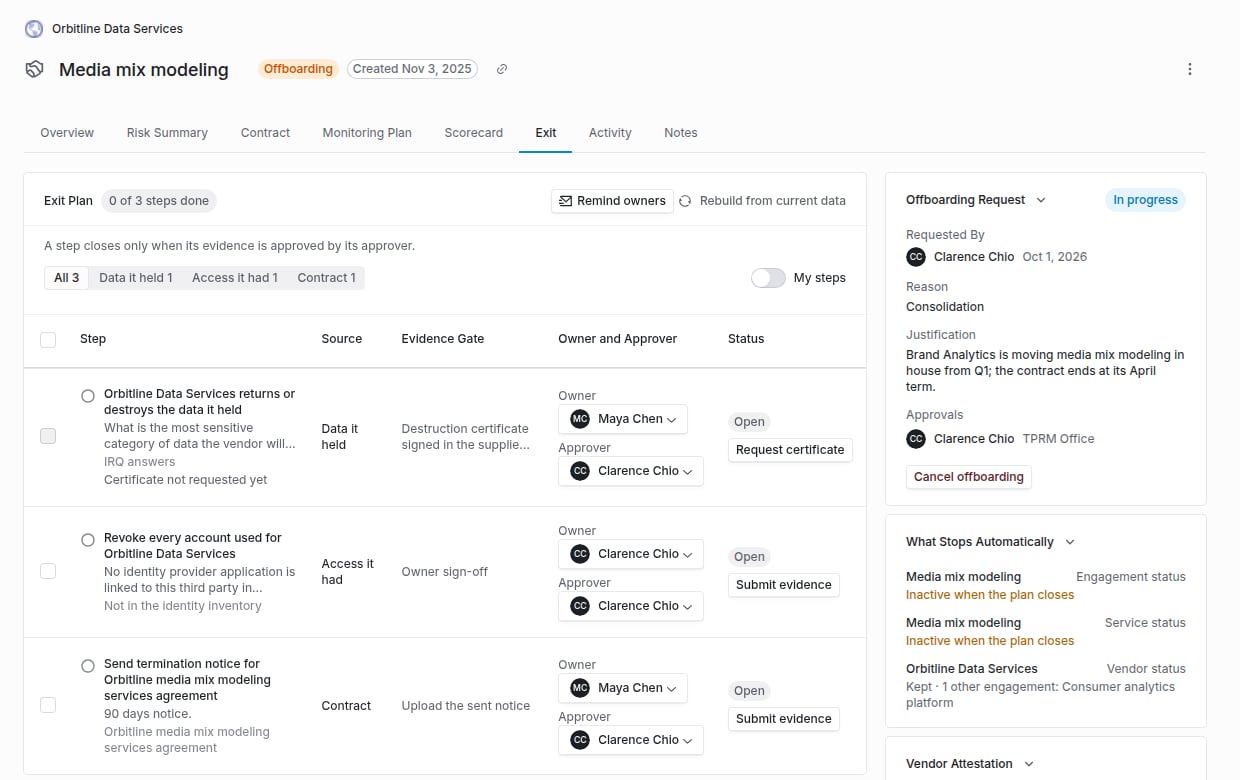 **Exit Plan** lists the steps built from what the engagement had, grouped by source: **Data it held**, **Access it had**, **Integrations**, **Contract** and **Continuity**. Each step has an **Owner** (the Transaction Owner for data, contract and continuity, the requester for access and integrations) and an **Approver** (the TPRM approver).
The owner clicks **Submit evidence**. A document step needs a file, a sign-off step a note. The step moves to **Awaiting approval**.
The approver clicks **Approve**, or **Return** with what needs to change. A returned step goes back to its owner with the note.
The plan lists a page of steps at a time. Filter by **Source**, or choose **My steps** to see only what waits on you.
To work several steps at once, select them:
* **Submit evidence for N steps** sends one file, one note or both to every selected step. Each step still has to pass its own gate, so a document step without a file or a sign-off step without a note is listed with what it needs, and the rest go through. A certificate step goes through only once the vendor has signed.
* **Approve N steps** approves the selected steps that wait on you. Each closes with the evidence it has; a step you cannot approve is skipped and listed with the reason.
**Remind owners** emails every owner of a step waiting on evidence and every approver of a step waiting on a decision, except you. It can be used once a day per request.
**Rebuild from current data** refreshes the plan from the record. It adds new steps and updates text without duplicating a step or losing what someone already did on it.
## Get the vendor's destruction certificate
The data step closes on a certificate the vendor signs. Click **Request certificate** on the step. The vendor gets an informational request in the supplier portal with a data destruction certificate to sign; **Copy portal link** gives you the link to send. When they sign, the step shows **Signed by**, with their title and the date, and **Vendor Attestation** shows a digest of the certificate.
Submitting the step records that digest. If the signed certificate changes afterwards, approval is refused, so the approver always approves the certificate they saw.
If the engagement held no data on record, the data step is instead an owner sign-off that no data is held.
## What stops automatically
**What Stops Automatically** lists what the offboarding will change, and keeps a line for anything another live engagement still needs (**Kept**).
| When | What | Rule |
| - | - | - |
| On approval | In-flight due diligence | Canceled when scoped to a service no other live engagement uses, or all of the vendor's when no other engagement remains |
| On approval | A pending executed contract task | Canceled |
| When the plan closes | The engagement | Set to your inactive engagement status |
| When the plan closes | Its services | Inactive, unless another live engagement uses them |
| When the plan closes | The vendor | Inactive only when no other live engagement remains, which also stops its reassessments |
| When the plan closes | Radar monitoring | Stopped only when the vendor goes inactive |
| When the plan closes | The open monitoring record | Closed only when the vendor goes inactive |
Approving the last open step completes the request, and the requester, the Transaction Owner and the TPRM approver are notified. The card then reads **Offboarded**, and the tracker's **Exit** stage reads **Exited** with the date. An exited engagement leaves the figures in [Program Insights](/user-guides/program-insights).
## Troubleshooting
| What you see | Cause | Fix |
| - | - | - |
| No **Exit** or **Contract** tab | The third-party lifecycle features are not turned on for your organization. | Ask your Coverbase representative. |
| **Link the contract to this engagement first.** | No contract is linked to the engagement. | Link it from **About Engagement** on the engagement's **Overview** tab. |
| The paper-signed contract still reads as not executed in its signature workflow | Only e-signature sets that state. | Expected. The handoff, the engagement status and the notices are the same. |
| **Request offboarding** is refused | The engagement already has an open request. | Work or cancel the open request. |
| Supply Chain approval is not asked for | No Supply Chain group was named when the request was filed. | Expected for that request. Name the group for future requests. |
| **Submit plan** is refused | The exit strategy or recovery time objective is empty. | Fill both in. |
| Approving the data step is refused | The vendor's signed certificate changed after the step was submitted. | **Return** the step so its owner submits it again with the current certificate. |
| A service stayed active after offboarding | Another live engagement uses it. | Expected. It shows as **Kept**. |
## Related
Owner attestation and Start offboarding.
The Risk Summary decision that opens a handoff.
Approval chains and sending for signature.
How a group assigns its tasks.
This documentation is built and hosted on [Mintlify](https://mintlify.com), a developer documentation platform.
**Exit Plan** lists the steps built from what the engagement had, grouped by source: **Data it held**, **Access it had**, **Integrations**, **Contract** and **Continuity**. Each step has an **Owner** (the Transaction Owner for data, contract and continuity, the requester for access and integrations) and an **Approver** (the TPRM approver).
The owner clicks **Submit evidence**. A document step needs a file, a sign-off step a note. The step moves to **Awaiting approval**.
The approver clicks **Approve**, or **Return** with what needs to change. A returned step goes back to its owner with the note.
The plan lists a page of steps at a time. Filter by **Source**, or choose **My steps** to see only what waits on you.
To work several steps at once, select them:
* **Submit evidence for N steps** sends one file, one note or both to every selected step. Each step still has to pass its own gate, so a document step without a file or a sign-off step without a note is listed with what it needs, and the rest go through. A certificate step goes through only once the vendor has signed.
* **Approve N steps** approves the selected steps that wait on you. Each closes with the evidence it has; a step you cannot approve is skipped and listed with the reason.
**Remind owners** emails every owner of a step waiting on evidence and every approver of a step waiting on a decision, except you. It can be used once a day per request.
**Rebuild from current data** refreshes the plan from the record. It adds new steps and updates text without duplicating a step or losing what someone already did on it.
## Get the vendor's destruction certificate
The data step closes on a certificate the vendor signs. Click **Request certificate** on the step. The vendor gets an informational request in the supplier portal with a data destruction certificate to sign; **Copy portal link** gives you the link to send. When they sign, the step shows **Signed by**, with their title and the date, and **Vendor Attestation** shows a digest of the certificate.
Submitting the step records that digest. If the signed certificate changes afterwards, approval is refused, so the approver always approves the certificate they saw.
If the engagement held no data on record, the data step is instead an owner sign-off that no data is held.
## What stops automatically
**What Stops Automatically** lists what the offboarding will change, and keeps a line for anything another live engagement still needs (**Kept**).
| When | What | Rule |
| - | - | - |
| On approval | In-flight due diligence | Canceled when scoped to a service no other live engagement uses, or all of the vendor's when no other engagement remains |
| On approval | A pending executed contract task | Canceled |
| When the plan closes | The engagement | Set to your inactive engagement status |
| When the plan closes | Its services | Inactive, unless another live engagement uses them |
| When the plan closes | The vendor | Inactive only when no other live engagement remains, which also stops its reassessments |
| When the plan closes | Radar monitoring | Stopped only when the vendor goes inactive |
| When the plan closes | The open monitoring record | Closed only when the vendor goes inactive |
Approving the last open step completes the request, and the requester, the Transaction Owner and the TPRM approver are notified. The card then reads **Offboarded**, and the tracker's **Exit** stage reads **Exited** with the date. An exited engagement leaves the figures in [Program Insights](/user-guides/program-insights).
## Troubleshooting
| What you see | Cause | Fix |
| - | - | - |
| No **Exit** or **Contract** tab | The third-party lifecycle features are not turned on for your organization. | Ask your Coverbase representative. |
| **Link the contract to this engagement first.** | No contract is linked to the engagement. | Link it from **About Engagement** on the engagement's **Overview** tab. |
| The paper-signed contract still reads as not executed in its signature workflow | Only e-signature sets that state. | Expected. The handoff, the engagement status and the notices are the same. |
| **Request offboarding** is refused | The engagement already has an open request. | Work or cancel the open request. |
| Supply Chain approval is not asked for | No Supply Chain group was named when the request was filed. | Expected for that request. Name the group for future requests. |
| **Submit plan** is refused | The exit strategy or recovery time objective is empty. | Fill both in. |
| Approving the data step is refused | The vendor's signed certificate changed after the step was submitted. | **Return** the step so its owner submits it again with the current certificate. |
| A service stayed active after offboarding | Another live engagement uses it. | Expected. It shows as **Kept**. |
## Related
Owner attestation and Start offboarding.
The Risk Summary decision that opens a handoff.
Approval chains and sending for signature.
How a group assigns its tasks.
This documentation is built and hosted on [Mintlify](https://mintlify.com), a developer documentation platform.