> ## Documentation Index
> Fetch the complete documentation index at: https://docs.coverbase.com/llms.txt
> Use this file to discover all available pages before exploring further.
# Questionnaires
> Build a questionnaire template, decide who reviews it, send it to a vendor, and work a submission through to a decision. Covers question types, conditional logic, internal-only questions, write-back rules, and why editing a template does not change answers already given.
For AI agents: a documentation index is available at [https://docs.coverbase.com/llms.txt](https://docs.coverbase.com/llms.txt). This page is also available in markdown by appending .md to the URL.
This guide is part of the [User Guides](/user-guides/overview) collection. It covers the **Questionnaires** area under **Configuration**. For the packaged inherent risk templates, see [The IRQ library](/user-guides/irq-library). For weighting an IRQ during setup, see [Step 4 of Admin setup](/user-guides/admin-setup#step-4-build-and-weight-your-irq). For follow-up questionnaires raised from an assessment, see [Running an assessment](/user-guides/running-an-assessment).
A questionnaire is a template you build once and send many times. Each send creates a submission: one vendor, one set of answers, one status, one reviewer. The template and the submission are different records, and that split explains most of what follows. Editing the template changes what the next vendor sees. It never rewrites what an earlier vendor answered.
The mistake people make most often is on the reviewer side. Adding someone under **Configure Reviewers** puts them on a notification list. It does not put the submission in their work queue. The reviewer picker on the submission itself does that.
## Where questionnaires live
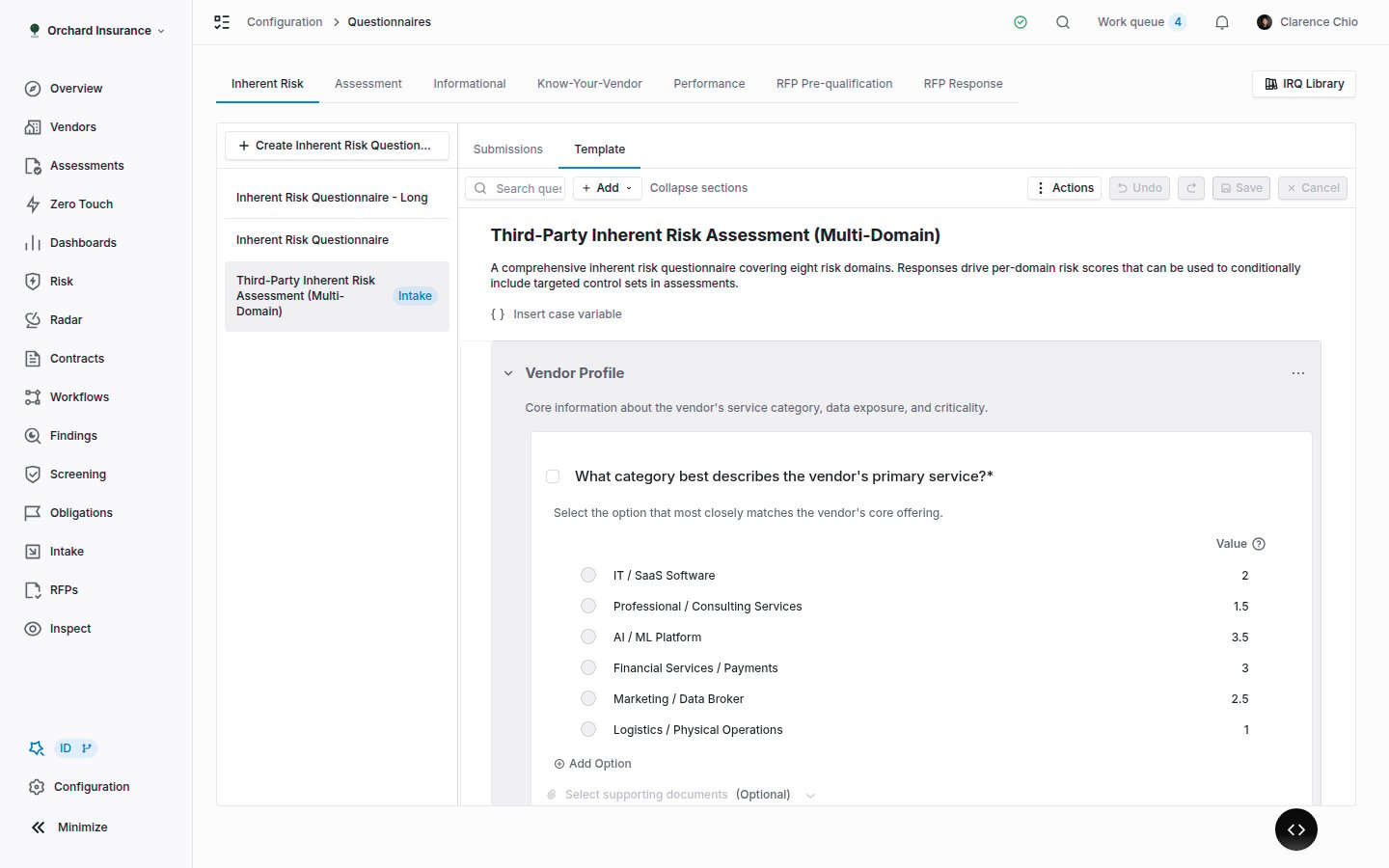
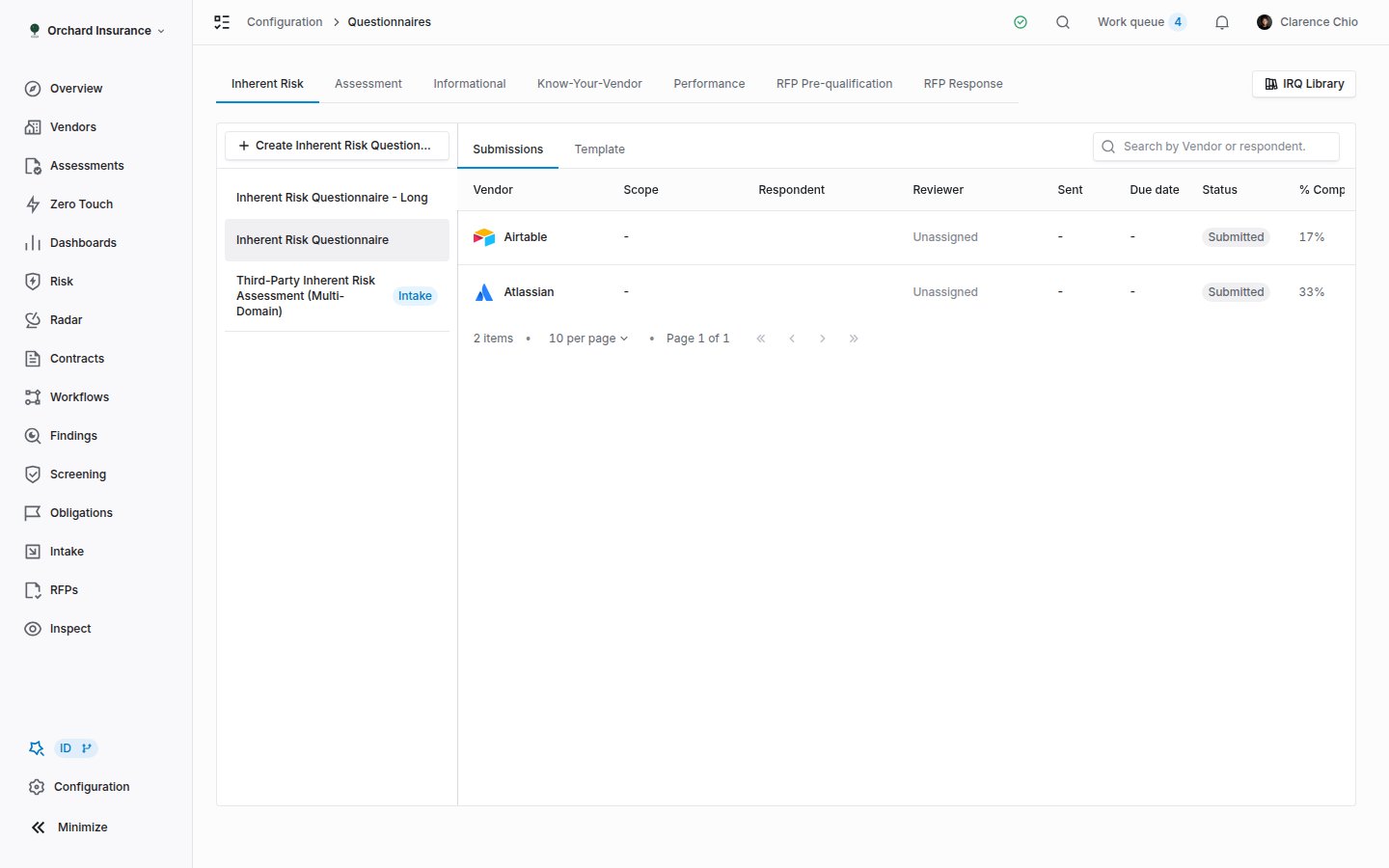
Open **Configuration** and choose **Questionnaires**, or go straight to `/questionnaires`. The page opens on the **Inherent Risk** tab. Each tab is one questionnaire type, with the templates of that type listed down the left and the selected template on the right.
| Tab | Type | Used for |
| ------------------------------------------- | -------------------------------------- | ----------------------------------------------------------------------------------------------------------------------------------------------------------------------- |
| **Inherent Risk** | `irq` | Scoring a vendor before due diligence. Answered at intake, or sent from the vendor page. Produces an inherent risk score. |
| **Assessment** | `assessment` | Questions collected as part of an assessment plan. Can be built by hand or derived from a control set. |
| **Informational** | `informational` | Anything you want to ask a vendor that does not score: a data map, a contacts form, a renewal check. Sent directly from the template. |
| **Know-Your-Vendor** | `vendor_onboarding` | Supplier profile collection (bank accounts, sites, tax registrations). Only shown when the module is on. See [Supplier information](/user-guides/supplier-information). |
| **Performance** | `performance` | Performance review questionnaires. |
| **RFP Pre-qualification**, **RFP Response** | `rfp_prequalification`, `rfp_response` | Only shown when the RFP module is on. See [Running an RFP](/user-guides/running-an-rfp). |
Follow-up questionnaires (`follow_up`) have no tab. They are generated from assessment issues, and you reach their submissions from the assessment. Their template page only lists the submissions made on them.
 ## Creating a template
Click **Create Inherent Risk Questionnaire** (the label changes with the tab) above the list. The new template opens with no questions. On the **Inherent Risk** tab you can instead click **IRQ Library** and copy a packaged template. On the **Assessment** tab the button is a menu with a second choice, **Create Questionnaire from Control Set**, which derives a questionnaire from a control set of type policy or questionnaire.
A derived questionnaire is owned by its control set. A blue banner at the top says which one, with **Go to control set**. You cannot edit its questions, reviewers, or comment settings here; change the control set and the questionnaire follows. Controls that are not questions are filtered out, and an orange banner tells you when that has happened.
Creating a template needs the `questionnaire:create` permission. Editing one needs `questionnaire:update`, and deleting needs `questionnaire:archive`. See [Permissions and roles](/user-guides/permissions-and-roles).
## Building the template
The **Template** tab is an editor with a **Save** and **Cancel** bar. Nothing reaches the server until you click **Save**, and most of the **Actions** menu is disabled while you have unsaved changes. If someone else saves the same template while you are editing, a **Questionnaire changed** dialog asks you to **Reload now**; your local edits are discarded.
### Title, sections, and order
The fields at the top are **Questionnaire title** and **Questionnaire description**. Both are shown to the respondent.
Click **New Section** to add a section. A section has a **Section Name**, an optional description, a **Section Index**, and a **Risk Domain**. The risk domain matters on an IRQ: it decides which domain a section's questions score into, and it is what [domain weighting](/user-guides/irq-library#how-the-score-works) and per-domain review are keyed on. Drag sections and questions to reorder them. **Actions → Number Questions** fills in a question index for every question, either **Sequential (1, 2, 3)** or **By section (1.1, 1.2, 2.1)**, and can leave questions that already have an index alone.
### Adding a question
Click **Add** and choose a response type. When the template has sections, the menu asks which section first.
| Response type | The respondent gives | Notes |
| -------------------------------------------------------------------------------- | ------------------------- | ----------------------------------------------------------------------------------------------------------------------------- |
| **Single Select** | One option | Can score, can trigger conditional logic, can drive fixed write-back rules. |
| **Multi Select** | Several options | Same as single select. Scoring mode is **Cumulative** (sum of selected values) or **Highest score** (the top selected value). |
| **Text** | Free text | Cannot trigger conditions. Write-back is AI only. |
| **Contacts** | One or more people | Feeds the vendor's contact list through the older response mapping. |
| **Country** | A country | Can trigger conditions. |
| **Currency** | An amount | |
| **Document Upload** | A file | Know-Your-Vendor only. |
| **Bank Account**, **Site / Address**, **Tax Registration**, **Diversity Record** | A supplier profile record | Know-Your-Vendor only. The answer is a reference to the vendor's profile, not a copy of the values. |
Every question has a **Question title** and optional **Additional instructions**. Select questions have options, each with a **Value**: the weight that feeds the score. Options start at `0`, so weight them before the first send. An option's **Score override** sets a **Minimum score override**: when that option is selected, the questionnaire's overall score cannot fall below the percentage you enter, and the highest override among the selected answers wins.
## Creating a template
Click **Create Inherent Risk Questionnaire** (the label changes with the tab) above the list. The new template opens with no questions. On the **Inherent Risk** tab you can instead click **IRQ Library** and copy a packaged template. On the **Assessment** tab the button is a menu with a second choice, **Create Questionnaire from Control Set**, which derives a questionnaire from a control set of type policy or questionnaire.
A derived questionnaire is owned by its control set. A blue banner at the top says which one, with **Go to control set**. You cannot edit its questions, reviewers, or comment settings here; change the control set and the questionnaire follows. Controls that are not questions are filtered out, and an orange banner tells you when that has happened.
Creating a template needs the `questionnaire:create` permission. Editing one needs `questionnaire:update`, and deleting needs `questionnaire:archive`. See [Permissions and roles](/user-guides/permissions-and-roles).
## Building the template
The **Template** tab is an editor with a **Save** and **Cancel** bar. Nothing reaches the server until you click **Save**, and most of the **Actions** menu is disabled while you have unsaved changes. If someone else saves the same template while you are editing, a **Questionnaire changed** dialog asks you to **Reload now**; your local edits are discarded.
### Title, sections, and order
The fields at the top are **Questionnaire title** and **Questionnaire description**. Both are shown to the respondent.
Click **New Section** to add a section. A section has a **Section Name**, an optional description, a **Section Index**, and a **Risk Domain**. The risk domain matters on an IRQ: it decides which domain a section's questions score into, and it is what [domain weighting](/user-guides/irq-library#how-the-score-works) and per-domain review are keyed on. Drag sections and questions to reorder them. **Actions → Number Questions** fills in a question index for every question, either **Sequential (1, 2, 3)** or **By section (1.1, 1.2, 2.1)**, and can leave questions that already have an index alone.
### Adding a question
Click **Add** and choose a response type. When the template has sections, the menu asks which section first.
| Response type | The respondent gives | Notes |
| -------------------------------------------------------------------------------- | ------------------------- | ----------------------------------------------------------------------------------------------------------------------------- |
| **Single Select** | One option | Can score, can trigger conditional logic, can drive fixed write-back rules. |
| **Multi Select** | Several options | Same as single select. Scoring mode is **Cumulative** (sum of selected values) or **Highest score** (the top selected value). |
| **Text** | Free text | Cannot trigger conditions. Write-back is AI only. |
| **Contacts** | One or more people | Feeds the vendor's contact list through the older response mapping. |
| **Country** | A country | Can trigger conditions. |
| **Currency** | An amount | |
| **Document Upload** | A file | Know-Your-Vendor only. |
| **Bank Account**, **Site / Address**, **Tax Registration**, **Diversity Record** | A supplier profile record | Know-Your-Vendor only. The answer is a reference to the vendor's profile, not a copy of the values. |
Every question has a **Question title** and optional **Additional instructions**. Select questions have options, each with a **Value**: the weight that feeds the score. Options start at `0`, so weight them before the first send. An option's **Score override** sets a **Minimum score override**: when that option is selected, the questionnaire's overall score cannot fall below the percentage you enter, and the highest override among the selected answers wins.
 ### Question settings
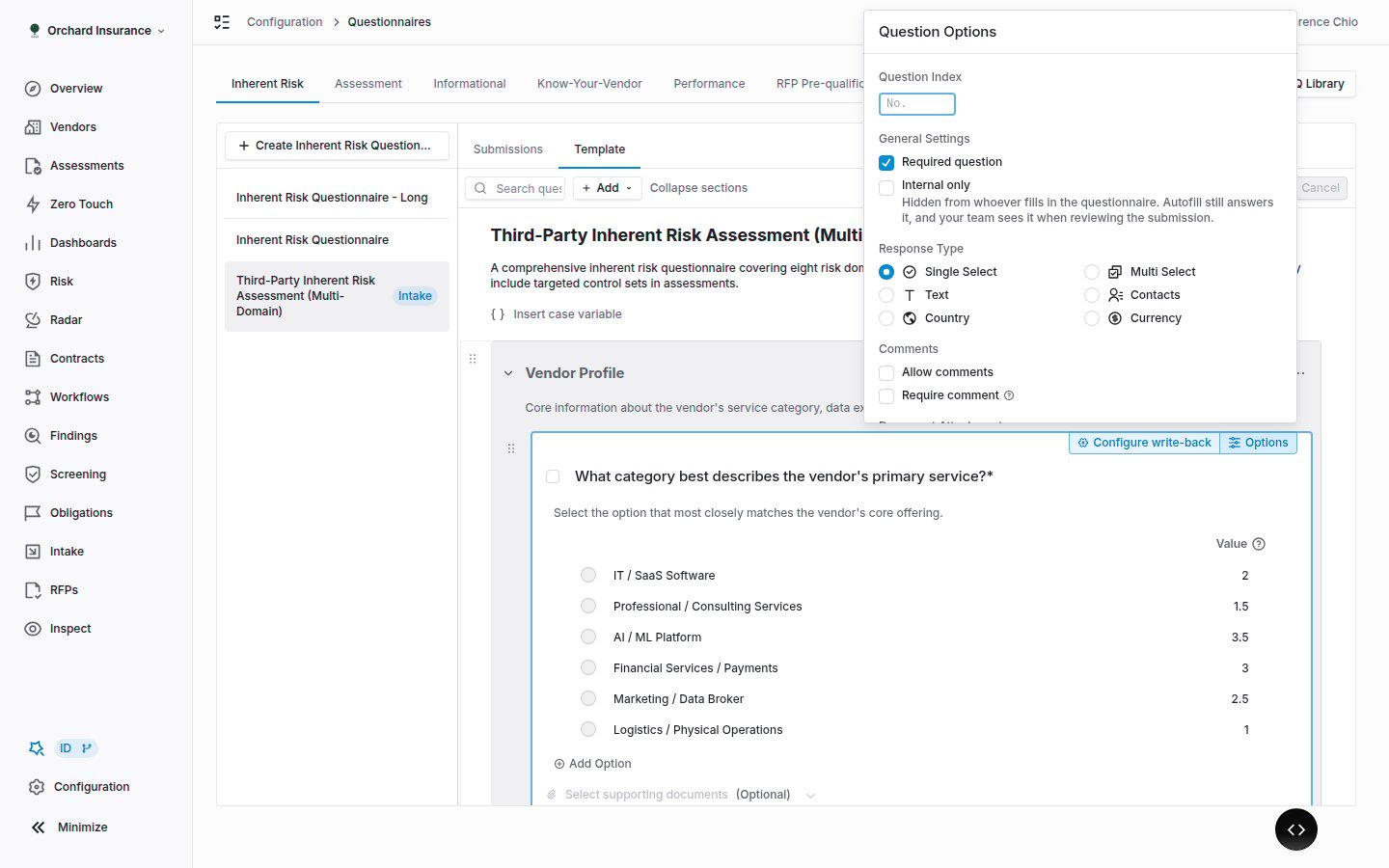
Open a question's settings to find these switches. Select several questions and use the bulk actions bar to set the first five at once.
| Setting | What it does |
| ----------------------------------------------------------------- | ------------------------------------------------------------------------------------------------------------------------------------------------------------------------------------- |
| **Required question** | The respondent cannot submit until it is answered. On an internal-only question the label changes to **Required before accepting or denying**, because it gates the reviewer instead. |
| **Internal only** | Hidden from whoever fills in the questionnaire. Autofill still answers it, and your team sees it when reviewing the submission. |
| **Allow comments** / **Require comment** | Adds a comment box. Required means the vendor must explain their answer before the question counts as answered. |
| **Allow document attachments** / **Require document attachments** | Lets or makes the respondent attach supporting documents to this question. |
| **Require user review** | Intake only. The requester must confirm the AI answer to this question. |
| **Require user input** | Intake only. The question is always put to the requester as a follow-up rather than answered from web search. Use it for facts only the business owner knows. |
**Update AI Guidance** under the question's **Actions** adds instructions for how the AI should answer this question during intake. **Copy Question ID** is there for workflow automations that reference a question.
### Internal-only questions
An internal-only question is a fact your team wants recorded about the vendor without asking the vendor. The portal strips the question and any answer to it. Autofill answers it like any other question, and the reviewer sees it, with its answer and the model's reasoning, on the submission. Marked **Required**, it blocks both **Accept** and **Deny** until someone answers it; the buttons show how many are outstanding.
Two things to know before you use one:
* It scores like any other question. Leave option values at `0` on a question that is context rather than risk.
* It can only show other internal-only questions through conditional logic. A respondent-facing question can show an internal-only one (the vendor answers, the rule decides whether your reviewer is asked the follow-up), but not the other way round, because the vendor would be blocked on a question they cannot see.
Turning **Internal only** off on a question your reviewer has already answered exposes that answer to the vendor if the portal is reopened.
### Conditional logic
**Actions → Configure Conditional Logic** opens the rule list for the template. A rule shows one or more sections, questions, or options when a trigger question's answer matches. Anything a rule targets is hidden until a rule for it fires, and the rules for one target read **when ANY of these rules is met**, so two rules on the same section are an OR.
Inside a rule, each condition is a trigger question plus **is any of** or **is not any of** and the options it compares against. A rule can combine up to ten questions, all of which must be true (**when ALL of the following are true**), and each must be a different question. Only single select, multi select, country, and currency questions can be triggers, and a question cannot show the section it sits in. An unanswered trigger counts as not met, never as skipped.
### Question settings
Open a question's settings to find these switches. Select several questions and use the bulk actions bar to set the first five at once.
| Setting | What it does |
| ----------------------------------------------------------------- | ------------------------------------------------------------------------------------------------------------------------------------------------------------------------------------- |
| **Required question** | The respondent cannot submit until it is answered. On an internal-only question the label changes to **Required before accepting or denying**, because it gates the reviewer instead. |
| **Internal only** | Hidden from whoever fills in the questionnaire. Autofill still answers it, and your team sees it when reviewing the submission. |
| **Allow comments** / **Require comment** | Adds a comment box. Required means the vendor must explain their answer before the question counts as answered. |
| **Allow document attachments** / **Require document attachments** | Lets or makes the respondent attach supporting documents to this question. |
| **Require user review** | Intake only. The requester must confirm the AI answer to this question. |
| **Require user input** | Intake only. The question is always put to the requester as a follow-up rather than answered from web search. Use it for facts only the business owner knows. |
**Update AI Guidance** under the question's **Actions** adds instructions for how the AI should answer this question during intake. **Copy Question ID** is there for workflow automations that reference a question.
### Internal-only questions
An internal-only question is a fact your team wants recorded about the vendor without asking the vendor. The portal strips the question and any answer to it. Autofill answers it like any other question, and the reviewer sees it, with its answer and the model's reasoning, on the submission. Marked **Required**, it blocks both **Accept** and **Deny** until someone answers it; the buttons show how many are outstanding.
Two things to know before you use one:
* It scores like any other question. Leave option values at `0` on a question that is context rather than risk.
* It can only show other internal-only questions through conditional logic. A respondent-facing question can show an internal-only one (the vendor answers, the rule decides whether your reviewer is asked the follow-up), but not the other way round, because the vendor would be blocked on a question they cannot see.
Turning **Internal only** off on a question your reviewer has already answered exposes that answer to the vendor if the portal is reopened.
### Conditional logic
**Actions → Configure Conditional Logic** opens the rule list for the template. A rule shows one or more sections, questions, or options when a trigger question's answer matches. Anything a rule targets is hidden until a rule for it fires, and the rules for one target read **when ANY of these rules is met**, so two rules on the same section are an OR.
Inside a rule, each condition is a trigger question plus **is any of** or **is not any of** and the options it compares against. A rule can combine up to ten questions, all of which must be true (**when ALL of the following are true**), and each must be a different question. Only single select, multi select, country, and currency questions can be triggers, and a question cannot show the section it sits in. An unanswered trigger counts as not met, never as skipped.
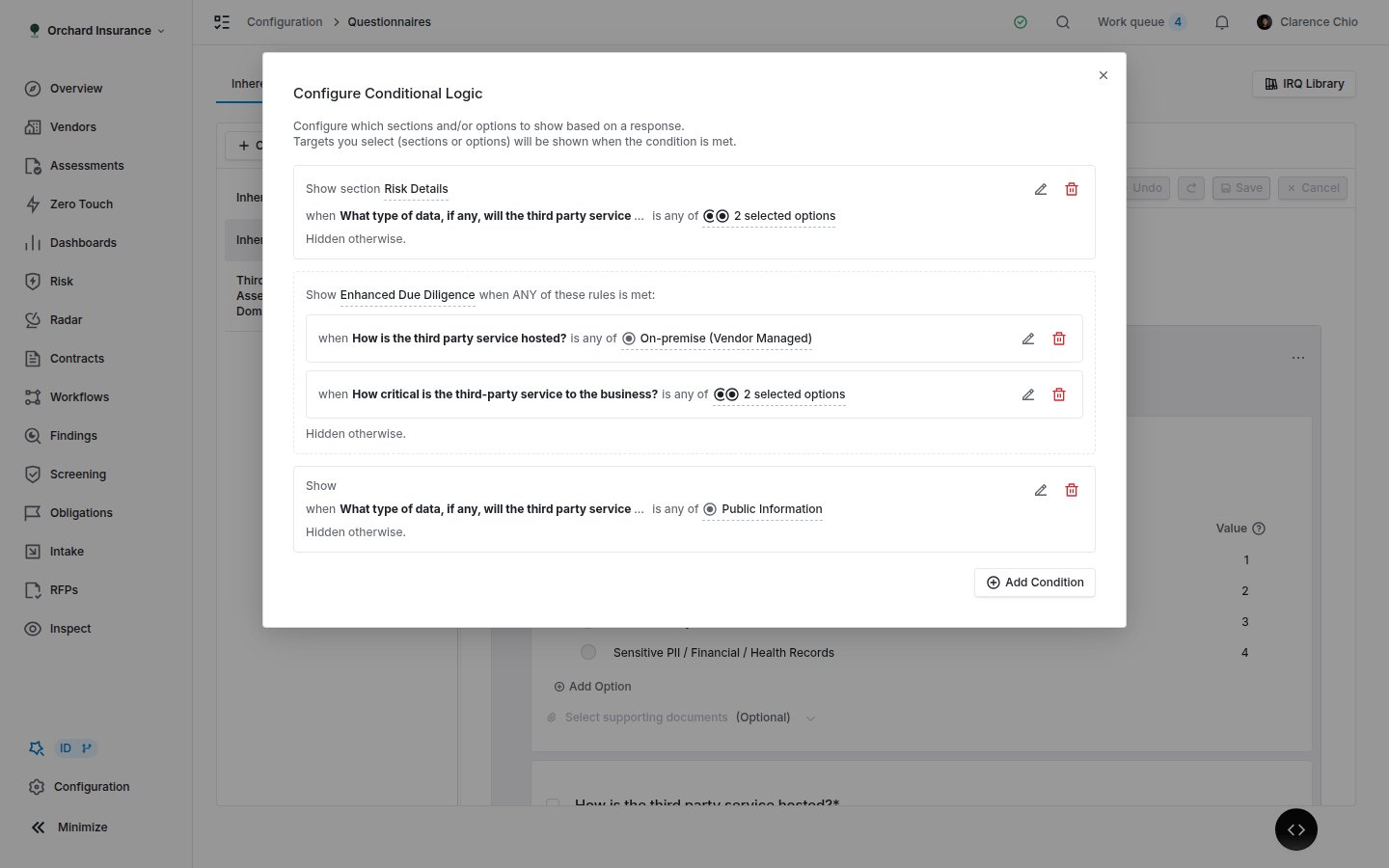 A single **Add Conditional Logic** action also sits on each question, prefilled with that question as the trigger. Rules are saved immediately, so the action is disabled while the template has unsaved changes.
Combining several conditions in one rule is a beta feature. If your rules only ever offer one trigger question, ask your Coverbase representative about multi-parent conditions. Rules already written with several conditions keep working either way.
On the submission, a section or question a rule hid is listed under **Skipped because conditions were not met**, with the answer that was given against the answer the rule needed.
### Write-back: answers that update the record
**Configure write-back** on a question makes its answer write a value onto the vendor, or onto the assessment for an assessment questionnaire. The panel asks for:
| Field | Choices |
| --------------------------------------- | ----------------------------------------------------------------------------------------------------------------------------------------------------------------------------------------------------------------------------------- |
| **Record** | **Vendor** or **Assessment** |
| **Target** | **Tags**, **Custom field**, or **Record field** (a built-in column such as description or website) |
| **How** | **Fixed rules** for select questions: one rule per answer, each setting a tag or a literal value. **Ask AI** for text, country, and currency: an instruction the model follows, and its reason is recorded. |
| **Review before applying** | On by default. The reviewer confirms the suggestion on the submission. Off, it is applied on approval and still shown in the review panel. |
| **Prefill this answer from the record** | Custom field and record field only. Answers the question from the value already on the record when the questionnaire is sent, so the vendor is not asked for something you already hold. An answer already given is never replaced. |
Three rules hold regardless of the settings. A write that would overwrite a value someone typed always asks. A built-in column is only ever filled when it is empty. Nothing lands on the record until the submission is approved.
A single **Add Conditional Logic** action also sits on each question, prefilled with that question as the trigger. Rules are saved immediately, so the action is disabled while the template has unsaved changes.
Combining several conditions in one rule is a beta feature. If your rules only ever offer one trigger question, ask your Coverbase representative about multi-parent conditions. Rules already written with several conditions keep working either way.
On the submission, a section or question a rule hid is listed under **Skipped because conditions were not met**, with the answer that was given against the answer the rule needed.
### Write-back: answers that update the record
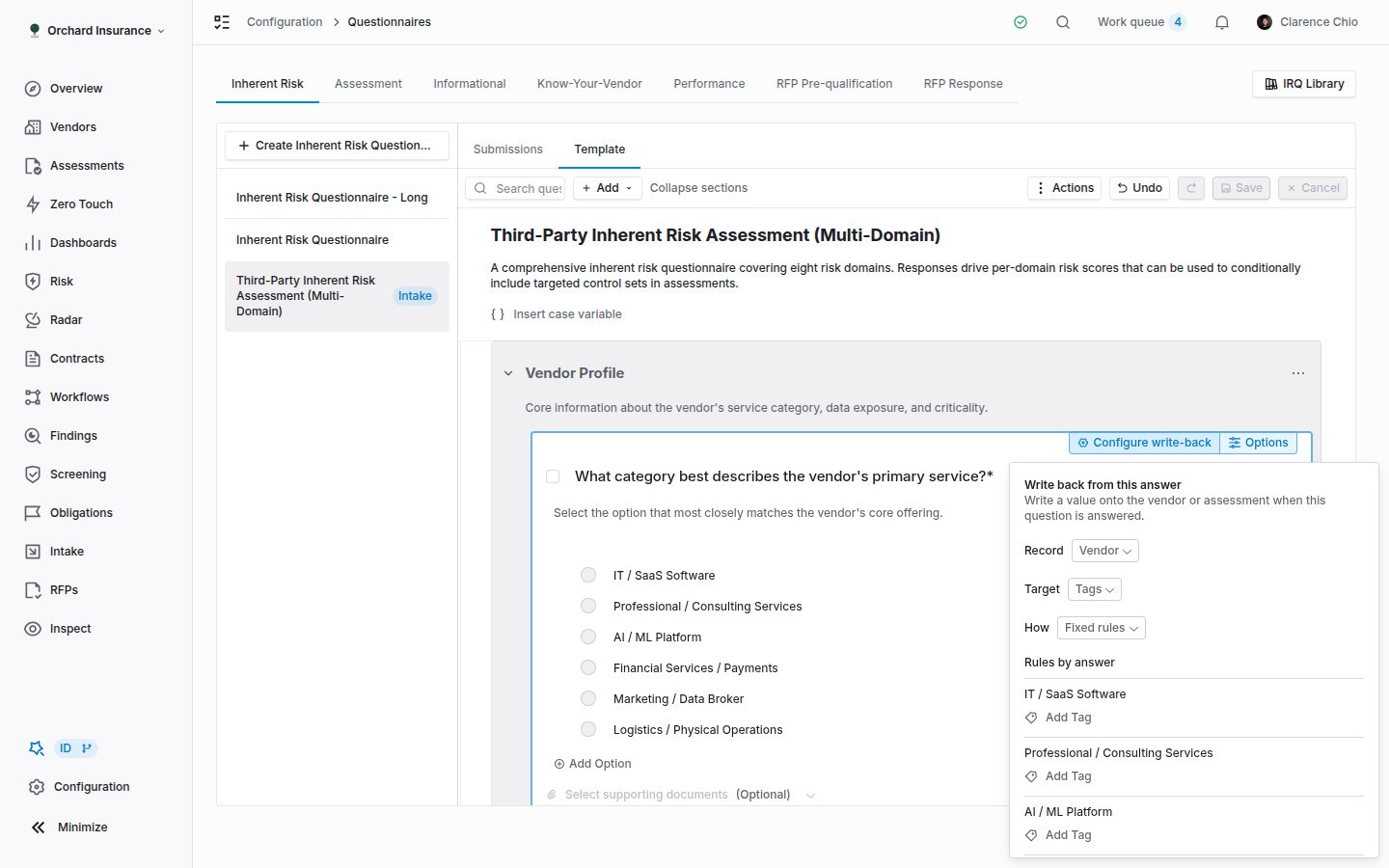
**Configure write-back** on a question makes its answer write a value onto the vendor, or onto the assessment for an assessment questionnaire. The panel asks for:
| Field | Choices |
| --------------------------------------- | ----------------------------------------------------------------------------------------------------------------------------------------------------------------------------------------------------------------------------------- |
| **Record** | **Vendor** or **Assessment** |
| **Target** | **Tags**, **Custom field**, or **Record field** (a built-in column such as description or website) |
| **How** | **Fixed rules** for select questions: one rule per answer, each setting a tag or a literal value. **Ask AI** for text, country, and currency: an instruction the model follows, and its reason is recorded. |
| **Review before applying** | On by default. The reviewer confirms the suggestion on the submission. Off, it is applied on approval and still shown in the review panel. |
| **Prefill this answer from the record** | Custom field and record field only. Answers the question from the value already on the record when the questionnaire is sent, so the vendor is not asked for something you already hold. An answer already given is never replaced. |
Three rules hold regardless of the settings. A write that would overwrite a value someone typed always asks. A built-in column is only ever filled when it is empty. Nothing lands on the record until the submission is approved.
 The custom field's own settings page lists every question that fills it under **Autofill from questionnaires**, so you can find a mapping from either end. See [Data model configuration](/user-guides/data-model-configuration).
An older question may open **Configure Response Mapping** instead. That is the previous editor, and it stays only while the question still carries a mapping from it. Clearing that mapping switches the question to the write-back panel, and no new response mapping can be created.
### Spreadsheet import and export
**Actions → Bulk Import Questions** opens a dialog that takes an Excel file. **Download blank template** gives you the column layout with example rows; **Download current questions** exports what is already on the template so you can edit and re-import it. The columns cover question text, type, required, pipe-separated options and weights, instructions, guidance, the comment and document switches, internal only, section name and order. Rows that fail come back in a **Download Errors** sheet with an **Error** column.
**Actions → Export → Export Template as XLSX** downloads the template. **Export Submissions as XLSX** appears once the template has submissions and downloads every answer on the current page of the submissions table. A single submission has its own **Export as XLSX** in its actions menu.
### Other template actions
| Action | What it does |
| ---------------------------- | ----------------------------------------------------------------------------------------------------------------------------------------------------------------------- |
| **Configure Reviewers** | The template's notification list. See [Assigning reviewers](#assigning-reviewers). |
| **Configure Risk Levels...** | IRQ only. Opens the inherent risk scale that the score is banded against. |
| **Intake Configuration** | IRQ only. Opens the vendor intake settings that decide which IRQ requesters answer. |
| **Configure Automation** | Informational only. Automatically selects this questionnaire when an assessment is created for vendors at the chosen inherent risk levels, or **Apply to all vendors**. |
| **Clone Template** | Copies the template under a new name. Not available for derived or RFP templates. |
| **Delete Template** | Archives the template. Its submissions stay on the vendor's history, but nothing new can be sent from it. |
## Assigning reviewers
Two different things are called the reviewer. Keep them apart.
Set from **Actions → Configure Reviewers** on the template. Everyone on the list is notified when a submission comes in through a portal, and can edit the submission's answers. Being on the list does not by itself put anything in anyone's work queue.
Set from the **Assign reviewer** picker at the top of a submission. One person or one user group per submission. This is who gets the work queue item on the Overview page once the vendor submits. Assessment questionnaires do not have one; they are reviewed through the assessment.
When a questionnaire is sent, the submission reviewer is seeded automatically. If the template names exactly one reviewer, that person is used. If it names none, or several, the sender becomes the reviewer. A send from a portal template always uses the sender. Reassigning cancels the previous reviewer's open item and, if the vendor has already submitted, creates one for the new reviewer. Accepting or denying completes the decider's item and cancels everyone else's.
A derived questionnaire inherits its reviewers from the control set. The dialog reads **View Reviewers** and shows them read-only with **Go to Control Set**.
## Sending a questionnaire
A questionnaire reaches a vendor through a portal: a branded page with a due date, your message, and the questionnaire as a required item. Which button you use depends on the type.
Click **Send Questionnaire** at the top right of the template, pick a vendor under **Select a Vendor**, and the portal is created with the due date one week out. The portal details drawer opens so you can adjust the due date and message and copy the link. The button is disabled while the template has unsaved changes or while a select question has no options; the tooltip names the questions.
On a vendor's **Overview**, the **Inherent Risk** card offers **Send IRQ**, with **Send questionnaire directly** (pick a template, portal created for one week) or **From template** (a saved portal template). The same card exists on a service and on an engagement, which scopes the score to that record. An IRQ also runs inside vendor intake; see [Requesting a vendor](/user-guides/requesting-a-vendor).
Assessment questionnaires are not sent from here. They go out with the assessment's portal when the plan includes them. See [Running an assessment](/user-guides/running-an-assessment).
Sending needs the `portal:create` permission. The vendor receives the portal invitation email described in [Email notifications](/user-guides/email-notifications).
### What the vendor sees
The portal shows your message, the due date, and a list of required items on the left. Each question shows its title and instructions, a red marker with the tooltip **Required** where you set it, a comment box labeled **Comments (Optional)** or **Comments (Required)**, and a **Supporting Documents** picker where attachments are allowed. Sections and questions hidden by conditional logic do not appear. Internal-only questions do not appear. Answers are **Auto-saved** as the vendor types.
The **Submit** button stays disabled until every required question is answered, with the count of incomplete items shown. Optional questions left blank do not block submission. After submitting, the vendor sees **Thank you** and the portal is closed to them; a vendor who returns later sees **This portal is closed**.
## Reading the submissions list
Open a template and its **Submissions** tab lists every send. The tab is the default whenever there is at least one submission. Search by vendor or respondent email.
| Column | What it shows |
| ---------------------- | -------------------------------------------------------------------------------------------------------- |
| **Vendor** | The vendor, with a **Scope** badge when the IRQ was sent for a service or engagement. |
| **Respondent** | Who answered. **Self-reported** means the email was typed by the respondent and not verified by sign-in. |
| **Reviewer** | The submission reviewer, or **Unassigned**. |
| **Sent**, **Due date** | When the portal was created and when it is due. |
| **Status** | See the table below. |
| **% Complete** | Answered questions as a share of the visible questions. |
| **Score** | IRQ only. The inherent risk score, shown when numerical scores are on for your organization. |
| Status | Meaning |
| ----------------------- | ----------------------------------------------------------------------------------------------------------------------------------------------------------- |
| **Pending** | Sent, not yet submitted. Also the state after **Reopen Submission**. |
| **Processing** | AI autofill is running on the vendor's uploaded documents. |
| **Processing complete** | Autofill finished; the vendor can review the answers before submitting. |
| **Processing failed** | Autofill failed. The vendor can still answer by hand. |
| **Submitted** | Answers received; the status moves on within moments. Assessment questionnaires go straight to **Accepted**, every other type to **Ready for review**. |
| **Ready for review** | Submitted and waiting for your decision. This is what creates the work queue item. |
| **Accepted** | Approved. Write-backs and the IRQ score have been applied. An assessment questionnaire lands here on submit, because it is reviewed through the assessment. |
| **Rejected** | Denied. |
The custom field's own settings page lists every question that fills it under **Autofill from questionnaires**, so you can find a mapping from either end. See [Data model configuration](/user-guides/data-model-configuration).
An older question may open **Configure Response Mapping** instead. That is the previous editor, and it stays only while the question still carries a mapping from it. Clearing that mapping switches the question to the write-back panel, and no new response mapping can be created.
### Spreadsheet import and export
**Actions → Bulk Import Questions** opens a dialog that takes an Excel file. **Download blank template** gives you the column layout with example rows; **Download current questions** exports what is already on the template so you can edit and re-import it. The columns cover question text, type, required, pipe-separated options and weights, instructions, guidance, the comment and document switches, internal only, section name and order. Rows that fail come back in a **Download Errors** sheet with an **Error** column.
**Actions → Export → Export Template as XLSX** downloads the template. **Export Submissions as XLSX** appears once the template has submissions and downloads every answer on the current page of the submissions table. A single submission has its own **Export as XLSX** in its actions menu.
### Other template actions
| Action | What it does |
| ---------------------------- | ----------------------------------------------------------------------------------------------------------------------------------------------------------------------- |
| **Configure Reviewers** | The template's notification list. See [Assigning reviewers](#assigning-reviewers). |
| **Configure Risk Levels...** | IRQ only. Opens the inherent risk scale that the score is banded against. |
| **Intake Configuration** | IRQ only. Opens the vendor intake settings that decide which IRQ requesters answer. |
| **Configure Automation** | Informational only. Automatically selects this questionnaire when an assessment is created for vendors at the chosen inherent risk levels, or **Apply to all vendors**. |
| **Clone Template** | Copies the template under a new name. Not available for derived or RFP templates. |
| **Delete Template** | Archives the template. Its submissions stay on the vendor's history, but nothing new can be sent from it. |
## Assigning reviewers
Two different things are called the reviewer. Keep them apart.
Set from **Actions → Configure Reviewers** on the template. Everyone on the list is notified when a submission comes in through a portal, and can edit the submission's answers. Being on the list does not by itself put anything in anyone's work queue.
Set from the **Assign reviewer** picker at the top of a submission. One person or one user group per submission. This is who gets the work queue item on the Overview page once the vendor submits. Assessment questionnaires do not have one; they are reviewed through the assessment.
When a questionnaire is sent, the submission reviewer is seeded automatically. If the template names exactly one reviewer, that person is used. If it names none, or several, the sender becomes the reviewer. A send from a portal template always uses the sender. Reassigning cancels the previous reviewer's open item and, if the vendor has already submitted, creates one for the new reviewer. Accepting or denying completes the decider's item and cancels everyone else's.
A derived questionnaire inherits its reviewers from the control set. The dialog reads **View Reviewers** and shows them read-only with **Go to Control Set**.
## Sending a questionnaire
A questionnaire reaches a vendor through a portal: a branded page with a due date, your message, and the questionnaire as a required item. Which button you use depends on the type.
Click **Send Questionnaire** at the top right of the template, pick a vendor under **Select a Vendor**, and the portal is created with the due date one week out. The portal details drawer opens so you can adjust the due date and message and copy the link. The button is disabled while the template has unsaved changes or while a select question has no options; the tooltip names the questions.
On a vendor's **Overview**, the **Inherent Risk** card offers **Send IRQ**, with **Send questionnaire directly** (pick a template, portal created for one week) or **From template** (a saved portal template). The same card exists on a service and on an engagement, which scopes the score to that record. An IRQ also runs inside vendor intake; see [Requesting a vendor](/user-guides/requesting-a-vendor).
Assessment questionnaires are not sent from here. They go out with the assessment's portal when the plan includes them. See [Running an assessment](/user-guides/running-an-assessment).
Sending needs the `portal:create` permission. The vendor receives the portal invitation email described in [Email notifications](/user-guides/email-notifications).
### What the vendor sees
The portal shows your message, the due date, and a list of required items on the left. Each question shows its title and instructions, a red marker with the tooltip **Required** where you set it, a comment box labeled **Comments (Optional)** or **Comments (Required)**, and a **Supporting Documents** picker where attachments are allowed. Sections and questions hidden by conditional logic do not appear. Internal-only questions do not appear. Answers are **Auto-saved** as the vendor types.
The **Submit** button stays disabled until every required question is answered, with the count of incomplete items shown. Optional questions left blank do not block submission. After submitting, the vendor sees **Thank you** and the portal is closed to them; a vendor who returns later sees **This portal is closed**.
## Reading the submissions list
Open a template and its **Submissions** tab lists every send. The tab is the default whenever there is at least one submission. Search by vendor or respondent email.
| Column | What it shows |
| ---------------------- | -------------------------------------------------------------------------------------------------------- |
| **Vendor** | The vendor, with a **Scope** badge when the IRQ was sent for a service or engagement. |
| **Respondent** | Who answered. **Self-reported** means the email was typed by the respondent and not verified by sign-in. |
| **Reviewer** | The submission reviewer, or **Unassigned**. |
| **Sent**, **Due date** | When the portal was created and when it is due. |
| **Status** | See the table below. |
| **% Complete** | Answered questions as a share of the visible questions. |
| **Score** | IRQ only. The inherent risk score, shown when numerical scores are on for your organization. |
| Status | Meaning |
| ----------------------- | ----------------------------------------------------------------------------------------------------------------------------------------------------------- |
| **Pending** | Sent, not yet submitted. Also the state after **Reopen Submission**. |
| **Processing** | AI autofill is running on the vendor's uploaded documents. |
| **Processing complete** | Autofill finished; the vendor can review the answers before submitting. |
| **Processing failed** | Autofill failed. The vendor can still answer by hand. |
| **Submitted** | Answers received; the status moves on within moments. Assessment questionnaires go straight to **Accepted**, every other type to **Ready for review**. |
| **Ready for review** | Submitted and waiting for your decision. This is what creates the work queue item. |
| **Accepted** | Approved. Write-backs and the IRQ score have been applied. An assessment questionnaire lands here on submit, because it is reviewed through the assessment. |
| **Rejected** | Denied. |
 ## Reviewing a submission
Click a row to open it. The header carries the **Assign reviewer** picker, the **Accept** and **Deny** buttons while the status is **Ready for review**, and an actions menu. Two tabs do the work.
## Reviewing a submission
Click a row to open it. The header carries the **Assign reviewer** picker, the **Accept** and **Deny** buttons while the status is **Ready for review**, and an actions menu. Two tabs do the work.
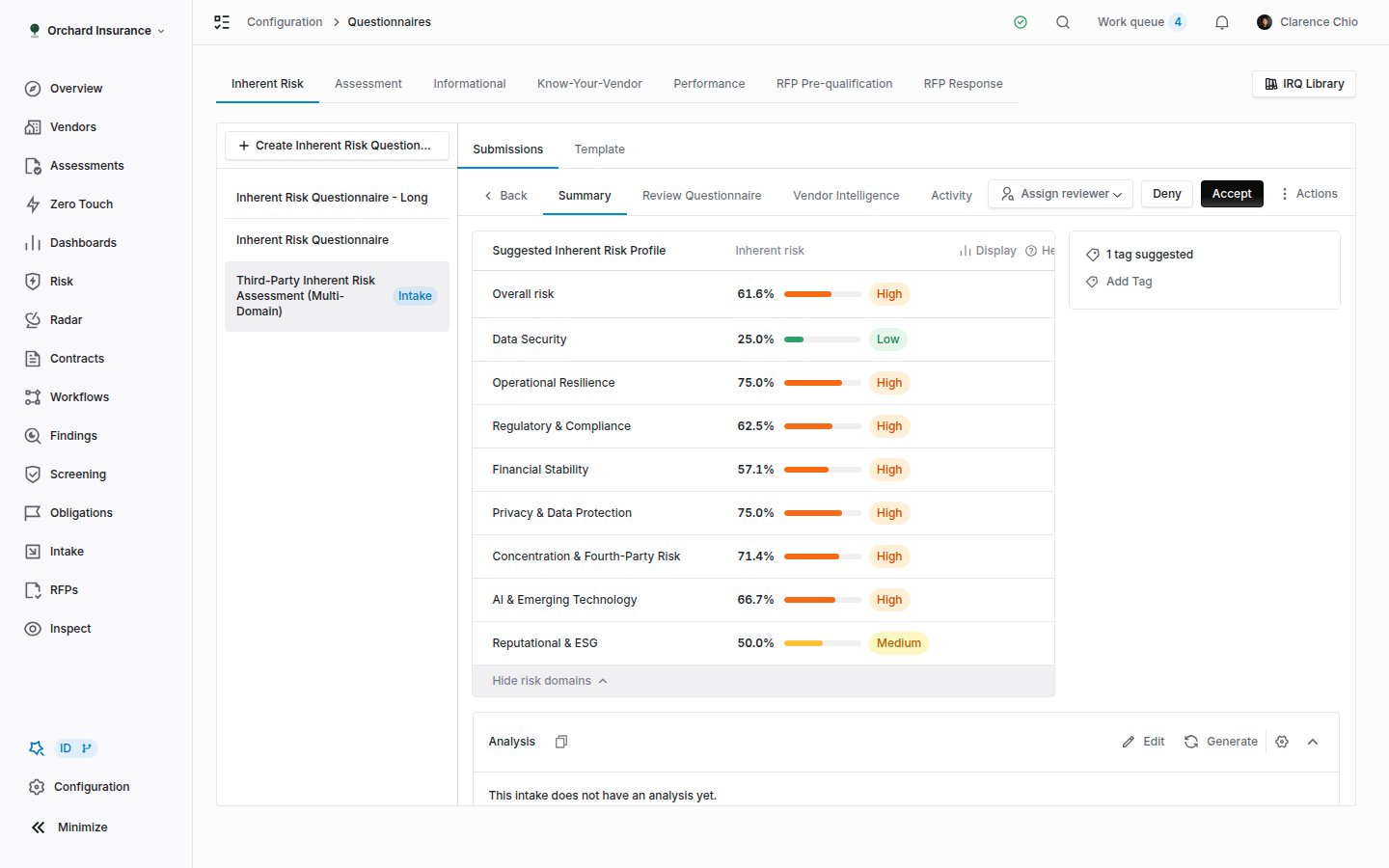 On an IRQ, the **Suggested Inherent Risk Profile** card shows the overall score and the per-domain scores the answers produce, and lets you adjust them before accepting. A **How this score was weighted** table appears when your risk domains carry weights, and names any answered questions that were not weighted. A notice explains when an option's minimum score override raised the score. The **Suggested updates** panel lists every write-back the answers propose, one row each with **Apply** and **Don't apply**, plus **Accept all** and **Reject all**; expand a row for **Why this was suggested**. A row marked **Applied on approval without review** has review turned off on its rule. The tags panel sits beneath it, and an AI summary of the answers at the bottom.
Every question with its answer, comment, and attachments, grouped by section. Internal-only questions carry an **Internal only** badge and are yours to answer here. As a template reviewer or an administrator you can change answers; a callout says so and **All revisions will be tracked**. A changed answer shows **Response modified from the original by** and a **Version History** dialog keeps every version.
**Accept** opens a dialog that can also set the vendor's status and launch an assessment against a plan. **Deny** opens **Deny intake request?**, which can set a canceled status on the vendor. Either button is disabled, with the count shown, while a required internal-only question is unanswered. Suggestions you did not decide are applied on accept; rejecting by default would lose data every time someone approves quickly.
Nothing from a write-back reaches the vendor or assessment until you click **Accept**. If the answers changed after you decided on a suggestion (autofill re-ran, or a reviewer edited the answer), your earlier decision no longer applies and the row reads as undecided.
The actions menu on a submission:
| Action | What it does |
| ----------------------------------------------------------- | ------------------------------------------------------------------------------------------------------------------------------------------------------------------------------------------------------------------------------------- |
| **Reopen Submission** | Reopens the portal and puts the submission back to **Pending**, so the vendor can answer new questions that were added. Shown on **Ready for review** and **Accepted** submissions that came through a portal. Needs `portal:update`. |
| **Mark as Pending Review** | Reverts an **Accepted** or **Rejected** decision to **Ready for review** so it can be decided again. |
| **Request Clarification** | Intake submissions only. Emails the requester with a subject of **Clarification for Intake Request**. |
| **View template** | Opens the template in a new tab. |
| **Export as XLSX** | Downloads this submission's answers. |
| **Configure Portal**, **Go to Portal**, **Copy Portal URL** | Portal actions for the send that carried the submission. |
| **Archive Submission** | Removes the submission from the list and cancels its work queue items. |
Returning a questionnaire to the vendor with a revision message is an assessment feature, not a submission action here. See [Reviews and approvals](/user-guides/reviews-and-approvals).
## Questionnaire history on the vendor page
A vendor's **Questionnaires** tab lists every questionnaire that vendor has ever been sent: from the vendor page, from intake, from an assessment, from a workflow, or for a service. Submissions on a template that was later deleted still appear, because deleting a template does not undo the sends made from it.
On an IRQ, the **Suggested Inherent Risk Profile** card shows the overall score and the per-domain scores the answers produce, and lets you adjust them before accepting. A **How this score was weighted** table appears when your risk domains carry weights, and names any answered questions that were not weighted. A notice explains when an option's minimum score override raised the score. The **Suggested updates** panel lists every write-back the answers propose, one row each with **Apply** and **Don't apply**, plus **Accept all** and **Reject all**; expand a row for **Why this was suggested**. A row marked **Applied on approval without review** has review turned off on its rule. The tags panel sits beneath it, and an AI summary of the answers at the bottom.
Every question with its answer, comment, and attachments, grouped by section. Internal-only questions carry an **Internal only** badge and are yours to answer here. As a template reviewer or an administrator you can change answers; a callout says so and **All revisions will be tracked**. A changed answer shows **Response modified from the original by** and a **Version History** dialog keeps every version.
**Accept** opens a dialog that can also set the vendor's status and launch an assessment against a plan. **Deny** opens **Deny intake request?**, which can set a canceled status on the vendor. Either button is disabled, with the count shown, while a required internal-only question is unanswered. Suggestions you did not decide are applied on accept; rejecting by default would lose data every time someone approves quickly.
Nothing from a write-back reaches the vendor or assessment until you click **Accept**. If the answers changed after you decided on a suggestion (autofill re-ran, or a reviewer edited the answer), your earlier decision no longer applies and the row reads as undecided.
The actions menu on a submission:
| Action | What it does |
| ----------------------------------------------------------- | ------------------------------------------------------------------------------------------------------------------------------------------------------------------------------------------------------------------------------------- |
| **Reopen Submission** | Reopens the portal and puts the submission back to **Pending**, so the vendor can answer new questions that were added. Shown on **Ready for review** and **Accepted** submissions that came through a portal. Needs `portal:update`. |
| **Mark as Pending Review** | Reverts an **Accepted** or **Rejected** decision to **Ready for review** so it can be decided again. |
| **Request Clarification** | Intake submissions only. Emails the requester with a subject of **Clarification for Intake Request**. |
| **View template** | Opens the template in a new tab. |
| **Export as XLSX** | Downloads this submission's answers. |
| **Configure Portal**, **Go to Portal**, **Copy Portal URL** | Portal actions for the send that carried the submission. |
| **Archive Submission** | Removes the submission from the list and cancels its work queue items. |
Returning a questionnaire to the vendor with a revision message is an assessment feature, not a submission action here. See [Reviews and approvals](/user-guides/reviews-and-approvals).
## Questionnaire history on the vendor page
A vendor's **Questionnaires** tab lists every questionnaire that vendor has ever been sent: from the vendor page, from intake, from an assessment, from a workflow, or for a service. Submissions on a template that was later deleted still appear, because deleting a template does not undo the sends made from it.
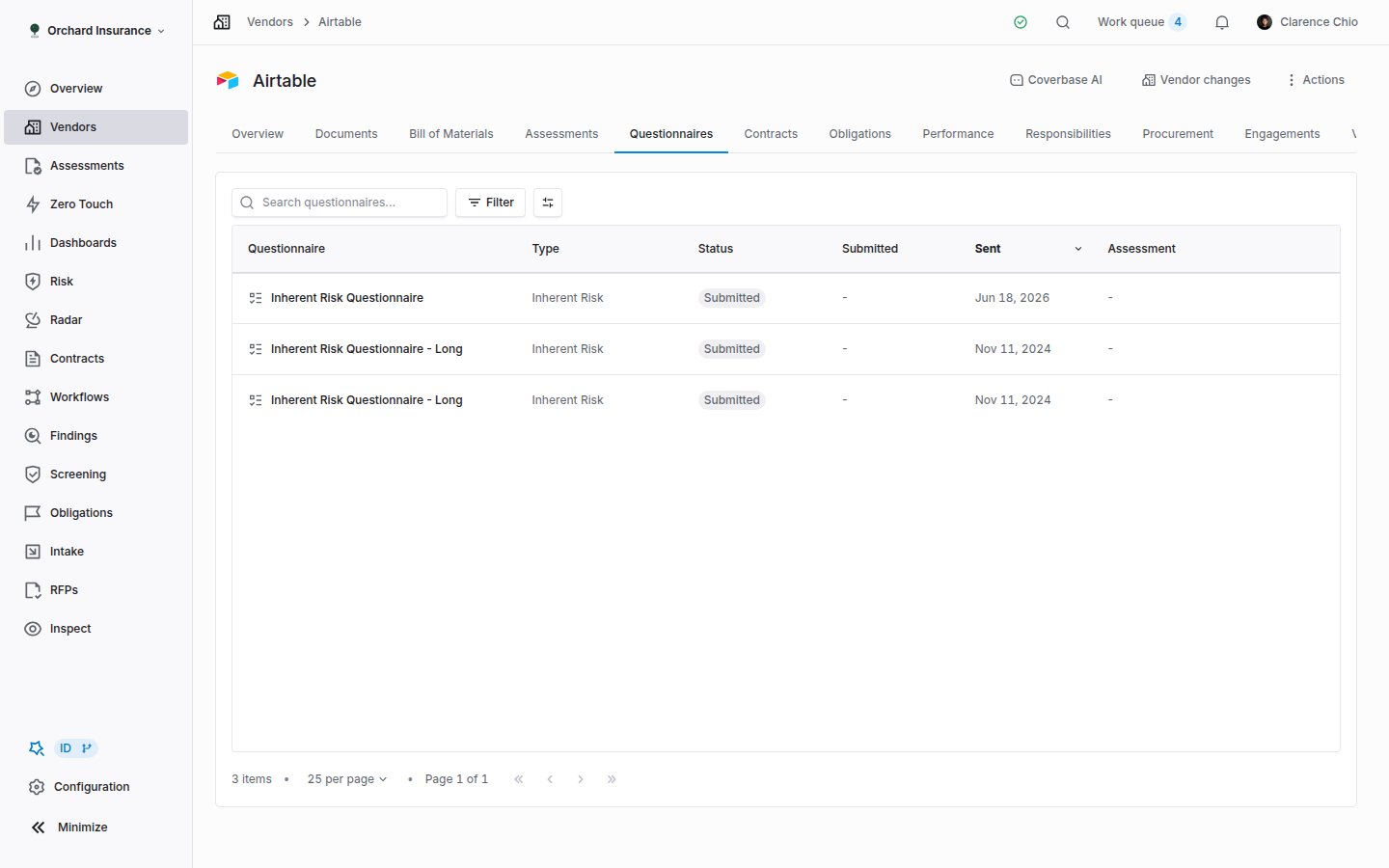 | Column | What it shows |
| ------------------------------------------------------------------------ | -------------------------------------------------------------------------------------------------------------------------------------------- |
| **Questionnaire**, **Type** | The template and its type. |
| **Status** | Same badges as the submissions list. |
| **Sent** | When the portal that carried it was created. A submission created by an assessment or workflow, with no portal, shows its own creation date. |
| **Submitted** | When the vendor submitted. Blank until they do, and blank rows sort last whichever direction you sort. |
| **Assessment** | The assessment it belongs to, if any. Clicking it opens the assessment; clicking anywhere else on the row opens the submission. |
| **Due Date**, **Respondent**, **Reviewer**, **Vendor**, **Last Updated** | As on the submissions list. |
Every column sorts, the filters are the same unified filters as elsewhere, and **Clear filters** keeps the tab scoped to the vendor. A reader whose questionnaire access is limited to assigned records sees only submissions of questionnaires they review.
## Versioning: edits are not retroactive
Saving a template after changing a question's text, instructions, guidance, response type, required flag, or scoring mode, or an option's name, description, value, or score override, creates a new version of that question. Existing submissions keep the version they were answered against, and the submission page renders each one against the questions it was asked. Conditional logic rules move to the new version with it.
Changing a question's settings (comments, documents, internal only, intake switches) or its position edits the question in place, because none of those invalidate an answer already given.
What this means in practice:
* Re-weighting an IRQ does not rescore vendors already accepted. Send a new IRQ, or run a reassessment, to apply the new weights.
* A vendor who is mid-way through a portal keeps the questions they started with. Use **Reopen Submission** after they submit if you need them to see questions you added.
* Deleting an option archives it. Submissions that selected it still show it.
## Notifications
| Event | Who is notified | How |
| ------------------------------------------------------------------ | ----------------------- | -------------------------------------------------------------------------------------------------------------------------------------------------------------------------------------------------------------------------- |
| A questionnaire is submitted through a portal | Every template reviewer | In-app and email, **Questionnaire submitted through portal**. Several submissions within five minutes are grouped into one email. The link goes to the assessment when there is one, otherwise to the Questionnaires page. |
| A submission reaches **Ready for review** with a reviewer assigned | The submission reviewer | A work queue item on their Overview page, and the **Work queue item assigned** notification. |
| A questionnaire is sent | The vendor | The portal invitation email. |
Each person controls these under their notification settings; see [Email notifications](/user-guides/email-notifications). A submission with no reviewer, or no vendor, creates no work queue item for anyone.
## Troubleshooting
| What you see | What is happening |
| -------------------------------------------------------------------------------------- | ----------------------------------------------------------------------------------------------------------------------------------------------------------------------------------------------------------- |
| "I added someone under Configure Reviewers and it never appeared in their work queue." | Template reviewers are a notification list. Assign them on the submission with **Assign reviewer**, or make them the template's only reviewer before sending so the send picks them up. |
| "The submission is Ready for review but nobody has a work queue item." | It has no submission reviewer. Assign one; the item is created immediately because the vendor has already submitted. |
| "The same template landed with different reviewers on two sends." | A send from a portal template always assigns the sender. A direct send honors a template with exactly one reviewer. |
| "Accept and Deny are grayed out." | A required internal-only question is unanswered. The tooltip gives the count. Answer it on the **Review Questionnaire** tab. |
| "Every vendor scores low." | Option values are still `0`. Weight every option on the template, then send a fresh IRQ; accepted submissions keep the old weights. |
| "A write-back I configured never changed the vendor." | Either the submission has not been accepted, the suggestion was rejected on the **Suggested updates** panel, or the target already held a value someone typed. Built-in columns are only filled when empty. |
| "The vendor cannot see a question I added." | They opened the portal before you saved it. After they submit, use **Reopen Submission**; they will see the new questions. |
| "Configure Conditional Logic is disabled." | The template has unsaved changes, or you lack permission. Save first. On a derived questionnaire the rules belong to the control set. |
| "Send Questionnaire is disabled." | Unsaved changes, or a select question with no options. The tooltip lists the questions to fix. |
| "This questionnaire is no longer available." | The link points at a template that was deleted. Its submissions are still on each vendor's **Questionnaires** tab. |
| "Questionnaire changed" dialog while editing. | Someone else saved the template. Reload to get their version; your unsaved edits are lost. |
## Related
The packaged inherent risk templates, every question they ask, and how the score is calculated.
Tags, scales, and weighting the IRQ before your first intake.
The intake flow where requesters answer the IRQ and analysts review it.
Assessment questionnaires, the vendor portal, and follow-up rounds.
| Column | What it shows |
| ------------------------------------------------------------------------ | -------------------------------------------------------------------------------------------------------------------------------------------- |
| **Questionnaire**, **Type** | The template and its type. |
| **Status** | Same badges as the submissions list. |
| **Sent** | When the portal that carried it was created. A submission created by an assessment or workflow, with no portal, shows its own creation date. |
| **Submitted** | When the vendor submitted. Blank until they do, and blank rows sort last whichever direction you sort. |
| **Assessment** | The assessment it belongs to, if any. Clicking it opens the assessment; clicking anywhere else on the row opens the submission. |
| **Due Date**, **Respondent**, **Reviewer**, **Vendor**, **Last Updated** | As on the submissions list. |
Every column sorts, the filters are the same unified filters as elsewhere, and **Clear filters** keeps the tab scoped to the vendor. A reader whose questionnaire access is limited to assigned records sees only submissions of questionnaires they review.
## Versioning: edits are not retroactive
Saving a template after changing a question's text, instructions, guidance, response type, required flag, or scoring mode, or an option's name, description, value, or score override, creates a new version of that question. Existing submissions keep the version they were answered against, and the submission page renders each one against the questions it was asked. Conditional logic rules move to the new version with it.
Changing a question's settings (comments, documents, internal only, intake switches) or its position edits the question in place, because none of those invalidate an answer already given.
What this means in practice:
* Re-weighting an IRQ does not rescore vendors already accepted. Send a new IRQ, or run a reassessment, to apply the new weights.
* A vendor who is mid-way through a portal keeps the questions they started with. Use **Reopen Submission** after they submit if you need them to see questions you added.
* Deleting an option archives it. Submissions that selected it still show it.
## Notifications
| Event | Who is notified | How |
| ------------------------------------------------------------------ | ----------------------- | -------------------------------------------------------------------------------------------------------------------------------------------------------------------------------------------------------------------------- |
| A questionnaire is submitted through a portal | Every template reviewer | In-app and email, **Questionnaire submitted through portal**. Several submissions within five minutes are grouped into one email. The link goes to the assessment when there is one, otherwise to the Questionnaires page. |
| A submission reaches **Ready for review** with a reviewer assigned | The submission reviewer | A work queue item on their Overview page, and the **Work queue item assigned** notification. |
| A questionnaire is sent | The vendor | The portal invitation email. |
Each person controls these under their notification settings; see [Email notifications](/user-guides/email-notifications). A submission with no reviewer, or no vendor, creates no work queue item for anyone.
## Troubleshooting
| What you see | What is happening |
| -------------------------------------------------------------------------------------- | ----------------------------------------------------------------------------------------------------------------------------------------------------------------------------------------------------------- |
| "I added someone under Configure Reviewers and it never appeared in their work queue." | Template reviewers are a notification list. Assign them on the submission with **Assign reviewer**, or make them the template's only reviewer before sending so the send picks them up. |
| "The submission is Ready for review but nobody has a work queue item." | It has no submission reviewer. Assign one; the item is created immediately because the vendor has already submitted. |
| "The same template landed with different reviewers on two sends." | A send from a portal template always assigns the sender. A direct send honors a template with exactly one reviewer. |
| "Accept and Deny are grayed out." | A required internal-only question is unanswered. The tooltip gives the count. Answer it on the **Review Questionnaire** tab. |
| "Every vendor scores low." | Option values are still `0`. Weight every option on the template, then send a fresh IRQ; accepted submissions keep the old weights. |
| "A write-back I configured never changed the vendor." | Either the submission has not been accepted, the suggestion was rejected on the **Suggested updates** panel, or the target already held a value someone typed. Built-in columns are only filled when empty. |
| "The vendor cannot see a question I added." | They opened the portal before you saved it. After they submit, use **Reopen Submission**; they will see the new questions. |
| "Configure Conditional Logic is disabled." | The template has unsaved changes, or you lack permission. Save first. On a derived questionnaire the rules belong to the control set. |
| "Send Questionnaire is disabled." | Unsaved changes, or a select question with no options. The tooltip lists the questions to fix. |
| "This questionnaire is no longer available." | The link points at a template that was deleted. Its submissions are still on each vendor's **Questionnaires** tab. |
| "Questionnaire changed" dialog while editing. | Someone else saved the template. Reload to get their version; your unsaved edits are lost. |
## Related
The packaged inherent risk templates, every question they ask, and how the score is calculated.
Tags, scales, and weighting the IRQ before your first intake.
The intake flow where requesters answer the IRQ and analysts review it.
Assessment questionnaires, the vendor portal, and follow-up rounds.