> ## Documentation Index
> Fetch the complete documentation index at: https://docs.coverbase.com/llms.txt
> Use this file to discover all available pages before exploring further.
# Sanctions screening guide
> How continuous sanctions and watchlist screening works, how to read an identity confidence score, and how to clear a match without guessing.
For AI agents: a documentation index is available at [https://docs.coverbase.com/llms.txt](https://docs.coverbase.com/llms.txt). This page is also available in markdown by appending .md to the URL.
This guide is part of the [User Guides](/user-guides/overview) collection. Screening is a tab in every vendor's [Vendor Intelligence](/products/vendor-intelligence) section, plus a queue of its own.
Corporate registrations tell you the company is real. People intelligence tells you who runs it. This page tells you whether the company or those people appear on a sanctions, watchlist, criminal or legal source. Not once at onboarding, but on a schedule, for as long as you keep the vendor.
Two things make it different from the rest of Vendor Intelligence.
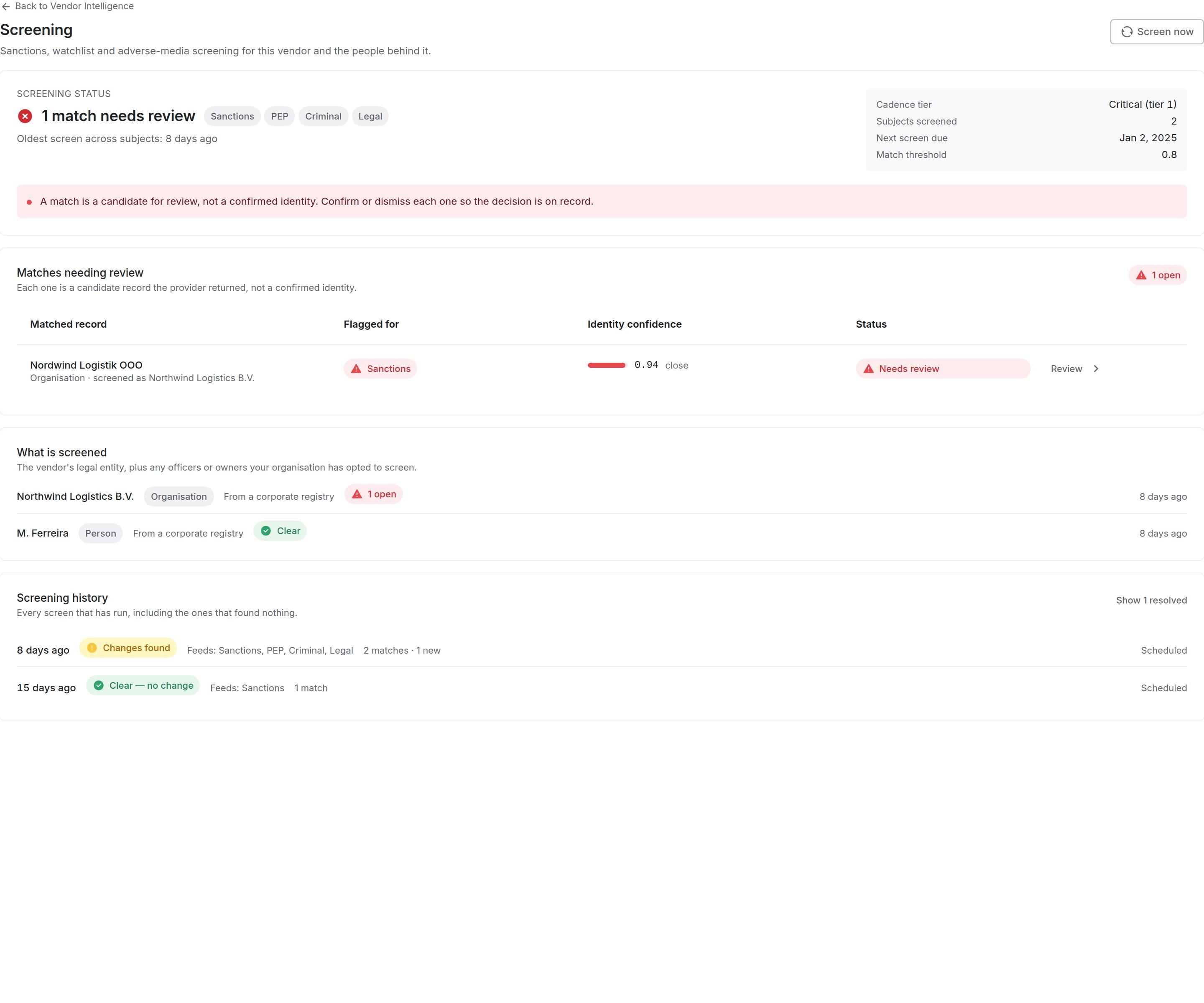
**Every screen is recorded, including the clear ones.** "We screened this vendor on this date, against these sources, and found nothing" is the record an examiner asks for. A missing record proves nothing, so the vendor page shows the run history whether or not there is anything to review.
**The score is about identity, not severity.** It is easy to misread, so it has its own section below.
## Where it lives
Screening appears in two places, and they are for two different jobs.
**On a vendor**: open a vendor, go to **Vendor Intelligence**, and pick the **Screening** tab. This is the view when you already care about one supplier.
 **In the review queue**: **Screening** in the left navigation. Every open match across every vendor, oldest first. This is the view when your job is to clear the queue rather than to look at one vendor.
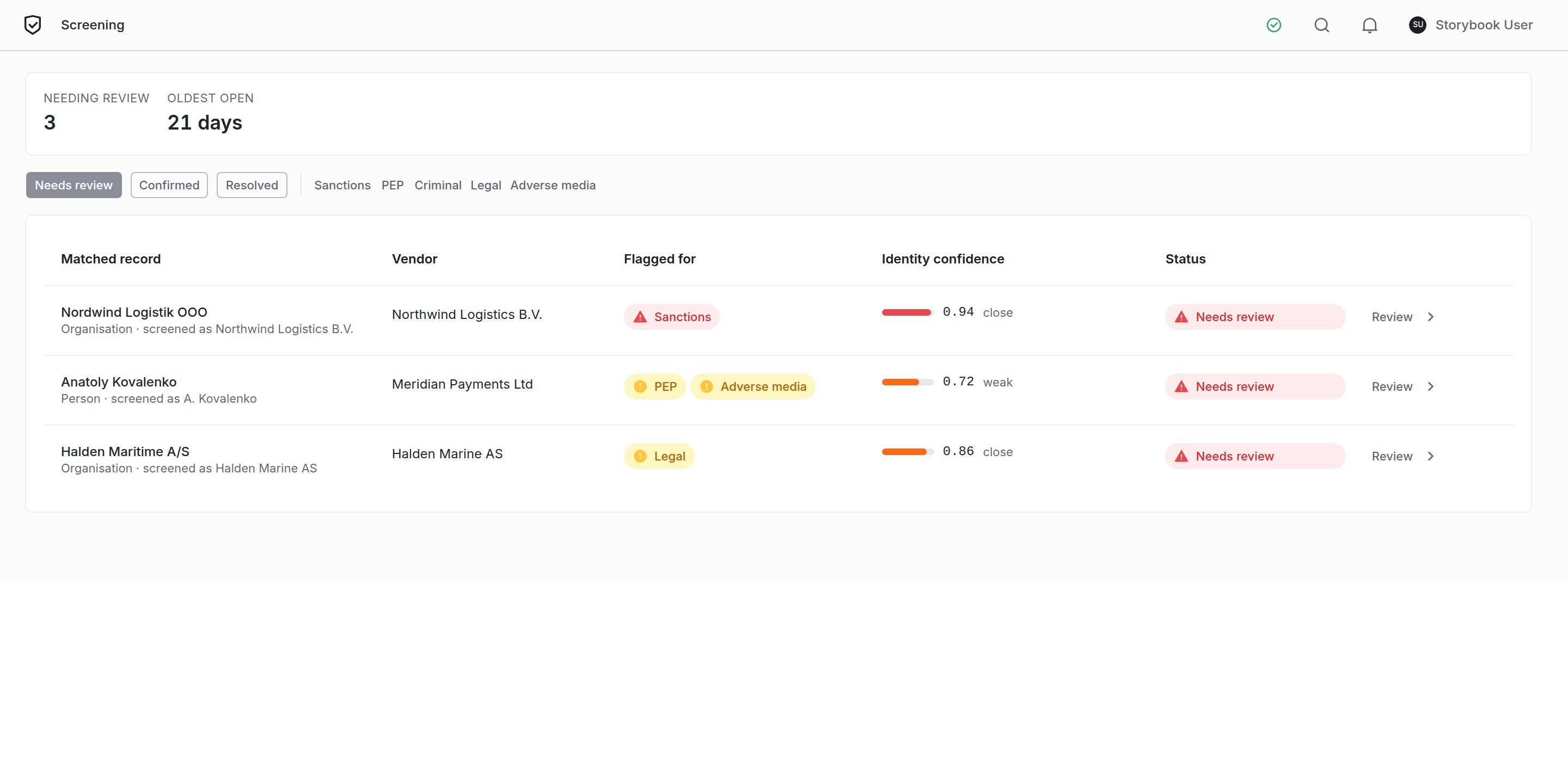 The queue is separate from Findings. A screening match is triaged on a different question from the rest of your work (*is this listed record this vendor?*), and mixing it into a general work queue buries the one kind of alert that carries a regulatory deadline.
## Identity confidence is not severity
Every match carries a score. It answers one question: **how confident are we that this listed record is this vendor?**
It does not tell you how serious the listing is. A match at 0.95 against an adverse-media article means we are confident the article is about this subject, not that the article is damning. A confirmed sanctions listing at 0.72 is far more urgent than a high-confidence mention in a news story.
Read the source, not the score. The score decides whether it is them. The listing decides what it means.
Screening runs on thin identity data: a name, usually a country, sometimes a registration number, almost never a date of birth. That is not much to match on, so **false positives are expected and are not a defect**. A common surname or a generic trading name will produce candidates that are not your vendor. Clearing those is the job, which is why the queue exists.
## Reading a match
Open any match to get the full record.
The queue is separate from Findings. A screening match is triaged on a different question from the rest of your work (*is this listed record this vendor?*), and mixing it into a general work queue buries the one kind of alert that carries a regulatory deadline.
## Identity confidence is not severity
Every match carries a score. It answers one question: **how confident are we that this listed record is this vendor?**
It does not tell you how serious the listing is. A match at 0.95 against an adverse-media article means we are confident the article is about this subject, not that the article is damning. A confirmed sanctions listing at 0.72 is far more urgent than a high-confidence mention in a news story.
Read the source, not the score. The score decides whether it is them. The listing decides what it means.
Screening runs on thin identity data: a name, usually a country, sometimes a registration number, almost never a date of birth. That is not much to match on, so **false positives are expected and are not a defect**. A common surname or a generic trading name will produce candidates that are not your vendor. Clearing those is the job, which is why the queue exists.
## Reading a match
Open any match to get the full record.
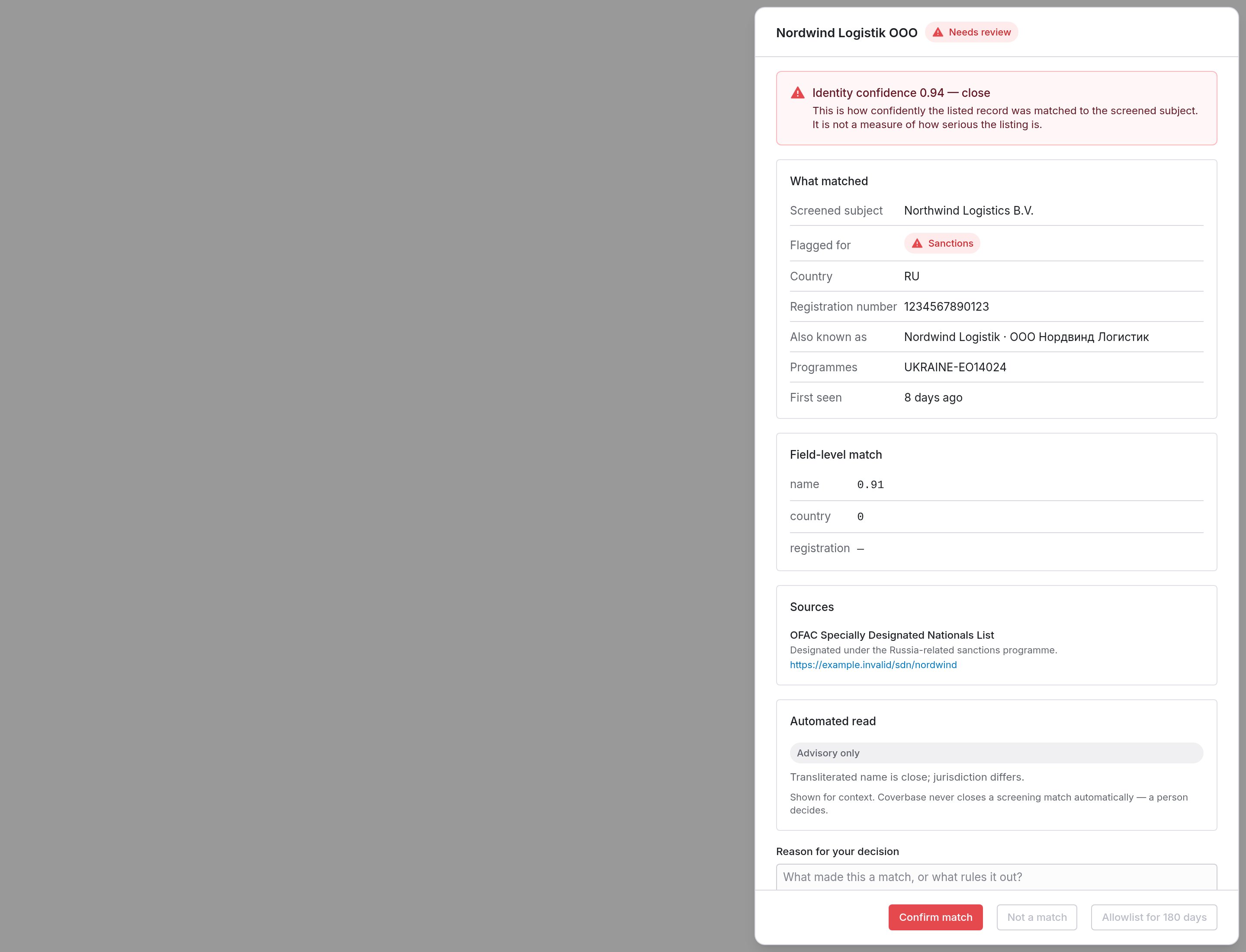 Work down it in this order:
1. **Screened subject vs matched name.** The two names side by side. This is usually enough to rule out an obvious mismatch.
2. **Country and registration number.** The strongest discriminators available. A registration number that matches is close to conclusive; a country that does not match is a strong signal it is a different entity.
3. **Also known as.** Transliterations and former names. A vendor that looks unrelated in English can match exactly in its own script.
4. **Field-level match.** Which attributes agreed, and how strongly. A high overall score built only on the name is weaker than a lower score built on name *and* registration.
5. **Sources.** The listing itself. Follow it before you decide.
The **automated read** is advisory. It is there for context. Coverbase never closes a match on it; a person decides.
## Deciding
Three outcomes, and a written reason is required for all of them. The reason becomes part of the audit trail, so write it for someone reading it in a year with none of your context.
| Decision | Use it when | What happens |
| ----------------- | ---------------------------------------------------------------- | -------------------------------------------------------------------------------------------- |
| **Confirm match** | It is your vendor, and the listing is real | The match stays open and escalated. It is now a compliance matter, not a screening question. |
| **Not a match** | The listed record is a different party | The match closes as a false positive. |
| **Allowlist** | It is a known, accepted match you do not want raised every cycle | Suppressed for a set period, then re-raised for a fresh look. |
An allowlist expires so the match gets a fresh look. Circumstances change, and a permanent suppression can leave a real listing unnoticed for years.
Confirming a match opens a finding, so it picks up an owner, a due date, SLA reminders and the rest of the findings workflow. Screening raises the alert; it does not decide what you do about it, and it never blocks a payment or an onboarding on its own.
## What "clear" looks like
A vendor with nothing to review still shows its run history.
Work down it in this order:
1. **Screened subject vs matched name.** The two names side by side. This is usually enough to rule out an obvious mismatch.
2. **Country and registration number.** The strongest discriminators available. A registration number that matches is close to conclusive; a country that does not match is a strong signal it is a different entity.
3. **Also known as.** Transliterations and former names. A vendor that looks unrelated in English can match exactly in its own script.
4. **Field-level match.** Which attributes agreed, and how strongly. A high overall score built only on the name is weaker than a lower score built on name *and* registration.
5. **Sources.** The listing itself. Follow it before you decide.
The **automated read** is advisory. It is there for context. Coverbase never closes a match on it; a person decides.
## Deciding
Three outcomes, and a written reason is required for all of them. The reason becomes part of the audit trail, so write it for someone reading it in a year with none of your context.
| Decision | Use it when | What happens |
| ----------------- | ---------------------------------------------------------------- | -------------------------------------------------------------------------------------------- |
| **Confirm match** | It is your vendor, and the listing is real | The match stays open and escalated. It is now a compliance matter, not a screening question. |
| **Not a match** | The listed record is a different party | The match closes as a false positive. |
| **Allowlist** | It is a known, accepted match you do not want raised every cycle | Suppressed for a set period, then re-raised for a fresh look. |
An allowlist expires so the match gets a fresh look. Circumstances change, and a permanent suppression can leave a real listing unnoticed for years.
Confirming a match opens a finding, so it picks up an owner, a due date, SLA reminders and the rest of the findings workflow. Screening raises the alert; it does not decide what you do about it, and it never blocks a payment or an onboarding on its own.
## What "clear" looks like
A vendor with nothing to review still shows its run history.
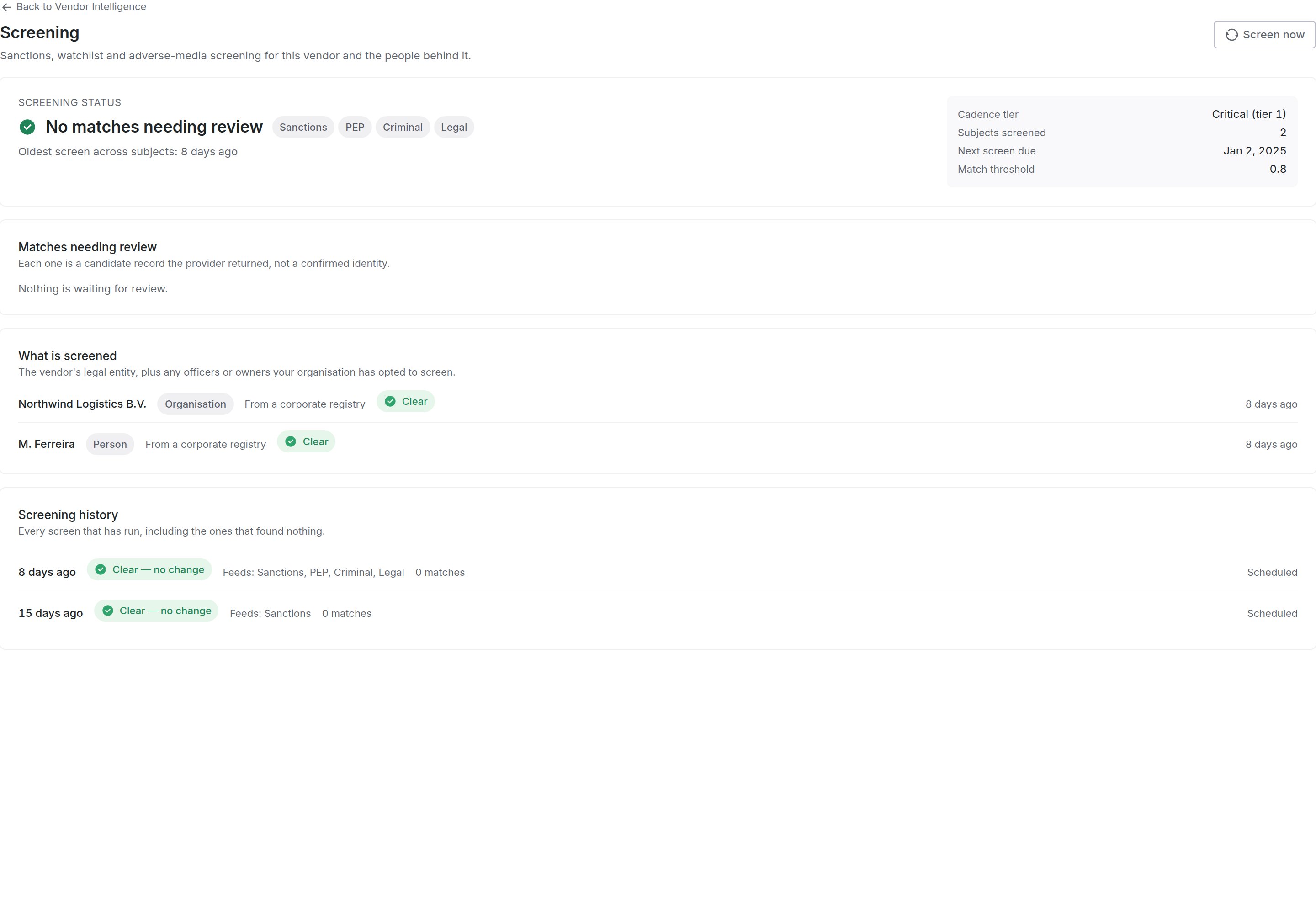 An empty match list and a vendor that was never screened look similar and mean opposite things. Check the run history before you write "no sanctions exposure" into an assessment.
## Settings
An administrator configures screening once, under **Configuration → External integrations → Screening**. It needs the `integration` permission, not the screening one.
An empty match list and a vendor that was never screened look similar and mean opposite things. Check the run history before you write "no sanctions exposure" into an assessment.
## Settings
An administrator configures screening once, under **Configuration → External integrations → Screening**. It needs the `integration` permission, not the screening one.
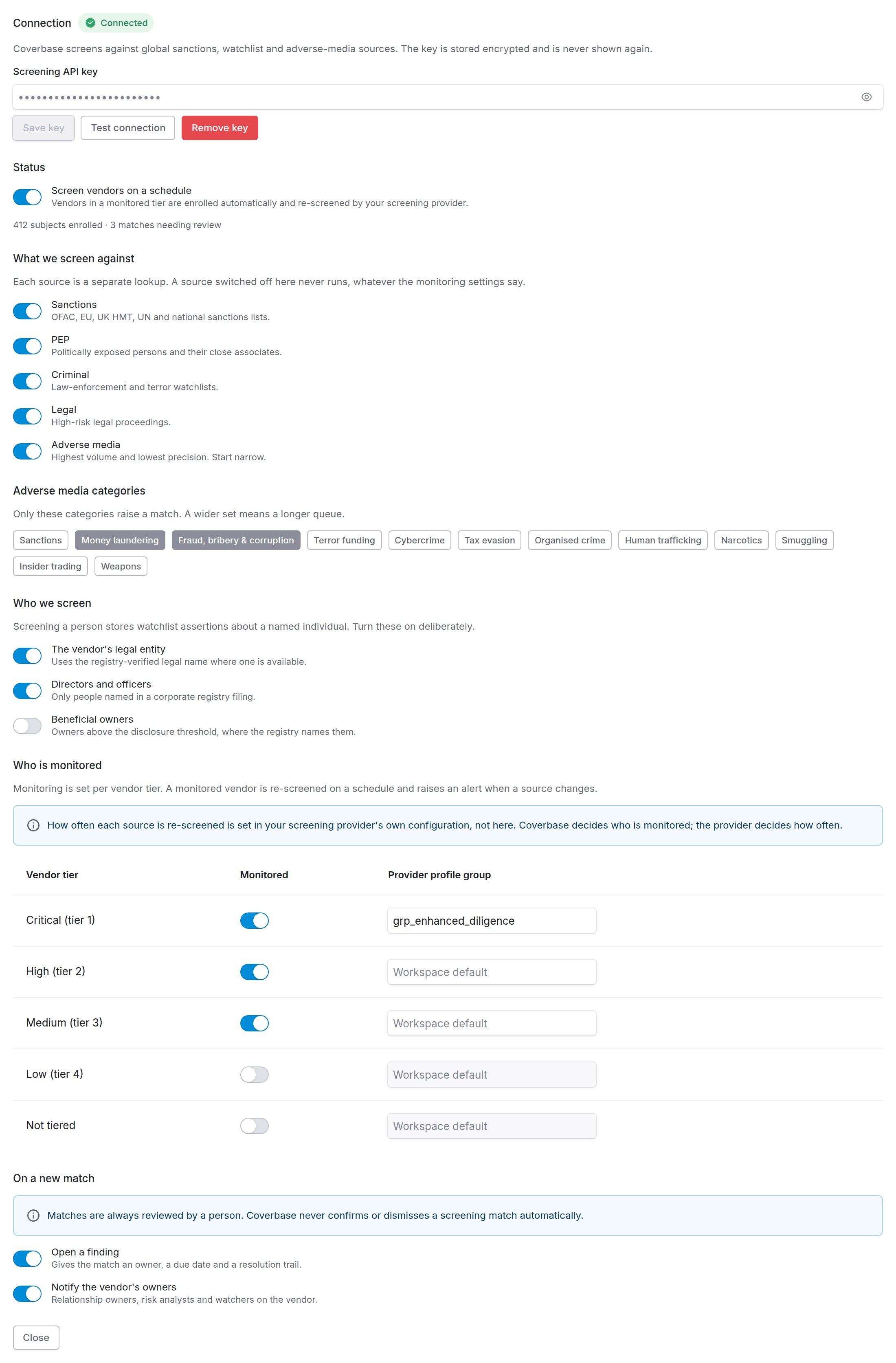 Four things to decide:
**Which sources.** Sanctions, PEP, criminal and legal are on by default. Adverse media is off, and should stay off until the rest is running cleanly. It is the highest-volume and lowest-precision source, and it will dominate your queue. When you do turn it on, keep the category list narrow.
**Who gets screened.** The vendor's legal entity is screened by default. Directors, officers and beneficial owners are opt-in, because screening a person means storing watchlist assertions about a named individual. Turn them on only when you need them.
**Which tiers are monitored.** A monitored vendor is re-screened on a schedule and raises an alert when a source changes.
Four things to decide:
**Which sources.** Sanctions, PEP, criminal and legal are on by default. Adverse media is off, and should stay off until the rest is running cleanly. It is the highest-volume and lowest-precision source, and it will dominate your queue. When you do turn it on, keep the category list narrow.
**Who gets screened.** The vendor's legal entity is screened by default. Directors, officers and beneficial owners are opt-in, because screening a person means storing watchlist assertions about a named individual. Turn them on only when you need them.
**Which tiers are monitored.** A monitored vendor is re-screened on a schedule and raises an alert when a source changes.
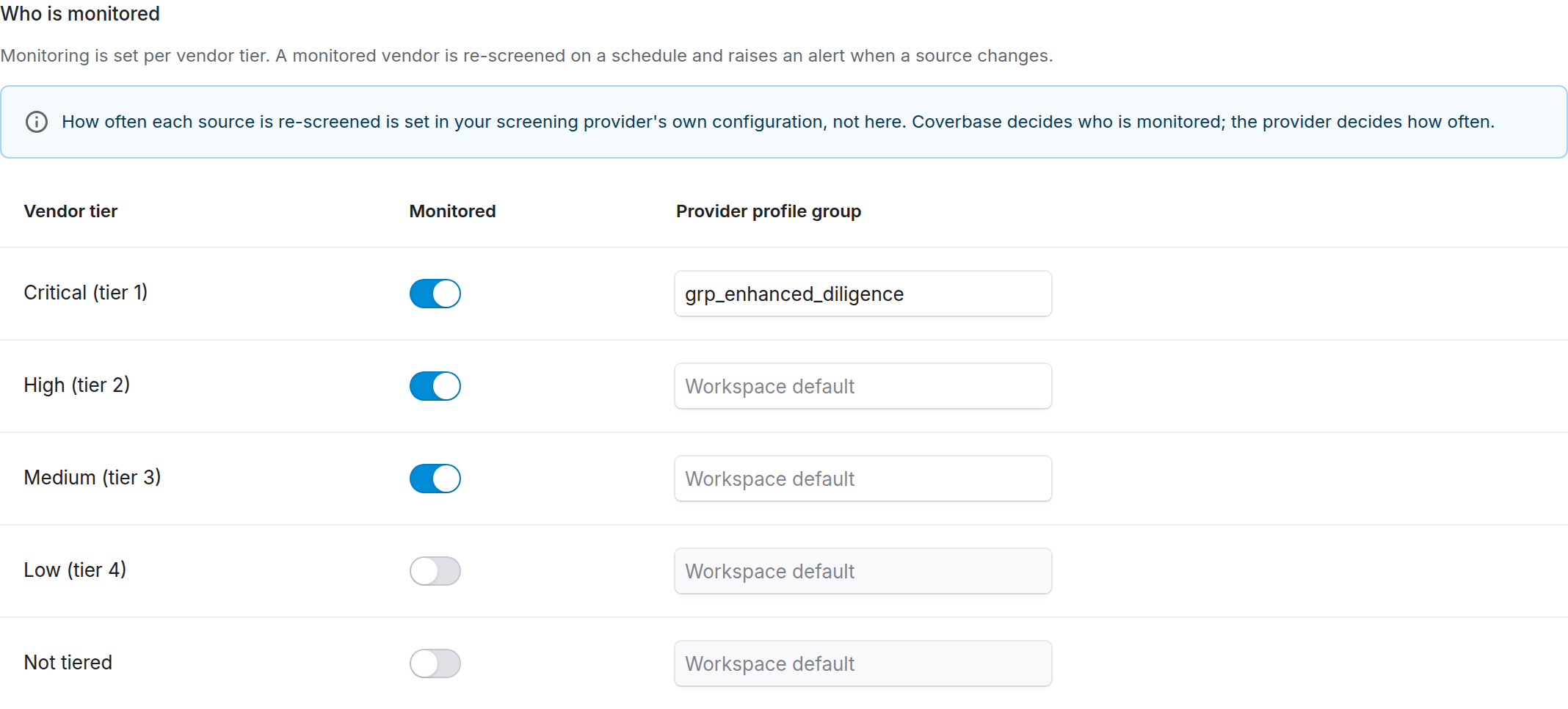 Tier 4 and untiered vendors are unmonitored by default, so switching screening on does not enroll your entire long tail. A monitored vendor is a standing subscription, not a one-off charge.
**How often** each source is re-screened is set in your screening provider's own configuration, not in Coverbase. Coverbase decides *who* is monitored; the provider decides *how often*. If you need a tighter or looser schedule for a group of vendors, set up a profile group with your provider and name it in the table. Leaving it blank uses the provider's workspace default.
**The match threshold.** The default is 0.80. Lower it and you will see more true matches and many more false ones; raise it and you risk missing a real listing on thin data. Change it only with a reason you would defend to an auditor.
A source switched off at the top level never runs, whatever the monitoring table says. One switch turns a source off everywhere, rather than making you clear a row per tier.
## Who can do what
Screening has its own permission, separate from the vendor record, so the person who reviews matches need not be the person who administers vendors.
| Permission | Allows |
| ----------------------------------------- | ------------------------------------------------------------- |
| `screening_match:read` | See the queue, the vendor tab, and match detail |
| `screening_match:update` | Confirm, dismiss or allowlist a match; re-screen a vendor now |
| `integration:read` / `integration:update` | See and change the screening configuration |
There is no create or delete. Matches come from the provider and are closed by decision, never removed.
## Related
The legal entity that is screened.
The directors and officers who can be screened alongside it.
Open watchlist matches as an input to the score.
Tier 4 and untiered vendors are unmonitored by default, so switching screening on does not enroll your entire long tail. A monitored vendor is a standing subscription, not a one-off charge.
**How often** each source is re-screened is set in your screening provider's own configuration, not in Coverbase. Coverbase decides *who* is monitored; the provider decides *how often*. If you need a tighter or looser schedule for a group of vendors, set up a profile group with your provider and name it in the table. Leaving it blank uses the provider's workspace default.
**The match threshold.** The default is 0.80. Lower it and you will see more true matches and many more false ones; raise it and you risk missing a real listing on thin data. Change it only with a reason you would defend to an auditor.
A source switched off at the top level never runs, whatever the monitoring table says. One switch turns a source off everywhere, rather than making you clear a row per tier.
## Who can do what
Screening has its own permission, separate from the vendor record, so the person who reviews matches need not be the person who administers vendors.
| Permission | Allows |
| ----------------------------------------- | ------------------------------------------------------------- |
| `screening_match:read` | See the queue, the vendor tab, and match detail |
| `screening_match:update` | Confirm, dismiss or allowlist a match; re-screen a vendor now |
| `integration:read` / `integration:update` | See and change the screening configuration |
There is no create or delete. Matches come from the provider and are closed by decision, never removed.
## Related
The legal entity that is screened.
The directors and officers who can be screened alongside it.
Open watchlist matches as an input to the score.