> ## Documentation Index
> Fetch the complete documentation index at: https://docs.coverbase.com/llms.txt
> Use this file to discover all available pages before exploring further.
# Sending for signature
> Create an envelope from a template or a document, name who signs and in what order, send it, and track it to a sealed executed copy with a hash-chained audit trail.
For AI agents: a documentation index is available at [https://docs.coverbase.com/llms.txt](https://docs.coverbase.com/llms.txt). This page is also available in markdown by appending .md to the URL.
This guide is part of the [User Guides](/user-guides/overview) collection. Read the [e-signature overview](/user-guides/signature-overview) for how the pieces fit together, and [templates](/user-guides/signature-templates) for building the paper you send from.
An envelope is one agreement, out for signature, addressed to named people. It is the object that binds the parties, and the one that carries the record of what happened.
## Start an envelope
**New Envelope** on **Contracts → Signatures** opens a four-step wizard. You can also start one from a contract's own signatures tab, which fills the vendor in for you.
### Step 1: the document
 **Envelope Name** is the subject line signers see and the name the executed copy is filed under. Make it something the counterparty will recognize.
Then pick the paper. **From a template** copies a template's roles and field layout across. **From a document**, **From a contract** and **Upload** all start you with paper and no fields, which you place yourself in step 3.
**Associated vendor** files the agreement against a counterparty. Set it even when it feels obvious: it puts the envelope on that vendor's record, and it pre-fills a **Company** field for the signer.
**Expiration** starts at 30 days, or at whatever the template or your organization's settings specify. Change the number, or switch to **Expires on** and pick a date.
The unit selector next to the number changes how the deadline is written, not what it is. If the day count does not divide evenly into weeks or months the selector stays on days rather than showing a rounded figure that disagrees with what is sent.
### Step 2: the recipients
**Envelope Name** is the subject line signers see and the name the executed copy is filed under. Make it something the counterparty will recognize.
Then pick the paper. **From a template** copies a template's roles and field layout across. **From a document**, **From a contract** and **Upload** all start you with paper and no fields, which you place yourself in step 3.
**Associated vendor** files the agreement against a counterparty. Set it even when it feels obvious: it puts the envelope on that vendor's record, and it pre-fills a **Company** field for the signer.
**Expiration** starts at 30 days, or at whatever the template or your organization's settings specify. Change the number, or switch to **Expires on** and pick a date.
The unit selector next to the number changes how the deadline is written, not what it is. If the day count does not divide evenly into weeks or months the selector stays on days rather than showing a rounded figure that disagrees with what is sent.
### Step 2: the recipients
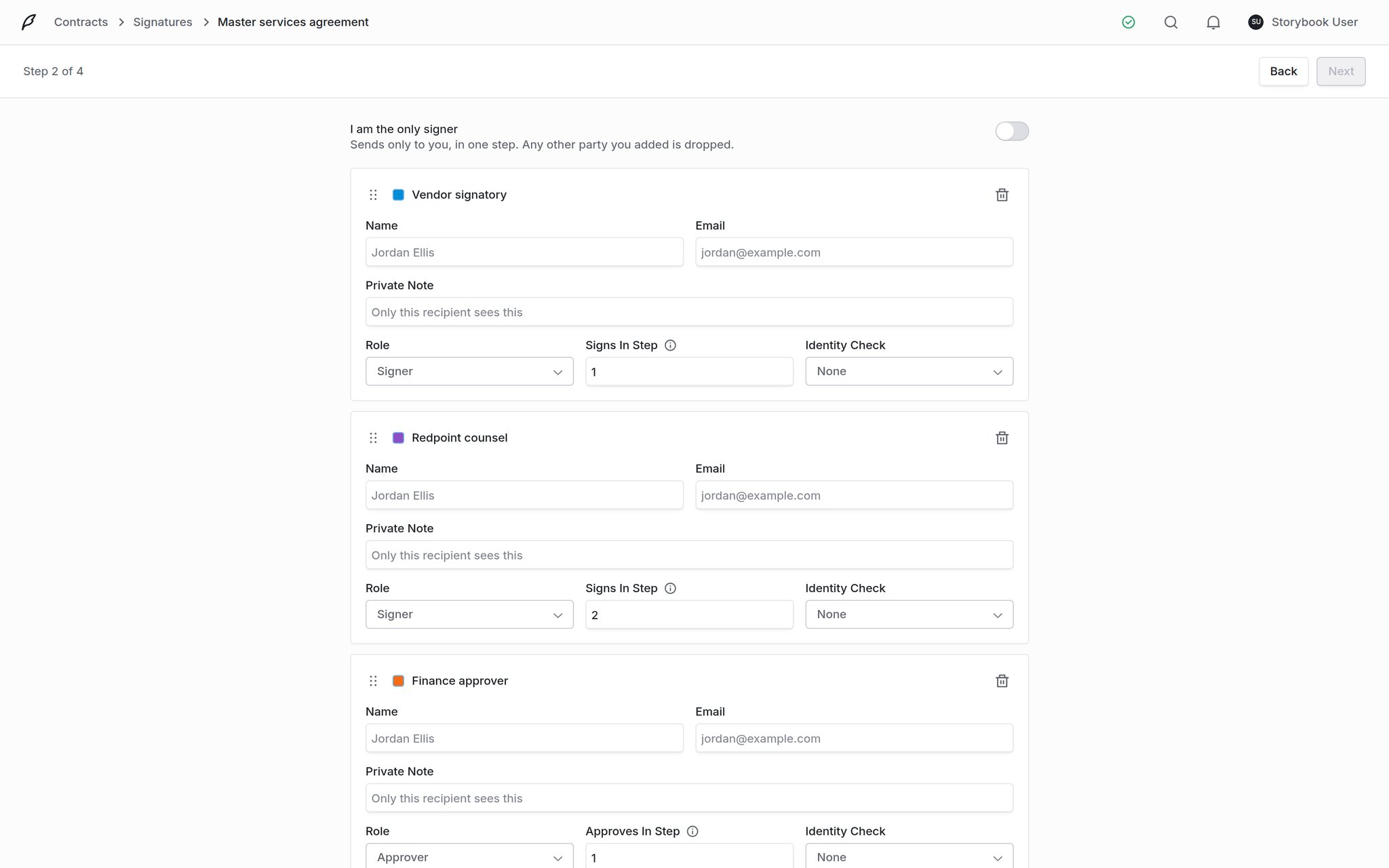 If you are signing something yourself and nobody else is involved, turn on **I am the only signer** at the top. It sends the envelope to you alone in a single step, and drops any other party you had added.
Otherwise, each party gets a card. Four kinds:
| Type | What they do |
| ------------ | ----------------------------------------------------------------------------------------------------- |
| **Signer** | Signs. The envelope is not complete until every signer has. |
| **Approver** | Approves rather than signs. Blocks the envelope the same way a signer does, but applies no signature. |
| **Witness** | Signs as a witness to another party. Blocks like a signer. |
| **Copied** | Receives the agreement for information. Never blocks, and never has fields. |
Name and email autocomplete from contacts already on the associated vendor, so a party you have dealt with before is two keystrokes.
**Signs in step** is the routing order, and reads **Approves in step** on an approver. Parties in step 1 are asked immediately; step 2 is notified when step 1 finishes, and so on. Give two parties the same step and they are asked at the same time. Drag a card by its handle to reorder the list.
A copied party has no step number, because copies go out as soon as the envelope is sent, regardless of routing. Their card reads **Delivery: emailed a copy when the envelope is sent**. If you need someone to receive the agreement only after it is executed, a copied party is not that.
**Private Note** is a line only that one recipient sees. It is the place for "this is the revised schedule we discussed" without putting it in front of everybody else on the envelope.
**Identity Check** is per party, and defaults to **None**. Set it to **Access code** and Coverbase generates a code for that recipient, which they must enter before the document opens.
Send an access code to the signer by some other channel: a call, a text, anything that is not the signing email. Coverbase stores it as a digest and never shows it again once the envelope is sent, so copy it before you send. The refresh icon beside the field mints a new one if you lose it.
If a template supplied the roles, the seats are already there and you are only filling in names and addresses. Fields follow the role, so changing who sits in a seat keeps their placements.
### Step 3: the fields
Same canvas as the template builder: parties down the left, palette below them, document in the middle, inspector on the right. If you came from a template the fields are already placed and this step is a review; if you came from a bare document, this is where you place them.
If you are signing something yourself and nobody else is involved, turn on **I am the only signer** at the top. It sends the envelope to you alone in a single step, and drops any other party you had added.
Otherwise, each party gets a card. Four kinds:
| Type | What they do |
| ------------ | ----------------------------------------------------------------------------------------------------- |
| **Signer** | Signs. The envelope is not complete until every signer has. |
| **Approver** | Approves rather than signs. Blocks the envelope the same way a signer does, but applies no signature. |
| **Witness** | Signs as a witness to another party. Blocks like a signer. |
| **Copied** | Receives the agreement for information. Never blocks, and never has fields. |
Name and email autocomplete from contacts already on the associated vendor, so a party you have dealt with before is two keystrokes.
**Signs in step** is the routing order, and reads **Approves in step** on an approver. Parties in step 1 are asked immediately; step 2 is notified when step 1 finishes, and so on. Give two parties the same step and they are asked at the same time. Drag a card by its handle to reorder the list.
A copied party has no step number, because copies go out as soon as the envelope is sent, regardless of routing. Their card reads **Delivery: emailed a copy when the envelope is sent**. If you need someone to receive the agreement only after it is executed, a copied party is not that.
**Private Note** is a line only that one recipient sees. It is the place for "this is the revised schedule we discussed" without putting it in front of everybody else on the envelope.
**Identity Check** is per party, and defaults to **None**. Set it to **Access code** and Coverbase generates a code for that recipient, which they must enter before the document opens.
Send an access code to the signer by some other channel: a call, a text, anything that is not the signing email. Coverbase stores it as a digest and never shows it again once the envelope is sent, so copy it before you send. The refresh icon beside the field mints a new one if you lose it.
If a template supplied the roles, the seats are already there and you are only filling in names and addresses. Fields follow the role, so changing who sits in a seat keeps their placements.
### Step 3: the fields
Same canvas as the template builder: parties down the left, palette below them, document in the middle, inspector on the right. If you came from a template the fields are already placed and this step is a review; if you came from a bare document, this is where you place them.
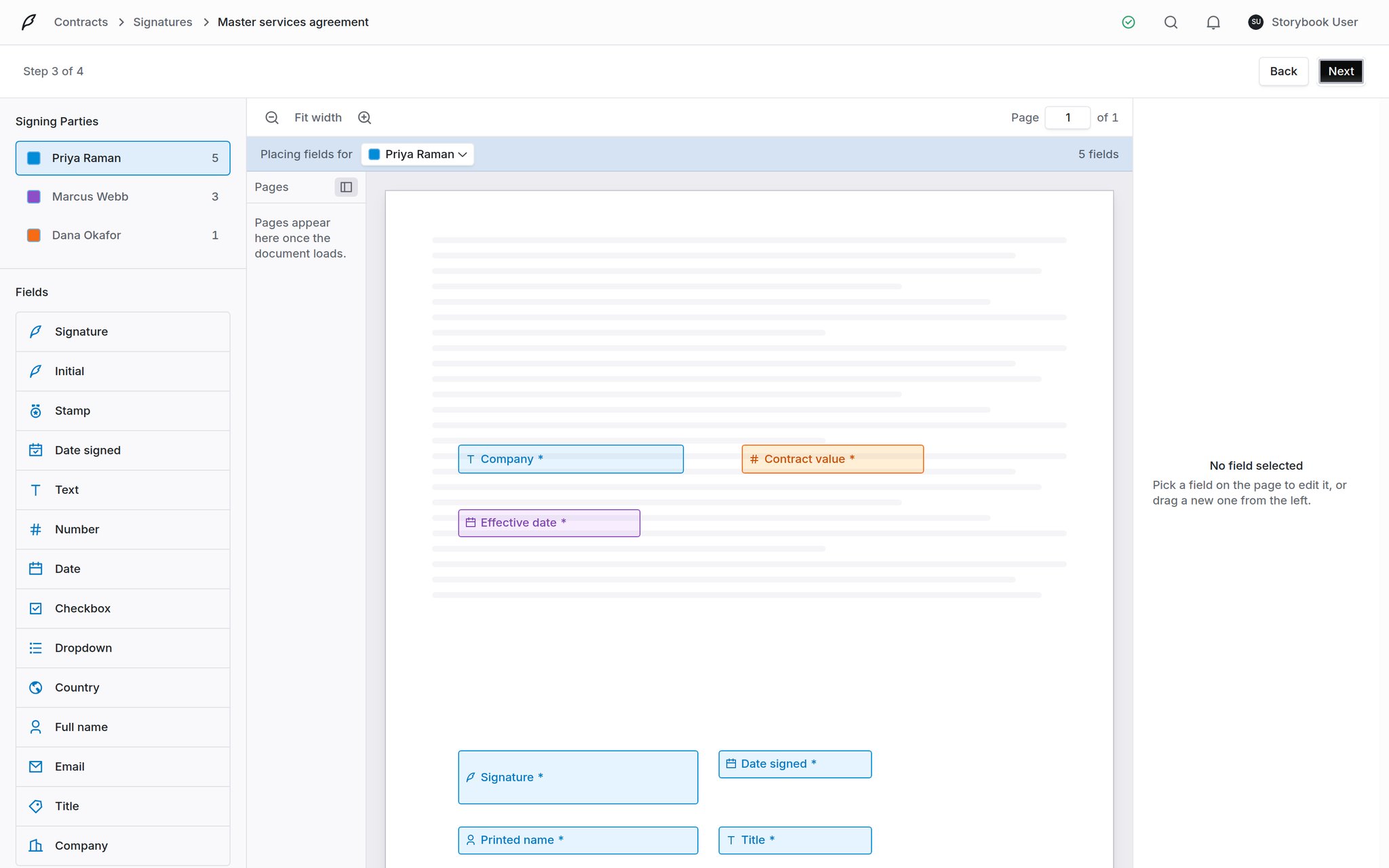 Everything in [the field types](/user-guides/signature-templates#what-the-field-types-do) applies here unchanged.
### Step 4: review and send
Everything in [the field types](/user-guides/signature-templates#what-the-field-types-do) applies here unchanged.
### Step 4: review and send
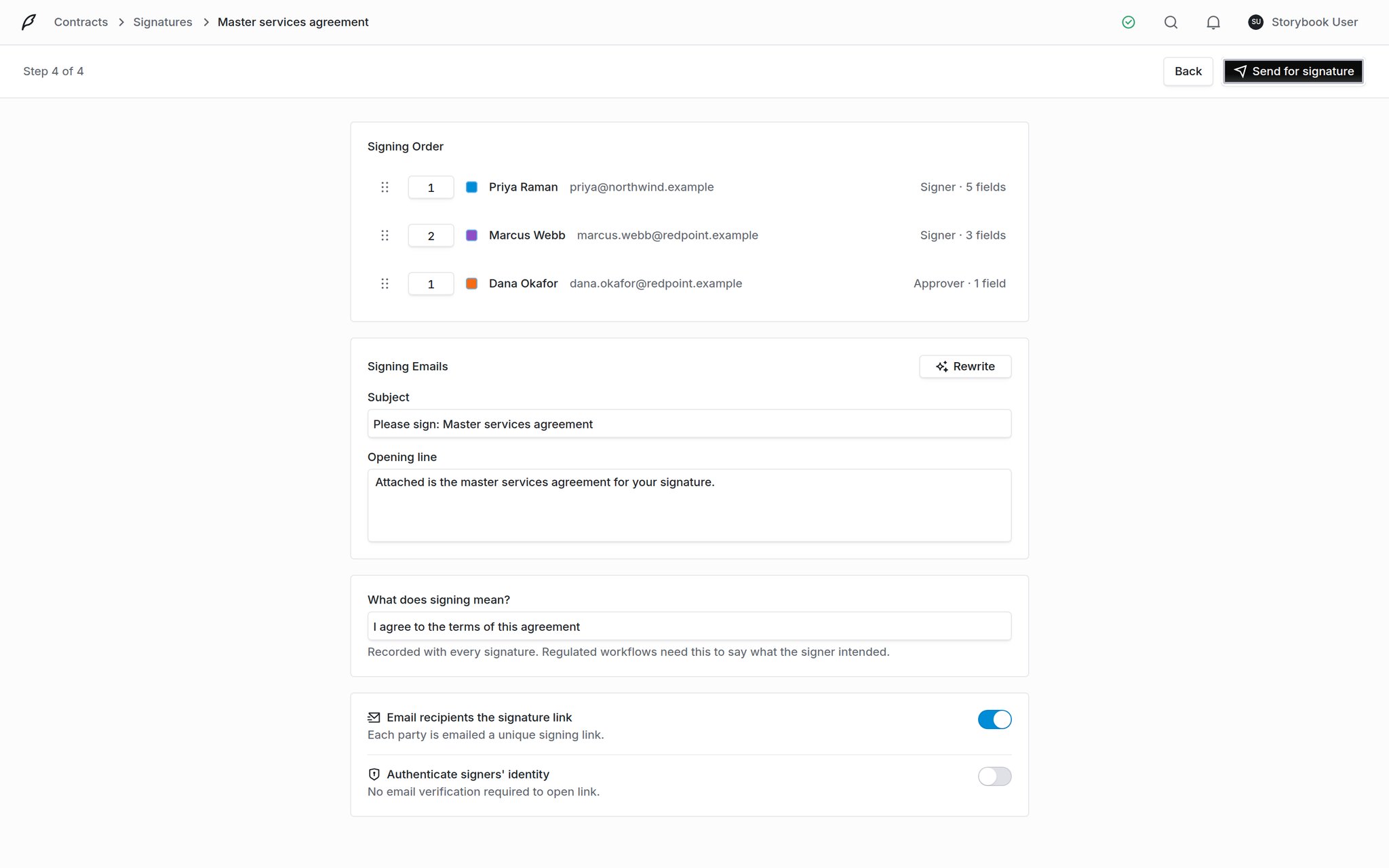 **Signing Order** at the top is the last look at who is asked, in what order, and how many fields each one owns. The step numbers are still editable here and the rows still drag, so a routing mistake spotted at the end does not send you back a step.
**Signing Emails** is the invitation. **Subject** and **Opening line** both fall back to Coverbase's built-in wording if you leave them blank, and **Rewrite** drafts both from the document itself, which is usually a better starting point than a blank box.
**What does signing mean?** is recorded with every signature on the envelope. Most agreements do not need it. Regulated workflows do, and some organizations require it on every envelope. The step says so if yours does.
Two switches decide how it goes out:
| | |
| --------------------------------------- | ------------------------------------------------------------------------------------------------------------------------------------------------------------ |
| **Email recipients the signature link** | On by default. Turn it off and links are minted but not sent, for when you are handing them out yourself. |
| **Authenticate signers' identity** | Whether a party must verify their email address before the document opens. Starts at your organization's setting and can be changed for this envelope alone. |
**Send for signature** emails the first routing step and mints each party a permanent portal address.
## Track what is out
The envelope's **Overview** tab is the working view. Down the middle: the source document with **Open the original**, **Download full packet** and **Verify now**, and under it **Fields and Values**, listing every field, whose it is, what it holds, which page it sits on and when it was filled. Down the right: the signing order, the envelope's details, and the portal link.
**Signing Order** at the top is the last look at who is asked, in what order, and how many fields each one owns. The step numbers are still editable here and the rows still drag, so a routing mistake spotted at the end does not send you back a step.
**Signing Emails** is the invitation. **Subject** and **Opening line** both fall back to Coverbase's built-in wording if you leave them blank, and **Rewrite** drafts both from the document itself, which is usually a better starting point than a blank box.
**What does signing mean?** is recorded with every signature on the envelope. Most agreements do not need it. Regulated workflows do, and some organizations require it on every envelope. The step says so if yours does.
Two switches decide how it goes out:
| | |
| --------------------------------------- | ------------------------------------------------------------------------------------------------------------------------------------------------------------ |
| **Email recipients the signature link** | On by default. Turn it off and links are minted but not sent, for when you are handing them out yourself. |
| **Authenticate signers' identity** | Whether a party must verify their email address before the document opens. Starts at your organization's setting and can be changed for this envelope alone. |
**Send for signature** emails the first routing step and mints each party a permanent portal address.
## Track what is out
The envelope's **Overview** tab is the working view. Down the middle: the source document with **Open the original**, **Download full packet** and **Verify now**, and under it **Fields and Values**, listing every field, whose it is, what it holds, which page it sits on and when it was filled. Down the right: the signing order, the envelope's details, and the portal link.
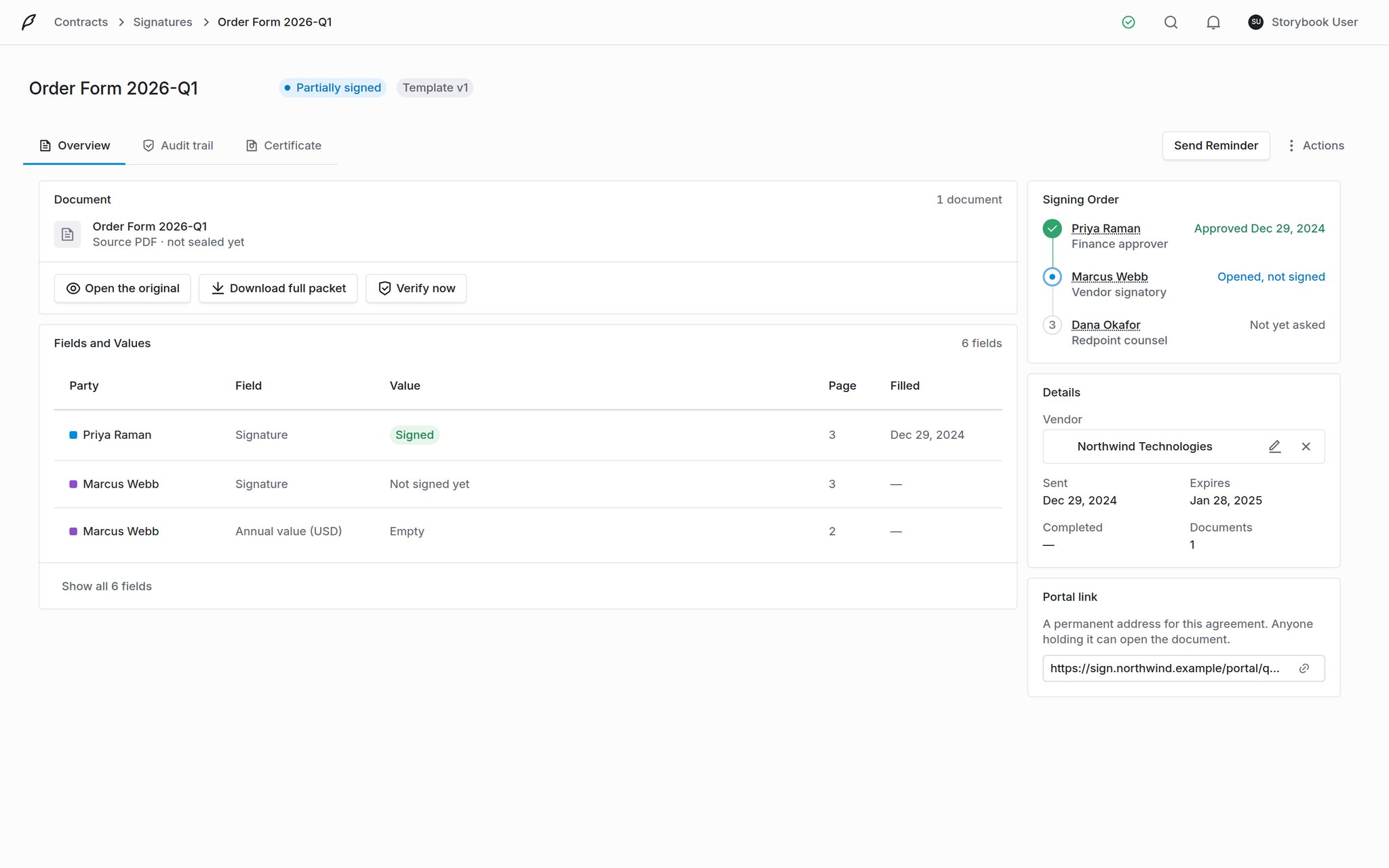 **Signing Order** is where you look when someone asks "where is this?" It reads per party (approved, opened but not signed, not yet asked) rather than as one envelope-level status. The badge beside the envelope name says which template version it came from.
**Details** carries the vendor the agreement is filed against, when it was sent, when it expires, when it completed, and how many documents it holds. The vendor can be changed from here if it was set wrong.
The **portal link** is a permanent address for the agreement, and anyone holding it can open the document. It is there for handing an agreement over out of band. Treat it like the document itself, not like an internal reference.
### Nudging, correcting, cancelling
Resends a reminder link to the parties currently pending. It does not touch anyone who has already signed and it does not disturb the routing order.
For when the document or the recipients were wrong. The original is voided with its trail intact and you rebuild it in the send flow with everything carried across, so you are not retyping the whole envelope. The voided original stays in the list for the record, and a banner across the rebuild says which envelope you are correcting.
Field *values* are not carried: a value belongs to the signature that was collected on the old envelope, not to the new one.
Closes every signing link immediately. Signatures already collected stay on the record. Voiding cancels the agreement; it does not erase what happened. A **reason** is required, and it goes into the audit trail beside the void.
A signer can also decline, and a decline stops the envelope rather than skipping that person. Nobody further down the routing order is asked.
## What you get when it completes
Once the last party signs, Coverbase flattens every field into the page, seals the PDF, and generates a signing certificate beside it.
**Signing Order** is where you look when someone asks "where is this?" It reads per party (approved, opened but not signed, not yet asked) rather than as one envelope-level status. The badge beside the envelope name says which template version it came from.
**Details** carries the vendor the agreement is filed against, when it was sent, when it expires, when it completed, and how many documents it holds. The vendor can be changed from here if it was set wrong.
The **portal link** is a permanent address for the agreement, and anyone holding it can open the document. It is there for handing an agreement over out of band. Treat it like the document itself, not like an internal reference.
### Nudging, correcting, cancelling
Resends a reminder link to the parties currently pending. It does not touch anyone who has already signed and it does not disturb the routing order.
For when the document or the recipients were wrong. The original is voided with its trail intact and you rebuild it in the send flow with everything carried across, so you are not retyping the whole envelope. The voided original stays in the list for the record, and a banner across the rebuild says which envelope you are correcting.
Field *values* are not carried: a value belongs to the signature that was collected on the old envelope, not to the new one.
Closes every signing link immediately. Signatures already collected stay on the record. Voiding cancels the agreement; it does not erase what happened. A **reason** is required, and it goes into the audit trail beside the void.
A signer can also decline, and a decline stops the envelope rather than skipping that person. Nobody further down the routing order is asked.
## What you get when it completes
Once the last party signs, Coverbase flattens every field into the page, seals the PDF, and generates a signing certificate beside it.
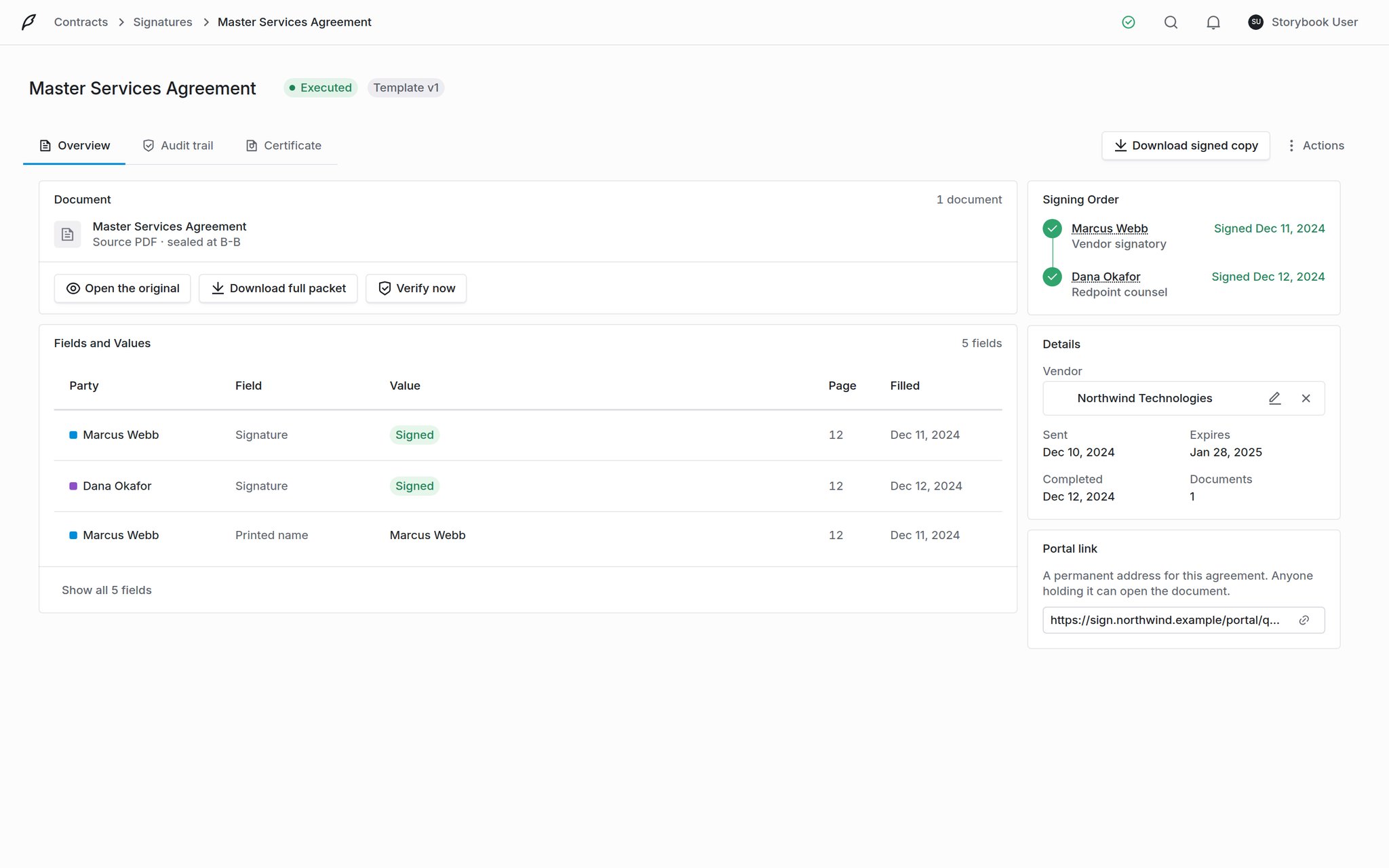 * **Download signed copy**: the sealed PDF, with every signature, initial and stamp burned into the page and attributed. It becomes the envelope's primary action once sealing finishes.
* **Download certificate**: the certificate of completion, under **Actions**. It only exists once every party has signed.
* **Download full packet**: the signed copy and the certificate together, for handing to a counterparty or an auditor.
* The document line under the file name reads **sealed at B-B** (or whatever level was achieved), so you can see what the executed copy carries rather than what was asked for.
The executed copy is also filed as a document on the associated vendor and contract, so it is where you would look for it even if you never open the envelope again.
## The audit trail
Every event is recorded in order and hash-chained: each entry carries a sequence number and a hash that covers the one before it. Removing or editing an entry breaks the chain, so tampering is detectable.
* **Download signed copy**: the sealed PDF, with every signature, initial and stamp burned into the page and attributed. It becomes the envelope's primary action once sealing finishes.
* **Download certificate**: the certificate of completion, under **Actions**. It only exists once every party has signed.
* **Download full packet**: the signed copy and the certificate together, for handing to a counterparty or an auditor.
* The document line under the file name reads **sealed at B-B** (or whatever level was achieved), so you can see what the executed copy carries rather than what was asked for.
The executed copy is also filed as a document on the associated vendor and contract, so it is where you would look for it even if you never open the envelope again.
## The audit trail
Every event is recorded in order and hash-chained: each entry carries a sequence number and a hash that covers the one before it. Removing or editing an entry breaks the chain, so tampering is detectable.
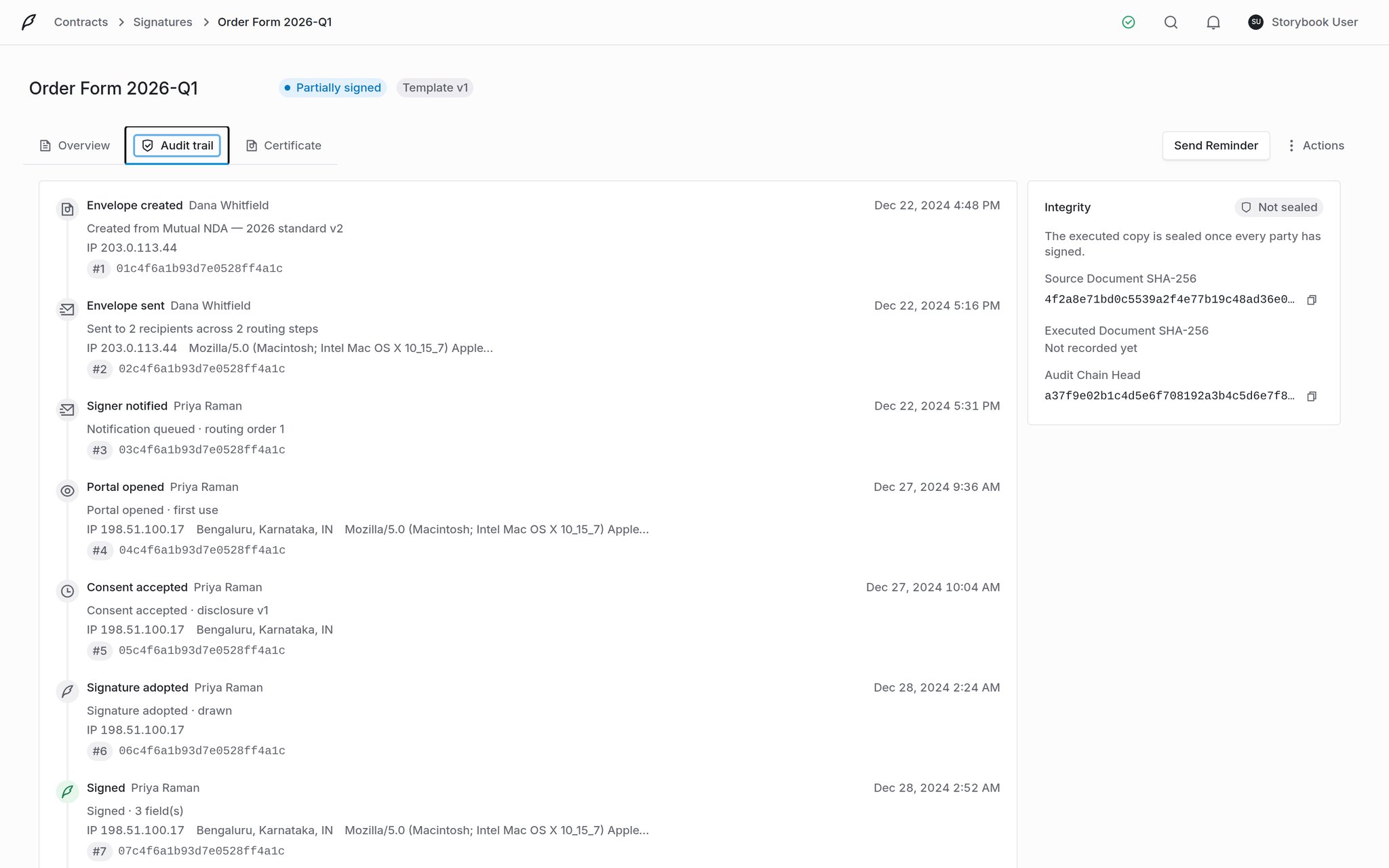 Events cover the whole life of the envelope: created, sent, each party notified, each portal opened, consent accepted against a specific disclosure version, each signature adopted and applied, and the final seal. Portal events carry IP, approximate location and user agent.
The **Integrity** panel beside it carries the hashes:
| | |
| ----------------------------- | ------------------------------------------------------------------ |
| **Source Document SHA-256** | The hash of the paper before anyone touched it. |
| **Executed Document SHA-256** | The hash of the sealed copy. Recorded once the envelope completes. |
| **Audit Chain Head** | The hash covering every event so far. |
**Verify now** on the Overview tab re-checks the document you are holding against these hashes. That is the answer to "is this the file that was actually signed?"
## Common problems
Check the envelope status first. A voided or expired envelope closes its links. If the envelope is live, check what the party has to get past before the document appears: **Authenticate signers' identity** emails them a one-time code, and an **Access code** on their recipient card asks for the code you were meant to hand them yourself. Either screen can be mistaken for a broken link.
That is how routing works. Later steps are notified as the envelope advances. If the first step has not finished, nobody after it has been asked.
Word files convert to PDF before they can be shown. The portal polls and resolves itself when the conversion lands, so a signer does not need to refresh.
An envelope has been sent from it, so the version is cited in an audit chain. Use **Edit as new version**; see [versioning](/user-guides/signature-templates#versioning-what-freezes-and-when).
## Related
Envelope statuses, signing settings, and what Coverbase keeps.
Build the paper you send from, with roles and fields placed once.
What the parties on your envelope see, and what to tell one who is stuck.
Sending an approved contract through DocuSign instead.
Events cover the whole life of the envelope: created, sent, each party notified, each portal opened, consent accepted against a specific disclosure version, each signature adopted and applied, and the final seal. Portal events carry IP, approximate location and user agent.
The **Integrity** panel beside it carries the hashes:
| | |
| ----------------------------- | ------------------------------------------------------------------ |
| **Source Document SHA-256** | The hash of the paper before anyone touched it. |
| **Executed Document SHA-256** | The hash of the sealed copy. Recorded once the envelope completes. |
| **Audit Chain Head** | The hash covering every event so far. |
**Verify now** on the Overview tab re-checks the document you are holding against these hashes. That is the answer to "is this the file that was actually signed?"
## Common problems
Check the envelope status first. A voided or expired envelope closes its links. If the envelope is live, check what the party has to get past before the document appears: **Authenticate signers' identity** emails them a one-time code, and an **Access code** on their recipient card asks for the code you were meant to hand them yourself. Either screen can be mistaken for a broken link.
That is how routing works. Later steps are notified as the envelope advances. If the first step has not finished, nobody after it has been asked.
Word files convert to PDF before they can be shown. The portal polls and resolves itself when the conversion lands, so a signer does not need to refresh.
An envelope has been sent from it, so the version is cited in an audit chain. Use **Edit as new version**; see [versioning](/user-guides/signature-templates#versioning-what-freezes-and-when).
## Related
Envelope statuses, signing settings, and what Coverbase keeps.
Build the paper you send from, with roles and fields placed once.
What the parties on your envelope see, and what to tell one who is stuck.
Sending an approved contract through DocuSign instead.