> ## Documentation Index
> Fetch the complete documentation index at: https://docs.coverbase.com/llms.txt
> Use this file to discover all available pages before exploring further.
# The signing experience
> What your counterparty sees when they open a signing link: consent, the document, adopting a signature once for every block, and the executed copy they keep. Plus how to brand it as yours.
For AI agents: a documentation index is available at [https://docs.coverbase.com/llms.txt](https://docs.coverbase.com/llms.txt). This page is also available in markdown by appending .md to the URL.
This guide is part of the [User Guides](/user-guides/overview) collection. It describes the portal from the *signer's* side, so you know what you are asking someone to do. For sending, read [envelopes](/user-guides/signature-envelopes).
Your counterparty does not need a Coverbase account. They get an email, they open a link, and everything happens in their browser, on a phone as readily as a laptop. Nothing is downloaded and nothing is installed.
This page describes each screen they pass through, so you can tell which one a confused signer is looking at.
## What they see, in order
Only when the envelope asks for it. **Authenticate signers' identity** sends a one-time code to the address the agreement was sent to; an **Access code** set on that recipient asks for the code you gave them out of band. Either way, signers who were not expecting it often report it as a broken link.
Your organization's ESIGN disclosure, shown in full. Nothing on the page is writable until they accept, and the exact text they were shown is stored with their acceptance.
The document, with their fields marked on it. Everything is saved as they go, so closing the tab loses nothing.
Once. It then applies to every signature, initials and stamp block that belongs to them.
A separate act from filling the last field. It commits the signature.
A party who opens their link before their turn sees the agreement but cannot act on it, with an explanation of who is ahead of them. They do not get an error, and they do not need to be told to come back later.
## The document
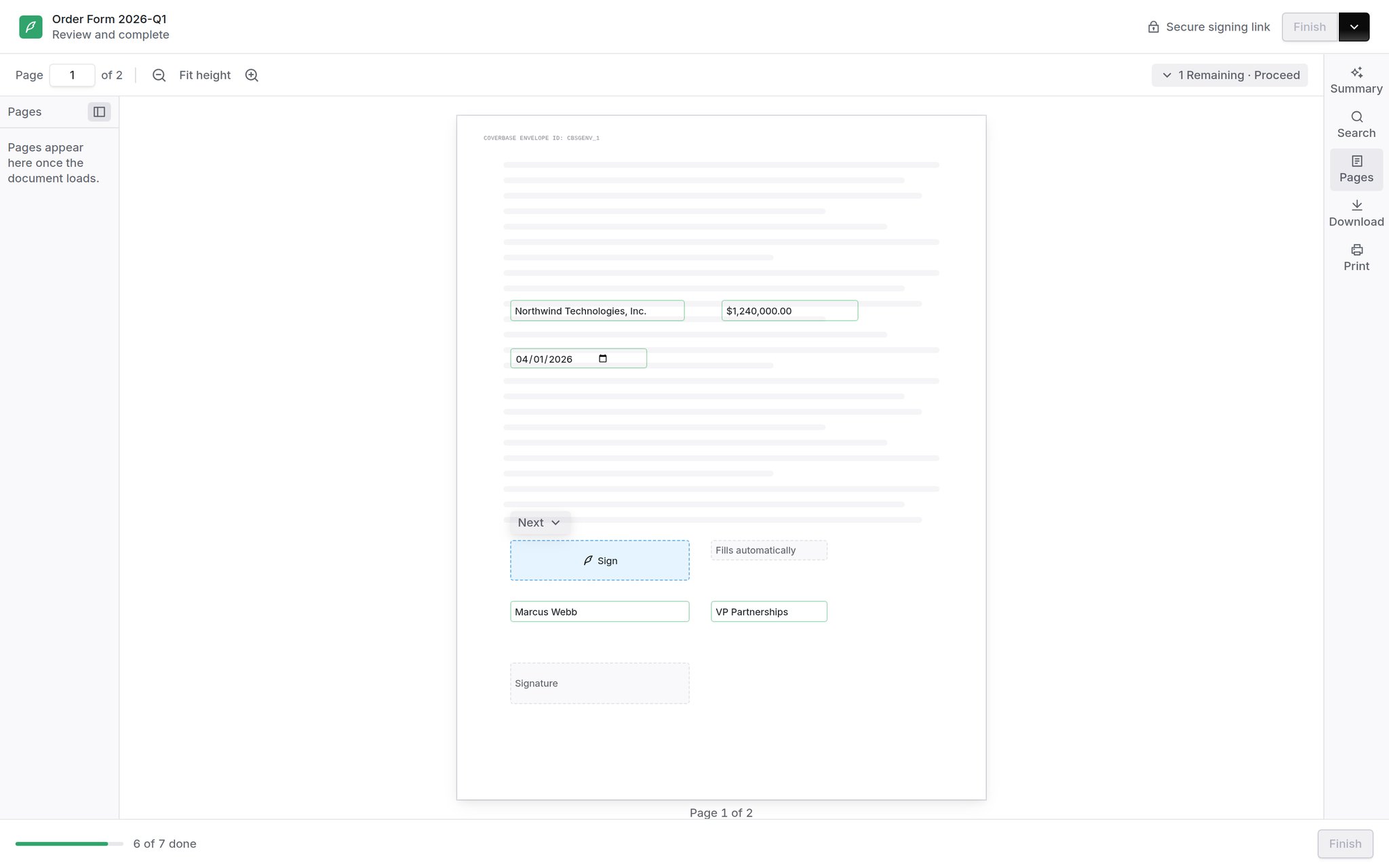 The header names the agreement, says **Review and complete**, and marks the page a **Secure signing link**. **Finish** sits at the top right and stays grayed out until nothing of theirs is outstanding.
The field outlines carry meaning, and it is worth knowing which is which when a signer describes one to you:
| | |
| --------------- | ----------------------------------------------------------------------------------------------- |
| **Blue dashed** | Theirs, and still empty. These are what the counter is counting. |
| **Green** | Theirs, and filled. |
| **Grey dashed** | Not theirs, or filled by Coverbase. Those read **Fills automatically**. Nothing for them to do. |
Two things track how far along they are. The **N Remaining · Proceed** chip in the toolbar counts only the fields that still need them and jumps to the next one; the bar along the bottom reads *6 of 7 done* against every field they own. The **Next** chip is anchored beside the field they are on and skips anything Coverbase fills itself, so a signer is never sent to a box that refuses input.
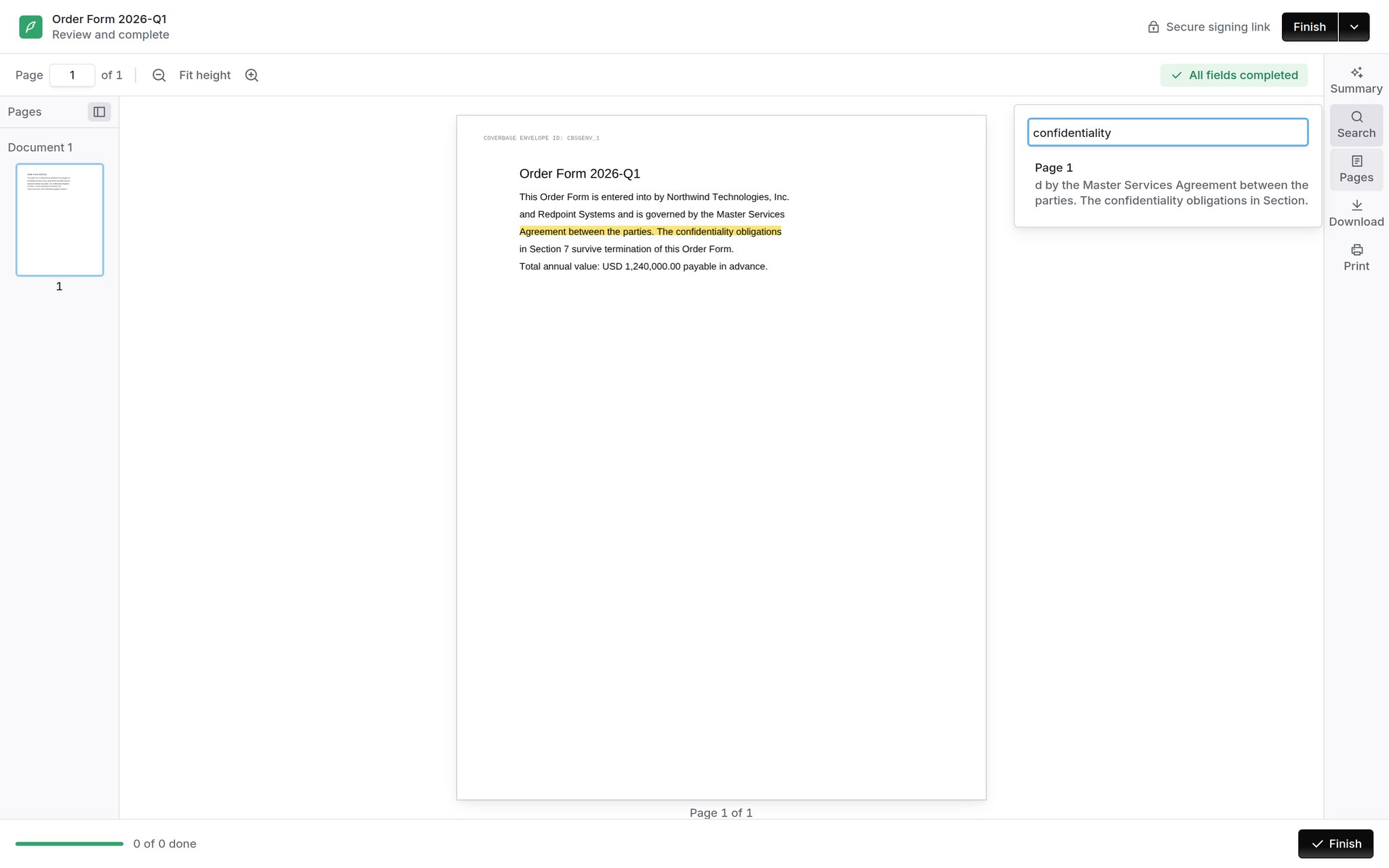
Down the right-hand rail: **Summary** asks Coverbase to summarize the agreement, **Search** finds a phrase and marks it on the page, **Pages** opens a thumbnail rail, and **Download** and **Print** take a copy of what they are being asked to sign.
The header names the agreement, says **Review and complete**, and marks the page a **Secure signing link**. **Finish** sits at the top right and stays grayed out until nothing of theirs is outstanding.
The field outlines carry meaning, and it is worth knowing which is which when a signer describes one to you:
| | |
| --------------- | ----------------------------------------------------------------------------------------------- |
| **Blue dashed** | Theirs, and still empty. These are what the counter is counting. |
| **Green** | Theirs, and filled. |
| **Grey dashed** | Not theirs, or filled by Coverbase. Those read **Fills automatically**. Nothing for them to do. |
Two things track how far along they are. The **N Remaining · Proceed** chip in the toolbar counts only the fields that still need them and jumps to the next one; the bar along the bottom reads *6 of 7 done* against every field they own. The **Next** chip is anchored beside the field they are on and skips anything Coverbase fills itself, so a signer is never sent to a box that refuses input.
Down the right-hand rail: **Summary** asks Coverbase to summarize the agreement, **Search** finds a phrase and marks it on the page, **Pages** opens a thumbnail rail, and **Download** and **Print** take a copy of what they are being asked to sign.
 ## Adopting a signature
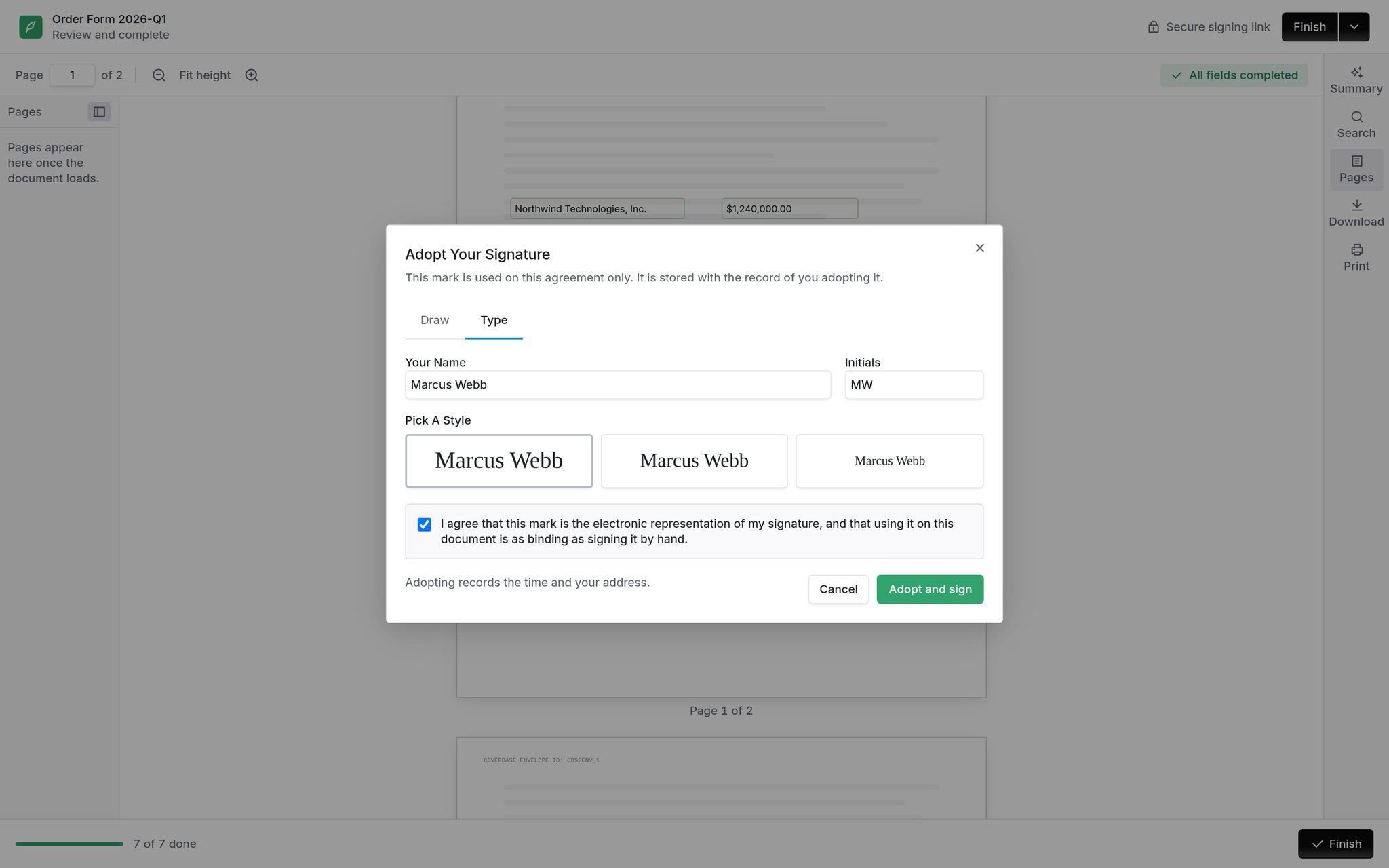 Which options appear depends on **Accepted Signature Types** in your signing settings: draw, type, or upload an image.
Two things about this come up often in support:
**One adoption covers every block.** A signer adopts once and Coverbase applies it to each signature, initials and stamp slot that belongs to them, wherever they are in the document. They do not initial each page separately.
**It is remembered.** Reopening the dialog shows the mark they adopted rather than a blank pad, so a signer checking their own signature does not have to redraw it. Drawing a new stroke replaces it.
Which options appear depends on **Accepted Signature Types** in your signing settings: draw, type, or upload an image.
Two things about this come up often in support:
**One adoption covers every block.** A signer adopts once and Coverbase applies it to each signature, initials and stamp slot that belongs to them, wherever they are in the document. They do not initial each page separately.
**It is remembered.** Reopening the dialog shows the mark they adopted rather than a blank pad, so a signer checking their own signature does not have to redraw it. Drawing a new stroke replaces it.
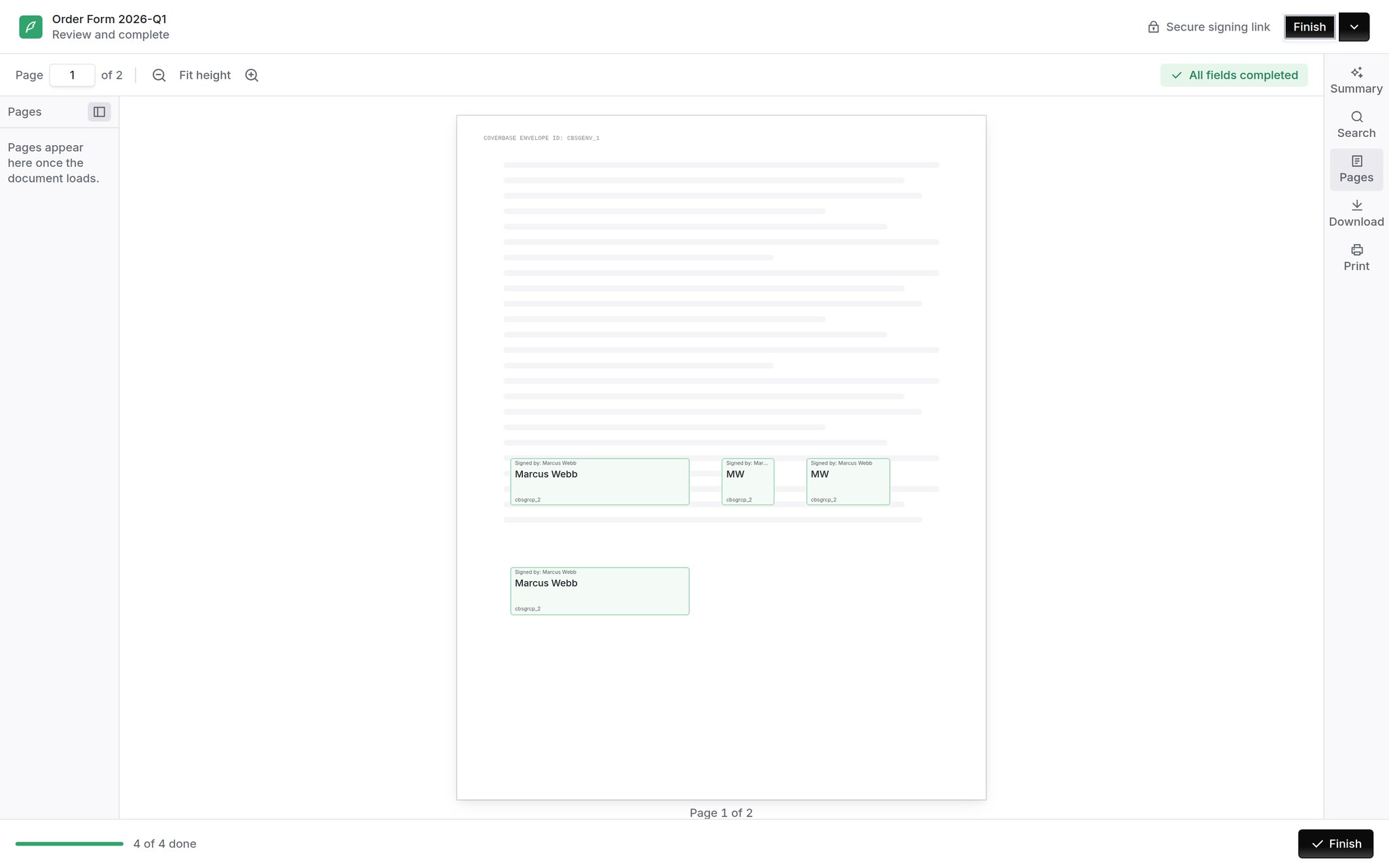 Every mark is captioned with who applied it and their recipient id, on screen and in the sealed PDF. That caption is burned into the executed document, so it stays in English on screen even for a signer reading a translated interface. The page they approve has to match the page they receive.
## Finishing
**Finish** commits the signature. It is a separate act from filling the last field because ESIGN requires the signer to indicate intent, and filling a box does not do that on its own.
Beside Finish, a signer can also **decline**, which stops the envelope rather than skipping them, or **delegate** to somebody else if the agreement allows it.
Every mark is captioned with who applied it and their recipient id, on screen and in the sealed PDF. That caption is burned into the executed document, so it stays in English on screen even for a signer reading a translated interface. The page they approve has to match the page they receive.
## Finishing
**Finish** commits the signature. It is a separate act from filling the last field because ESIGN requires the signer to indicate intent, and filling a box does not do that on its own.
Beside Finish, a signer can also **decline**, which stops the envelope rather than skipping them, or **delegate** to somebody else if the agreement allows it.
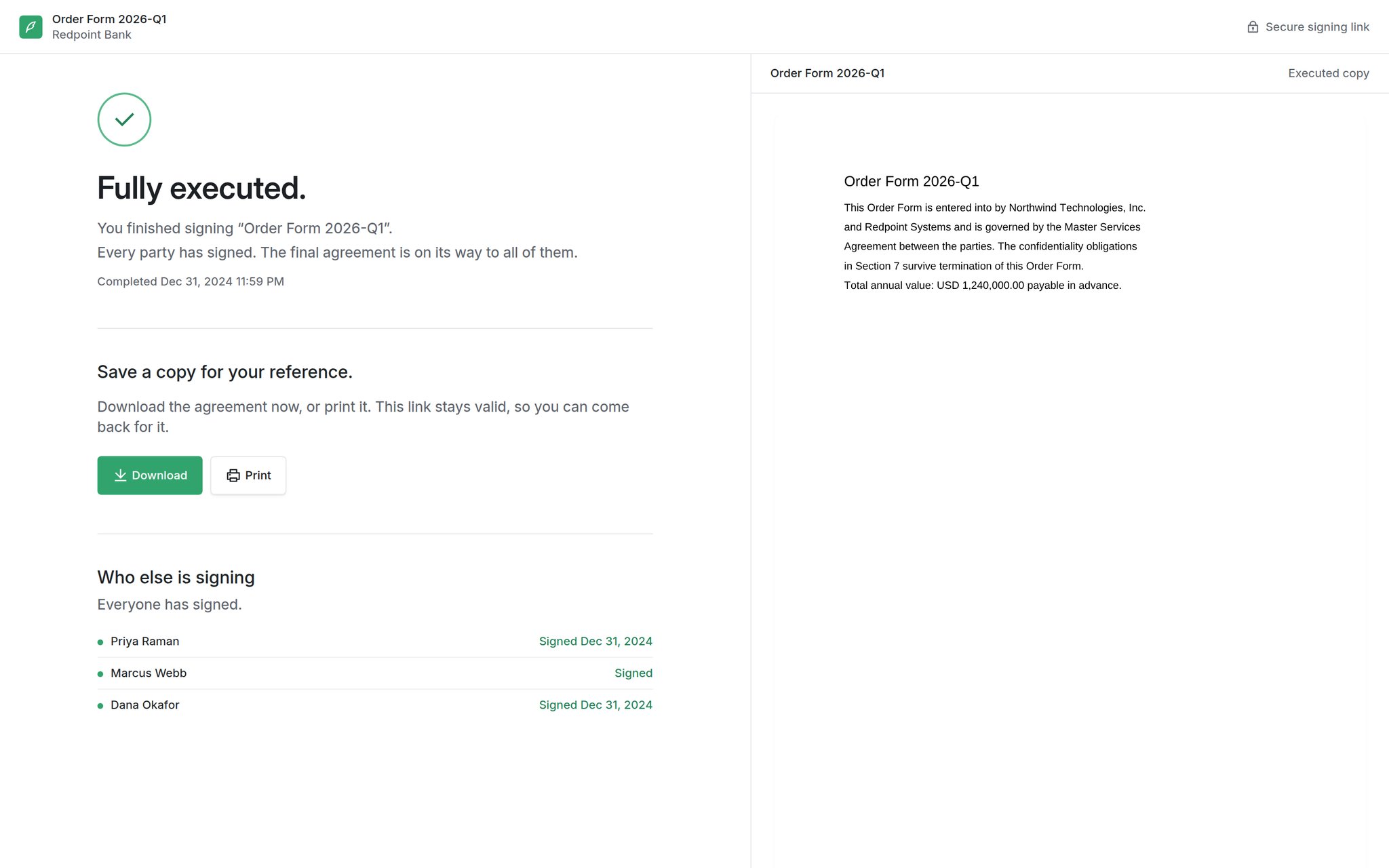 The confirmation names what happens next: whether every party has signed or the agreement is still moving, and who is still to act. The link stays valid, so a signer can come back for their copy later rather than needing you to send it.
## Branding the portal
Two places control how the signing link looks to a counterparty.
**Display name** is who the agreement appears to come from. **Reply-to** is where a signer's reply lands. **Portal message** is a short line shown on the signing page. Use it for a contact name, or to say which agreement this is part of.
The portal uses the logo and accent color from your organization's branding settings, so a signing link matches the rest of your branding without a second configuration. Set the logo there and it appears in the portal header.
Your own wording for the invitation, the reminder and the completion notice. Leave a field blank and Coverbase's built-in copy is used.
## What to tell a signer who is stuck
They have not accepted the electronic signature disclosure. Nothing is writable until they do.
They are not the current routing step. They will be emailed when it is their turn.
A required field is still empty. The bar along the bottom says how many of their fields are done, and the **Remaining** chip takes them straight to the first one that is not.
Two different codes, and which one depends on the envelope. If **Authenticate signers' identity** was on, the code was emailed to the address the agreement was sent to. If you set an **Access code** on that recipient, it is the code you were meant to give them yourself. Resend it, or generate a new one on the envelope.
A Word source is still converting to PDF. The page resolves itself when the conversion lands; no refresh needed.
## Related
Create the envelope, set identity checks, and track what is out.
Field types, required and read-only switches, and the signer tooltip.
Signing settings: consent wording, accepted signature types, and verification.
The confirmation names what happens next: whether every party has signed or the agreement is still moving, and who is still to act. The link stays valid, so a signer can come back for their copy later rather than needing you to send it.
## Branding the portal
Two places control how the signing link looks to a counterparty.
**Display name** is who the agreement appears to come from. **Reply-to** is where a signer's reply lands. **Portal message** is a short line shown on the signing page. Use it for a contact name, or to say which agreement this is part of.
The portal uses the logo and accent color from your organization's branding settings, so a signing link matches the rest of your branding without a second configuration. Set the logo there and it appears in the portal header.
Your own wording for the invitation, the reminder and the completion notice. Leave a field blank and Coverbase's built-in copy is used.
## What to tell a signer who is stuck
They have not accepted the electronic signature disclosure. Nothing is writable until they do.
They are not the current routing step. They will be emailed when it is their turn.
A required field is still empty. The bar along the bottom says how many of their fields are done, and the **Remaining** chip takes them straight to the first one that is not.
Two different codes, and which one depends on the envelope. If **Authenticate signers' identity** was on, the code was emailed to the address the agreement was sent to. If you set an **Access code** on that recipient, it is the code you were meant to give them yourself. Resend it, or generate a new one on the envelope.
A Word source is still converting to PDF. The page resolves itself when the conversion lands; no refresh needed.
## Related
Create the envelope, set identity checks, and track what is out.
Field types, required and read-only switches, and the signer tooltip.
Signing settings: consent wording, accepted signature types, and verification.