> ## Documentation Index
> Fetch the complete documentation index at: https://docs.coverbase.com/llms.txt
> Use this file to discover all available pages before exploring further.
# Signature templates
> Build the paper you send repeatedly once: the source document, the signing parties as roles, and the fields each role fills. Then publish it, send from it, and version it when the wording changes.
For AI agents: a documentation index is available at [https://docs.coverbase.com/llms.txt](https://docs.coverbase.com/llms.txt). This page is also available in markdown by appending .md to the URL.
This guide is part of the [User Guides](/user-guides/overview) collection. Read the [e-signature overview](/user-guides/signature-overview) first if you have not sent an envelope before. To send without building a template, go straight to [envelopes](/user-guides/signature-envelopes).
A template is an agreement you send more than once. The document, who signs it, and where they sign are decided once. Every envelope after that only asks you who the people are.
Templates are worth the setup for an NDA, an order form or a DPA: anything where the paper is stable and only the counterparty changes. For a negotiated one-off, skip the template and place fields on the envelope directly.
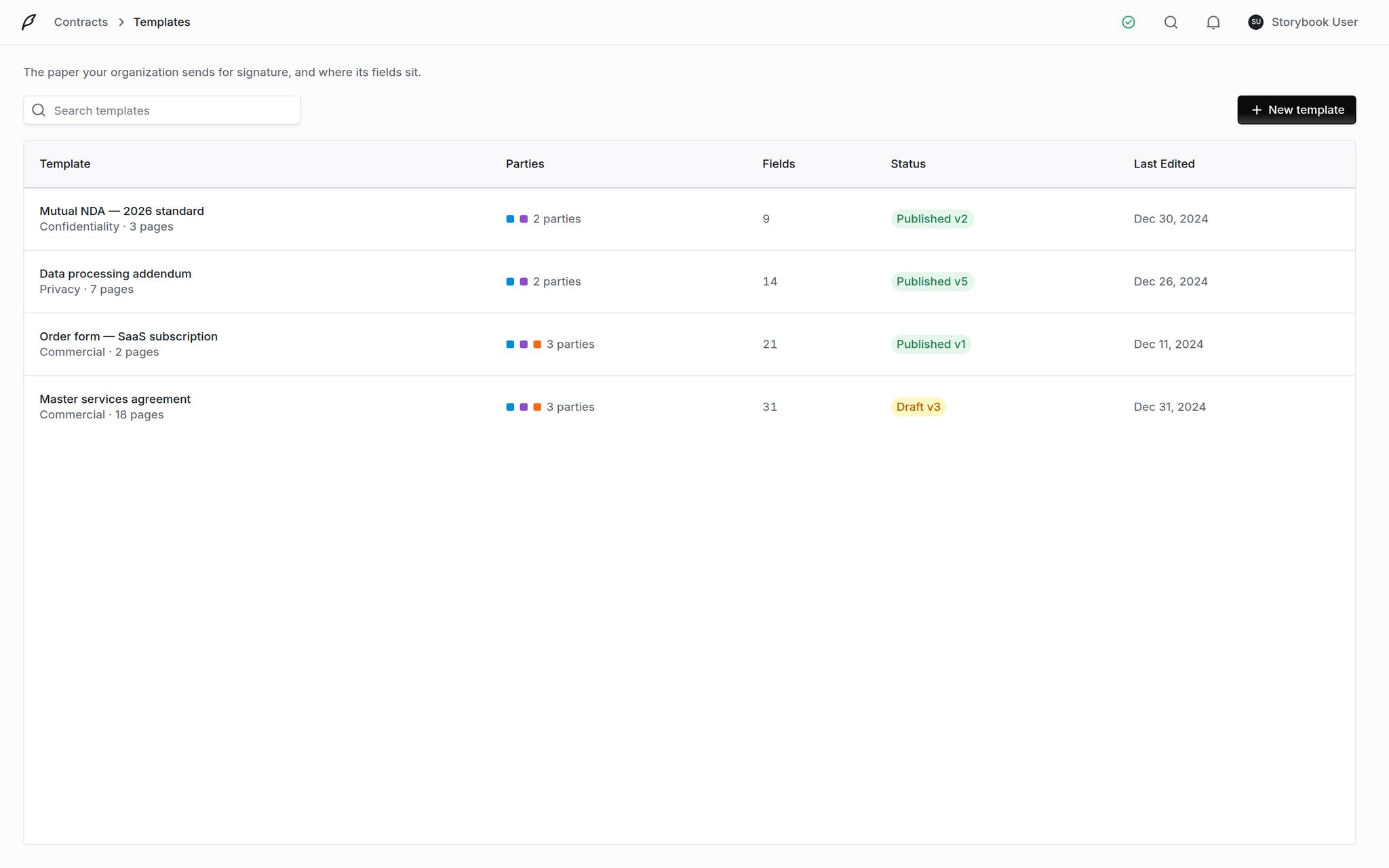
**Contracts → Templates** is the list. Each row carries the category and page count of the source document, how many parties the template asks for, how many fields are placed, and the status with its version number (`Published v2`, `Draft v3`). The version number is the quickest way to see which templates have been revised and which have never left draft.
 ## Parties are roles, not people
A template does not know that Marcus Webb signs your NDAs. It knows there is a **Vendor signatory**, and that the signature block on page 3 belongs to whoever fills that seat.
That separation is what makes a template reusable, and it also makes re-ordering safe. Fields are attached to the role, so swapping who sits in a seat keeps every placement they own.
## Parties are roles, not people
A template does not know that Marcus Webb signs your NDAs. It knows there is a **Vendor signatory**, and that the signature block on page 3 belongs to whoever fills that seat.
That separation is what makes a template reusable, and it also makes re-ordering safe. Fields are attached to the role, so swapping who sits in a seat keeps every placement they own.
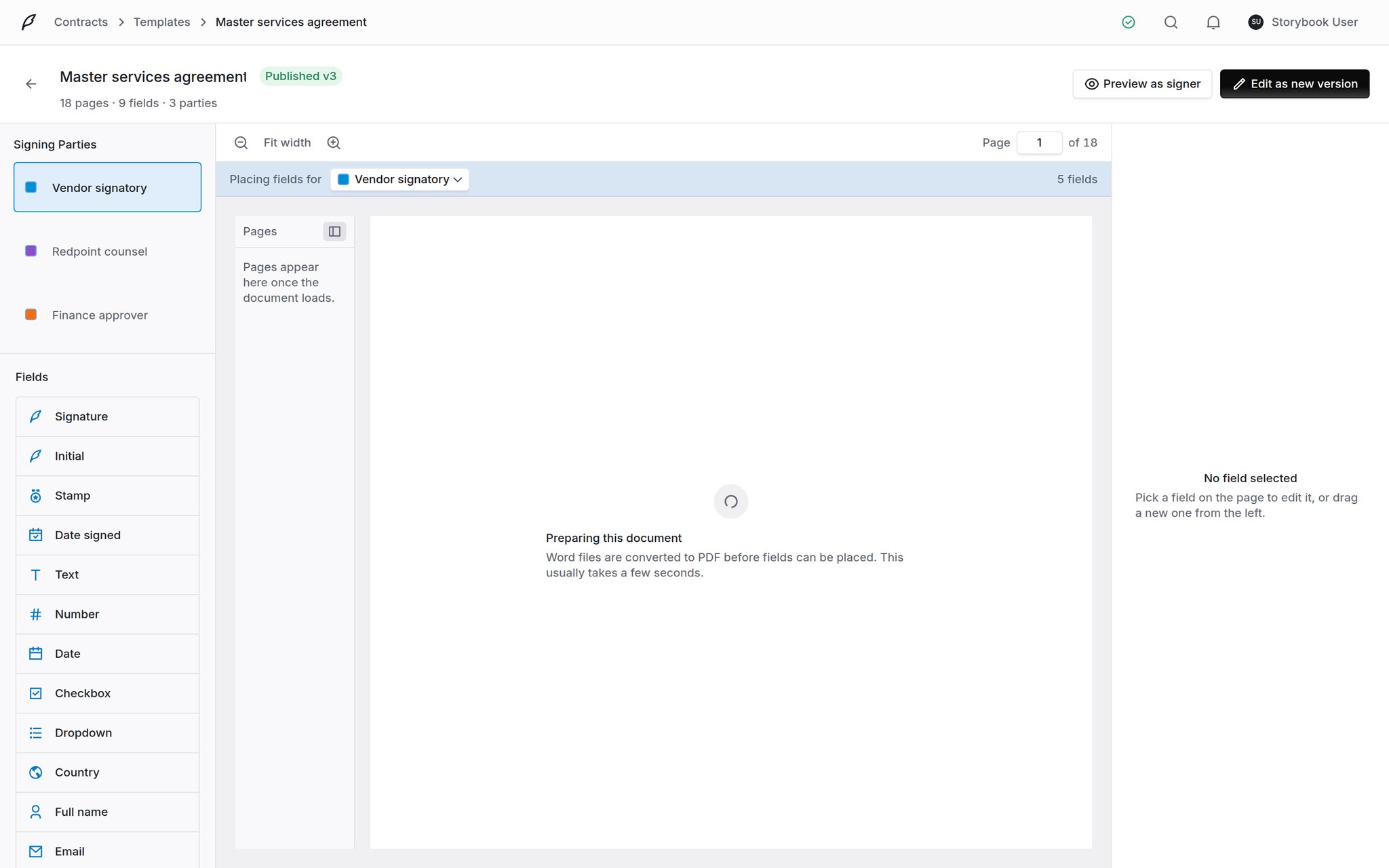
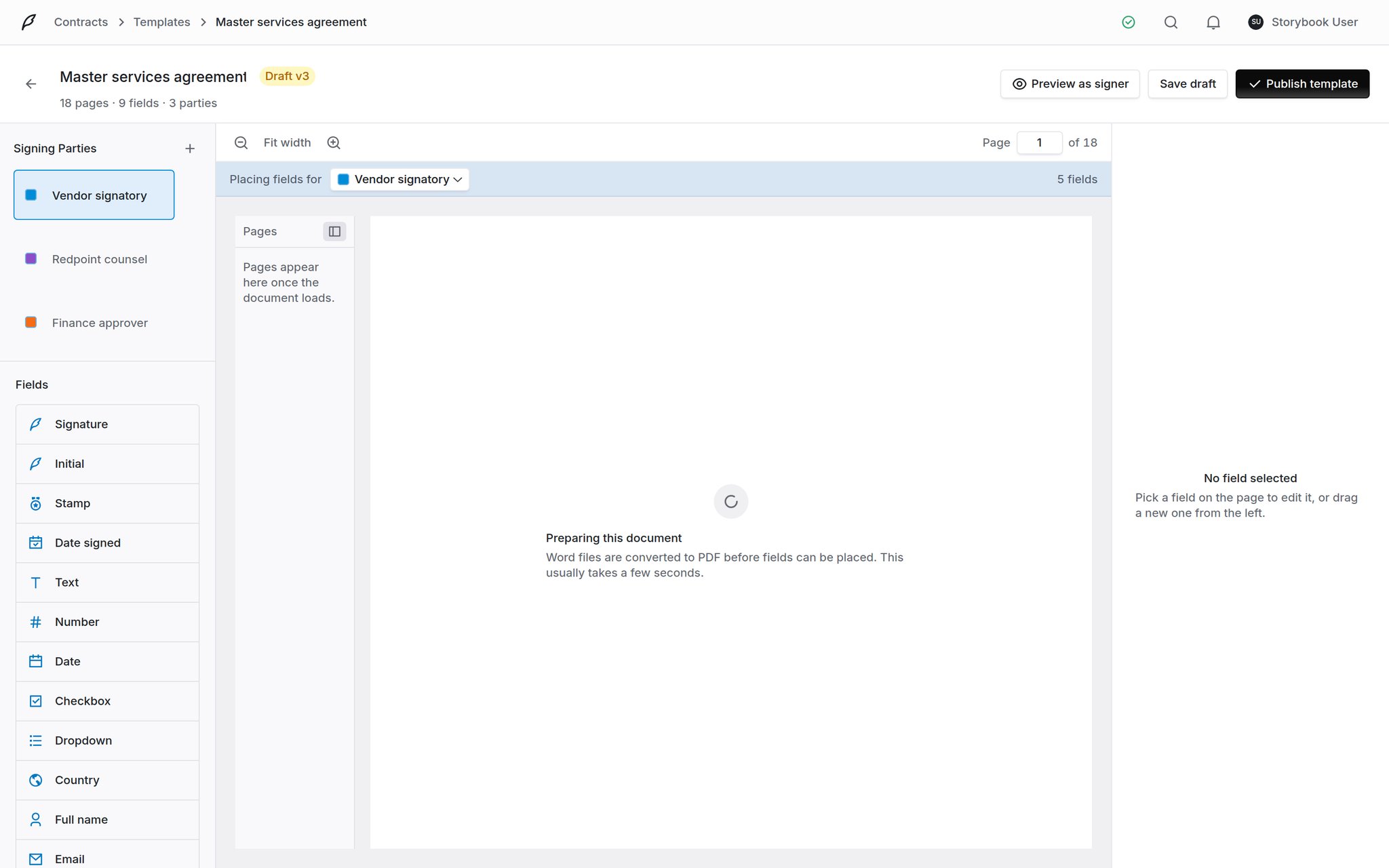 The header carries the version badge, the page, field and party counts, and the three things you can do with the template: **Preview as signer**, **Save draft** and **Publish template**.
## Create a template
A template needs its source document before anything can be placed on it, so the document is chosen here.
**Template name** is what senders pick from. **Category** groups the list. **Default expiration** is optional: switch it on and envelopes sent from this template start at that many days instead of your organization's default. Leave it off and the organization default applies.
**From a document** picks from your document library, **From a contract** picks a document already attached to a contract, and **Upload** takes a file from your machine. A template is laid out against exactly one document.
The header carries the version badge, the page, field and party counts, and the three things you can do with the template: **Preview as signer**, **Save draft** and **Publish template**.
## Create a template
A template needs its source document before anything can be placed on it, so the document is chosen here.
**Template name** is what senders pick from. **Category** groups the list. **Default expiration** is optional: switch it on and envelopes sent from this template start at that many days instead of your organization's default. Leave it off and the organization default applies.
**From a document** picks from your document library, **From a contract** picks a document already attached to a contract, and **Upload** takes a file from your machine. A template is laid out against exactly one document.
 Word files are converted to PDF before fields can be placed, which takes a few seconds. The builder tells you it is preparing the document and the canvas fills in when the conversion lands.
## Add the signing parties
Use **+** beside **Signing Parties** to add a role, and click a role's name to rename it. Give roles the name of the job, not the person: "Vendor signatory", "Finance approver", "Redpoint counsel". A sender filling seats reads these names and needs to know who belongs in each one.
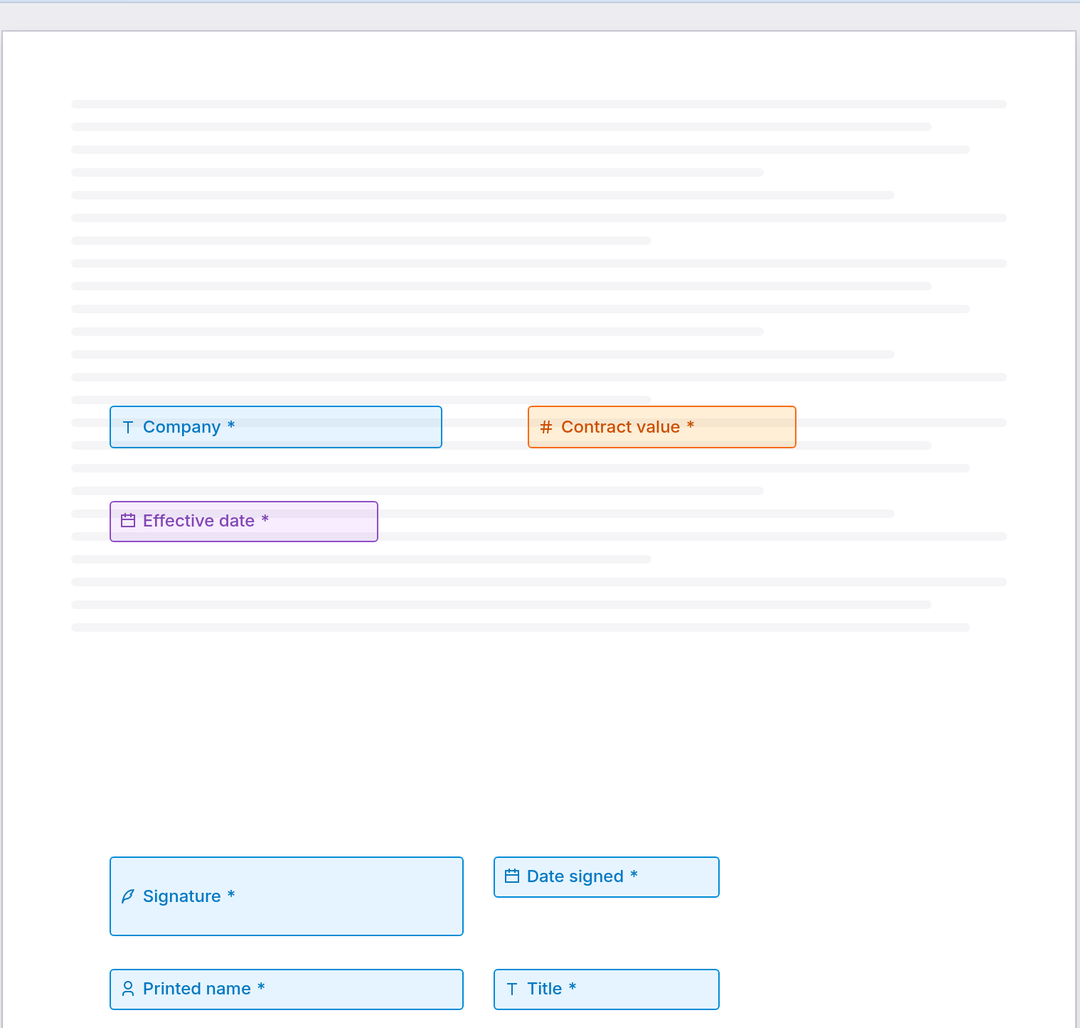
The role you have selected is the one you are placing fields for. The bar above the document says so, and the field color follows it.
## Place the fields
Drag a field from the palette onto the page, or click it to drop one where you are looking. Drag its edges to resize, and drag the field itself to move it. Selecting a field opens the inspector on the right.
The bar above the document reads **Placing fields for** and names the party, with a running count of how many fields they own. The parties list carries the same counts, so an empty seat is obvious before you send anything.
Word files are converted to PDF before fields can be placed, which takes a few seconds. The builder tells you it is preparing the document and the canvas fills in when the conversion lands.
## Add the signing parties
Use **+** beside **Signing Parties** to add a role, and click a role's name to rename it. Give roles the name of the job, not the person: "Vendor signatory", "Finance approver", "Redpoint counsel". A sender filling seats reads these names and needs to know who belongs in each one.
The role you have selected is the one you are placing fields for. The bar above the document says so, and the field color follows it.
## Place the fields
Drag a field from the palette onto the page, or click it to drop one where you are looking. Drag its edges to resize, and drag the field itself to move it. Selecting a field opens the inspector on the right.
The bar above the document reads **Placing fields for** and names the party, with a running count of how many fields they own. The parties list carries the same counts, so an empty seat is obvious before you send anything.
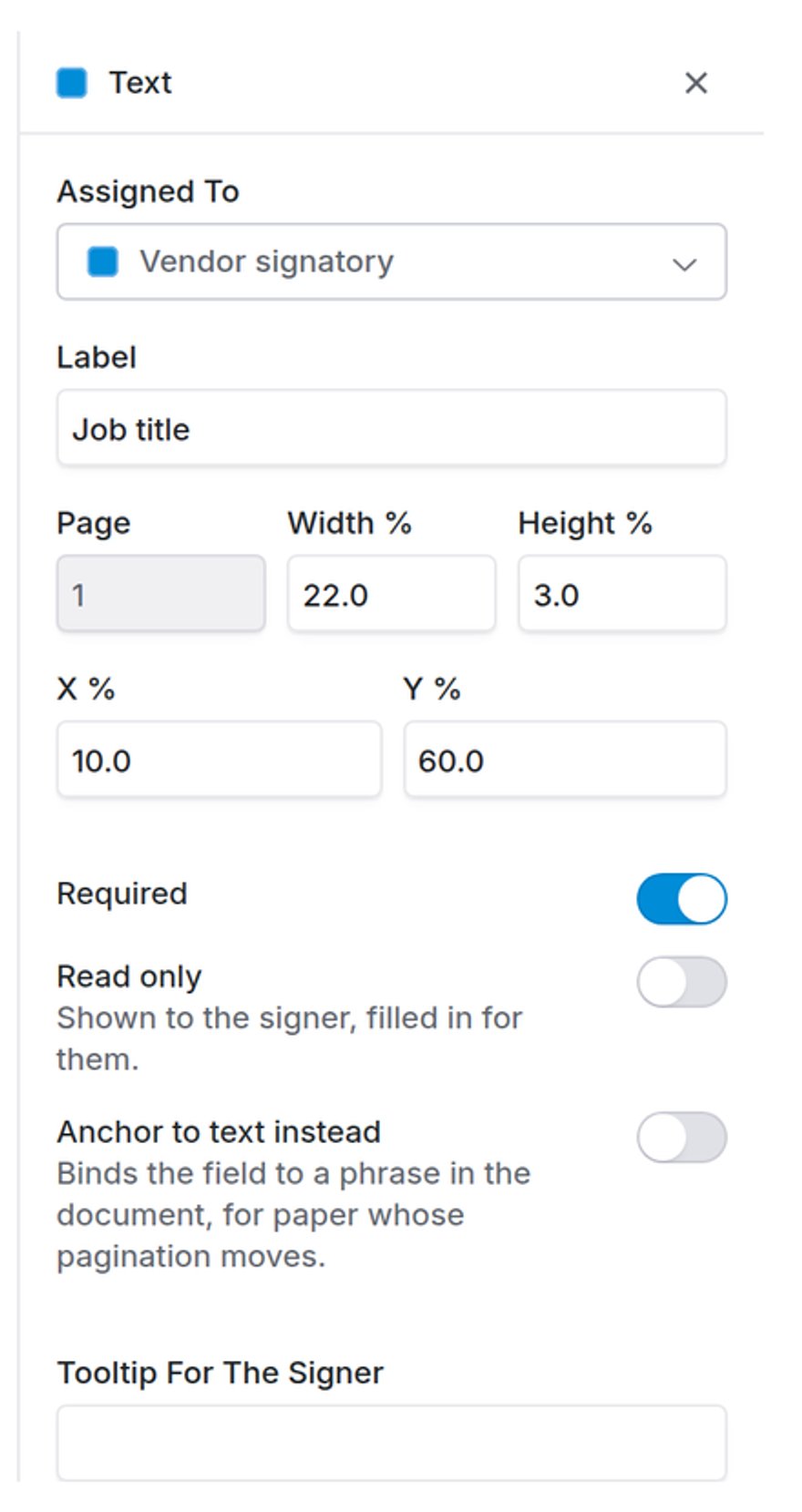 **Assigned To** moves a field to a different party without redrawing it. **Label** is the name that appears in the box and in the envelope's field list, so name it what it holds: "Job title", not "Text 3". Page, width, height and position are given as percentages, which is how you line two fields up exactly rather than by eye.
Three switches decide behavior:
| | |
| -------------------------- | --------------------------------------------------------------------------------------------------------------------------- |
| **Required** | The signer cannot finish while it is empty. |
| **Read only** | Shown to the signer, filled in for them. Use it for a value you are stating, not asking for. |
| **Anchor to text instead** | Binds the field to a phrase in the document rather than to a coordinate, for paper whose pagination moves between versions. |
**Tooltip for the signer** is the hint they see on hover. Add one wherever a field's label is not self-explanatory.
### What the field types do
The three the signer applies rather than types. A signer adopts one mark and it fills every slot it covers, so an agreement with initials on every page asks for the mark once. Each slot is attributed in the sealed PDF with the signer's name and recipient id.
Coverbase writes these at the moment of signing. They are placed like any other field but are never presented to the signer as something to complete, and they render read-only in the portal. Do not mark them required and expect a signer to act on them; there is nothing for them to do.
Free entry, with validation available in the inspector. **Company** is special: Coverbase pre-fills it from the vendor the envelope is filed against, and the signer can correct it. An envelope with no vendor still asks for it.
A checkbox is a single opt-in. A dropdown takes a list of options in the inspector; the portal only accepts a listed value, so a signer cannot type something you did not offer.
**Preview as signer** in the header shows the template the way a counterparty will see it, with each role's fields in that role's turn. It is the fastest way to catch a field placed on the wrong party.
## Publish it
**Save draft** keeps your work without making the template available to senders. **Publish template** makes it selectable in the send wizard.
Publishing does not lock anything. You can keep editing a published template in place until an envelope goes out from it.
## Versioning: what freezes, and when
What locks a template is the first envelope sent from it, not publishing it.
From that point the version is cited in an audit chain, because an envelope's certificate records which template version it came from. Changing the template underneath would make that record wrong. The header changes to **Edit as new version**, and choosing it forks the template into a new draft version. Sent envelopes keep pointing at the version they cited.
**Assigned To** moves a field to a different party without redrawing it. **Label** is the name that appears in the box and in the envelope's field list, so name it what it holds: "Job title", not "Text 3". Page, width, height and position are given as percentages, which is how you line two fields up exactly rather than by eye.
Three switches decide behavior:
| | |
| -------------------------- | --------------------------------------------------------------------------------------------------------------------------- |
| **Required** | The signer cannot finish while it is empty. |
| **Read only** | Shown to the signer, filled in for them. Use it for a value you are stating, not asking for. |
| **Anchor to text instead** | Binds the field to a phrase in the document rather than to a coordinate, for paper whose pagination moves between versions. |
**Tooltip for the signer** is the hint they see on hover. Add one wherever a field's label is not self-explanatory.
### What the field types do
The three the signer applies rather than types. A signer adopts one mark and it fills every slot it covers, so an agreement with initials on every page asks for the mark once. Each slot is attributed in the sealed PDF with the signer's name and recipient id.
Coverbase writes these at the moment of signing. They are placed like any other field but are never presented to the signer as something to complete, and they render read-only in the portal. Do not mark them required and expect a signer to act on them; there is nothing for them to do.
Free entry, with validation available in the inspector. **Company** is special: Coverbase pre-fills it from the vendor the envelope is filed against, and the signer can correct it. An envelope with no vendor still asks for it.
A checkbox is a single opt-in. A dropdown takes a list of options in the inspector; the portal only accepts a listed value, so a signer cannot type something you did not offer.
**Preview as signer** in the header shows the template the way a counterparty will see it, with each role's fields in that role's turn. It is the fastest way to catch a field placed on the wrong party.
## Publish it
**Save draft** keeps your work without making the template available to senders. **Publish template** makes it selectable in the send wizard.
Publishing does not lock anything. You can keep editing a published template in place until an envelope goes out from it.
## Versioning: what freezes, and when
What locks a template is the first envelope sent from it, not publishing it.
From that point the version is cited in an audit chain, because an envelope's certificate records which template version it came from. Changing the template underneath would make that record wrong. The header changes to **Edit as new version**, and choosing it forks the template into a new draft version. Sent envelopes keep pointing at the version they cited.
 | | |
| ------------------------- | --------------------------------------------------------------- |
| **Draft** | Not available to senders. Edit freely. |
| **Published, never sent** | Available to senders. Still edit in place. |
| **Published, sent from** | Frozen. Editing forks a new version. |
| **Archived** | Hidden from the send wizard. Existing envelopes are unaffected. |
Opening the send wizard against a template creates a **draft** envelope, and abandoning that tab leaves the draft behind. Drafts do not freeze the template, since only a sent envelope does that.
## Sending from a template
Templates appear in the send wizard's **From a template** tab. Picking one copies its roles in as empty seats and its field layout onto the envelope.
The copy is by value, not by reference. Editing the template afterwards does not change envelopes already created from it, so you can keep improving a template without affecting agreements that are already out.
If the template set its own **Default expiration**, the wizard starts there; otherwise it starts at your organization's default. Either way the sender can change it before sending.
The rest of that flow is [envelopes](/user-guides/signature-envelopes).
## Related
How templates, envelopes, the portal and the executed copy fit together.
Create an envelope from a template, name who signs, and track it to an executed copy.
What a counterparty sees when they open the fields you placed.
| | |
| ------------------------- | --------------------------------------------------------------- |
| **Draft** | Not available to senders. Edit freely. |
| **Published, never sent** | Available to senders. Still edit in place. |
| **Published, sent from** | Frozen. Editing forks a new version. |
| **Archived** | Hidden from the send wizard. Existing envelopes are unaffected. |
Opening the send wizard against a template creates a **draft** envelope, and abandoning that tab leaves the draft behind. Drafts do not freeze the template, since only a sent envelope does that.
## Sending from a template
Templates appear in the send wizard's **From a template** tab. Picking one copies its roles in as empty seats and its field layout onto the envelope.
The copy is by value, not by reference. Editing the template afterwards does not change envelopes already created from it, so you can keep improving a template without affecting agreements that are already out.
If the template set its own **Default expiration**, the wizard starts there; otherwise it starts at your organization's default. Either way the sender can change it before sending.
The rest of that flow is [envelopes](/user-guides/signature-envelopes).
## Related
How templates, envelopes, the portal and the executed copy fit together.
Create an envelope from a template, name who signs, and track it to an executed copy.
What a counterparty sees when they open the fields you placed.