> ## Documentation Index
> Fetch the complete documentation index at: https://docs.coverbase.com/llms.txt
> Use this file to discover all available pages before exploring further.
# The vendor record
> How to read the Vendors list and a single vendor's page: the columns, filters and saved views, creating a vendor from the directory, the cards and tabs on the record, services and engagements, subprocessors, statuses, and what archiving does.
For AI agents: a documentation index is available at [https://docs.coverbase.com/llms.txt](https://docs.coverbase.com/llms.txt). This page is also available in markdown by appending .md to the URL.
This guide is part of the [User Guides](/user-guides/overview) collection. It covers the vendor record itself. For getting a vendor in through intake, see [Requesting a new vendor](/user-guides/requesting-a-vendor); for what to do once the record exists, see [Running an assessment](/user-guides/running-an-assessment).
A vendor record is the home for everything Coverbase knows about one supplier: who owns the relationship, what you buy from them, the assessments and documents, the contracts, the open findings, and the companies they in turn depend on. Every other module links back to it, so a duplicate or mislinked vendor spreads into assessments, reports and dashboards.
The mistake people make most often is creating a vendor from scratch when the company already exists, either in your own workspace or in the Coverbase directory. The picker shows both before it lets you add something new. Take the match when there is one.
## Where vendors live
Click **Vendors** in the left navigation. The page opens on the vendor list, with a view switcher at the top:
| View | What it lists |
| --------------- | --------------------------------------------------------------------------------------------------------------------------------------- |
| **Vendors** | One row per vendor. This is the default. |
| **Services** | Every service across every vendor, with its own risk and assessment columns. Shown when your role can read services. |
| **Engagements** | Every engagement, with start and end dates, status, and the services and contracts it links. |
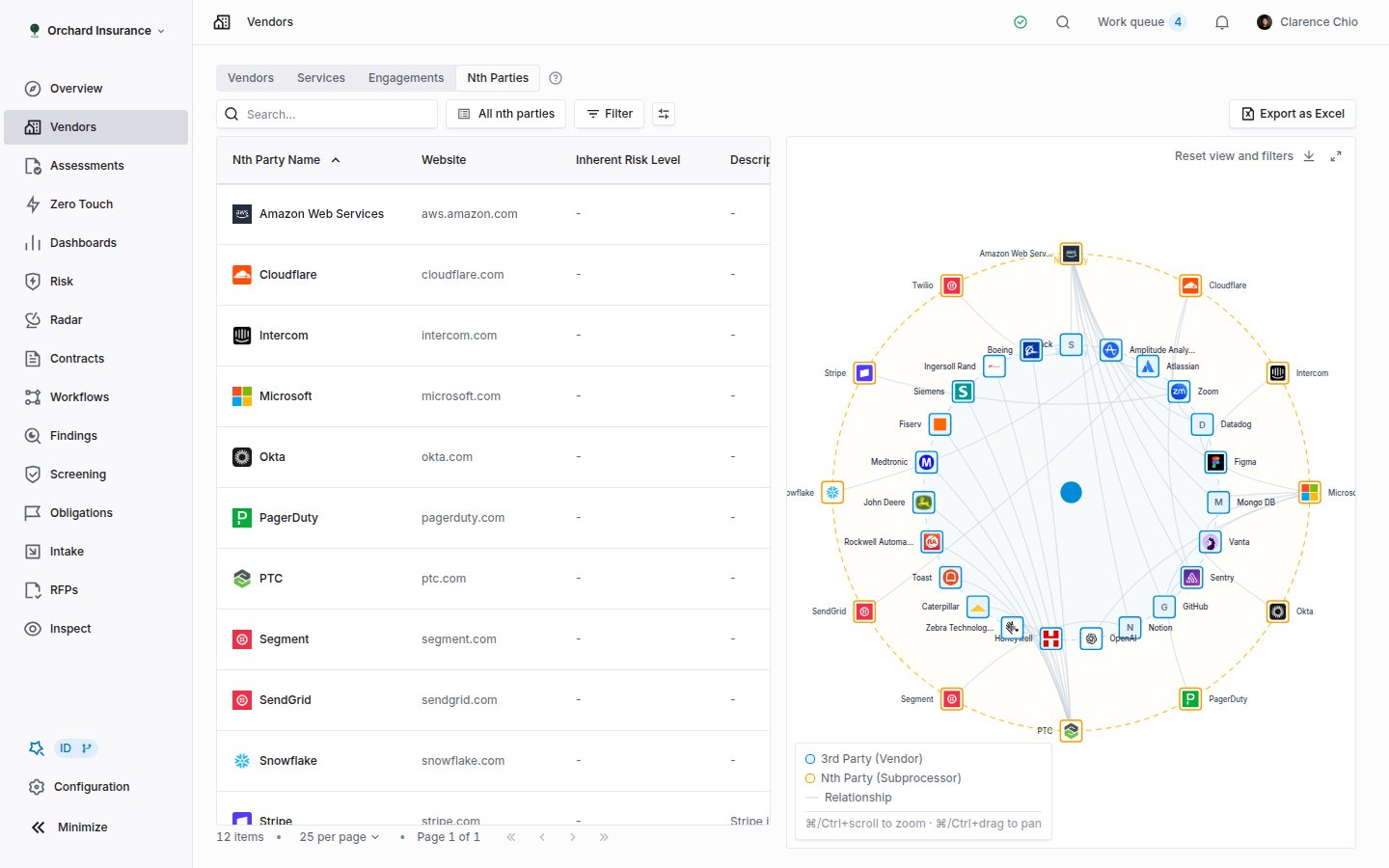
| **Nth Parties** | The companies your vendors depend on, with a relationship graph beside the table. |
| **Discovered** | Records found by a connected integration, waiting to be approved or dismissed. Only appears when an integration has reported something. |
The rest of this guide is about the **Vendors** view and a single vendor's page. Services, engagements and nth parties get their own sections below.
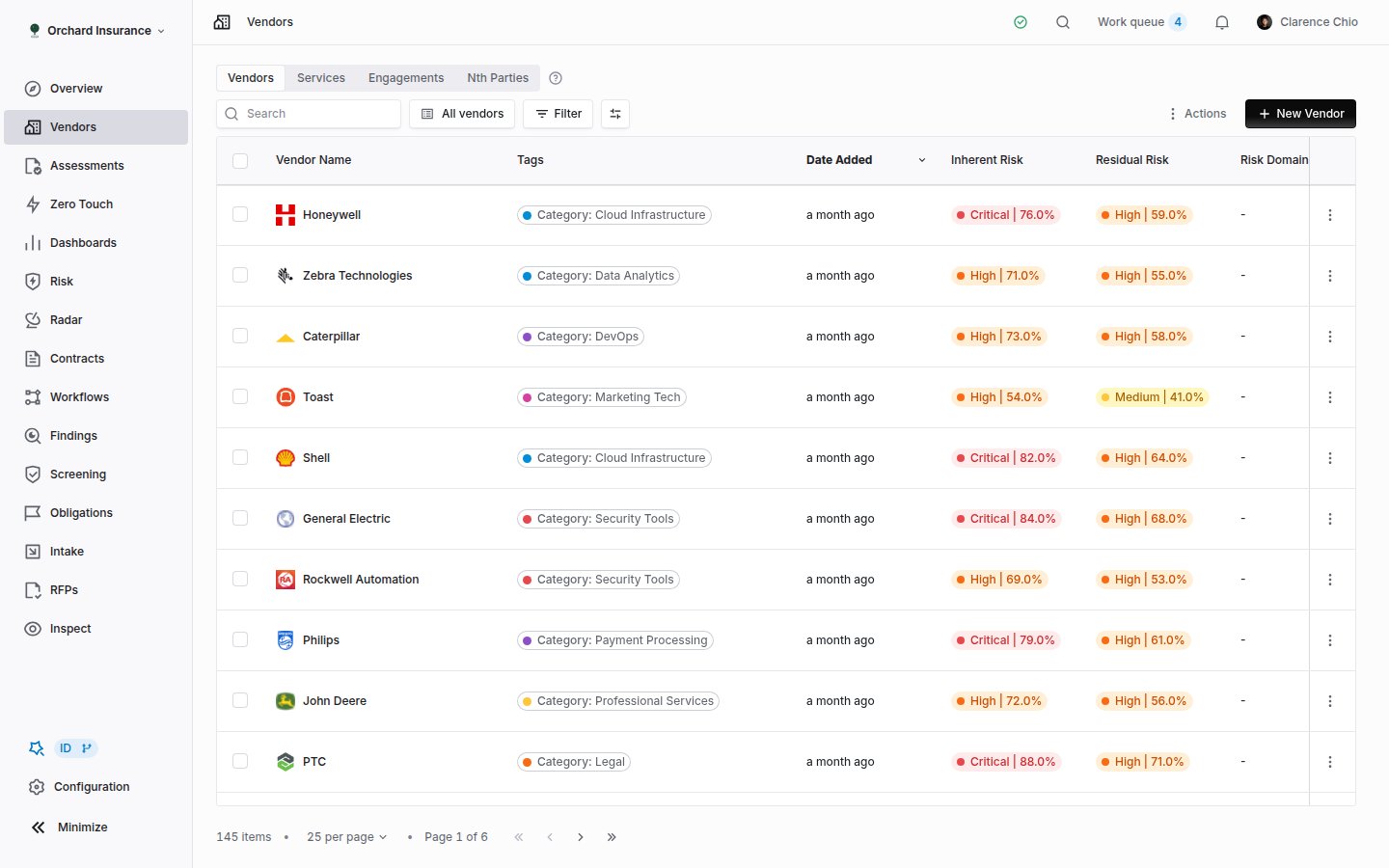 ## Reading the vendor list
### Columns
| Column | What it shows |
| ------------------------------------------------------------------------------------ | ---------------------------------------------------------------------------- |
| **Vendor Name** | The record name. Click it to open the vendor. |
| **Tags** | The tags on the record. |
| **Date Added** | When the record was created. |
| **Inherent Risk** | The inherent risk level, from the IRQ or set by hand. |
| **Residual Risk** | The residual risk level, when your organization tracks it. |
| **Risk Domains** | Per-domain inherent risk, when risk domains are configured. |
| **Status** | The lifecycle status. See [Statuses and lifecycle](#statuses-and-lifecycle). |
| **Last Assessed**, **Assessment Outcome**, **Assessment Score**, **Next Assessment** | Read from the vendor's assessments. |
| **Services** | The vendor's active services. |
| **Risk Analysts**, **Relationship Owners**, **Watchers** | The people on the record. |
| **# Docs**, **# Assessments**, **# Issues**, **# Open Issues** | Counts across the record. |
Custom fields that apply to vendors appear as extra columns. Use **Display options** to choose which columns are visible and in what order.
### Search, filters and saved views
The search box matches on vendor name. The filter button opens the unified filter builder, where the fields are grouped: **Dates** (Created Date, Next Assessment Date, Last Assessed), **Documents** (Document Types, Document Count, Uploaded Date), **Assessments** (Assessment Count, Status, Outcome, Assignee, Zero Touch, Has Open Issue, and more), **Contracts** (Auto Renewal, Contract Count), plus Tags, Status, Tier, the three people fields, Website, the inherent and residual risk levels and scores, Risk Domains, and **Archived**.
Filters, sort, search and column layout can be saved as a view. **All vendors** is the built-in view. Use **New view** to save the current state, choose **Personal**, **Shared** or **Organization** under **View access**, and switch between views with **Change view**. Views are also where you get a stable link: `/vendors/view/` opens the list with that view applied.
Archived vendors are hidden from the list. To find one, add the **Archived** filter. The vendor's page still opens and shows an **Archived** badge.
### Row and bulk actions
Each row has a menu with **New Assessment** and **Archive**. Select several rows and a floating bar appears with **Vendor actions**: **Tags**, **Assign relationship owner**, **Assign risk analyst**, **Update status**, **Add to case**, **Create assessments**, **Schedule next assessment**, and **Archive**. Organizations with Zero Touch Assessments also get a bulk launch here.
### The Actions menu
The **Actions** menu in the toolbar holds the portfolio-level tools:
| Item | What it does |
| -------------------------------- | --------------------------------------------------------------------------------------------------------------------------------------------------------------- |
| **Export as Excel** | Builds a consolidated vendor workbook. You can apply the current filters and column visibility, and include a services tab. |
| **Build portfolio report** | Builds a PDF summary of the vendors matching the current filters. |
| **Bulk Create Vendors** | Imports vendors (and optionally services) from a spreadsheet. Walkthrough: [Admin setup, Step 2](/user-guides/admin-setup#step-2-import-your-vendor-portfolio). |
| **Bulk Upload Vendor Documents** | Uploads a ZIP with one folder per vendor. Folder names must match vendor names exactly. You get a notification when processing finishes. |
| **Merge Vendors** | Scans for duplicates and merges them. See [Merging and archiving](#merging-and-archiving). |
| **Export Services** | The same workbook export for the services list. |
## Creating a vendor
Click **+ New Vendor** at the top right of the list. The first step is a picker that searches as you type.
## Reading the vendor list
### Columns
| Column | What it shows |
| ------------------------------------------------------------------------------------ | ---------------------------------------------------------------------------- |
| **Vendor Name** | The record name. Click it to open the vendor. |
| **Tags** | The tags on the record. |
| **Date Added** | When the record was created. |
| **Inherent Risk** | The inherent risk level, from the IRQ or set by hand. |
| **Residual Risk** | The residual risk level, when your organization tracks it. |
| **Risk Domains** | Per-domain inherent risk, when risk domains are configured. |
| **Status** | The lifecycle status. See [Statuses and lifecycle](#statuses-and-lifecycle). |
| **Last Assessed**, **Assessment Outcome**, **Assessment Score**, **Next Assessment** | Read from the vendor's assessments. |
| **Services** | The vendor's active services. |
| **Risk Analysts**, **Relationship Owners**, **Watchers** | The people on the record. |
| **# Docs**, **# Assessments**, **# Issues**, **# Open Issues** | Counts across the record. |
Custom fields that apply to vendors appear as extra columns. Use **Display options** to choose which columns are visible and in what order.
### Search, filters and saved views
The search box matches on vendor name. The filter button opens the unified filter builder, where the fields are grouped: **Dates** (Created Date, Next Assessment Date, Last Assessed), **Documents** (Document Types, Document Count, Uploaded Date), **Assessments** (Assessment Count, Status, Outcome, Assignee, Zero Touch, Has Open Issue, and more), **Contracts** (Auto Renewal, Contract Count), plus Tags, Status, Tier, the three people fields, Website, the inherent and residual risk levels and scores, Risk Domains, and **Archived**.
Filters, sort, search and column layout can be saved as a view. **All vendors** is the built-in view. Use **New view** to save the current state, choose **Personal**, **Shared** or **Organization** under **View access**, and switch between views with **Change view**. Views are also where you get a stable link: `/vendors/view/` opens the list with that view applied.
Archived vendors are hidden from the list. To find one, add the **Archived** filter. The vendor's page still opens and shows an **Archived** badge.
### Row and bulk actions
Each row has a menu with **New Assessment** and **Archive**. Select several rows and a floating bar appears with **Vendor actions**: **Tags**, **Assign relationship owner**, **Assign risk analyst**, **Update status**, **Add to case**, **Create assessments**, **Schedule next assessment**, and **Archive**. Organizations with Zero Touch Assessments also get a bulk launch here.
### The Actions menu
The **Actions** menu in the toolbar holds the portfolio-level tools:
| Item | What it does |
| -------------------------------- | --------------------------------------------------------------------------------------------------------------------------------------------------------------- |
| **Export as Excel** | Builds a consolidated vendor workbook. You can apply the current filters and column visibility, and include a services tab. |
| **Build portfolio report** | Builds a PDF summary of the vendors matching the current filters. |
| **Bulk Create Vendors** | Imports vendors (and optionally services) from a spreadsheet. Walkthrough: [Admin setup, Step 2](/user-guides/admin-setup#step-2-import-your-vendor-portfolio). |
| **Bulk Upload Vendor Documents** | Uploads a ZIP with one folder per vendor. Folder names must match vendor names exactly. You get a notification when processing finishes. |
| **Merge Vendors** | Scans for duplicates and merges them. See [Merging and archiving](#merging-and-archiving). |
| **Export Services** | The same workbook export for the services list. |
## Creating a vendor
Click **+ New Vendor** at the top right of the list. The first step is a picker that searches as you type.
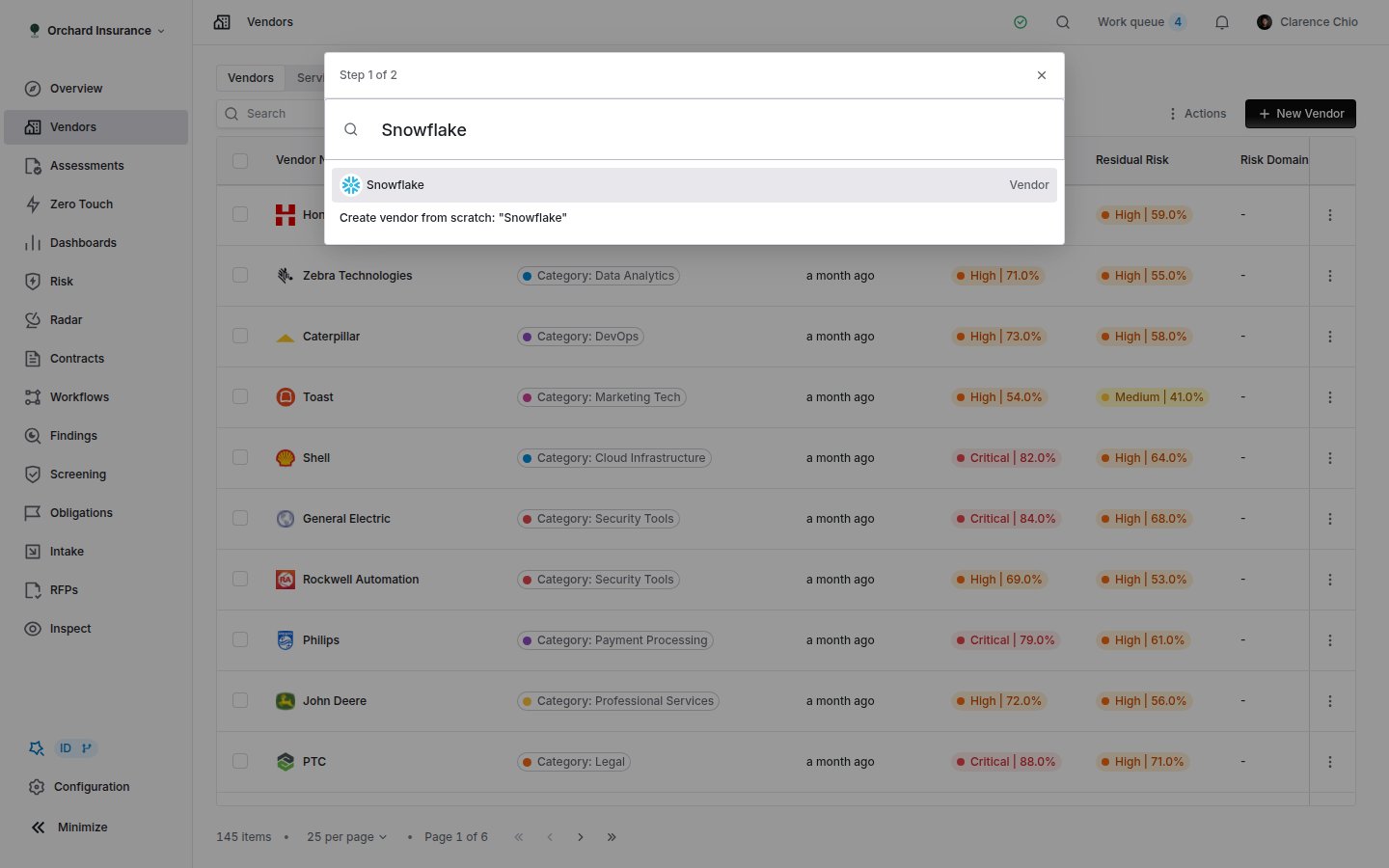 Type a company name or paste its website. Results fall into three groups:
| Group | What it means | What happens when you pick it |
| ----------------------------- | ----------------------------------------------------------------------------------------------------------------------- | -------------------------------------------------------------------------------- |
| **Already in your workspace** | A vendor your organization already has. | **Open** takes you to that record. No new vendor is created. |
| **Directory** | A company in the Coverbase directory. Rows can carry a **Verified** tag and a count of how many organizations track it. | The record is created against that directory entry and its fields are prefilled. |
| **Add "name" manually** | Nothing matched. | A blank record with only the name. |
Some directory rows have product lines. Press the right arrow key on the row to see them, grouped as **Products from name** and **Companies owned by name**. Picking a product creates a vendor for that product, not for its parent. Slack and Salesforce, or AWS and Amazon, are separate companies with separate trust centers and documents, so pick the one you actually buy from.
**Pick the directory entry when there is one.** A vendor created against a directory entry is backed by shared company data. That is what feeds **Coverbase library documents** on the Documents tab, the prefilled company fields with a **Refreshed** date, and the subprocessor suggestions described in [Nth parties and subprocessors](#nth-parties-and-subprocessors). A vendor added manually gets none of that until Coverbase staff link it to an entity later.
After the picker, the wizard continues with **Modify Vendor Details** and **Fill in additional fields**. Fields the directory prefilled are collapsed under **Prefilled from the directory**; the ones you still have to fill sit under **Needs your input**, with required ones marked **Required by your organization**. The field-by-field walkthrough is in [Running an assessment, Path 2](/user-guides/running-an-assessment#path-2-alternative-creating-the-vendor-manually).
Organizations that have not been switched to the directory picker see the older search field, *Select from existing vendors or create new\...*, with a **Create vendor from scratch** option at the bottom. The steps after that are the same.
## The vendor page
Open a vendor and you land on **Overview**. The header carries the name (editable inline), an **Archived** badge if the vendor is archived, a **Coverbase AI** button, a **Vendor changes** button when something is waiting for review, and an **Actions** menu with **Build report**, **Export as Excel**, **Merge vendor** and **Archive**.
Type a company name or paste its website. Results fall into three groups:
| Group | What it means | What happens when you pick it |
| ----------------------------- | ----------------------------------------------------------------------------------------------------------------------- | -------------------------------------------------------------------------------- |
| **Already in your workspace** | A vendor your organization already has. | **Open** takes you to that record. No new vendor is created. |
| **Directory** | A company in the Coverbase directory. Rows can carry a **Verified** tag and a count of how many organizations track it. | The record is created against that directory entry and its fields are prefilled. |
| **Add "name" manually** | Nothing matched. | A blank record with only the name. |
Some directory rows have product lines. Press the right arrow key on the row to see them, grouped as **Products from name** and **Companies owned by name**. Picking a product creates a vendor for that product, not for its parent. Slack and Salesforce, or AWS and Amazon, are separate companies with separate trust centers and documents, so pick the one you actually buy from.
**Pick the directory entry when there is one.** A vendor created against a directory entry is backed by shared company data. That is what feeds **Coverbase library documents** on the Documents tab, the prefilled company fields with a **Refreshed** date, and the subprocessor suggestions described in [Nth parties and subprocessors](#nth-parties-and-subprocessors). A vendor added manually gets none of that until Coverbase staff link it to an entity later.
After the picker, the wizard continues with **Modify Vendor Details** and **Fill in additional fields**. Fields the directory prefilled are collapsed under **Prefilled from the directory**; the ones you still have to fill sit under **Needs your input**, with required ones marked **Required by your organization**. The field-by-field walkthrough is in [Running an assessment, Path 2](/user-guides/running-an-assessment#path-2-alternative-creating-the-vendor-manually).
Organizations that have not been switched to the directory picker see the older search field, *Select from existing vendors or create new\...*, with a **Create vendor from scratch** option at the bottom. The steps after that are the same.
## The vendor page
Open a vendor and you land on **Overview**. The header carries the name (editable inline), an **Archived** badge if the vendor is archived, a **Coverbase AI** button, a **Vendor changes** button when something is waiting for review, and an **Actions** menu with **Build report**, **Export as Excel**, **Merge vendor** and **Archive**.
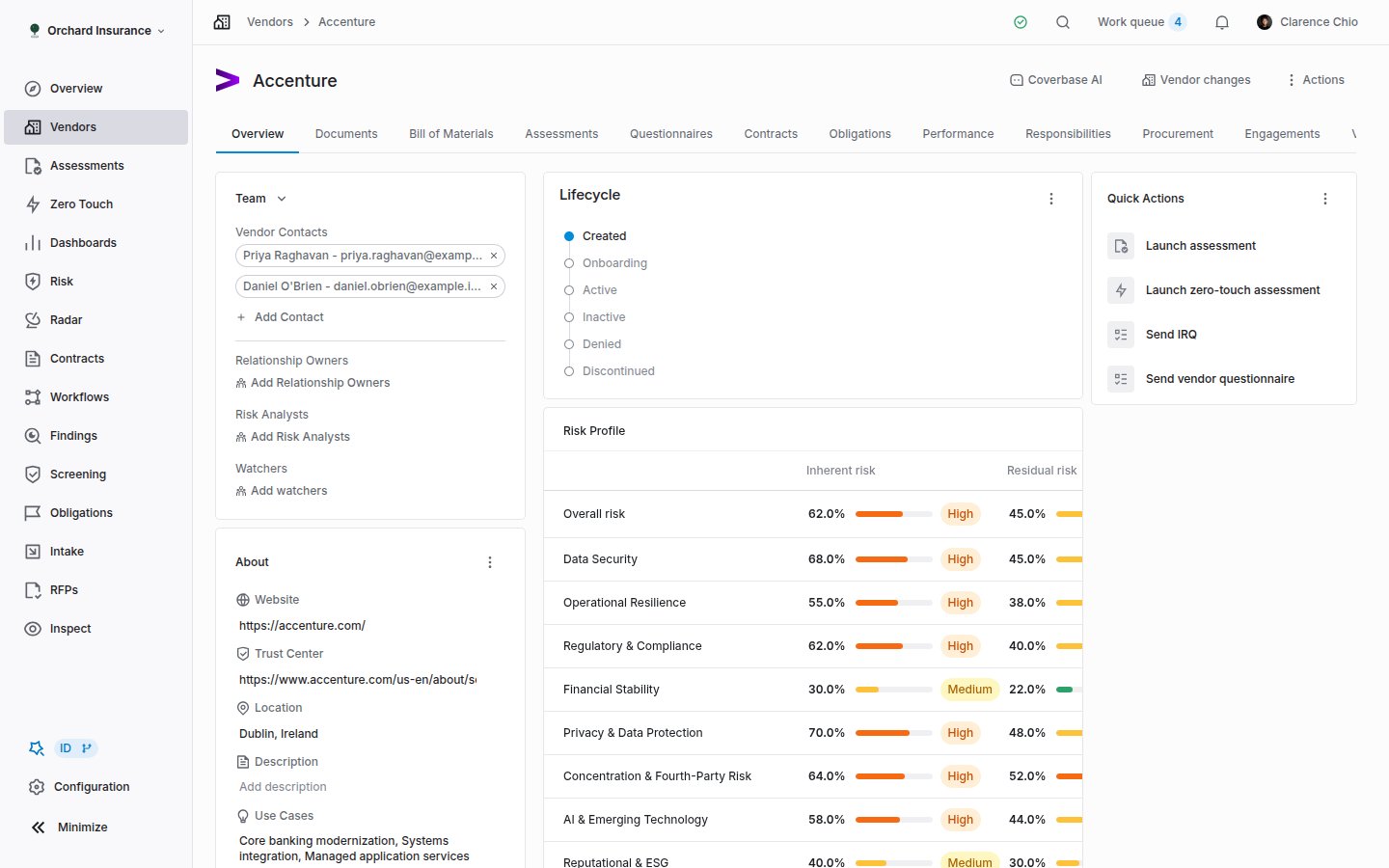 Some workspaces have the newer vendor page, where the same content is arranged as sections listed down the left (**Overview**, **About**, **Documents**, **Assessments** and so on) instead of tabs across the top. The cards, fields and actions are the same; only where you click to reach them differs.
### Sidebar cards
| Card | What it holds |
| -------------- | -------------------------------------------------------------------------------------------------------------------------------------------------------------------------------------------------------- |
| **Team** | **Vendor Contacts** (people at the vendor: name, title, email, phone, LinkedIn), **Relationship Owners**, **Risk Analysts** and watchers. See [Team and owners](#team-and-owners). |
| **About** | **Website**, **Trust Center**, **Location**, **Description**, **Use Cases** and **Security Contact**. **AI Autofill** fills the empty fields from public sources; it never overwrites a value you typed. |
| **Properties** | **Inherent Risk** and **Residual Risk**, plus every custom field configured for vendors. The **+** menu offers **Set Inherent Risk Score**, **Set Residual Risk Score** and **Add custom field**. |
| **Services** | The vendor's active services. **Add Service** asks for a **Service Name** and **Service Description**. |
| **Tags** | The tags on the record, editable inline. |
| **Locations** | The vendor's sites, when the Risk module is on. See [Risk geography map](/user-guides/risk-geography-map). |
### Main cards
The main column is a card grid you can rearrange; what appears depends on your modules and your role. **Lifecycle** shows the status and moves it. **Quick actions** holds **Launch assessment**, **Send IRQ**, **Send vendor questionnaire**, **Create new engagement** and **Upload contract**, plus a **Needs Attention** list of recent IRQs and Radar alerts. **Risk Profile** shows overall risk and a row per risk domain; **Inherent risk** shows the current level and the IRQs sent, with **New IRQ** to send another. **Recommendation**, **Assessments**, **Documents**, **Engagements**, **Contracts**, **Tasks** (open findings, soonest due first), **Radar** and **Notes** each summarize their tab.
### Tabs
| Tab | What you find there |
| ------------------------------------------------------------------------------------- | ---------------------------------------------------------------------------------------------------------------------------------------------------------------------------------------------------------------------------------------------------------------------------------------------- |
| **Overview** | The cards above. |
| **Documents** | Every document on the vendor, grouped by assessment or service, plus a **Coverbase library documents** card. Library documents were collected by Coverbase from the vendor directly or from its trust center, reviewed by Coverbase staff, and can be pulled onto your record with **Import**. |
| **Assessments** | Split into **Full Assessments** and **Zero Touch Assessments**, groupable by year, control set or risk domain. |
| **Questionnaires** | Every questionnaire ever sent to this vendor, with **Sent**, **Submitted**, **Due Date**, **Respondent** and **Reviewer** columns. Archived templates still appear here; the submissions happened. |
| **Contracts**, **Obligations** | The vendor's contracts, with **Committed Value** and a **Needs Attention** list of deadlines, and the obligations extracted from them. See [Contracts workspace](/user-guides/contracts-workspace). |
| **Engagements** | The vendor's engagements. See [Services and engagements](#services-and-engagements). |
| **Vendor Intelligence** | Outside-in intelligence. See [Vendor Intelligence](#vendor-intelligence). |
| **Know-Your-Vendor** | Supplier onboarding and verified records, when that module is on. See [Supplier information](/user-guides/supplier-information). |
| **Activity** | The audit trail: every field change, status move and action, with who did it and when. |
| **Properties** | **Risk Profile**, **Risks**, **Business unit dependencies** and **Subprocessors / fourth parties**. |
| **Bill of Materials**, **Performance**, **Portals**, **Emails**, **Radar**, **Notes** | Uploaded SBOM files; scorecards and SLAs; the portals created for this vendor; email exchanged with the vendor; Radar alerts and detectors; the notes feed. |
Tabs that belong to another module (Contracts, Obligations, Radar, Assessments, Questionnaires) only appear when your role can read that resource.
## Team and owners
The **Team** card names four kinds of people:
| Field | Who goes there | What it drives |
| ----------------------- | -------------------------------------------------------------- | ---------------------------------------------------------------------------------- |
| **Vendor Contacts** | People at the vendor. | Prefills document requests and follow-ups you send. |
| **Relationship Owners** | The person or group on your side accountable for the supplier. | Notifications about the vendor, and the **Relationship Owners** filter and column. |
| **Risk Analysts** | The person or group doing the assessment work. | Assignment and the **Risk Analysts** filter. |
| **Watchers** | Anyone else who should hear about the vendor. | Notifications only. |
Owners and analysts can be a user group as well as a person. How groups route work is covered in [Assignment and delegation](/user-guides/assignment-and-delegation).
### People who do not have an account
A relationship owner is often a business owner who will never log in. When you open the **Relationship Owners** or **Add watchers** picker and the person is not there, choose **Add directory contact**. This creates a person who can be named on records and receives email about them, but cannot sign in. The email address must belong to your organization: on one of your declared email domains, or matching a person your identity provider syncs to Coverbase. Directory contacts always receive email for the notifications addressed to them, because they have no settings page to opt in from.
**Risk Analysts** is different: an analyst does the work and needs to sign in, so that picker creates a real user and needs the user create permission.
### The notification this sends
Assigning someone as a relationship owner sends **Relationship owner assigned**: an in-app notification by default, and an email if the person has turned that on in their settings. It reads "*name* assigned you as relationship owner for *vendor*" with a link to the page. The full catalog is in [Email and notifications](/user-guides/email-notifications).
## Statuses and lifecycle
A vendor has one lifecycle status. The **Lifecycle** card on Overview shows the current stage; **Set status** in its menu moves it, and **Configure lifecycle** takes an admin to the status configuration. On the list, **Update status** in the bulk bar moves several vendors at once.
Every organization starts with these six:
| Status | Meaning | Group |
| ---------------- | -------------------------------------------------------- | --------- |
| **Created** | The record exists. This is the default for a new vendor. | Unstarted |
| **Onboarding** | Onboarding is in progress. | Started |
| **Active** | The vendor is approved and in use. | Completed |
| **Inactive** | Not in use, but the record stays. | Canceled |
| **Discontinued** | The relationship has ended. | Canceled |
| **Denied** | The vendor was turned down. | Canceled |
An admin can rename, recolor, reorder and add statuses under **Configuration**. **Onboarding** and **Active** are system-managed: you can restyle them, but the onboarding panel and the default portfolio chart rely on them, so they cannot be renamed or removed. See [Configuring your data model](/user-guides/data-model-configuration).
Status is not the same as archiving. **Inactive** or **Discontinued** keeps the vendor in every list and report. Archiving removes it. See [Merging and archiving](#merging-and-archiving).
## Services and engagements
A vendor sells you things; a **service** is one of those things. An **engagement** is a piece of work with that vendor that has a start, an end and a status.
### Services
Add one from the **Services** card in the sidebar (**Add Service**, then a **Service Name** and **Service Description**), from the **Sheet 2: Service intake** tab of the bulk template, or by promoting a vendor into a service during a merge.
Click a service to open its own page at `/vendors//service/`. It has the same shape as the vendor page: an **About Service** card, a team card, properties, tags and locations in the sidebar; **Lifecycle**, **Risk Profile**, **Inherent risk**, **Risks**, **Assessments**, **Documents** and **Notes** in the main column; and **Overview**, **Activity**, **Notes**, **Properties**, **Performance** and **Bill of Materials** tabs.
Some workspaces have the newer vendor page, where the same content is arranged as sections listed down the left (**Overview**, **About**, **Documents**, **Assessments** and so on) instead of tabs across the top. The cards, fields and actions are the same; only where you click to reach them differs.
### Sidebar cards
| Card | What it holds |
| -------------- | -------------------------------------------------------------------------------------------------------------------------------------------------------------------------------------------------------- |
| **Team** | **Vendor Contacts** (people at the vendor: name, title, email, phone, LinkedIn), **Relationship Owners**, **Risk Analysts** and watchers. See [Team and owners](#team-and-owners). |
| **About** | **Website**, **Trust Center**, **Location**, **Description**, **Use Cases** and **Security Contact**. **AI Autofill** fills the empty fields from public sources; it never overwrites a value you typed. |
| **Properties** | **Inherent Risk** and **Residual Risk**, plus every custom field configured for vendors. The **+** menu offers **Set Inherent Risk Score**, **Set Residual Risk Score** and **Add custom field**. |
| **Services** | The vendor's active services. **Add Service** asks for a **Service Name** and **Service Description**. |
| **Tags** | The tags on the record, editable inline. |
| **Locations** | The vendor's sites, when the Risk module is on. See [Risk geography map](/user-guides/risk-geography-map). |
### Main cards
The main column is a card grid you can rearrange; what appears depends on your modules and your role. **Lifecycle** shows the status and moves it. **Quick actions** holds **Launch assessment**, **Send IRQ**, **Send vendor questionnaire**, **Create new engagement** and **Upload contract**, plus a **Needs Attention** list of recent IRQs and Radar alerts. **Risk Profile** shows overall risk and a row per risk domain; **Inherent risk** shows the current level and the IRQs sent, with **New IRQ** to send another. **Recommendation**, **Assessments**, **Documents**, **Engagements**, **Contracts**, **Tasks** (open findings, soonest due first), **Radar** and **Notes** each summarize their tab.
### Tabs
| Tab | What you find there |
| ------------------------------------------------------------------------------------- | ---------------------------------------------------------------------------------------------------------------------------------------------------------------------------------------------------------------------------------------------------------------------------------------------- |
| **Overview** | The cards above. |
| **Documents** | Every document on the vendor, grouped by assessment or service, plus a **Coverbase library documents** card. Library documents were collected by Coverbase from the vendor directly or from its trust center, reviewed by Coverbase staff, and can be pulled onto your record with **Import**. |
| **Assessments** | Split into **Full Assessments** and **Zero Touch Assessments**, groupable by year, control set or risk domain. |
| **Questionnaires** | Every questionnaire ever sent to this vendor, with **Sent**, **Submitted**, **Due Date**, **Respondent** and **Reviewer** columns. Archived templates still appear here; the submissions happened. |
| **Contracts**, **Obligations** | The vendor's contracts, with **Committed Value** and a **Needs Attention** list of deadlines, and the obligations extracted from them. See [Contracts workspace](/user-guides/contracts-workspace). |
| **Engagements** | The vendor's engagements. See [Services and engagements](#services-and-engagements). |
| **Vendor Intelligence** | Outside-in intelligence. See [Vendor Intelligence](#vendor-intelligence). |
| **Know-Your-Vendor** | Supplier onboarding and verified records, when that module is on. See [Supplier information](/user-guides/supplier-information). |
| **Activity** | The audit trail: every field change, status move and action, with who did it and when. |
| **Properties** | **Risk Profile**, **Risks**, **Business unit dependencies** and **Subprocessors / fourth parties**. |
| **Bill of Materials**, **Performance**, **Portals**, **Emails**, **Radar**, **Notes** | Uploaded SBOM files; scorecards and SLAs; the portals created for this vendor; email exchanged with the vendor; Radar alerts and detectors; the notes feed. |
Tabs that belong to another module (Contracts, Obligations, Radar, Assessments, Questionnaires) only appear when your role can read that resource.
## Team and owners
The **Team** card names four kinds of people:
| Field | Who goes there | What it drives |
| ----------------------- | -------------------------------------------------------------- | ---------------------------------------------------------------------------------- |
| **Vendor Contacts** | People at the vendor. | Prefills document requests and follow-ups you send. |
| **Relationship Owners** | The person or group on your side accountable for the supplier. | Notifications about the vendor, and the **Relationship Owners** filter and column. |
| **Risk Analysts** | The person or group doing the assessment work. | Assignment and the **Risk Analysts** filter. |
| **Watchers** | Anyone else who should hear about the vendor. | Notifications only. |
Owners and analysts can be a user group as well as a person. How groups route work is covered in [Assignment and delegation](/user-guides/assignment-and-delegation).
### People who do not have an account
A relationship owner is often a business owner who will never log in. When you open the **Relationship Owners** or **Add watchers** picker and the person is not there, choose **Add directory contact**. This creates a person who can be named on records and receives email about them, but cannot sign in. The email address must belong to your organization: on one of your declared email domains, or matching a person your identity provider syncs to Coverbase. Directory contacts always receive email for the notifications addressed to them, because they have no settings page to opt in from.
**Risk Analysts** is different: an analyst does the work and needs to sign in, so that picker creates a real user and needs the user create permission.
### The notification this sends
Assigning someone as a relationship owner sends **Relationship owner assigned**: an in-app notification by default, and an email if the person has turned that on in their settings. It reads "*name* assigned you as relationship owner for *vendor*" with a link to the page. The full catalog is in [Email and notifications](/user-guides/email-notifications).
## Statuses and lifecycle
A vendor has one lifecycle status. The **Lifecycle** card on Overview shows the current stage; **Set status** in its menu moves it, and **Configure lifecycle** takes an admin to the status configuration. On the list, **Update status** in the bulk bar moves several vendors at once.
Every organization starts with these six:
| Status | Meaning | Group |
| ---------------- | -------------------------------------------------------- | --------- |
| **Created** | The record exists. This is the default for a new vendor. | Unstarted |
| **Onboarding** | Onboarding is in progress. | Started |
| **Active** | The vendor is approved and in use. | Completed |
| **Inactive** | Not in use, but the record stays. | Canceled |
| **Discontinued** | The relationship has ended. | Canceled |
| **Denied** | The vendor was turned down. | Canceled |
An admin can rename, recolor, reorder and add statuses under **Configuration**. **Onboarding** and **Active** are system-managed: you can restyle them, but the onboarding panel and the default portfolio chart rely on them, so they cannot be renamed or removed. See [Configuring your data model](/user-guides/data-model-configuration).
Status is not the same as archiving. **Inactive** or **Discontinued** keeps the vendor in every list and report. Archiving removes it. See [Merging and archiving](#merging-and-archiving).
## Services and engagements
A vendor sells you things; a **service** is one of those things. An **engagement** is a piece of work with that vendor that has a start, an end and a status.
### Services
Add one from the **Services** card in the sidebar (**Add Service**, then a **Service Name** and **Service Description**), from the **Sheet 2: Service intake** tab of the bulk template, or by promoting a vendor into a service during a merge.
Click a service to open its own page at `/vendors//service/`. It has the same shape as the vendor page: an **About Service** card, a team card, properties, tags and locations in the sidebar; **Lifecycle**, **Risk Profile**, **Inherent risk**, **Risks**, **Assessments**, **Documents** and **Notes** in the main column; and **Overview**, **Activity**, **Notes**, **Properties**, **Performance** and **Bill of Materials** tabs.
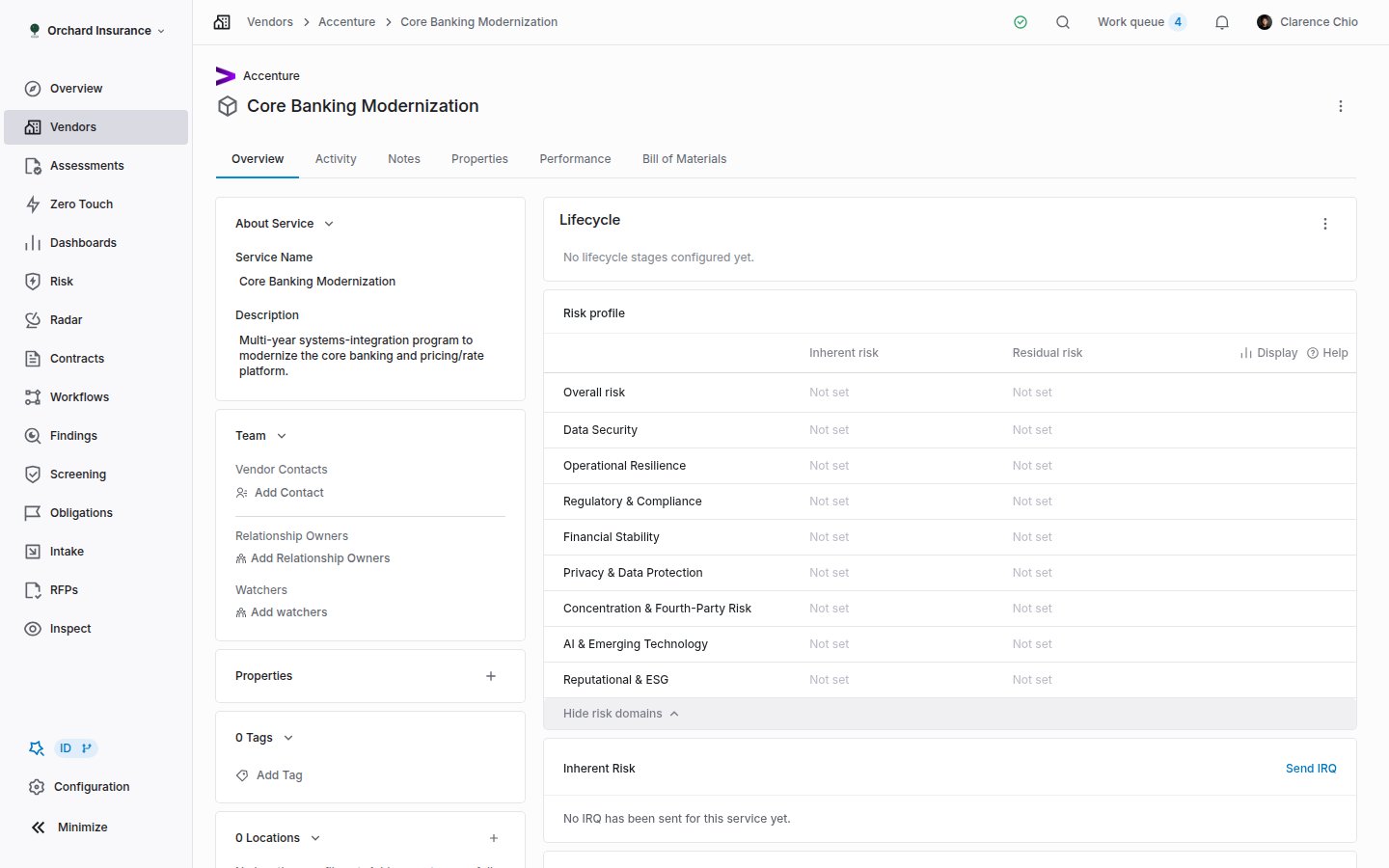 Use a service when you need risk at a finer grain than the vendor. You can send an IRQ to a service and assess a service on its own, which keeps the scope tight and gives each product its own score. Whether those service scores roll up into the vendor's score is an organization setting; see [Decide whether service scores set the vendor's score](/user-guides/admin-setup#decide-whether-service-scores-set-the-vendors-score).
The **Actions** menu on a service page offers:
| Action | What it does |
| --------------------- | --------------------------------------------------------------------------------------------------------------------------------------------------------------------------------------------------------------------------------------------------------------- |
| **Merge service** | Merges another service of the same vendor into this one. |
| **Relink Vendor** | Moves the service under a different vendor. It keeps its id, history and everything recorded on it. Only its vendor changes. |
| **Promote to Vendor** | Creates a standalone vendor from the service and archives the service. Risk scores, SLAs, performance scores and comments come across. Assessments, documents and contracts belong to the current vendor and stay with it, reachable from the archived service. |
| **Archive** | Archives the service. |
### Engagements
Create one from **Quick actions → Create new engagement** on the Overview tab, from **New Engagement** on the Engagements tab, or from the **Engagements** view of the list. The form asks for a name (the placeholder suggests *2026 Annual Review*), a status, a **Start Date** and an **End Date**.
An engagement's page lives at `/vendors//engagement/`. The **About Engagement** card is where you link the vendor's **Services** and **Contracts** to it, so a renewal or a project points at the exact products and agreements it covers. **Engagement Term** holds the dates. The main column has its own **Lifecycle**, **Risk Profile** and **Inherent risk** cards, so an engagement can carry an IRQ of its own. Tabs are **Overview**, **Activity** and **Notes**. Engagements have their own statuses under **Configuration**, separate from vendor statuses, and are archived from their page or from the row menu on the **Engagements** view.
## Nth parties and subprocessors
An nth party is a company your vendor depends on: its cloud host, its payment processor, its support tooling. Coverbase keeps shared research on these dependencies, assembled from published subprocessor lists, SOC reports and the directory. Your organization keeps its own record of them on each vendor, and the shared research feeds that record as suggestions.
### On the vendor
Open the **Properties** tab and find **Subprocessors / fourth parties**.
Use a service when you need risk at a finer grain than the vendor. You can send an IRQ to a service and assess a service on its own, which keeps the scope tight and gives each product its own score. Whether those service scores roll up into the vendor's score is an organization setting; see [Decide whether service scores set the vendor's score](/user-guides/admin-setup#decide-whether-service-scores-set-the-vendors-score).
The **Actions** menu on a service page offers:
| Action | What it does |
| --------------------- | --------------------------------------------------------------------------------------------------------------------------------------------------------------------------------------------------------------------------------------------------------------- |
| **Merge service** | Merges another service of the same vendor into this one. |
| **Relink Vendor** | Moves the service under a different vendor. It keeps its id, history and everything recorded on it. Only its vendor changes. |
| **Promote to Vendor** | Creates a standalone vendor from the service and archives the service. Risk scores, SLAs, performance scores and comments come across. Assessments, documents and contracts belong to the current vendor and stay with it, reachable from the archived service. |
| **Archive** | Archives the service. |
### Engagements
Create one from **Quick actions → Create new engagement** on the Overview tab, from **New Engagement** on the Engagements tab, or from the **Engagements** view of the list. The form asks for a name (the placeholder suggests *2026 Annual Review*), a status, a **Start Date** and an **End Date**.
An engagement's page lives at `/vendors//engagement/`. The **About Engagement** card is where you link the vendor's **Services** and **Contracts** to it, so a renewal or a project points at the exact products and agreements it covers. **Engagement Term** holds the dates. The main column has its own **Lifecycle**, **Risk Profile** and **Inherent risk** cards, so an engagement can carry an IRQ of its own. Tabs are **Overview**, **Activity** and **Notes**. Engagements have their own statuses under **Configuration**, separate from vendor statuses, and are archived from their page or from the row menu on the **Engagements** view.
## Nth parties and subprocessors
An nth party is a company your vendor depends on: its cloud host, its payment processor, its support tooling. Coverbase keeps shared research on these dependencies, assembled from published subprocessor lists, SOC reports and the directory. Your organization keeps its own record of them on each vendor, and the shared research feeds that record as suggestions.
### On the vendor
Open the **Properties** tab and find **Subprocessors / fourth parties**.
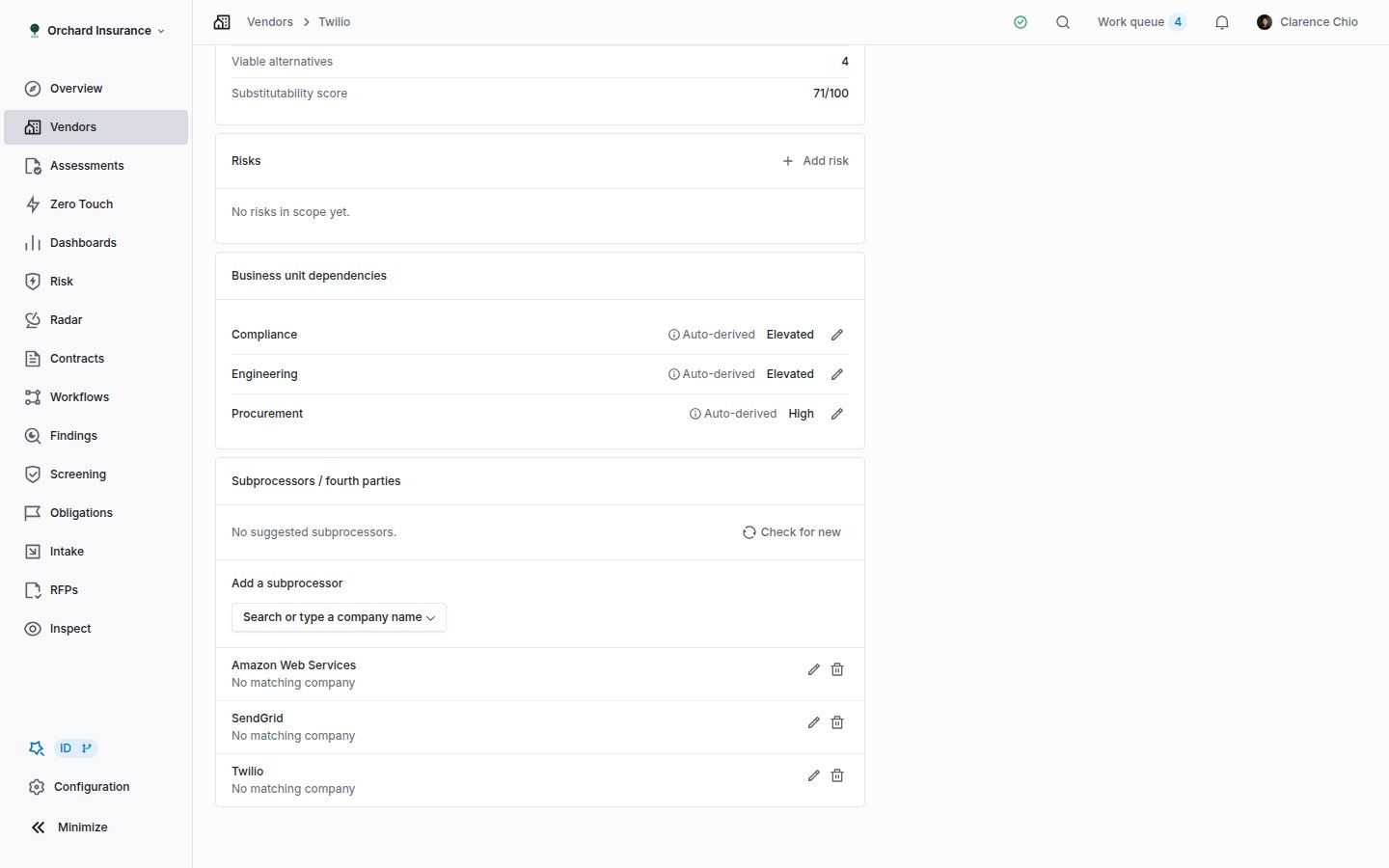 To add one by hand, use the **Search or type a company name** box. Matching to a directory company gives the row a website and lets the graph and the risk chain treat it as the same company across vendors; a row with no match is just a name. Each row can carry a **Category**, an **HQ location**, an **Inherent Risk Level** and **Tags**.
**Edit** on a row opens **Edit Dependency**, your organization's own description of what the vendor relies on this company for: **Still a dependency**, **Dependency Type** (cloud infrastructure, payment processing, and so on), **Mode** (processor, reseller or OEM, integration), **Data in Scope** and **Notes**. Saving these details marks the link as yours, and Coverbase stops suggesting changes to it.
Two badges matter:
| Badge | Meaning |
| -------------------- | ------------------------------------------------------------------------------------------------------------------------------------------ |
| **Inherited** | Coverbase's shared research suggested this subprocessor and it was accepted. Editing it stops later updates from overwriting your changes. |
| **Dependency ended** | Your record says the vendor no longer depends on this company. |
**Remove** archives the link. Removal is permanent: a removed subprocessor is never suggested again for that vendor, even if the shared research still lists it. You can add it back by hand.
### Suggestions, with or without review
The **Suggested Subprocessors** panel lists what the shared research knows that your record does not: a new dependency, a change to one you have (**Updated**), or one that has ended (**Dependency ended**). **Check for new** runs the comparison for this vendor on demand; it also runs when a vendor first gains its directory entry and nightly for every vendor. Accept or reject rows singly, or **Accept all** / **Reject all**. Rejecting is durable: the suggestion does not come back.
Whether suggestions wait for you at all is an organization setting under **Settings → Subprocessors**, **When Coverbase Finds a New Subprocessor**:
| Setting | Behavior |
| -------------------------------------------- | ---------------------------------------------------------------------------------------- |
| **Add it automatically** | New dependencies land on the vendor without review. This is the default. |
| **Queue it for review under Vendor changes** | Suggestions wait in the panel and in the **Vendor changes** queue until someone decides. |
| **Do not add anything** | The research is ignored. |
When suggestions are queued, the vendor page header shows **Vendor changes** with a count. It opens the review queue for that vendor. The same rows are decided from the Properties tab.
Suggestions come only from companies Coverbase has researched. A dependency your vendor disclosed that is not in the shared graph has to be added by hand. A vendor that was added manually, with no directory entry behind it, gets no suggestions at all.
### The Nth Parties view
Back on the list page, switch to **Nth Parties**. The table has **Nth Party Name**, **Website**, **Inherent Risk Level**, **Description**, **Tags** and **Vendors** columns; the row menu lists which of your vendors depend on it. The relationship graph sits beside the table. Clicking a row highlights it in the graph; clicking a vendor node filters the table to that vendor's nth parties, and clicking an nth-party node filters it to that one. **Reset view and filters** clears it. The graph opens full screen at `/vendors/nth-party-graph` (search the command palette for *Nth Party Graph*), where **Export as SVG** saves it.
To add one by hand, use the **Search or type a company name** box. Matching to a directory company gives the row a website and lets the graph and the risk chain treat it as the same company across vendors; a row with no match is just a name. Each row can carry a **Category**, an **HQ location**, an **Inherent Risk Level** and **Tags**.
**Edit** on a row opens **Edit Dependency**, your organization's own description of what the vendor relies on this company for: **Still a dependency**, **Dependency Type** (cloud infrastructure, payment processing, and so on), **Mode** (processor, reseller or OEM, integration), **Data in Scope** and **Notes**. Saving these details marks the link as yours, and Coverbase stops suggesting changes to it.
Two badges matter:
| Badge | Meaning |
| -------------------- | ------------------------------------------------------------------------------------------------------------------------------------------ |
| **Inherited** | Coverbase's shared research suggested this subprocessor and it was accepted. Editing it stops later updates from overwriting your changes. |
| **Dependency ended** | Your record says the vendor no longer depends on this company. |
**Remove** archives the link. Removal is permanent: a removed subprocessor is never suggested again for that vendor, even if the shared research still lists it. You can add it back by hand.
### Suggestions, with or without review
The **Suggested Subprocessors** panel lists what the shared research knows that your record does not: a new dependency, a change to one you have (**Updated**), or one that has ended (**Dependency ended**). **Check for new** runs the comparison for this vendor on demand; it also runs when a vendor first gains its directory entry and nightly for every vendor. Accept or reject rows singly, or **Accept all** / **Reject all**. Rejecting is durable: the suggestion does not come back.
Whether suggestions wait for you at all is an organization setting under **Settings → Subprocessors**, **When Coverbase Finds a New Subprocessor**:
| Setting | Behavior |
| -------------------------------------------- | ---------------------------------------------------------------------------------------- |
| **Add it automatically** | New dependencies land on the vendor without review. This is the default. |
| **Queue it for review under Vendor changes** | Suggestions wait in the panel and in the **Vendor changes** queue until someone decides. |
| **Do not add anything** | The research is ignored. |
When suggestions are queued, the vendor page header shows **Vendor changes** with a count. It opens the review queue for that vendor. The same rows are decided from the Properties tab.
Suggestions come only from companies Coverbase has researched. A dependency your vendor disclosed that is not in the shared graph has to be added by hand. A vendor that was added manually, with no directory entry behind it, gets no suggestions at all.
### The Nth Parties view
Back on the list page, switch to **Nth Parties**. The table has **Nth Party Name**, **Website**, **Inherent Risk Level**, **Description**, **Tags** and **Vendors** columns; the row menu lists which of your vendors depend on it. The relationship graph sits beside the table. Clicking a row highlights it in the graph; clicking a vendor node filters the table to that vendor's nth parties, and clicking an nth-party node filters it to that one. **Reset view and filters** clears it. The graph opens full screen at `/vendors/nth-party-graph` (search the command palette for *Nth Party Graph*), where **Export as SVG** saves it.
 ## Merging and archiving
There is no delete for a vendor. The two ways to make one go away are to merge it into another or to archive it.
### Merging
From a vendor's page, **Actions → Merge vendor** asks you to pick another vendor. Everything on the selected vendor moves into the one you are on, and the selected vendor is archived. Where both have a value for the same field, the vendor you are on wins; where only one does, that value is kept.
From the list, **Actions → Merge Vendors** scans the whole portfolio for likely duplicates, grouped by **Same domain**, **Same brand, different TLD**, **Same name** and **Similar name**. Pick a primary in each group and a strategy:
| Strategy | Result |
| ---------------------------------- | ------------------------------------------------------------------------------------------------------------------- |
| **Merge as equals** | Combine all data into the primary and archive the duplicates. |
| **Convert non-primary to service** | The non-primary vendor becomes a service of the primary. Its services move across and its assessments are combined. |
| **Archive duplicates** | Keep the primary and archive the others without moving data. |
Merge before you bulk-upload documents: the ZIP uploader rejects a folder whose name matches more than one vendor.
### Archiving
**Actions → Archive** on the vendor page, **Archive** in the row menu, or **Archive** in the bulk bar. The confirmation says what goes with it: the vendor's assessments, issues, tasks, documents and obligations are archived too.
After archiving, the vendor disappears from the list and from pickers. Its page still opens with an **Archived** badge, and the **Archived** filter brings it back into the list. There is no unarchive button in the dashboard.
## Who can do what
| Action | Needs |
| ----------------------------------------- | ------------------------------------------------------------------------------------------------------------------------------- |
| See the list and a vendor's page | Read access to vendors. Roles limited to assigned records see only those. |
| Edit fields, team, tags, services, status | Update access to vendors. Members and admins have it; a member limited to assigned vendors has it on vendors they are named on. |
| Create a vendor or bulk create | Vendor create access. |
| Archive | The vendor archive permission. The item is grayed out with a tooltip when you lack it. |
| Export as Excel, portfolio report | The vendor export permission (service export for the services workbook). |
| Add a directory contact | Update access to vendors. Adding a risk analyst who needs an account requires user create access. |
Roles and how permissions are built: [Permissions and roles](/user-guides/permissions-and-roles).
## Vendor Intelligence
The **Vendor Intelligence** tab is where Coverbase's outside-in research on the company appears. Each section has its own guide, and this page does not repeat them: the two headline cards in [Financial health and security intelligence](/user-guides/vendor-fact-sheet), then [Security intelligence](/user-guides/security-intelligence), [Financial health](/user-guides/financial-health-score), [Corporate registrations](/user-guides/corporate-registrations), [People intelligence](/user-guides/people-intelligence) and [Sanctions screening](/user-guides/sanctions-screening). The product overview is at [Vendor Intelligence](/products/vendor-intelligence).
## Troubleshooting
| What you see | What is happening |
| ------------------------------------------------------------------------------ | ----------------------------------------------------------------------------------------------------------------------------------------------------------------------------------- |
| "The vendor I added has no library documents and no subprocessor suggestions." | It was added manually, so no directory entry backs it. Search the picker again for the company; if it exists in the directory, ask your Coverbase contact to link the record to it. |
| "The picker keeps showing **Open** instead of creating." | The company is already a vendor in your workspace. Open it rather than creating a duplicate. |
| "I cannot find a vendor that used to be here." | It was archived, or merged into another vendor. Add the **Archived** filter on the list; a merged vendor's activity names the record it was merged into. |
| "**Archive** is grayed out." | Your role lacks the vendor archive permission. Hover the item for the tooltip. |
| "A subprocessor I removed is missing from the suggestions." | Removal is permanent by design. Add it back by hand from the search box. |
| "Suggestions are being added without anyone approving them." | The organization setting is **Add it automatically**. Change it to **Queue it for review under Vendor changes** in **Settings → Subprocessors**. |
| "I set a vendor to **Inactive** but it still appears everywhere." | Status does not hide a record. Archive it if you want it out of lists and pickers. |
| "I added a relationship owner but they never got an email." | The in-app notification is on by default; the email is off until that person turns it on in their settings. Directory contacts are the exception and are always emailed. |
## Related
From a vendor record to a completed assessment, including the manual create walkthrough.
The intake path, which creates or links the vendor with due diligence attached.
Importing the portfolio and designing the tag structure.
## Merging and archiving
There is no delete for a vendor. The two ways to make one go away are to merge it into another or to archive it.
### Merging
From a vendor's page, **Actions → Merge vendor** asks you to pick another vendor. Everything on the selected vendor moves into the one you are on, and the selected vendor is archived. Where both have a value for the same field, the vendor you are on wins; where only one does, that value is kept.
From the list, **Actions → Merge Vendors** scans the whole portfolio for likely duplicates, grouped by **Same domain**, **Same brand, different TLD**, **Same name** and **Similar name**. Pick a primary in each group and a strategy:
| Strategy | Result |
| ---------------------------------- | ------------------------------------------------------------------------------------------------------------------- |
| **Merge as equals** | Combine all data into the primary and archive the duplicates. |
| **Convert non-primary to service** | The non-primary vendor becomes a service of the primary. Its services move across and its assessments are combined. |
| **Archive duplicates** | Keep the primary and archive the others without moving data. |
Merge before you bulk-upload documents: the ZIP uploader rejects a folder whose name matches more than one vendor.
### Archiving
**Actions → Archive** on the vendor page, **Archive** in the row menu, or **Archive** in the bulk bar. The confirmation says what goes with it: the vendor's assessments, issues, tasks, documents and obligations are archived too.
After archiving, the vendor disappears from the list and from pickers. Its page still opens with an **Archived** badge, and the **Archived** filter brings it back into the list. There is no unarchive button in the dashboard.
## Who can do what
| Action | Needs |
| ----------------------------------------- | ------------------------------------------------------------------------------------------------------------------------------- |
| See the list and a vendor's page | Read access to vendors. Roles limited to assigned records see only those. |
| Edit fields, team, tags, services, status | Update access to vendors. Members and admins have it; a member limited to assigned vendors has it on vendors they are named on. |
| Create a vendor or bulk create | Vendor create access. |
| Archive | The vendor archive permission. The item is grayed out with a tooltip when you lack it. |
| Export as Excel, portfolio report | The vendor export permission (service export for the services workbook). |
| Add a directory contact | Update access to vendors. Adding a risk analyst who needs an account requires user create access. |
Roles and how permissions are built: [Permissions and roles](/user-guides/permissions-and-roles).
## Vendor Intelligence
The **Vendor Intelligence** tab is where Coverbase's outside-in research on the company appears. Each section has its own guide, and this page does not repeat them: the two headline cards in [Financial health and security intelligence](/user-guides/vendor-fact-sheet), then [Security intelligence](/user-guides/security-intelligence), [Financial health](/user-guides/financial-health-score), [Corporate registrations](/user-guides/corporate-registrations), [People intelligence](/user-guides/people-intelligence) and [Sanctions screening](/user-guides/sanctions-screening). The product overview is at [Vendor Intelligence](/products/vendor-intelligence).
## Troubleshooting
| What you see | What is happening |
| ------------------------------------------------------------------------------ | ----------------------------------------------------------------------------------------------------------------------------------------------------------------------------------- |
| "The vendor I added has no library documents and no subprocessor suggestions." | It was added manually, so no directory entry backs it. Search the picker again for the company; if it exists in the directory, ask your Coverbase contact to link the record to it. |
| "The picker keeps showing **Open** instead of creating." | The company is already a vendor in your workspace. Open it rather than creating a duplicate. |
| "I cannot find a vendor that used to be here." | It was archived, or merged into another vendor. Add the **Archived** filter on the list; a merged vendor's activity names the record it was merged into. |
| "**Archive** is grayed out." | Your role lacks the vendor archive permission. Hover the item for the tooltip. |
| "A subprocessor I removed is missing from the suggestions." | Removal is permanent by design. Add it back by hand from the search box. |
| "Suggestions are being added without anyone approving them." | The organization setting is **Add it automatically**. Change it to **Queue it for review under Vendor changes** in **Settings → Subprocessors**. |
| "I set a vendor to **Inactive** but it still appears everywhere." | Status does not hide a record. Archive it if you want it out of lists and pickers. |
| "I added a relationship owner but they never got an email." | The in-app notification is on by default; the email is off until that person turns it on in their settings. Directory contacts are the exception and are always emailed. |
## Related
From a vendor record to a completed assessment, including the manual create walkthrough.
The intake path, which creates or links the vendor with due diligence attached.
Importing the portfolio and designing the tag structure.