> ## Documentation Index
> Fetch the complete documentation index at: https://docs.coverbase.com/llms.txt
> Use this file to discover all available pages before exploring further.
# Warehouse data share
> Add a Snowflake, Amazon S3 or BigQuery destination, test it, sync it hourly or daily, read the run log and the table contract, and point Power BI or Tableau at the current views.
For AI agents: a documentation index is available at [https://docs.coverbase.com/llms.txt](https://docs.coverbase.com/llms.txt). This page is also available in markdown by appending .md to the URL.
This guide is part of the [User Guides](/user-guides/overview) collection. It covers **Configuration → Data Share** and the **Distribution** card on **Program Overview**. It sits beside [Exporting and scheduling dashboards](/user-guides/dashboard-exports) and [Integration Hub](/user-guides/integration-hub). Each destination has a setup guide: [Snowflake](/integrations/guides/snowflake), [Amazon S3](/integrations/guides/amazon-s3) and [BigQuery](/integrations/guides/bigquery). For what the module is, see [Warehouse data share](/products/warehouse-data-share).
Your Coverbase representative turns on the third-party lifecycle features, including data share, for your organization.
Data share writes your third-party risk tables into your own warehouse or bucket on a schedule. Your BI tools read them there.
The mistake people make most often is building a report on the raw tables. Each sync appends changed rows, so a raw table holds several versions of the same record. Build on the `_current` views, or deduplicate S3 files on `id` keeping the latest `_cb_synced_at`.
## Step 1: Prepare the destination
Before you open Coverbase, prepare the account on your side. The provider guides have the exact grants:
* **Snowflake:** a user with a key pair (the public key set as `RSA_PUBLIC_KEY`) and a role with `USAGE` on the warehouse, database and schema, and `CREATE TABLE` and `CREATE VIEW` on the schema.
* **BigQuery:** a service account with BigQuery Data Editor on the dataset and Job User on the project. The dataset is created if it does not exist.
* **Amazon S3:** a bucket and an IAM role with `s3:PutObject` under the prefix. You finish its trust policy after saving (step 3).
## Step 2: Add the destination
Open **Configuration** and choose **Data Share**. Click **Add destination**.
 1. Give it a **Name**, choose the **Type** (**Snowflake**, **Amazon S3** or **BigQuery**) and how often to **Sync** (**Hourly** or **Daily**).
2. Fill in the fields for the type:
| Type | Fields |
| - | - |
| Snowflake | **Account**, **User**, **Role**, **Warehouse**, **Database**, **Schema**, **Private Key (PEM)** and an optional **Key passphrase** |
| Amazon S3 | **Bucket**, **Prefix**, **Region**, **IAM Role ARN**, **File Format** (**CSV (gzip)**, **JSON Lines (gzip)** or **Parquet (snappy)**) |
| BigQuery | **Project ID**, **Dataset**, **Location**, **Service Account Key (JSON)** |
3. Click **Add destination**.
Credentials are stored encrypted the moment you save and are never shown again. The card shows only a hint: the key's fingerprint for Snowflake, or the service account's email for BigQuery. To change a credential, **Edit** the destination and enter a new one. Leave the field empty to keep the stored one.
## Step 3: Finish the S3 trust policy
When you save an S3 destination, **Finish S3 Setup** opens with the destination's **External ID** and a ready-made **Trust Policy** naming the Coverbase principal. **Copy** it and paste it into the role's trust relationship in the AWS console, then click **Done**. The destination card keeps the external ID and policy under **Role trust policy** if you need them again. Coverbase assumes the role only with that external ID, which is generated for this one destination and starts with `coverbase-`.
## Step 4: Test and sync
Click **Test connection**. **Coverbase wrote to the destination.** means the credentials and grants work. If it fails, **The destination rejected the test** says what to fix in plain terms: a trust policy that refused the role, a missing bucket, a role that cannot write under the prefix, a wrong region, or a warehouse that cannot be reached. Then click **Sync now** for the first sync, or wait for the schedule.
The card shows health: **Live**, **Failing**, **Paused**, **Pending** or **Needs credential**. **Run log** lists each run's **Started**, **Status**, **Trigger** (**Scheduled** or **Sync now**), **Rows** and **Tables**, a page at a time. **Show run details** gives the rows written per table and, for a failed run, **What went wrong**. A failed run is retried from the same point by the next one, so nothing is skipped.
**Pause syncing** and **Resume syncing** stop and restart the schedule. **Archive** stops syncing and deletes the credential. Tables already written stay in your warehouse.
## Step 5: Model on the current views
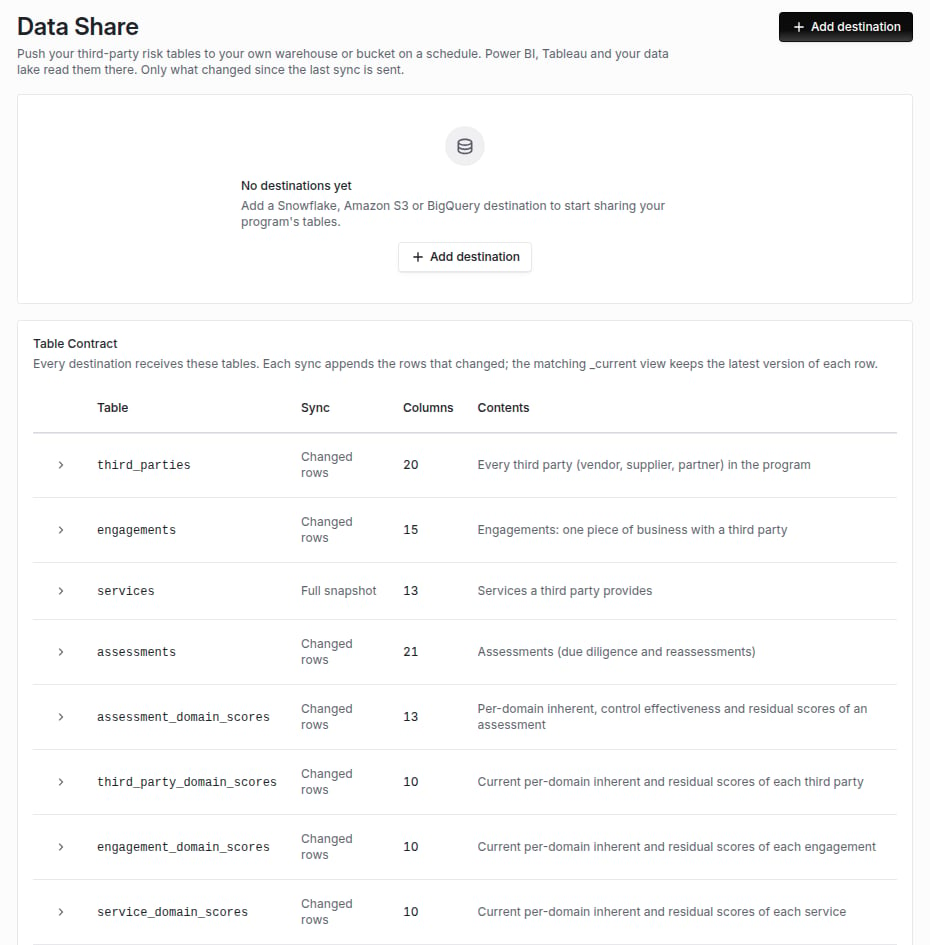
**Table Contract** on the Data Share page lists every table, whether it syncs **Changed rows** or a **Full snapshot**, and its columns. Every `*_level_id` column joins to `risk_levels.id`, and every `status_id` to `statuses.id`.
* In Snowflake and BigQuery, point Power BI or Tableau at the `
1. Give it a **Name**, choose the **Type** (**Snowflake**, **Amazon S3** or **BigQuery**) and how often to **Sync** (**Hourly** or **Daily**).
2. Fill in the fields for the type:
| Type | Fields |
| - | - |
| Snowflake | **Account**, **User**, **Role**, **Warehouse**, **Database**, **Schema**, **Private Key (PEM)** and an optional **Key passphrase** |
| Amazon S3 | **Bucket**, **Prefix**, **Region**, **IAM Role ARN**, **File Format** (**CSV (gzip)**, **JSON Lines (gzip)** or **Parquet (snappy)**) |
| BigQuery | **Project ID**, **Dataset**, **Location**, **Service Account Key (JSON)** |
3. Click **Add destination**.
Credentials are stored encrypted the moment you save and are never shown again. The card shows only a hint: the key's fingerprint for Snowflake, or the service account's email for BigQuery. To change a credential, **Edit** the destination and enter a new one. Leave the field empty to keep the stored one.
## Step 3: Finish the S3 trust policy
When you save an S3 destination, **Finish S3 Setup** opens with the destination's **External ID** and a ready-made **Trust Policy** naming the Coverbase principal. **Copy** it and paste it into the role's trust relationship in the AWS console, then click **Done**. The destination card keeps the external ID and policy under **Role trust policy** if you need them again. Coverbase assumes the role only with that external ID, which is generated for this one destination and starts with `coverbase-`.
## Step 4: Test and sync
Click **Test connection**. **Coverbase wrote to the destination.** means the credentials and grants work. If it fails, **The destination rejected the test** says what to fix in plain terms: a trust policy that refused the role, a missing bucket, a role that cannot write under the prefix, a wrong region, or a warehouse that cannot be reached. Then click **Sync now** for the first sync, or wait for the schedule.
The card shows health: **Live**, **Failing**, **Paused**, **Pending** or **Needs credential**. **Run log** lists each run's **Started**, **Status**, **Trigger** (**Scheduled** or **Sync now**), **Rows** and **Tables**, a page at a time. **Show run details** gives the rows written per table and, for a failed run, **What went wrong**. A failed run is retried from the same point by the next one, so nothing is skipped.
**Pause syncing** and **Resume syncing** stop and restart the schedule. **Archive** stops syncing and deletes the credential. Tables already written stay in your warehouse.
## Step 5: Model on the current views
**Table Contract** on the Data Share page lists every table, whether it syncs **Changed rows** or a **Full snapshot**, and its columns. Every `*_level_id` column joins to `risk_levels.id`, and every `status_id` to `statuses.id`.
* In Snowflake and BigQuery, point Power BI or Tableau at the `_current` views.
* In S3, read the files under `//synced_date=YYYY-MM-DD/`, deduplicate on `id` keeping the latest `_cb_synced_at`, and read each table's columns from `/_contract/.json`.
Timestamps are UTC. Archived records stay with `is_archived` set. Columns are only ever added, never renamed or removed in place.
## Where it shows
The **Distribution** card on [Program Overview](/user-guides/program-insights), under **Dashboards**, lists each destination with its table count and last sync, beside the board pack schedule and your scheduled dashboard emails. **Manage** opens the Data Share page.
## Troubleshooting
| What you see | Cause | Fix |
| - | - | - |
| **The destination rejected the test** | A grant is missing, or the key, service account or role is wrong. | Check the grants in the provider guide. |
| An S3 test fails with access denied | The role's trust policy does not name the Coverbase principal or require the external ID. | Copy the trust policy from the destination card. |
| The health reads **Needs credential** | The credential was never saved or was removed. | **Edit** the destination and enter it. |
| A **Sync now** did nothing | A scheduled sync of the same destination was already running. | Expected. Check the run log after it finishes. |
| Rows appear more than once | You are reading the raw tables. | Read the `_current` views, or deduplicate on `id`. |
| A deleted service is still in the share | Deleted rows are not sent, except through the services snapshot. | Read `services_current`, which keeps only the latest run. |
## Related
Dashboard emails on the same Distribution card.
Pulling data through the API instead.
How destination credentials and S3 roles are protected.
What the module does.
This documentation is built and hosted on [Mintlify](https://mintlify.com), a developer documentation platform.