

For AI agents: a documentation index is available at https://docs.coverbase.com/llms.txt. This page is also available in markdown by appending .md to the URL.
This guide is part of the User Guides collection. For what your suppliers see once they are inside, see The supplier portal, for suppliers.
Turning it on changes nothing about links you have already sent. Every
/portal/… link keeps working exactly as it did.Turning it on
Go to Configuration › Portal › Centralized Portal and switch it on. The page lists what will change before you flip it, not after. Four things happen:1
Suppliers get one page
They sign in and see every request you have open with them, grouped by kind.
2
Suppliers bring their own people
The first person at the supplier to sign in becomes the owner. They can invite colleagues and assign work to them without going through you.
3
New invitations lead with the portal
The button in an invitation or reminder points at the portal. The single-request link stays in the email underneath it, for anyone who would rather not sign in.
4
Everything open appears in it
Including requests you sent before you turned this on. Their own links keep working too.
Naming your portal
Portal Title, in the Branding and Policies card, is what your suppliers see the portal called, for example “Halstead Third-Party Risk Portal”. It heads their home page, names the browser tab, and appears on the sign-in screen, including the one on your own portal domain if you have one. Leave it empty and the portal uses your organization’s name. It can be up to 120 characters. The page saves each change as you make it and says so at the top right. The Preview beside the settings draws the portal as a supplier will see it: your logo and accent color, the title, the sections you have on, and the footer.Choosing sections
Home, requests, documents, messages and team are always there. Four more are yours to switch on, each with a switch under Sections. The settings that belong to a section appear beneath it once it is on.Profile
What you hold about this supplier: bank accounts, addresses and PO email, tax registrations, diversity records and legal entities. Masked, and read-only until you open something. Its second tab, Changes, lists what the supplier has proposed and what you decided; it is on whenever Profile is.
Obligations and findings
The findings and obligations you have raised with them, with their due dates.
Share documents back to them
Documents you share from the vendor’s Portals tab, shown on the supplier’s Documents page alongside the ones they uploaded.
Submissions
Requests a supplier may start without being asked. See Letting suppliers start their own requests.
What a supplier may change without being asked
With Profile on, Updates Without a Request decides which parts of their own record a supplier may revise at any time. Nothing is open by default.
Two scopes cannot be put here at all, and a note under the switches says so:
- Contact details
- Your legal entities
Saying which part needs updating
Update requests are sent through the Coverbase API, withPOST /v1/vendors/{vendor_id}/update_requests. The dashboard has no button for them. A request names the sections it covers and can carry a message; with no sections named, it uses Sections to request by default from the Update requests settings in Know Your Vendor settings, and it expires after Request expires after (days).
On the supplier’s Profile, each section a request names is marked as one you asked about, and they can revise it until the request closes or expires.
What waits for your approval
A new or changed bank account waits for a person while Bank changes need a reviewer is on in Know Your Vendor settings, which it is by default. A legal entity assignment waits when Legal entity assignments need approval is on there. Everything else a supplier submits from Profile (addresses, PO email addresses, tax registrations and diversity declarations) is checked against their country’s rules and saved to their record straight away, and the supplier’s Changes tab tells them so. You decide bank changes where you already review them: the pending changes on the vendor’s Know-Your-Vendor tab, or the Vendor changes page. Approving writes the change and fires the webhook your finance system listens to. Rejecting lets you give a reason, and the supplier sees it on their Changes tab.Findings and obligations
With Obligations and Findings on, choose what a supplier sees under Items Suppliers See:Only what you have raised with them
A finding appears once you have created a commitment against it. Recommended: it means nothing reaches a supplier before you decided to ask them about it.
Every open item on their record
Every open finding and obligation for that supplier, whether or not you have asked them about it.
Letting suppliers start their own requests
With Submissions on, tick the templates a supplier may start themselves under Templates They May Start: a security incident notification, a change-of-control notice, an insurance certificate refresh. A template appears in that list only after you turn on Let suppliers start this themselves in the template editor. Both have to be true, so archiving a template stops offering it without you editing anything here. What a supplier starts is an ordinary request. It gets a reference number, lands in your queue, carries its own asks, uploads, messages and reminders, and appears wherever your team already watches for work.Sending a template on a schedule
In the template editor’s Centralized Portal block, pick a cadence under Send On A Schedule: every month, or every 3, 6, 12 or 24 months. Leave it on Only when someone sends it and nothing changes. Then pick supplier tags under Send It To. Only suppliers carrying one of those tags receive the template. With no tags picked nothing goes out: an empty audience means nobody, not everybody. A daily sweep sends the template to every supplier in that audience with a portal whose last request from it is older than the cadence. Templates on a cadence are listed under Scheduled Requests on the Centralized Portal tab. Two things worth knowing:- A supplier who still has that template open is skipped, not stacked. An annual questionnaire nobody answered would otherwise become two open requests, then twelve.
- The clock runs from the send, not from the answer. A supplier who never answers is still asked again on schedule.
Checking answers against requirements as the supplier types
On an assessment portal template, Response settings has Check answers against requirements, on by default. While a supplier answers, each saved answer and the files attached to it are read against the control behind the question: its expectation, which the supplier can see, and your evaluation instructions, which they cannot. The supplier sees Meets the requirement with a green check, or Partly meets or Doesn’t meet the requirement yet with what is missing and what to add or attach. Nothing blocks submission. A supplier who keeps a flagged answer as written is recorded as having seen the flag, and the submission view marks the answer Partly met requirement or Didn’t meet requirement for your reviewer. The same switch is on each request under Advanced in its configuration drawer. Turn it off on a template whose evaluation instructions you would not want to shape what a supplier writes.Messages about a question or section
Each request has one message thread, shared by your team and the supplier’s. A message can name the questions or sections of the request’s forms it is about, so nobody has to guess which answer it refers to.- Pick what it is about. In the composer, click + Question or section, search, and tick up to 20 questions and sections. Each appears as a chip under About. A section covers every question in it.
- Ask from the page. On a request, each question has a chat button and each section has Ask about this section. Either one opens Messages with that question or section already picked.
- Read them in place. A question with messages shows N messages about this question. Open it to read them, including messages about its whole section, and reply in one line. Open in Messages opens the full thread.
- Where your team sees them. A message about a control on a control-set questionnaire also appears on that control’s evaluation, and a message about a section appears on every evaluation in that section. Messages about a question with no evaluation appear under the question in the questionnaire response view. See Read what the vendor said about a control.
- Who gets an email. When your team sends a message about something on the supplier’s form, everyone on the supplier’s team who can see the request gets an email naming the question, with a button that opens it. A message about the request as a whole sends no email: the supplier sees it from the portal’s unread count. A supplier’s message notifies your team as before.
Branding, policies and security
Branding and Policies applies to every page a supplier answers a request on, as well as the portal title above:- Confidentiality Footer: text shown at the foot of each answering page. Leave it empty for no footer.
- Privacy Policy Link and Trust Center Link: shown as links in that footer. Each must be a full link starting with
https://, and the page says so before saving one that is not. - Your logo and accent color come from Organization settings, not from here.
Where to see whether a supplier has one
Open the vendor and go to its Portals tab. The Centralized Portal card at the top says whether that supplier has a portal and whether it is Open or Closed, links straight to it with Open portal, and holds three tabs:- Open Requests: everything you have open with them right now.
- People: who at the supplier can sign in.
- Shared Documents: what you have shared onto their Documents page. The tab appears when Share documents back to them is on.
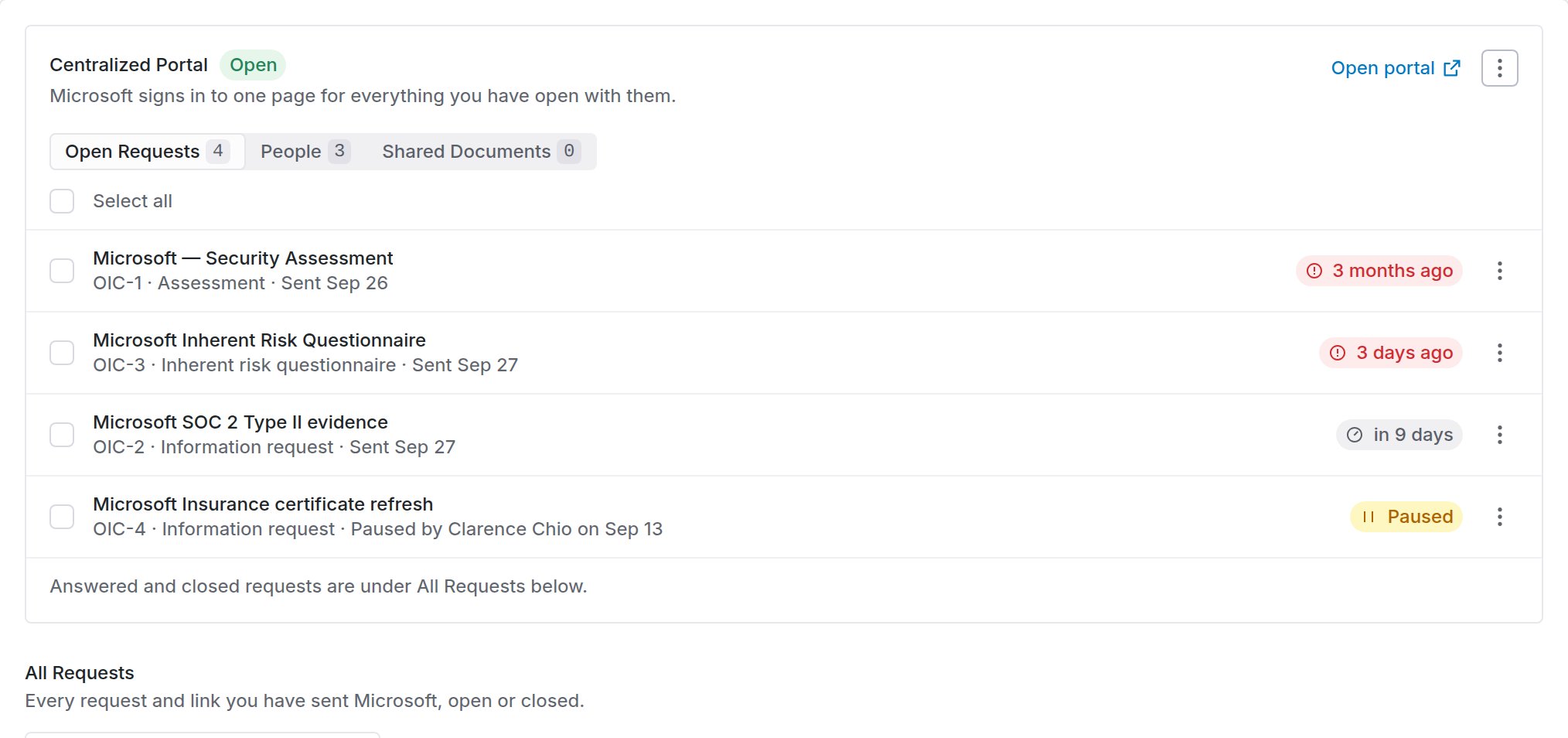
The vendor's Portals tab. Open requests are listed most urgent first, and each row has its own menu.
Pausing, rescheduling or closing one request
Open Requests lists each open request with its reference, its kind and when you sent it. Overdue and soonest due come first, and paused requests last. Click a title to open the request. The menu at the end of a row has everything else: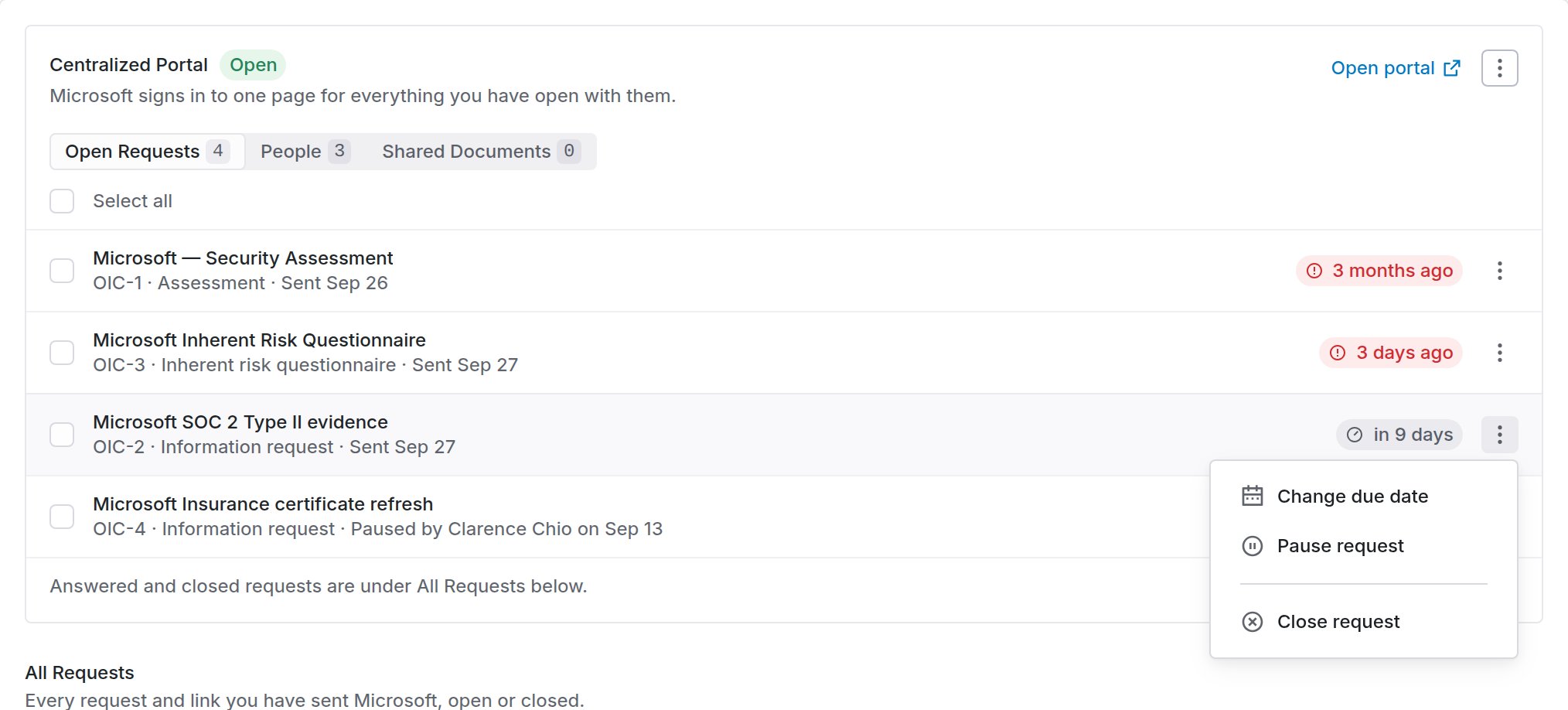
One request's menu.
Pausing is for work you still want, but not now, for example while a contract is renegotiated. Close a request you no longer need.
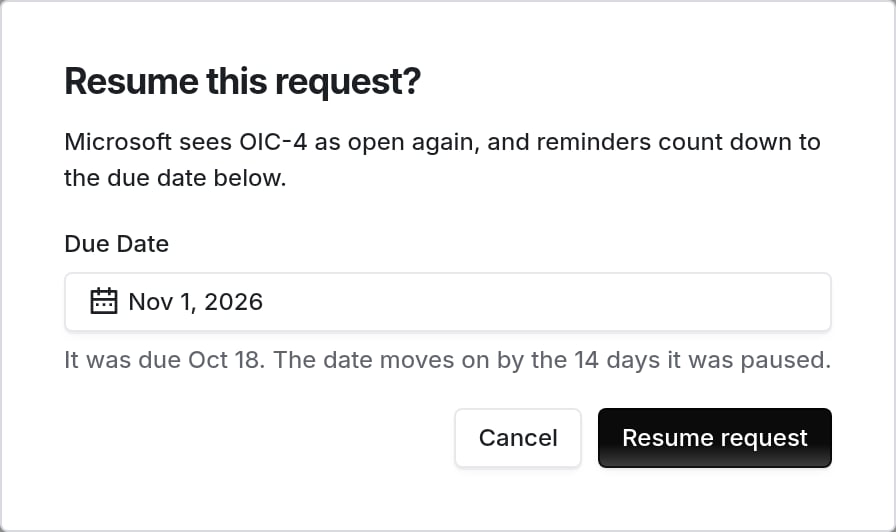
Resuming a request that was paused for 14 days.

What the supplier sees.
Acting on several requests at once
Tick the box on a row to select that request. Hold Shift and tick another to select every request between the two. Once something is selected, clicking anywhere on a row adds it to the selection or takes it out, instead of opening it. The box above the list selects them all. A bar then appears at the foot of the page with what applies to your selection: Pause, Resume and Close, each with a count. Pause leaves out requests already on hold, and Resume counts only the paused ones. Each asks you to confirm first.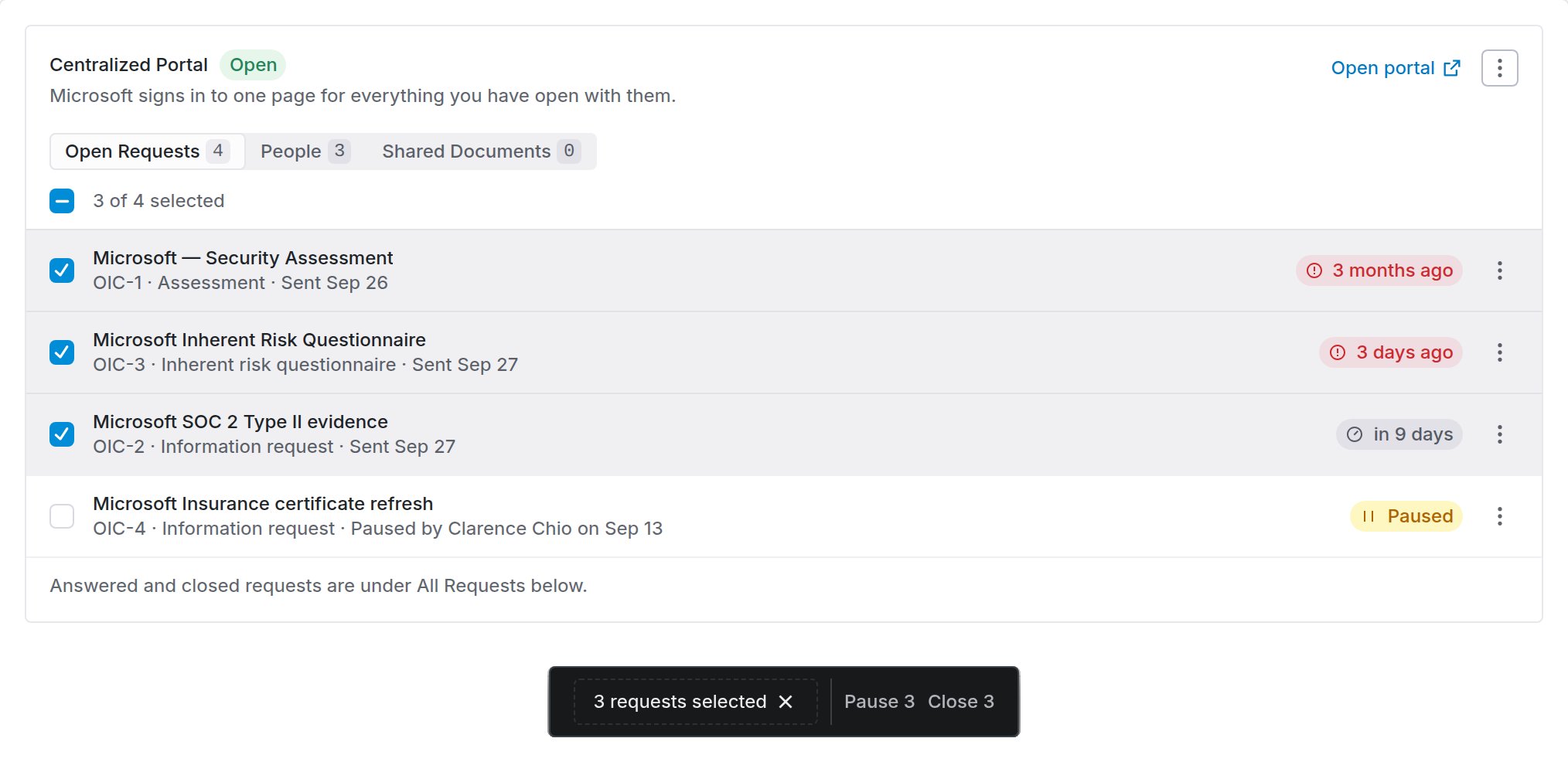
Three open requests selected, and the bar that acts on them.
Deciding who can sign in
People lists everyone you or the supplier invited, with their role and whether they have signed in yet. Use Add someone to invite a person as an Owner or a Contributor. An owner can invite their own colleagues; a contributor can only answer.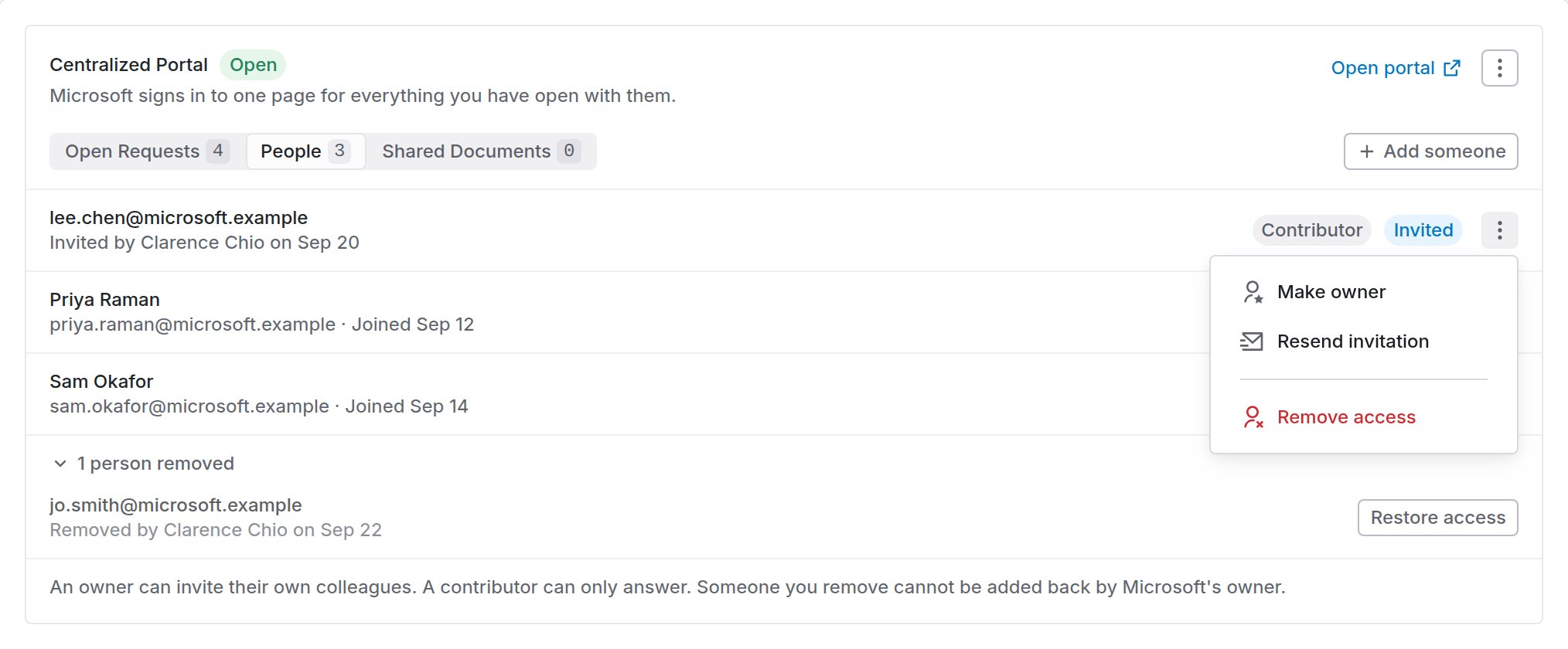
The People tab with one person's menu open.
- Make owner or Make contributor.
- Resend invitation, for someone who has not signed in yet.
- Remove access, which asks you to confirm first.
Closing one supplier’s portal
To shut a supplier’s portal without turning the feature off for everyone, open the menu next to Open portal and choose Close portal.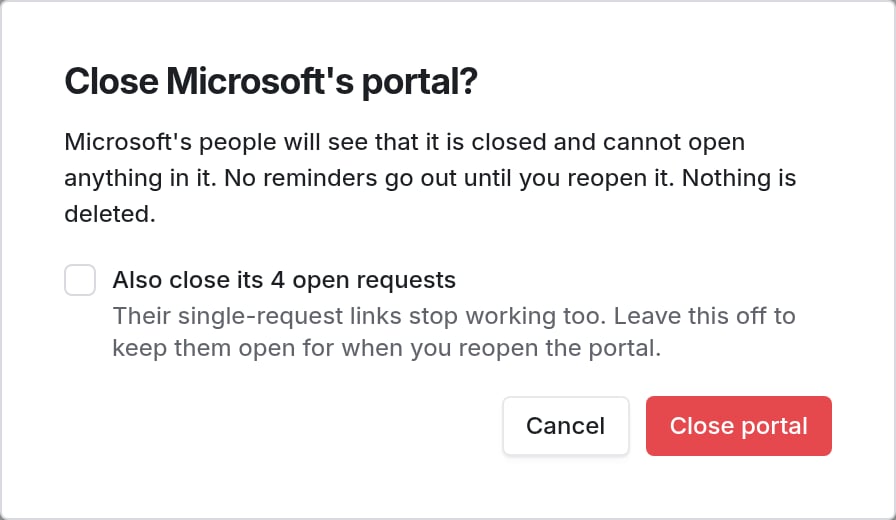
Closing a portal. The requests inside stay open unless you tick the box.
- The supplier’s people see that it is closed and cannot open anything in it.
- No reminders go out, for the portal or for the requests in it.
- Nothing is deleted.
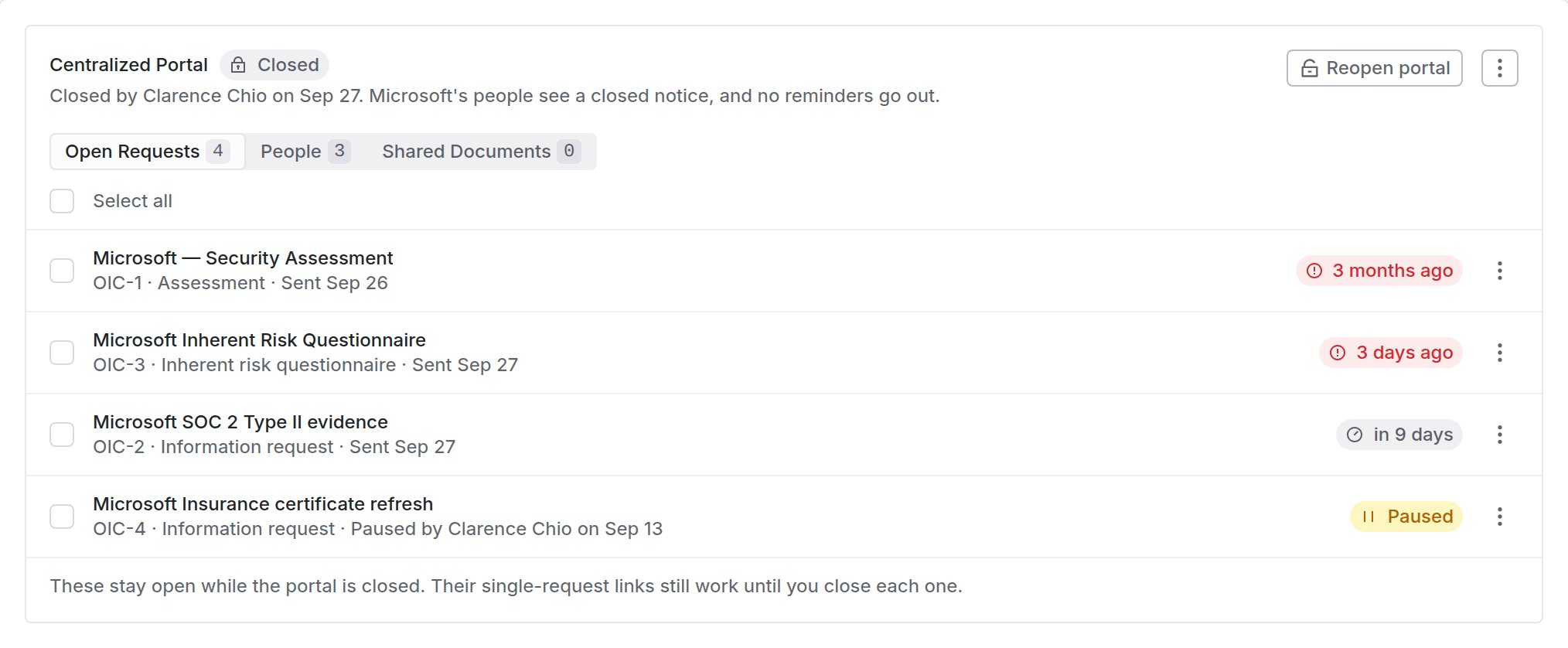
A closed portal.
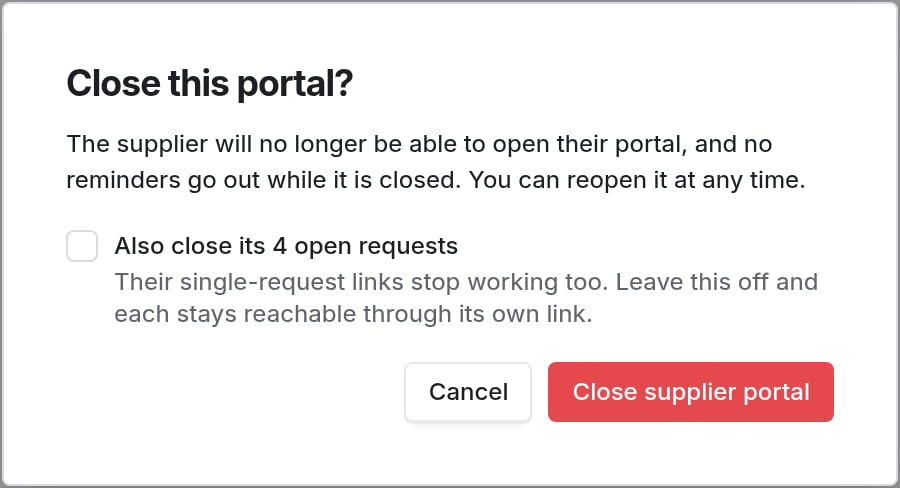
Closing from All Portals.
Turning it off
The switch is reversible and loses nothing. The customer disappears from each supplier’s list, and every/portal/… link you have already sent keeps working. Turn it back on and the requests, documents, messages and members are exactly as they were.
A supplier who had access and finds it gone is told what happened rather than being offered a way to ask for access back, because nobody revoked them and their own owner cannot undo this.
Work update requests from MCP or the API
You can send and close update requests from an MCP client or with an API key. An MCP client lists them withquery_vendors(kind="supplier_update_requests"), sends one with mutate(entity="supplier_update_request", action="create") and closes one with mutate(entity="supplier_update_request", action="close"). Sending one contacts the supplier: it seats the recipient on the portal and emails them a link to the profile page. With an API key, use GET and POST /v1/vendors/{vendor_id}/update_requests and POST /v1/update_requests/{request_id}/close. See Update requests.
Before an MCP client sends a write, it shows you the change and waits for you to confirm it. The MCP tool reference lists every field.
Applying the contact changes a supplier proposed is an approval. An API key cannot do it. A person does it in the dashboard or with mutate(entity="supplier_update_request", action="apply_contacts").
Troubleshooting
Related
The supplier portal, for suppliers
What your suppliers see once they sign in.
Supplier information
The Know Your Vendor settings the portal’s Profile section follows.