

The vocabulary
Where things live
Radar in the left navigation opens the Portfolio risk chart (once there are signals to plot) and three tabs: Signals, Cases and Reassessments. At the right of the tab bar, the Configurations menu links to the three tabs of Configuration → Radar: Detectors, Sources and Reassessments (the reassessment triggers). Beside it, New detector offers From detector library and Create custom detector, and under Also add, Source from library and Log a signal manually. Every vendor page also has a Radar tab. It lists Detectors monitoring this vendor and the vendor’s Recent alerts, with an Edit detector link on each detector.The signal queue
Open Radar → Signals.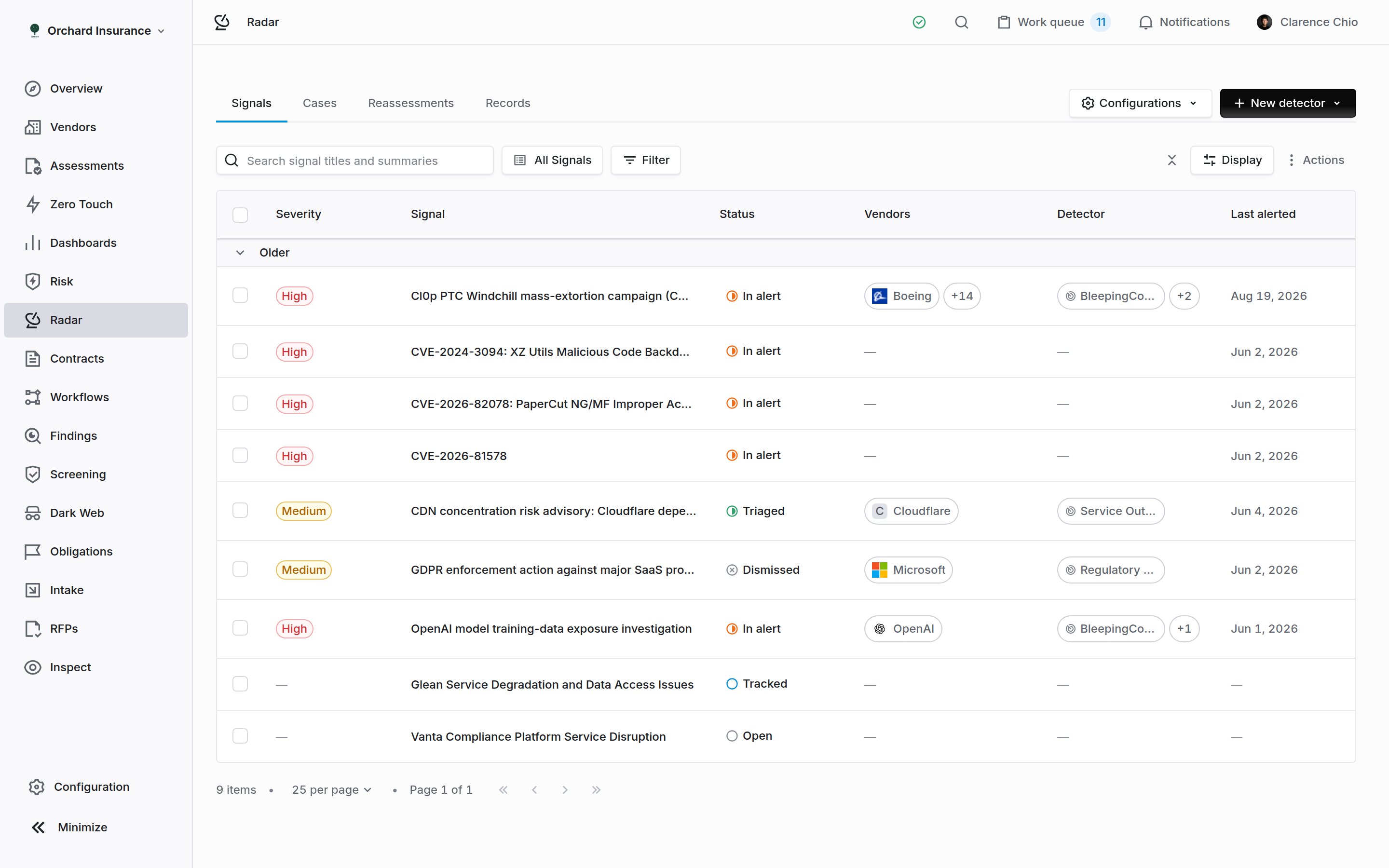
The Signals tab. One row per event, grouped by when it was first seen, with the highest severity any detector assigned and the vendors exposed.
Signal statuses
Acting on several signals at once
Tick rows and a bar appears with Start reassessment, Acknowledge, Dismiss (or Restore (un-dismiss) for dismissed rows), Should have alerted and Clear. Should have alerted is for a Tracked signal a detector missed: pick the detector, and the signal is added to it as a positive example so events like it alert next time.Reading a signal
Click a row. The page opens with the title (click it to edit), the severity badge, a Vulnerability badge when the event is a CVE, and the Actions menu.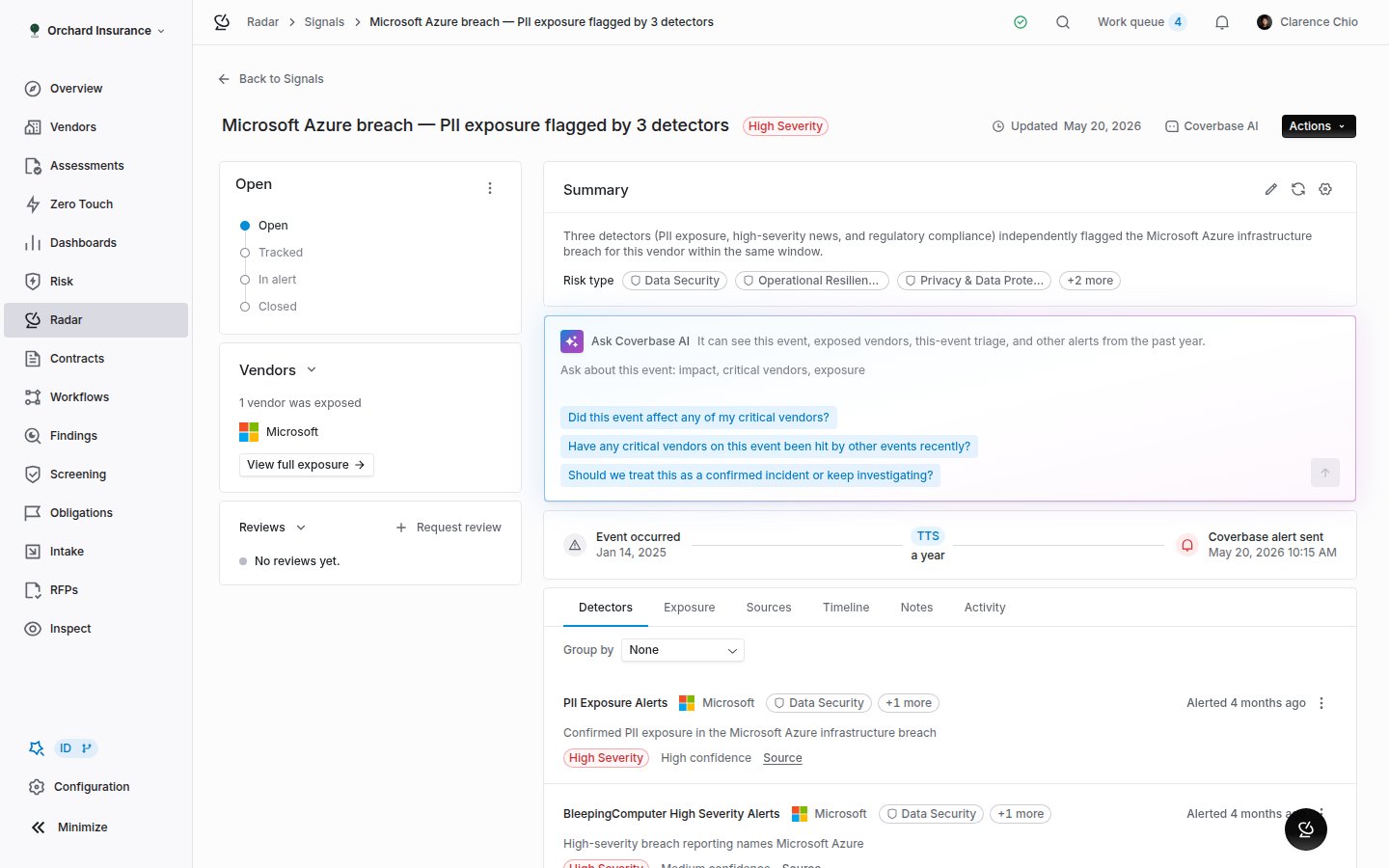
A signal. Status and exposed vendors on the left, the generated summary and time to signal on the right, and the detectors that fired below.
- The status card, named after the current status. Anyone with update permission on alerts can set a different status here.
- Triage actions, once any exist: Marked as acknowledged, and the cases, findings and reassessments raised from this signal, each linking to its record.
- Vendors: how many of your vendors were exposed, with View full exposure opening the Exposure tab.
- Vulnerabilities, on a CVE event: Potential impact (CVSS v3.1), Likelihood of exploitation (EPSS) and Known exploited (KEV). A blank EPSS is common; a blank KEV means no source reported either way.
- Summary, with the Risk type chips. Click the pencil to rewrite it by hand. Regenerate summary rewrites it from what the detectors currently report and discards any hand edit. Custom AI instructions on this card apply to every generated summary in your organization.
- Ask Coverbase AI, which can see the event, the exposed vendors, this signal’s triage, and other alerts from the past year.
- Time to signal: Event occurred, First public disclosure and Coverbase alert sent, with the gaps between them.
Triaging a signal
Open the Actions menu on the signal page. What it offers depends on where the signal stands.Dismissing
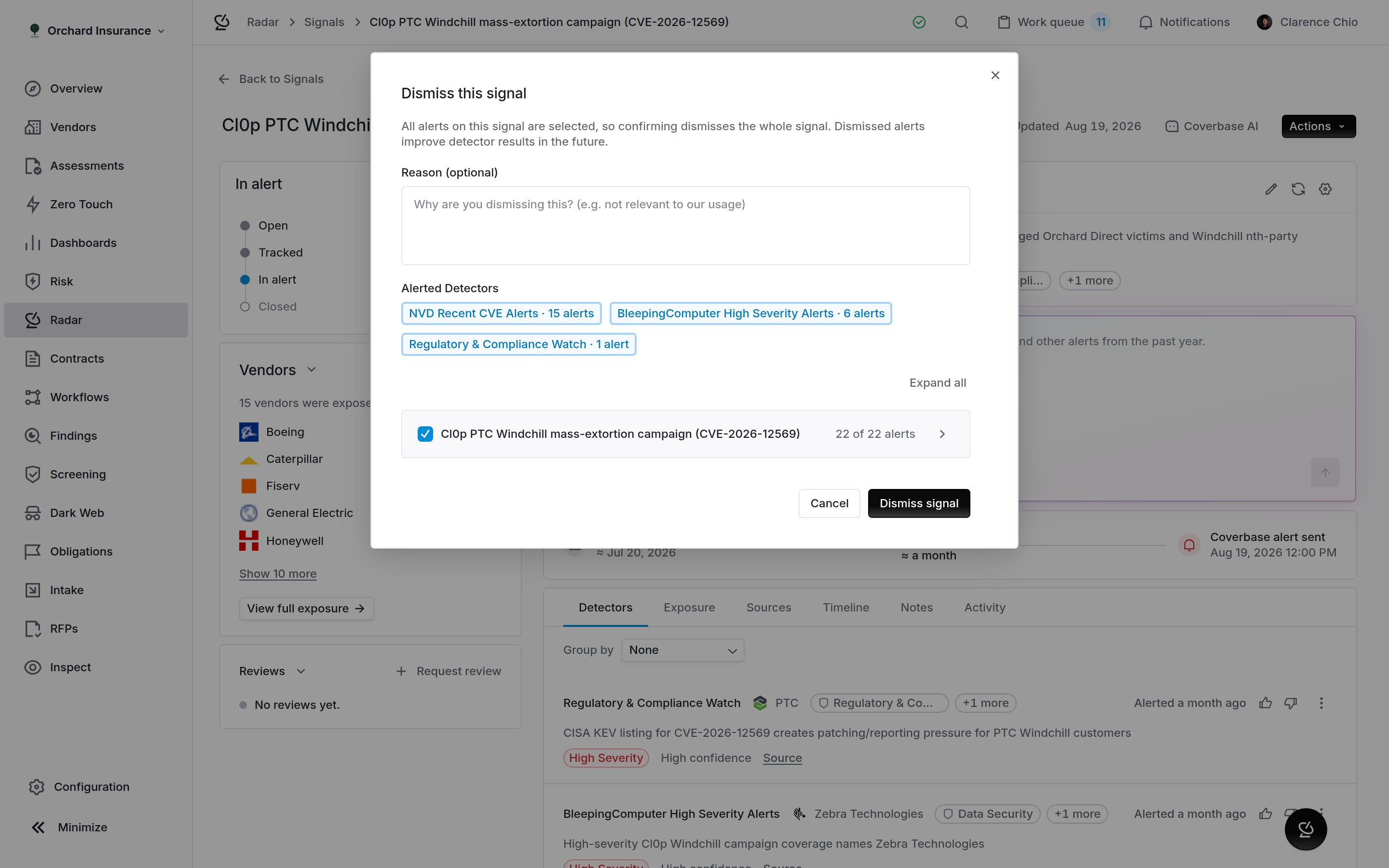
The dismiss dialog. Every active alert is ticked by default; the signal is dismissed only when all of them are.
Opening a case
Create a Case asks for a Title (prefilled with the signal title), a Description (prefilled with its summary), and the Affected Vendors. Include all affected vendors is on by default. Create and Continue takes you to Send Emails, where a Shared Draft Template with placeholders for the vendor name and your organization name can be applied to every pending vendor, edited per vendor, and sent one at a time or with Send all remaining. Skip and Go to Case leaves the emails for later. The case page has Overview, Vendors, Notes and Activity tabs, with Send Emails, Add Vendors and Finalize Case at the top and Export as Excel, Import Vendors and Archive Case in the menu beside them. Each vendor thread carries a status, an assignee, a due date and the vendor’s replies. Finalize Case asks how the case was resolved: Resolved, Won’t fix or False positive. The first two raise the affected vendors’ residual risk when the detectors that fired are set to update risk; False positive moves no risk. While vendor threads are still open, the same dialog offers Close case and threads or Close case only to leave them as they are. Reopen Case undoes a close and clears the resolution. Archive Case is final.Starting a reassessment
Start a reassessment lists the exposed vendors. Remove any you do not want, Add vendor… for one Radar missed, optionally pick an Assessment Plan, and click Start a reassessment. The draft opens on its own page and is listed under Radar → Reassessments. Check the vendors and the plan there, then Run reassessment, which creates one assessment per vendor from the plan. Dismiss closes the draft without running it. Reassessments can also be raised without a person, by the triggers under Configuration → Radar → Reassessments: each trigger names a plan, a vendor scope, and either risk-score conditions or an AI event-type instruction describing the kind of signal that should trigger it.The risk review
When a firing detector has Residual risk impact switched on, acknowledging, creating a finding, starting a reassessment, or finalizing a case raises the affected vendors’ residual risk. Review vendor risk profile updates opens with the new scores, overall and per domain. Adjust any of them and Save and continue, or Continue to accept. Dismissing never moves risk. How the size of the move is chosen is on the Supplier Radar page.Sources
Open Configuration → Radar → Sources.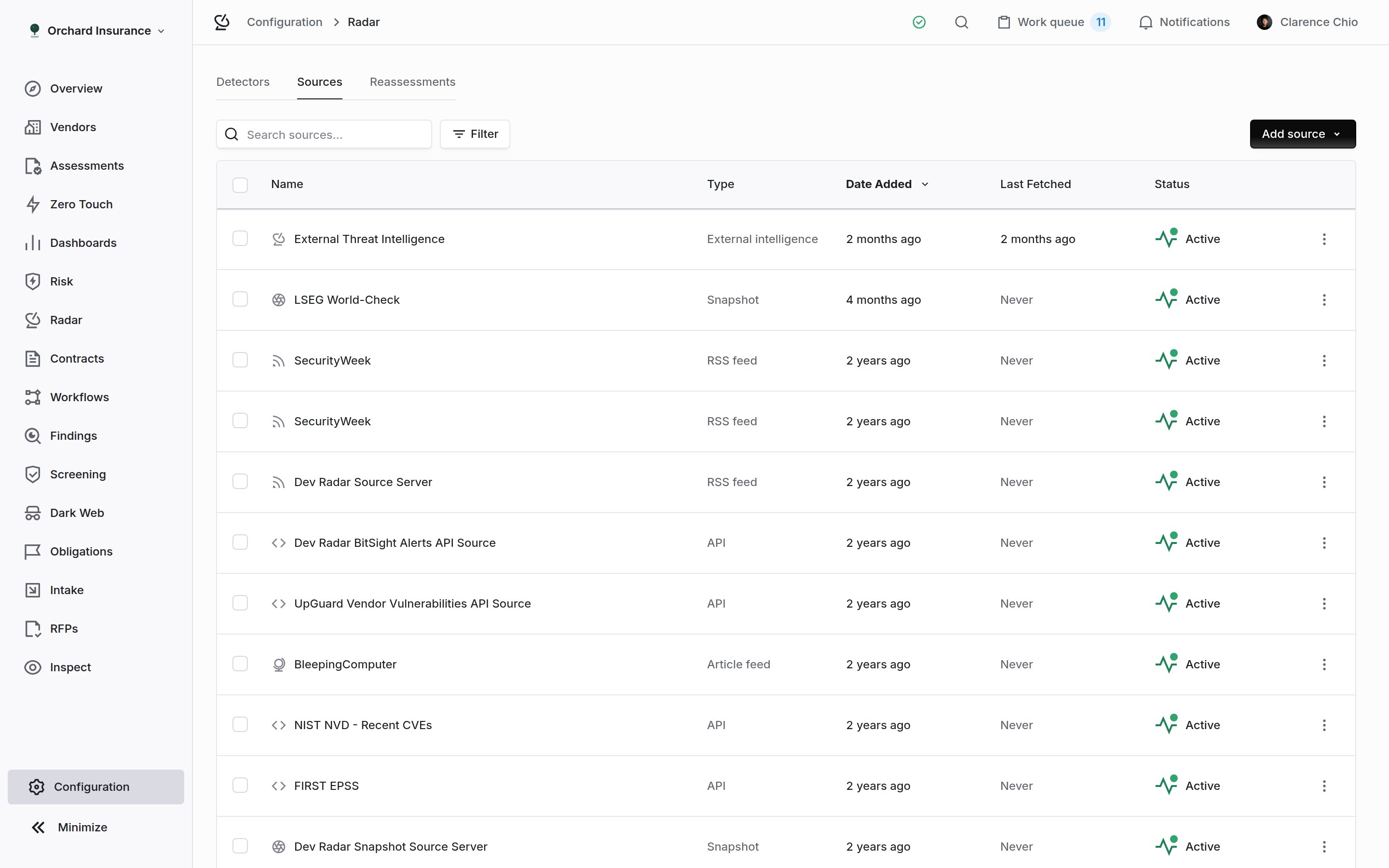
The Sources tab. Library sources and your own, each with its status and when it last fetched.
- From Source Library: tick sources in the curated catalog, narrowed by segment or search (Add all visible ticks everything in view), then Connect. A source Coverbase has withdrawn is greyed out as Unavailable, with the reason. The full list is on the source library page. Library sources are shared and run on a schedule Coverbase sets; you can rename one but not change how it fetches.
- Black Kite portfolio: covered in the Black Kite monitoring guide.
- New Custom Source: your own Article Feed (a news page or RSS feed), API (a JSON endpoint with a request configuration and a response mapping), or Snapshot (a page or a JSON list watched for changes, with a Fetch Schedule of Hourly, Every 4 hours, Daily or Weekly).
A source’s items and runs
Click a source. Besides Configure, it has an Articles tab (Snapshot on a snapshot source) and a Runs tab.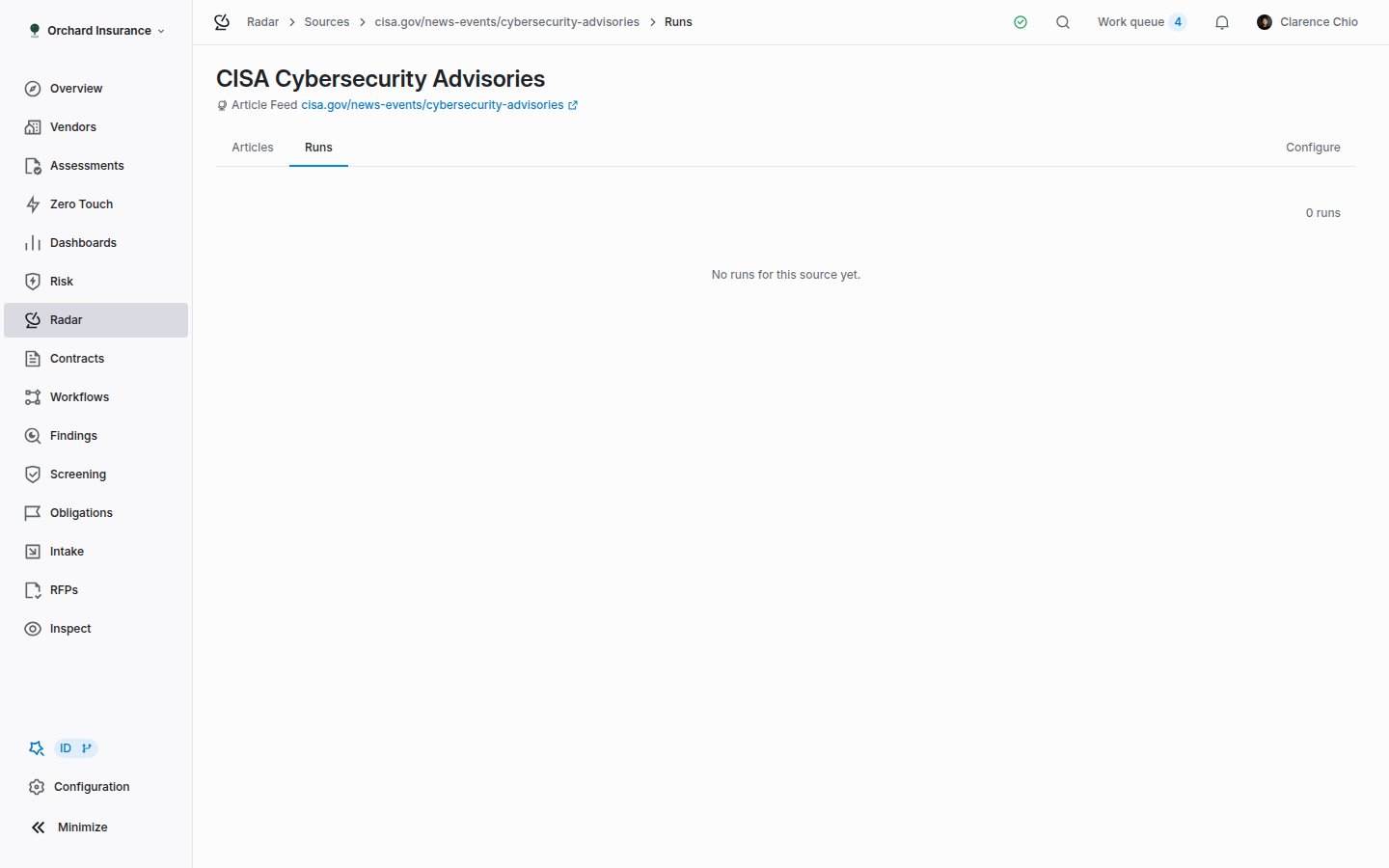
A source's runs. Each row is one fetch, with how many items it fetched, summarized and extracted entities from, and how many detections it produced.
Detectors
Open Configuration → Radar → Detectors.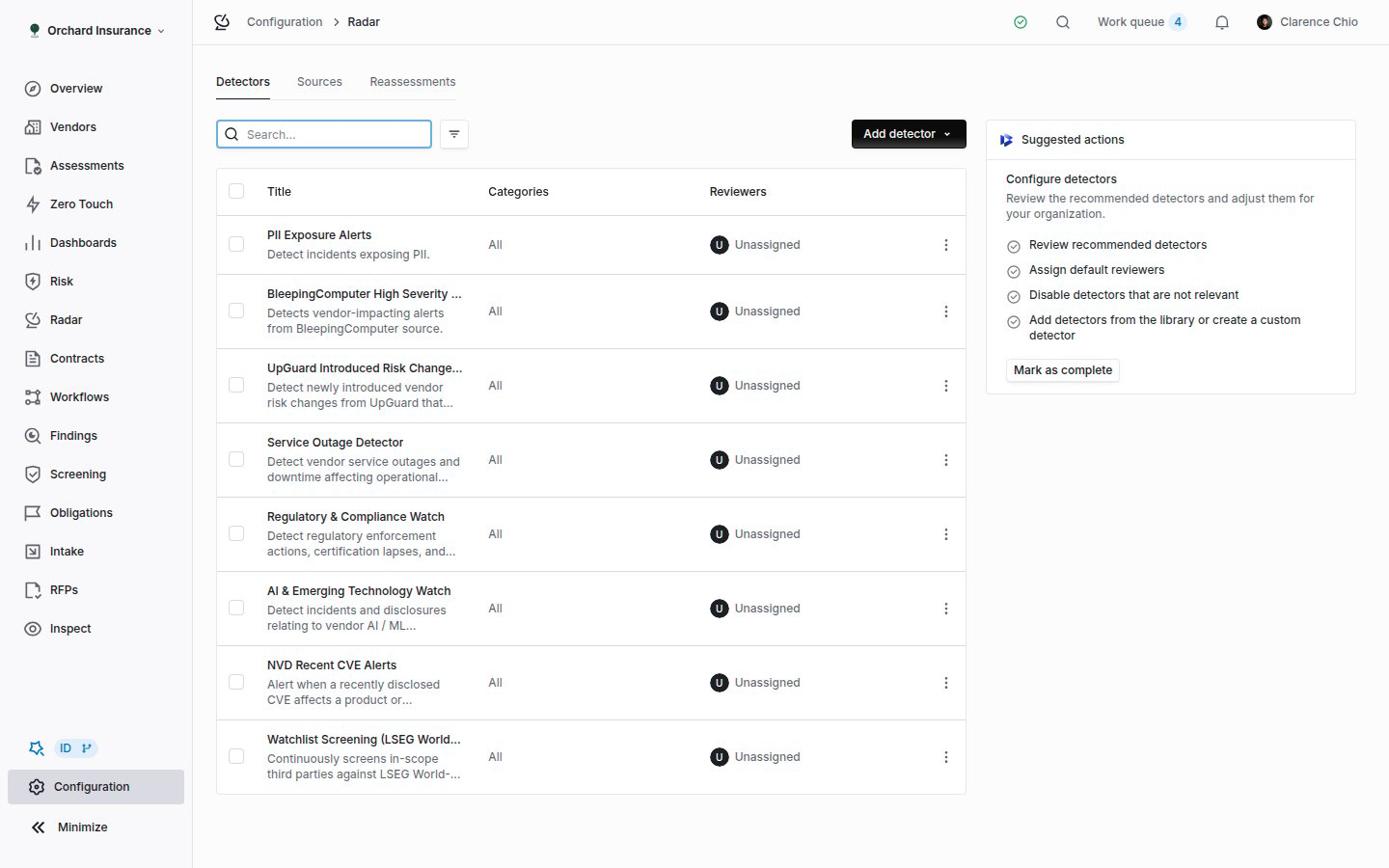
The Detectors tab. Enabled detectors by default, with categories, reviewers and the suggested actions panel for a new organization.
Adding one
Add detector (or New detector on the Radar page) offers From detector library and Create custom detector.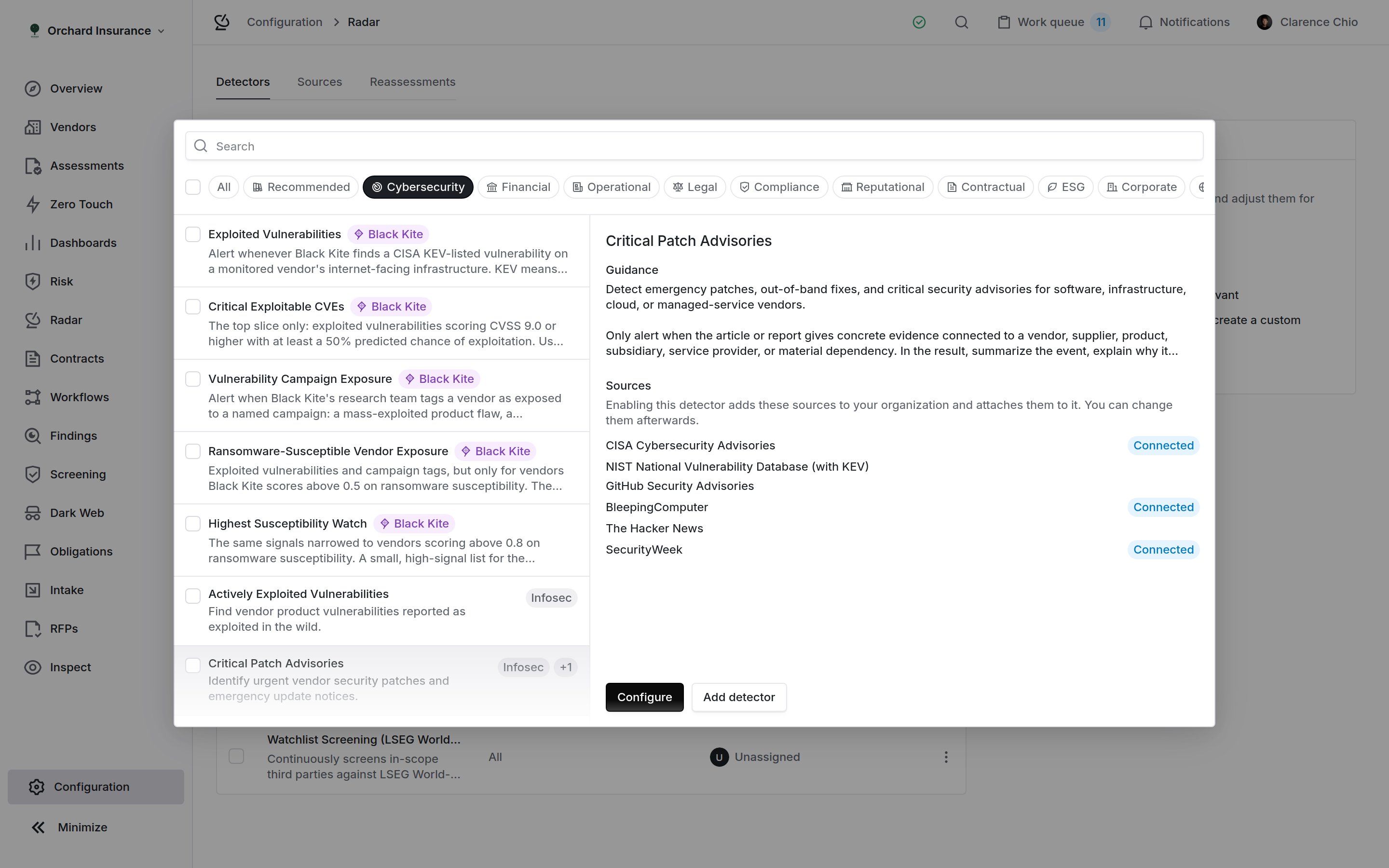
The detector library. Templates by segment; the preview shows a template's guidance and the sources it brings with it.
The detector form
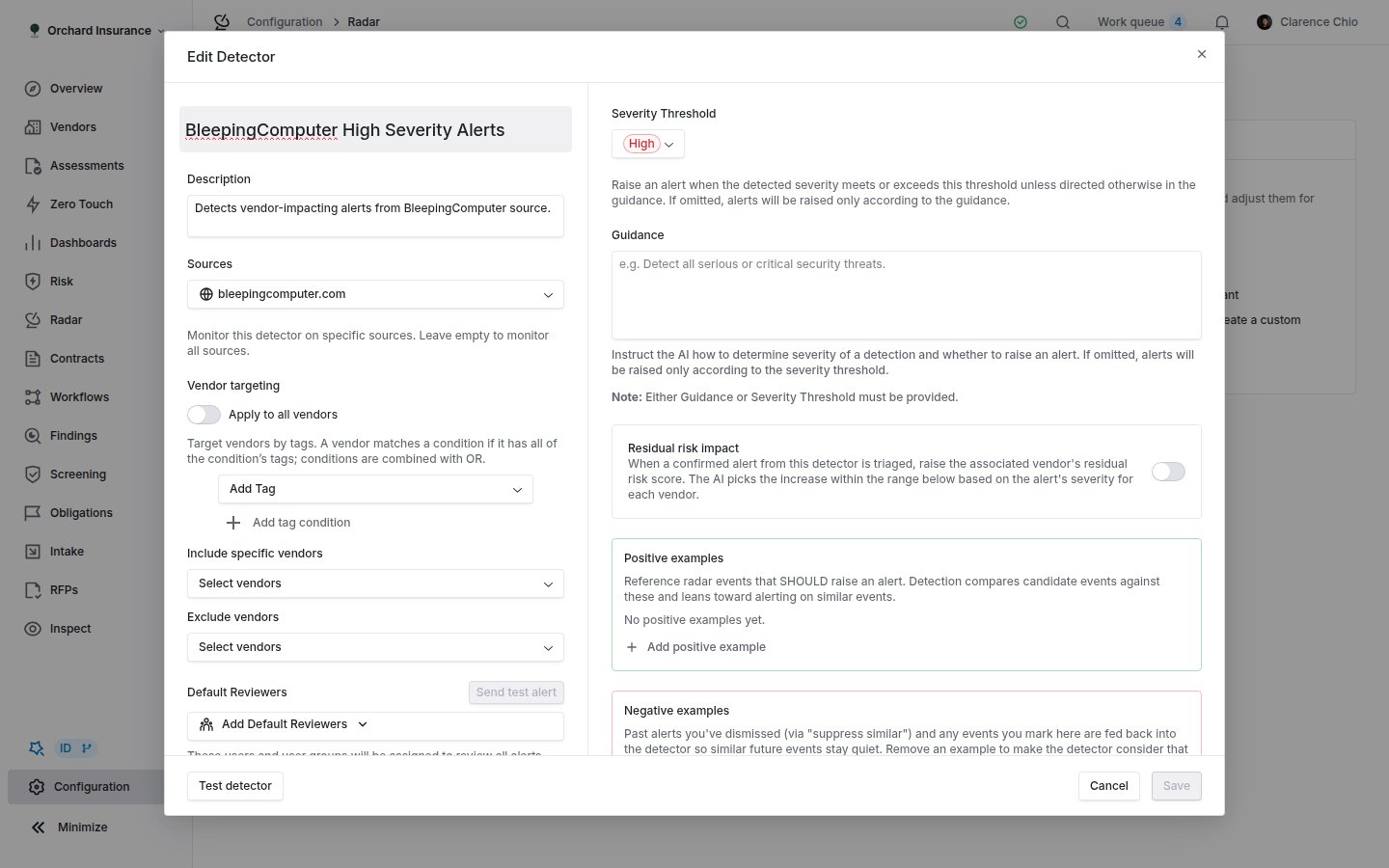
Editing a detector. Targeting and sources on the left, threshold, guidance, risk impact and examples on the right.
Testing before you enable
Test detector on a saved detector re-runs it against your recent events over the Last 7 days, Last 30 days or Last 90 days. Each result reads Will alert or Will not alert. Mark results This should alert or This shouldn’t alert, then Refine with AI proposes a rewrite of the guidance, which you can edit before Apply & re-run. Tick results and Create alerts to turn them into real alerts; a result that already has a live alert is skipped.Which vendors are watched
A vendor is evaluated by every enabled detector whose Vendor targeting includes it. That is the whole rule. The vendor page’s Radar tab lists the detectors that currently apply, so it is the quickest way to answer “is this vendor covered?”. A vendor with no detectors still gets Tracked signals when an event touches it, because tracking needs no detector. Vendors also carry a monitoring flag, which a workflow’s Enable vendor threat monitoring action turns on. That flag is what the vendors monitored by Radar count on your subscription uses, so it decides what monitoring costs, not what a detector watches. The same flag decides who dark web monitoring watches when it is set to follow Radar.Notifications
Radar sends four notifications. Each person can switch them on or off in their notification settings: Radar detector alert and Reassessment trigger fired sit in the monitoring group, Case created with cases, and Dismissal mentions with mentions.Where signals go next
- Findings. A finding created from a signal carries the source type Radar alert, opens with the detector name and the alert summary as its title, and links back to the signal from the Triage actions card. From there it is an ordinary finding: see Findings Manager.
- Vendor risk. With Residual risk impact on, triage moves the vendor’s residual score, and the vendor’s risk history records the change and the detector behind it.
- Risk register. The register’s Signal Sources settings can attach Radar signals and Radar alerts at or above a severity threshold to risks, and a risk’s Attach signal button does it by hand. Turning a source off stops new attachments and leaves existing ones.
- Workflows. A workflow can trigger on a Radar signal, condition on its fields, and update it. The Monitoring signal triage template opens a review and a dated task for every new signal.
- Dashboards. The Portfolio risk chart on the Radar page plots signals over time by severity, with a 3M, 6M, 12M or All range and vendor and tag filters; click a point for the affected vendors.
- API, MCP and webhooks. Events, alerts, signals, cases, sources and detectors are readable and editable over the Radar API and through MCP (see Work Radar from MCP or the API).
RadarEvent.*andRadarDetectorResult.*webhooks fire as they change.
Who can do what
Work Radar from MCP or the API
You can manage sources and detectors and work the signal queue from an MCP client or with an API key, as well as in the dashboard. An MCP client reads withquery_radar(kind=...) and changes things with mutate(entity=..., action=..., data={...}). The API routes sit under /v1/radar and take an ak_ API key. Each call checks the same permission as the matching dashboard action.
Before an MCP client sends a write, it shows you the change and waits for you to confirm it. The write itself carries confirm: true inside data. See Roles and permissions.
An API key cannot archive or restore a source or a detector, delete a detector example, or archive a case or a case thread. A signed-in user does those in the dashboard or through MCP.
Sources
radar_detector:update:org. Pulling a source needs radar_detector:run:org.
Detectors
Alerts
alert_ids. Each person mentioned in the reason gets a notification.
Signals
decide_risk_impact. Rewriting a summary replaces any title or summary your organization edited by hand.
Cases and case threads
resolved or wont_fix raises the residual risk of the case’s vendors, as Finalize Case does. Adding a vendor to a case notifies the vendor’s owners and analysts, and nothing reaches the vendor. Marking a thread email_sent records that you emailed the vendor and sends nothing.
Three case tasks stay in the dashboard: emailing a vendor from a thread, importing vendors from a spreadsheet, and sourcing missing contacts.
Triage writes need radar_alert:update:org. Through MCP, dismissing alerts or signals and archiving a case or a thread also need radar_alert:archive:org. The API dismiss routes need only radar_alert:update:org, which API keys hold.