

The contracts list page
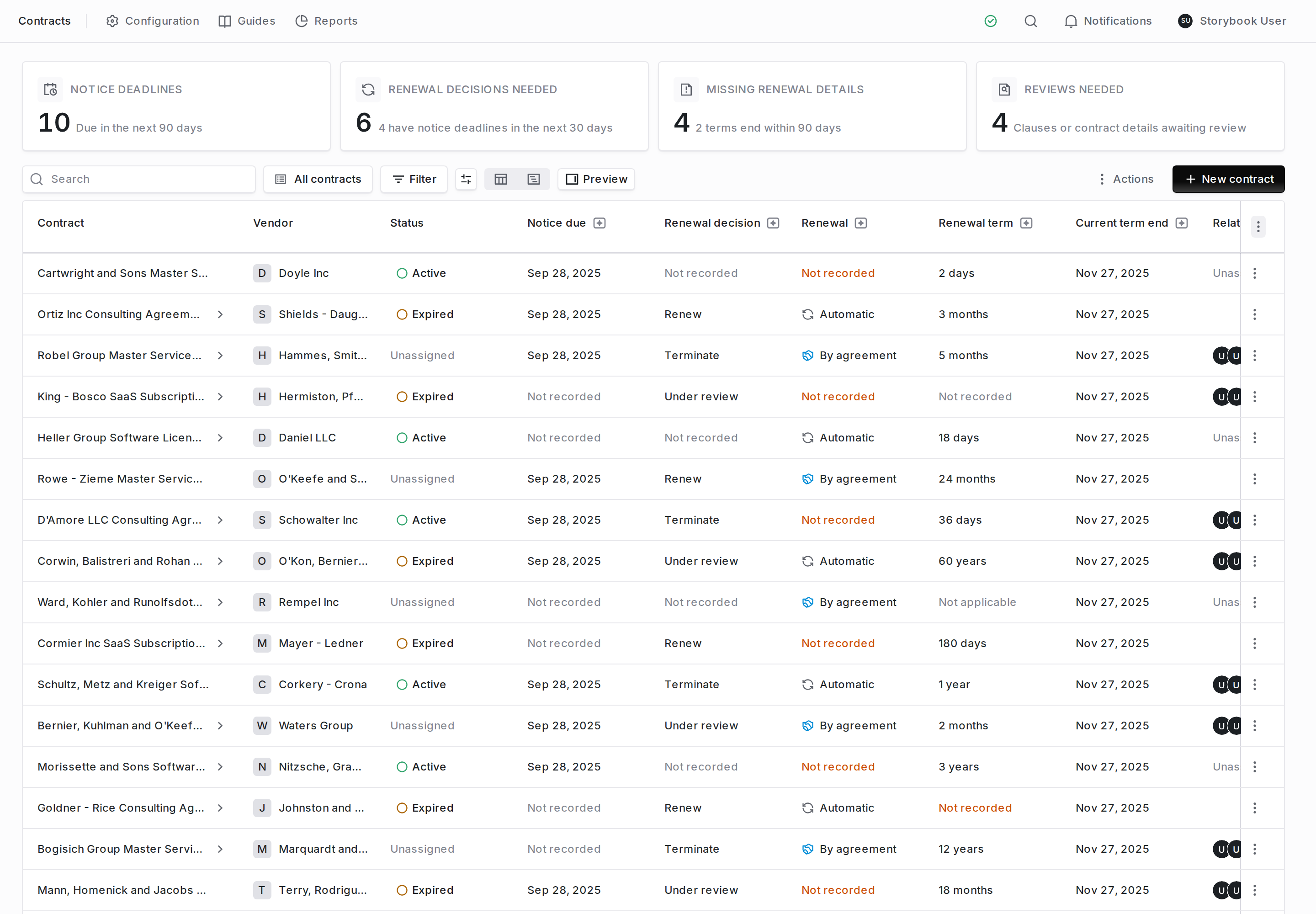
The contracts list page: the attention cards, the toolbar, and the contract table.
Attention cards

The four attention cards. The line under each figure is the part that cannot wait.
The toolbar
Under the cards, one row holds the controls for the list: Search, the view selector (All contracts and your saved views), Filter, display options for the table’s columns, the toggle between the table and the renewal runway, and Preview. On the right, Actions opens exports, notifications, uploads, bulk create, Start a review for a clause review, and, where your workspace has it, Import contracts and View import batches for Contract Assembly. New contract creates one. The view toggle and Preview remember your choice in this browser. They do not change anything for your colleagues.The contract table
The table opens on the renewal story, left to right: Contract, Vendor, Status, Notice due, Renewal decision, Renewal, Renewal term, Current term end, Relationship owner, Contract value, and Updated. Columns marked AI hold values Coverbase extracted from the documents rather than values someone typed. The column picker offers the rest: Term start, Effective date, Initial term, Termination notice, Contract length, Action date, Renewals applied, Contract type, Committed amount, and every contract component. A value nobody has recorded reads Not recorded. It turns orange where the gap is yours to close: a contract that renews automatically with no Renewal term will roll forward on a term nobody wrote down. A contract renewed by agreement has no renewal term, so that cell reads Not applicable. Every row ends in a menu with the same four actions:Previewing contracts
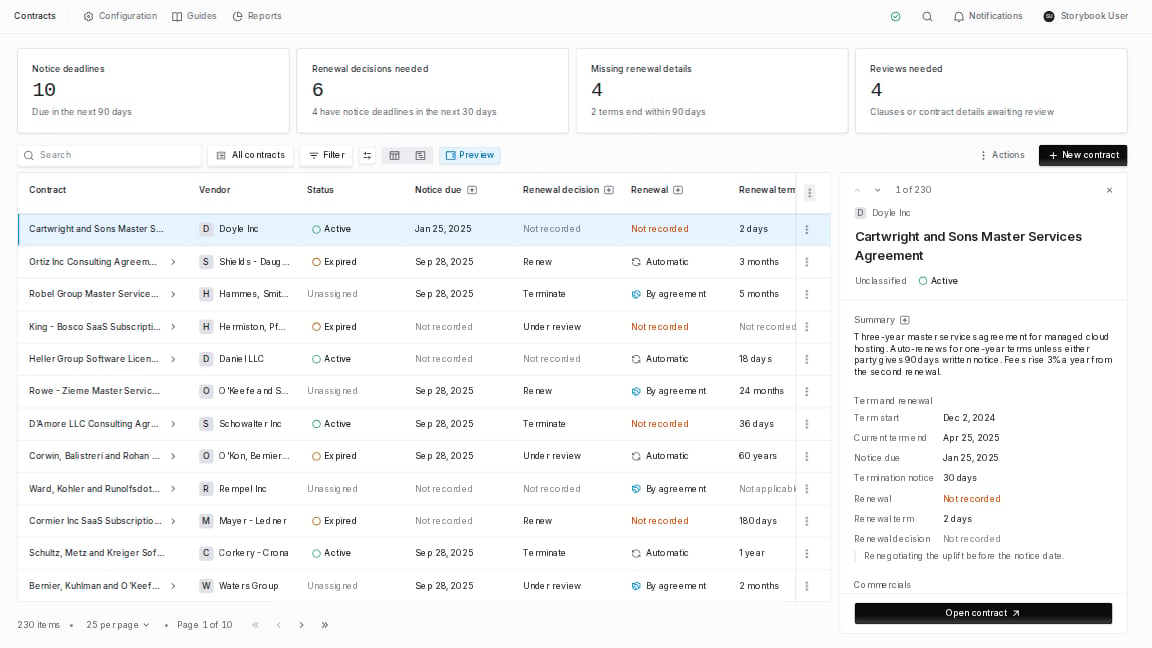
Preview mode. The selected contract is highlighted in the list and shown beside it.
- Click any row to show it in the panel. You do not need to close the panel first, and the rest of the page stays usable.
- The contract you are previewing stays highlighted in the list.
- Use the up and down arrows at the top of the panel, or the up and down arrow keys on your keyboard, to move to the previous or next contract. They follow the list as you have filtered and sorted it, and continue onto the next page. The panel shows where you are, for example 2 of 230.
- Click Open contract at the bottom of the panel to open the full record.
The renewal runway
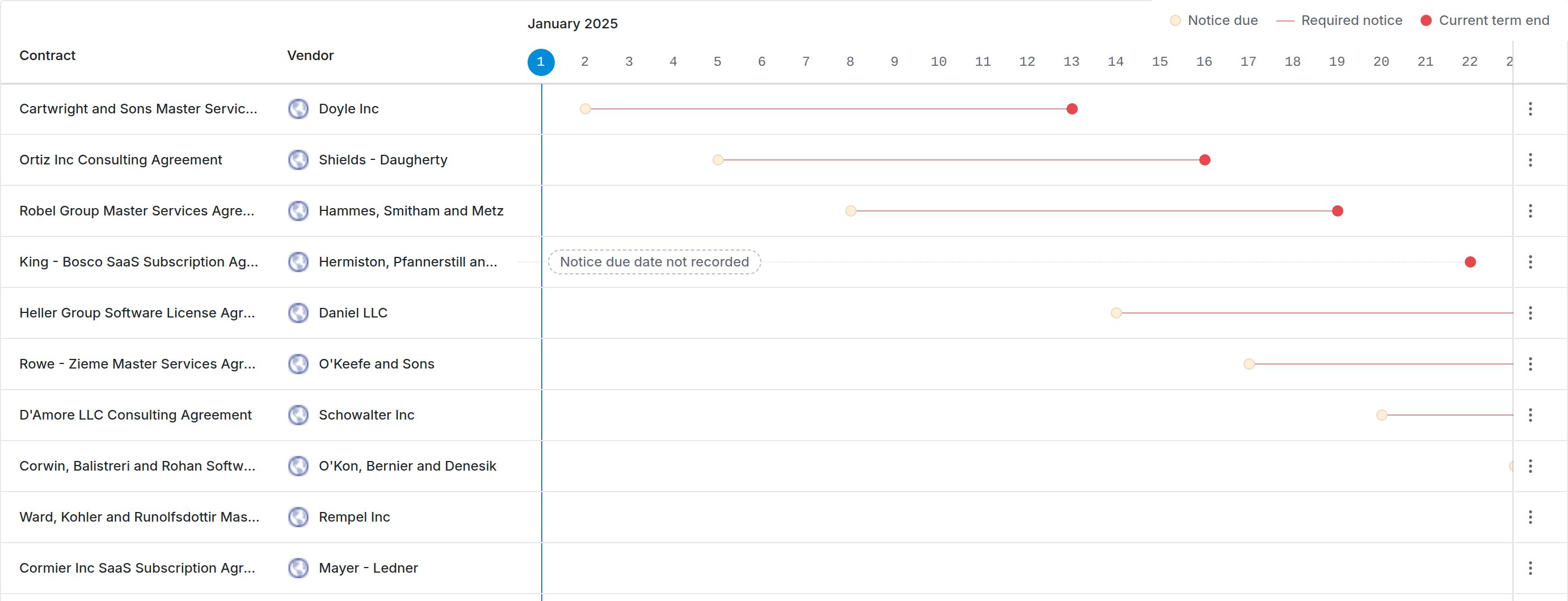
The renewal runway. Each row is a contract, drawn on a year of days from today.
The contract record
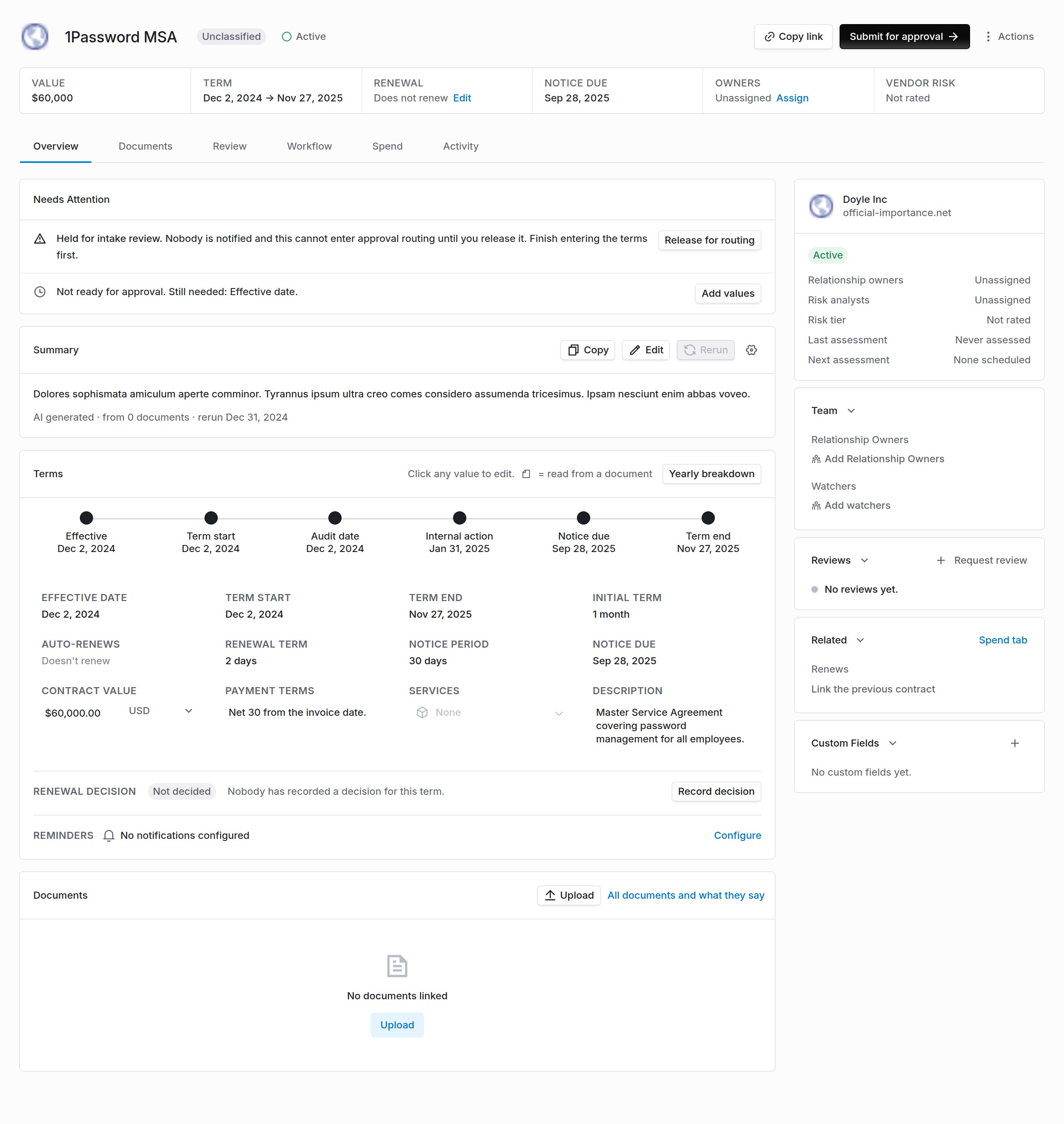
A contract record: the header and its facts, the tabs, and the Overview.
The header and the facts row
The header carries the vendor’s logo, the contract name, its type, and its status. Hover the logo for the vendor’s website and risk analysts, and click it to open the vendor. Click the name to rename the contract, and click the status to move it to another stage. On the right are Copy link, a button for the next step, and Actions, which holds Configure lifecycle, Configure reminders, and Archive. The next-step button names what the contract is waiting on: Continue clause review while a clause review has flagged clauses nobody has triaged, otherwise Submit for approval, View approval, Send for signature, or Track signature, following the Workflow tab. Under the name, one row of facts: Value, Term, Renewal, Notice Due, Owners, and Vendor Risk. Nothing in the row is an editor. An empty fact links to the Terms card, where the value is edited, and Owners links to the Team card. A warning icon beside Term means the term dates disagree with the documents.The tabs
The Overview tab
The main column runs from what needs a decision to what the contract says:- Reading documents, only while Coverbase is still reading files on the contract
- Needs Attention, described under What needs attention
- Summary, the AI read of the agreement
- Terms, the one place the contract’s own facts are edited
- Documents, the files on the contract nested under what they amend, each marked with its role. Upload and All documents and what they say open the Documents tab.
What needs attention
Everything on the contract that blocks a step or wants a decision sits in one list, with the action beside each line:The terms card
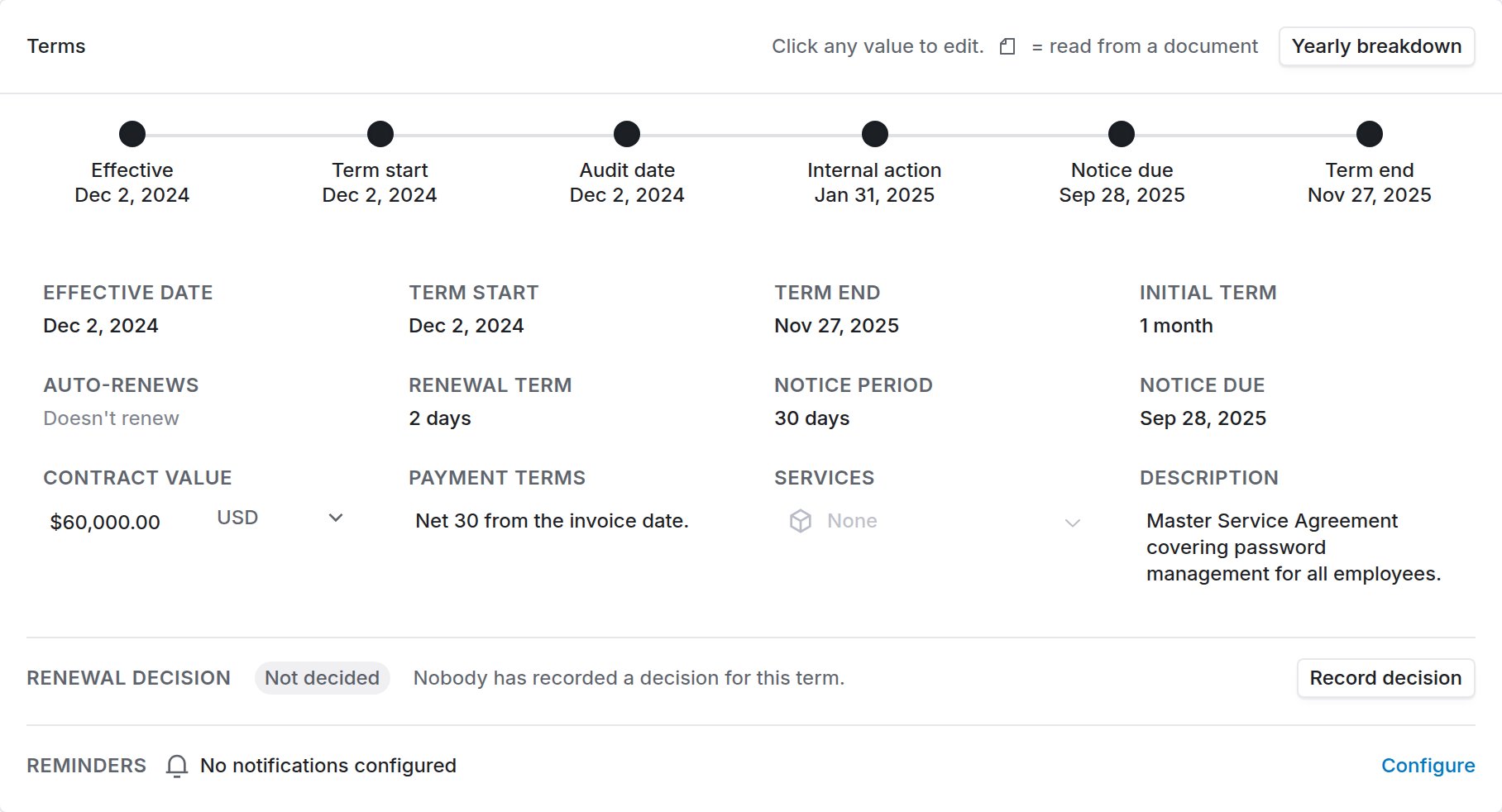
The Terms card: the dates on a track, the values under it, the renewal decision, and the reminders.
- The track places the dates in order: Effective, Term start, Term end, Notice due, Internal action, and Audit date. Click a date to edit it. The + beside the track brings back a date you hid. What each date means, and which ones Coverbase calculates, is in Contract dates and reminders.
- The grid under it holds Effective date, Term start, Term end, Initial term, Auto-renews, Renewal term, Notice period, Notice due, Contract value, Payment terms, Services, and Description. Click any value to edit it. A value marked derived was calculated from the others, and a small document icon marks a value read from a document. Yearly breakdown in the card header splits the contract value year by year.
- Renewal decision shows the decision recorded for the current term and who recorded it. Record decision (or Change decision) opens the four choices, Not decided, Renew, Terminate, and Under review, with a note for why and who you asked, and the contract’s Renewal Notes. The decision is a column on the contracts list and a filter across the portfolio, so “which renewals has nobody decided yet” is a question you can answer without opening records one at a time.
- Reminders says how many reminder emails are scheduled and whether they are inherited from the global settings or set for this contract. Click it to see the schedule. Admins see Configure.

The warning shown on a contract set to auto-renew with no renewal term recorded.
Saving, and undoing a save
Description and Payment terms save when you click away. There is no Save button for them, so the confirmation is the toast that appears in the corner: “Description saved” or “Payment terms saved”. Contract value, Services, and the renewal notes also save as you leave them. The date and renewal editors open in a panel with their own Save. The Description and Payment terms confirmations carry Undo. Click it and the field goes back to the value it held before that save.The vendor card
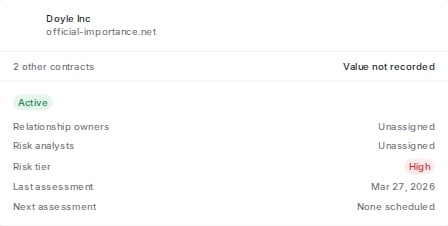
The vendor card. Who the counterparty is, what else they are paid, and how they were rated.
The documents tab
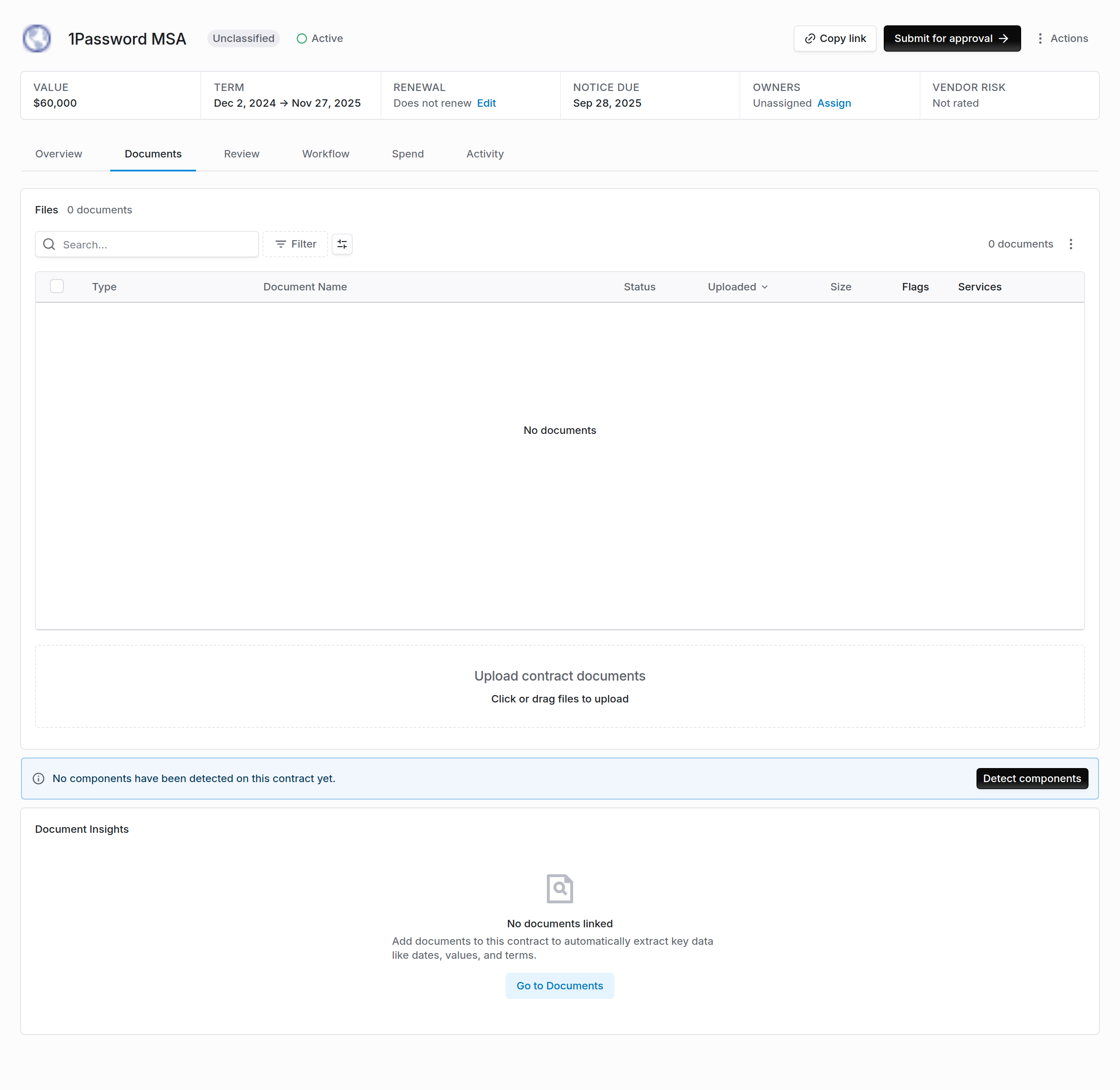
The Documents tab: the files, then what the documents say, then document insights.
Read the workspace from MCP or the API
You can read the list page and the contract record from an MCP client or with an API key. An MCP client reads withquery_engagements_contracts(kind="contract_home_summary"), query_engagements_contracts(kind="contract_attention_queues"), query_engagements_contracts(kind="contract_runway"), query_engagements_contracts(kind="contracts"), query_engagements_contracts(kind="contract_detail") and query_engagements_contracts(kind="contract_detail_context"). It edits a contract with mutate(entity="contract", action="update").
The API routes are GET /v1/contract-home-summary, GET /v1/contract-attention-queues, GET /v1/contract-savings-report, GET /v1/contract-records/{contract_id}/detail-context and the Contract records API. See Contract components, value and spend.
Before an MCP client sends a write, it shows you the change and waits for you to confirm it. The MCP tool reference lists every field.
Archiving a contract needs contract:archive:org, which service accounts do not hold.