

Obligation, finding, or commitment
Three records look alike and are easy to confuse. Each answers a different question.The two types
Every obligation has a Type. The extractor picks it, or you set it when extracting by hand.Where obligations live
- Obligations in the left navigation: every obligation in your organization, grouped and filtered, with insight cards on the left.
- A vendor’s record, Obligations tab: the same table scoped to one vendor and grouped by document. Useful when you are reviewing that vendor and want to see what its paperwork asks of you.
- Configuration → Obligations (also reachable from the Actions menu on the Obligations page, Configuration): the three organization-wide switches described next.
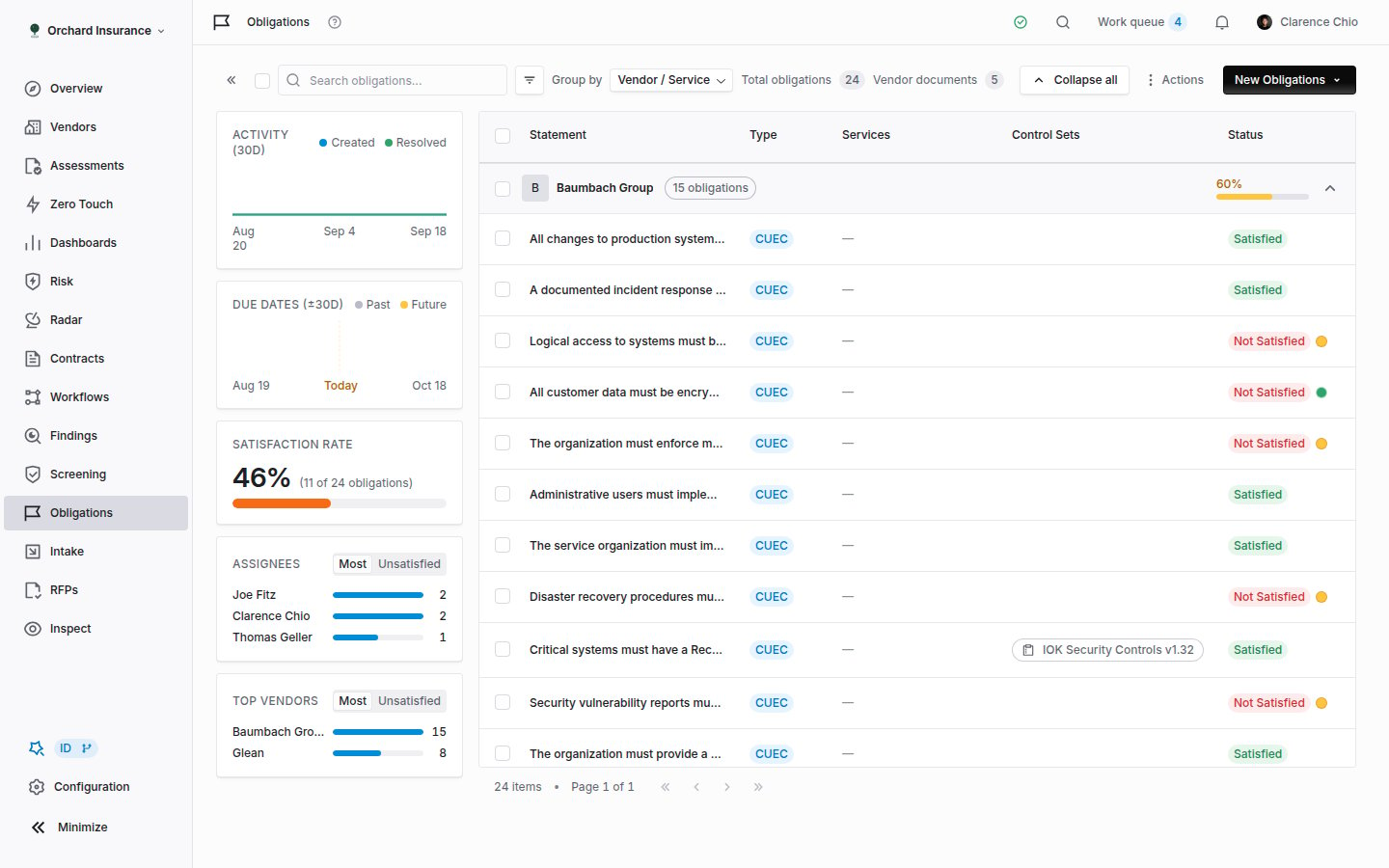
The Obligations page. Insight cards on the left, the grouped table on the right, search, filters and Group by along the top.
Turning on automatic extraction
Only an Admin can change these. Open Configuration → Obligations.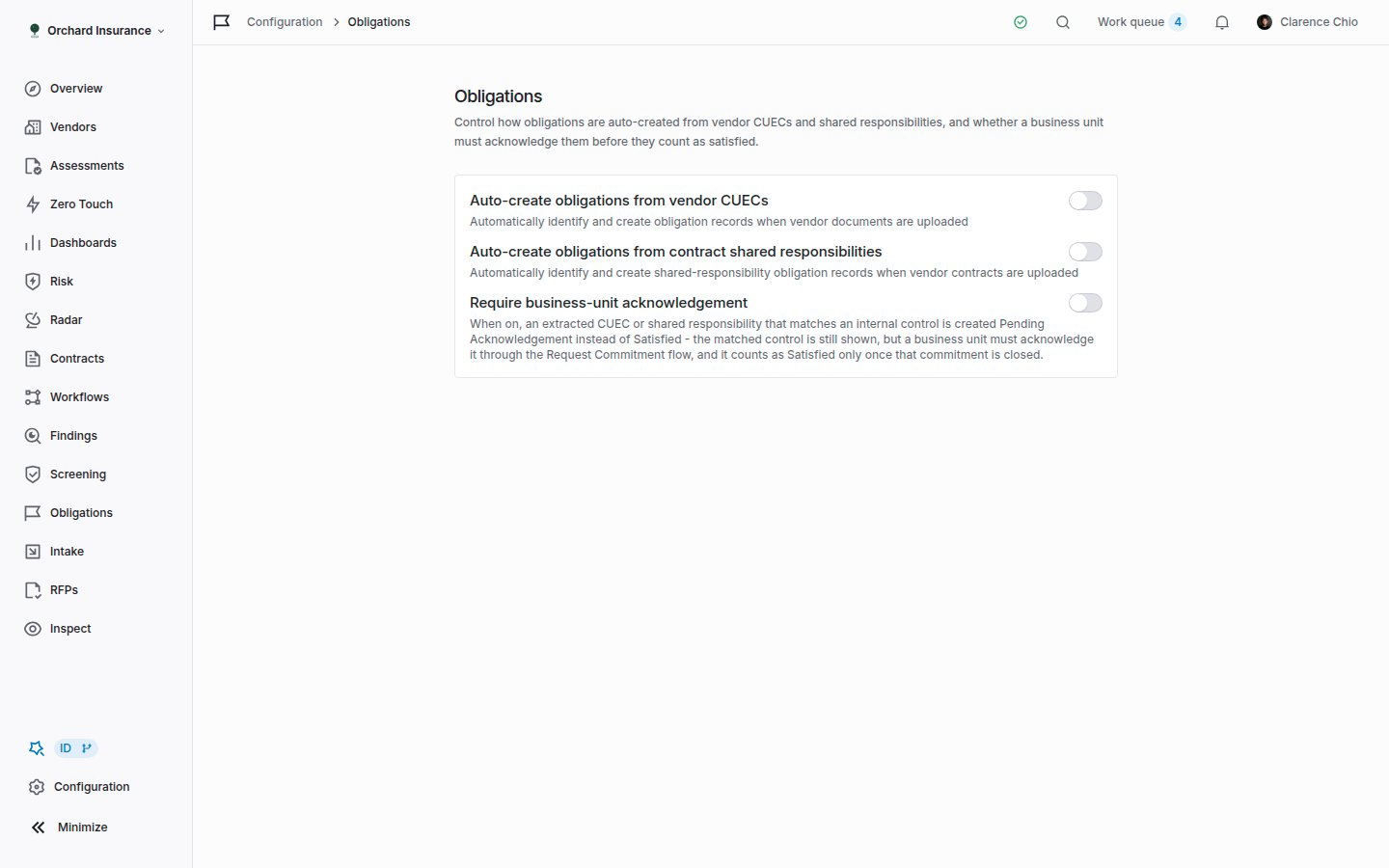
Configuration → Obligations. Three switches, all off by default.
- Extraction runs at analysis time. A document analyzed before the switch was on gets nothing. Use New Obligations → Create or extract from documents to cover those, or re-run analysis on the document.
- Every obligation is checked against your internal controls. If a control in one of your internal control sets already covers the statement, the obligation arrives Satisfied with that control linked. If another obligation with the same meaning is already satisfied, the new one arrives Satisfied too. Otherwise it arrives Not Satisfied. You can see which path an obligation took in its Compliance Type.
- Duplicates are skipped. A statement that already exists on the same vendor is not created twice.
Reading the list
The top bar, left to right:- Search obligations… matches statement text. Typing expands every group.
- Filter opens a menu of Vendor, Vendor Tags, Vendor Inherent Risk Level, Vendor Residual Risk Level (only if your organization tracks residual risk), Status and Type. Applied filters sit under the bar as badges; click a badge to change it, or its cross to remove it.
- Group by switches the table between Vendor / Service (the default), Vendor, Service and Document. Your choice is remembered.
- Total obligations and Vendor documents count the whole filtered set, not the page.
- Expand all / Collapse all on the right, then the Actions menu (Download as Excel, Configuration) and New Obligations.
- Pages are groups, not rows. The pager counts vendors, services or documents per page, and each group on the page shows every obligation in it, so the header counts are always right.
- Archived obligations are not listed. Archiving is permanent from this page. An archived record can still be opened from a link you kept, but it cannot be changed.
Statuses
An obligation’s status is written when it is created and changed by people afterwards. Nothing recomputes it in the background except the two events noted below.Creating obligations
Besides the automatic switches, there are three ways in. All of them need the obligation create permission (an Admin, or a custom role with it).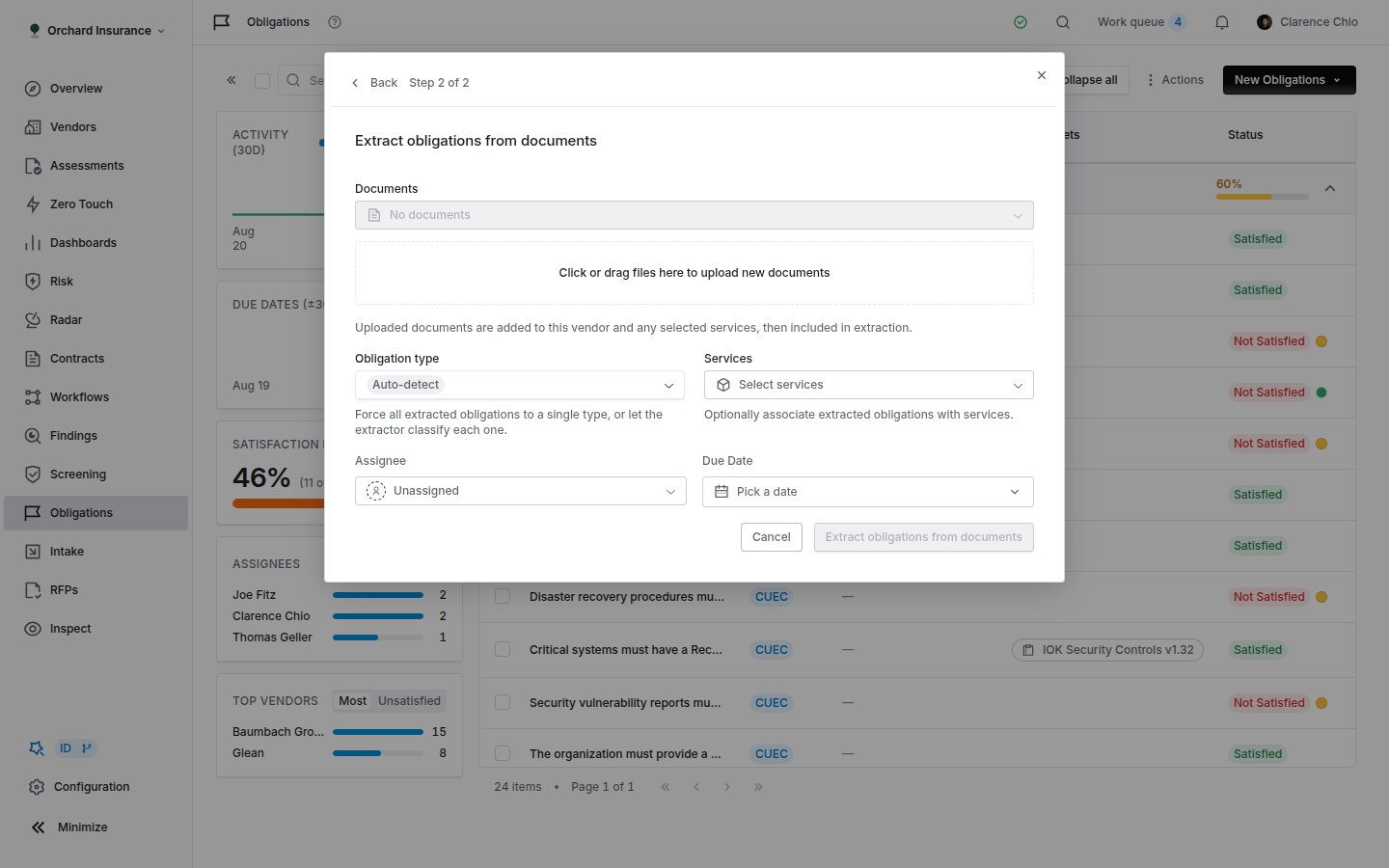
New Obligations → Create or extract from documents. Pick existing documents or drop new ones, choose a type, then Extract.
Extract from documents
Extract from documents
New Obligations → Create or extract from documents
Choose the documents
Set the type, services, owner and date
Extract obligations from documents
Extract from one document on the vendor record
Extract from one document on the vendor record
Create manually
Create manually
The obligation record
Clicking a row opens the record in a side panel. Its URL (/obligations/req/<id>) is shareable; the link icon next to the Obligation badge copies it. The expand button widens the panel.
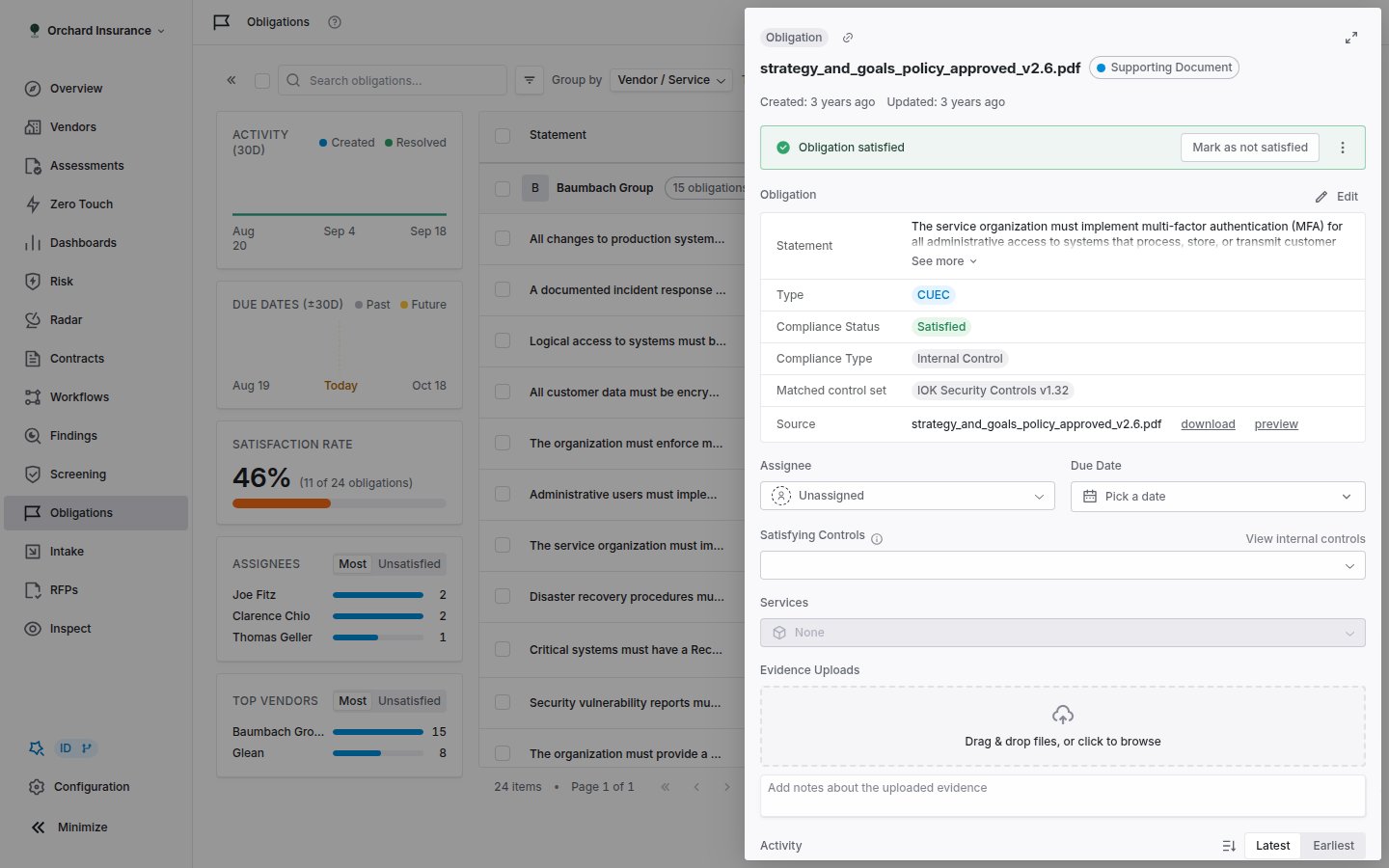
An obligation record: source document and type at the top, the status banner, then the details table, commitment, assignee, controls, services, evidence, activity and notes.
- Header. The source document’s name and type badge, or Custom Obligation for a record with no document. An expired SOC report shows an expiry badge. Underneath, Created and Updated, and, when the source report has expired, the hint May be stale - source document expired with an Archive link.
- Status banner. Green for Obligation satisfied, yellow for Obligation not satisfied (a pending obligation shows the yellow banner too). The banner carries Mark as satisfied or Mark as not satisfied, and a menu with Archive obligation. Both status buttons open a small dialog with an optional Reason; the reason is saved as a note on the obligation. Marking not satisfied also clears the linked controls and compliance type.
- Obligation table. Statement (click Edit to reword it), Original language (the verbatim text, shown only when it differs from the statement), Type, Compliance Status, Compliance Type, Matched control set (the internal control set the satisfying controls belong to), Created By, and Source, which expands to the document itself.
- Commitment. Appears only when a commitment has been requested. See Asking a business unit to acknowledge.
- Assignee and Due Date. Saved as soon as you change them. The calendar does not offer past dates.
- Satisfying Controls. A picker over your internal control sets, with a View internal controls link. Add a control and the obligation becomes Satisfied / Internal Control; remove the last one and it becomes Not Satisfied.
- Services. The vendor’s services this obligation applies to. Only that vendor’s services are offered.
- Evidence Uploads. Drop files (up to 100 MiB each) that prove the obligation is met. Each file can carry a note, and you can preview, open or remove it.
- Activity and Notes. Every field change, including system changes, and a place to discuss the obligation. A note also emails the vendor’s relationship owners if the obligation has an active commitment portal, so they can respond there.
Reviewing extracted obligations
Extraction is tuned to surface too much rather than too little, so a review pass is part of the job. For each new obligation:Read the statement against the original language
Check what matched
Scope it to a service
Give it an owner and a date
Decide how it is satisfied
Ownership and reassignment
Assignee takes a person or a user group. When you assign a group, Coverbase routes it according to that group’s rule and notifies the member who was picked. Assigning a single person changes the record and its activity log; it does not send an email on its own. Group routing, round-robin and out-of-office rules are covered in Assignment, delegation and out of office. To reassign several at once, select the rows and use Change Assignee in the floating bar. Picking Unassigned clears the owner. The assignee matters for permissions: a role that can edit obligations at assigned scope can only change the obligations assigned to them or to a group they belong to.Asking a business unit to acknowledge
An obligation is often satisfied by a team that never opens Coverbase. Request Commitment sends them a portal listing the obligations, and records what they say.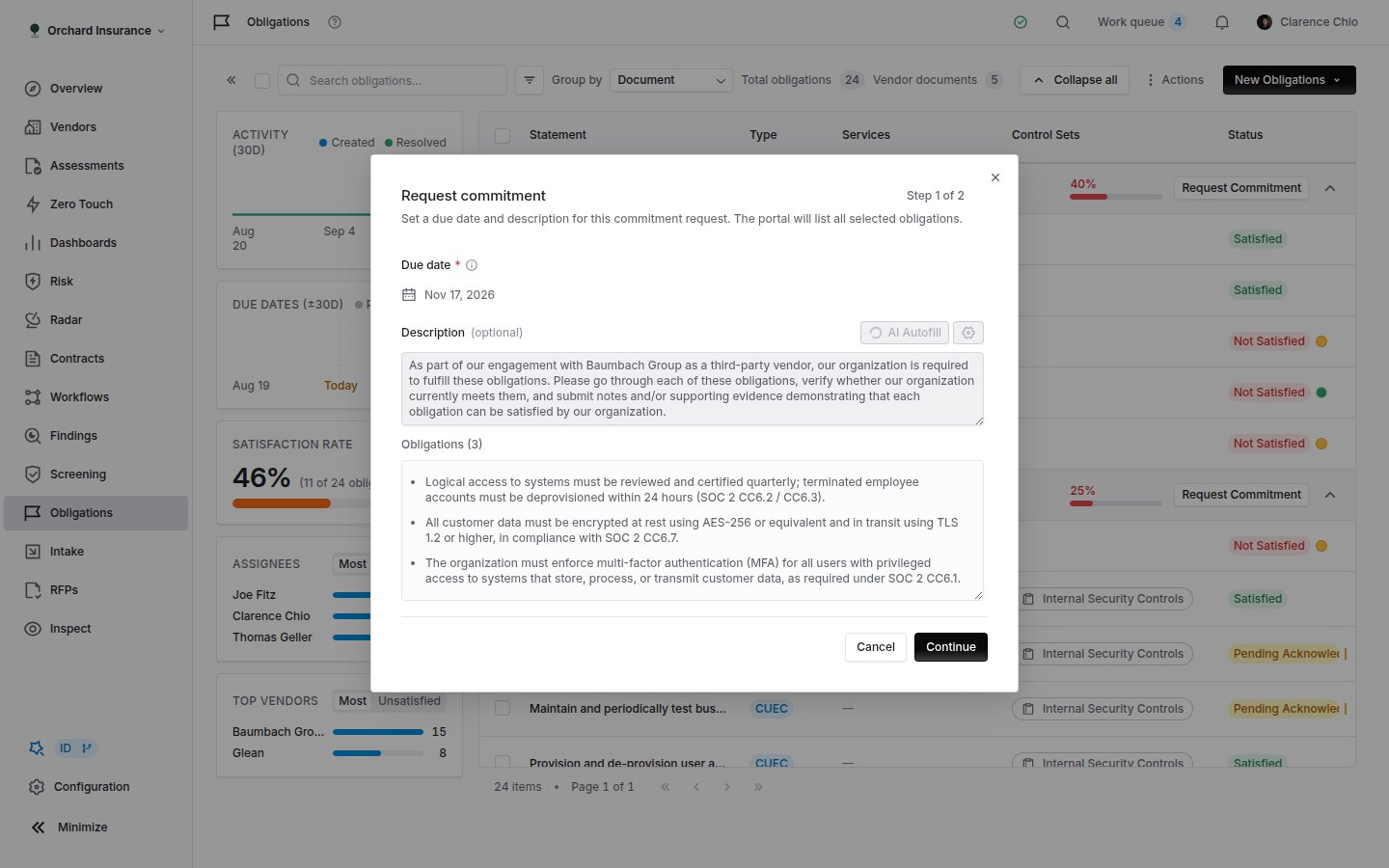
Request commitment, step 1. Due date, description and the obligations the portal will list.
Pick the obligations
Set a due date and description
Send the invitation
- One commitment is created per obligation, and all of them are attached to the vendor’s persistent portal, which is reopened if it had been closed. Each record’s status badge gains a Commitment Requested tag.
- The recipient opens an Obligations Portal. For each obligation they can Commit (acknowledge it and take it on), choose Already satisfied (describe the existing control and attach evidence), Add a comment or propose changes (different terms or a different date), or Decline (a reason is required). When the recipient answers in the centralized supplier portal, each commitment there also shows the obligation’s type (Complementary control or Shared responsibility) and the document it was read from.
- Back on the record, the Commitment section shows the status (Pending response, Response received, Mitigation underway, Declined, Closed), the response type, any proposed completion date and notes, a View submission link, and Reopen to pending for anything that has moved past pending.
- When a commitment reaches Closed, an obligation that was Pending Acknowledgement becomes Satisfied. An obligation in any other status keeps its status; closing the loop is still yours to record.
Acting on several at once
Select rows (or a whole group with the checkbox in its header) and the floating bar offers: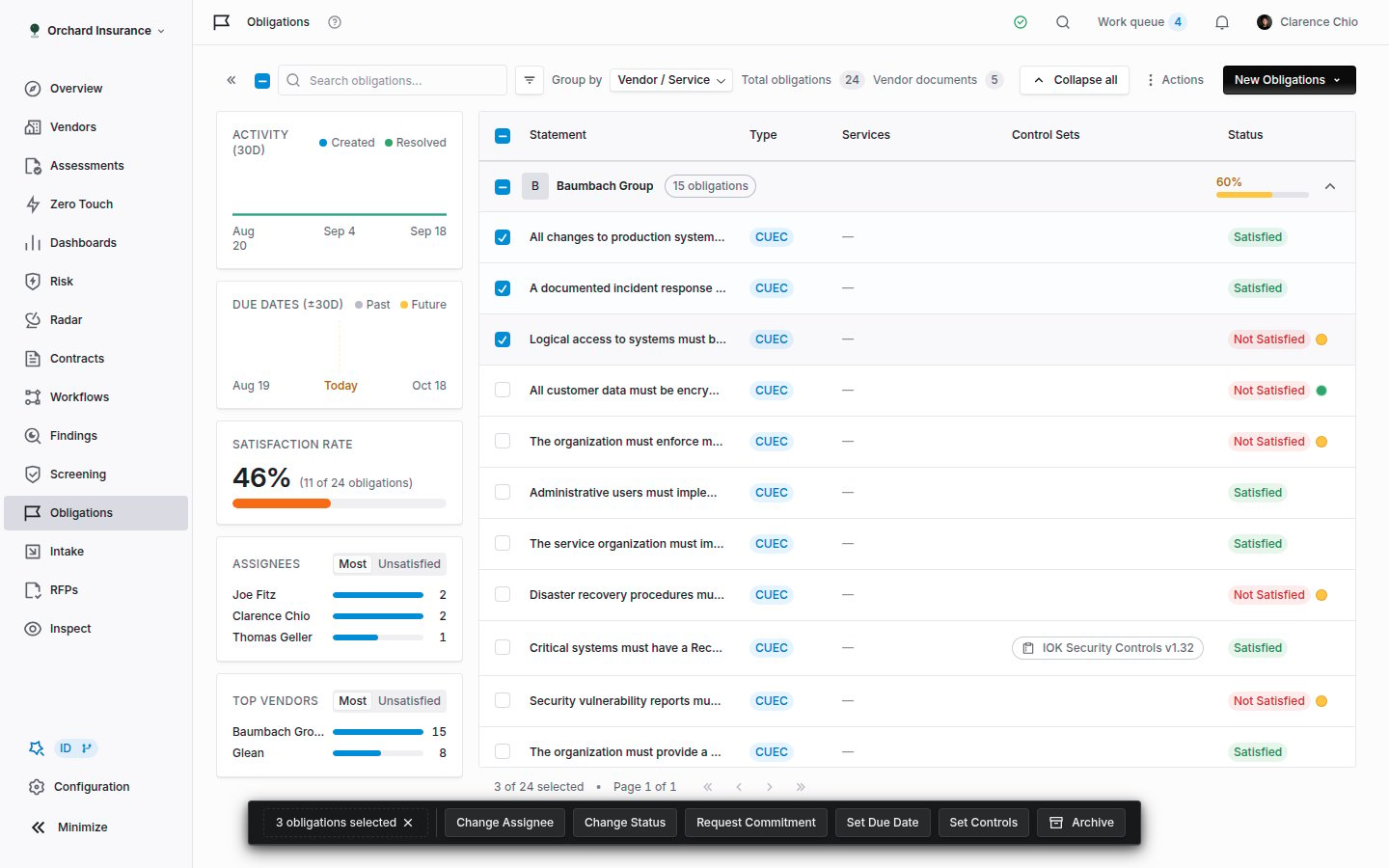
The floating bar for a selection of obligations.
Exporting
Actions → Download as Excel opens Build Obligations Report. Give it an Export file name and choose whether to Apply current filters to the export. The sheet has one row per obligation: statement, type, status, compliance type, vendor, document, assignee, due date, created by, created and updated dates, and the satisfying controls.Emails and notifications
Where obligations show up elsewhere
- Vendor record. The Obligations tab, and Include obligations in the vendor report export.
- Archiving cascades. Archiving a vendor archives its obligations. Archiving a document archives the obligations extracted from it.
- Risk register. With the Risk module, an obligation that is Not Satisfied past its due date, or Pending Acknowledgement for longer than the configured window (14 days by default), becomes a risk signal on the vendor. The signal clears when the obligation is satisfied or archived.
- Workflows. The Contract obligation ownership template fires when an obligation is raised against a vendor’s document and creates a task to assign it. See Workflow templates.
- Webhooks.
Obligation.Created,Obligation.Updated(with a field diff) andObligation.Deleted. See Webhooks. - API and MCP.
GET,POSTandPATCHon/v1/obligationsfor GRC round-trips (Obligations API), and theobligationsquery plusobligationcreate and update in the MCP server.
Permissions
Work obligations from MCP or the API
You can create, update, extract and bulk-edit obligations from an MCP client or with an API key, as well as in the dashboard. An MCP client reads withquery_engagements_contracts(kind="obligations") and writes with mutate(entity="obligation", action=...) (create, update, bulk_action, extract_from_documents).
The API routes are /v1/obligations on the Obligations API, plus POST /v1/obligations/bulk-action and POST /v1/obligations/extract-from-documents on the Risk API.
Before an MCP client sends a write, it shows you the change and waits for you to confirm it. The MCP tool reference lists every field.
An API key cannot archive obligations in bulk, and archiving one needs obligation:archive:org, which service accounts do not hold. A signed-in user archives them.