

Finding it
Open a vendor, go to Vendor Intelligence, and pick the Security tab. The buttons at the top read, left to right, Refresh, Generate findings, Export PDF and the actions menu (…). Hover over Refresh to see when the page was last refreshed and who or what started it. Export assets, a spreadsheet of every asset the scan found, is in the actions menu. When the window is too narrow, Generate findings and Export PDF move into the actions menu as well.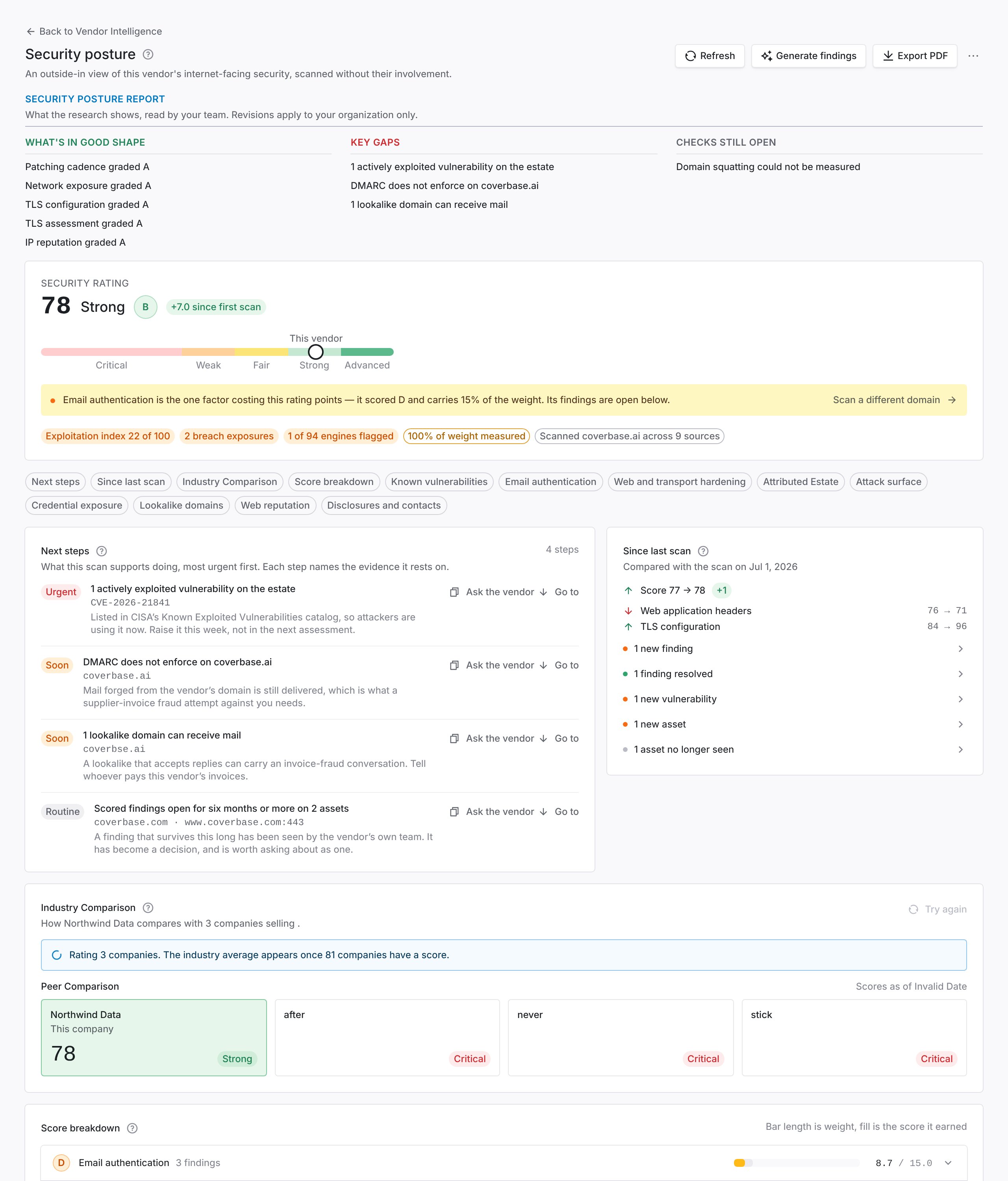
1 Overall rating and grade. 2 Next steps and what changed since the last scan. 3 Per-factor breakdown, with the findings behind each score.
The summary above the rating
A short summary sits above the rating: what is in good shape, the key gaps, and the checks that could not be measured.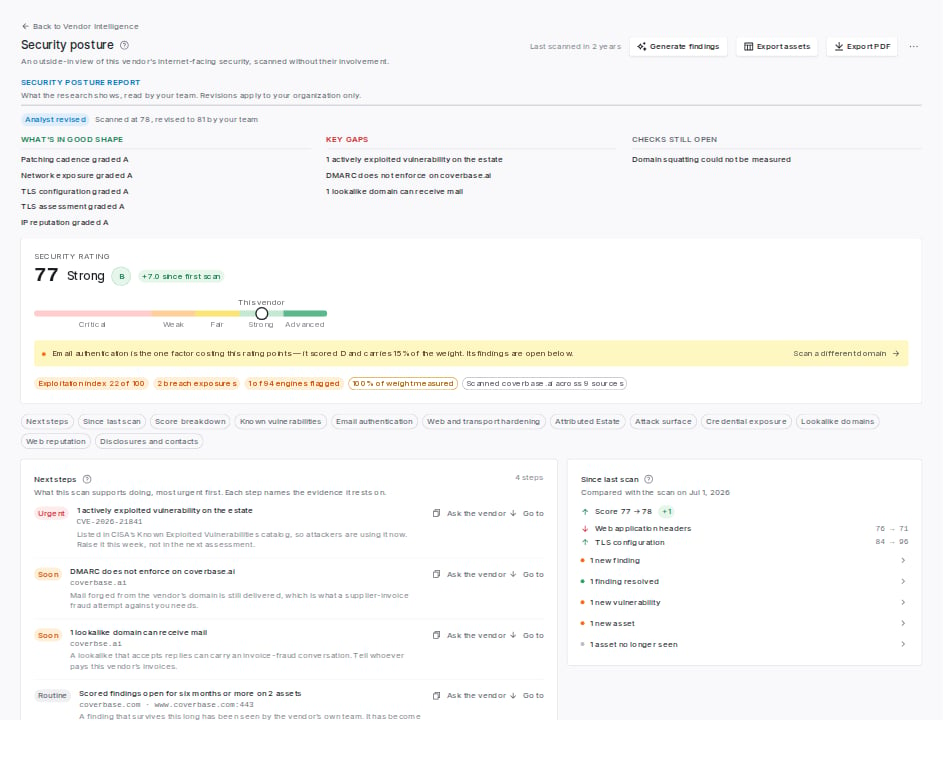
The summary above the rating. A revised page says so, with the scanned and revised ratings.
Revising the page
The scan reads what is public, and it can be wrong about a particular vendor. A vulnerability can match a host the vendor no longer runs, or a finding can belong to someone else’s infrastructure. Revise from notes or evidence corrects the page from text you paste, without changing the shared research.Paste what you know
Review each proposed change
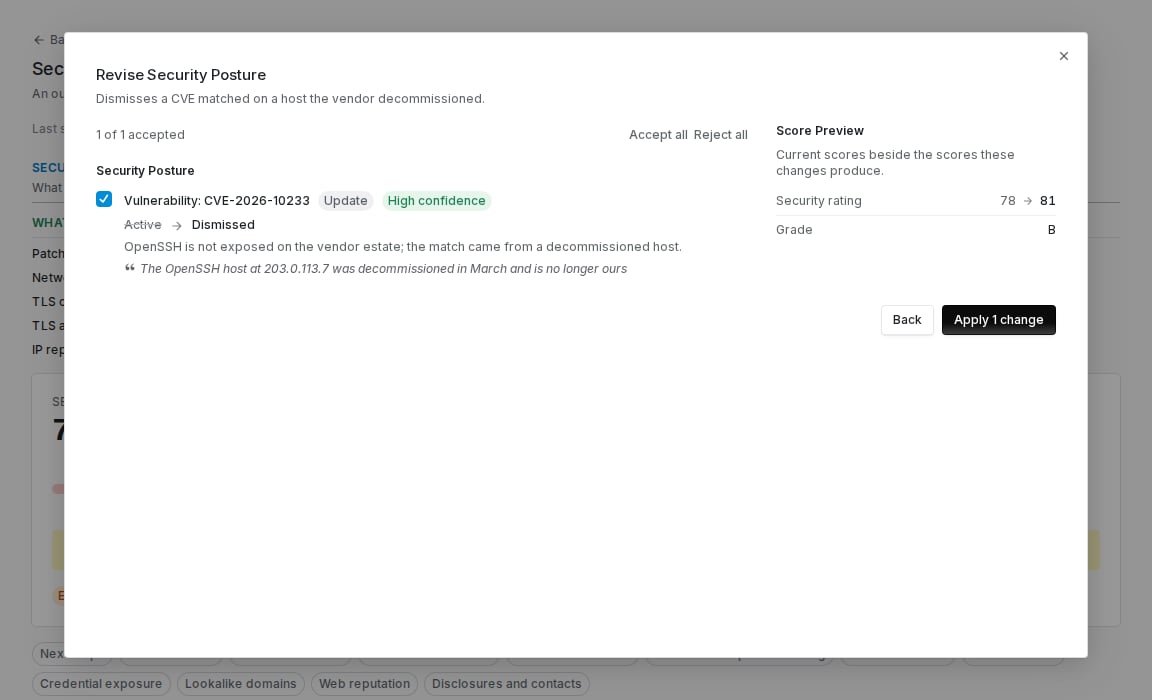
A dismissed vulnerability, the quote it rests on, and the rating it would leave.
Apply
Your team’s revisions
Your team’s revisions, at the end of the page, lists each change with its reason and quote, then every version of the page. Restore makes an earlier version current again. A restore is itself a new version, so nothing in between is lost. Version 1 is always the page as scanned.
Each change with its reason and quote, then every version.
Next steps
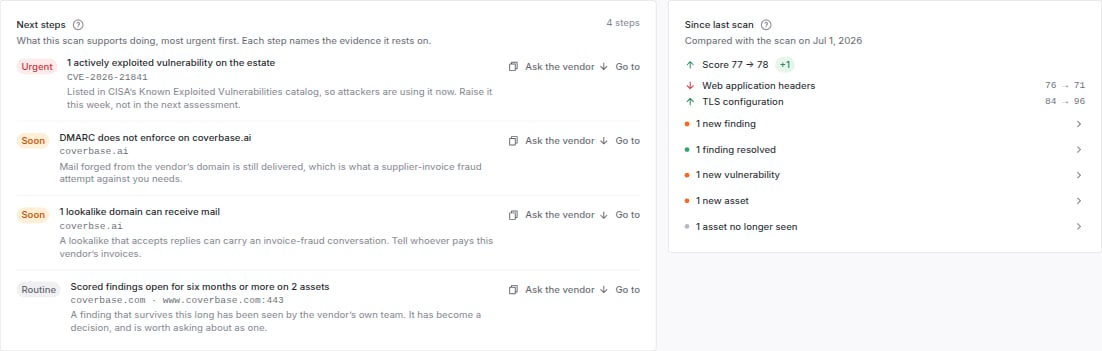
Next steps on the left, most urgent first, and what changed since the previous scan on the right.
- Ask the vendor copies a question ready to paste into a message. It quotes the observed value, so the vendor gets a specific, checkable claim rather than a request to investigate.
- Go to scrolls to the section holding the evidence.
Since last scan
Since last scan compares this scan with the previous one and lists what moved: the score, each factor that changed, findings that appeared or were resolved, vulnerabilities that appeared or are no longer observed, and assets that arrived or left the estate. Each count opens to the names behind it.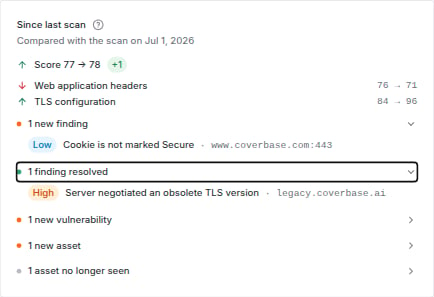
Each line is a count. Open one for the names behind it.
- No earlier scan to compare with yet means there is nothing to compare against: a first scan, or a profile stored before the comparison existed. Changes appear after the next refresh.
- Nothing changed means the scan ran and found the same findings, assets and score as before.
- A panel with counts means something moved, and the factor rows in the score breakdown carry the same movement as a small badge.
Standing among your vendors
When your organization has at least five vendors with a security rating, the rating carries a standing such as Top 30% or Bottom 20%. It is the share of the other rated vendors you can open that this one scores at or above, computed when you open the page from the ratings as they stand today. Hover it for the count. A user who can only open assigned vendors is ranked among those vendors, so two people can see different standings for the same vendor. It ranks the vendor against your portfolio, not against the industry. A vendor in your top 10% can still carry an actively exploited vulnerability, which is why Next steps sits above it in the reading order. To see the vendor against its own market, read Compared with industry peers.Compared with industry peers
A rating on its own does not tell you whether a 72 is weak for this kind of company or typical of it. Industry Comparison places the vendor beside three to seven companies that sell what it sells, each rated by the same scan.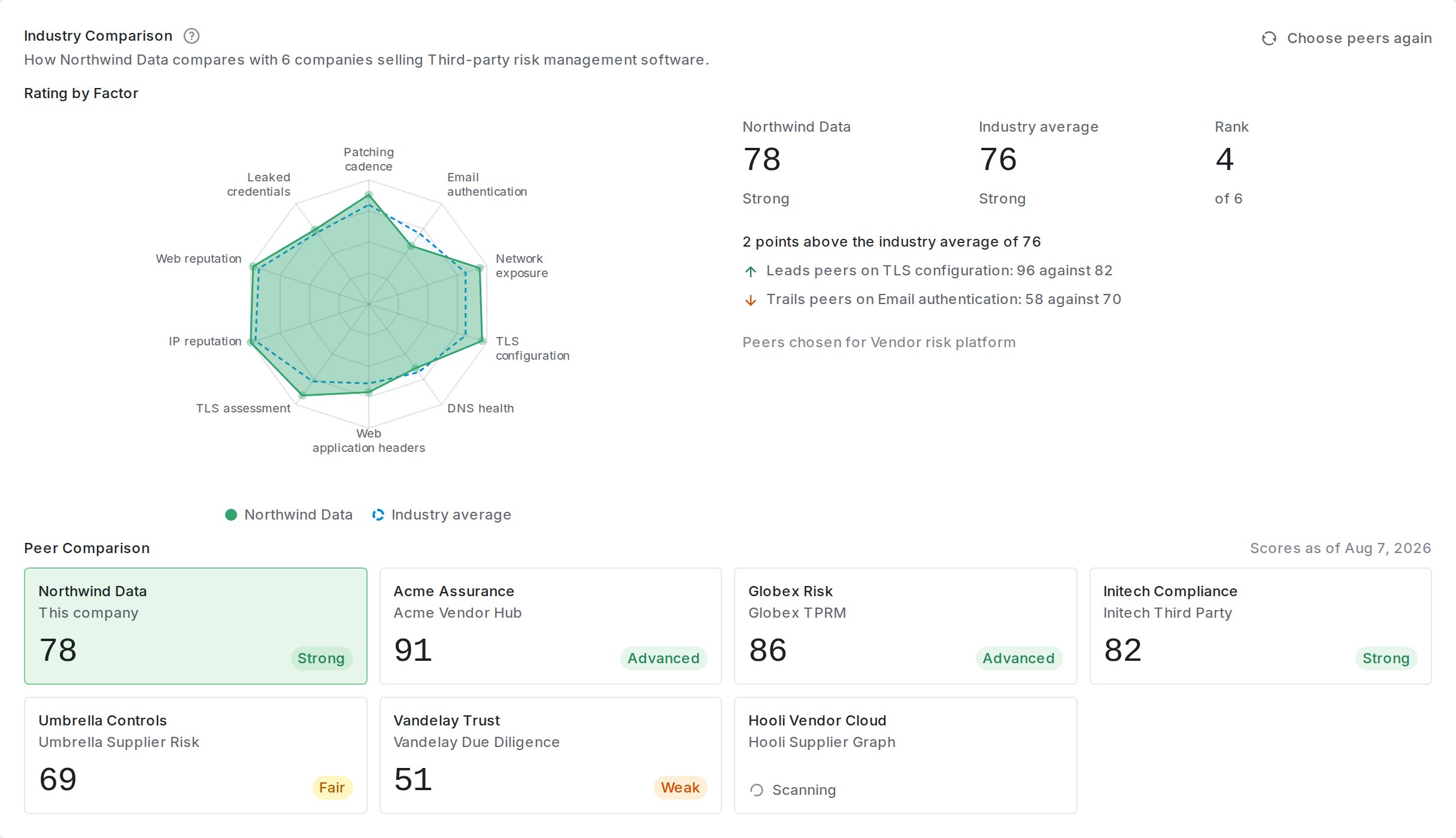
1 The vendor's factor scores against the industry average. 2 The vendor's rating, the average and its rank. 3 Every company's rating and band, the vendor first.
- Rating by Factor draws the vendor’s factor scores as a filled shape and the industry average as a dashed outline. Where the fill falls inside the outline, the vendor trails its peers on that factor.
- The summary gives the vendor’s rating, the industry average and the vendor’s rank, then the factor the vendor leads its peers on by the most and the one it trails on by the most.
- Peer Comparison gives each company’s rating with its band: Critical, Weak, Fair, Strong or Advanced. The vendor’s tile comes first and is highlighted. Hover a tile to see why the company was chosen and when it was last scanned.
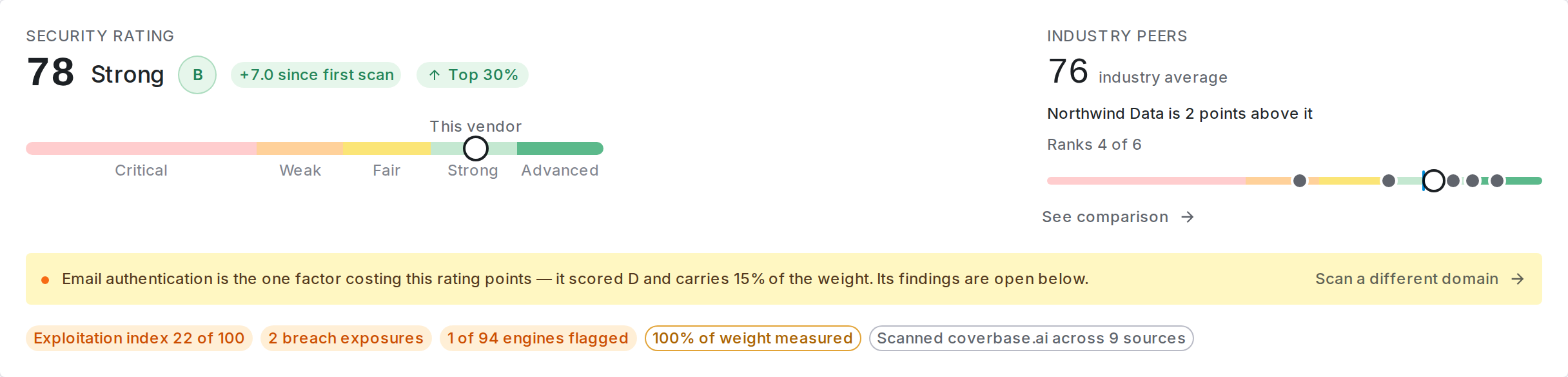
The comparison in brief, in the top right of the rating card.
How peers are chosen
Peers are chosen for the product your organization buys from the vendor. Coverbase reads the vendor’s services and product list in your workspace, or its use case when neither names a product, and compares the vendor at company level when there is neither. It searches the web for the vendor’s competitors, adds the competitors already on the vendor’s fact sheet, and has a model pick the closest companies: ones that sell a competing product to the same kind of buyer, in the same industry, at a comparable scale. The picks are then checked. A company is dropped when the only website found for it is a profile on another site, such as LinkedIn or a review site, when it is the vendor itself, its parent or its owner, or when it repeats a company already on the list. Coverbase keeps between three and seven peers. When the first pick leaves fewer than three, it asks for more, and when it still cannot find three, it shows no comparison rather than one built on one or two companies. Each peer is rated by the same outside-in scan as your vendors. A peer Coverbase already rated in the last 30 days keeps that rating. A new peer, or one with an older rating, is scanned when the comparison is built, and its tile reads Scanning until the result lands, usually within a few minutes. A company the scan cannot measure reads Not rated and is left out of the average. When that leaves fewer than three rated peers, Coverbase replaces the companies it could not rate.Keeping it current
The comparison is built the first time anyone opens the vendor’s Security tab, and then keeps itself current:- Peers are chosen again every 90 days.
- A peer’s rating is refreshed once it is more than 30 days old.
Choosing the peers yourself
The peers Coverbase picks are companies that sell what the vendor sells. You may compare a vendor differently, for example a water district against the other utilities in its own valley rather than water districts nationally. To steer the choice:- In the Industry Comparison header, click Choose peers.
- Under What the Peers Have in Common, describe the companies you want, for example “Other water and wastewater utilities in the Las Vegas Valley, public agencies of a similar size”.
- Under Always Include, list any companies that must be peers, one per line, up to seven. A website, such as
snwa.com, is matched exactly, so use one when a name could mean several companies. - Click Choose peers. Coverbase chooses the peers again with your guidance, usually within a few minutes.
Reading the comparison
- The industry average is the mean of the rated peers’ overall ratings, and it appears once at least three peers have a rating. On the chart, each factor is the mean of the peers that measured it, and a factor is drawn only when the vendor and at least two peers were measured on it.
- A note under the summary says when some peers were rated on fewer factors than the vendor. Their overall scores weigh fewer checks, so they compare less directly.
- The comparison is outside-in, like the rest of the page. A vendor above its industry average can still carry an actively exploited vulnerability, so read Next steps first.
Breach and ransomware risk
Two indicators sit under Next steps: Ransomware Risk and Breach Risk. Each reads Low, Elevated, High or Severe, with a score out of 100. The same two levels appear as chips under the rating. Each indicator lists What raises it, one row per fact the scan observed, with the points that fact adds. The points add up to the score, so you can check the arithmetic yourself. Click a row to jump to the section that holds the evidence.Hosting locations
Hosting Locations shows where the servers behind the vendor’s domains are, one row per country. Expand a row to see each host, its address, and how it was placed.- Cloud region. A host on Amazon Web Services or Google Cloud is placed in the region the provider publishes for its address, for example eu-central-1 in Germany.
- Address registry. Any other host is placed in the country its address block is registered to. That is usually, but not always, where the server is.
- Global edge network. A host behind a content delivery network such as Cloudflare or Fastly answers from the location nearest each visitor, so it has no single country.
Certifications on file
When your workspace has the certificate vault, Certifications on File lists the vendor’s certificates, such as ISO 27001 or a SOC 2 report, with their expiry. An expired or expiring certificate is marked. Open documents goes to the vendor’s documents. A current certification and a strong rating answer different questions. Read them together: a clean certificate over an exposed estate is worth a question.How much to trust the rating
The chip beside the risk levels reads Confidence: High, Moderate or Low. Click it to see why:- how much of the rating was measured, and how much was measured directly on the vendor’s servers rather than read from an outside feed
- how old the scan is
- how many assets your team has disputed, and how many are not yet reviewed
The rating is a floor, not a verdict
Everything measured here is visible from the public internet. That is both its strength and its limit. A strong rating means the things an attacker can see from outside are in order. It says nothing about what happens inside the vendor’s network, how they manage access, or whether they have a working incident process. Those questions need an assessment. A weak rating is more actionable in the other direction. A monitor-only DMARC policy or an expired certificate is a fact, not an inference, and you can raise it with the vendor immediately.Scan the right domain
The rating measures one domain, taken from the vendor’s website on file. The chip under the rating names it. If that is a marketing host, a redirect or another company’s domain, click Scan a different domain beside the verdict. Enter a host or a full URL, or pick one of the hosts the scan already attributes to the vendor, and click Rescan. The rating updates when the new scan finishes, and later refreshes keep scanning the domain you chose. Unlike a revision, this changes the shared research, so every organization that monitors the same company is rated on the new domain. You need permission to edit the vendor.Read the factors, then the number
The overall rating is a weighted roll-up. The factor breakdown underneath it is what you act on. Each factor expands to show the specific observations behind its score, so a low number always resolves to something concrete: a hostname, a header, a certificate, a CVE. That distinction matters when you are writing up an assessment. “Not measured” belongs in the questions you ask the vendor, not in the findings you record against them.Open a finding to get the fix
Click any finding in a factor to open it.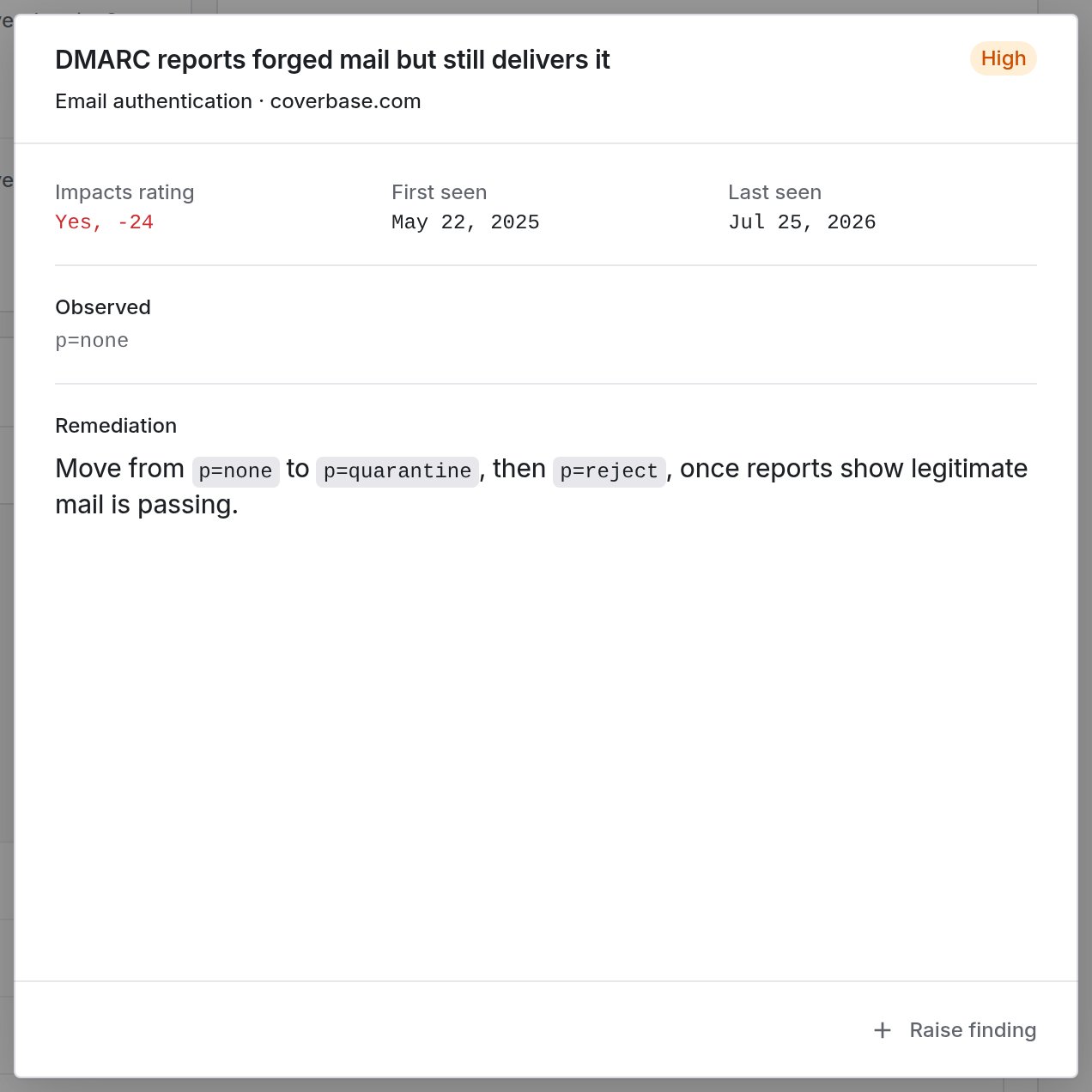
A finding opened from the Email authentication factor, showing what was observed, the step that resolves it, and Raise finding.
- Impacts rating tells you whether this finding cost points, and how many. A finding recorded for completeness that moved nothing says No.
- First seen and Last seen tell you how long it has been open. A finding that has survived months has been seen by the vendor’s own team too.
- Observed is the raw value the scan read, such as
p=noneorTLSv1.0. - Remediation is the step that resolves it, written for whoever operates the asset rather than for you.
Raise findings from what the scan found
Raise finding on an open finding creates a tracked finding against the vendor, pre-filled with the asset, the observed value and the scan date, so it stands on its own once it leaves Coverbase. When a sweep turns up the same problem across a dozen hosts, use Generate findings at the top of the page instead.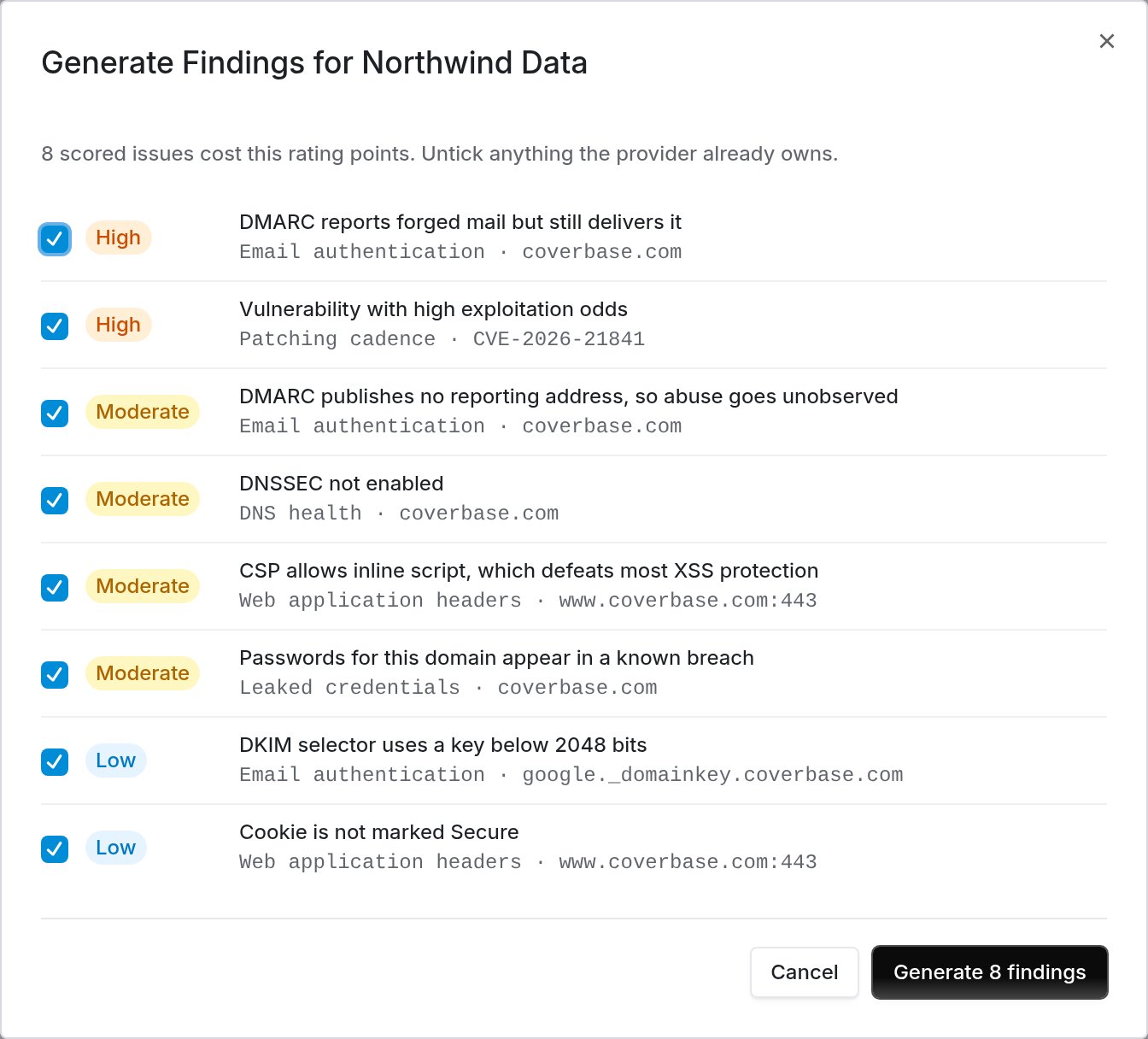
Every scored issue, ticked by default, ordered by severity.
Rating over time
Each point is a restatement of the whole rating. A step change usually means a scan found something new rather than the vendor changing overnight, so read the factors before drawing a trend. The history lives in the drawer at the bottom of the page, beside the Security timeline: every dated fact on the profile in one list, newest first. Each rating, the day each open finding was first seen, each breach, each asset that appeared or was no longer seen, and each disclosed incident. Use it to see that a breach, a new host and a rating drop landed in the same fortnight without opening four sections.Attack surface
What is reachable from the internet under the vendor’s domains: hosts, exposed services and open ports. A large surface is not automatically a finding; it is context for the rest of the page. Transport checks run per host rather than only against the vendor’s main domain, so a neglected server is not hidden by a well-configured main domain.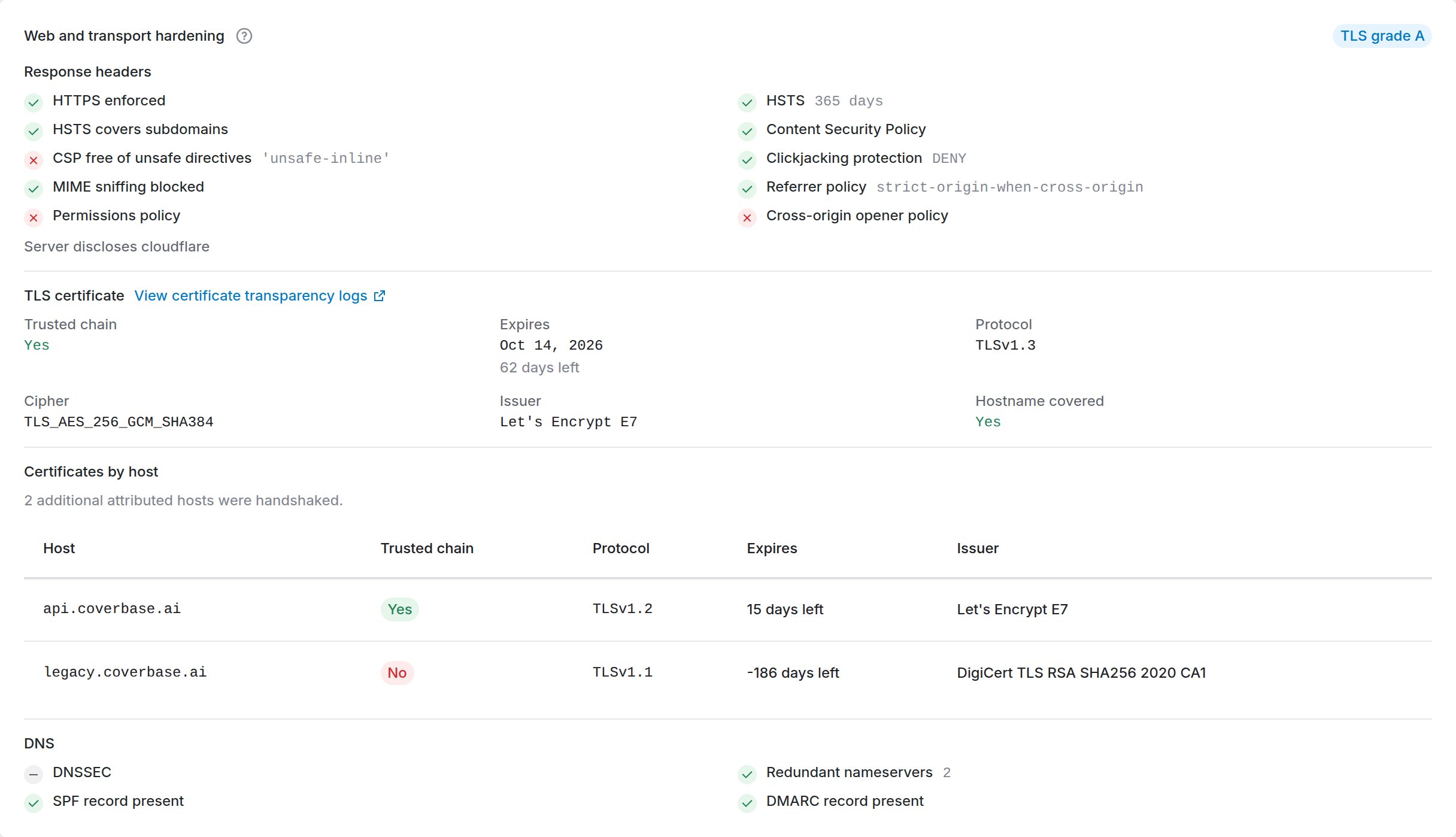
Each attributed host handshaken separately, with its own chain, protocol and expiry.
Related domains
The scan rates the vendor’s domain and its subdomains. A company it acquired, a regional brand, or a separate mail domain is outside that, so Related Domains lists the domains the scan saw tied to the vendor:- a domain on the same certificate as one of the vendor’s hosts
- a domain the vendor’s website redirects to
- a domain carrying the vendor’s name in its DNS, such as its name servers or mail servers
Attributed estate
The scan works out which domains and addresses belong to the vendor from certificate transparency logs and public scan data, then measures each one. Attributed Estate is that list, and it is where you correct what the scan got wrong.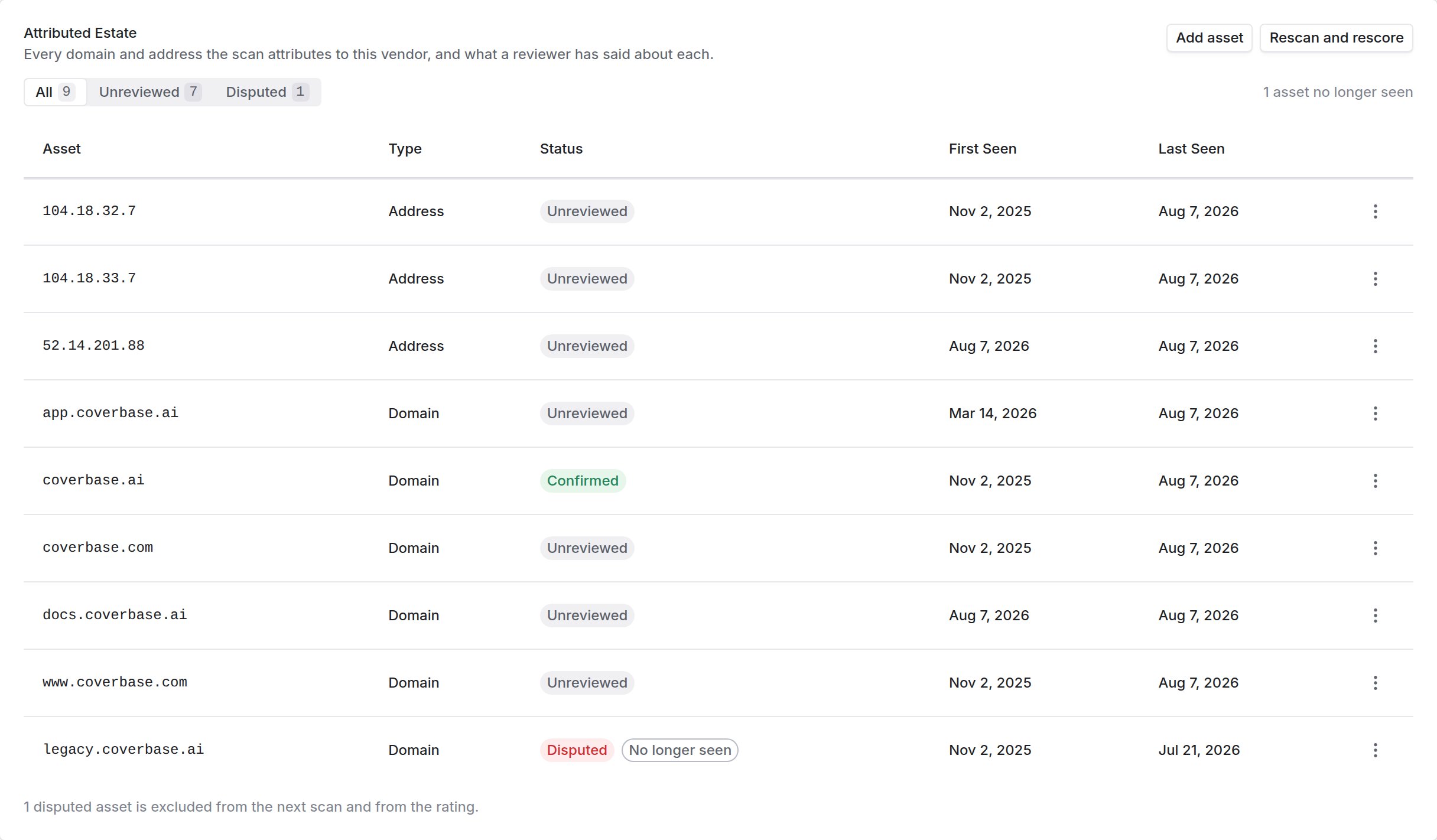
Every asset the scan attributes to this vendor, filtered by what still needs a decision.
Something is listed that is not theirs
Shared hosting, a reseller, or a product the vendor buys rather than runs. Open the row’s actions menu and choose Dispute. The next scan skips that asset entirely, and its findings leave the rating. Choose Confirm when you have checked an asset and it is theirs. That records the decision so nobody re-reviews it, and it does not change the rating.Something they run is missing
The scan only finds hosts that appear in a public certificate, so an internal host, or one the vendor never published a certificate for, never shows up on its own.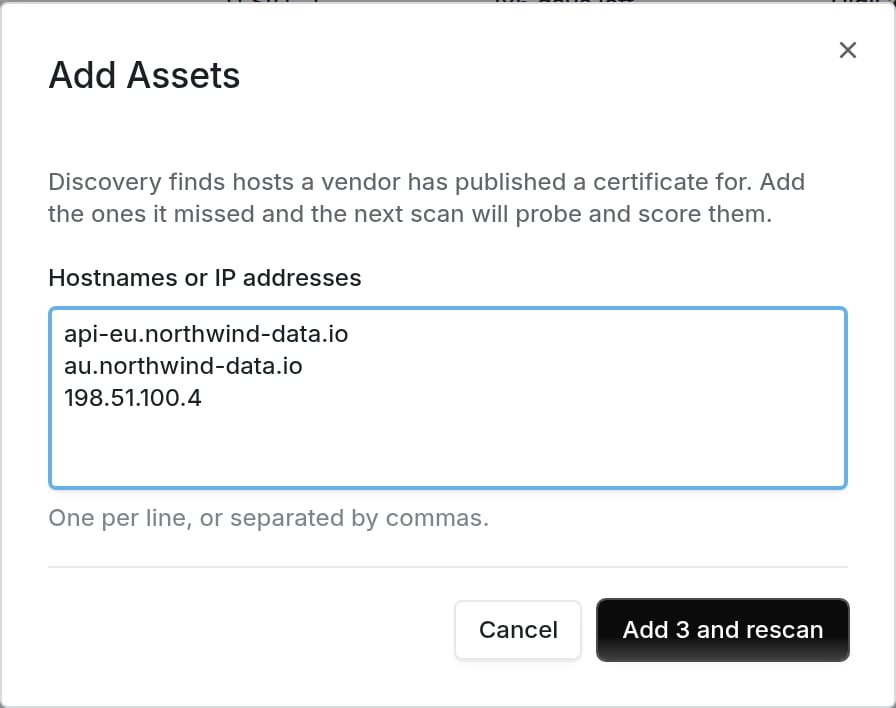
Adding the hosts the scan cannot discover on its own, in one go.
999.1.1.1 is rejected rather than accepted as a hostname. Accepting it would put an asset in the estate that can never resolve.
Email authentication
SPF, DKIM and DMARC as published. What matters is the policy, not the presence of a record: a DMARC record set tonone monitors and enforces nothing, and an SPF record ending in +all authorizes the entire internet to send as that domain.
Web hardening
Transport and browser-facing protections on the vendor’s public sites: TLS configuration and the security headers a browser acts on.Breaches and exposed credentials
Known breach records and credential exposures associated with the vendor’s domains, with dates. Age matters: a decade-old breach and one from last quarter are different conversations. To have new ones found daily and triaged, see Dark web monitoring.Reputation and blocklists
Whether the vendor’s domains or hosts appear on public blocklists or threat feeds.Security disclosures
Whether the vendor publishes a vulnerability disclosure policy or security contact. Its absence is a maturity signal, not a vulnerability.What was scanned
Which checks ran, when, and which did not resolve. A factor that could not be scanned is reported as such rather than scored as a pass.Known vulnerabilities
Vulnerabilities are matched against software observed on the vendor’s estate, and ordered by how likely they are to be exploited rather than by severity alone. A vulnerability on CISA’s Known Exploited Vulnerabilities list is called out separately. Those are being exploited now. Raise them with the vendor the same week rather than noting them in a report.Lookalike domains
The page lists domains built to resemble the vendor’s own, and marks which of them resolve and which can receive mail. To have new ones found daily and triaged, see Dark web monitoring. A mail-capable lookalike matters most. It can host a page and receive replies, which is what a supplier-invoice fraud attempt against you needs.Read and correct the scan from MCP or the API
You can read the posture and correct what the scan covers from an MCP client or with an API key. An MCP client reads withquery_vendors(kind="security_posture"), query_vendors(kind="security_benchmark"), query_vendors(kind="security_peers") and query_vendors(kind="scan_results"). It writes with mutate(entity="external_security", action=...) (rescan, review_asset, add_assets, refresh_peers).
The API routes are GET /v1/vendors/{vendor_id}/security-benchmark, the /v1/vendors/{vendor_id}/external-security routes and GET /v1/vendor-scan-results. See Correct a vendor’s external security scan.
To revise your organization’s reading of the security or financial intelligence, tell Coverbase a tab is wrong, or rebuild a tab, an MCP client uses mutate(entity="vendor_intel_revision", action=...) (propose, apply, restore) and mutate(entity="vendor_intel", action=...) (feedback, refresh, review), and polls query_vendors(kind="intel_refresh_status"). The API routes are under /v1/vendors/{vendor_id}/intelligence. See Vendor intelligence revisions, feedback and refresh. An API key cannot apply a revision; a person does.
Before an MCP client sends a write, it shows you the change and waits for you to confirm it. The MCP tool reference lists every field.