

For AI agents: a documentation index is available at https://docs.coverbase.com/llms.txt. This page is also available in markdown by appending .md to the URL.
This guide is part of the User Guides collection. Share it with your suppliers. For the settings behind it, see Centralized supplier portal.
Getting in
You do not have a password. Two ways in:1
From an email they sent you
Open the link. It signs you in and lands you on the portal.
2
From the portal itself
Go to the address your customer gave you and enter your work email. A sign-in link arrives in your inbox.
Opening a link addressed to a colleague signs you in as them. On a shared machine, sign out from the account menu at the bottom of the left rail when you are done.
What is on the page
Home
What is due soonest, and what is waiting on your customer rather than on you.
Requests
Everything open, grouped by kind. Each row shows its reference, what it is, and when it is due.
Messages
One thread per request, shared with your customer’s team. A message can name the questions it is about. A dot marks a thread with something you have not read.
Documents
What you have uploaded and what you have sent. Download anything back. Only a file you uploaded and have not submitted can be removed.
Team
Who at your company can open this portal, and who owns each piece of work.
Profile
What this customer holds about you, and what you may change. Only if they have switched it on.
Your team
The first person to sign in becomes the owner. An owner can:- Invite colleagues, as owner or contributor
- Assign any request to a colleague, who is emailed about it
- Approve or decline a colleague who asks for access
- Remove someone
Some requests are marked confidential and are visible only to the people named on them. They do not appear in your list until somebody names you.
Keeping your details current
If your customer has switched the Profile section on, it shows what they hold about you: bank accounts, addresses, tax registrations, diversity records and the legal entities you trade with. Bank and tax identifiers are shown as the last four digits only. That is deliberate. You already have the full number, and if you are changing it you are typing a new one. Each section is in one of three states:When your customer asks you to update something
Your customer can send you a request to update specific details. You get an email with a link to your Profile page, and the request shows at the top of the page with the sections it covers and the date it is due.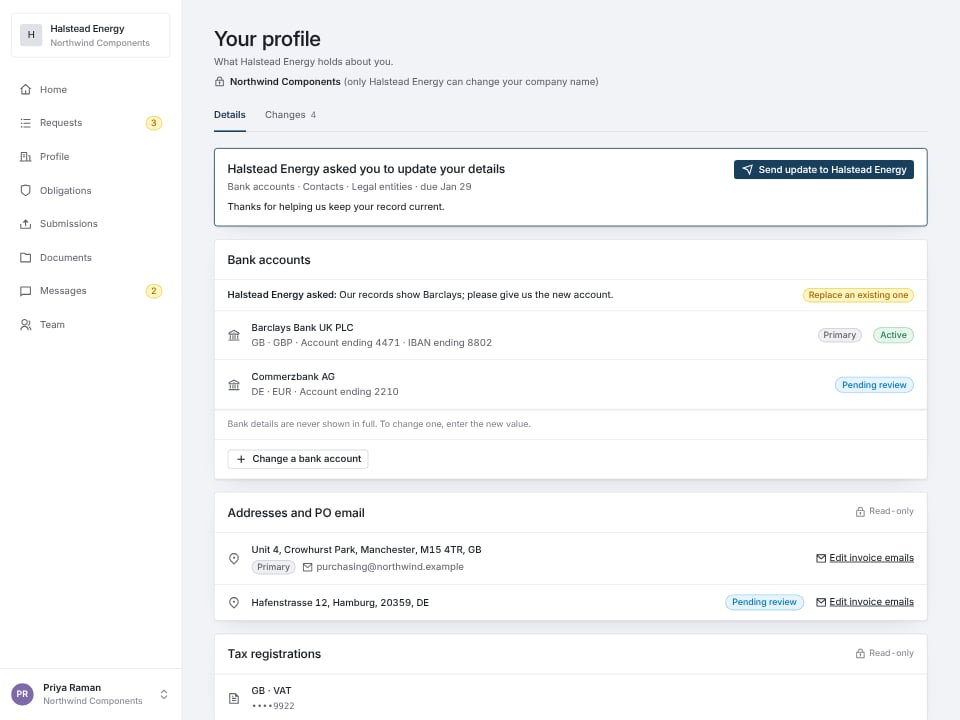
A request at the top of the profile page, and your customer's note on the section it is about.
- Change a bank account or Change an address: choose the one you are replacing, then enter the new details.
- This is still correct: tells your customer a section needs no change.
- Contacts: mark people to remove and add new ones. Your customer reviews these before they take effect.
- Your company name is shown with a lock. Only your customer can change it.
Proposing a change
Open the section, fill the form, submit. The form asks for the fields your country uses, and checks them as you type. A bank account change does not take effect until your customer approves it, and they keep paying your current account until they do. Other updates, such as a new address or tax registration, take effect as soon as you submit them. The Changes tab lists what is waiting on your customer, what they decided, and the reason if they declined it.Starting something yourself
If your customer offers it, Submissions lets you start a request rather than wait to be asked: reporting a security incident, sending a renewed insurance certificate, notifying a change of control. What you start gets a reference number and lands in their queue like anything else.Answering a long questionnaire
A questionnaire with sections shows each one as a card with an answered count. When you finish a section, it folds and the next unfinished section opens, so you can keep going without hunting for it. Expand all sections at the top opens every section at once, and Collapse all sections folds them again. Addresses you enter carry forward. Once your primary address is saved, later addresses and your bank details open on the same country, and a remit-to address can be set to Same as main address instead of typed again.Asking about a question
To ask your customer about something specific, click the chat button next to a question, or Ask about this section next to a section. Messages opens with that question or section picked. Add more with + Question or section, up to 20, and write your message. Your customer sees which questions it is about. Under a question, N messages about this question lists what you and your customer wrote about it, including messages about its whole section. You can reply there in one line, or click Open in Messages for the full thread. When your customer writes to you about a question on your form, you get an email that names it, with a button that opens the question.Drafting answers with AI
On a questionnaire request, Draft answers with AI fills in answers for you from the files you upload to the request and, unless you switch it off in the dialog, public information about your company.- Add at least one file first. Public information on its own is not enough to start.
- Only unanswered questions are drafted. Anything you have typed is never overwritten.
- Each drafted answer is marked AI draft with the files and pages it came from. Read it before you submit.
- A question your files do not cover stays blank and is marked Requires an answer. Next steps through them.
- You can keep working or leave the page while it runs. If you are signed in, you get an email when it finishes.
- If drafting stops, the card says why and offers Try again.
Seeing whether an answer meets the requirement
On an assessment questionnaire, your customer can have each answer checked against the requirement behind its question as you go. A moment after an answer saves, a line appears under it:- Meets the requirement, with a green check. Why shows the requirement and what in your answer satisfied it.
- Partly meets the requirement or Doesn’t meet the requirement yet, in amber, followed by what is covered, what is missing, and what to add or attach. Requirement shows the text it was checked against.
Uploading documents
Documents, spreadsheets, presentations, images, archives and emails, up to 100 MB each. Anything else is turned away with the list of what is accepted. A file you uploaded but have not sent can be removed; one already submitted against a request is your customer’s record and stays.When something looks wrong
- A link lands on “this request is no longer available”: the link was mistyped, or the request has been withdrawn. Ask for a new one.
- The portal says your customer has closed this portal: nobody removed you. Links they already sent still work, and asking for access will not bring it back.
- You cannot see a request a colleague mentions: it may be confidential and limited to named people. Ask your owner.
- A check says your answer does not meet the requirement, but it does: the check reads only what is written and attached. Add the missing detail or the document, or choose Keep my answer before you submit and explain in Messages.