

Start an envelope
New Envelope on Contracts → Signatures opens a four-step wizard. You can also start one with Send for signature in the Signature step of a contract’s Workflow tab, which files the envelope against that contract. Nothing is saved until you send, so leaving the wizard part way leaves nothing behind.Step 1: the document
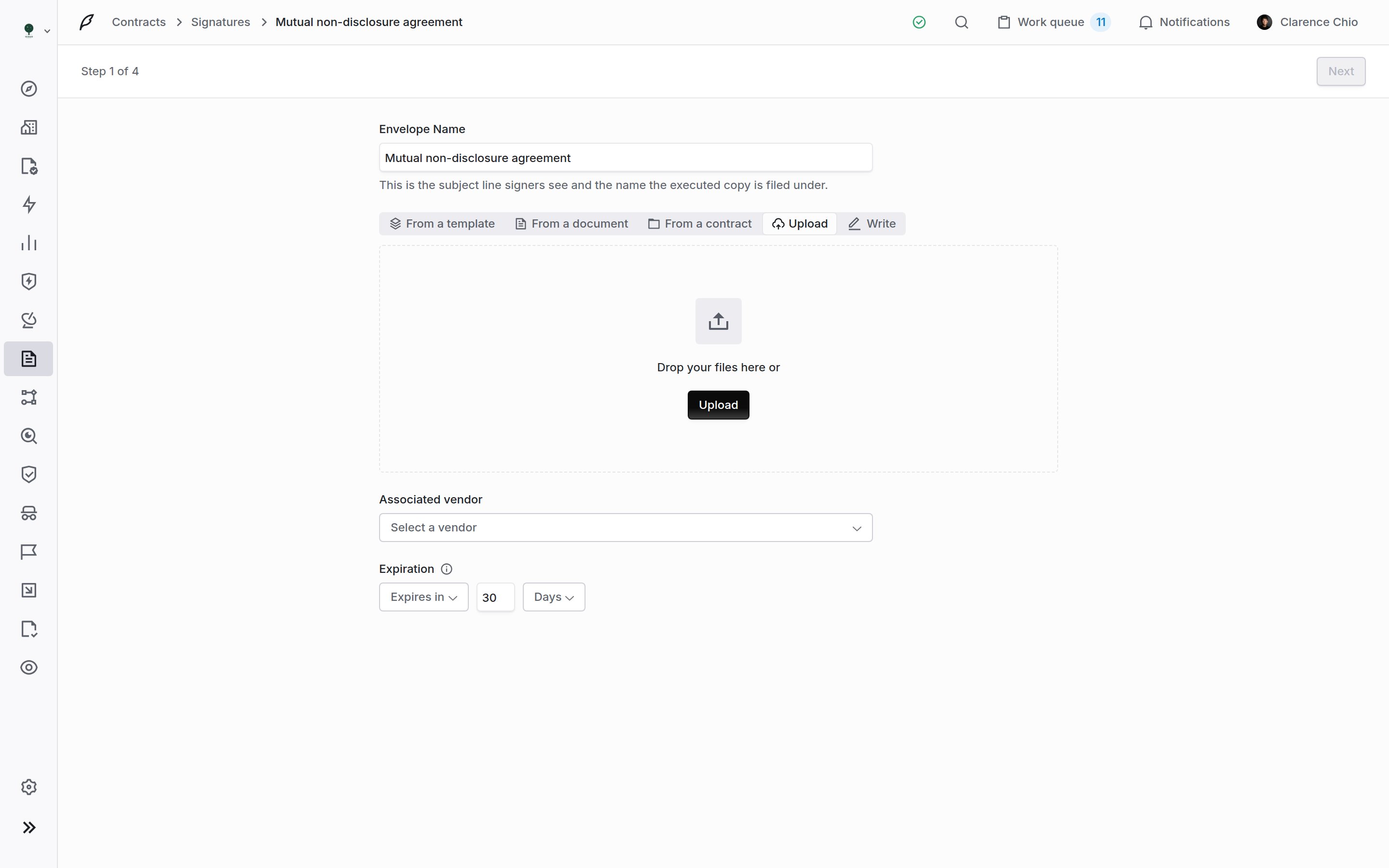
Step 1. Name the envelope, choose its paper, file it against a vendor, and set how long it stays open.
Step 2: the recipients
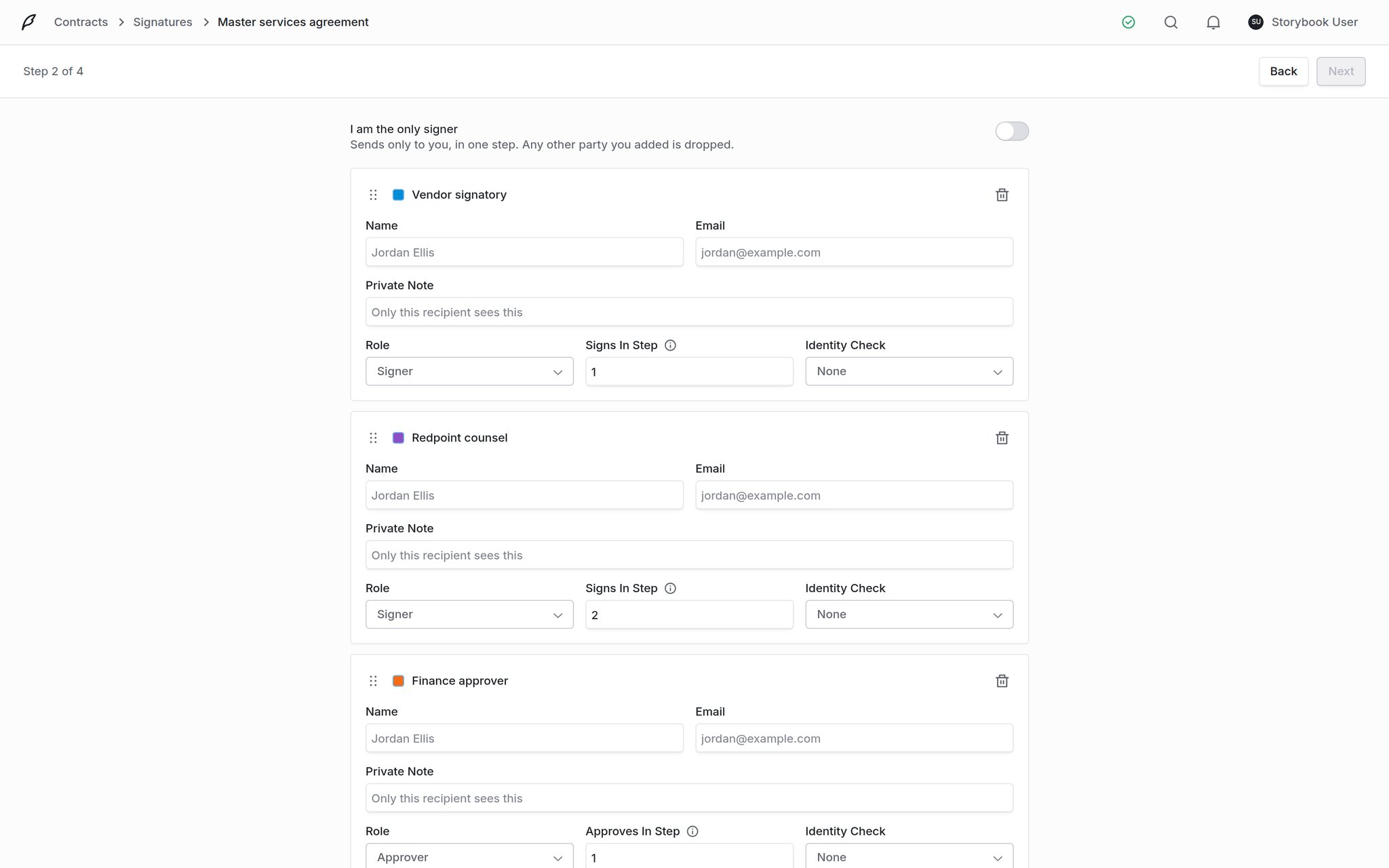
Step 2. Each card is one party: who they are, what they do, when they are asked, and whether they have to prove who they are.
Step 3: the fields
Same canvas as the template builder: parties down the left, palette below them, document in the middle, inspector on the right. If you came from a template the fields are already placed and this step is a review; if you came from a bare document, this is where you place them.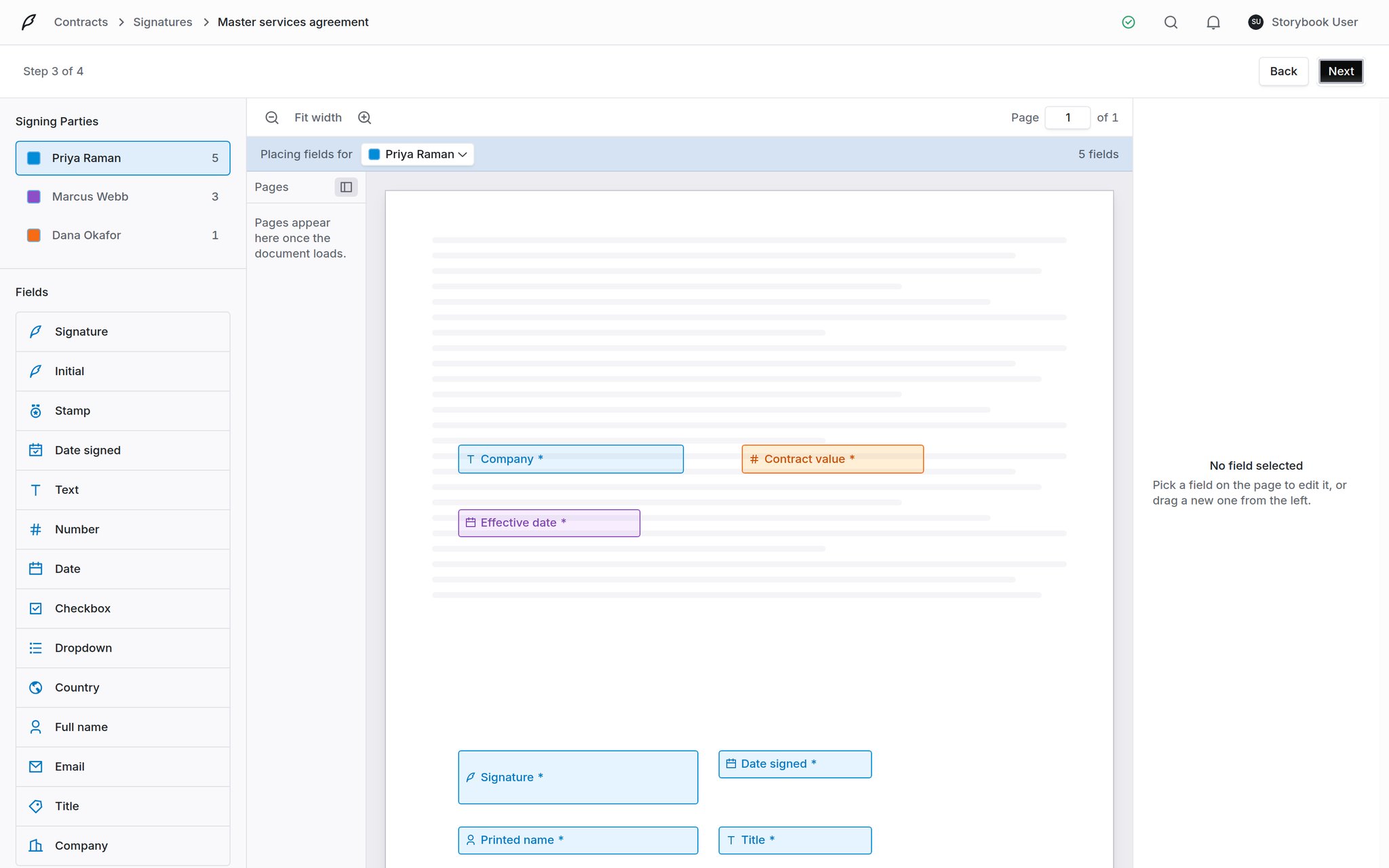
Step 3. Placing fields on the envelope itself, for envelopes that did not come from a template.
Step 4: review and send
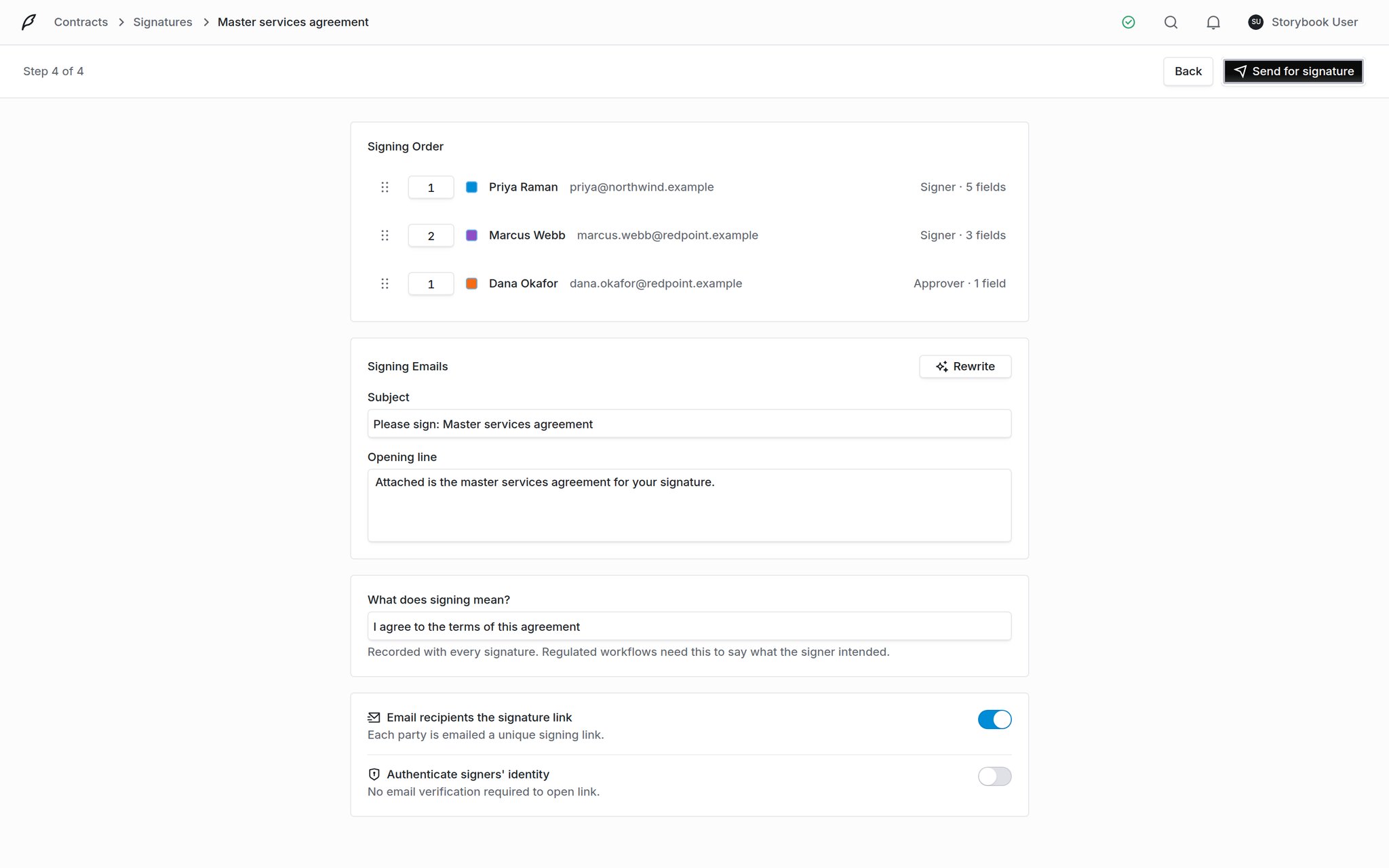
Step 4. The signing order, the email that carries it, and the two switches that decide how it goes out.
Track what is out
The envelope’s Overview tab is the working view. Down the middle: the source document with Open the original, Download full packet and Verify now, and under it Fields and Values, listing every field, whose it is, what it holds, which page it sits on and when it was filled. Down the right: the signing order, the envelope’s details, and the portal link.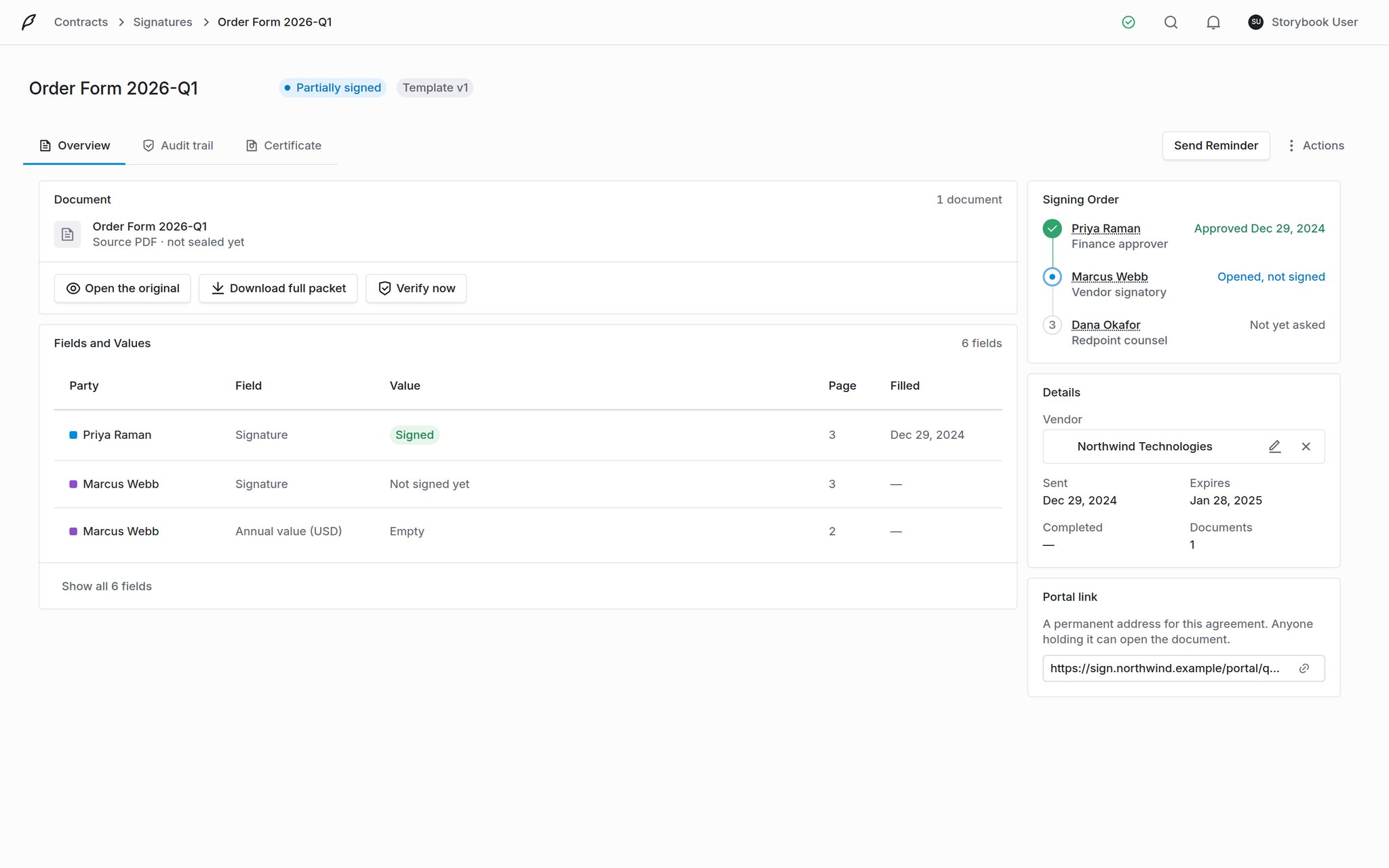
An envelope in flight. Signing Order reads party by party, and Fields and Values shows what has been entered.
Nudging, correcting, cancelling
Send Reminder
Send Reminder
Correct and resend
Correct and resend
Void envelope
Void envelope
What you get when it completes
Once the last party signs, Coverbase flattens every field into the page, seals the PDF, and generates a signing certificate beside it.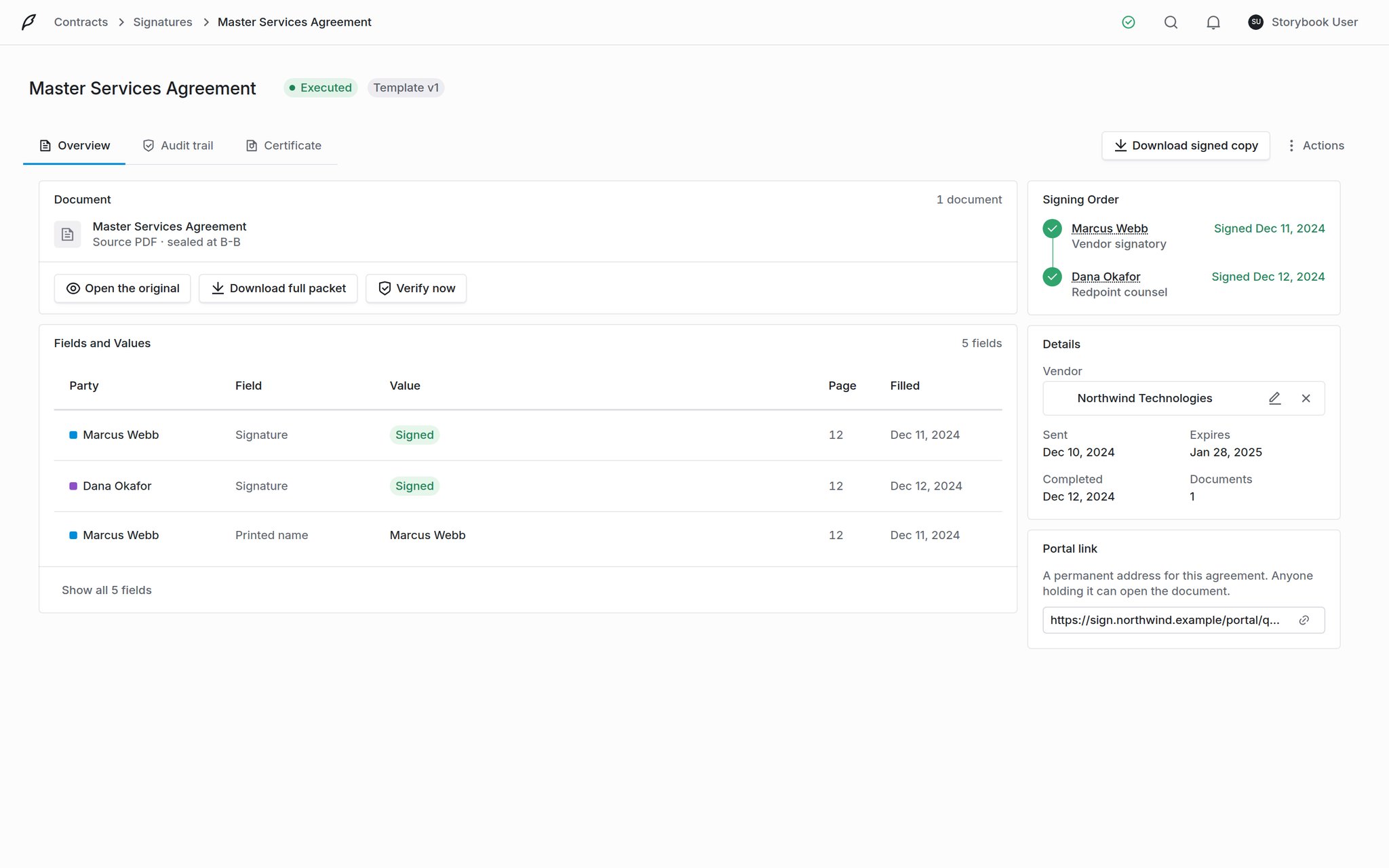
An executed envelope. The status reads Executed, the document line names the seal level achieved, and Download signed copy takes the place of Send Reminder.
- Download signed copy: the sealed PDF, with every signature, initial and stamp burned into the page and attributed. It appears in the envelope’s header, in place of Send Reminder, once every party has signed.
- Download certificate: the certificate of completion, under Actions. It only exists once every party has signed.
- Download full packet: the signed copy and the certificate together, for handing to a counterparty or an auditor.
- The document line under the file name reads sealed at B-B (or whatever level was achieved), so you can see what the executed copy carries rather than what was asked for.
- Paper from a vendor’s documents. When the paper was picked From a document or From a contract, or came from a template built on one, both are added to the documents of the vendor that owns that document.
- An envelope sent for a contract. When the envelope was started from a contract’s Workflow tab, or its paper was picked From a contract, the executed copy is also added to that contract’s documents. Signed from one of the contract’s own documents, it takes that document’s role, and the unsigned version stays on the contract as a Redline of it. So signing the contract’s Root document makes the signed copy the new Root. Paper the contract never held becomes its Root if it has none, and otherwise joins its documents as Unmatched, for you to set its role. Uploaded or written paper is filed on the contract’s vendor.
- Anything else. Uploaded or written paper on an envelope that is not for a contract stays on the envelope, where Download signed copy and Download certificate fetch it. The Associated vendor does not file it.
The audit trail
Every event is recorded in order and hash-chained: each entry carries a sequence number and a hash that covers the one before it. Removing or editing an entry breaks the chain, so tampering is detectable.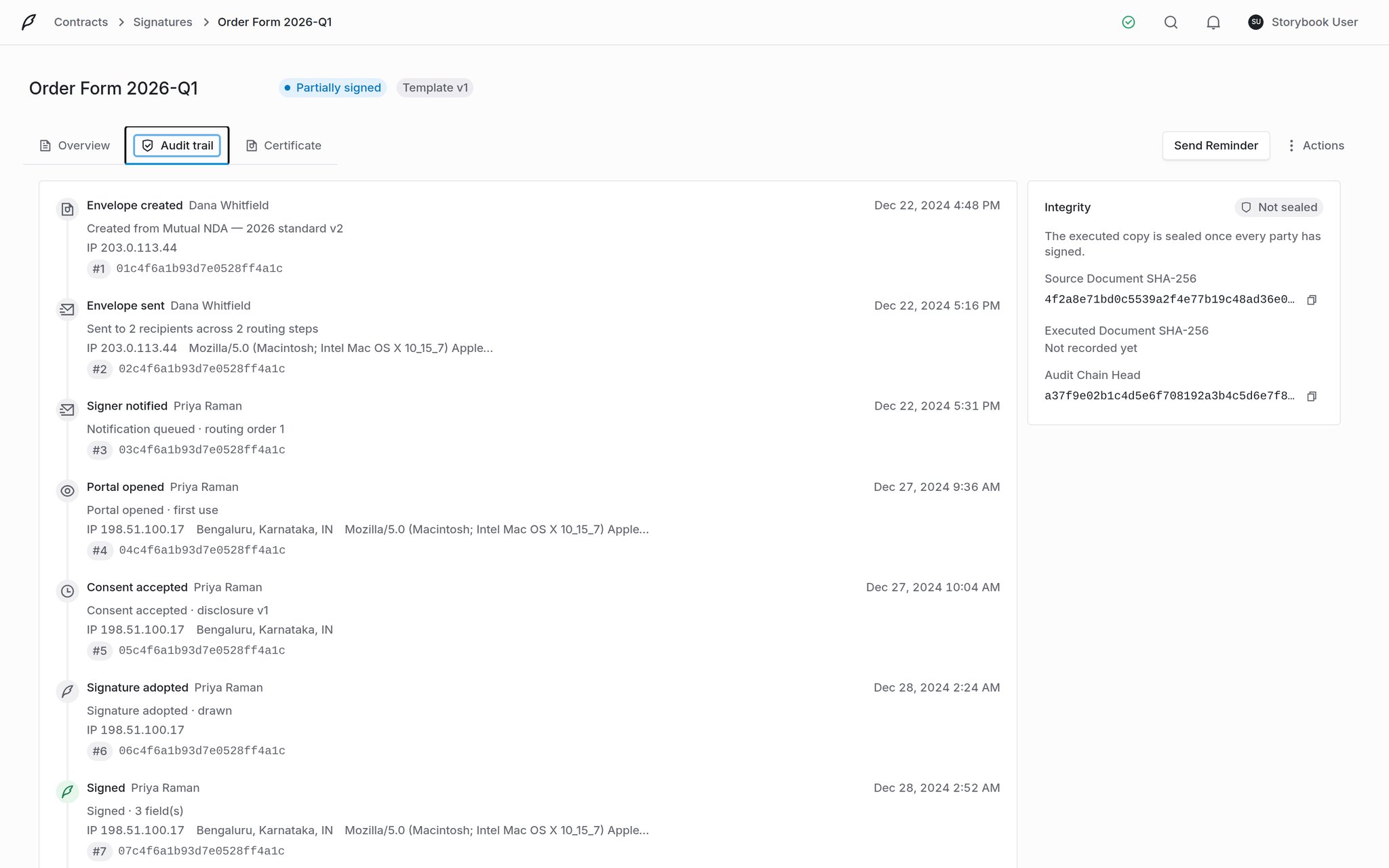
The audit trail. Each event carries who, when, from where, and a chain hash.
Common problems
A signer says the link does nothing
A signer says the link does nothing
Nobody after the first person has been emailed
Nobody after the first person has been emailed
A copied party says they never got a copy
A copied party says they never got a copy
The envelope sat at Preparing this document
The envelope sat at Preparing this document
The template will not let me edit it
The template will not let me edit it
Work with envelopes from MCP or the API
You can read envelopes from an MCP client withquery_engagements_contracts(kind="signature_envelopes"). It lists the signature inbox, filters by contract, vendor or status, and returns one envelope with its recipients by ID. signature_envelope_query takes the inbox’s filters, and signature_envelope_detail shows one envelope’s recipients and placed fields. signature_envelope_audit returns the audit trail and signature_document_link a link to a PDF. See the MCP tool reference.
An MCP client builds and sends with mutate(entity="signature_envelope", action=...): create, update, set_recipients, set_fields, send, remind, correct and void. Templates use mutate(entity="signature_template", action=...) with create, update, set_layout, publish, fork and archive. Layouts, fields and recipients go in as JSON and are checked the same way the dashboard checks them. signature_bulk_send sends a template to a list, and it only checks the list until you pass dry_run: false. Sending, reminding and bulk sends email the recipients.
With an API key, use /v1/signature-envelopes and /v1/signature-templates. Publishing, archiving, voiding and correcting need a signed-in user. Changing your signing policy needs a key created by a person whose role holds organization settings permission. See E-signature.
No tool or endpoint returns a signing link, takes an access code over MCP, or signs for anyone. Writing a document in the product, downloading the evidence packet and checking a seal again work through the API but not over MCP. Anything that goes through DocuSign also works only through the API.