

For AI agents: a documentation index is available at https://docs.coverbase.com/llms.txt. This page is also available in markdown by appending .md to the URL.
This guide is part of the User Guides collection. It covers Contracts → Repository: the inbox, the folder browser, the document page and the settings behind them. For the contract records you track renewals and clauses on, see the Contracts workspace guide. For raising a new contract and getting it signed, see Contract intake and approval.
The Contracts Repository is an optional module. If you do not see Repository under Contracts in the left navigation, ask your Coverbase representative to turn it on. Mail sent to your organization’s inbox address before the module is switched on is kept, and appears once it is.
Where it lives
Open Contracts in the left navigation and choose Repository. The page has four screens: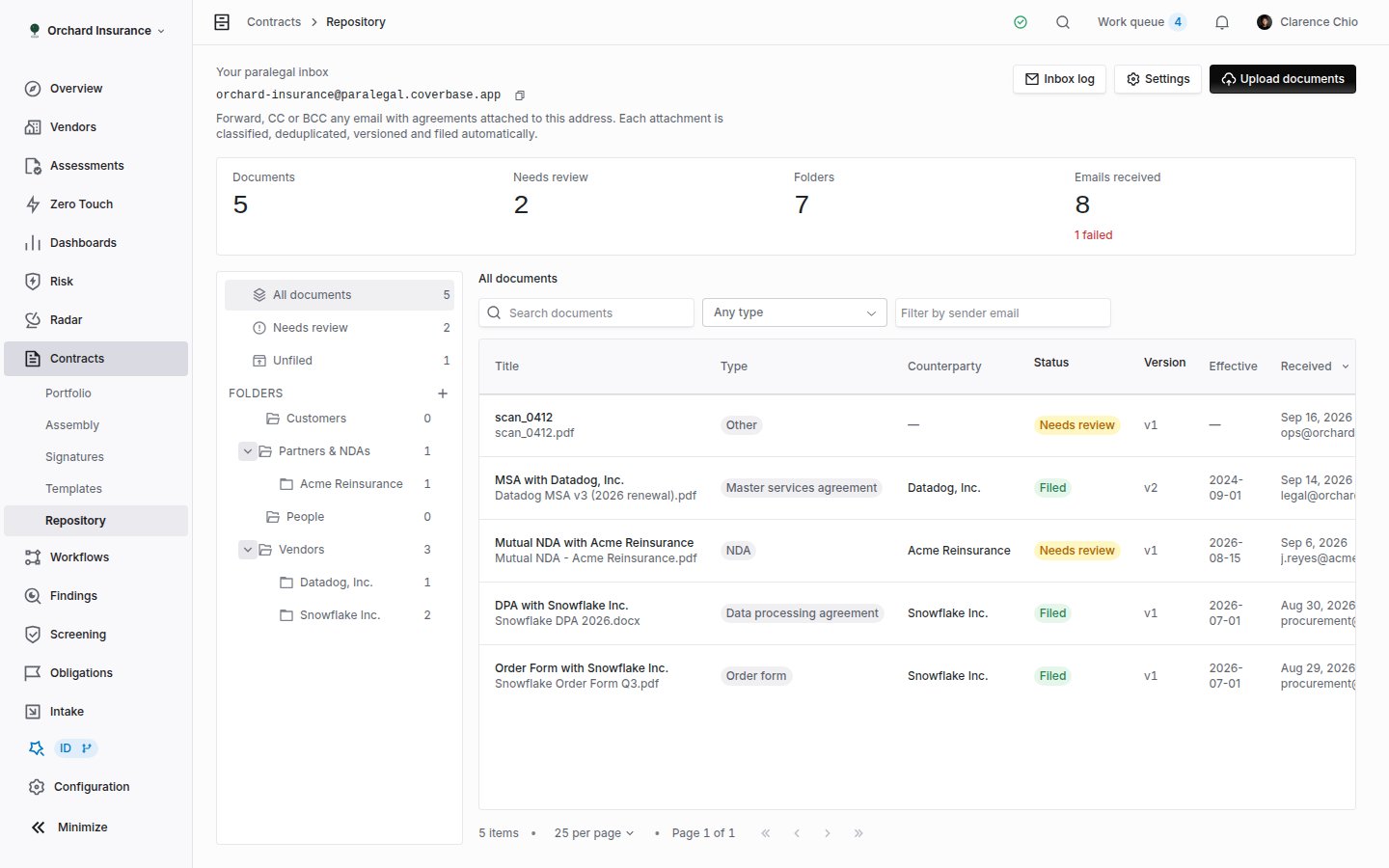
The repository page. The inbox address sits at the top, the folder tree on the left, and the documents in the selected view on the right.
Forwarding an agreement
1
Copy the address
It is at the top of the repository page under Your paralegal inbox, with a copy button next to it. The address ends in
@paralegal.coverbase.app. It is also shown on the Settings page.2
Forward, CC or BCC the email
Any of the three works. Attach the agreement, or forward the email it arrived on. You can add anything after a plus sign (
acme+legal@...) and it still reaches the same inbox, which is useful for mail rules.3
Wait for filing
The message appears in the inbox log at once. The attachments are filed a short while later, and the Emails received and Documents tiles on the repository page update.
Who can forward
The address is easy to guess, so the inbox checks the sender before it stores anything.
The organization’s own domains and Workspace members are always allowed. The other two rows are settings you turn on; see Settings.
What happens to the attachments
Only files that can be an agreement are kept:.pdf, .docx, .doc, .txt, .md and .rtf. Images, calendar invites, spreadsheets and inline pictures such as signature logos are dropped before anything is stored. The first few thousand characters of the email body are kept as context for the classifier, never the whole thread.
An attachment that is a readable file but not an agreement, such as an invoice or a receipt, is read and then dropped. It does not appear in any folder. The inbox log still shows the message, with an Outcome of 0 filed.
Uploading from the app
Click Upload documents at the top right of the repository page and pick one or more.pdf, .docx, .doc, .txt or .md files. Uploads go down the same path as a forwarded email: classified, checked for duplicates, versioned and filed by the scheme. You do not choose the folder at upload time. If the scheme puts a file in the wrong place, move it afterwards.
Uploads show in the inbox log with your name as the sender and the subject Uploaded in the app.
How a document is filed
Each attachment goes through the same four checks, in this order.1
Duplicate check
The file’s contents are fingerprinted. If any live document already holds that exact file in any of its versions, nothing new is created. The existing document gets a Duplicate ignored entry in its history and the message counts it under
duplicates.2
Classification
The AI reads the first pages of the document (up to twelve pages) together with the email’s sender, subject and body excerpt, and returns: whether the file is an agreement at all, its type, a short title a paralegal would use, the counterparty, every named party, the effective and expiry dates as written in the paper, a summary, a one-sentence reason, and a confidence figure. The email is context only. A subject line saying “signed NDA” does not override what the document says.
3
Version or new document
The arrival is compared with live documents of the same type and counterparty. If the titles agree once version markers are stripped (
v3, final, executed, dates, (2)), or the file names do, it becomes a new version of that document. Otherwise it is a new document. When in doubt the repository creates a new document, because two rows are easy to spot and merge by hand, and a version buried inside the wrong document is not.4
Filing
A new document is placed by the folder scheme in Settings. Folders that do not exist yet are created. The document’s history records Received and Filed into the folder.
Reading the repository page
Four tiles sit under the address:
The left column is the folder tree. Three views sit above the folders:
- All documents: everything, regardless of folder.
- Needs review: only documents marked for review. Work this list down to zero.
- Unfiled: documents with no folder. A document lands here when you delete its folder from the top level, or move it to Unfiled on purpose.
Above the table: Search documents, a Document type filter, and Filter by sender email. The sender filter matches any address a version arrived from.
The menu at the end of each row offers Download (a link that expires after 15 minutes), Move to folder and Archive.
Folders
The plus button next to the Folders heading is New folder. The menu on any folder offers New subfolder, Rename folder and Delete folder. A folder has a name and an optional description; the description is shown next to the name so colleagues file the same way. Delete folder archives the folder and everything beneath it. Its documents move up one level, to the parent folder or to Unfiled. Nothing leaves the repository. The scheme decides the folders an incoming document is filed into. Every scheme starts with a folder per category, so switching schemes later only changes what sits beneath those.
Renaming a category folder does not break filing. The repository finds it by its role, not its name, so
Vendors renamed to Suppliers keeps receiving vendor paper.
The category comes from the document type:
The document page
Click a row to open it.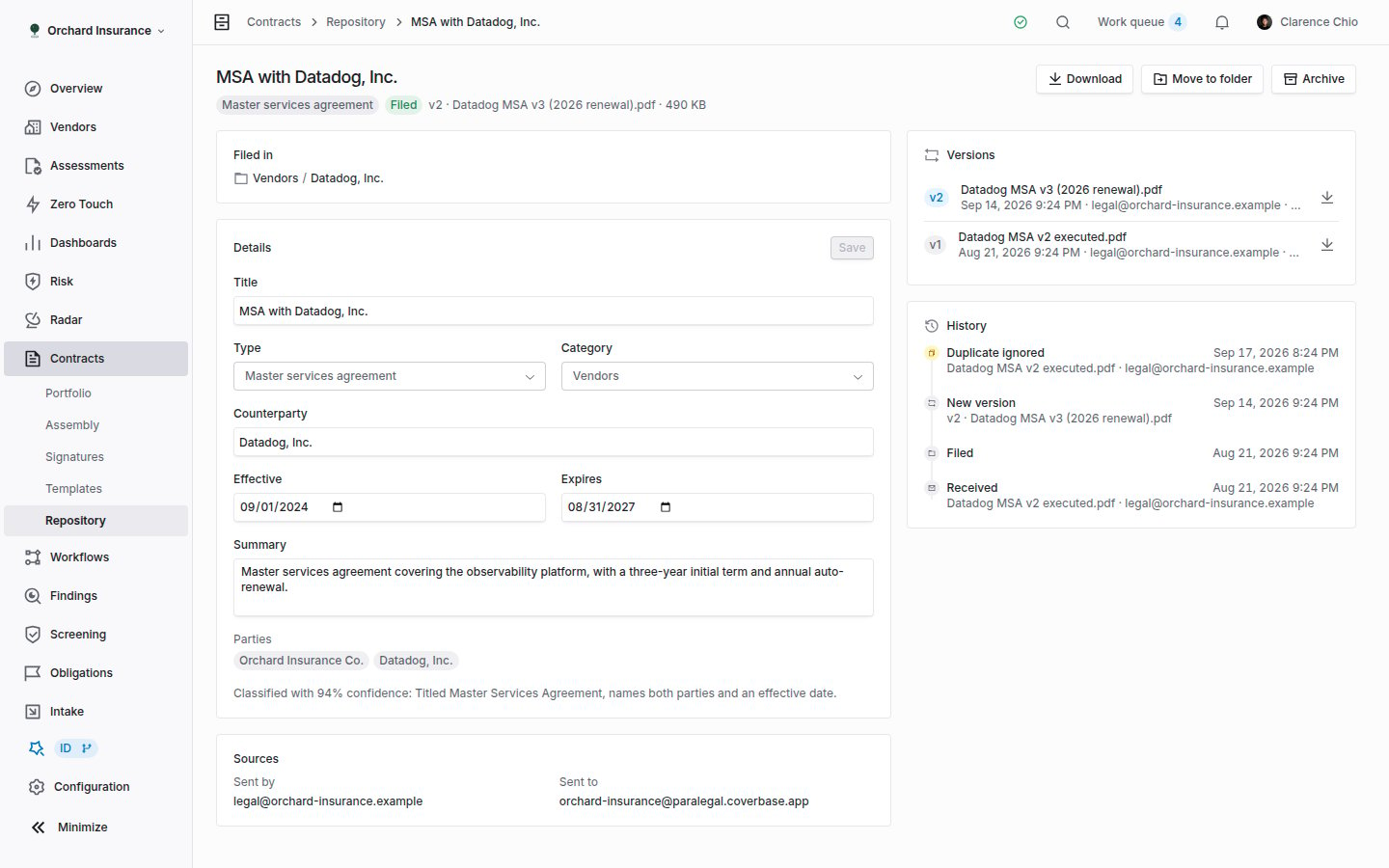
A document page. Details and sources on the left, versions and history on the right.
Events you will see in the history:
Correcting what the AI read
Every field the classifier filled in can be changed. Edit the fields in Details and click Save. Changing the title writes a Renamed event; changing the type, category or counterparty writes Reclassified. Changing the category does not move the document; use Move to folder for that. To clear a Needs review flag, check the details, fix what is wrong, then click Mark reviewed. The status changes to Filed and the document leaves the Needs review view.Getting a filed document onto a contract record
The repository does not link a filed document to a vendor or to a contract record, and it does not create either. To track renewals or run a clause review on an agreement you filed, download it and attach it to the contract from the contract’s Documents section, or raise a new contract from the vendor’s Contracts tab as described in Contract intake and approval.The inbox log
Click Inbox log at the top right of the repository page.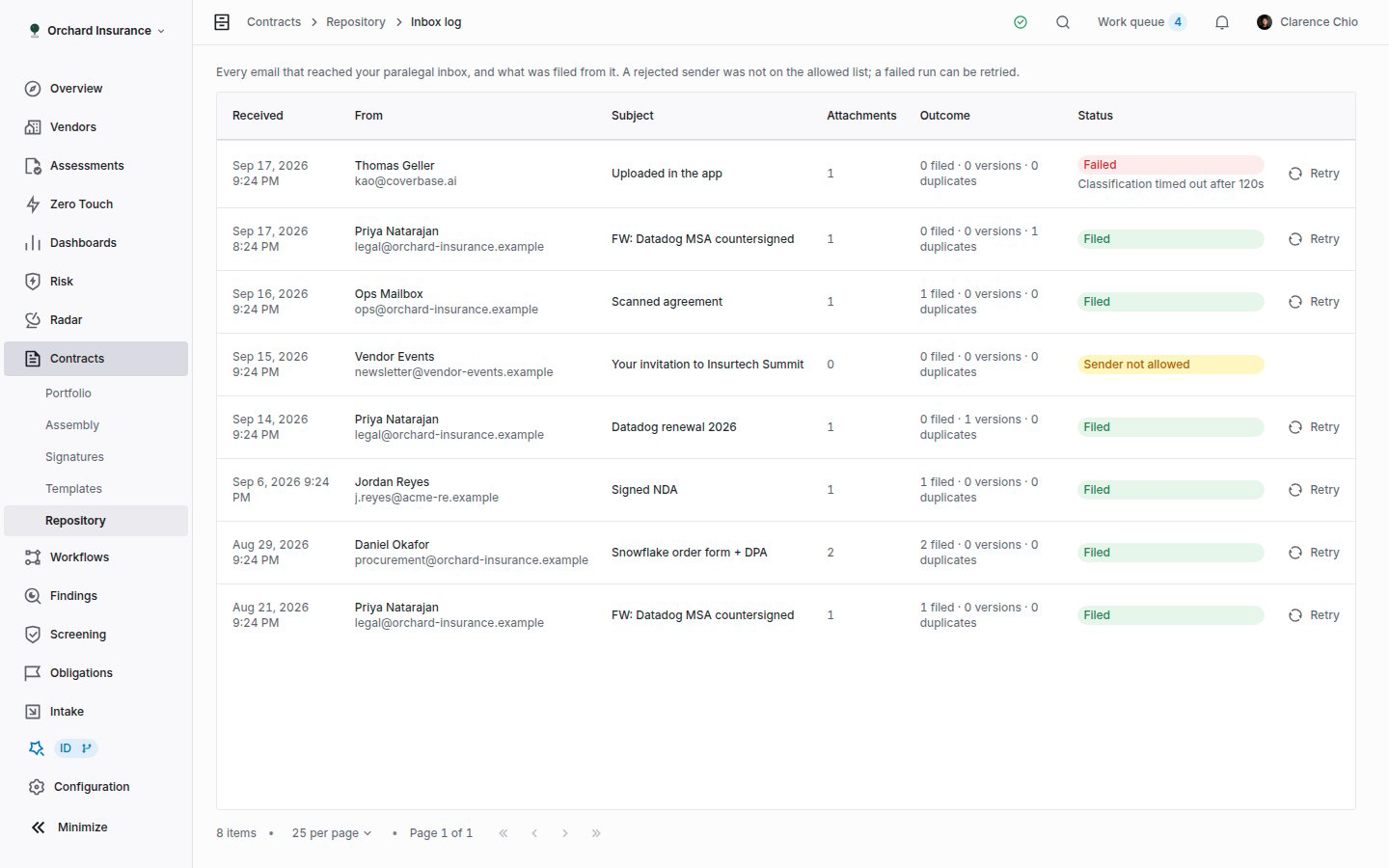
The inbox log. One row per message, with what was filed from it and a Retry button for anything that did not finish.
Retry appears on any row with stored attachments that is not currently filing. Retrying is safe: an attachment that was already filed is recognized by its fingerprint and skipped. A Sender not allowed row has no attachments to retry. Add the sender’s domain in Settings and ask them to send again.
Settings
Click Settings at the top right of the repository page. Change what you need and click Save at the top.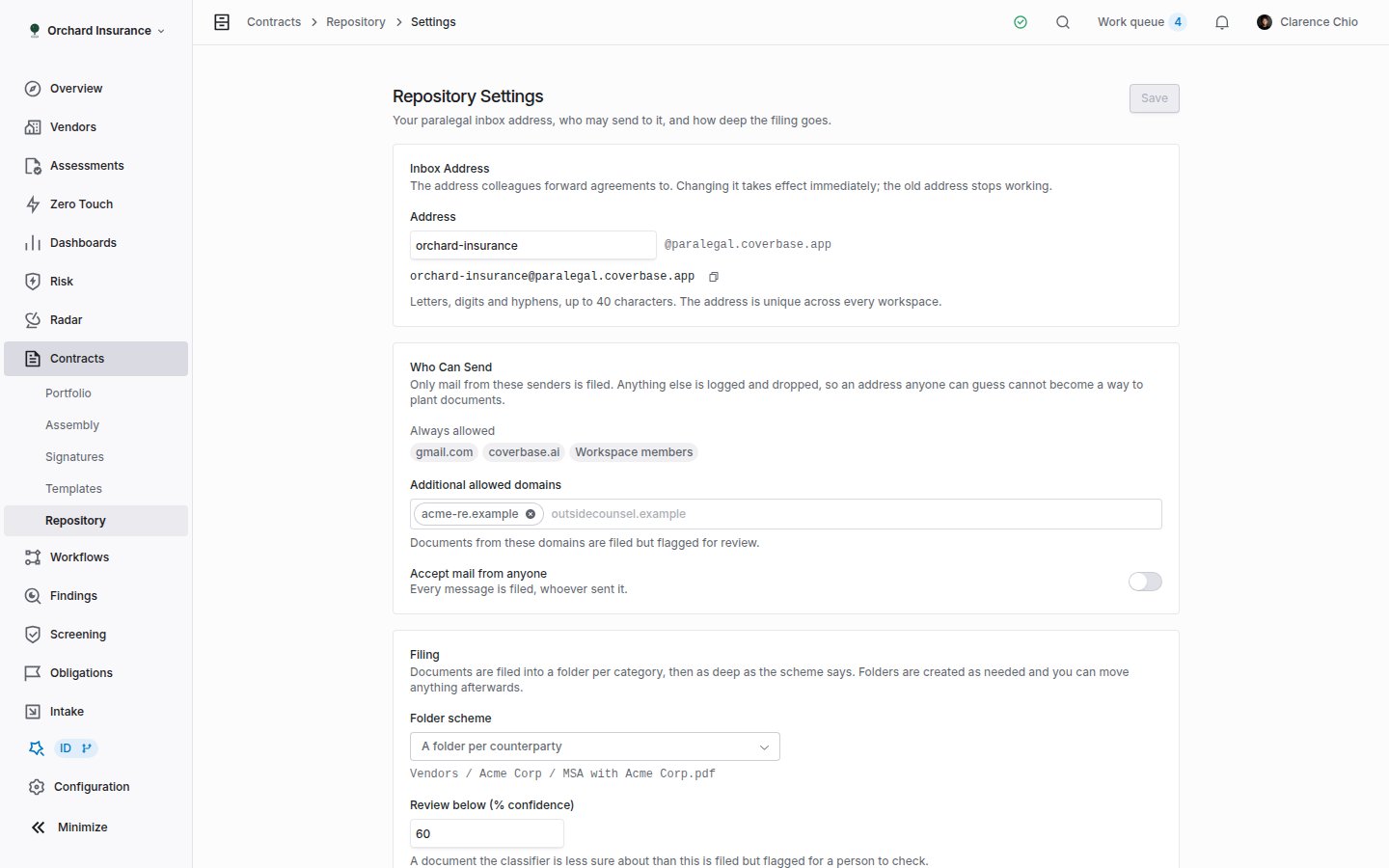
Repository Settings: the address, who can send, the filing scheme and the starting structures.
Inbox Address
Inbox Address
The part before the
@. Letters, digits and hyphens, up to 40 characters, and unique across every Coverbase workspace, so a common word may already be taken. Changing it takes effect immediately and the old address stops working. Tell anyone who has a mail rule pointing at it.Who Can Send
Who Can Send
Always allowed lists your organization’s email domains and Workspace members. Additional allowed domains is for outside counsel or a parent company: their documents are filed but flagged Needs review. Accept mail from anyone files every message and flags every document. Leave it off unless you have a reason; anyone who learns the address can then put documents in your repository.
Filing
Filing
Folder scheme is one of the three in Folders; an example path updates as you change it. Review below (% confidence) sets the threshold under which a document is flagged for a person to check. The default is 60. Raise it to see more in Needs review, lower it to see less.
Starting Structures
Starting Structures
Three folder structures you can apply once with Apply: Simple (four folders), Startup (categories with subfolders for employees, contractors, advisors, formation, financing, equity, banking, insurance) and Detailed (agreements separated by type inside each category). Applying one creates the folders you do not have yet and leaves existing folders and their documents alone. You can rename, nest and delete the folders freely afterwards.
Permissions and notifications
Access follows the contract permissions. Anyone who can read contracts can open the repository, browse, search and download. Anyone who can update contracts can also upload, move, rename, reclassify, archive, restore and mark reviewed, manage folders, retry a message, and change Settings. Without update permission, the edit buttons and the Details fields are read-only. See Permissions and roles for how those permissions are granted. The repository sends no emails. It does not confirm receipt to the sender and does not notify anyone when a document lands in Needs review. Check the Needs review tile.Emails as evidence
A related job lives outside the repository. When a vendor replies on an email thread and you want that thread on file as evidence, save the email as a.msg or .eml file and upload it to the vendor’s documents like any other file. Coverbase renders the headers and body to a PDF, so the sender’s words are previewable, searchable and quotable in an assessment, and every real attachment becomes a document of its own, listed under Attachments extracted from the email. Signature images and logos are not kept. An attachment the email only referenced rather than carried is named on the rendered page so the list is not silently short.
This is separate from the repository: the repository’s inbox does not accept .msg or .eml attachments, and a vendor document does not appear in the repository.
Troubleshooting
Related
Contracts workspace
The contracts list and the contract record: where renewals, values and clauses are tracked.
Contract intake and approval
Raise a contract from a vendor, confirm what the AI read off the draft, and send it for signature.
Contract components
What a contract record reads each attached document into.
Permissions and roles
Who can read and update contracts, and how to grant it.