

The four stages
Raise the request
Confirm the metadata
Approve
Send for signature
Raising a request
Start from the vendor, not the contracts list. The vendor’s Contracts tab already knows which vendor you mean, and it shows what else you hold with them. That is usually what tells you whether this is a new agreement or an amendment. Click New Contract and fill in:Starting a draft nobody is told about
Most requests are raised from a document you already have in front of you, and you can fill the record in one sitting. Some are not. When you are raising the record before the terms are settled, tick Hold for my review on the create form.
A held contract. It cannot enter approval routing until someone releases it.
- No approver is emailed. Approval routing is what puts this record in front of other people, and it cannot start.
- It cannot be submitted for approval. The attempt is refused, not merely hidden, so the hold cannot be worked around by a direct link.
- You can still edit everything. That is the point: finish entering the terms, attach the draft, fix the dates.
Asking a colleague to look first
The first step on the Workflow tab is Reviews. Click Request review to ask a named colleague or a user group for a decision on the draft, with a note saying what to look at. Each review records its outcome, and the step counts how many have been approved. Reviews are optional. They do not hold up submission or the approval chain on their own, so a request can be submitted with a review still open. Use them when somebody should read the draft before approvers are asked, and use the approval policy for the decisions that must be recorded before the contract can move. Reviews work the same way everywhere in Coverbase; see Reviews, approvals and gates.Confirming the metadata
Coverbase analyzes the attached draft and fills in the values it can read: dates, amounts, notice periods, term length. Scanned PDFs are put through OCR first, so a photographed signature page is read the same as a native one. Everything the AI writes is a draft value. It is never treated as confirmed, and a contract whose values nobody has confirmed cannot be submitted for approval. Open the contract’s Workflow tab. The Metadata sign-off step shows:- Which required values are still empty. The card lists them by name, and submission stays blocked until each has a value.
- Whether anybody has confirmed the set, and who.
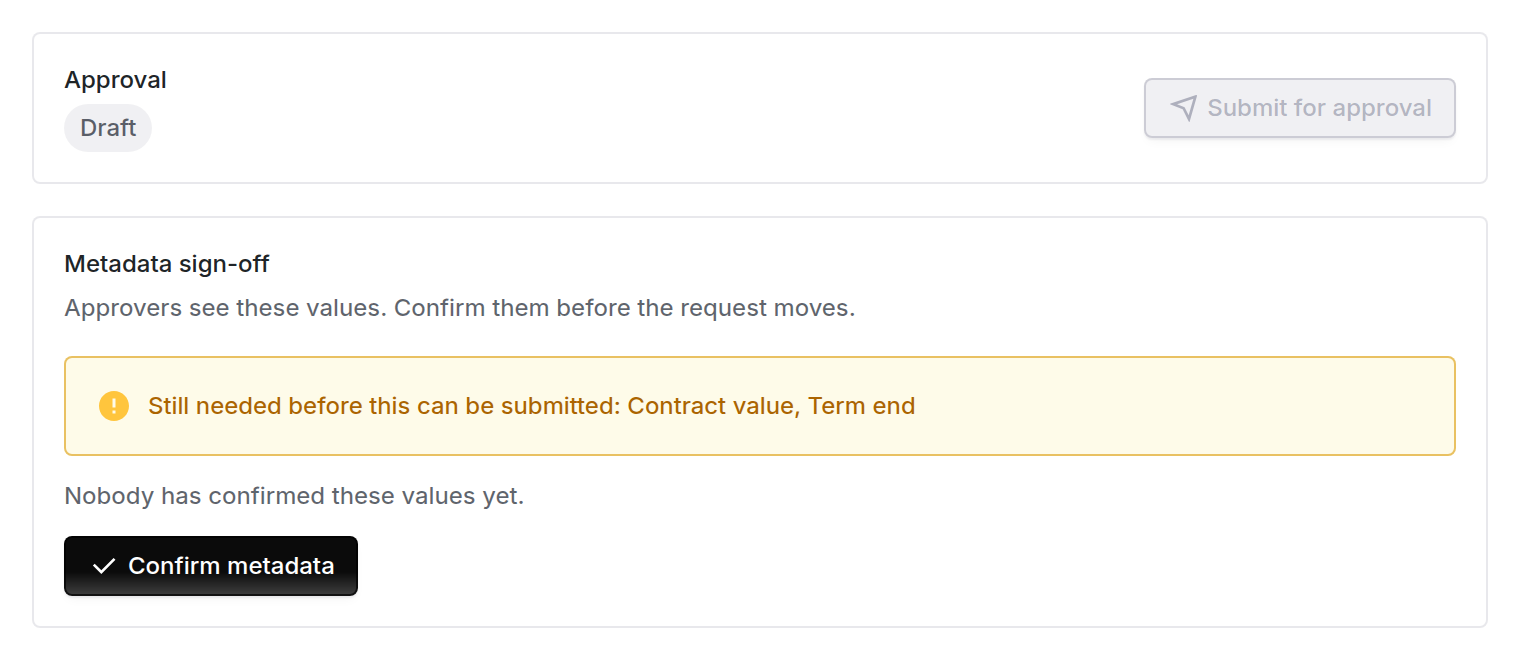
The metadata sign-off card. The required values still empty are listed by name, and submission stays blocked until each has one.
Where a value came from
Each field records whether it was entered by a person or suggested by the AI. The Metadata sign-off step marks the source beside each value, and the same marker appears on the Overview tab. A reviewer can see which numbers a person typed and which came off the paper.The approval chain
Setting up policies
Approval policies live under Configuration → Contract Approvals, in the Contracts group. Search the Configuration page for approval to find it. Reading them needs permission to read organization settings, and editing them needs permission to change organization settings. Being able to read contracts is not enough for either: the list names every approver and every value threshold in your organization, and it is not tied to any one contract. Until there is at least one policy, the page says so, and every contract submitted for approval is approved on the spot with no approver.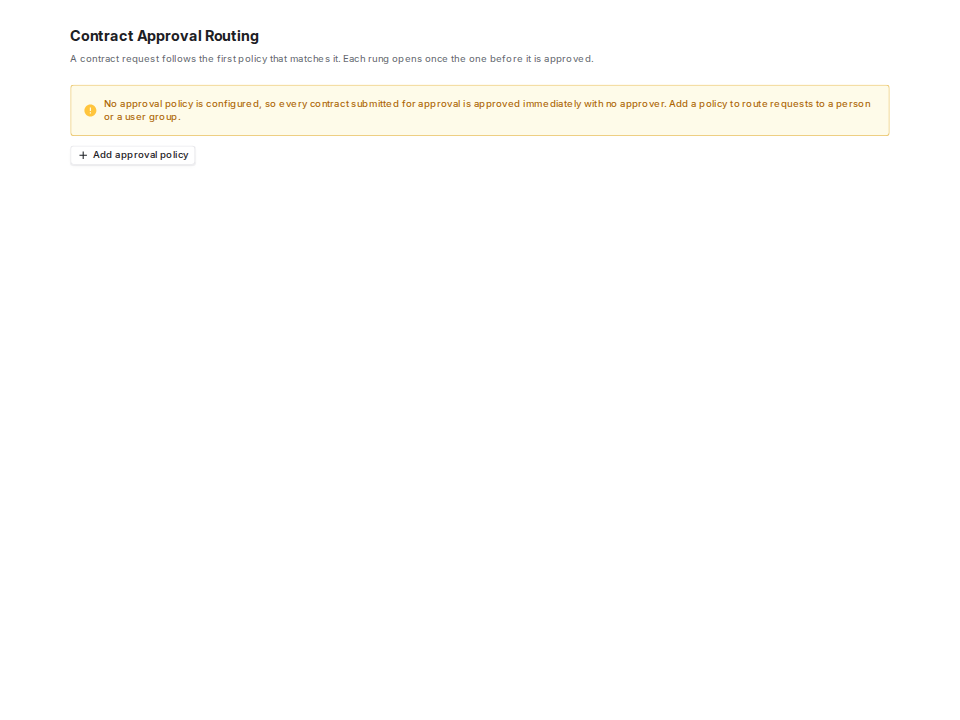
A brand-new organization. Nothing routes contracts yet, so the page says what that means.
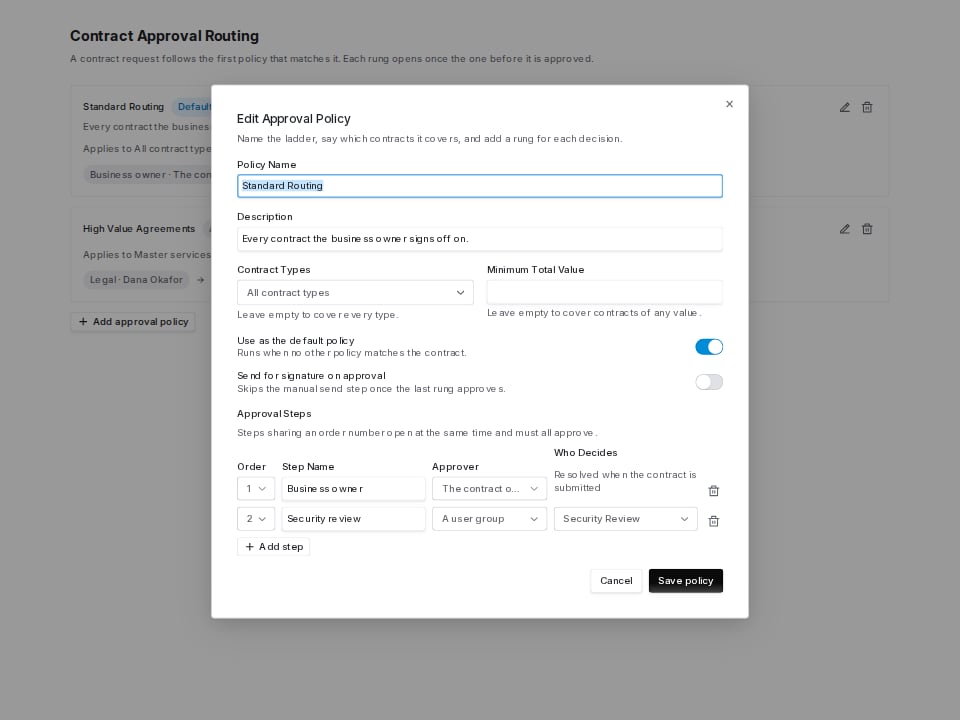
The policy editor. Two rungs: the business owner, then the security group.
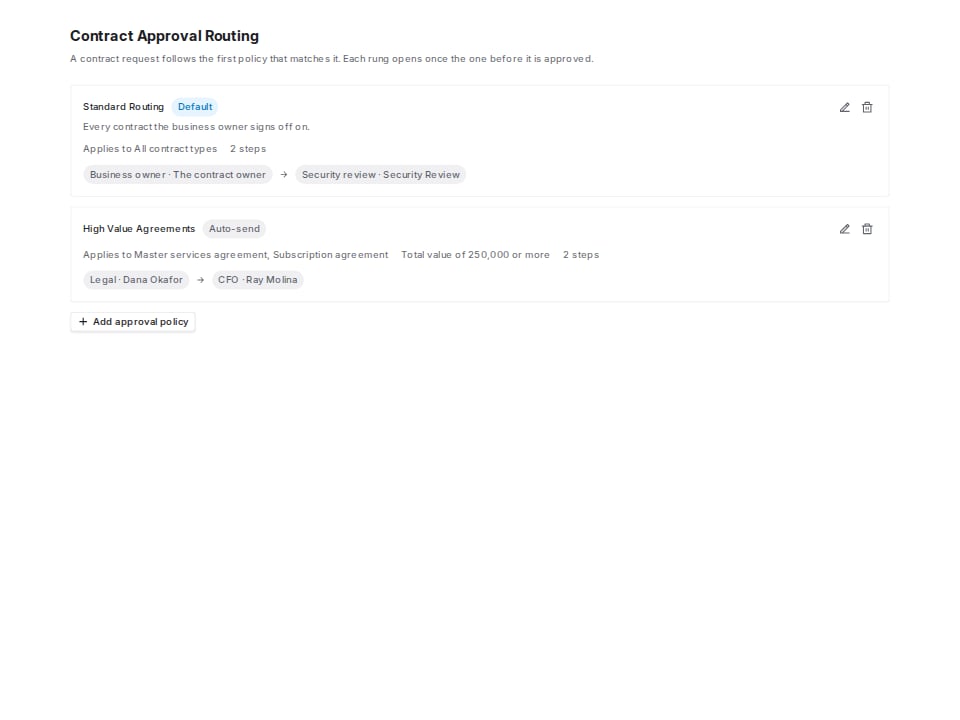
Two configured policies. The default covers everything; the second only covers high-value master agreements and sends automatically.
How a chain is chosen
Your organization configures approval policies. Each policy has conditions and an ordered list of steps. When you submit, Coverbase picks the policy that fits, most specific first: a policy naming your contract’s type beats one that names none, and among equals the higher value floor wins. Default breaks whatever tie is left. You cannot choose the policy yourself. Submission takes no arguments, and the conditions above are the only thing that decides. Otherwise a requester could pick the shortest chain.How steps work
Each step names who decides:- A named person. That user, and nobody else.
- A user group. Any active member of the group may decide, and Coverbase records which one did.
- The contract owner or the vendor owner. Resolved when you submit, from whoever holds that role at that moment.
- The policy asks for the contract owner or the vendor owner, and there is none.
- The policy names a user group that has no active members. An empty group would open a step that nobody can approve and that sends no mail, leaving the request stuck until somebody withdrew it.
Submitting
On the Workflow tab, click Submit for approval in the Approval chain step. Until the metadata is confirmed and every required value has one, the button is disabled and the step says what is still needed: a value to add under Terms on the Overview, the sign-off itself, or an intake hold to release. Coverbase emails the approvers on the first step. Later steps are emailed as the chain reaches them, so nobody is asked before it is their turn.Deciding
An approver opens the contract’s Workflow tab and sees Approve and Reject on the chain step waiting on them. The buttons appear only for the person being asked, so an approver who is not on this step sees the chain but no controls.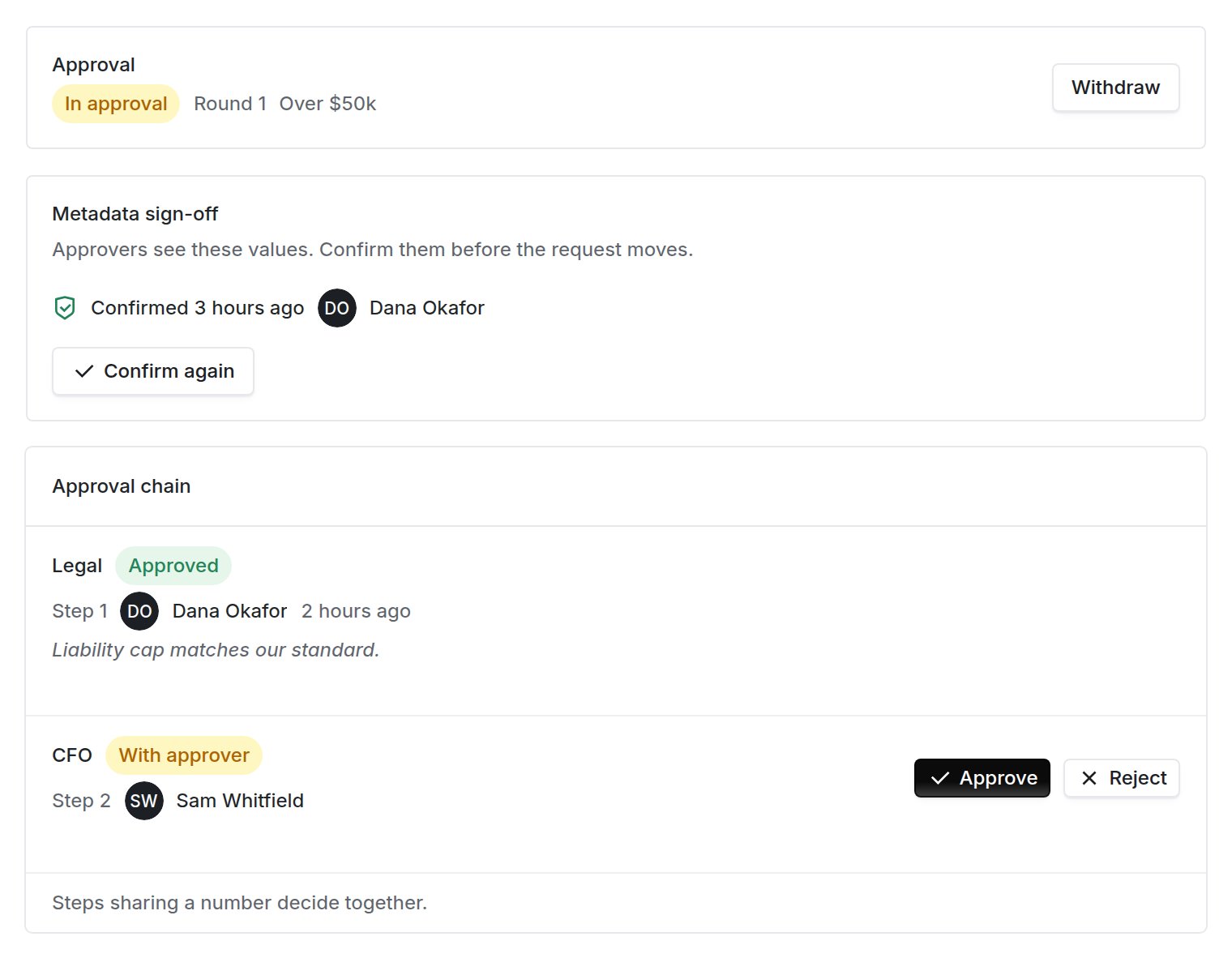
An approval chain mid-flight. Legal has cleared, the CFO is being asked, and the decide buttons appear only on the step waiting on the reader.
Withdrawing
The requester can click Withdraw while a request is in approval. The open steps are canceled and the contract returns to draft.Who gets emailed
Sending for signature
Once the chain clears, the Signature step of the Workflow tab offers the send. Before then the button is disabled and the step says why. Which send you see depends on how your organization signs. Organizations on Coverbase’s own e-signature see a Signature card that raises the envelope inside Coverbase; see the signature overview. Organizations that sign in DocuSign see DocuSign Execution with Send to DocuSign, described below. You need a connected DocuSign account. See connecting DocuSign if you have not done that. On Send to DocuSign you choose:- The document to send. Only a document already attached to this contract can be sent. This is the approved draft, not a fresh upload.
- Recipients, each with a name, an email, a role, and an order.
- Subject and message for the DocuSign email.
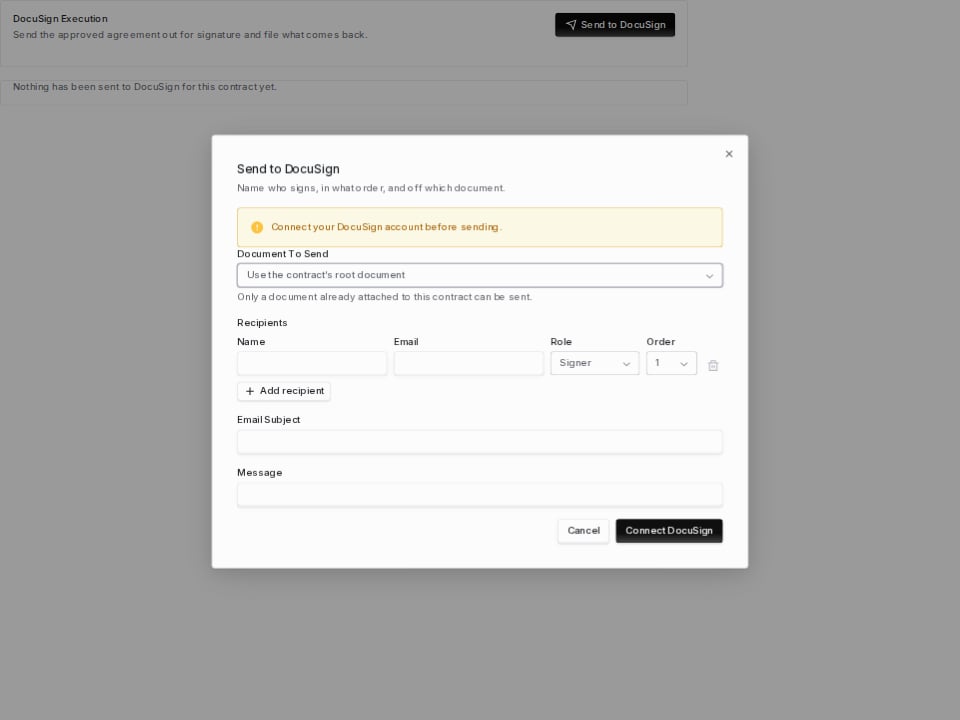
The send dialog. Until you connect a DocuSign account the primary action is Connect DocuSign rather than Send.
Sending automatically
A policy with Send for signature on approval sends the agreement as soon as its last approver signs off, with nobody at a screen. Coverbase needs to know who signs before the approval finishes. While the contract is still moving through its chain, Set up automatic send on the DocuSign Execution card asks the same questions the Send dialog asks: which document, who signs, in what order, and who is copied.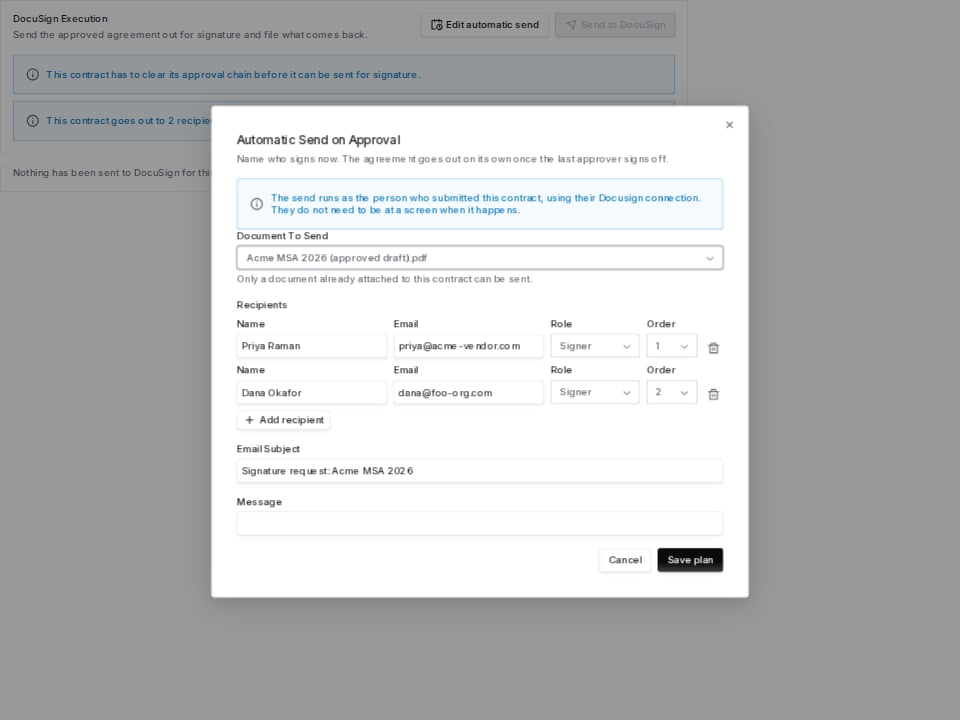
The automatic send editor. Same questions as the manual send, asked while there is still somebody to answer them.
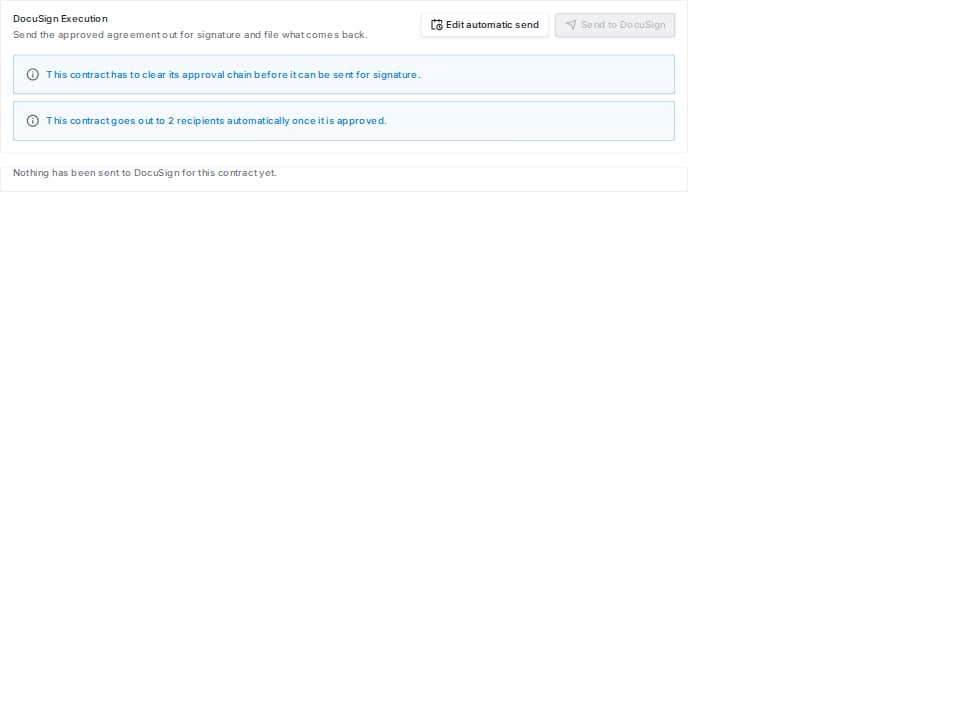
The contract is still in approval, and this is what will go out when it clears.
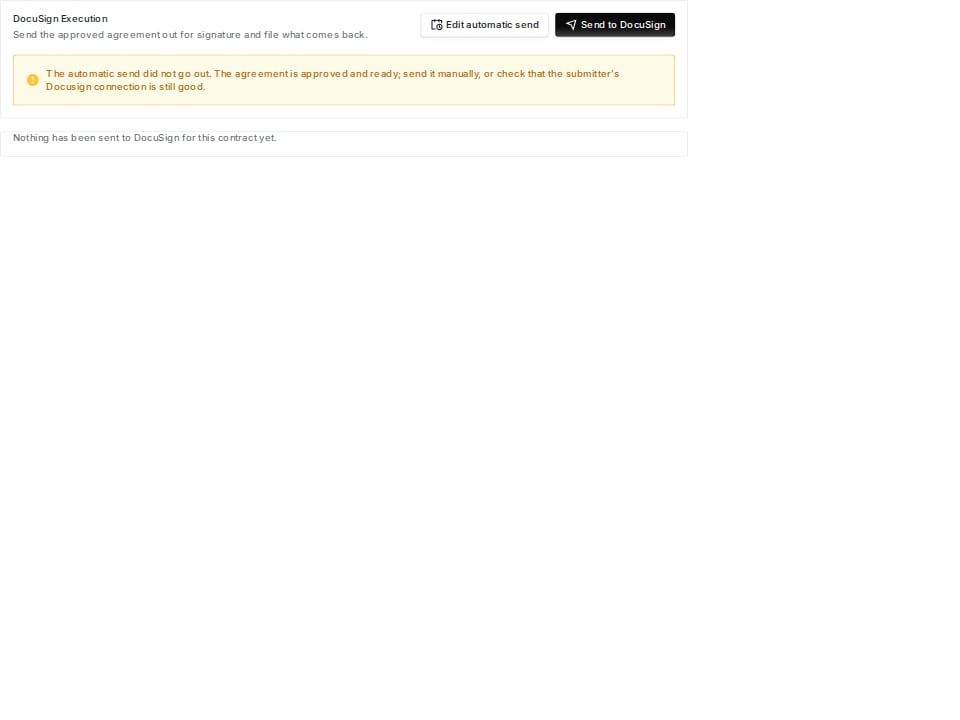
Approved, with a plan and nothing out. The automatic send did not run, and the manual one is still available.
Tracking the envelope
The DocuSign Execution card shows every DocuSign envelope raised on this contract, each recipient’s state, and when the status was last read from DocuSign.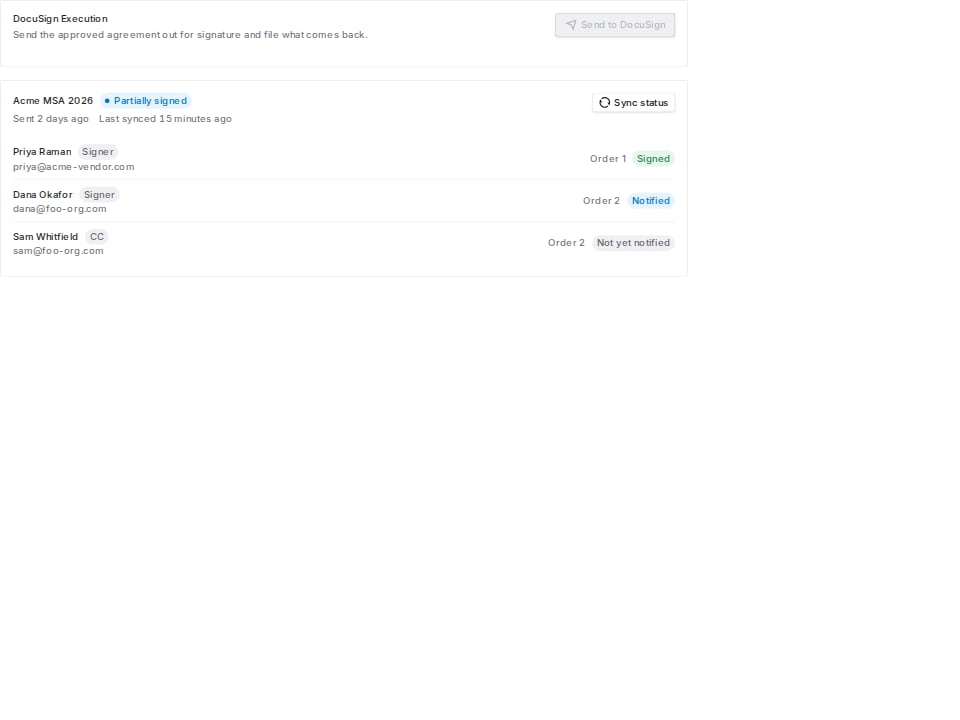
An envelope out for signature. Each party carries its own state, and the order column shows who is asked when.
When a send loses its answer
Very occasionally a send reaches DocuSign and the reply never comes back. Coverbase cannot tell that apart from DocuSign refusing the send outright, so it assumes the riskier of the two: the envelope may be out there with your signers. The contract is held as sent for signature, the envelope shows as failed, and the DocuSign Execution card explains what happened instead of offering Sync status, which has nothing to ask about.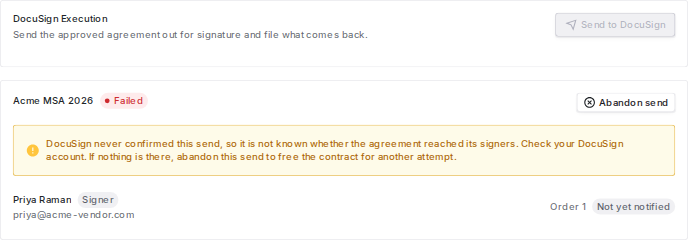
A send Docusign never confirmed. Abandon send replaces Sync status, because there is nothing to sync.
Nothing is there
The envelope is there
The executed copy
When an envelope completes, Coverbase downloads the signed PDF and the DocuSign certificate of completion and attaches both to the contract. The unsigned draft is kept rather than replaced. The record still shows what was sent out.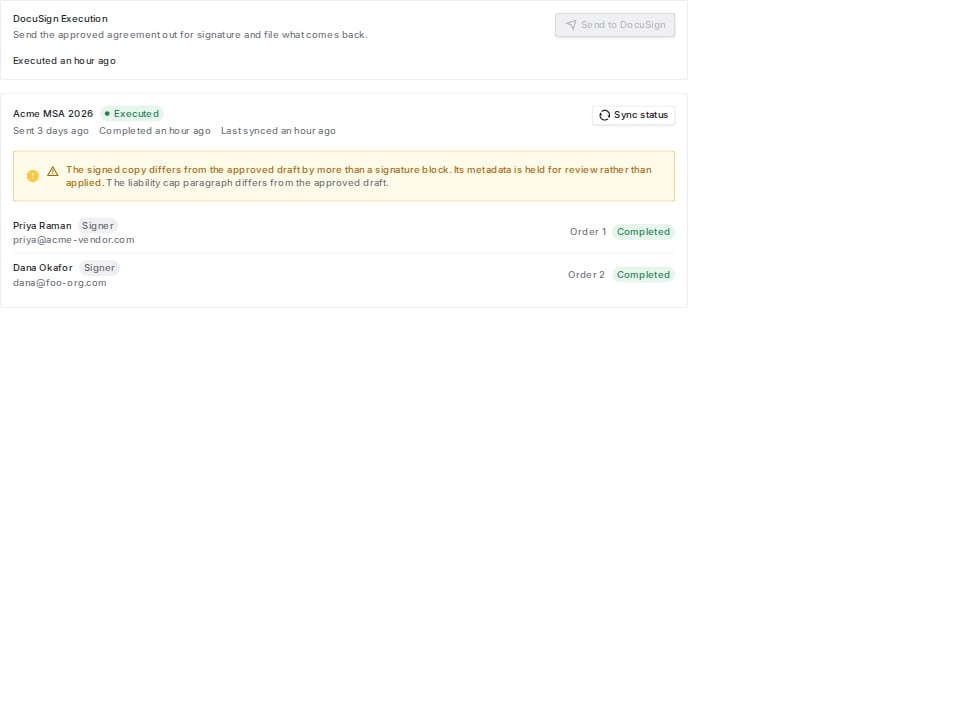
A completed envelope whose returned paper does not match the approved draft. The contract's metadata is held rather than overwritten.
The vendor’s contract overview
The vendor’s Contracts tab shows every contract you hold with that vendor in the same table as the contracts list, with the same columns and Preview. Above the list:- Committed value across active contracts. Contracts that bill on usage are counted at their committed floor and reported separately, because a usage forecast added to signed commitments would give a total that is part estimate.
- Needs attention. Contracts with a notice deadline or expiry inside the next ninety days, soonest first, plus any whose required details are still incomplete. An overdue notice deadline is shown in red and stays in the list.
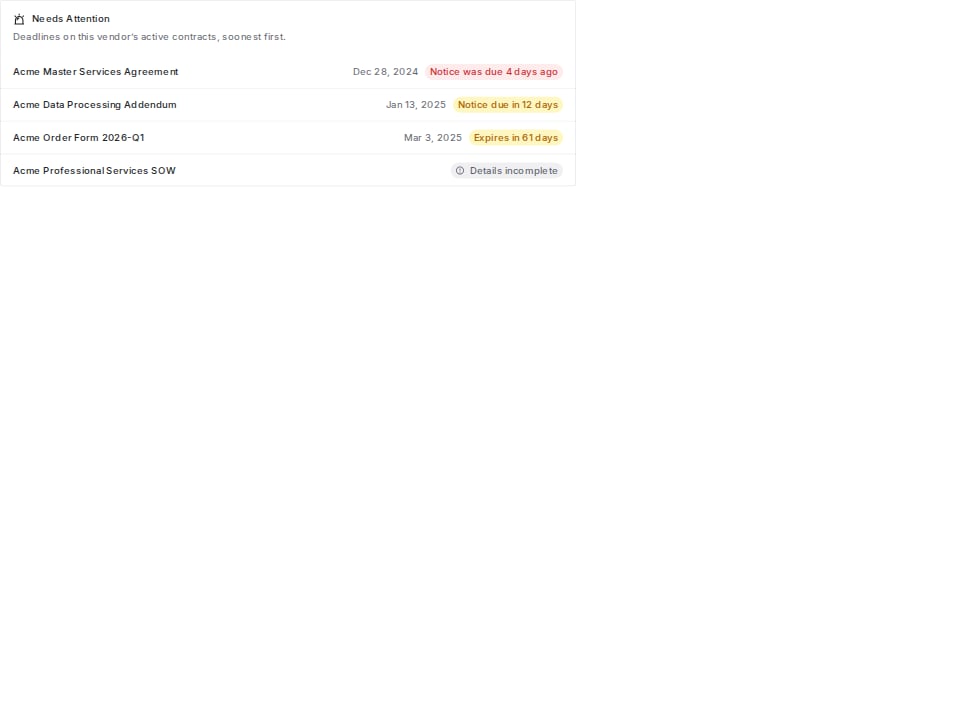
The needs-attention panel on a vendor's Contracts tab. Overdue in red, approaching in amber, incomplete details in gray.
Raise and track contracts from MCP or the API
You can raise and update contracts and follow their approval from an MCP client or with an API key. An MCP client reads withquery_engagements_contracts(kind="contracts"), query_engagements_contracts(kind="contract_detail") and query_engagements_contracts(kind="contract_approval"). It writes with mutate(entity="contract", action="create"), mutate(entity="contract", action="update") and mutate(entity="contract", action="withdraw_approval").
With an API key, use POST, GET and PATCH on /v1/contract-records, and /v1/contract-records/{contract_id}/approval to submit and follow approval. See the Contract records API and Contract approval. Deciding an approval stays with the approver in Coverbase.
Before an MCP client sends a write, it shows you the change and waits for you to confirm it. The MCP tool reference lists every field.
Approving a step in the chain stays in the dashboard. Archiving a contract needs contract:archive:org, which service accounts do not hold.