

For AI agents: a documentation index is available at https://docs.coverbase.com/llms.txt. This page is also available in markdown by appending .md to the URL.
This guide is part of the User Guides collection. It covers what Coverbase emails out and how to control it. For the vendor-facing invitation copy itself, see Step 8 of the Admin and setup guide.
What an email looks like
Every email is built from two pieces. The content is what that particular email says. The layout is everything around it: the background, the card, the header with your logo, the footer.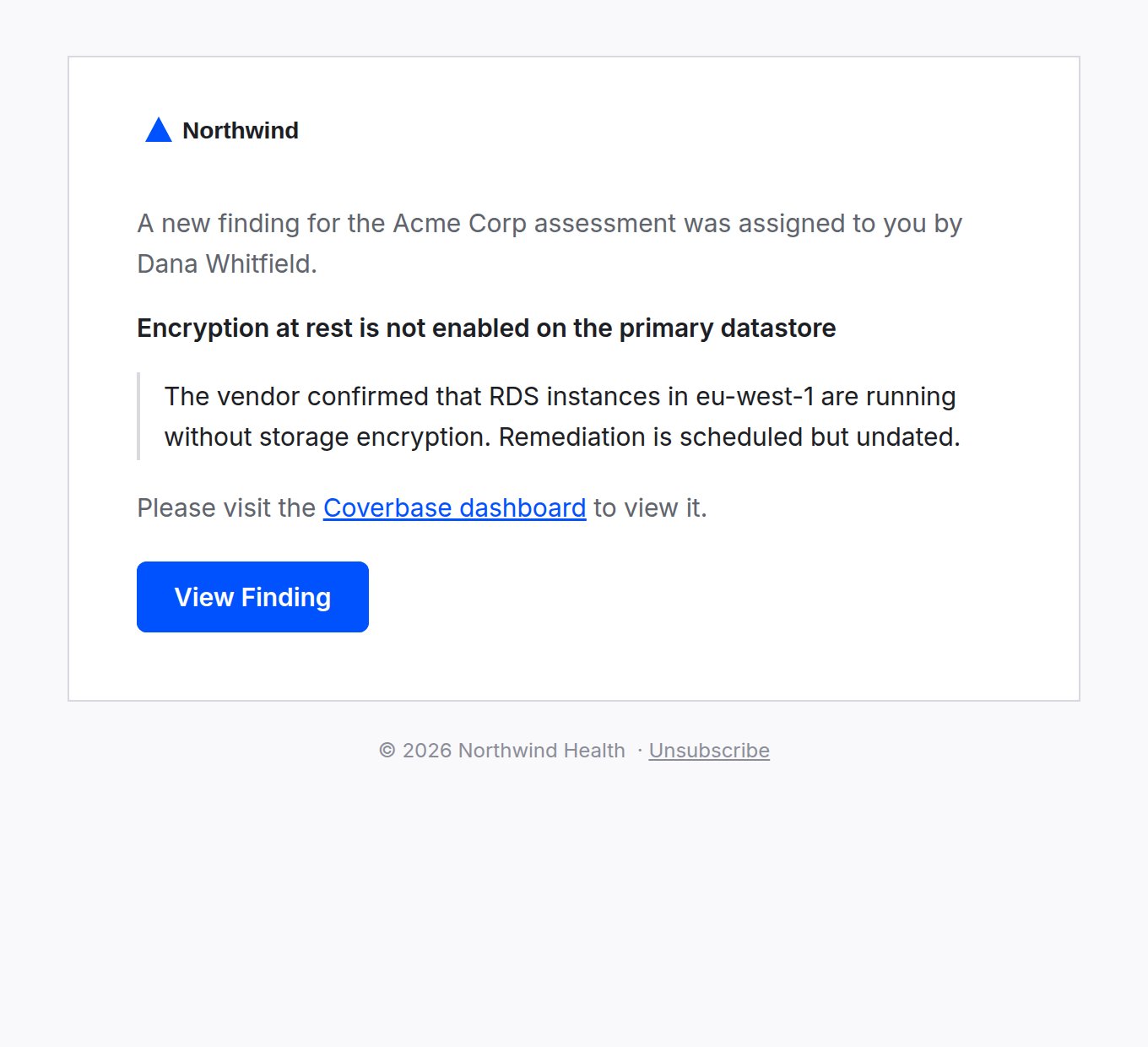
A notification email. The heading, quoted text, and button all come from the shared layout, so every email in the platform uses the same type sizes and spacing.
Choosing a layout
Go to Configuration → Communications and scroll to Layouts. You set two layouts independently, and the switch at the top right of that section picks which one you are editing:- Internal (team) is used for notifications to your own team.
- External (vendors) is used for vendor-facing email.
Branded Card
A bordered white card on a soft background, with your logo in the top left and the footer below the card. This is the default and the safest choice.
Minimal
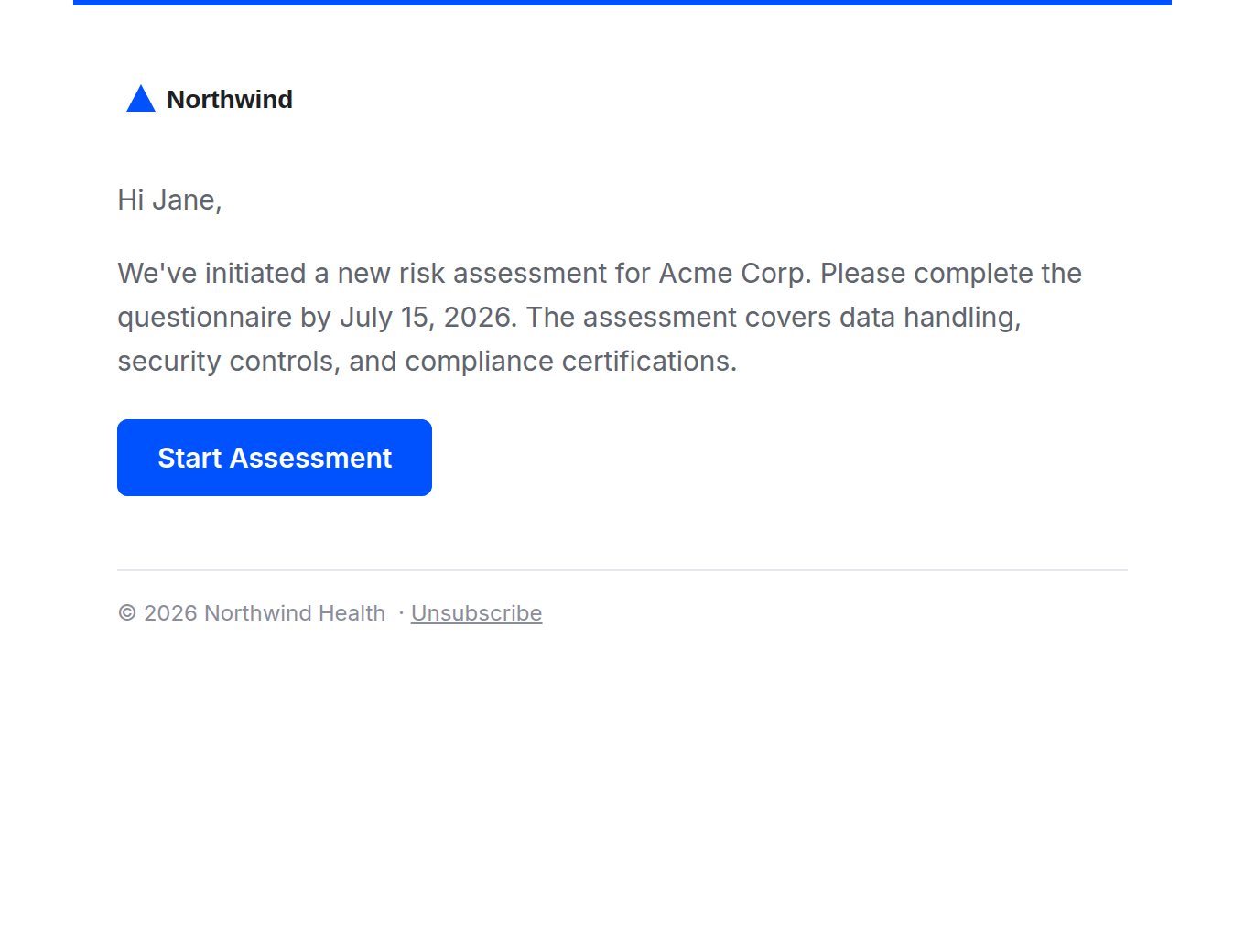
A thin accent rule across the top, then content flush against the page with no card. Lighter, closer to a plain message.
Left Accent
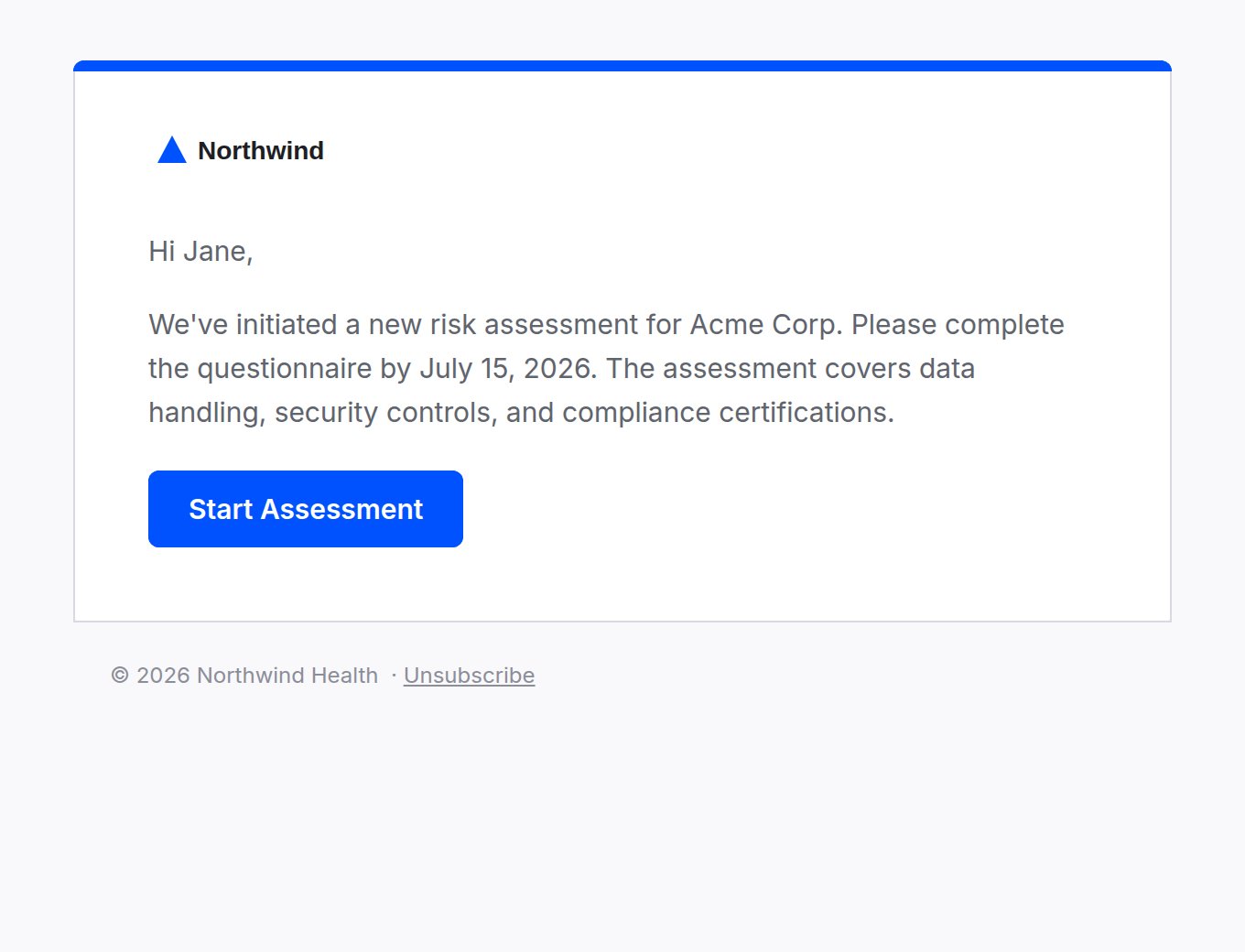
A card with a solid bar of your brand color along its top edge. Use it when you want the color to carry more weight.
Plain
No card and no chrome, so it reads like mail from a person rather than from a system. Often the best choice for vendor email, where a heavily designed template can look like marketing and get ignored.
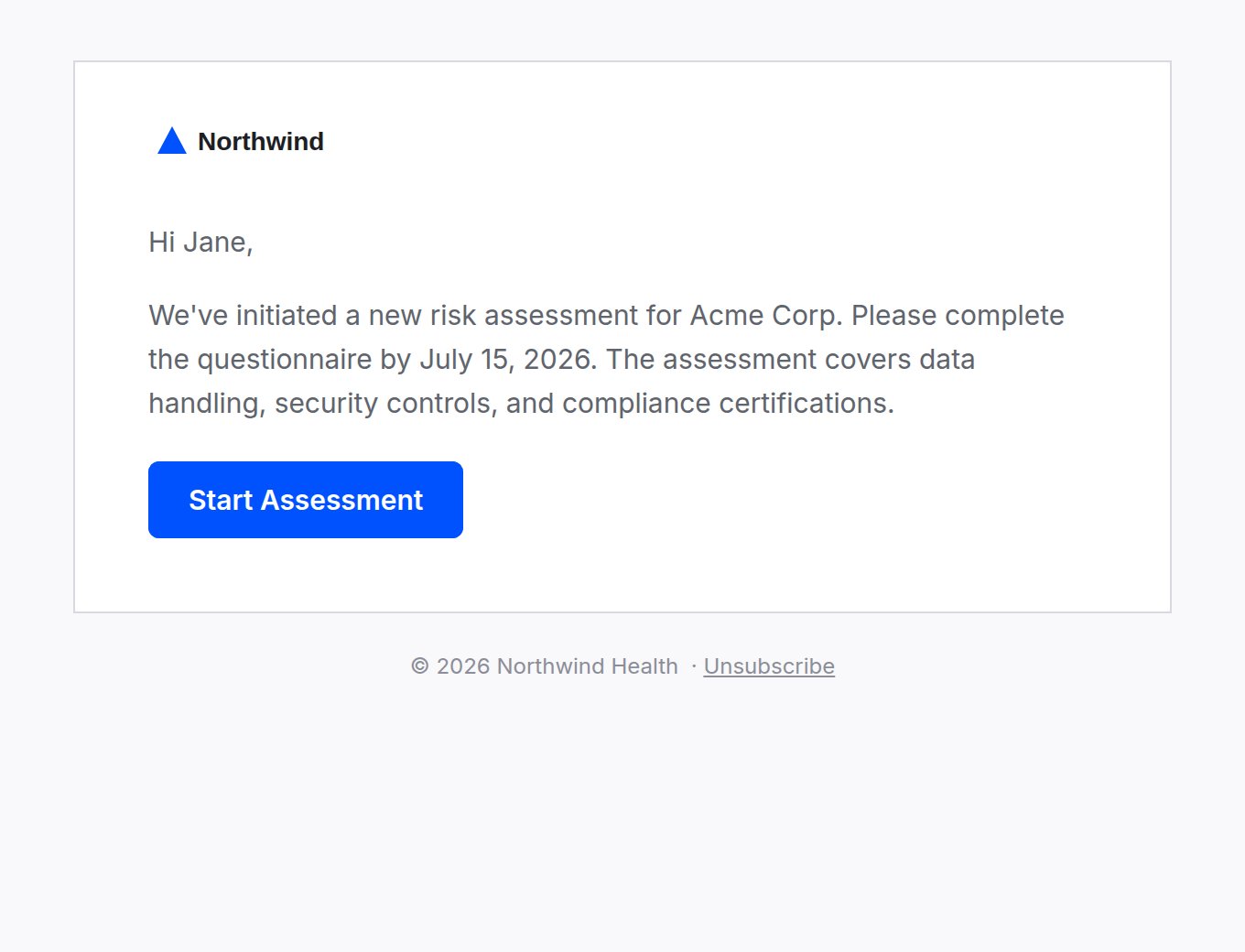
The same email in all four layouts. The content is identical; only the surrounding chrome changes.
Minimal, Left Accent, and Plain.
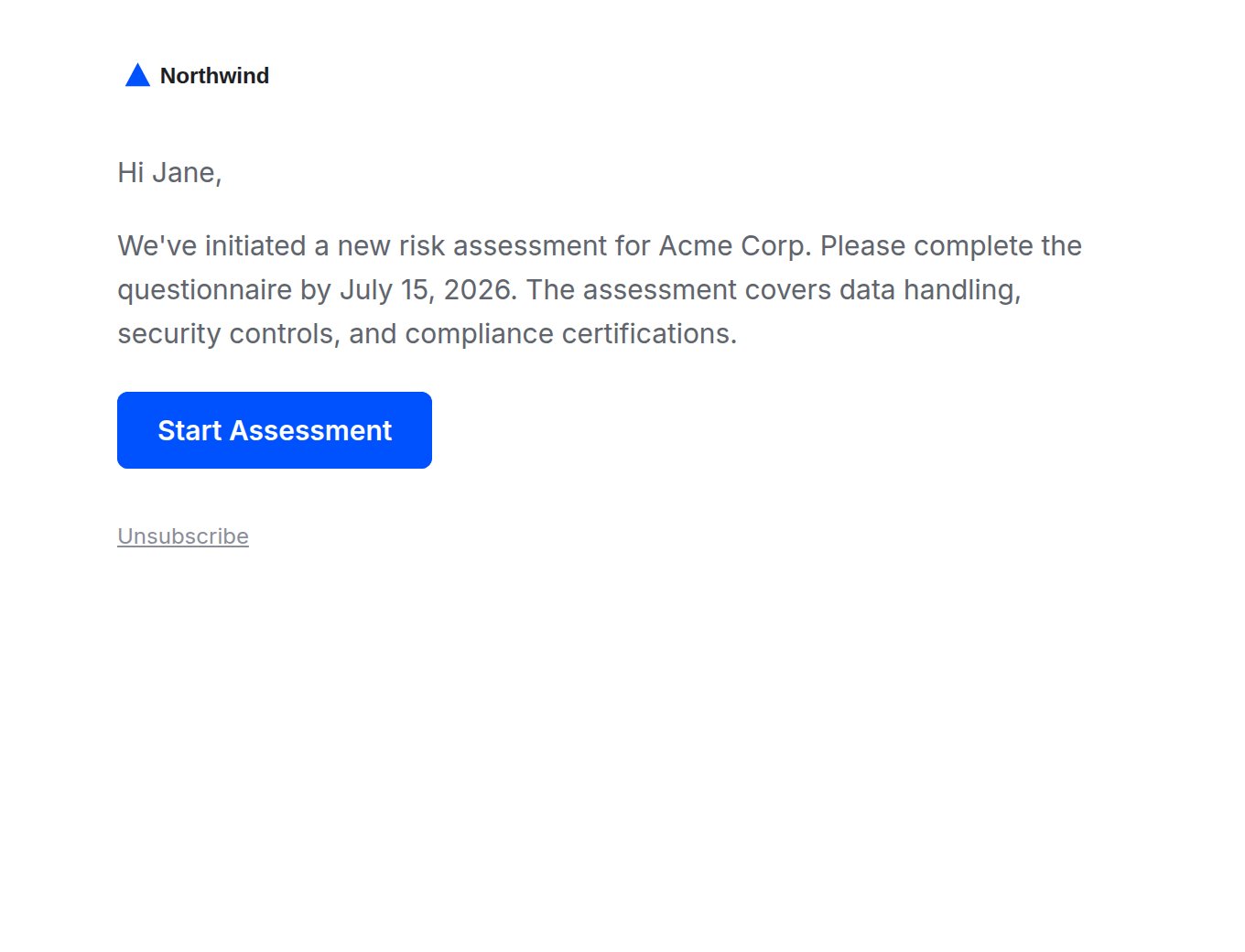
Changes save as you make them, and the Email Preview on the right updates to match. Send test to myself delivers the preview to your own address so you can check it in a real inbox. Do this before you rely on a change.
Applying your own branding
Branding comes from what you have already set in Configuration → Organization → Branding. You do not configure it a second time for email. Two logo slots exist there, and they are used differently:- The Full Logo is a wordmark, meaning a logo with your company name in it. It sits alone in the email header, since it already carries your name.
- The Logo is a square icon. It appears next to your organization name as a pair, the same way it does in the platform’s left navigation.
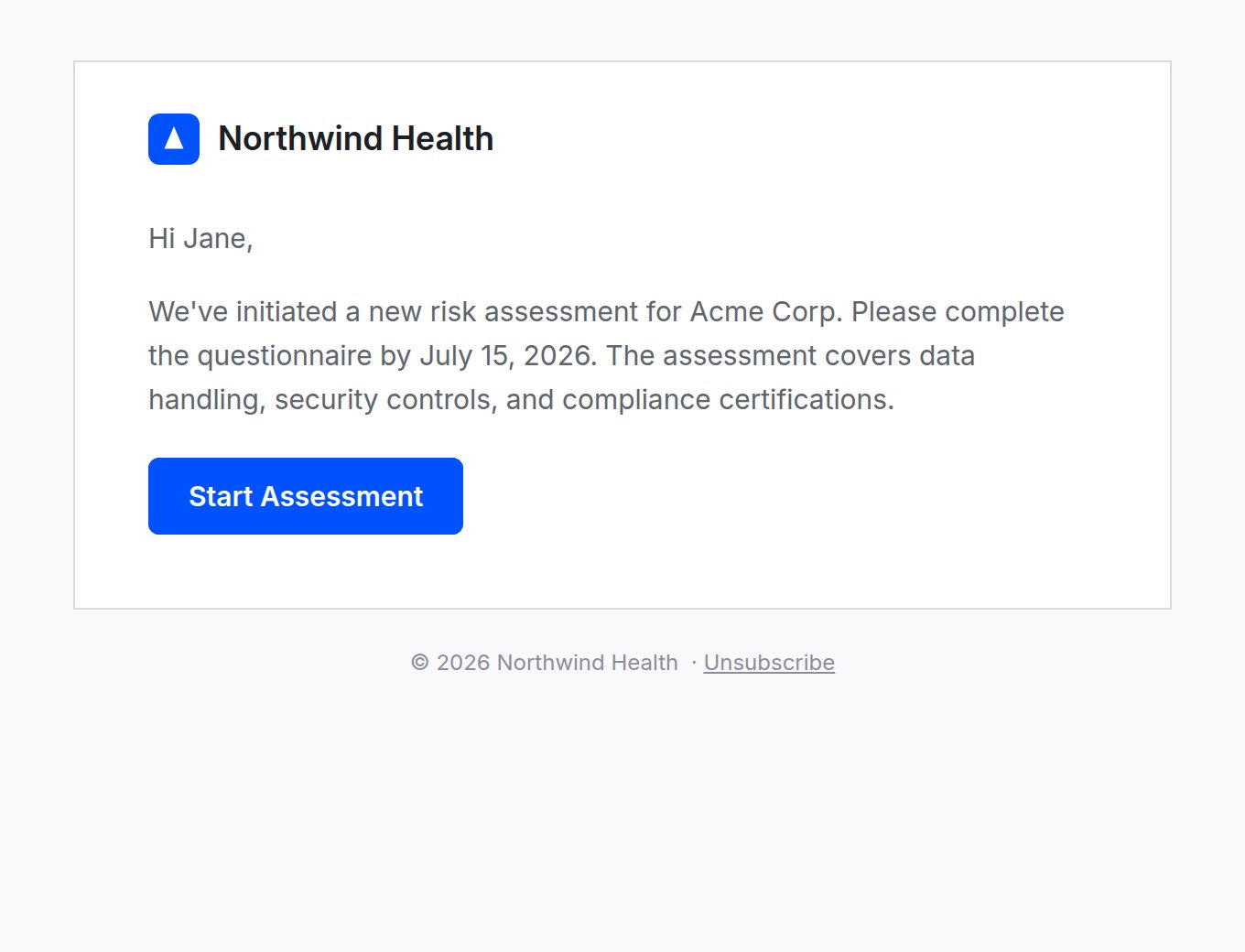
An email header using the square logo paired with the organization name. This matches how the platform's own navigation renders the same logo.
Org branding on emails and portals is released per organization. If your emails still show Coverbase branding and you would like your own applied, contact your Coverbase representative and they will enable it for you.
coverbase.ai, see White-labeling your vendor-facing domain.
Who receives what
Each person controls their own notification delivery under Account → Notifications (choose your name in the top right, then Account, or Settings in the Notifications menu). Two things are separate there:- In-app notifications always appear in the bell menu. They cannot be switched off, because that list is the record of what happened.
- Email is optional per notification type.
- Immediate sends each notification as it happens.
- Digest collects your unread notifications into one email a day, sent at the Digest time you pick (shown in your own time zone).
The notification catalog
These are the notifications your own team can receive. “Default” is the starting email setting for a new user; everyone can change their own.Assessments
Findings and commitments
Monitoring
Vendors and portals
Mentions and work
Exports and system
Contracts, risk and Inspect
Marketing compliance
Watchers are set on the program. See the Marketing compliance guide.
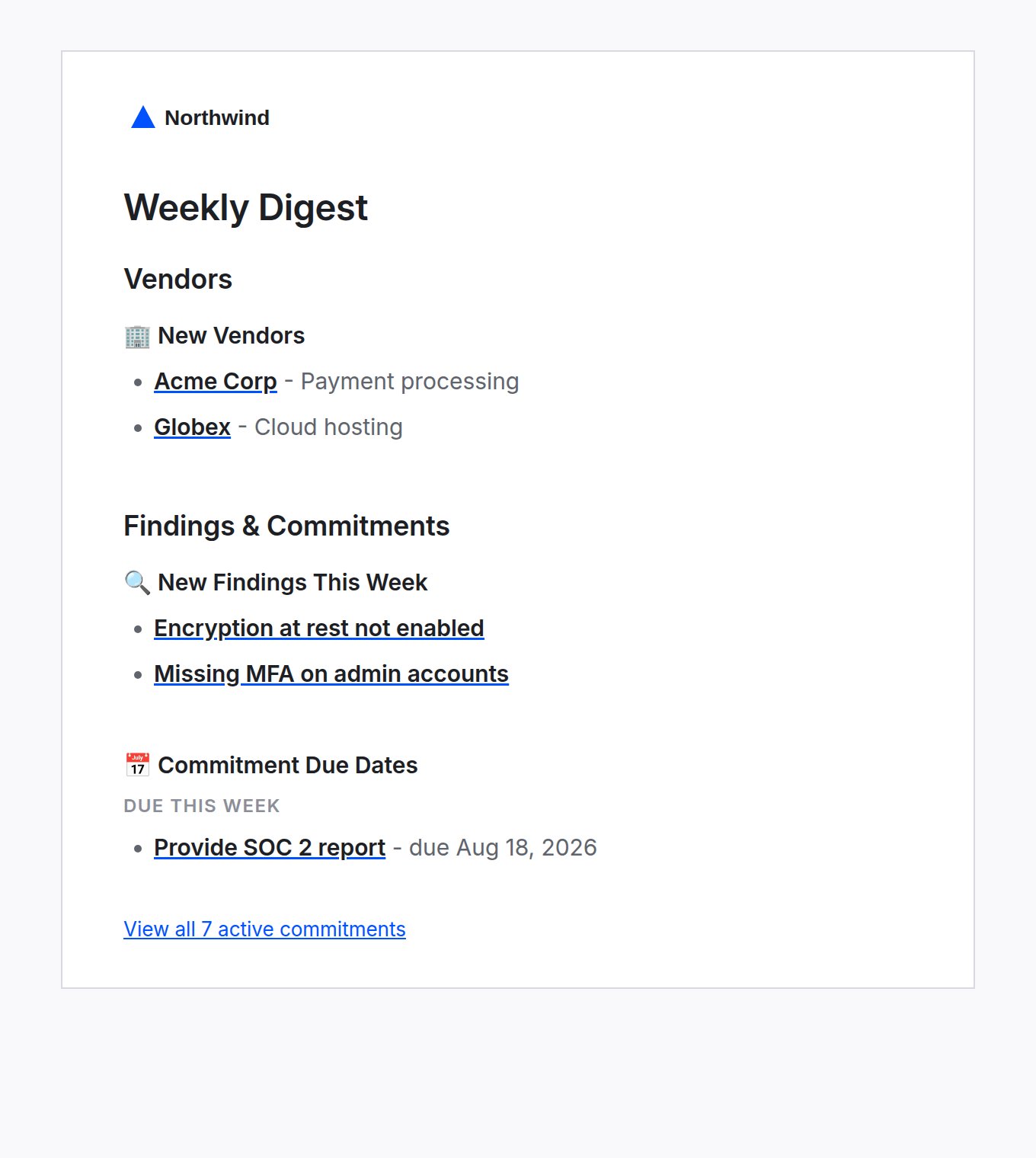
The weekly digest. New vendors, new findings, and upcoming commitment due dates, each linking straight into the platform.
Vendor-facing email
These go to people outside your organization and are not controlled by anyone’s personal notification settings. They use the External layout.
The wording of portal invitations and follow-ups is yours to edit in the Templates list on Configuration → Communications, along with attachments. Sender identity is set at the top of the same page, and reminder cadence on the portal template under Configuration → Portals. See Step 8 of the Admin and setup guide.
Contract and report email
Contract reminders are configured per organization and can be turned off for a single contract without affecting the rest. See Contract dates and reminders. Both emails also have a row in each person’s notification settings. Turning off Contract date reminder stops that person receiving contract reminders. Dashboard scheduled exports works differently: turning it off pauses the schedules on every dashboard that person created, for every recipient, and it does not stop the email reaching someone who is only a recipient. See Exporting and scheduling dashboards.
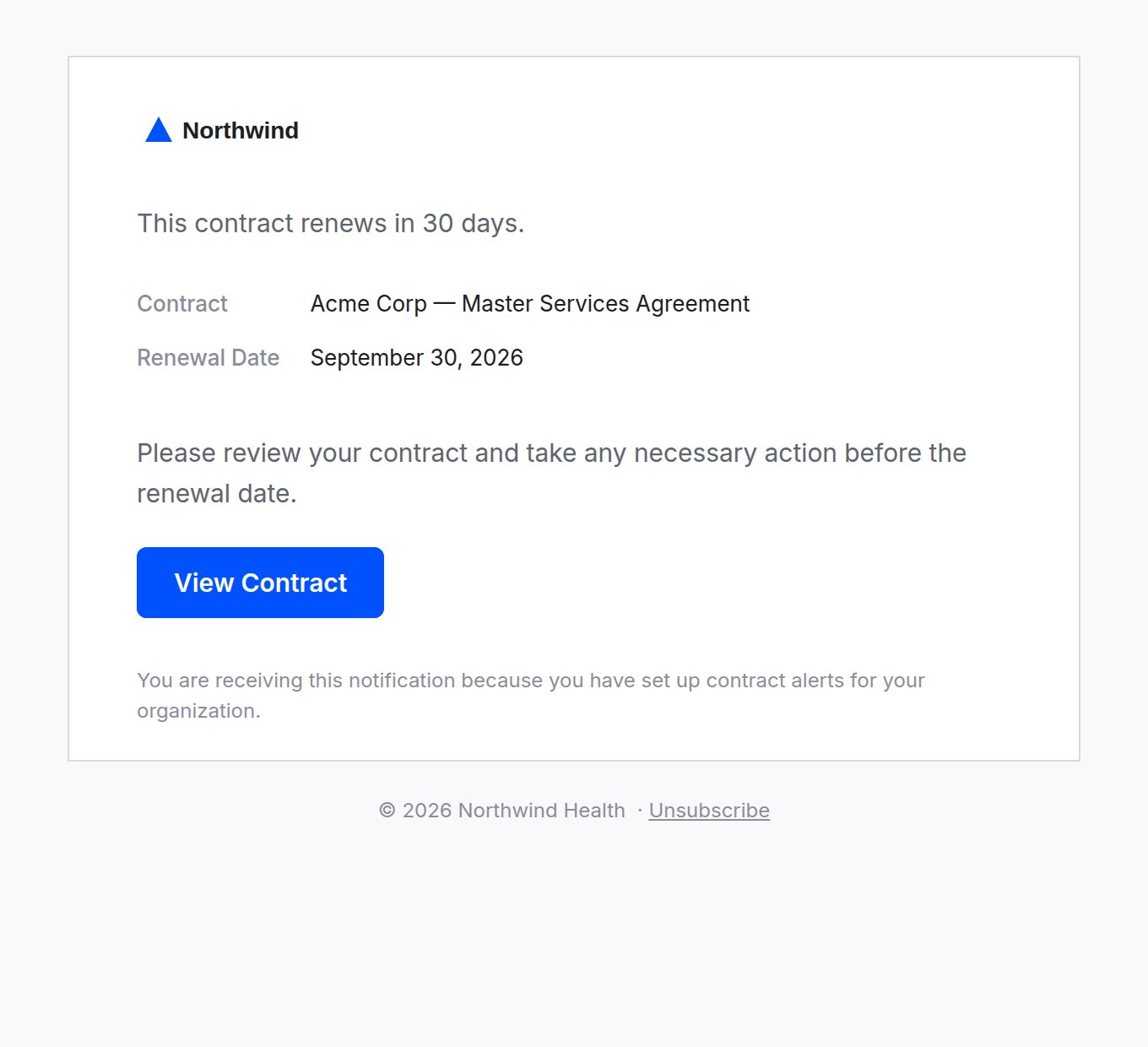
A contract reminder. The dates sit in a labeled table rather than buried in a sentence.
Manage email from MCP or the API
You can change your own notification settings, the layouts and the templates from an MCP client. An MCP client reads withquery_platform(kind=...) (notification_settings, notification_types, email_layouts, email_layout_preview, email_templates). It writes with mutate(entity="notification_setting", action="set"), mutate(entity="notification_preference", action="update"), mutate(entity="email_layout", action=...) (save, dry_run) and mutate(entity="email_template", action=...) (create, update). A dry run emails the preview to you and nobody else.
With an API key, the routes are /v1/notification-settings, /v1/notification-types, /v1/notification-preference, /v1/notifications, /v1/email-layouts and /v1/email-templates. See Notifications and saved views, Email layouts and Email templates. Notification routes only ever read or change the key owner’s own settings. Layout routes need organization settings permission, and template writes need email_template write permission. API keys hold neither, so for those use a key created by a person whose role holds them. A key cannot send a layout dry run or archive a template.
Before an MCP client sends a write, it shows you the change and waits for you to confirm it. The MCP tool reference lists every field.
Common questions
An email went out looking wrong. What do I check first? Open Configuration → Communications, find Layouts, confirm which layout the affected side (External (vendors) or Internal (team)) is set to, and use Send test to myself. That delivers exactly what a recipient would get. Someone says they are not getting emails. Check their Account → Notifications page first, since the setting is per person. If they are on digest, the email is batched rather than missing. Also check whether the address has bounced: a hard bounce suppresses future sends, and whoever triggered the original email receives an “Email failed to deliver” notification. Can I turn off email for my whole organization? Not in one switch. Email is a per-person setting, so one person’s preferences never change what a colleague receives. Our logo looks stretched or cropped. Check which slot it is in. The Logo slot (Icon on the redesigned settings) expects a square image and the Full Logo slot (Wordmark) expects a wide logotype. A wide logo in the square slot is the usual cause.Related
White-labeling your vendor-facing domain
Send vendor email from your own subdomain instead of coverbase.ai.
Admin and setup guide
Step 8 covers the vendor email templates: sender identity, instructions, and reminder cadence.
Contract dates and reminders
Which contract dates send a reminder, and how to turn one off per contract.
Assignment, delegation and out of office
How group assignments and mentions reach the people who are notified.