

Where it lives
Three places, for three jobs. The queue: Dark Web in the left navigation. Every exposure for your organization and every watched vendor, worst first, with the watchlist and the sweep history on tabs beside it. This is where triage happens. On a vendor: open a vendor, choose Vendor Intelligence, then Dark Web. The same exposures for that vendor only, with the values being watched for it. The settings: Configuration → Monitoring → Dark Web, or Configuration at the top right of the queue. An administrator switches monitoring on here and decides who is watched and which sources run.What is watched
The sweep checks a watchlist. You do not type most of it: Coverbase builds it from records you already keep, and rebuilds it at the start of every sweep. Your organization. Its names, the domain of its website, and its email domains, all read from your organization record. Monitor our organization is on by default. Your vendors. For each vendor in scope, the vendor’s name and the domain of its website. When the vendor is linked to an entry in the Coverbase directory, that company’s name, website and other known names are added too. Every website domain is also watched as an email domain. Breach and infostealer data is organized by the address people sign in with, and a company’s web domain is usually its mail domain. If it is not, switch that row off. Values are normalized before they are stored, so different spellings of one value share a row. Case, accents, punctuation, a leadingwww. and a trailing company suffix such as Inc, Ltd or Co are ignored, which makes Orchard Insurance and Orchard Insurance Co. one row.
Which vendors are in scope is a setting, and it is the one to check first.
What each source checks
A sweep consults five sources. Each one reads only some kinds of watchlist value, and each raises one category of exposure at a severity set by fixed rules.Sources that need a license
ransomware.live does not allow commercial use without its written approval and a licensed key. Coverbase holds that key for the whole platform, not per organization, so there is no field for your own. Until the key is in place, the source’s switch stays off and shows Needs a platform key, and every sweep lists it as skipped in Sweep History. Once the key exists, the source runs without any change on your side. Have I Been Pwned is used for your organization’s own domains only. Vendor domains are not sent to it, so a vendor never has a Data breach exposure. For a vendor’s known breaches, read Breaches and exposed credentials on its Security tab. RansomLook and Have I Been Pwned publish under the CC BY 4.0 license, which requires credit. Every exposure from them names the source and links back to it.Large portfolios
Each sweep searches the ransomware trackers’ older listings for at most 150 names and domains, and checks at most 25 domains for lookalikes. Your organization’s values go first in both. Recent leak-site listings are matched against the whole watchlist. Each source also has a few minutes per sweep, and one that runs out of time keeps what it found. Its badge in Sweep History turns amber, and the values it did not reach keep their earlier Last Checked time. Lookalike checks work through the vendors’ domains over the following days, 25 domains per sweep, your own first. With All vendors on a large portfolio, keep this in mind before you read a quiet queue as full coverage.What no source reads yet
Switching it on
Do this once, as an administrator. Open Configuration → Monitoring → Dark Web.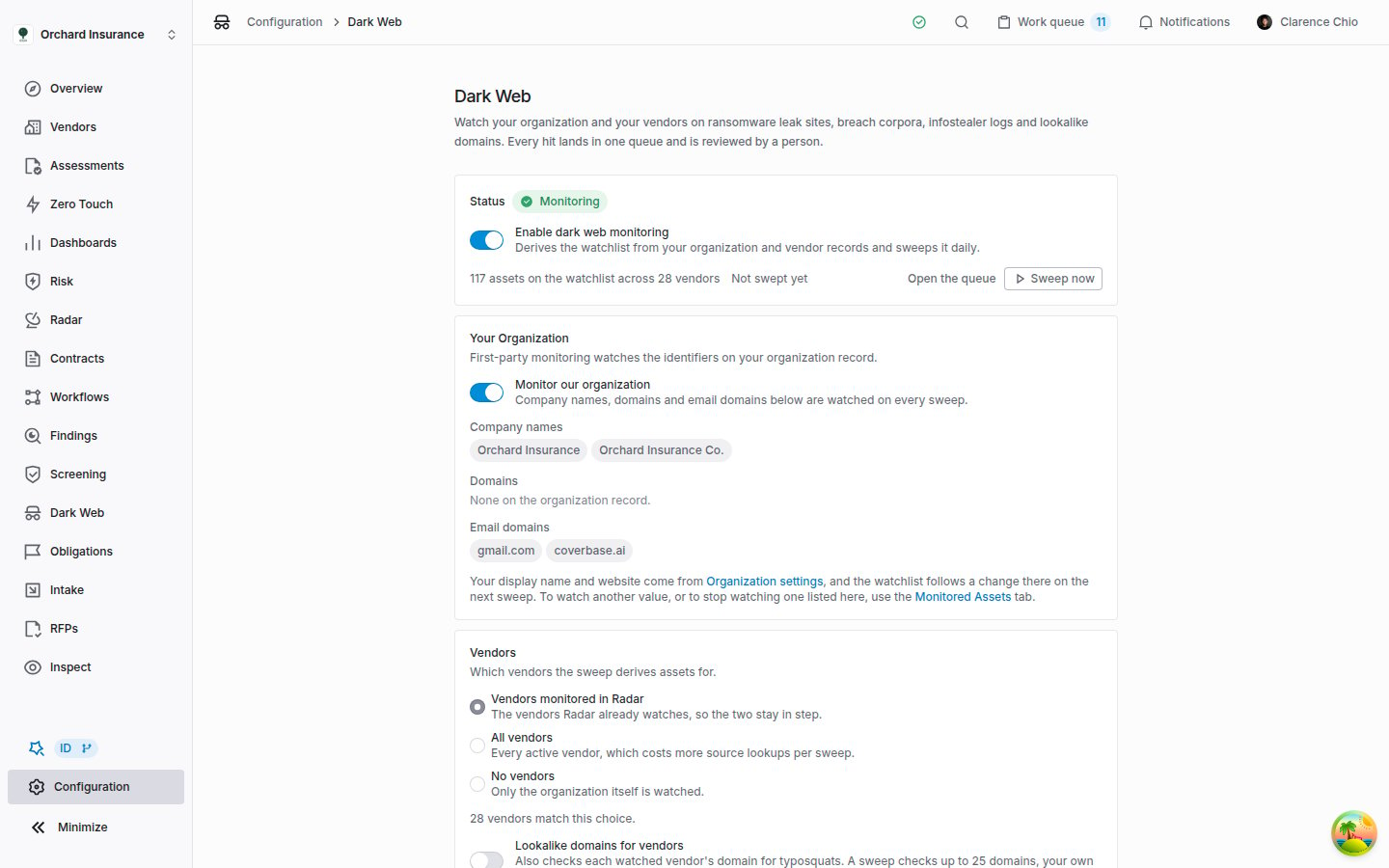
The settings page with monitoring switched on: the watchlist is built from the organization record and 28 Radar-monitored vendors, and no sweep has run yet.
- Under Your Organization, read the Company names, Domains and Email domains. They come from your organization record: its names, the domain of its Website, and its email domains. Change the name and website under Organization settings (the link on the card). Email domains are set when Coverbase creates your organization; to change them, ask your Coverbase account team, or switch an unwanted one off on the watchlist.
- If Domains reads None on the organization record., your organization has no website on file. Leak-site matching on your domain and lookalike checks then have nothing to work with for your organization, so add the website first.
- Under Vendors, choose who is watched. Read the count underneath, N vendors currently watched., before you rely on the queue.
- Leave Lookalike domains for vendors off unless you need it. It adds every watched vendor’s domain to the lookalike checks, and each sweep checks at most 25 domains.
- Under Sources, leave switched on the sources you want consulted. Every source that can run is on by default.
- Under Status, switch on Enable dark web monitoring.
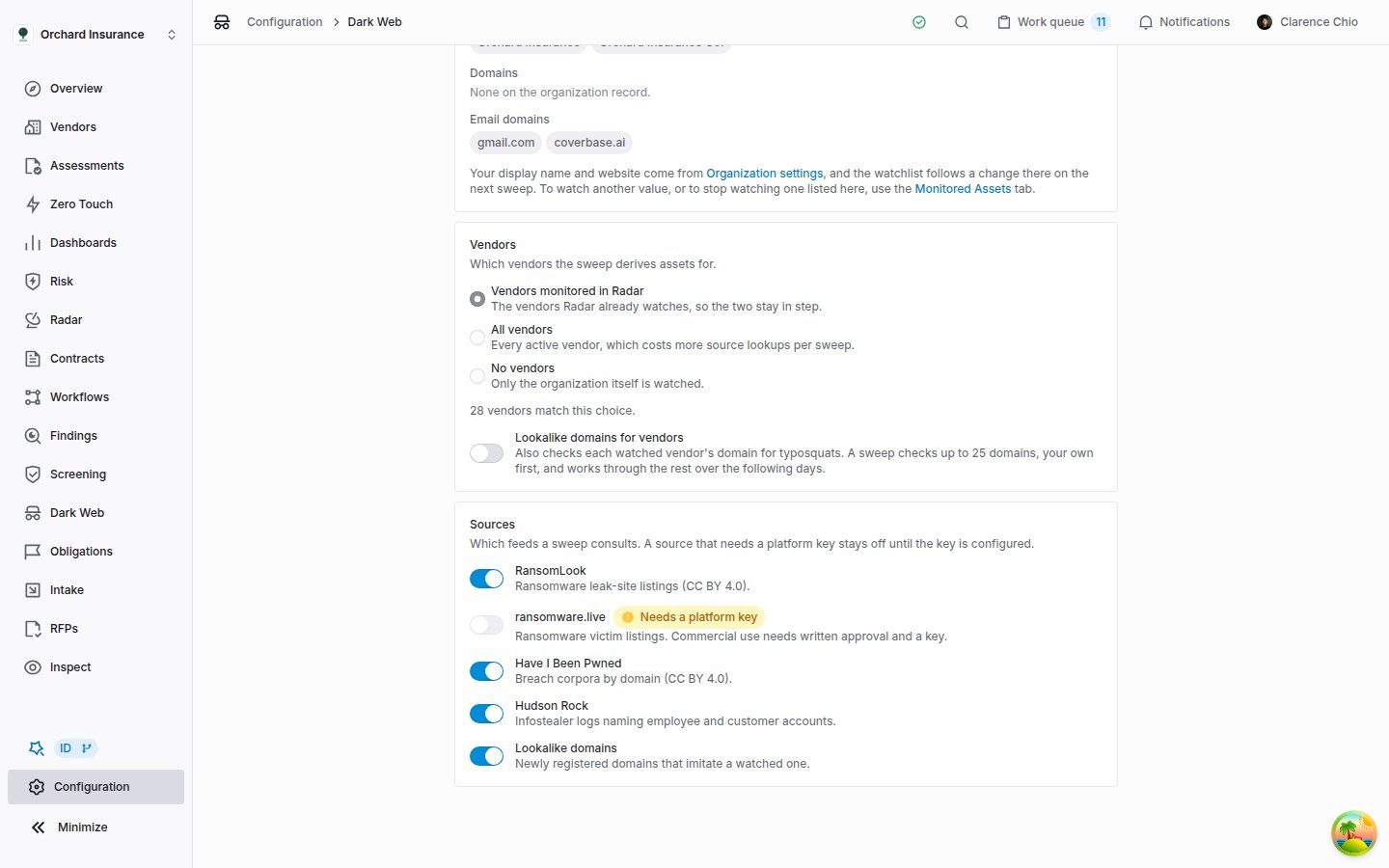
Who is watched and which sources run. ransomware.live stays off until Coverbase has a licensed key for it.
How an exposure arrives
Every day at 06:20 UTC, Coverbase sweeps each organization that has monitoring on. A sweep does three things:- It rebuilds the watchlist from your organization and vendor records, so a vendor that joined the scope yesterday is checked today.
- It asks every switched-on source about the watchlist values that source reads.
- It records what came back as exposures, stamps each watched value with the time, and adds a row to Sweep History.
- One exposure per listing. The same listing found again on a later sweep does not create a new exposure. It moves Last Seen, adds to the seen N times count, and refreshes the evidence.
- Your decision sticks. A new sighting never changes an exposure’s status. An exposure you resolved stays resolved even if the source keeps reporting it; its Last Seen keeps moving on the Resolved list.
- Names match cautiously. On a leak-site listing, a domain is the strongest match. A company name matches only as a whole phrase. A name shorter than four characters, or one made only of generic words such as “Global Systems”, never matches on its own, so the domain has to appear in the listing.
The exposure queue
Open Dark Web in the left navigation.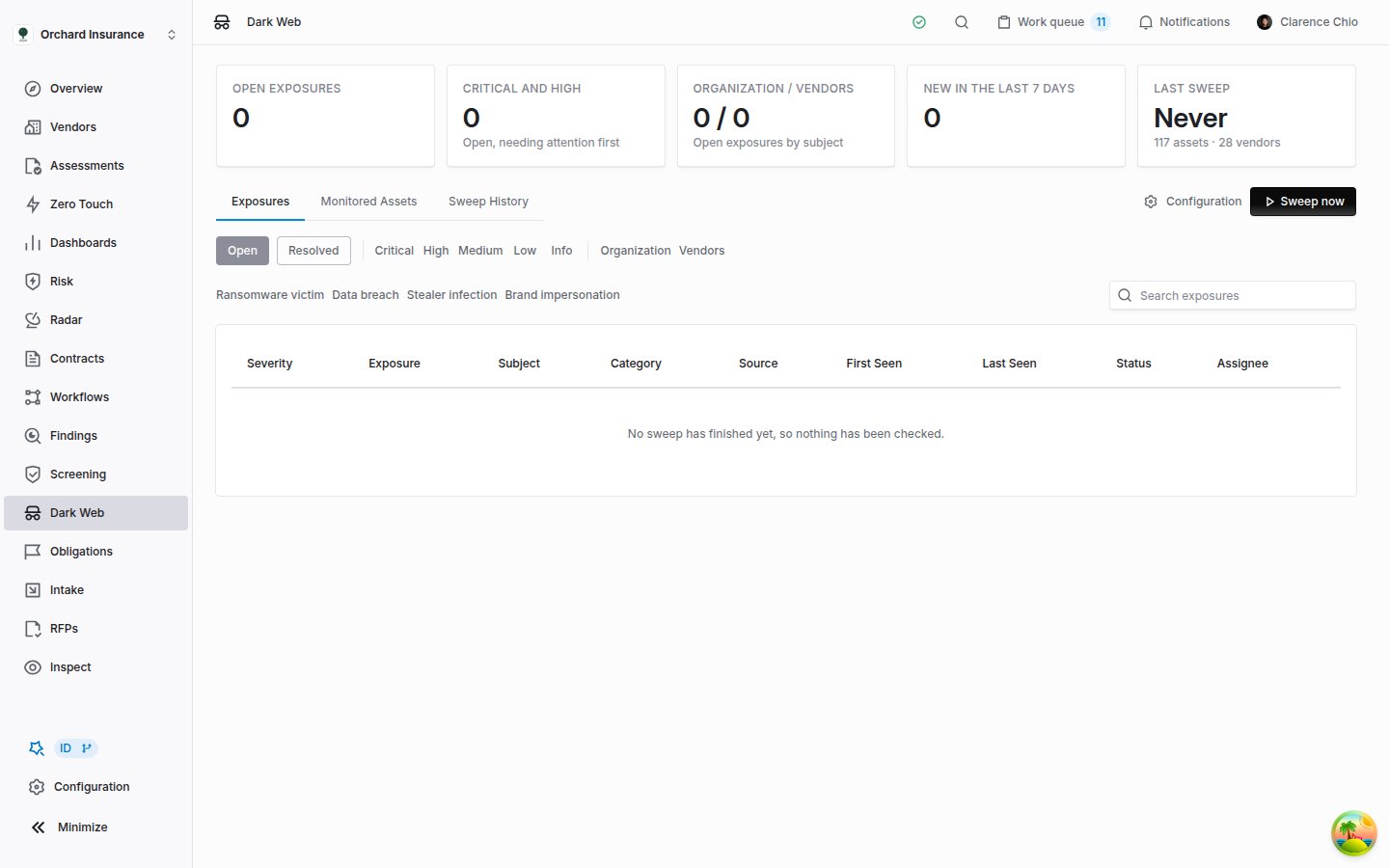
The queue straight after monitoring was switched on: 117 values are watched, but no sweep has run, so the table is empty and Last sweep reads Never.
Narrowing the queue
- Open and Resolved switch between exposures still being worked (New, Acknowledged, Investigating) and closed ones (Resolved, False positive).
- The severity buttons (Critical, High, Medium, Low, Info), Organization and Vendors, and the category buttons below them filter the list. Click a button to apply it and again to clear it. Buttons of the same kind widen the list; buttons of different kinds narrow it.
- Search exposures matches the exposure title, the matched term, the threat actor and the vendor’s name.
Reading an exposure
Click a row to open the exposure in a panel on the right. The header names the subject (your organization, or the vendor with a link to its page), the title, the severity, the status, and the category and source. What Matched holds the facts:Triaging an exposure
Decide what each exposure means and record it, so the next person does not check it again.- Open the exposure from the queue or from the vendor’s tab.
- In Triage, set the Status, pick an Assignee if someone will follow it up, and write a Note: what was checked, and what was decided.
- Click Save review. The panel closes and the queue updates.
Escalating to a finding
When an exposure needs work tracked with an owner and a due date, click Escalate to finding. Coverbase opens a finding:- Titled with the exposure’s title, with the source type Dark web exposure.
- With a description that lists the source, category, severity, matched term, threat actor and reference link, followed by the summary.
- Assigned to the exposure’s saved assignee, if it has one.
- On the vendor, for a vendor’s exposure. An exposure about your organization gives a finding with no vendor.
Keeping the watchlist right
Make sure the sweep checks the right values, and nothing that belongs to someone else. Open Dark Web, then Monitored Assets.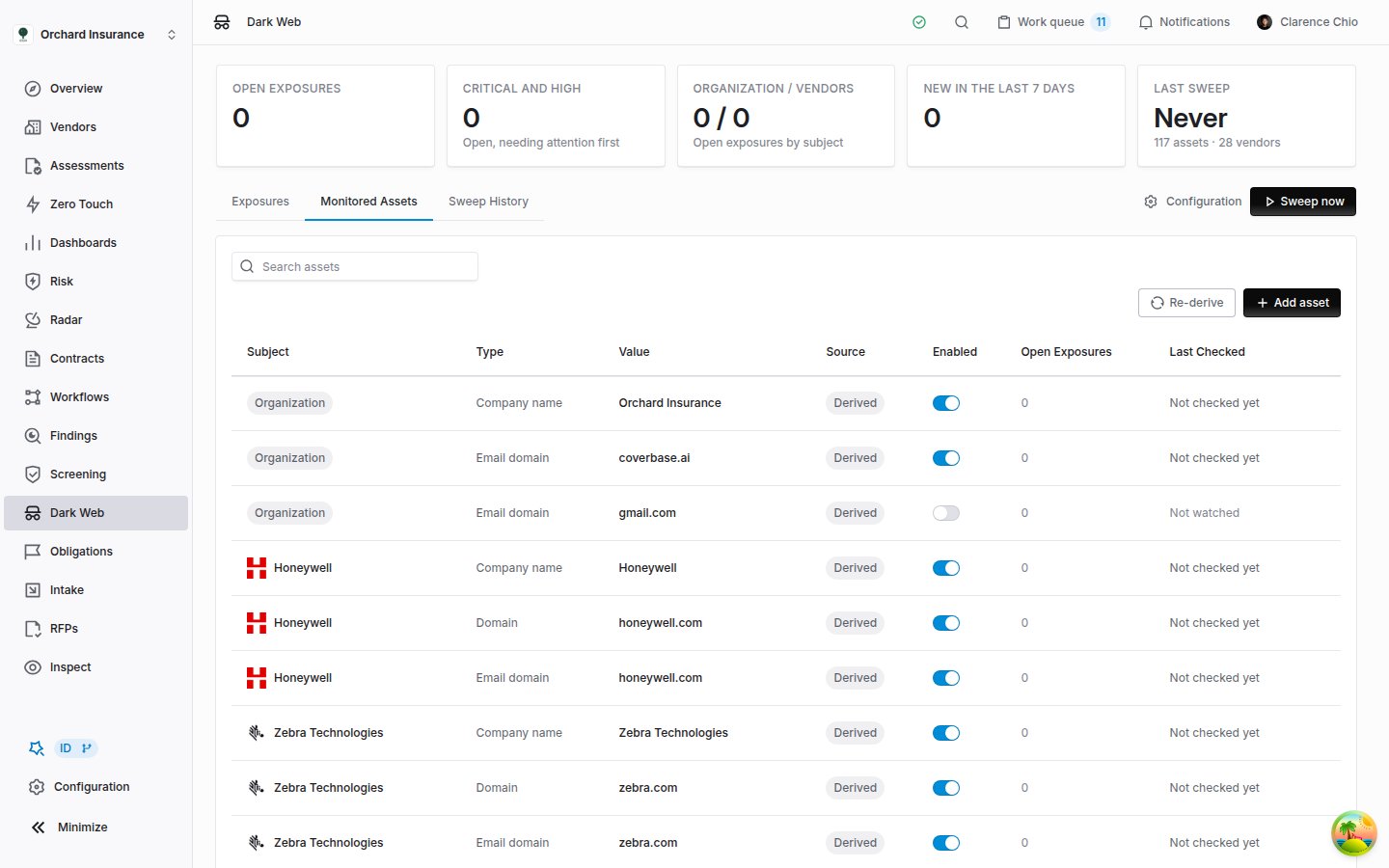
The watchlist. Every row here was derived from a record, and the gmail.com email domain is switched off because a shared mail provider is not the organization's own.
- Switch a row off with its Enabled switch to stop checking it. Use it for a value that is not really yours or the vendor’s, such as a shared mail provider on the organization record, or a company name that is also an ordinary word. A derived row cannot be removed, because the next rebuild would only add it back. Switched off, it stays off.
- Derived rows look after themselves. When a record stops producing a value, because a vendor left the scope or was archived or a website changed, the row leaves the watchlist at the next rebuild. Exposures already found stay in the queue.
- Re-derive rebuilds the derived rows now instead of at the next sweep, and reports how many were added, kept and retired. Use it after you change a vendor’s website or turn on Radar monitoring for more vendors. Changing a setting on the configuration page rebuilds the watchlist too.
- Add asset watches a value no record provides, such as a second brand’s domain or the domain a vendor runs its customer portal on. Choose what it Belongs To (Organization, or Vendor and then the vendor), its Type and its Value. It is checked from the next sweep on.
- Remove, the bin icon at the end of a manual row, stops watching that value. Exposures already found for it stay in the queue.
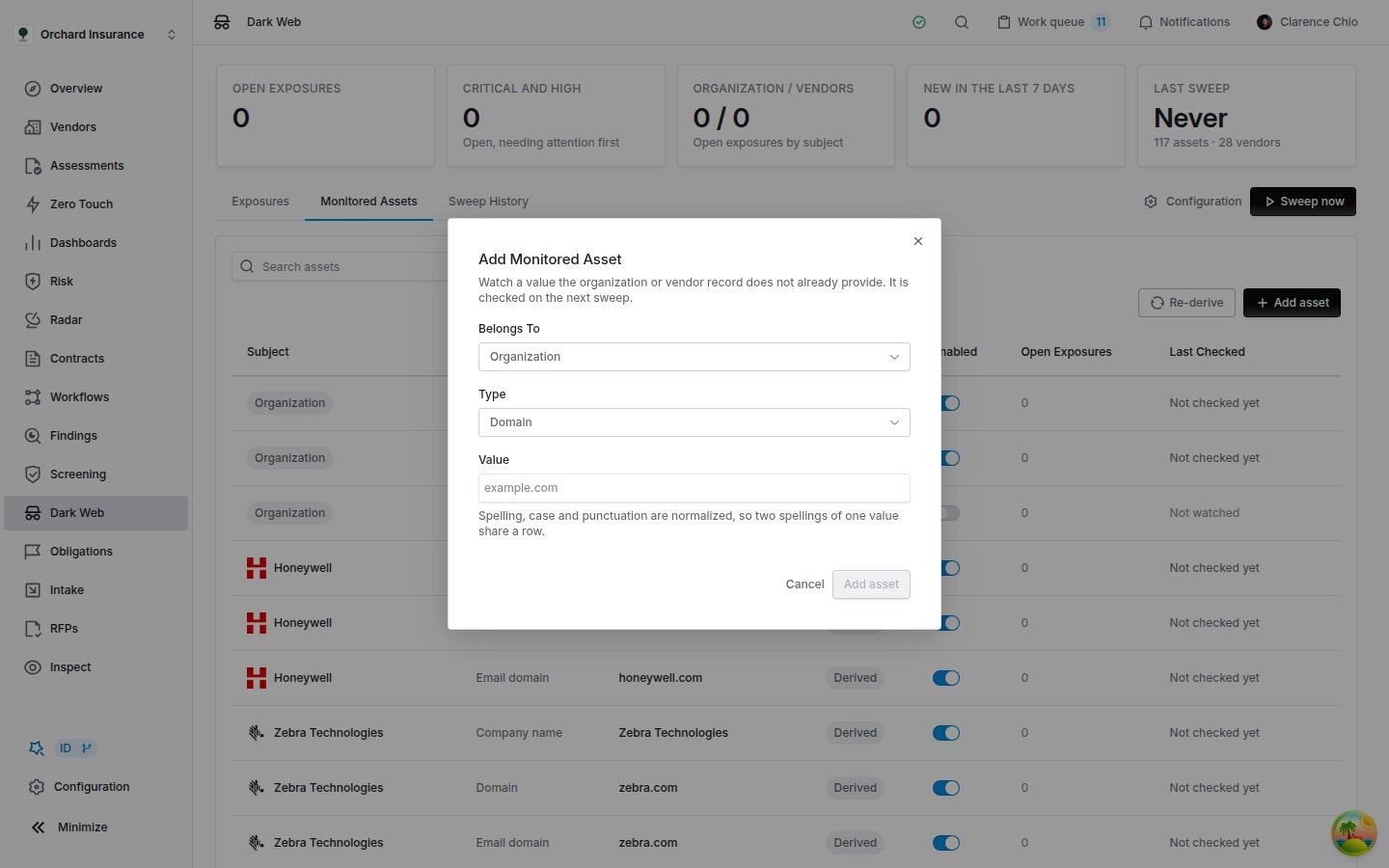
Adding a value by hand. Spelling, case and punctuation are normalized, so a value already on the watchlist is not added twice.
Sweep history
Open Dark Web, then Sweep History. There is one row per sweep, scheduled or manual, including sweeps that found nothing.The vendor’s Dark Web tab
See one vendor’s exposures without the rest of the queue. Open a vendor, choose Vendor Intelligence, then Dark Web.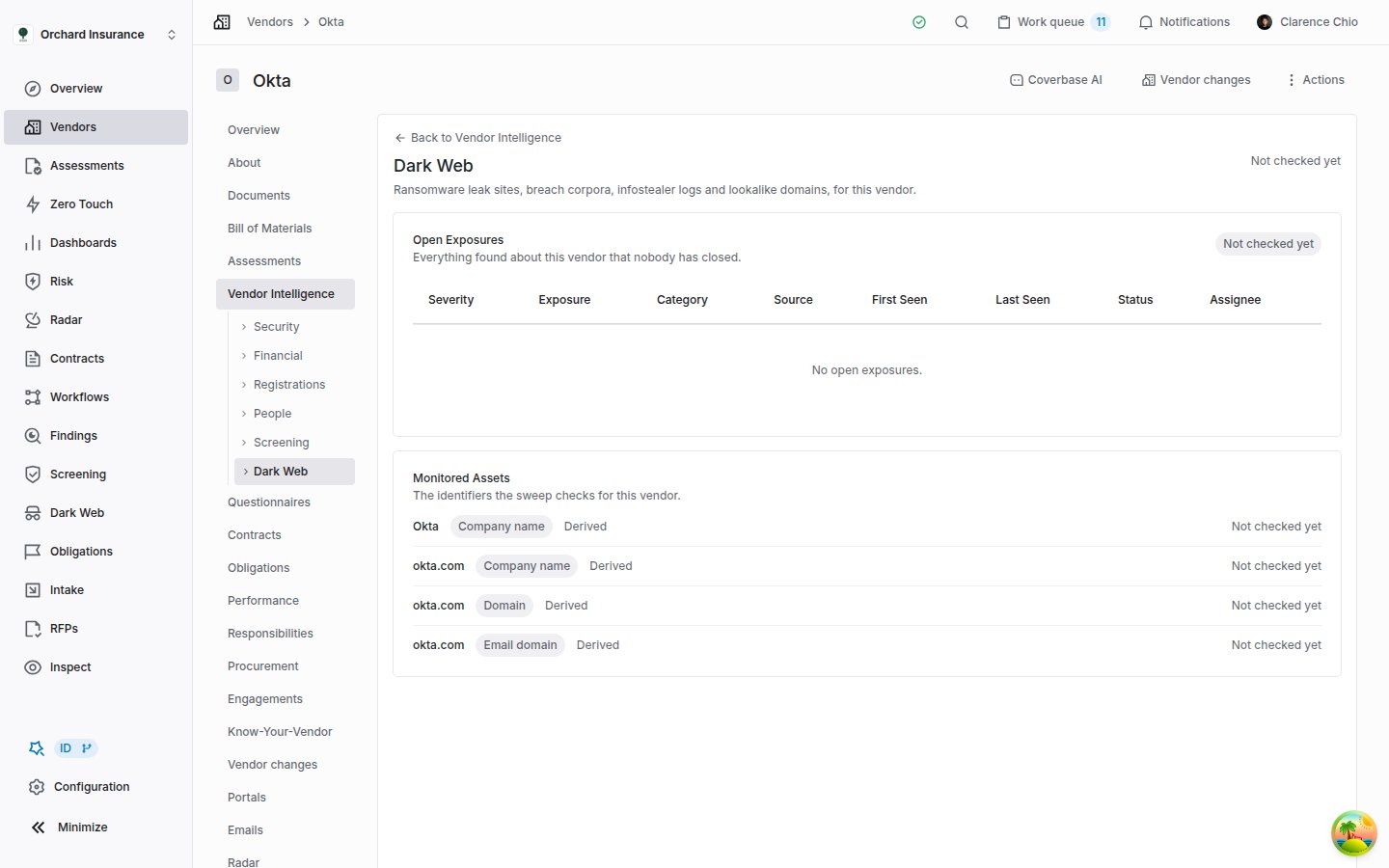
A watched vendor before its first sweep: its name, a directory alias that happens to be its domain, and the domain as both a web and an email domain, none checked yet.
- Last checked, at the top right, is the oldest check across the vendor’s watched values. It reads Not checked yet for a watched vendor before its first sweep, and Not watched when nothing a source can search is watched for the vendor.
- Open Exposures lists everything open for the vendor, with a count per severity. With nothing open it shows Clear once a sweep has checked the vendor’s watched values, Not checked yet before that, and Not watched when nothing searchable is watched for the vendor.
- Monitored Assets lists the values watched for this vendor, each with its type, Derived or Manual, Disabled when switched off, and when it was last checked. A value with open exposures shows how many are open.
- Resolved lists closed exposures, and appears only when there are some.
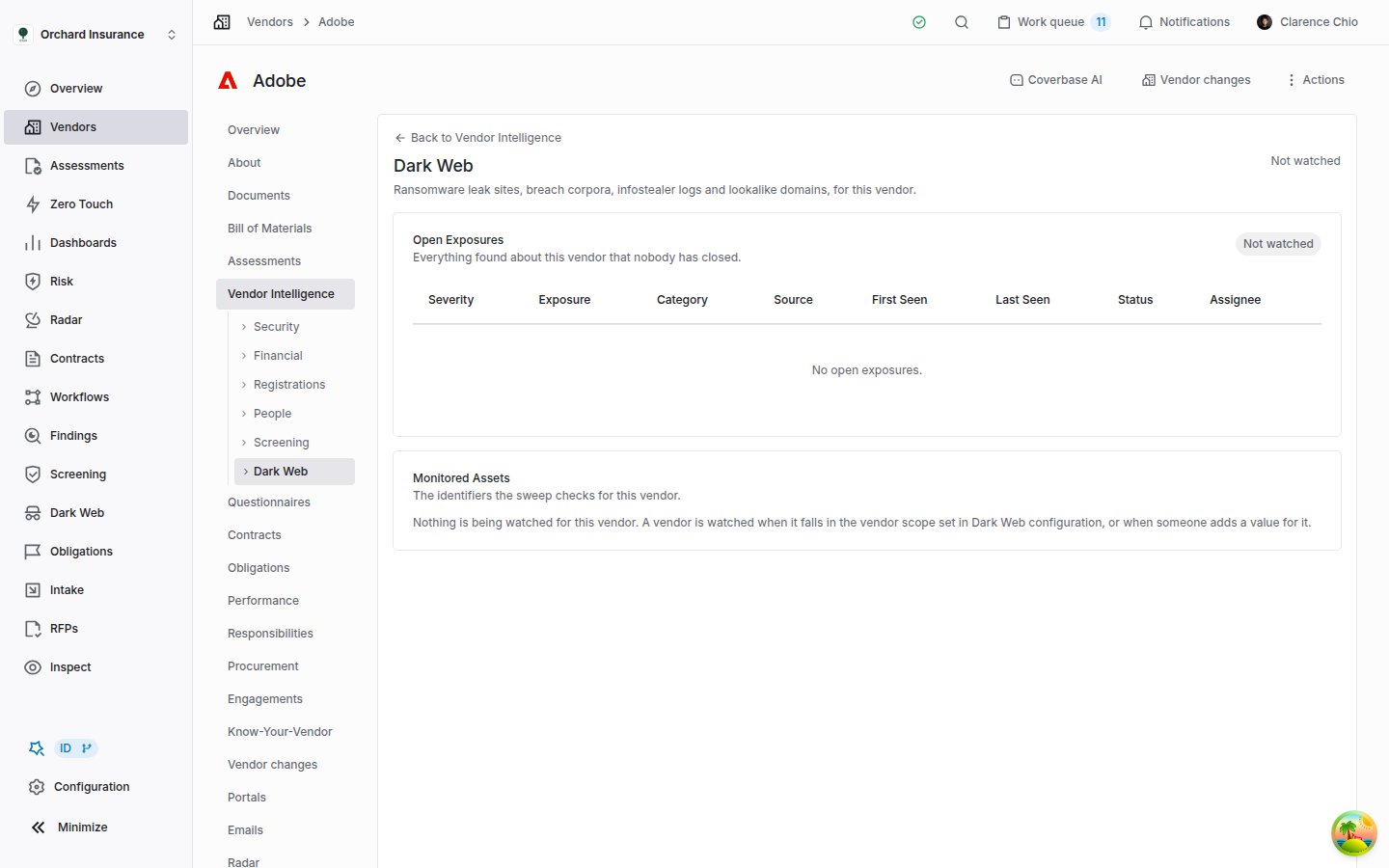
A vendor outside the watched scope. The header and the Open Exposures badge both read Not watched, because nothing a source can search is watched for this vendor.
Notifications
Dark web monitoring sends no email and no in-app notification. A new exposure appears in the queue and on the vendor’s tab and nowhere else, so someone has to look. The daily sweep runs at 06:20 UTC, so one check a day after that time catches each day’s new exposures. To route new exposures automatically:- Workflows. Dark Web Exposure is a trigger record with Created, Updated and Deleted events. See Building a workflow.
- Webhooks.
DarkWebExposure.Created,DarkWebExposure.UpdatedandDarkWebExposure.Deletedcarrydark_web_exposure_id. See the event catalog.