

Before you start
- Publish the template. Only published templates are offered. See Signature templates.
- Have a name and an email for every party on every row. A template’s parties are all required, and a bulk send cannot drop one. If your own signatory is the same person on every envelope, repeat them on every row.
- Label the fields you want to prefill. Only a field with a Label in the field inspector, and not set to Read only, can take a value from the list.
- Build the template from Upload or Write. A template built From a document or From a contract sits on one vendor’s document, and Coverbase files the executed copy of every envelope sent from it among that vendor’s documents.
- Check the expiry and your signing settings. Every envelope in a batch expires after the template’s Default expiration when it has one, and otherwise after your organization’s Default Expiry (Days). Every envelope follows your organization’s Require email verification setting. Both organization settings are under Configuration → E-signature. The bulk send page has no setting for either.
Where it lives
Send a batch
Pick the template
Name the batch
Paste the list into Parties
Read the preview
Add a message
Choose how the links go out, and send
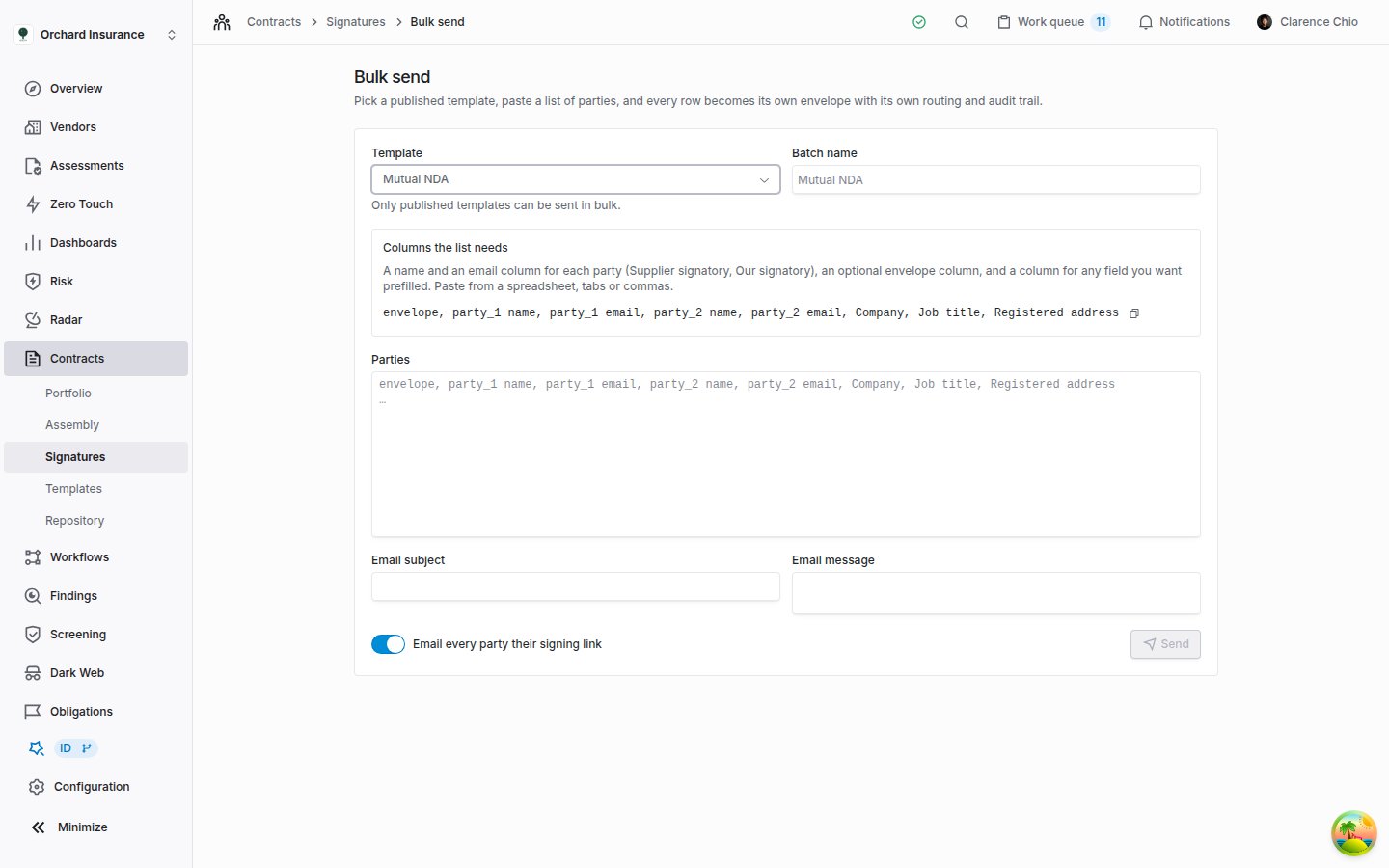
The first step. Picking a template shows the columns its list needs, as a header line you can copy.
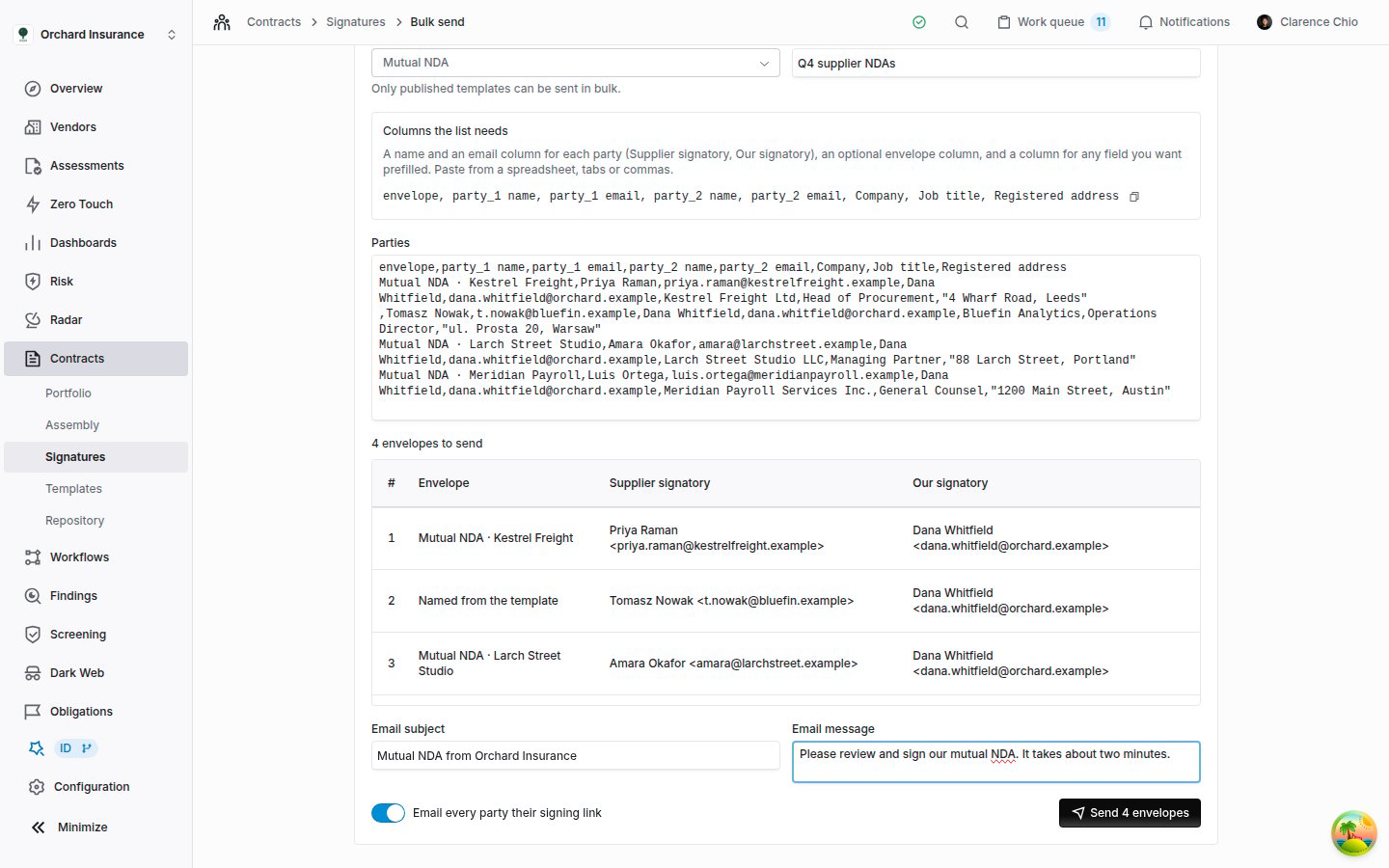
A list of four, ready to send. The second row had no envelope name, so it will be named from the template.
How the list is read
The first line is the header. Every line after it that is not blank becomes one envelope.<party> is either the key the header line uses (party_1) or the party’s name as the template shows it (Supplier signatory). Headings ignore capitals, an underscore counts as a space, and the columns can come in any order, so Supplier signatory email and party_1 email are the same column.
What catches people out:
- A column headed
Nameon its own is read as the envelope name, not as anyone’s name. emailande-mailboth work.- In comma-separated lines, wrap a value that contains a comma in double quotes:
"4 Wharf Road, Leeds". Cells pasted from a spreadsheet arrive separated by tabs and need no quotes. - Two parties on one row cannot share an email address.
- A batch holds up to 500 rows.
- The preview shows the first 50 rows, and the red box the first 10 problems. Every row is sent.
- Problem messages count the header as row 1, so the first envelope is row 2. Blank lines are not counted. The title of the red box counts rows, so a row with two problems counts once.
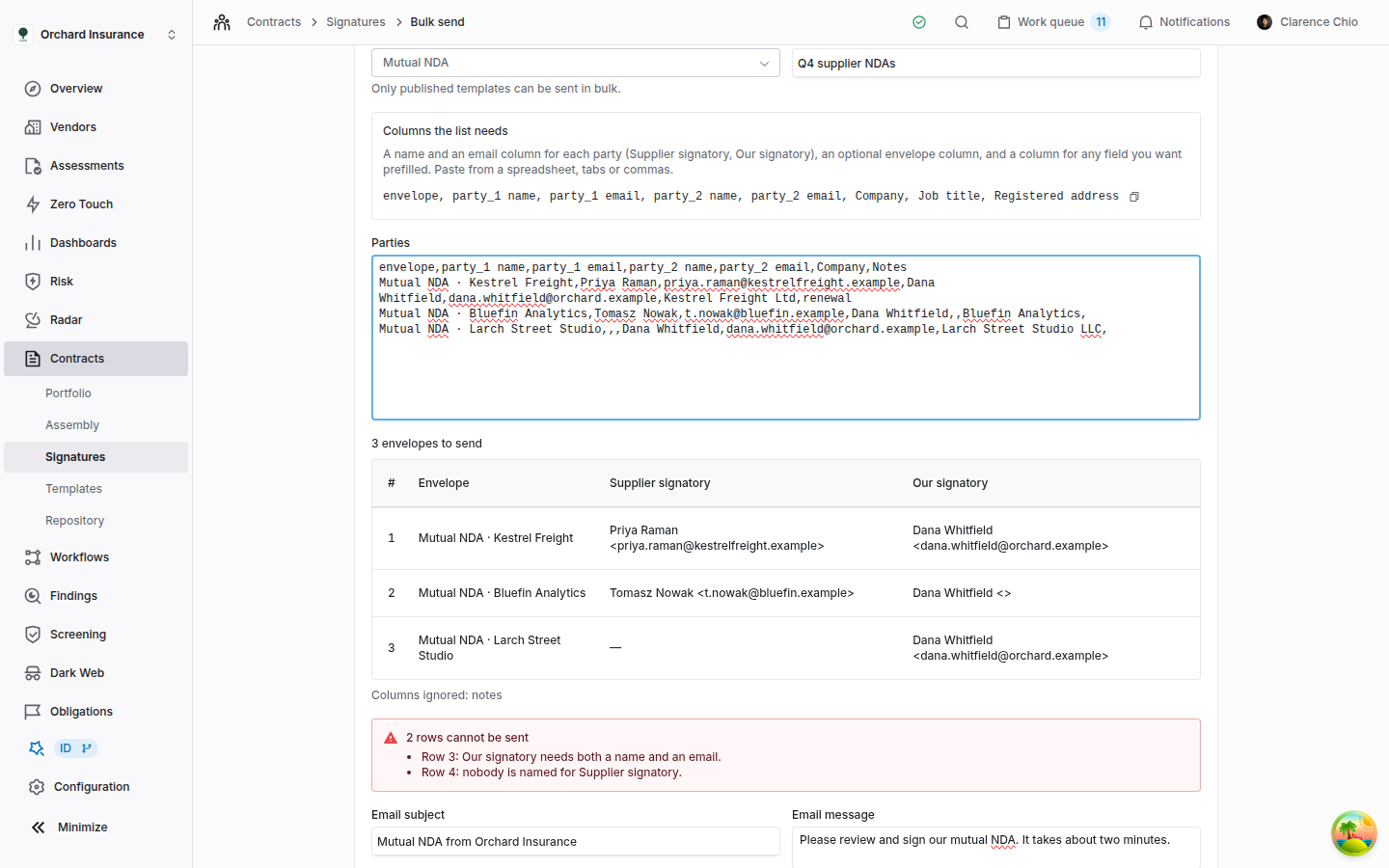
Problems are caught before anything is queued. Row 3 has no email for the second party, and row 4 names nobody for the first. The Notes column matches nothing, so it is listed as ignored.
Prefilling fields
A column headed with a field’s Label fills that field on the row’s envelope. The header line on the page lists every field you can prefill, after the party columns.- Only a field with a Label that is not Read only can be prefilled.
- The value goes into every field on the envelope with that label, whichever party the field belongs to. Give two parties’ fields different labels if they need different values.
- The signer sees the value already filled in and can change it.
- Coverbase does not check the value against the field’s options or format, so a Dropdown value has to match one of its options exactly.
- To prefill a field that has no label, add one in the template. If the template has been sent from, that means a new version.
Access codes
Add a<party> access code column to give that party an access code on their envelope, the same as setting Identity Check to Access code in the wizard. A code has to be 4 to 64 characters. The header line on the page does not include this column, so add it yourself.
Coverbase never shows a code again, on the batch page or anywhere else. Send each one to its party some other way, never in the signing email.
What each party receives
With Email every party their signing link on, which is the default:- Coverbase works down the list one row at a time, making and sending each envelope.
- Each envelope asks its parties in the template’s order. The first is emailed an invitation when the envelope is sent, and the next when the step before them is done, as for any envelope (routing order).
- The invitation names you as the sender, names the envelope, and carries your Email message. Its subject line is your Email subject. Left blank, it is your organization’s Invitation wording under Signing Emails in your signing settings, and without that it reads like Jordan Lee sent you Mutual NDA · Kestrel Freight.
- Expiry follows the template, and email verification your organization’s settings, as described in before you start.
- When the last party signs, every party is emailed the executed copy.
Track a batch
The batch page opens as soon as you send, and refreshes itself until the batch finishes. Across the top: the batch name and status, the template, who started it and when, and four counts: Rows, Sent, Failed and Skipped. Below it is one line per row. Once a row’s envelope exists, its name links to it and Sent shows when it went out. A row that could not be sent shows the reason under its status.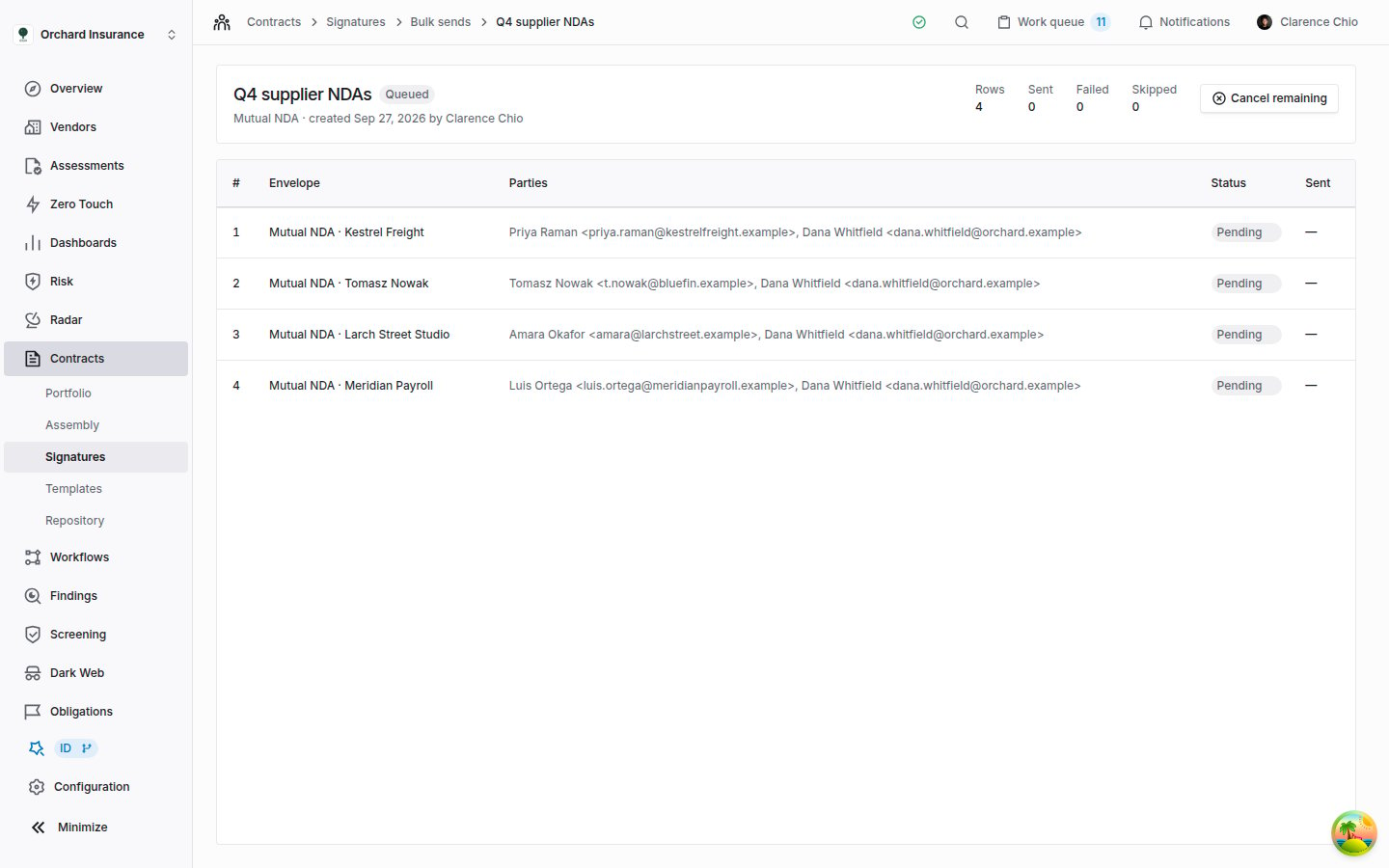
A batch the moment after Send: queued, with nothing sent yet. Row 2 had no envelope name, so it is named after the template and its first party.
- They are not filed against a vendor or a contract. An envelope’s Details read Not associated with a vendor. Use Select a vendor there if you want it on a vendor’s record.
- The executed copy is kept on the envelope, where Download signed copy fetches it once every party has signed. It also lands among a vendor’s documents only when the template was built on that vendor’s document (see before you start).
- The first one sent freezes the template. The template version is then cited in an audit trail, and changing it takes Edit as new version, as after any send.
Cancel remaining
Cancel remaining shows while a batch is Queued or Sending. It stops every row that has not gone out: those rows become Skipped with the reason Canceled by the sender, and the batch reads Canceled. Envelopes already sent stay out. To stop one of those, void it from the envelope.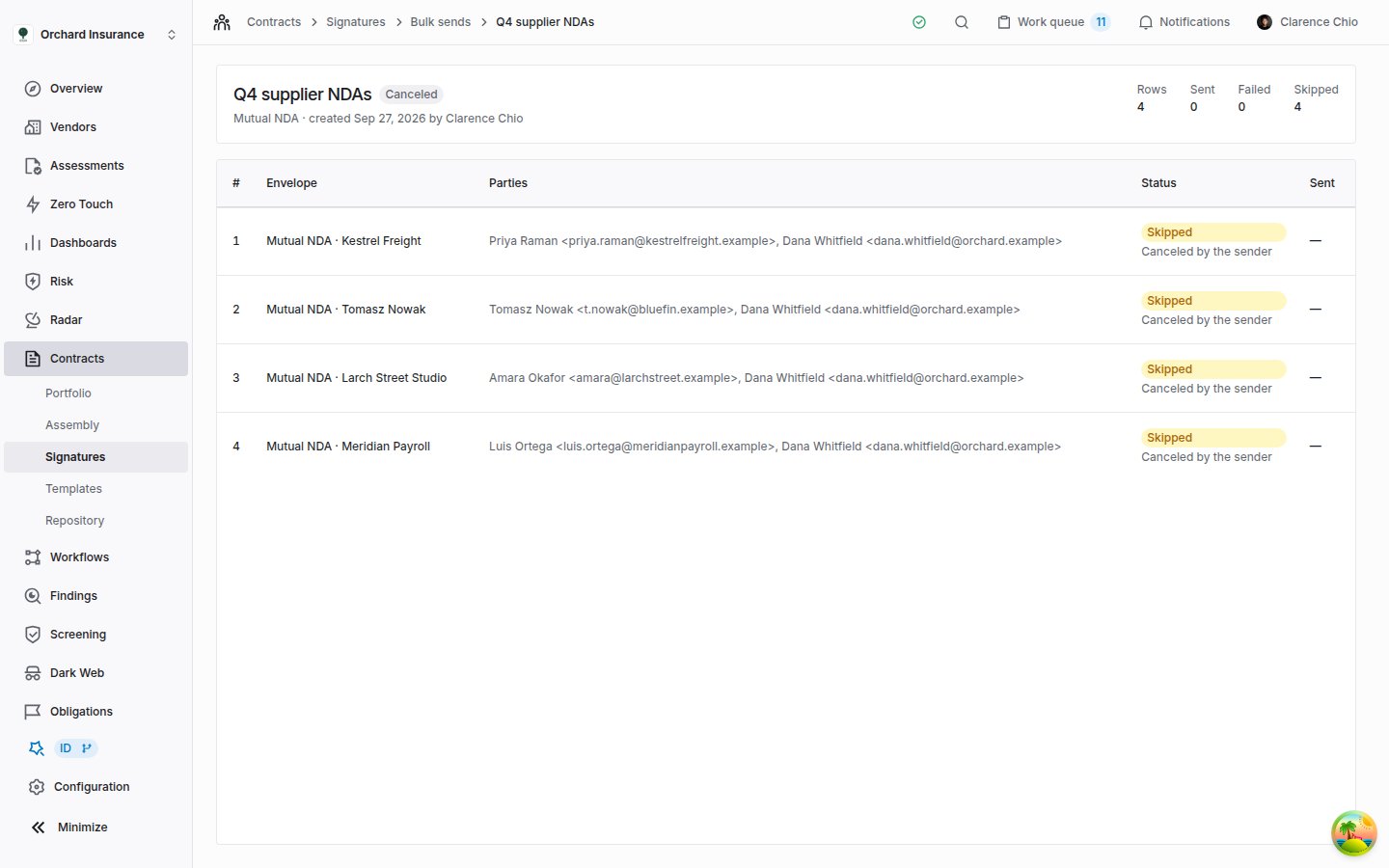
The same batch after Cancel remaining. Every row that had not gone out is Skipped, with the reason under it.
Who can do what
Limits
- Up to 500 rows in a batch. Split a longer list into several batches.
- One batch at a time per organization. Later batches wait as Queued.
- If your plan caps envelopes per month, the page says how many your plan still allows under Columns the list needs. A longer list shows More envelopes than the plan allows and cannot be sent.
- A batch cannot set its own expiry or email verification, add a private note for one party, or file its envelopes against a vendor or a contract.