

For AI agents: a documentation index is available at https://docs.coverbase.com/llms.txt. This page is also available in markdown by appending .md to the URL.
This guide is part of the User Guides collection. It covers Contracts → Assembly, the bulk import for agreements you already hold. For the contract record each confirmed group becomes, see the Contracts workspace guide. For how Coverbase reads a contract’s documents once it exists, see Contract components. To raise one new contract for approval, see Contract intake and approval. To file agreements as they arrive by email, see The contracts repository.
Assembly is part of a newer contracts experience. If you do not see Assembly under Contracts in the left navigation, ask your Coverbase account team to turn it on.
What Coverbase does with the files
A proposed contract is marked Ready only when its vendor is settled, nothing is left to decide, and confidence is at least 90%. Confidence is only as high as the weakest link in the group. A group can reach 90% only when its main agreement is signed and every link in it rests on at least two independent kinds of evidence, for example what the documents say and how the files were filed. File names alone never get there.
If the vendor-matching model is unavailable, Coverbase ranks your vendors by how closely their names match instead, and more proposed contracts wait for you to choose. Neither way ever creates a vendor on its own.
Before you start
- Permissions. Importing and confirming need permission to create contracts. Changing a batch (re-analyzing it, regrouping documents, answering its questions) needs permission to edit contracts across your organization.
- File types. PDF, DOC, DOCX, RTF and ODT, up to 100 MB each.
- Keep the folder structure. The folder a file sits in is used as evidence for grouping, so drop the export as it came out of the old system rather than flattening it.
- Zip archives are fine. Drop the zip as it is. Your browser opens it, step 2 lists what is inside, and each document is uploaded and read on its own with the folders it sat in. Nested archives, system files such as
__MACOSX, and anything other than the supported file types are left out and listed. An archive over 8 GB uncompressed, or with more than 5,000 documents, is refused: split it into several imports. - Scans are fine too. A PDF with no text on the page, such as a scan of a printout, is left out of every group until you run OCR on it from the review. See Files that were not grouped.
- Duplicate copies. A copy with the same name and size as another file is skipped on step 1. A copy saved under another name is recognized when the files are read: the first one uploaded is kept, and the others are listed under Unmatched as exact duplicates.
- Vendors. Nothing to set up. The import matches the vendors you have and proposes the ones you do not.
- A manifest, if your old system exports one. A CSV listing each file with the vendor and the agreement it belongs to can be attached on step 2. See Attaching a manifest.
Import the files
The import is a four-step wizard. The step list on the right shows where you are, and you can click back to any step you have already reached.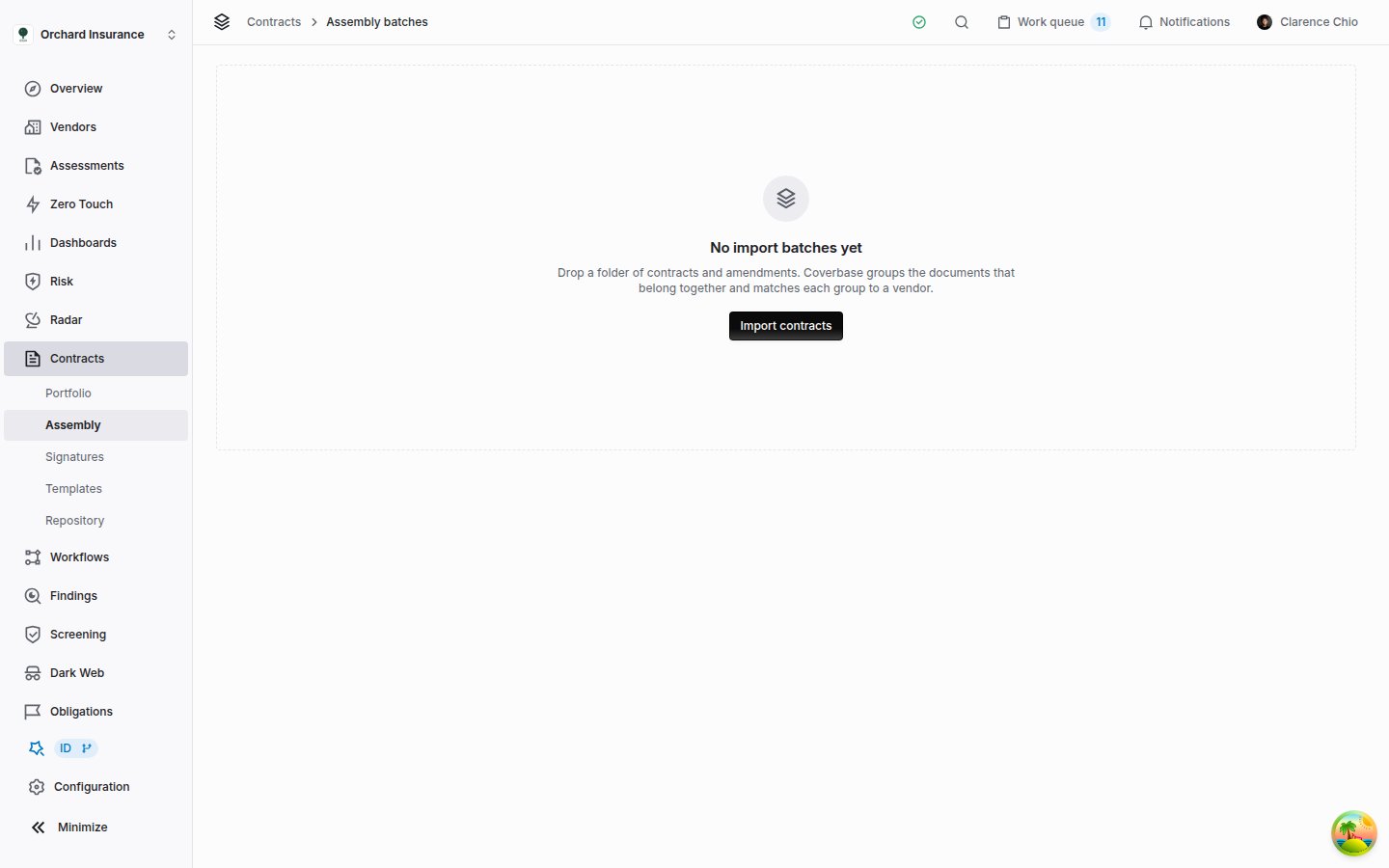
Contracts → Assembly before any import. The same page lists your batches once you have some.
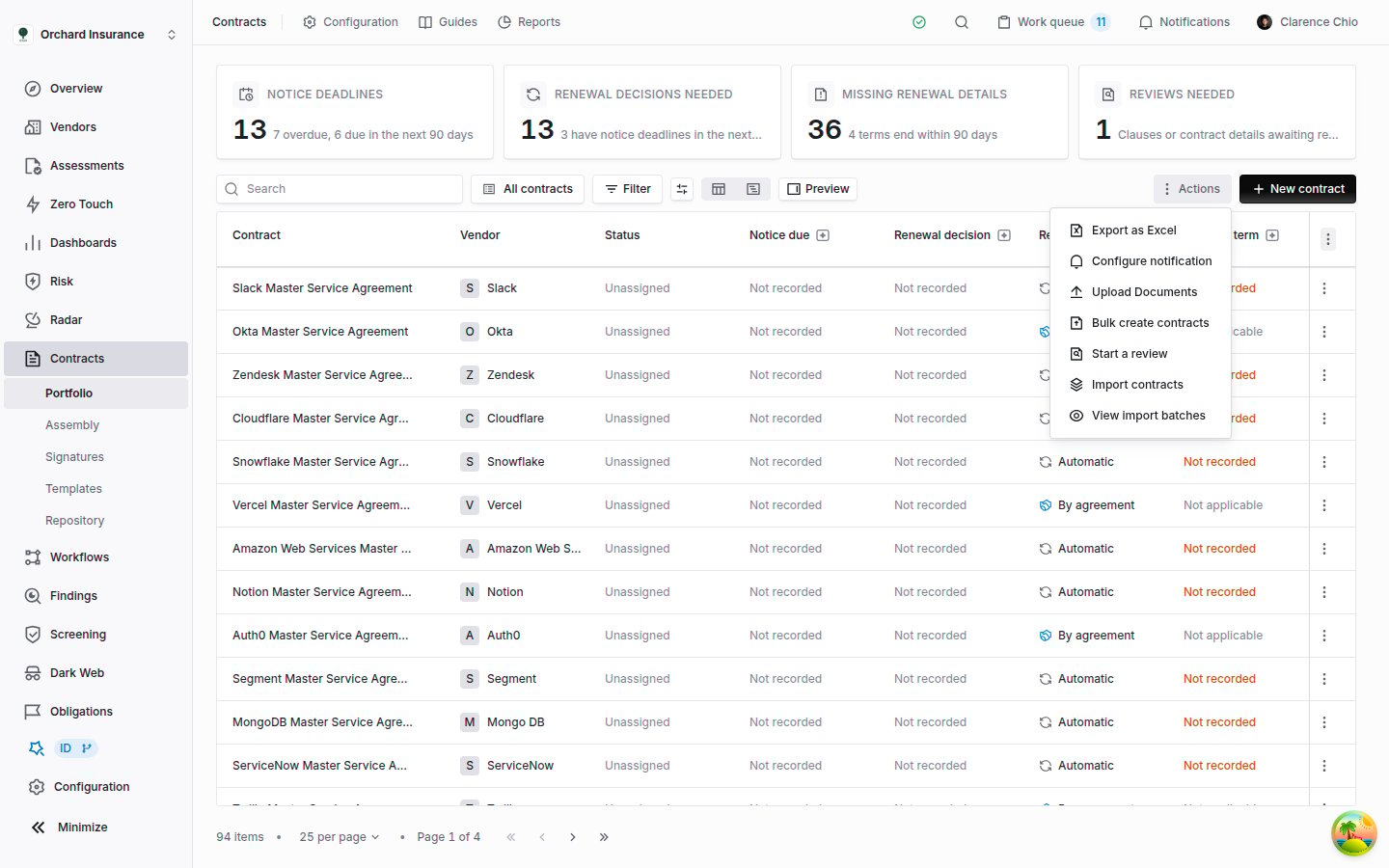
The contracts list's Actions menu, with the two Assembly entries at the bottom.
Step 1: Upload contract documents
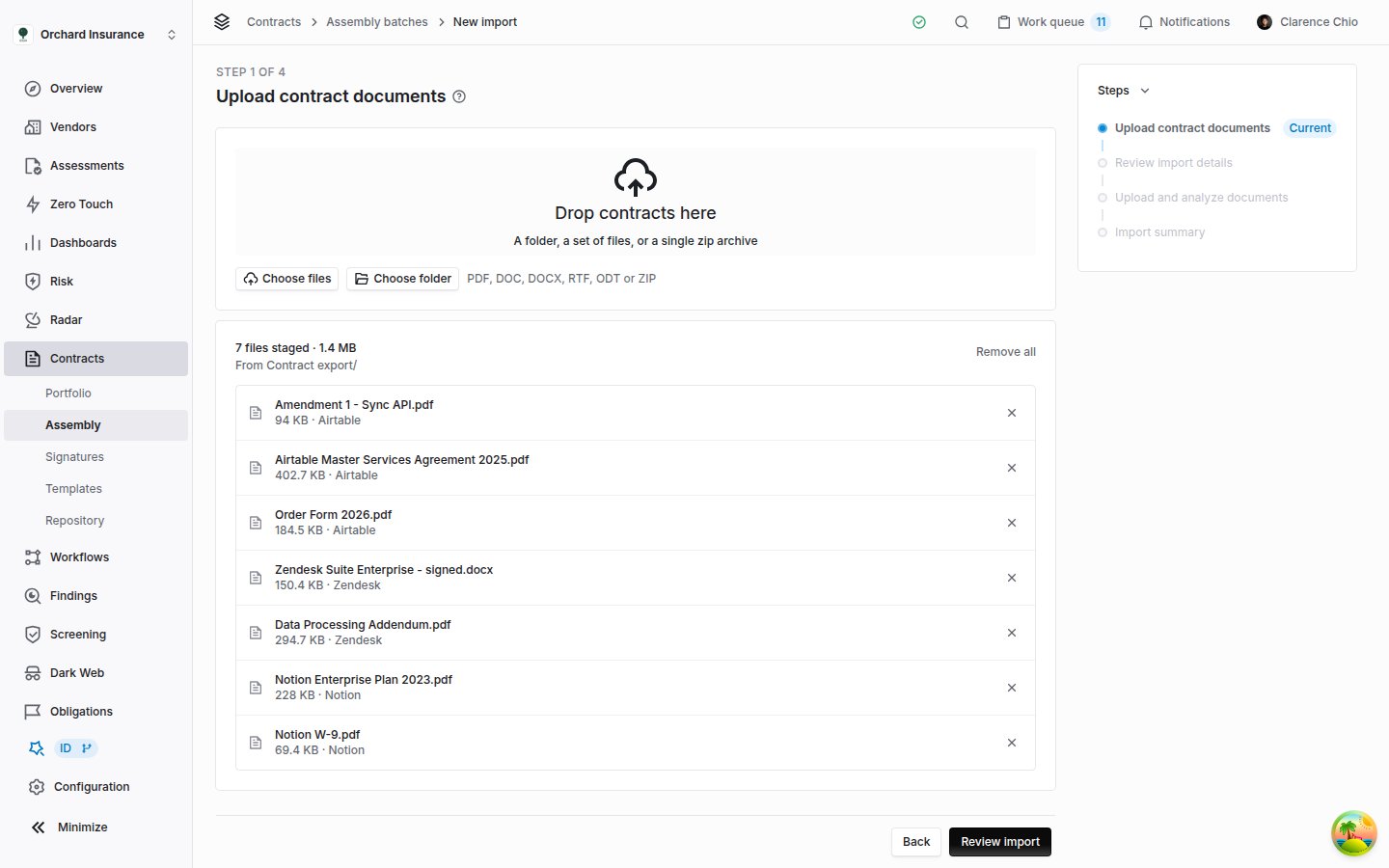
Step 1 with a folder dropped. Each file shows its size and the folder it came from.
Step 2: Review import details
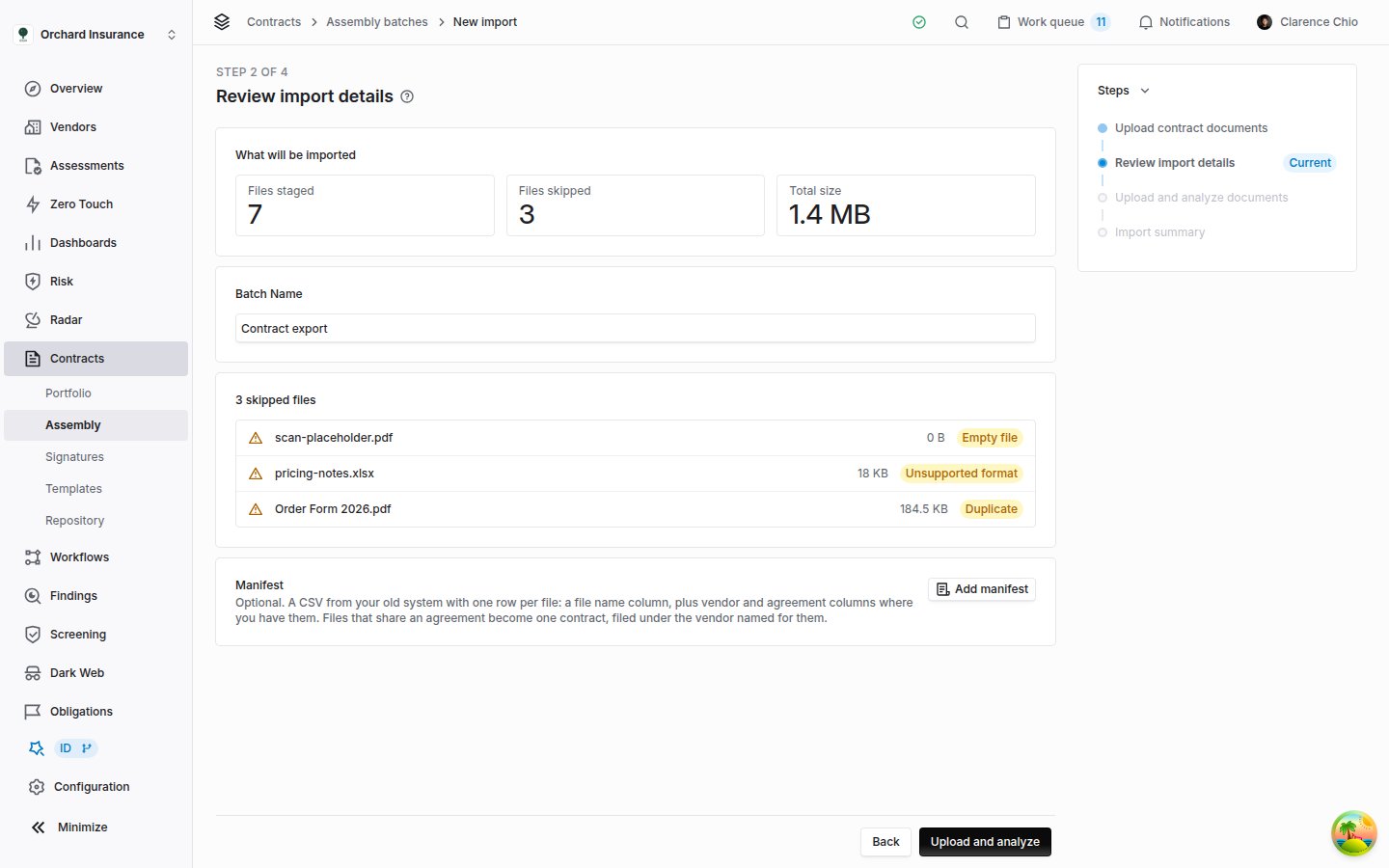
Step 2. Three files were set aside, each with the reason.
Skipped files are left behind entirely. If one of them matters, fix it and add it in a later import.
A zip gets a card of its own, Inside and the zip’s name. It counts the documents that will be imported from it, the entries left out and why, and the uncompressed size, and lists the first documents by the path they have in the archive. A zip that cannot be read, or that is over the limits, says so there; click Remove archive to import the rest without it.
Attaching a manifest
If the system you are leaving can export a list of its files, attach it with Add manifest on the Manifest card. It is optional. It must be a CSV with a header row and one row per file:
The manifest is your own statement about your files, so where it names a vendor or an agreement it wins over what Coverbase reads from the documents. Coverbase still reads each document’s role and still asks the questions it cannot answer inside a contract. Files the manifest does not mention are grouped from their contents as usual.
The card checks the file straight away and says how many rows it read, how many agreements and vendors they name, which columns it did not use, and which rows it skipped and why, such as a row that names no file. A file it cannot use at all, for example one with no file name column, says why, and Upload and analyze waits until you fix it or click Remove manifest.
A row that names a file missing from the import, or a name two files share, is not dropped silently: after analysis it is listed in the batch’s Details as a manifest row that names no file in this import, with its line number.
Batch Name starts as the folder the files came from, or “Contract import” and today’s date. Rename it to something your team will recognize in the list of batches.
Click Upload and analyze. This is the point where files leave your browser.
Step 3: Upload and analyze documents
The step shows two separate waits.- Uploading files counts the files as they upload, with a mark beside each one. The documents inside a zip are listed and uploaded one by one. A file that fails is marked in red with the reason, and Retry failed files sends the failed ones again.
- Reading documents starts once every file has uploaded. It counts the documents read, and moves through Ingesting files, Analyzing documents and Ready for review.
Step 4: Import summary
The summary names the batch (“Contract export is in”), counts what was uploaded, failed and skipped, and says either how many proposed contracts are waiting for review or that analysis is still running. Click Review proposed contracts to open the batch. You can open it later from Contracts → Assembly too.Reviewing a batch
Open Contracts → Assembly and click Open beside a batch. Each row shows the batch’s state (Ingesting, Analyzing, Awaiting confirmation, Complete or Failed) and a count of files, families (proposed contracts), confirmed contracts and unmatched files. The review page has three parts:- The header: the batch name and state, Owner, Re-analyze, and Confirm N ready.
- The summary strip: six figures, Files, Proposed, Confirmed, Ready, Need a Decision and Unmatched. Details opens how many files were received, parsed and OCRed, why files went unmatched, and any manifest rows that name no file in the import.
- Two columns: the proposed contracts on the left, and the one you select on the right.
The list of proposed contracts
The list is ordered by what needs you: proposed contracts with open questions first, then the least confident. Each row shows the proposed name, a status, and a line with the vendor, the number of documents, the years they span, and a confidence percentage. Turn on Group by vendor to see them grouped under the vendor each would be filed under. Files that were not grouped are listed under Unmatched at the bottom.
Use the arrow keys to move through the list.
What a proposed contract shows
The right column opens with the proposed contract’s name, status and facts, with Reject grouping and Confirm contract beside them. Once it is confirmed, Open contract takes their place and the documents can no longer be changed here. Below, in order:- Needs a decision: the questions to settle, when there are any.
- Contract: what the documents become. See Choosing what the documents become.
- Documents: each document, its role, and its effective date. Click a file name to open it: once its proposed contract is confirmed it opens in the document viewer, and before that the file you uploaded opens in a new tab.
- What the documents say: a preview of the components the contract would carry, worked out from the documents’ roles. The full reading happens after you confirm.
- Evidence, closed by default: why these documents were grouped. Grouping says it in sentences, such as how many documents name the same counterparty, and the rows below list the Counterparty, Back reference, Agreement number, Defined terms similarity, Effective dates, Source folder, Filename tokens and File metadata it relied on.
Choosing what the documents become
The Contract card offers up to four endings, in the order this group’s evidence points to:
Contract Name, under the choice, starts as the name read from the main agreement. Edit it before you confirm.
What the card tells you before you choose:
- Nothing preselected. When several vendors fit, or the documents name no counterparty, the card says so and waits for you. Check the candidates before you pick one: the names are close, and the wrong pick files the contract under the wrong vendor.
- Recommended beside Add to an existing contract. A contract with the same vendor already covers the date these documents start, so they are probably its paperwork. The card preselects adding them to that contract and says “This deal is already on file.” Confirming a new contract instead would record the same deal twice.
- “Looks like the next term of” a contract. An existing contract with the same vendor ends within 200 days of when these documents start. Confirming a new contract under the matched vendor links the two as a renewal, so the new contract’s Spend over time includes the old one.
Settling what needs a decision
Each question states what depends on it, and each button under it makes the change its label names. An answer applies to that question only: a proposed contract with three statements of work asks about each pair separately.Fixing the grouping
Every change is available at any time before you confirm.- Change a document’s role with the menu at the end of its row: Root, Amendment, Restatement, SOW, Order form, Exhibit, Evidence, Redline or Duplicate. A Redline, Quote or Duplicate is struck through and marked Contributes nothing: it stays with the contract for the record and adds no terms.
- Split documents out. Tick them and click Split N out. They become a new proposed contract with “(split)” after its name. At least one document has to stay behind.
- Move one document. Tick exactly one; the menu in the Documents header reads Move to…. Pick the proposed contract it belongs to.
- Merge. With no document or more than one ticked, the same menu reads Merge into… and moves this whole proposed contract into the one you pick, whatever is ticked.
- Reject grouping drops the proposed contract from the batch. Its files are not deleted, and Re-analyze proposes over them again.
Re-analyzing a batch
Re-analyze regroups only the files nobody has worked on yet. What you have done stays as you left it:- A proposed contract you confirmed stays confirmed, and its files are never proposed again.
- A proposed contract you split, merged, moved documents in or out of, changed a role in, or answered a question on is kept exactly as it is.
- A file you set aside stays under Unmatched.
Confirming one proposed contract
Click Confirm contract, or Add to contract when you chose an existing contract. The button stays unavailable until the Contract card is complete and no question is open; hover it for the reason. Confirming creates the contract, or adds the documents, and opens that contract. To carry on with the batch, go back to Contracts → Assembly and click Open: the proposed contract now reads Added. Confirming is done once. Confirming the same proposed contract again, after a double click or a retry, opens the contract it already created rather than making a second one, and Confirm N ready never includes a proposed contract that is already confirmed.Confirming many at once
Most of a large import is the same answer given many times, so the page is built for confirming in sets.- Confirm N ready in the header confirms every Ready proposed contract under its matched vendor. When some are held back only because their vendor does not exist yet, Create N new vendors appears beside it. Tick it to create those vendors and confirm their contracts in the same click.
- Owner in the header becomes the relationship owner of every contract confirmed in bulk. Set it first. A contract confirmed on its own gets no owner; add one on its Team card.
- Choose your own set by ticking proposed contracts. Shift-click ticks a range, the checkbox at the top ticks all of them, and Select picks Ready to confirm, Needs a new vendor, Needs a decision or All. With Group by vendor on, a vendor’s checkbox ticks all of that vendor’s proposed contracts. A proposed contract that reads Added cannot be ticked. A bar appears at the bottom of the page:
- File all under… files every ticked contract under one vendor you pick.
- Create N vendors approves the new vendors proposed in the selection.
- Confirm N, or Confirm N under the vendor you picked, confirms them.
- Drop rejects the ticked groups.
- Press Escape to clear the selection.
Files that were not grouped
A file that could not be put in any group is listed under Unmatched, with the reason:
Unmatched files are not kept anywhere else in Coverbase. Only documents in a confirmed group become documents on a vendor and a contract.
When the batch holds scans, the summary strip says how many files need a person and offers Run OCR. It OCRs every scan in the batch, reads the text it recovered, and re-analyzes, so a scan that becomes readable joins the group it belongs to. A scan OCR could not read stays under Unmatched, and once every scan has been through OCR the button is no longer offered, because a second pass would change nothing.
What a confirmed contract gets
- It is created under the vendor you chose, with the name in Contract Name and an effective date taken from the documents. Its type reads Unclassified at first.
- The group’s files become the vendor’s documents and appear on the contract’s Documents tab, each with the role it had in the group.
- A renewal the batch proposed is linked, as described under Choosing what the documents become.
- Coverbase then reads the new contract’s documents as it does for any contract that gains documents: its components and the priced lines on its Spend tab fill in over the next few minutes.
- It has no owner unless you confirmed it in bulk with Owner set.
Troubleshooting
Related
Contracts workspace
The contracts list and the contract record each confirmed group becomes.
Contract components
What each document role means for the contract’s terms and money, and how to correct what a document carries.
The contract Spend tab
Priced lines, the annual total, and spend across the renewals Assembly links.
The contracts repository
Filing agreements one email at a time, rather than importing a back catalog.