

For AI agents: a documentation index is available at https://docs.coverbase.com/llms.txt. This page is also available in markdown by appending .md to the URL.
This guide is part of the User Guides collection. It covers the Spend tab on a contract record. For the rest of the record, including the Terms card where the contract value is edited, see the Contracts workspace guide. For how Coverbase decides which document’s money counts toward the contract value, see Contract components. For bringing in a folder of contracts you already hold, see Contract Assembly.
Where to find it
Open a contract and choose the Spend tab, between Workflow and Activity. The Related card on the contract’s Overview links to it too, with Spend tab.Spend over time, Also buying, and the Related card are part of a newer contracts experience. If you do not see them, ask your Coverbase account team to turn it on. The priced lines and the figures above them are there either way.
The figures at the top
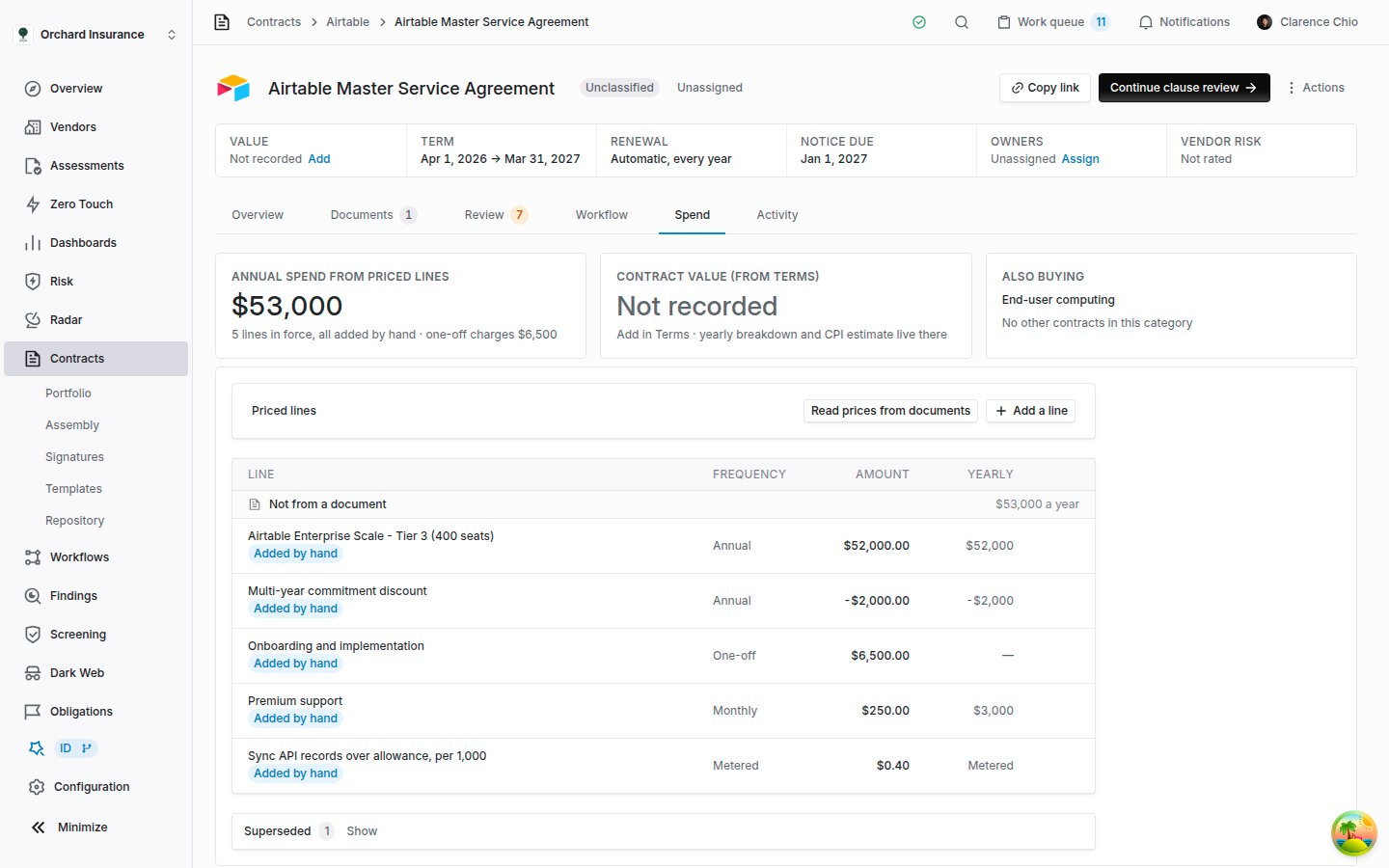
The Spend tab: the figures across the top, then the priced lines grouped by where each one came from.
A dash in the first card means there is nothing to total: the contract has no lines in force, or its lines are in more than one currency. With no lines at all, the card reads No priced lines yet.
Priced lines
A priced line is one charge: a subscription fee, a support fee, an hourly rate, a discount. Each line has a description, an amount, a currency, and a frequency.Where lines come from
- Read from the documents. When a document is added to the contract, Coverbase reads the contract’s documents for the charges they state and notes the page each figure is on. Read prices from documents, above the list, asks for that reading again. It also re-reads the contract’s components. The button appears only when the contract has at least one document.
- Added by hand. Add a line records a charge the documents do not state, or one the reading missed.
- It skips liability caps, insurance limits, not-to-exceed ceilings, and penalties. They limit what may be owed; they are not charges.
- It keeps discounts and credits as negative lines, so they reduce the total.
- It drops any figure over one billion, which is a limit rather than a price.
- It skips documents filed on the contract as a quote, a redline draft or a duplicate, and an amendment already incorporated into a conformed copy. Reading them would count an offer nobody accepted, or the same charge twice. A quote or draft filed as the agreement itself is still read, so remove its lines by hand.
- Each line read from a document takes the effective date filed for that document, when it has one.
- A price stated with a bare
$is read as US dollars unless the document names another currency. If the contract is priced in Canadian, Australian or another dollar, check the currency on each line.
Reading the list
The list has four columns: Line, Frequency, Amount, and Yearly. Lines are grouped under the document that states them, the largest yearly contributor first, and each group header shows what that document adds a year. Click a document’s name to open it on the Documents tab. Lines added by hand sit together under Not from a document. Under each description you may see Page 4, the page the figure was read from, Effective and the date the line took effect, or Added by hand on a line a person added or corrected. The Yearly column turns each line into a cost per year:How the annual total is worked out
Annual spend from priced lines is the sum of the Yearly column for every line in force. One-off and metered lines add nothing to it, negative lines reduce it, and lines under Superseded do not count. Nothing is estimated and nothing is converted.Lines that replace each other
A charge is often priced more than once: an order form sets a subscription, and an amendment re-prices it at a new tier. Coverbase counts such a charge once. Lines that name the same charge, with tier and size words set aside (“Tier 2”, “(250 seats)”), are treated as one charge restated. One of them counts. The others move to Superseded at the foot of the list, struck through and marked Replaced by a later line. Click Show to open the section. Which line counts is decided in this order:- The line with the latest effective date. A line with no date counts as older than any dated line.
- At the same date, or with no dates, a line added or corrected by hand, ahead of a line read from a document.
- After that, the line added most recently. For lines read from documents, that is the line from the document added to Coverbase last.
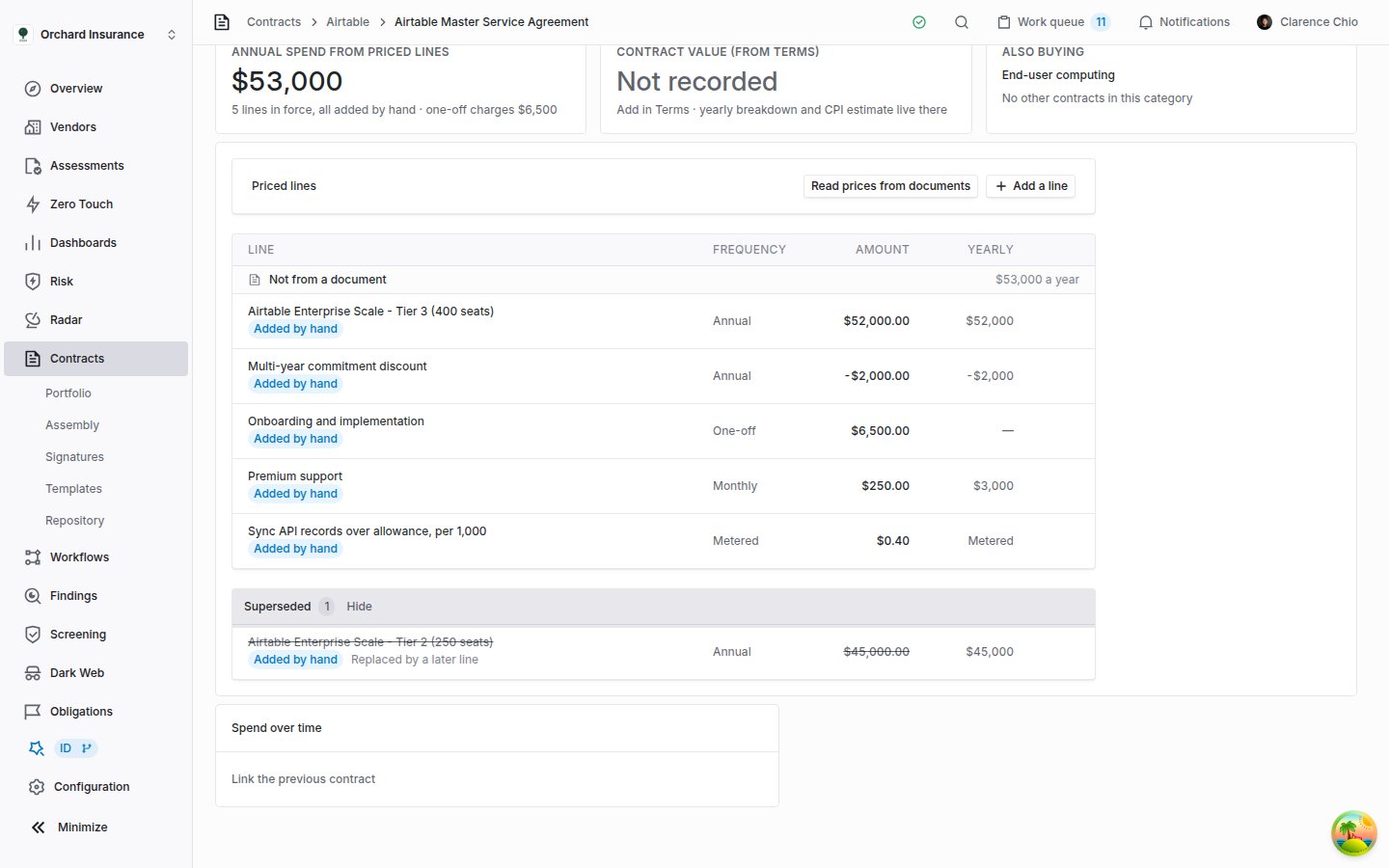
The superseded section, opened. The struck-through line stays on record and does not count toward the total.
Adding, correcting and removing a line
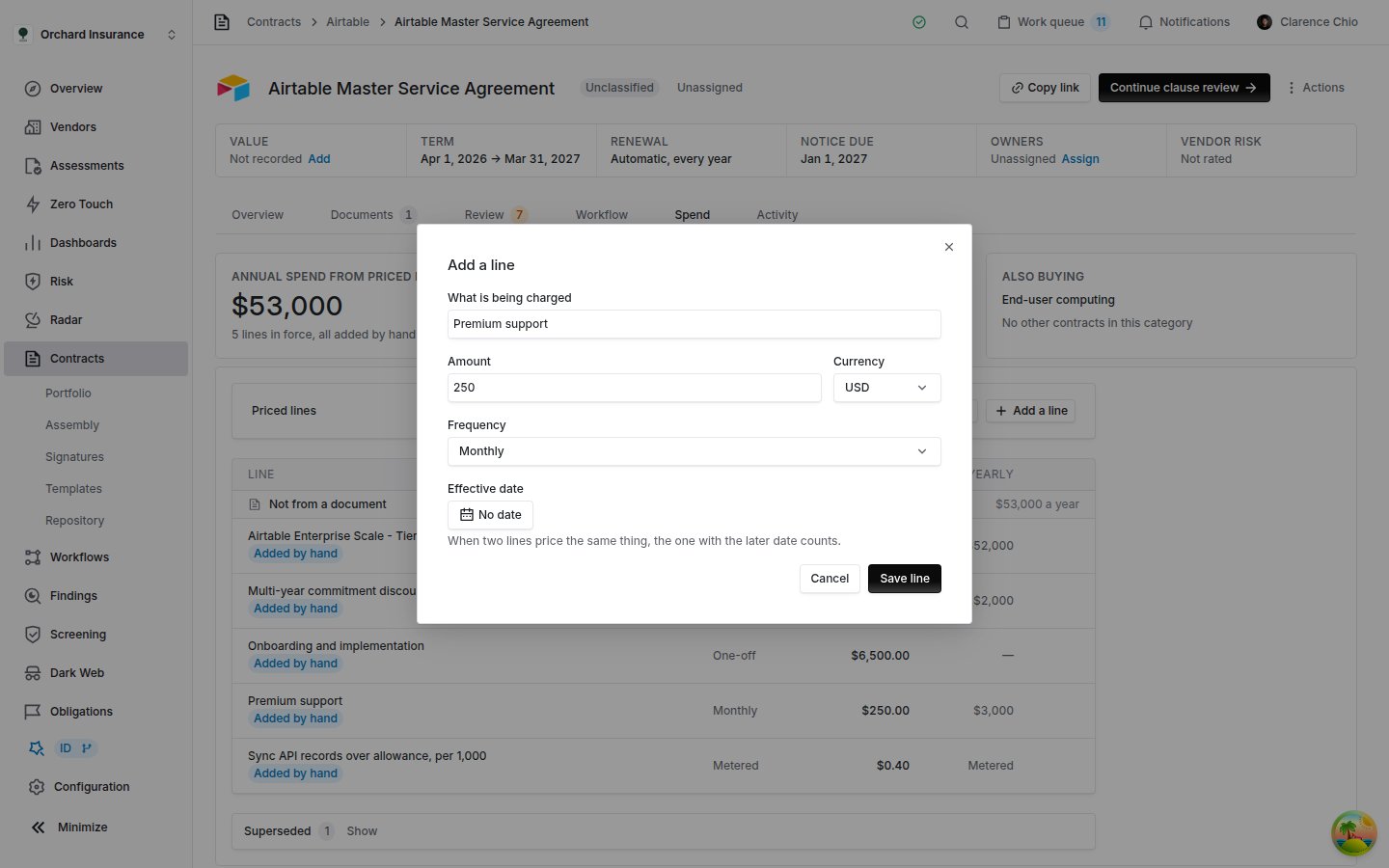
Adding a line by hand. Correcting a line opens the same form with its values filled in.
1
Open the form
Click Add a line. To fix an existing line, hover it and click the pencil, Correct this line.
2
Describe the charge
What is being charged names it. Amount accepts a negative figure for a discount or credit. Currency is picked from the list of currency codes, such as
USD, EUR or GBP, and starts at USD. Frequency is One-off, Monthly, Quarterly, Annual, or Metered. Effective date is optional: when two lines price the same charge, the one with the later date counts. Clear date removes it.3
Save
Click Save line. The line is marked Added by hand, and reading the documents again will not overwrite it.
How currencies are handled
Coverbase does not convert currencies anywhere on this tab. Every figure stays in the currency it was stated in, and a total appears only when everything it would add up is in one currency.
Only lines in force decide whether a total is shown. A superseded line in another currency does not stop it.
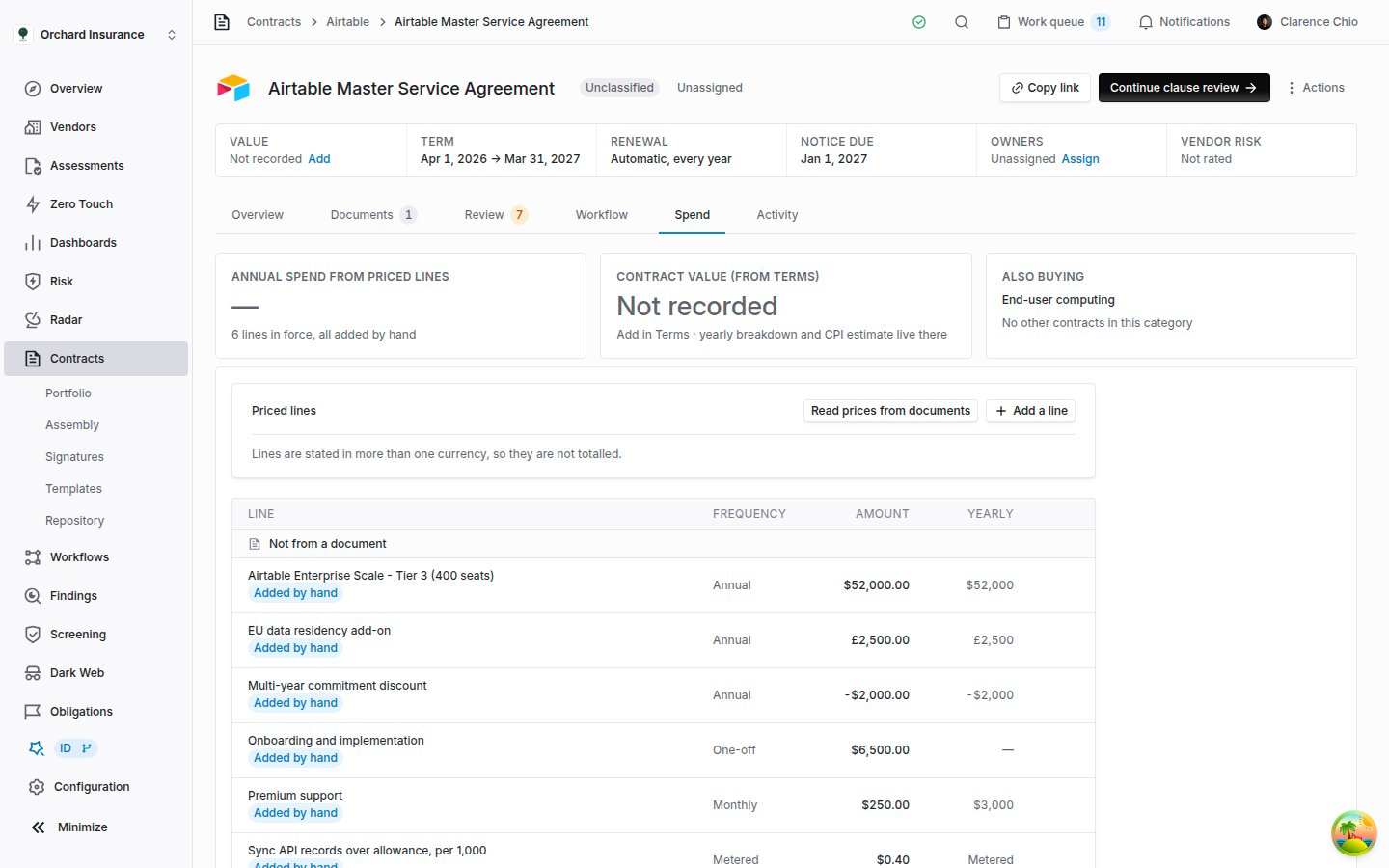
Lines in two currencies. Each line keeps its own currency, and nothing is totalled.
Spend over time
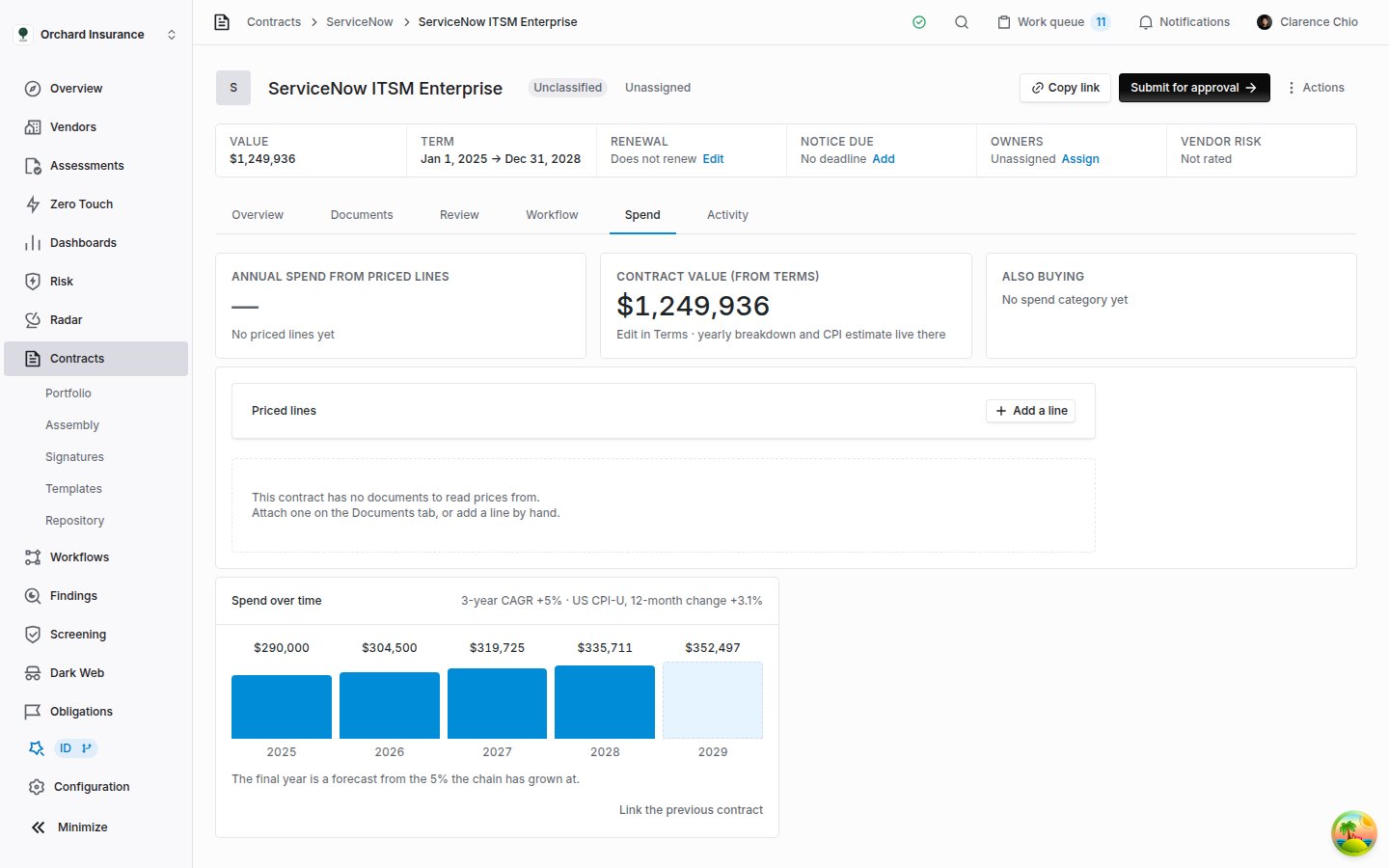
Spend over time on a four-year contract entered with a yearly breakdown. The pale bar is the forecast year.
- With a yearly breakdown on its Terms card, one bar per year, as entered.
- With a single value over a term longer than a year, the value split evenly across the years. That is an even split, not a claim about the schedule, so enter a yearly breakdown where the price steps up.
- With no value, one bar marked Not recorded.
Linking the contract this one renews
Coverbase does not guess which contract a renewal replaces. You link them.1
Open the picker
Click Link the previous contract at the bottom of the card. The same control sits under Renews on the Related card.
2
Pick the contract
Search this vendor’s contracts and pick the one this contract replaces. Only the same vendor’s contracts are offered.
3
Check the chart
The card now reads Renews and the previous contract’s name, and that contract’s years join the chart. Click the name to open it.
Growth and the forecast year
With two or more priced years in one currency, the card header shows the compound yearly growth across them, for example 3-year CAGR +5%, beside the latest 12-month change in the US consumer price index for comparison. The last bar, drawn pale, forecasts the year after the last priced year. The note under the chart says where its rate came from. Coverbase uses the first of these that exists:
The growth rate is spread over the years that passed between the first and the last priced year, not over the number of bars. A chain with a gap, such as a year between two contracts that nothing covered, is not made to look steeper.
If the yearly breakdown was filled in with Estimate with CPI average on the Terms card, the growth and the forecast repeat that estimate rather than anything the contract says.
Also buying
When Coverbase summarizes a contract, it assigns a spend category from a fixed list, such as Cloud & infrastructure or Identity & access. The category is the first tag on the Summary card. The Also buying card lists the other contracts in the same category, so you can see whether you pay several vendors for the same thing.- It lists the other contracts that are not archived, canceled or expired, the most valuable first. Each shows its vendor, Renews and a date (or Auto-renews), and its contract value, or Not recorded.
- The first ten are shown. With more, the foot of the card reads, for example, 4 more contracts in this category; click it to open the rest on the card. The card lists up to 50, and says how many more there are beyond that.
- The header gives how many contracts share the category and their combined value, across every one of them, not only those shown.
- The combined value is withheld when the contracts use different currencies, and the header reads totals span currencies. It is also withheld when any of them has no value recorded, and the header says how many have none.
- The card does not appear when the contract has no category, or when no other contract shares it. The top card reads No spend category yet in the first case. In the second, it names the category and reads No other contracts in this category.
Troubleshooting
Related
Contracts workspace
The contract record: the Terms card where the contract value and yearly breakdown are edited, and the other tabs.
Contract components
Which document’s money counts toward the contract value, and why a quote or a liability cap never does.
Contract Assembly
Import a folder of existing contracts, including the renewal links between them.
Dashboards and the chart library
The Contract Spend & Renewals dashboard: committed spend across the portfolio.