Keep the clauses, party blocks and signature pages your team reuses in one library, start from Coverbase’s starter passages, and insert them when you write an agreement in Coverbase instead of uploading one.
For AI agents: a documentation index is available at https://docs.coverbase.com/llms.txt. This page is also available in markdown by appending .md to the URL.
This guide is part of the User Guides collection. It covers the passage library and the Write option that uses it. To make what you write into a template you send again, see Signature templates. To send it, see Sending for signature, or Bulk send for many parties at once.
The passage library is part of e-signature. If you do not see Signatures and Templates under Contracts in the left navigation, ask your Coverbase account team to turn it on.
A passage is agreement text you use more than once: the paragraph that names the parties, a confidentiality clause, a signature page. The passage library holds your organization’s passages. When you write an agreement in Coverbase instead of uploading one, Insert passage puts any of them into the document at your cursor, and Coverbase turns the finished text into the PDF that gets signed.The library only feeds that editor. It does not review contracts or check clauses against a standard; that is Contract Guardian. A passage is also never a field. Signature and date fields are placed afterwards, on the rendered PDF.The mistake people make most often is treating the square-bracket placeholders in a passage, such as [Company name], as blanks Coverbase fills in: they are ordinary text, and they reach the signer exactly as written unless you replace them before you render.
Open Contracts → Templates and click Passage Library. Your signature templates are the list on Contracts → Templates itself.
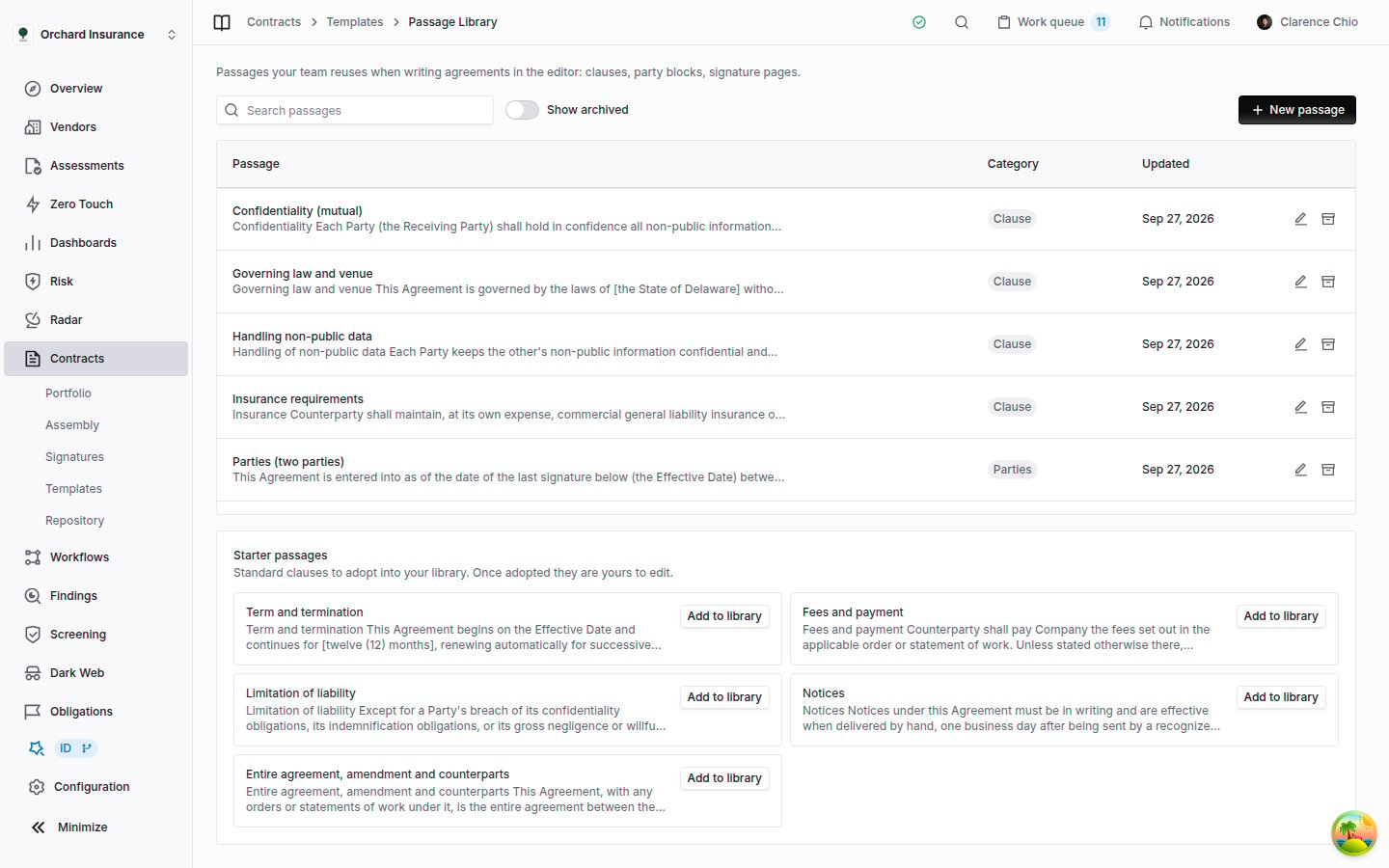
The passage library. Your passages by title, with their category and when each was last saved. The starter passages you have not added yet sit below.
Passage
The title, with the start of the text under it.
Category
Clause, Heading, Parties, Signature page, Cover or Other. A label for the list. It does not change how the text looks or where it goes.
Updated
When the passage was last saved.
Pencil and archive icons
Edit passage and Archive passage.
Search passages matches any part of a passage’s title or text. It filters your passages, not the Starter passages below them. Show archived adds archived passages to the list, marked Archived, each with Restore.Passages belong to the organization. Everyone who can open the page sees the same library, and a change one person saves is what everyone inserts from then on.
Coverbase ships nine starter passages, written for an agreement between two parties. Add to library copies one into your library, where it is yours to edit. The copy is not linked to Coverbase’s wording, so nothing in your library changes unless someone in your organization changes it.
Starter
Category
What it says
Parties (two parties)
Parties
Names the two parties, “Company” and “Counterparty”, and makes the date of the last signature the Effective Date.
Confidentiality (mutual)
Clause
Each party protects the other’s confidential information, with the usual exclusions. Survives five years after termination.
Term and termination
Clause
A fixed term that renews automatically, notice of non-renewal, and termination for breach or insolvency.
Fees and payment
Clause
Counterparty pays Company’s invoices within a set number of days, pays the taxes on them, and owes interest on late payment.
Limitation of liability
Clause
No indirect damages, and liability capped at what Counterparty paid or owed Company over a set period before the claim, with the usual exceptions.
Governing law and venue
Clause
The governing law and the courts that hear disputes.
Notices
Clause
How formal notices are delivered, including by email.
Entire agreement, amendment and counterparts
Clause
The agreement is the whole deal, changes must be signed by both parties, and electronic signatures count.
Signature page (two parties)
Signature page
Starts a new page with signature, name, title and date lines for each party.
Two things to settle once, in your library copy, before anyone uses the starters:
The placeholders that are really your standard position. Every starter marks what varies in square brackets: [jurisdiction], [twelve (12) months], [thirty (30)] days, [the State of Delaware]. Replace the ones your organization always answers the same way. Leave the deal-specific ones, such as names and addresses, for each document.
Which side you are on. In Fees and payment and Limitation of liability, Counterparty pays Company. If your organization is the one paying, swap the two before you rely on them.
Picking a starter from Insert passage while you write also adds it to your library. Once added, a starter drops out of Starter passages.
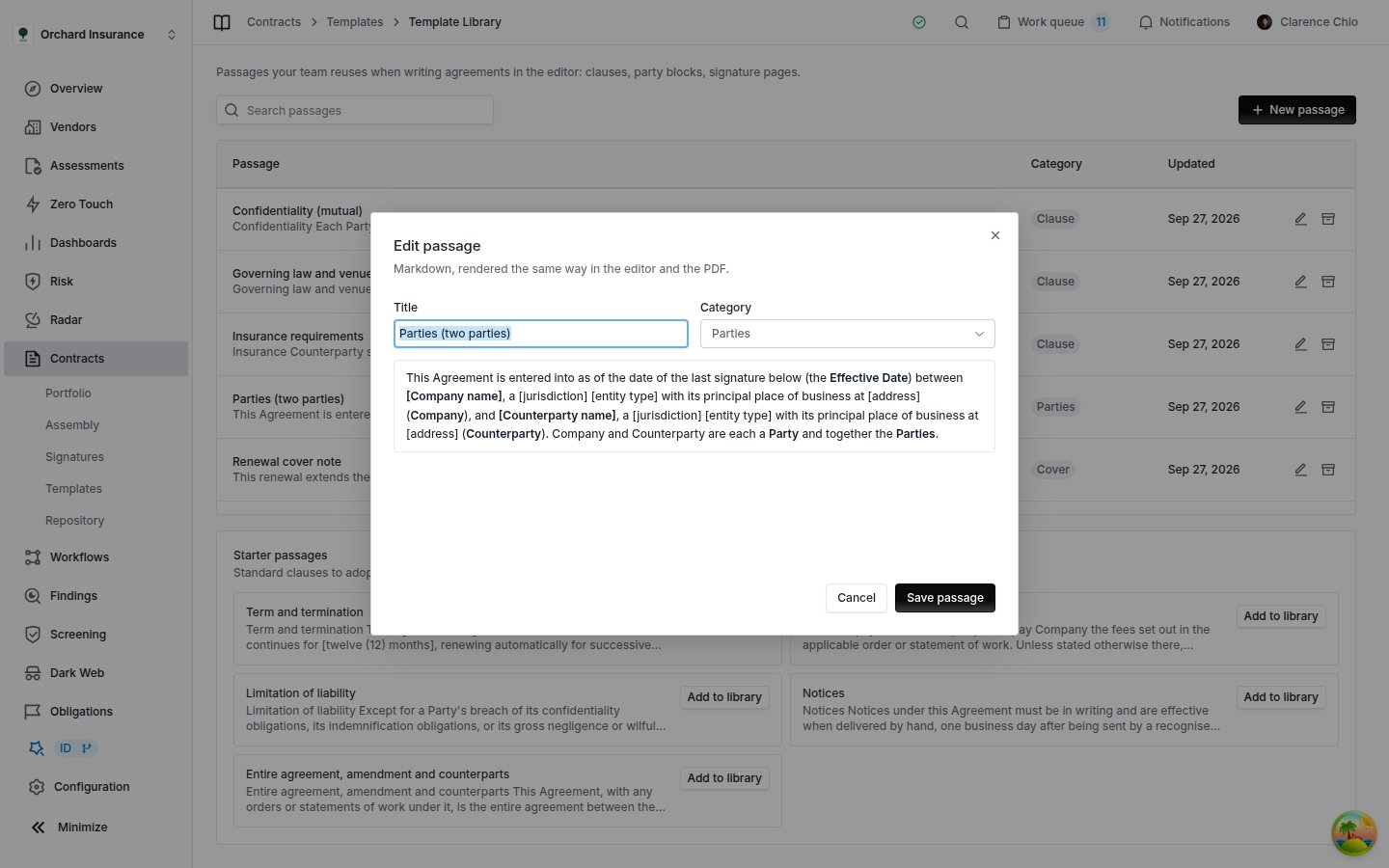
An added starter in Edit passage. The bold terms and the bracketed placeholders are all part of the text. Nothing in it is filled in for you.
New passage opens an empty dialog. The pencil opens the same dialog as Edit passage.
2
Give it a title and a category
The title is the only thing the Insert passage menu shows, alphabetically and with no search. Name passages so the right one is easy to spot in a list: “Confidentiality (mutual, 3 years)” rather than “Clause 4”.
3
Write the text
Type / for a heading, a list or a quote, and select text to make it bold or italic. You can also paste Markdown. To start a new page, put \pagebreak on a line of its own.
4
Click Save passage
It stays grayed out until the passage has both a title and some text. Passage saved. confirms it.
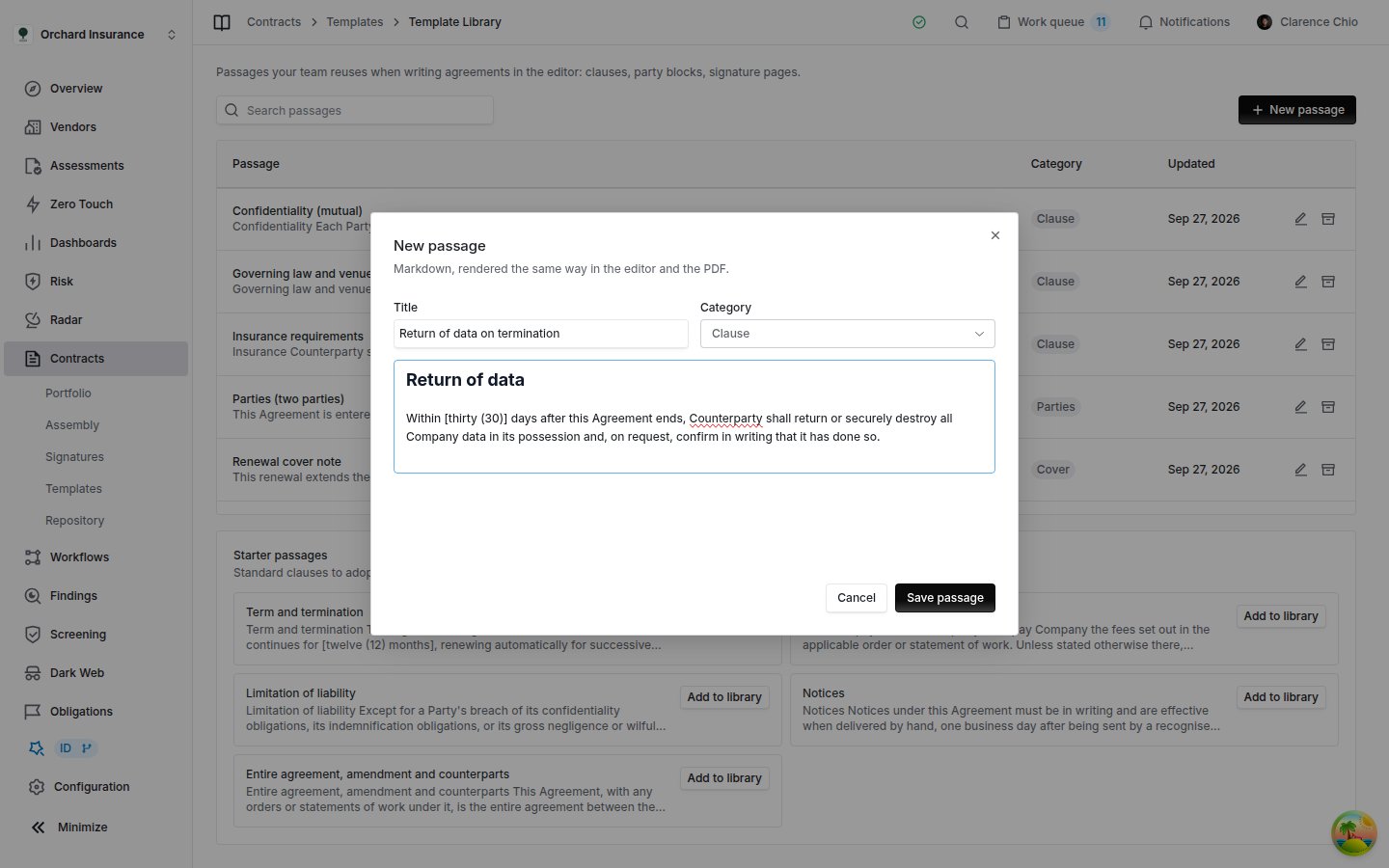
New passage. A heading and a paragraph, which look the same in the editor as they will in the PDF.
Saving changes the passage for every document written after it. Documents already written keep the text they had, because inserting a passage copies its text into the document rather than linking to it.The library keeps no history of earlier wording. Updated is the only sign that a passage changed, so copy the old text somewhere first if you may need it again.
Headings, paragraphs, bold and italic, bulleted and numbered lists, block quotes, horizontal rules (--- on its own line), and \pagebreak on its own line
Everything else. A table prints as its raw text, and a link prints its words without the web address.
The PDF is US Letter size, and the document title is printed at the top of the first page.
The archive icon on a row asks you to confirm, then removes the passage from the library and from the Insert passage menu. The message that confirms it has Undo, which brings it straight back. Later, turn on Show archived and click Restore on its row. Documents that already used the passage are not affected either way.Archiving an added starter puts it back under Starter passages. Adding it again gives you Coverbase’s original wording, not the version you had edited. To get your edited wording back, restore your archived copy instead.
Write is one of the paper sources in two places, and it works the same way in both:
Step 1 of the send wizard (New Envelope on Contracts → Signatures), for a single agreement.
The New Template dialog (New template on Contracts → Templates), for paper you will send again.
1
Choose Write
The editor opens below the paper sources.
2
Set the document title
Document title is printed at the top of the first page and names the PDF. It starts as the envelope or template name. If that name is still empty when you render, the title fills it in.
3
Write, inserting passages as you go
Click where a passage should go, then pick it from Insert passage. The menu lists Your library first, then the Starter passages you have not added. Choosing a starter also adds it to your library.
4
Replace every placeholder
Use your browser’s find (Ctrl+F, or Cmd+F on a Mac) to look for [. Anything still in square brackets reaches the signer as written.
5
Render it
Click Render and use this document in the wizard, or Render and use as the template in the dialog. Coverbase turns the text into a PDF, and that PDF is the paper from then on. In the dialog, Create template then opens the template builder on it.
6
Place the fields
Signature and date fields go on the rendered pages: in step 3 of the wizard, or in the template builder.
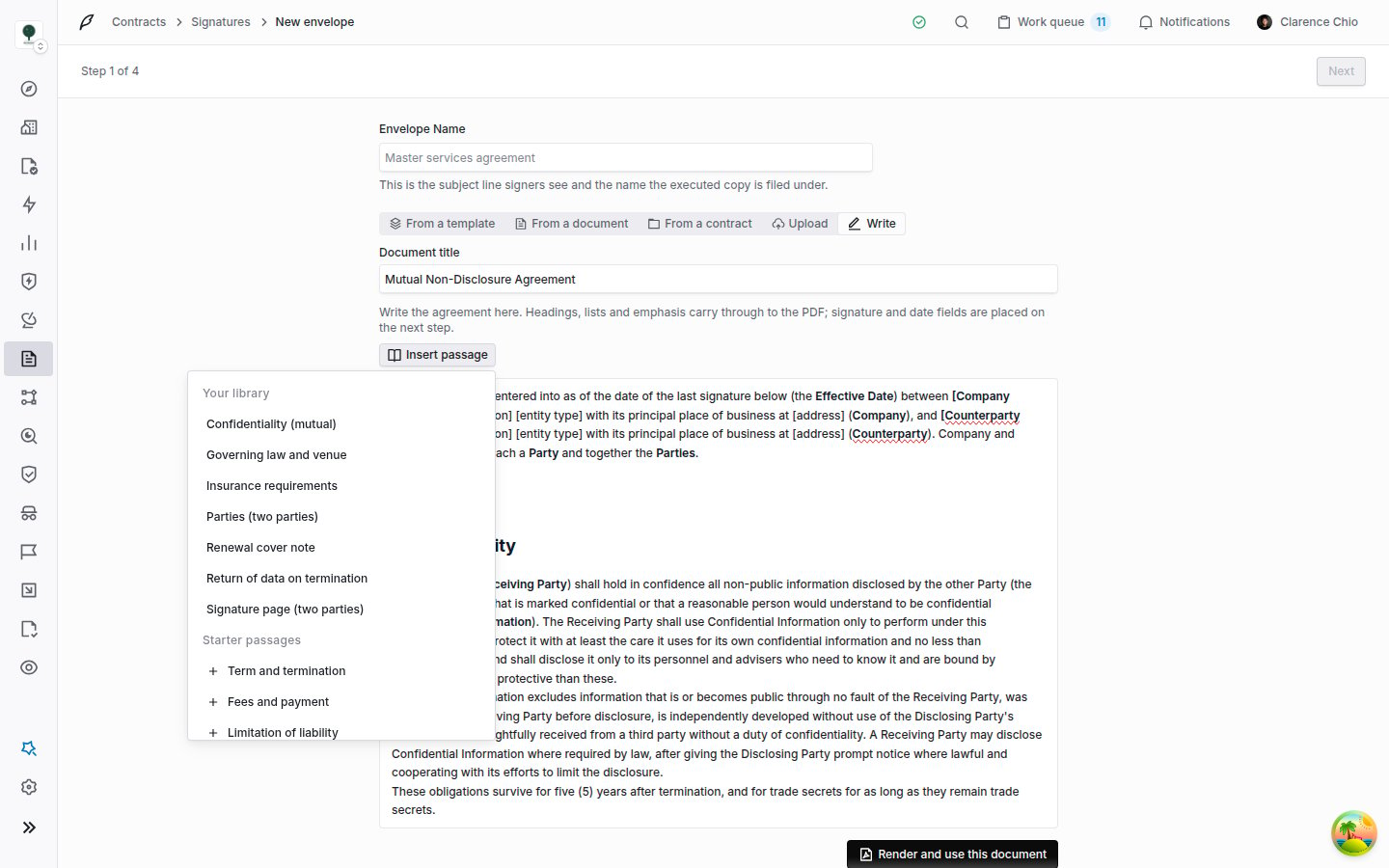
Write, in step 1 of the send wizard. Insert passage lists your library first, then the starter passages you have not added yet. The passage lands at the cursor.
Signature page (two parties) draws signature, name, title and date lines as text, and nobody can sign a line of text. Place a Signature field over each signature line on the rendered page, and a Date signed field if you want the date filled in, or the signer has nothing to sign there. The field types are covered in Signature templates.
You can change the text and render again before you move on, and the new PDF replaces the old one. Each render updates the same document, and the line beside the button counts them, as in Version 2 · 3 pages rendered. Once you leave the wizard or the dialog, what you wrote cannot be reopened for editing: the envelope or template keeps the rendered PDF. If you expect to send the same wording again, write it in the New Template dialog so it becomes a template, or keep its pieces as passages.
Add a passage, add a starter, or render what you wrote
The organization-wide create permission on contracts
Admin, Member
Edit, archive or restore a passage
The organization-wide update permission on contracts
Admin, Member
The buttons show for everyone who can open the page. Without the permission, saving fails with an error. Custom roles are covered in Permissions and roles.
A title can be up to 200 characters, and a passage’s text up to 200,000.
A written document can be up to 200,000 characters.
The library page and the Insert passage menu show the first 100 passages by title. Search passages still finds one further down, but the menu cannot offer it.
There is no version history for a passage, and no list of the documents that used one.