

For AI agents: a documentation index is available at https://docs.coverbase.com/llms.txt. This page is also available in markdown by appending .md to the URL.
This guide is part of the User Guides collection. It covers the ServiceNow record actions in the workflow editor. It sits beside Building a workflow, which covers triggers, conditions, placeholders and the runs page, and Workflow templates. For what the ServiceNow integration does as a whole, and how the connection is provisioned, see the ServiceNow integration guide.
Workflows is an optional module. If you do not see Workflows in the left navigation, ask your Coverbase account team to turn it on.
Before you start
The connection. The actions write through your organization’s ServiceNow connection, which is set on the ServiceNow GRC card under Configuration → External Integrations: the ServiceNow base URL, then Basic authentication or OAuth 2.0 (client credentials). Click Save ServiceNow Configuration first. Test connection only checks saved credentials, so it stays unavailable while the form has unsaved changes. The account behind the connection needs write access to every table your steps write to, and to attachments if you upload documents. Provisioning is covered in Authentication and provisioning. Saving the connection needs the role that manages integrations, by default an Admin. Where the actions appear. While Coverbase knows the connection is not saved, the action picker hides the ServiceNow record group. If you cannot read integration settings, the group stays visible, and a step that runs without a connection is Skipped with “ServiceNow integration is not configured”. ServiceNow IDs. A ServiceNow reference column stores thesys_id of the record it points at. Coverbase holds a vendor’s, service’s or assessment’s sys_id as its external ID when the record came in from ServiceNow or through the Import API, and the Insert variable menu offers it as External ID (ServiceNow sys_id) ({{vendor:external_id}}, {{service:external_id}}, {{assessment:external_id}}). A record without one skips any step that uses the variable. A sys_id you keep in a custom field works the same way, through that field’s entry in the menu.
Building the automation itself needs the workflow permissions described in Building a workflow.
The five actions
Open an automation, click the action under Then, and hover ServiceNow record, or type “ServiceNow” into Search actions….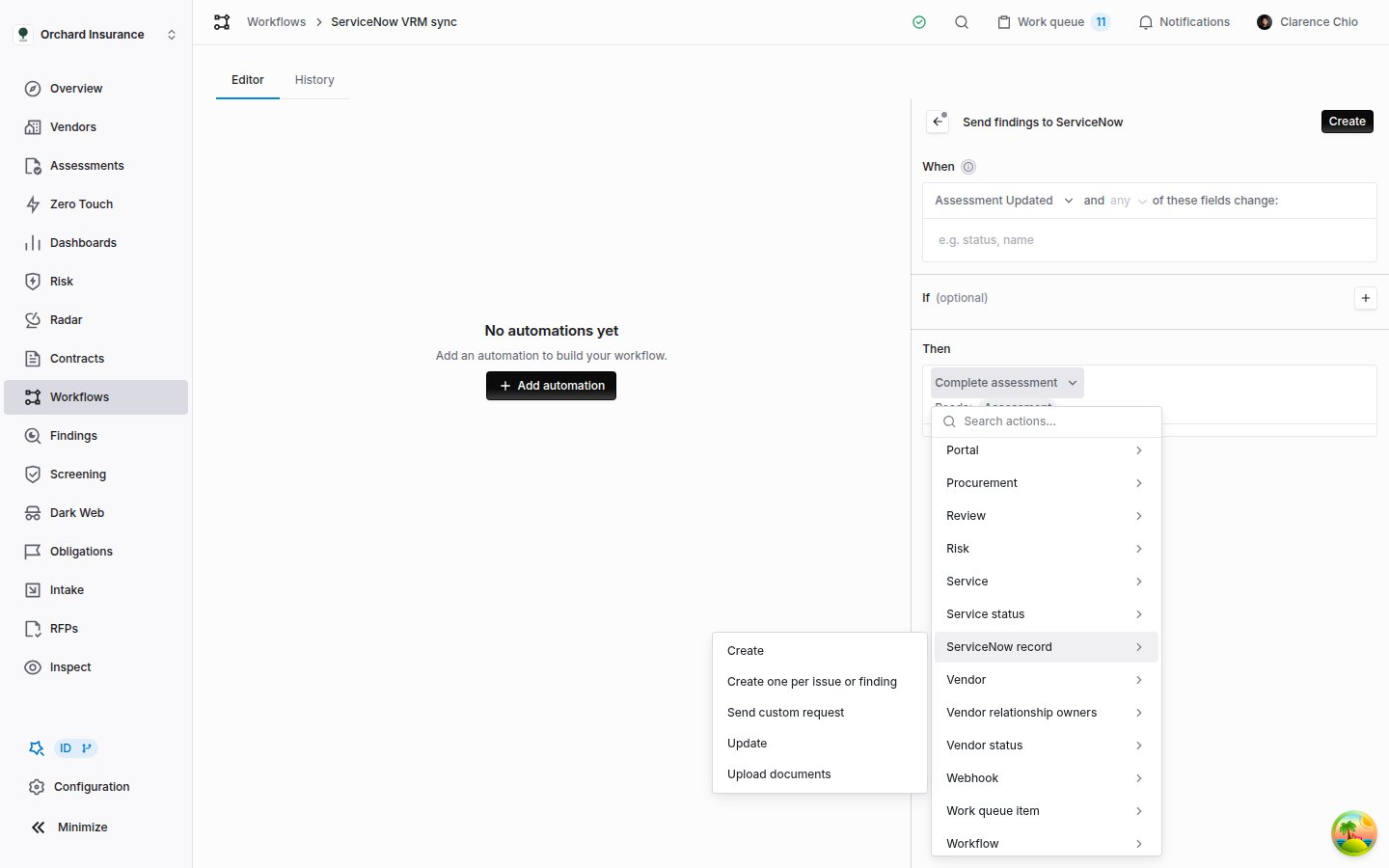
The ServiceNow record group in the action picker. Each item is one action type.
Create one per issue or finding is offered only when the trigger can reach an assessment; its form shows Reads: Assessment. The events in the last column can trigger later automations, and your own systems can receive them as webhooks (
ServiceNowRecord.Created, ServiceNowSync.Completed and so on); see Webhooks.
Mapping fields
Create, Update and Create one per issue or finding share the same two settings: the table, and the field mappings that become the record. ServiceNow table. Pick a table from the list, or type any table name and choose Use custom name. The list suggests the standard third-party risk tables:
Field mappings. Each row pairs a ServiceNow field with a Value. The field picker suggests the standard columns of a suggested table. For any other column, including your instance’s own
u_ columns, type the column name and choose Use custom name. A value can be fixed text, a variable from the Insert variable button beside it, or both, as in {{vendor:name}} renewal. Add mapping adds a row. Each column can appear once, and a step needs at least one row.
Translating a value. A row’s Coverbase value to ServiceNow value pairs are listed under it, and the arrows button adds them to a row that has none. After the value’s variables resolve, a value listed on the left is sent as the one on the right, so a finding status label can land as your instance’s state choice. Add translation adds a pair, and a value not listed is sent unchanged. Editing the row’s field or value keeps its translations. Clicking the arrows button on a row that has translations removes them.
Reformatting a date. The calendar button at the end of a row opens a date format for that value. Type a Python strftime pattern, such as %m-%d-%Y, and a value that resolves to a date is sent in that shape: 2027-01-31 becomes 01-31-2027. An empty date stays empty. The pattern must name at least one date part, such as %Y or %d. The locale formats %c, %x and %X, and a few rarer codes such as %f and %Z, are not accepted. If the value is not a date when the step runs, the step is skipped with a message that names the value. Click the calendar button again to remove the format.
Apply table template fills in suggested rows when Coverbase has a template for the table and action. If the rows already hold something, it asks Replace field mappings? first.
A variable with nothing behind it skips the whole step rather than sending a blank, exactly as described in Placeholders in action text.
Creating a record
Create makes one record and remembers which Coverbase record it belongs to.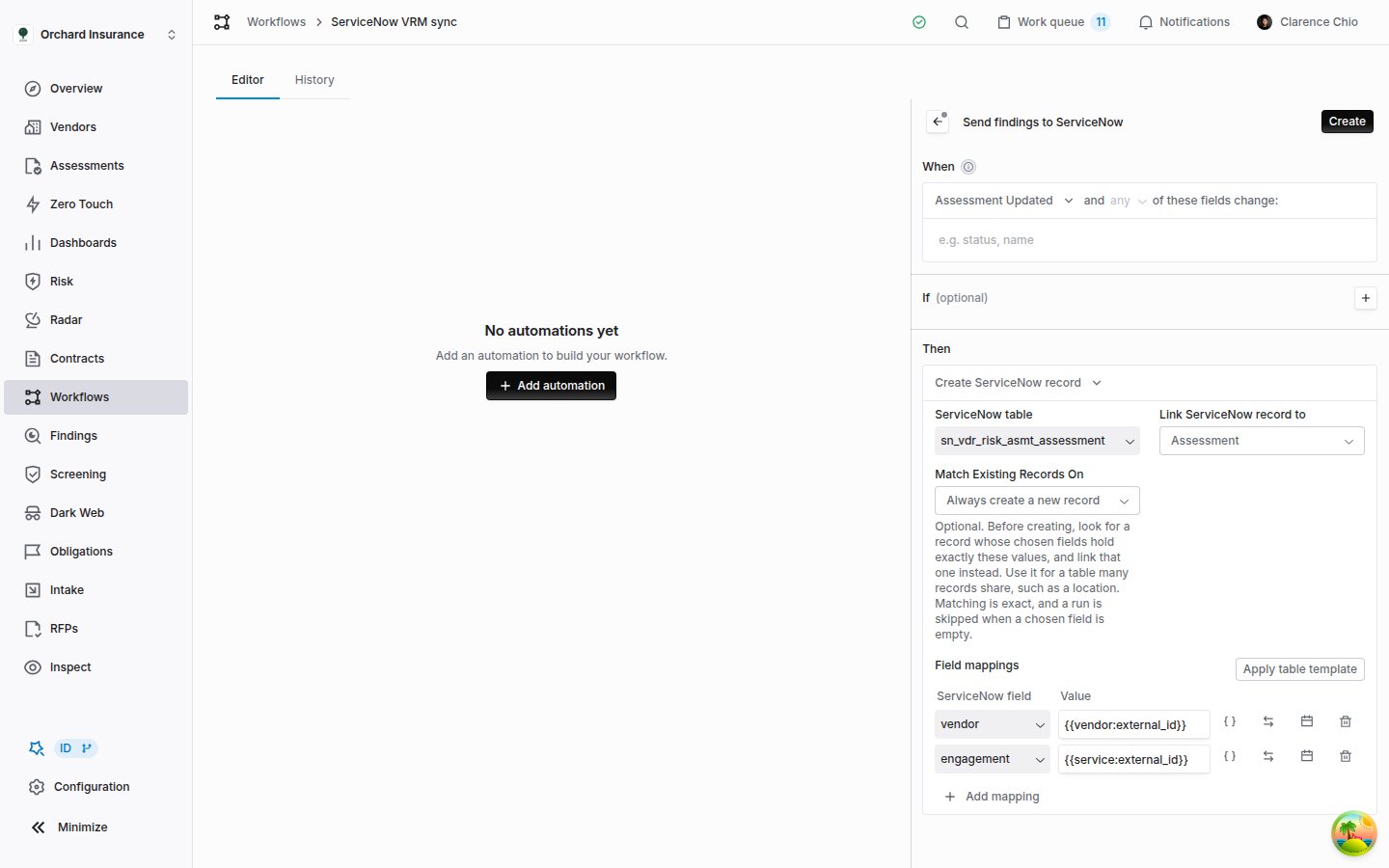
Create, writing an External Assessment (VRA) record linked to the triggering assessment, with the table template applied.
A Coverbase record gets at most one linked record per table from Create. A second run for the same Coverbase record is Skipped with “A ServiceNow record in
<table> is already linked to this <record type>”. Push later changes with Update.
When Match Existing Records On is set, the step searches first:
Matching is exact, so a value of
Acme Inc does not match a record holding Acme Inc., and the step creates a second record rather than linking one that may not be the same.
Updating the linked record
Update changes the record that a Create step, or a match, linked to the same Coverbase record. Set ServiceNow table and Update record linked to to the same table and record type as that step, and map only the columns you want to change: the step sends those and leaves the rest of the record alone. If nothing is linked yet, the step is Skipped with “No ServiceNow record in<table> is linked to this <record type>”. To update a record Coverbase did not create, link it first with a Create step that uses Match Existing Records On, which links an existing record without changing it, or address it by sys_id with Send custom request.
A typical pair: Create on Assessment Created opens the VRA record, and Update on Assessment Updated, watching the status field, sets the record’s state as the assessment moves.
One record per issue or finding
Create one per issue or finding turns an assessment’s problems into records, such as one Third-party Risk Issue each, in a single step.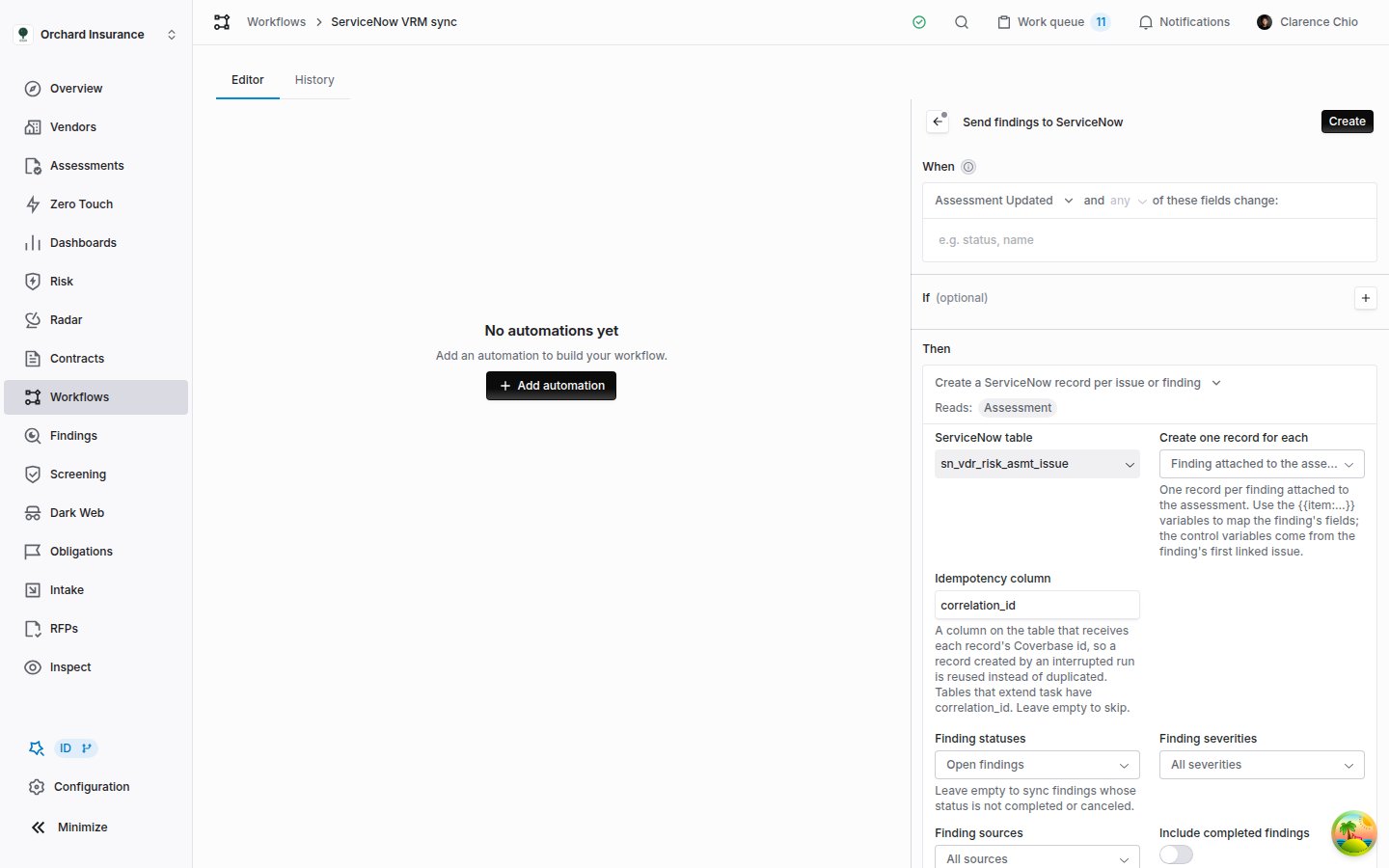
Create one per issue or finding, set to create a Third-party Risk Issue for each finding attached to the assessment.
For findings, five more settings choose which ones become records:
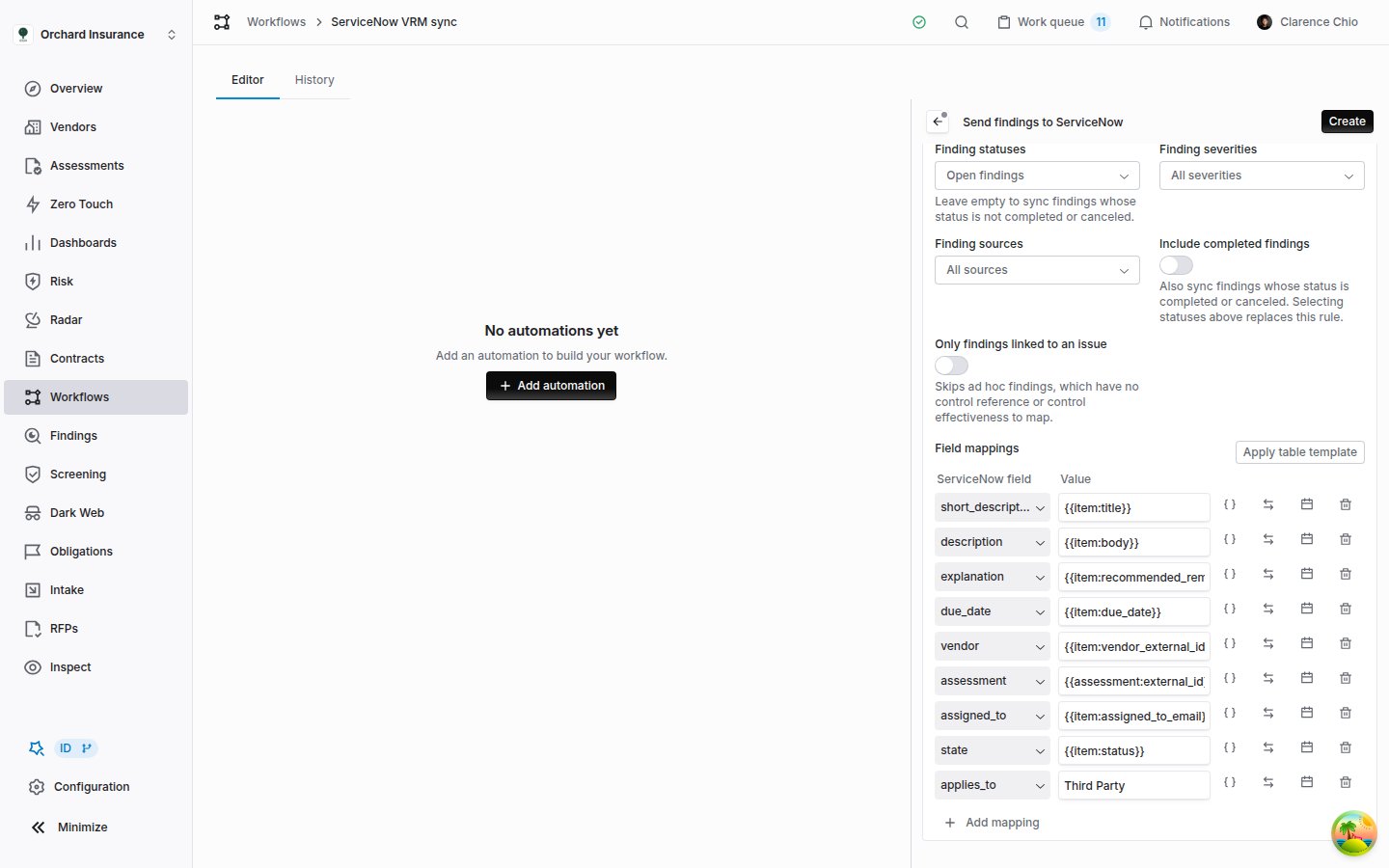
The finding filters and the field mappings the Third-party Risk Issue template fills in.
Item variables
Inside this action,{{item:...}} variables resolve to the issue or finding the record is for. Insert variable lists them under Finding fields, or under Issue fields and Control fields, next to the usual workflow variables. Custom fields on findings, issues and controls get groups of their own.
A finding has no control of its own, so its control variables come from its linked issue with the lowest index, and are blank for an ad hoc finding. Dates arrive as
YYYY-MM-DD. An item variable with no value on one item sends a blank rather than skipping the step.
How the step behaves over time
- Each item gets one record per table. The first run creates a record for every selected item. A later run creates records only for items that have none, so a finding added to the assessment afterwards goes out on the next run. With nothing new, the step is Skipped with “No unsynced findings on the assessment” (or issues).
- A failure partway through keeps what landed. If ServiceNow rejects a record, the step is Failed with the error and “after creating N of M records”. The records already created stay linked, and the next triggering event resumes with the item that failed.
- Service Now Sync Completed follows. Once every selected item has its record, Coverbase raises Service Now Sync Completed for the assessment. Hang the closing step on it, for example an Update of the VRA record linked to the assessment. It can fire again when the step runs again with nothing new to send, so make the closing step safe to repeat.
- Finding records stay reachable. Each finding’s record is linked to that finding, so an Update step with Update record linked to set to Finding, on a Finding Updated trigger, keeps the ServiceNow record current as the finding changes. Records made for issues cannot be targeted by Update.
Sending a custom request
Send custom request sends one request, exactly as you write it, to any API path on your instance: a Table API record Coverbase did not create, or a scoped endpoint your ServiceNow team built.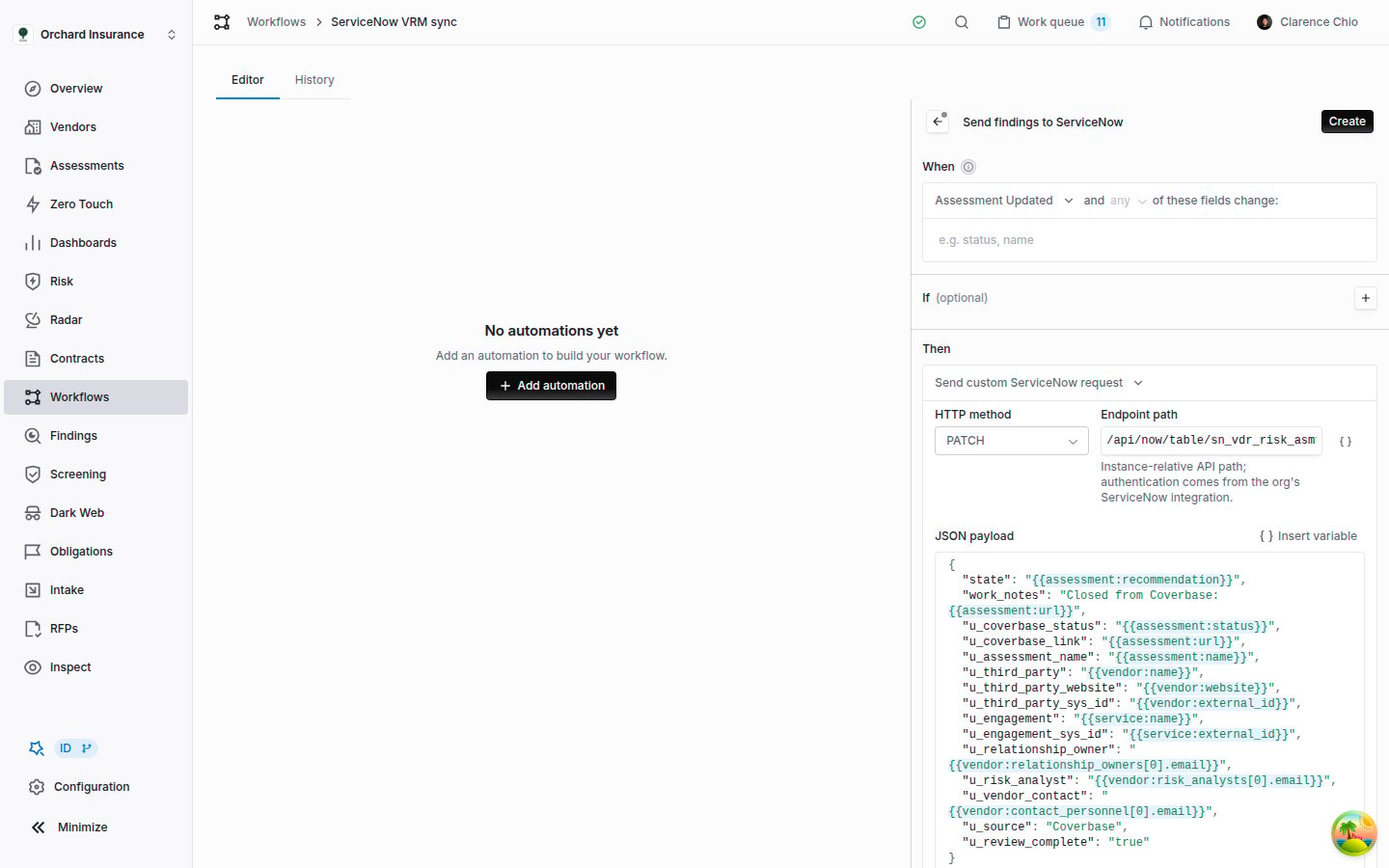
Send custom ServiceNow request, patching the VRA record whose sys_id Coverbase holds as the assessment's external ID.
Three payload forms go beyond plain text:
- Leave a key out when its value is empty. Add
|omitemptyinside the braces, as in"u_rto": "{{questionnaire:answer:question_perma_id|omitempty}}". When the answer is blank, the key is dropped instead of the whole step being skipped. It works only when the placeholder is the key’s entire value, and not in the path or query parameters. - Send a list or a number. For a questionnaire trigger, Selected answers to a question (list) and Selected answers to a question (objects) arrive as a JSON array, and Numeric value of an answer as an unquoted number, when the placeholder is the key’s entire value.
- Translate or reformat a value. Value Translations and Date Formats reach only top-level fields that are plain text in the payload. If a row names any other field, the form shows an error and the automation will not save.
Uploading documents
Upload documents copies files from Coverbase into ServiceNow Document Management. Each document becomes a document record (ds_document) with a published version (ds_document_version) that holds the file.
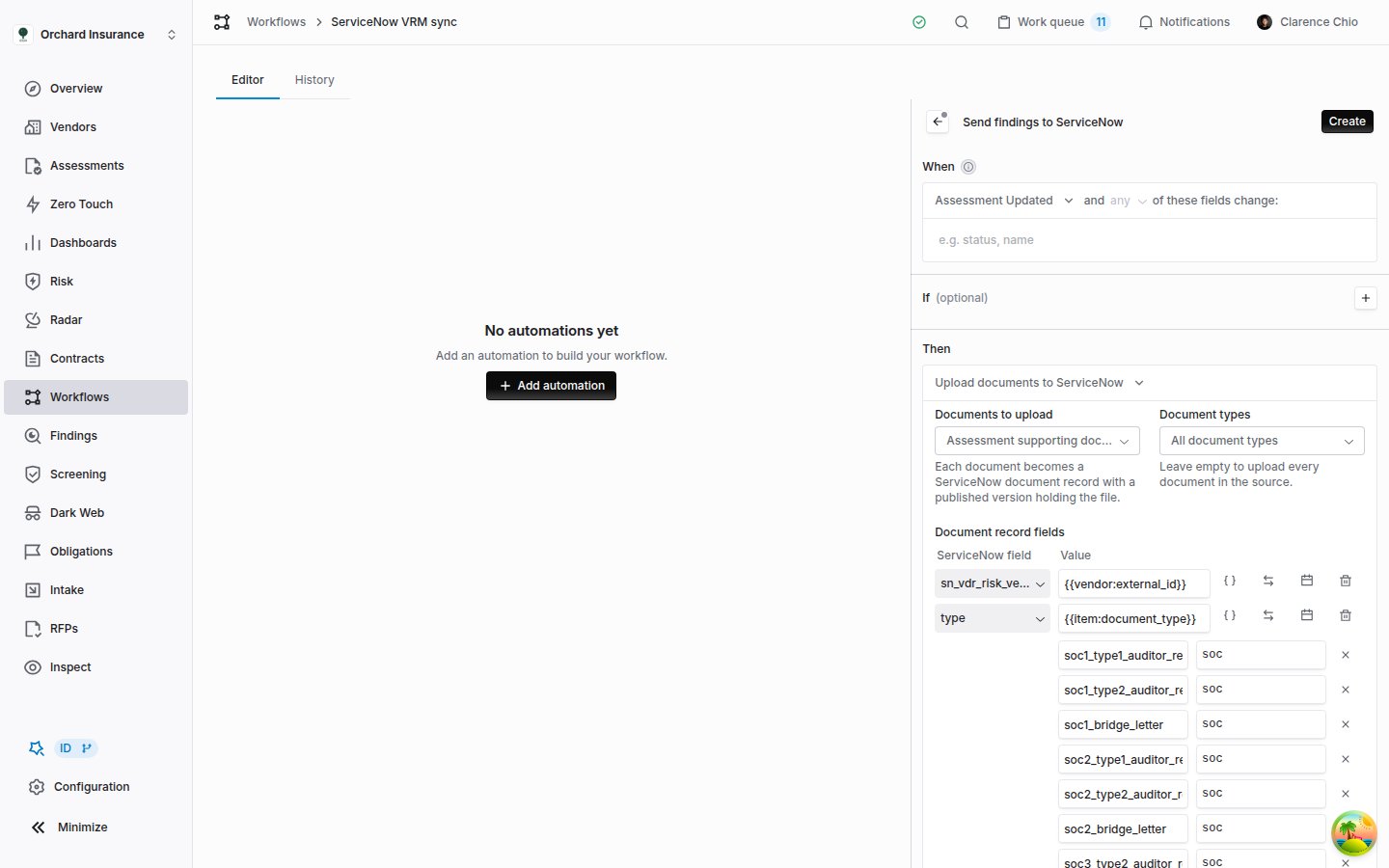
Upload documents to ServiceNow with its default document record fields.
The Insert variable menu adds a Document group for these fields: Name, File name, Document type, Document type label, Uploaded on, Valid to, Uploaded by, Uploaded by email, Size in bytes and Coverbase URL.
The action manages a few columns itself and refuses a mapping for them:
state, default_version and external_file_url on the document record, and document on the version. external_file_url holds the document’s Coverbase link, which the action uses to find its own work again.
The default type row translates document types. It sends Coverbase document types as the choice values a third-party risk instance usually uses (a SOC 2 report becomes
soc, a master services agreement msa). Its translations are listed under the row, so change them there to match your instance. The row’s arrows button removes them.Reading what a step sent
Open the run from the workflow’s History tab or from Workflow Runs (see Reading the runs page). On a Create, Update or per-item step, the Output line links each record the step wrote to that record in your instance. Click the step’s name to expand it: under the step and component IDs, each call is listed with its method and URL, the Request payload, the Response body, and the error when there was one. For Upload documents, the uploads finish after the step, and each attempt is added to the step when it does: the file name, size and type, and the new record’ssys_id or the reason it failed. Reload the run to see them.
Troubleshooting
Related
Building a workflow
Triggers, conditions, placeholders, testing, and reading runs.
ServiceNow integration guide
What flows between Coverbase and ServiceNow VRM, and how the connection is provisioned.
Workflow templates
Ready-made automations you can extend with a ServiceNow step.
Webhooks
Send Coverbase events, including the ServiceNow record events, to your own endpoints.