

For AI agents: a documentation index is available at https://docs.coverbase.com/llms.txt. This page is also available in markdown by appending .md to the URL.
This guide is part of the User Guides collection. It covers the Webhooks page under Configuration, where you register the endpoints Coverbase sends events to. It sits beside Email and notifications and White-labeling your vendor-facing domain. For the event catalog, the payload, the request headers and how to verify a signature, see the Webhooks reference. To manage the same endpoints from code, see the Webhooks API.
POST with a JSON body, signed with a secret that only you and Coverbase hold, so your receiver can prove the call came from Coverbase before it acts on it.
An endpoint receives events in two ways. It receives every event it is subscribed to on the Webhooks page, and it receives whatever a workflow’s Send webhook step addresses to it. Every attempt either way is recorded in the endpoint’s delivery history.
The mistake people make most often is saving the webhook before the signing secret is stored where the receiver can read it. Coverbase never shows the secret again after you save, so the only fix is to set a new one and update the receiver.
Opening the page
Open Configuration at the bottom of the left navigation and choose Webhooks in the Developers and integrations group, or type “webhook” into Search configurations…. The page opens for the Admin and Member roles only. Only an Admin can add, edit, test or delete an endpoint; a Member sees the list and the delivery history, with Only admins can add, change, test or delete webhooks. where the Add webhook button would be. A person with a custom role does not see the page, whatever the role grants; see Permissions and roles.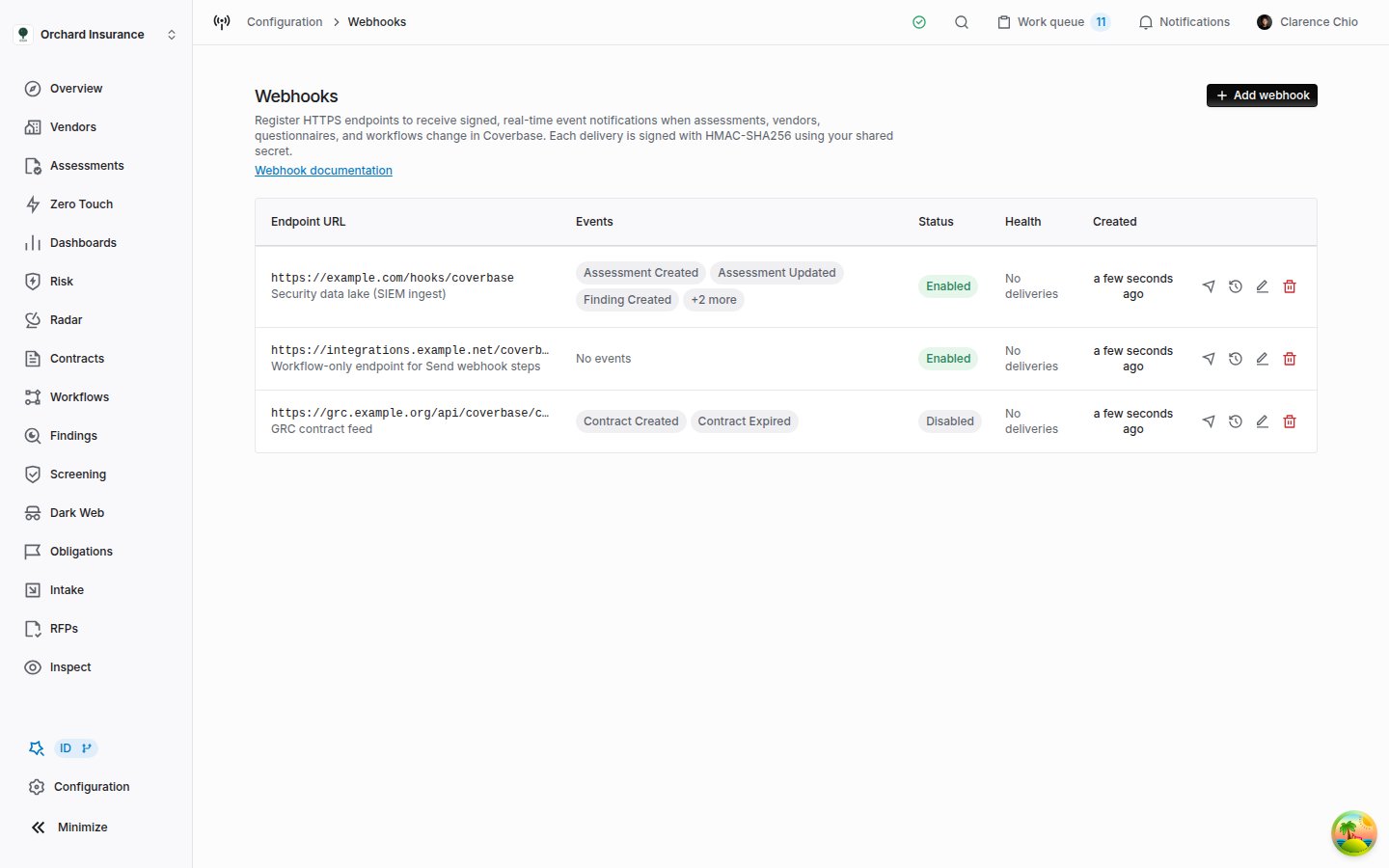
The Webhooks page with three endpoints: one subscribed to five events, one that only receives workflow deliveries, and one switched off.
Four icons end each row: Send test, Delivery history, Edit and Delete. Hover an icon to see its name. The Webhook documentation link under the page title opens the Webhooks reference.
Adding an endpoint
Have the receiver running before you start, and decide on a secret: a random string of at least 16 characters. Coverbase does not generate one for you.1
Open the form
Click Add webhook at the top right of the page.
2
Enter the endpoint
Type the full address in Endpoint URL. It has to start with
https://. Coverbase refuses a URL that carries a username or password, uses a non-standard port, or points at a private, loopback, link-local or cloud metadata address. The rules are in URL restrictions.3
Set the signing secret
Type or paste the secret into Signing secret. The eye icon shows what you typed. Copy it into your receiver’s configuration now, before you save.
4
Choose the events
Open Events and tick the events this endpoint should receive. See Choosing events below. Leave it empty for an endpoint that should only receive what a workflow sends it.
5
Label it
Add a Description, such as the system that owns the endpoint. It appears under the URL in the list and in a workflow’s Target webhooks picker, where it is often the only way to tell two endpoints apart.
6
Save
Leave Enabled on and click Add webhook. Coverbase confirms with Webhook created.
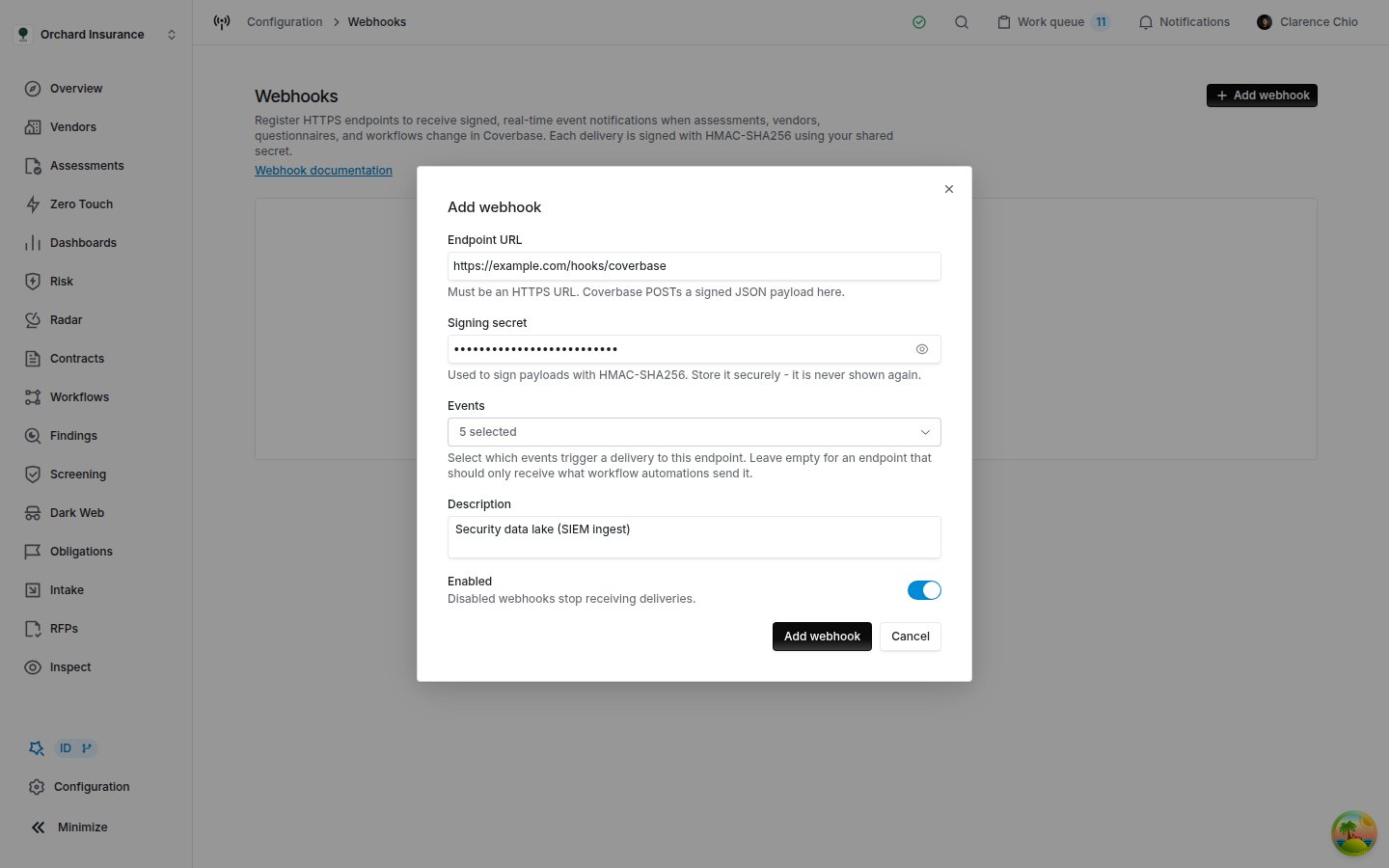
The Add webhook form filled in. The secret is masked, and the eye icon reveals it until you save.
Choosing events
The Events picker lists every event Coverbase emits, by a readable name: Vendor Created is theVendor.Created event, Assessment Updated is Assessment.Updated. Type in the search box to narrow the list, and tick as many as you need. The field then reads 5 selected or similar. What each event carries in its payload is in the event catalog.
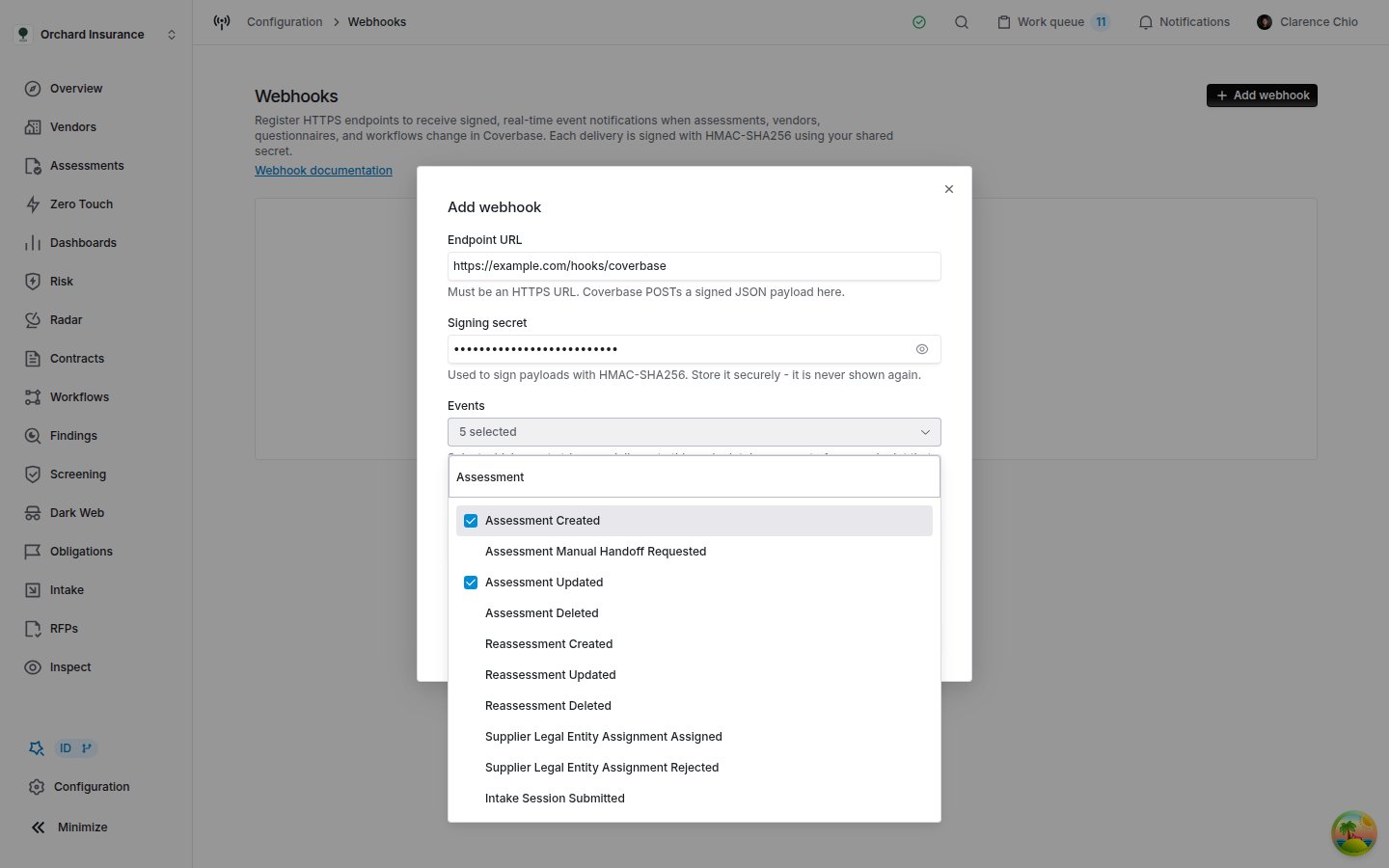
The Events picker searched for 'Assessment'. Ticked events are the ones this endpoint receives.
- An Updated event fires on every edit. A webhook subscribed to Vendor Updated receives every change to every vendor, including a typo fix. There is no field filter on a webhook. If your receiver only cares about some changes, leave the event off the webhook and send it from a workflow that names this endpoint in Target webhooks. There, the trigger can watch specific fields and conditions can narrow it further (see Sending events from a workflow).
- One name does not follow the pattern.
WorkflowRun.Createdis listed as Running the workflow. - Monitoring record events are listed only when your workspace uses monitoring records.
Testing an endpoint
Send a test before you rely on an endpoint, and again after you change the receiver or the secret.1
Open the test dialog
Click the Send test icon (the paper plane) on the endpoint’s row. The Send a test event dialog opens.
2
Pick the event type
Event type starts on
webhook.test, whose payload is just {"test": true}. Pick a real event type instead to send a sample of that event’s payload. Example payload shows the body your endpoint will receive; the event_id and occurred_at are filled in when the test is sent.3
Send it
Click Send test event. Coverbase queues the test and confirms with Test event queued for delivery. The attempt appears in the endpoint’s delivery history a few seconds later.
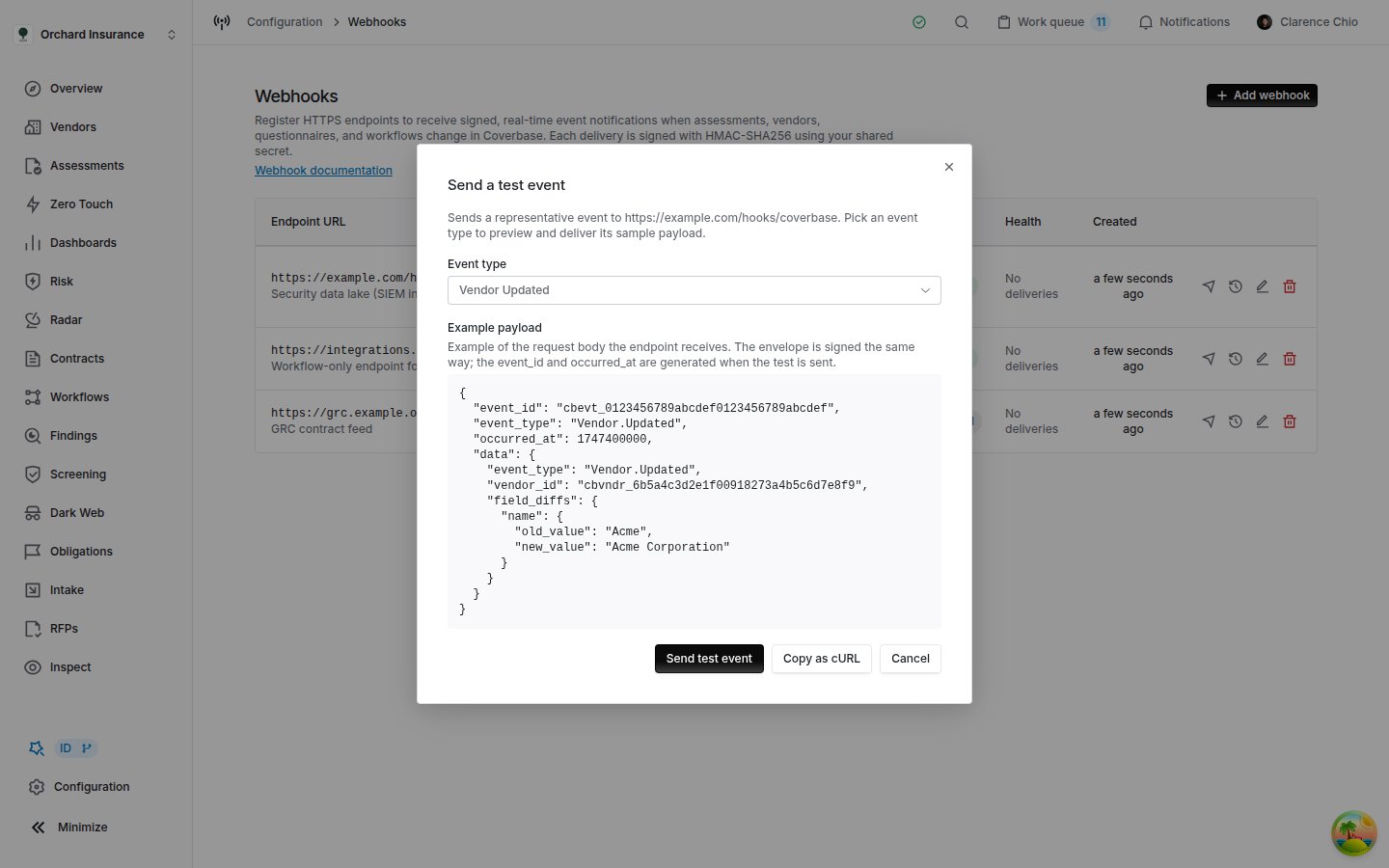
The test dialog with Vendor Updated selected. The envelope is signed exactly like a real delivery.
webhook.test if your receiver cannot tolerate that.
Copy as cURL copies the same test as a command against the test endpoint of the Webhooks API. It expects two environment variables: COVERBASE_API, the API base URL, and COVERBASE_API_KEY, an API key.
Reading delivery history
Click the Delivery history icon on a row, or click the endpoint’s Health value. The dialog lists every recorded attempt for that endpoint, newest first, 50 to a page. Previous and Next move between pages.
A failed delivery is tried again when a later attempt could succeed: after a timeout, a connection failure, or a
408, 429 or 5xx status. Coverbase makes up to six attempts, waiting about 4 seconds, 16 seconds, 64 seconds, then 4 minutes twice between them, and records each attempt as its own row with the same event ID. Any other 4xx or 3xx status, a refused URL and a test event are not retried. Each retry is signed again with a new timestamp, so make your receiver idempotent on the event ID: a delivery that succeeded but answered too slowly can arrive twice.
The Status filter at the top narrows the page you are looking at, not the whole history, so page through with Previous and Next when you are hunting for older failures. Coverbase keeps each attempt for 90 days. What each recorded field means, and how to read the same history through the API, is in Webhook delivery history.
Editing, pausing and deleting
Click the Edit icon to open Edit webhook. It is the same form, with the current URL, events, description and status filled in. Click Save changes to apply an edit, and Coverbase confirms with Webhook updated. The next delivery uses the new settings.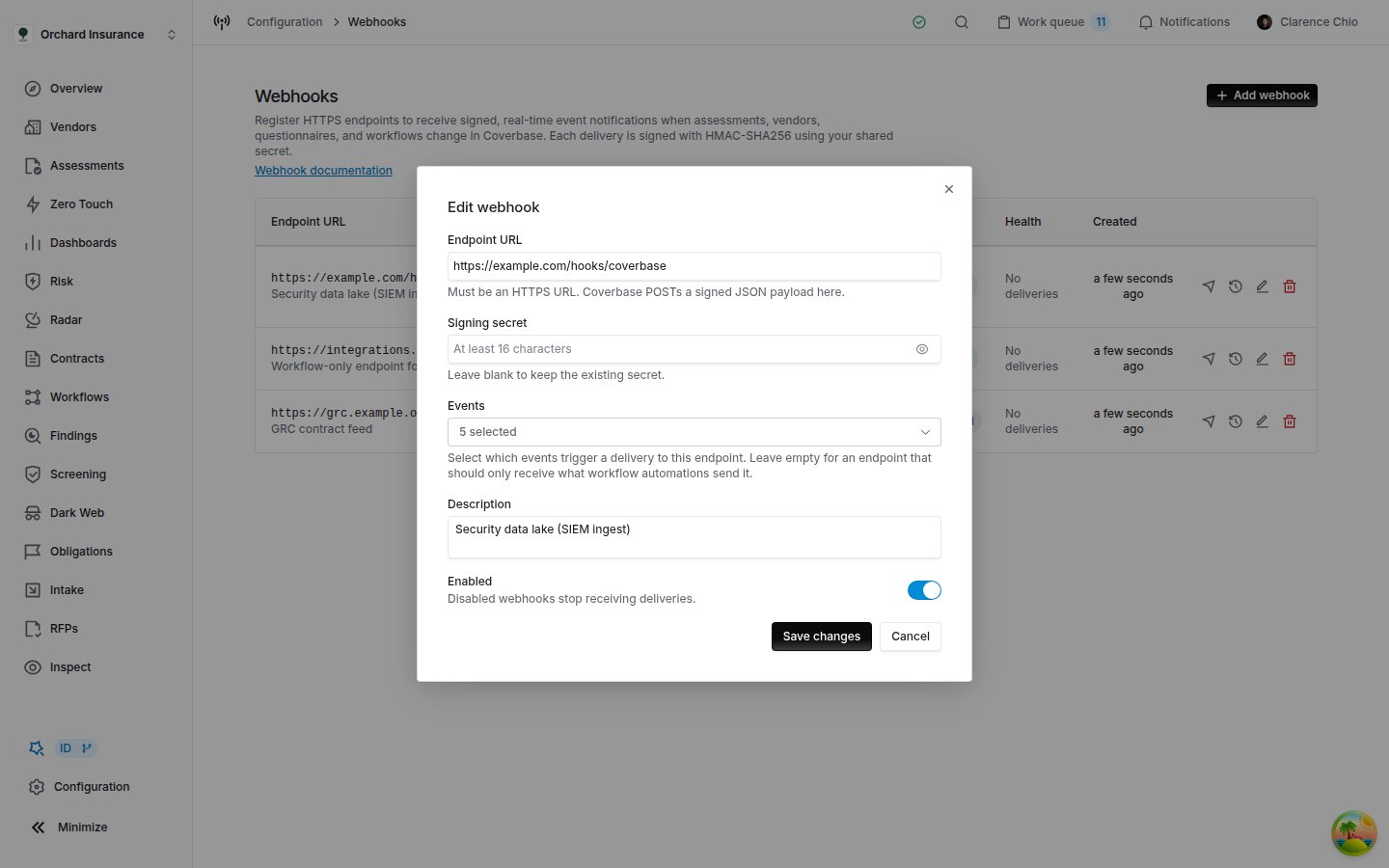
Edit webhook. The signing secret field is empty on purpose: leave it blank to keep the current secret.
Changing the secret
Signing secret is always empty in Edit webhook, and saving with it empty keeps the current secret. To replace it, type a new secret of at least 16 characters and click Save changes. Deliveries are signed with the new secret from then on, so update the receiver at the same moment. A receiver still checking the old secret rejects everything in between.Pausing an endpoint
Turn Enabled off and save. The row shows Disabled, and the endpoint stops receiving events: subscribed events are not sent to it, and a workflow step that names it skips it. Events that happen while it is disabled are not sent to it later when you switch it back on.Deleting an endpoint
Click the Delete icon. Delete webhook? warns that this stops all event deliveries to the URL and cannot be undone; click Delete webhook to confirm. You can no longer open its delivery history afterwards, so look up anything you need from it first. A workflow step that named the endpoint skips it from then on.Sending events from a workflow
A workflow can send its triggering event to your endpoints with the Send webhook action, which you find under Webhook in the action picker. Use it when an endpoint should only hear about some changes, such as a vendor moving to a particular status, or when the delivery should wait until other steps are done.
The line under the fields tells you before you save how many enabled endpoints will receive the delivery, or that the step will be skipped because none will. How to build the rest of the automation is in Building a workflow. A delivery made by a workflow also appears on that run’s step, with the request and the response, when you open the run.
Troubleshooting
Related
Webhooks reference
The event catalog, the delivery envelope, the request headers and signature verification.
Webhook delivery history
What each recorded attempt holds, and how to read the history through the API.
Webhooks API
Register, update, test and delete endpoints from code.
Building a workflow
Triggers, conditions and the Send webhook action, for deliveries that should only happen sometimes.