

For AI agents: a documentation index is available at https://docs.coverbase.com/llms.txt. This page is also available in markdown by appending .md to the URL.
This guide is part of the User Guides collection. It covers the DORA Register entry in the left navigation and the DORA sections on vendor, contract, service and assessment records. For the contract record itself, see the Contracts workspace guide. For how a contract’s annual value is worked out, see The contract Spend tab. For subprocessors, which feed the supply chain, see the Vendor record guide.
The DORA Register is in beta. If you do not see DORA Register in the left navigation, ask your Coverbase account team to turn it on.
Where to find it
Click DORA Register in the left navigation. Five tabs run across the top:
Download draft and Prepare submission sit to the right of the tabs on every tab.
The same data appears on the records it comes from:
- A vendor has a DORA tab with its provider identity, its ICT services in the register, and each service’s supply chain.
- A contract has a DORA tab with its register entry, or a prompt to include it.
- A service has a DORA register card in its sidebar.
- An assessment has a DORA register card listing the ICT services it covers.
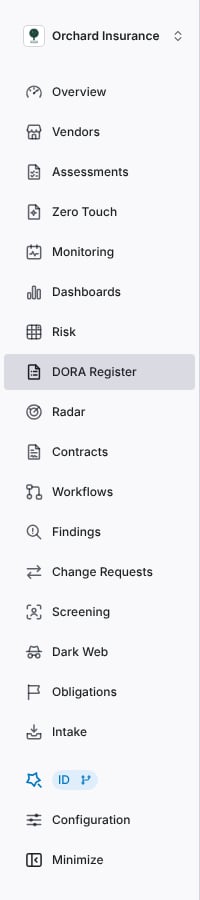
The DORA Register in the left navigation.
Setting up the register
The first time you open Readiness, a Set up the register card lists three steps. Each one disappears into a green check as you finish it.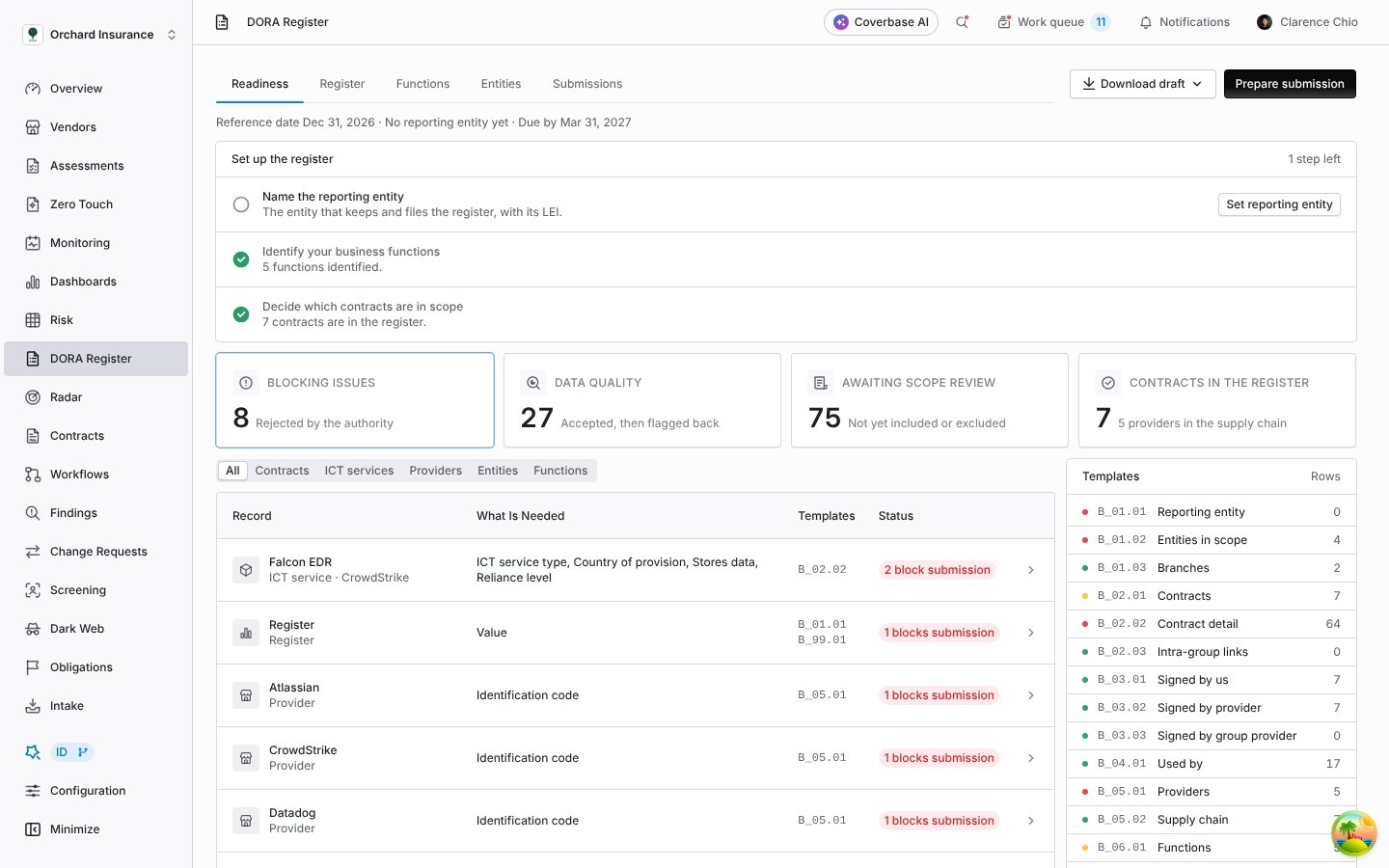
The setup card on a first visit, with one step left.
Step 1: name the reporting entity
Open Entities. New entity adds a group entity: its registered name, its LEI, its country, the type of entity (for example a credit institution or an insurance undertaking), where it sits in the group, its direct parent, and its total assets. Total assets are required for financial entities and not for an intra-group ICT provider. Add each branch outside the head office’s country under Branches in the same dialog. Then click Edit on the Reporting entity card. Pick the entity that keeps and files the register, enter your competent authority (for example the Central Bank of Ireland), and choose Individual entity or Consolidated group. The package is named after the reporting entity’s LEI, so you cannot file without one.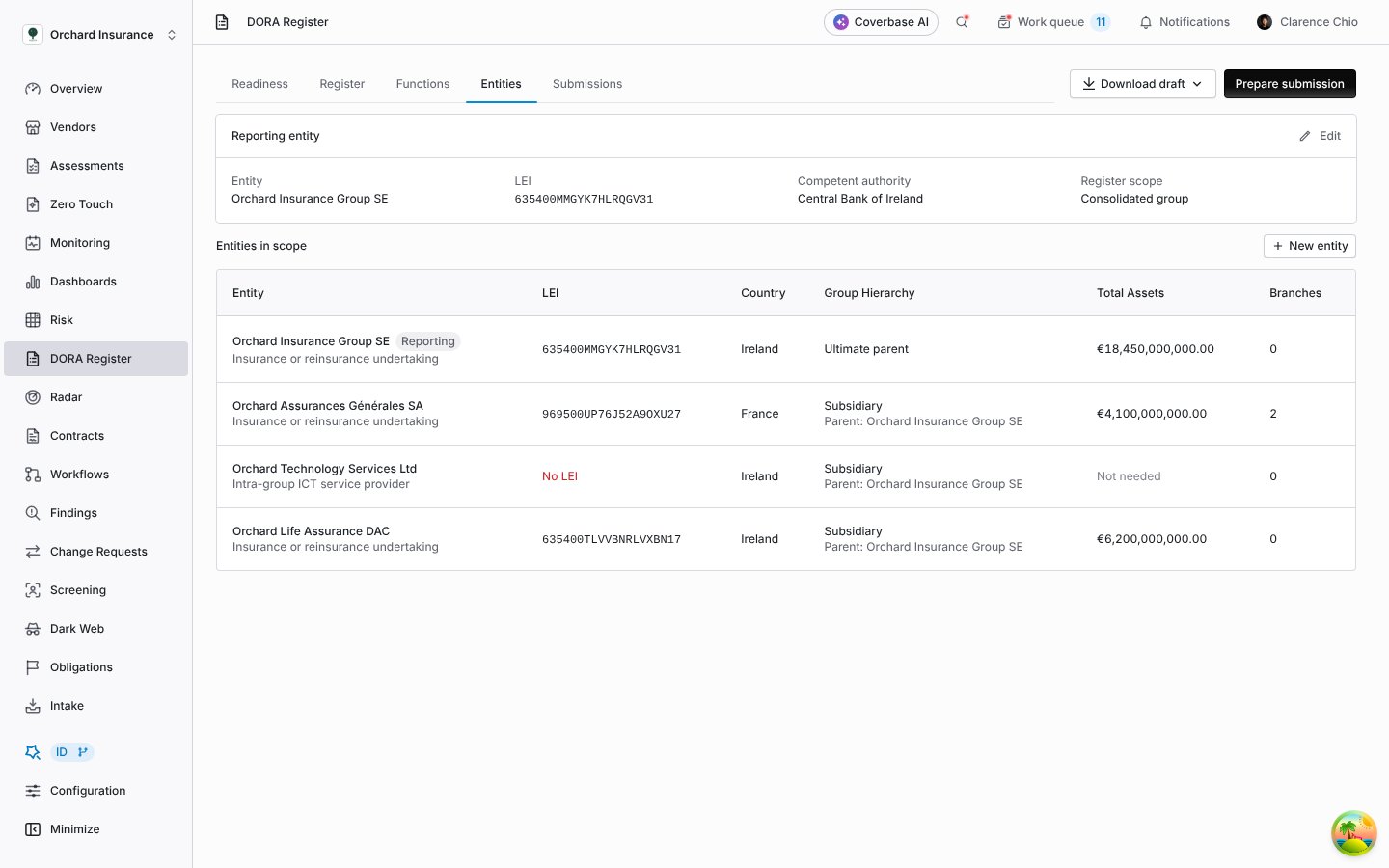
Entities: the reporting entity card and every entity in scope.
Step 2: identify your business functions
Open Functions and click New function. A function is something one of your entities does under its licence, such as claims handling or payment execution. Give it a name, the entity that performs it, its licensed activity, whether it is critical or important and why, when you last assessed that, how long it can be down (RTO) and how much data it can lose (RPO), and the impact of losing it. Then pick the ICT services it depends on. Coverbase numbers functions F1, F2 and so on. Whether a function is critical or important decides how much the register asks for: notice periods, governing law, data locations, reliance and the supply chain are required only for services that support one.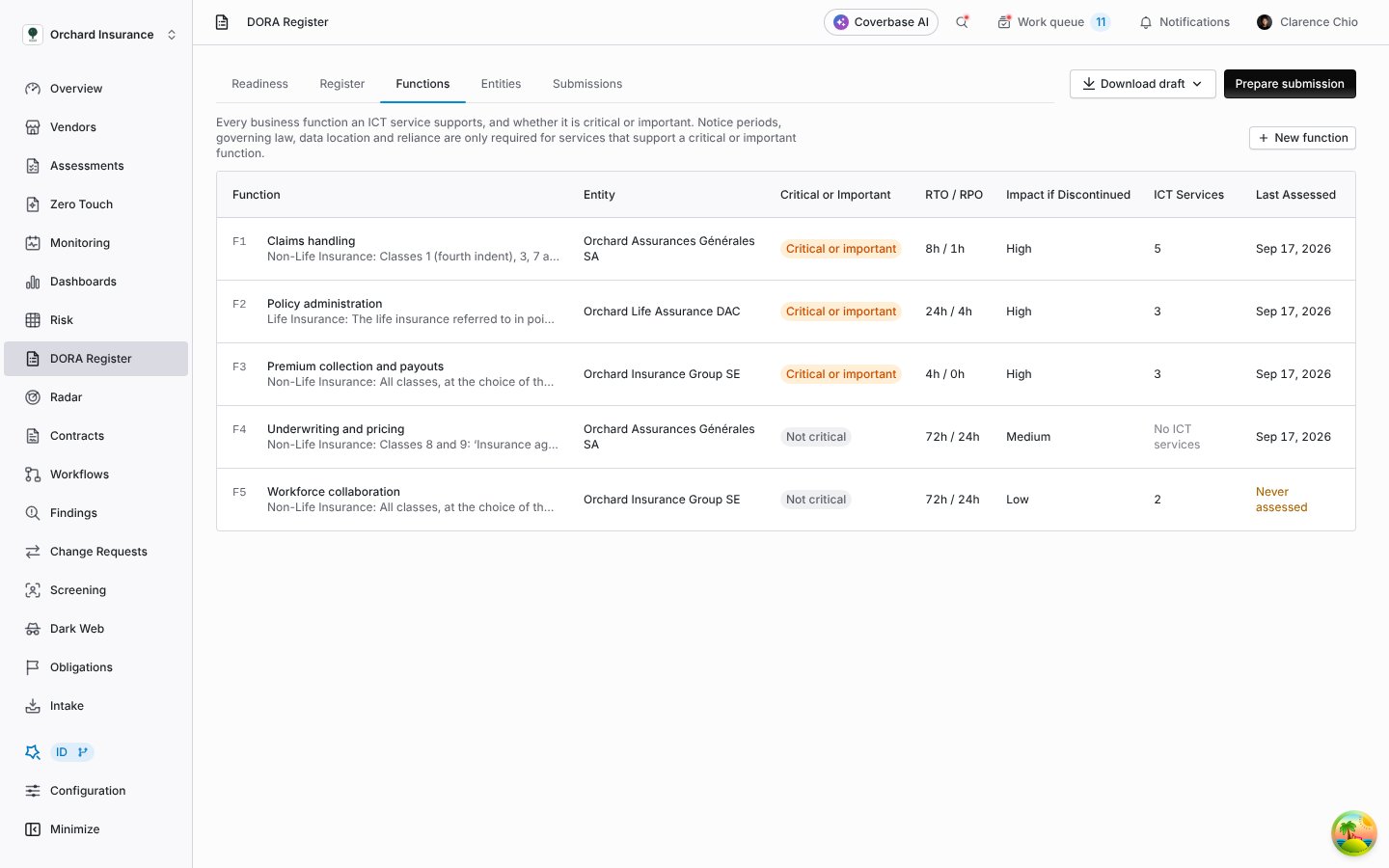
Functions: each function's entity, criticality, recovery objectives and the ICT services behind it.
Step 3: decide which contracts are in scope
Click Awaiting scope review on Readiness. Every active contract without a decision is listed with its annual value and why it is likely ICT. Include puts a contract in the register; Exclude keeps it out of every filing. Tick several rows to include or exclude them together. You can also decide from the contract itself: its DORA tab offers Include in register and Not ICT, exclude. An included contract can be taken out again from the actions menu on its register entry.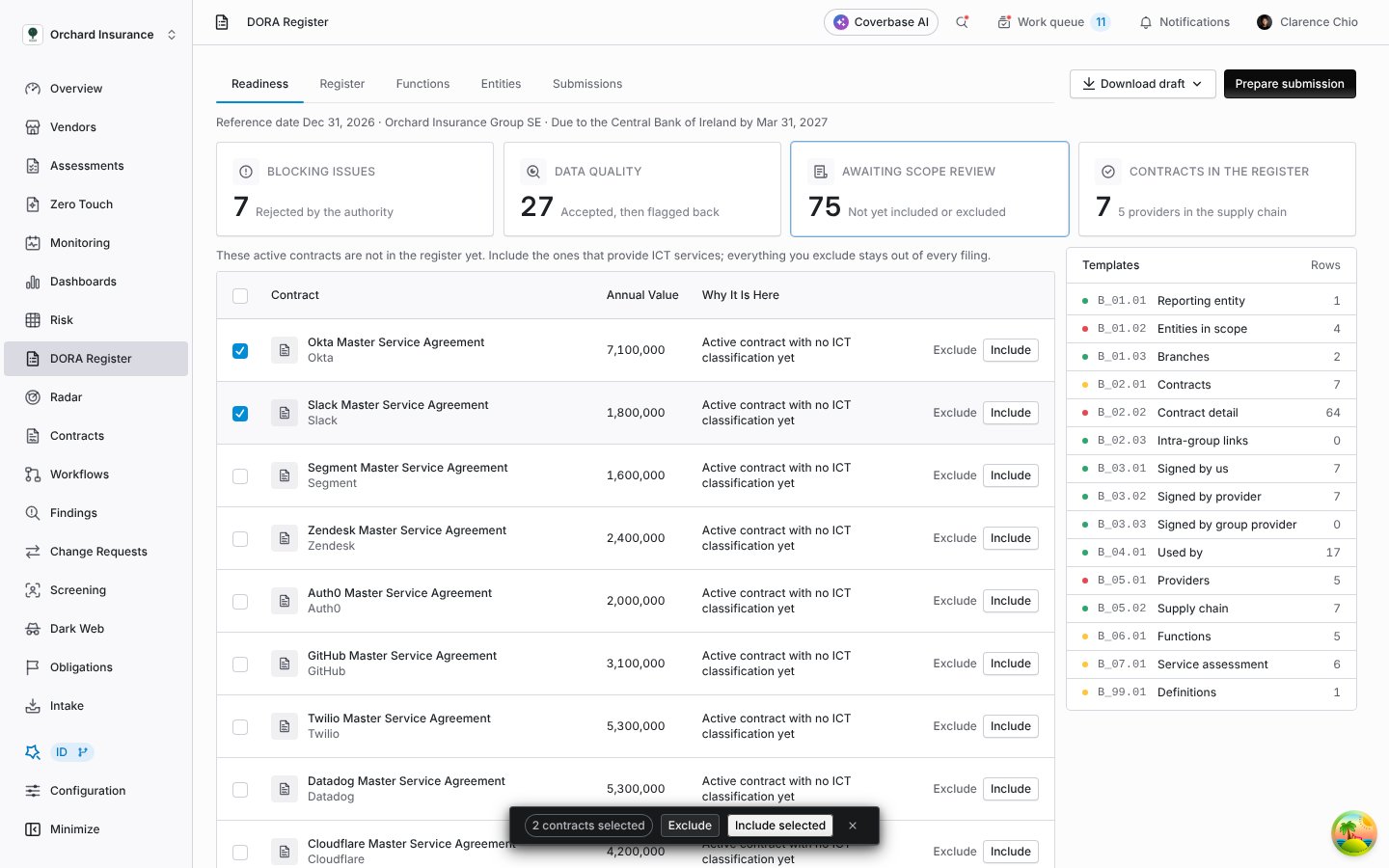
Scope review: tick contracts and include or exclude them together.
Reading the Readiness tab
Four tiles sit across the top. Click one to change the list below it.
Each row is one record (a contract, an ICT service, a provider, an entity or a function), the values it still needs, and the templates they appear in. Narrow the list with the record type filter. Templates on the right shows every template with its row count and a dot for its state: red when it has a blocking issue, yellow when it has a data quality finding, green when it is complete. Click a template to open it on Register.
The line under the tabs gives the reference date (December 31 of the current year), the reporting entity, and the filing deadline (March 31 of the following year).
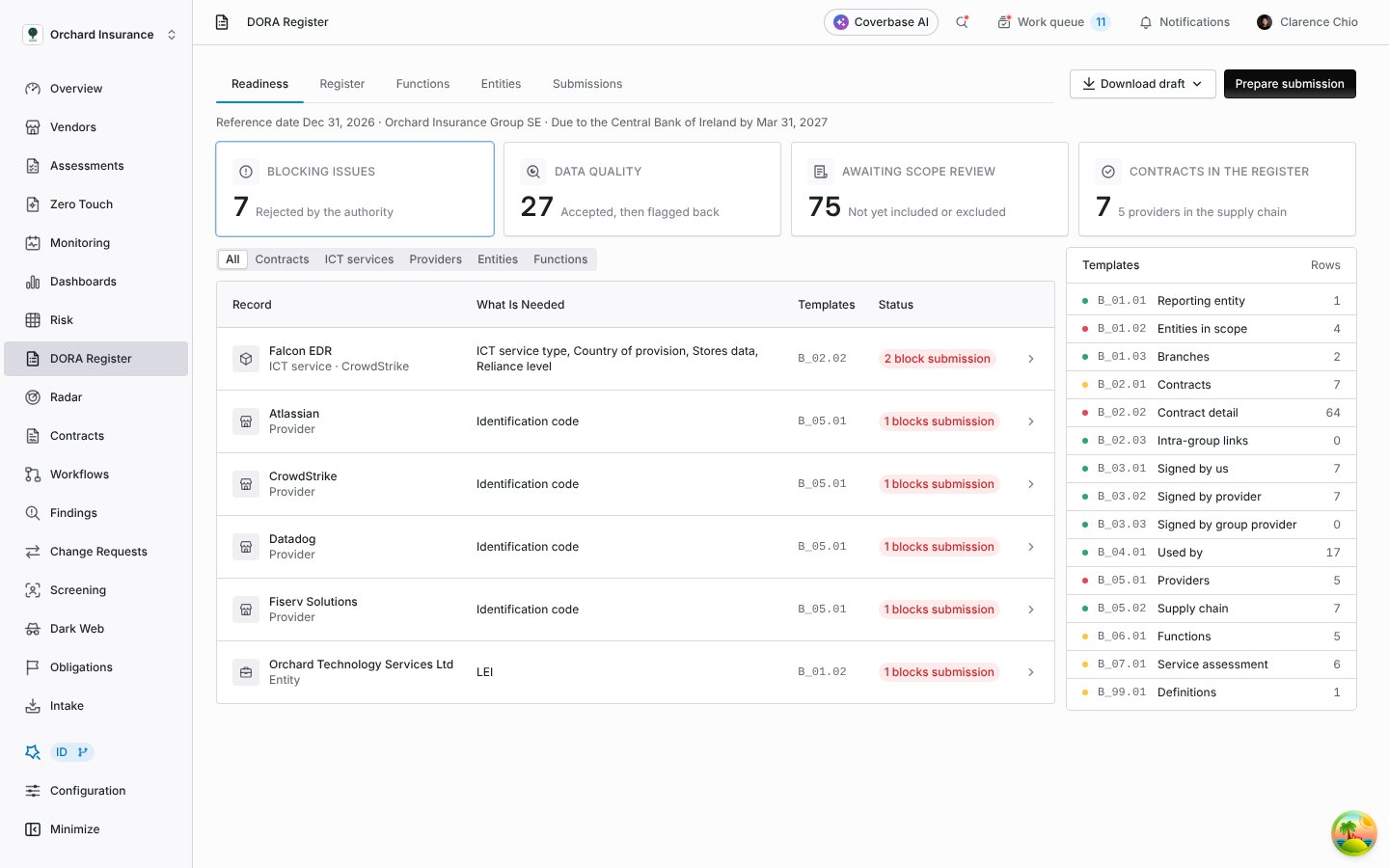
Readiness, showing what blocks the filing.
Fixing a record
Click a row to open the record in a drawer. Every field names the template it is filed in, and a missing value says what happens if you leave it:- Blocks submission: the authority rejects the upload until you fill it.
- Missing; flagged after filing: the upload is accepted and the value is reported back as missing.
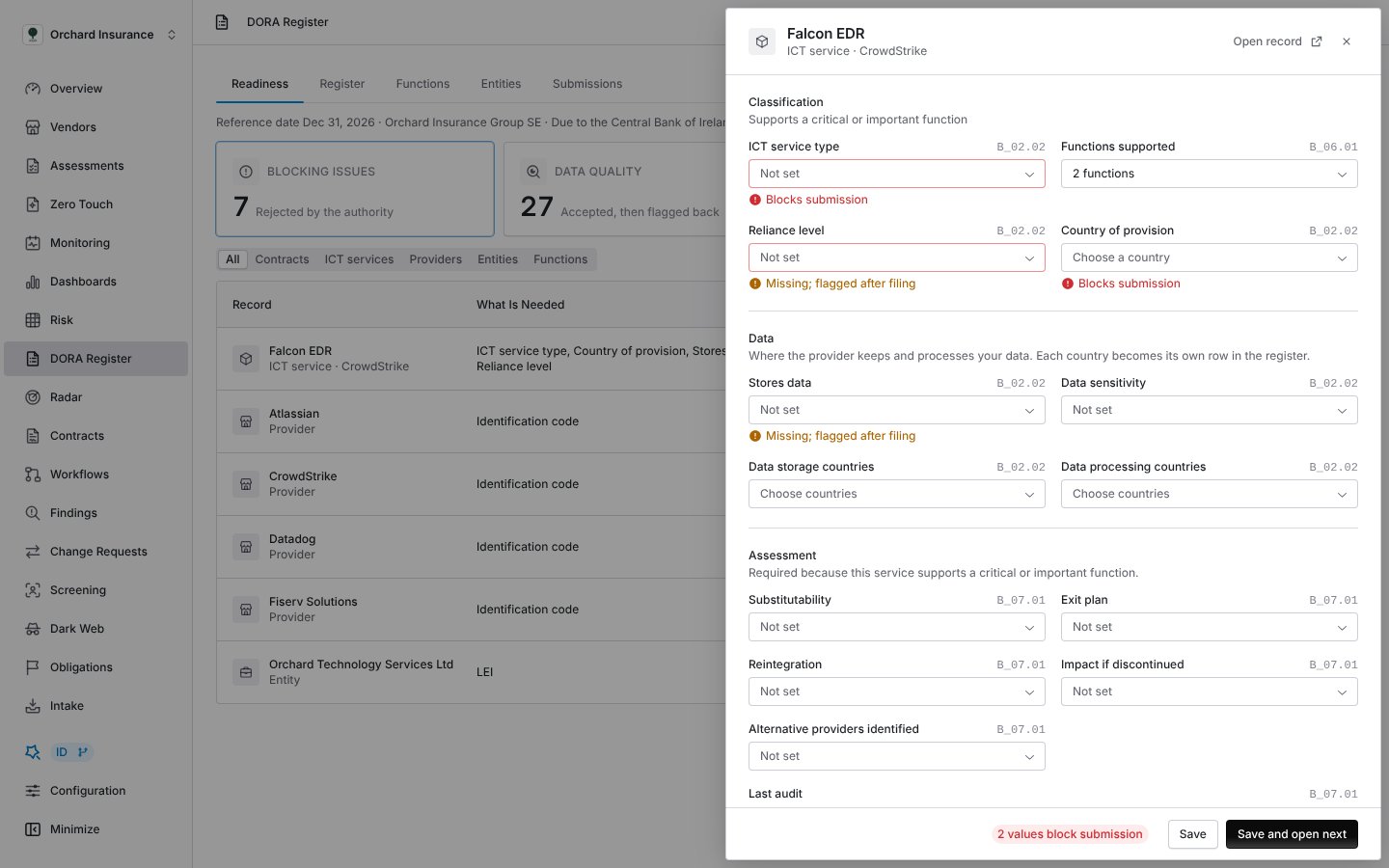
An ICT service in the drawer: two values block the filing.
What each record holds
Several values come from Coverbase without you entering them:
- Annual expense is the contract’s yearly value, worked out the same way as on the Spend tab. A provider’s expense is the sum across its included contracts.
- Arrangement type is Overarching when other included contracts sit under this one, Subsequent or associated when this one sits under another, and Standalone otherwise.
- Exit plan reads Yes when the vendor has a submitted continuity plan.
- Last audit is the date of the vendor’s last completed assessment.
- A provider’s LEI comes from the vendor record or from its GLEIF match. A lapsed LEI is flagged so you can ask the provider to renew it.
The supply chain
The Supply chain section of an ICT service lists the subcontractors behind the direct provider, each with its rank: rank 1 is the provider you contract with, rank 2 its subcontractor, and so on. Add a subcontractor with its name, LEI or EUID and country, and choose which provider it works for. When the vendor lists subprocessors that are not in the chain yet, a banner offers to add them in one click.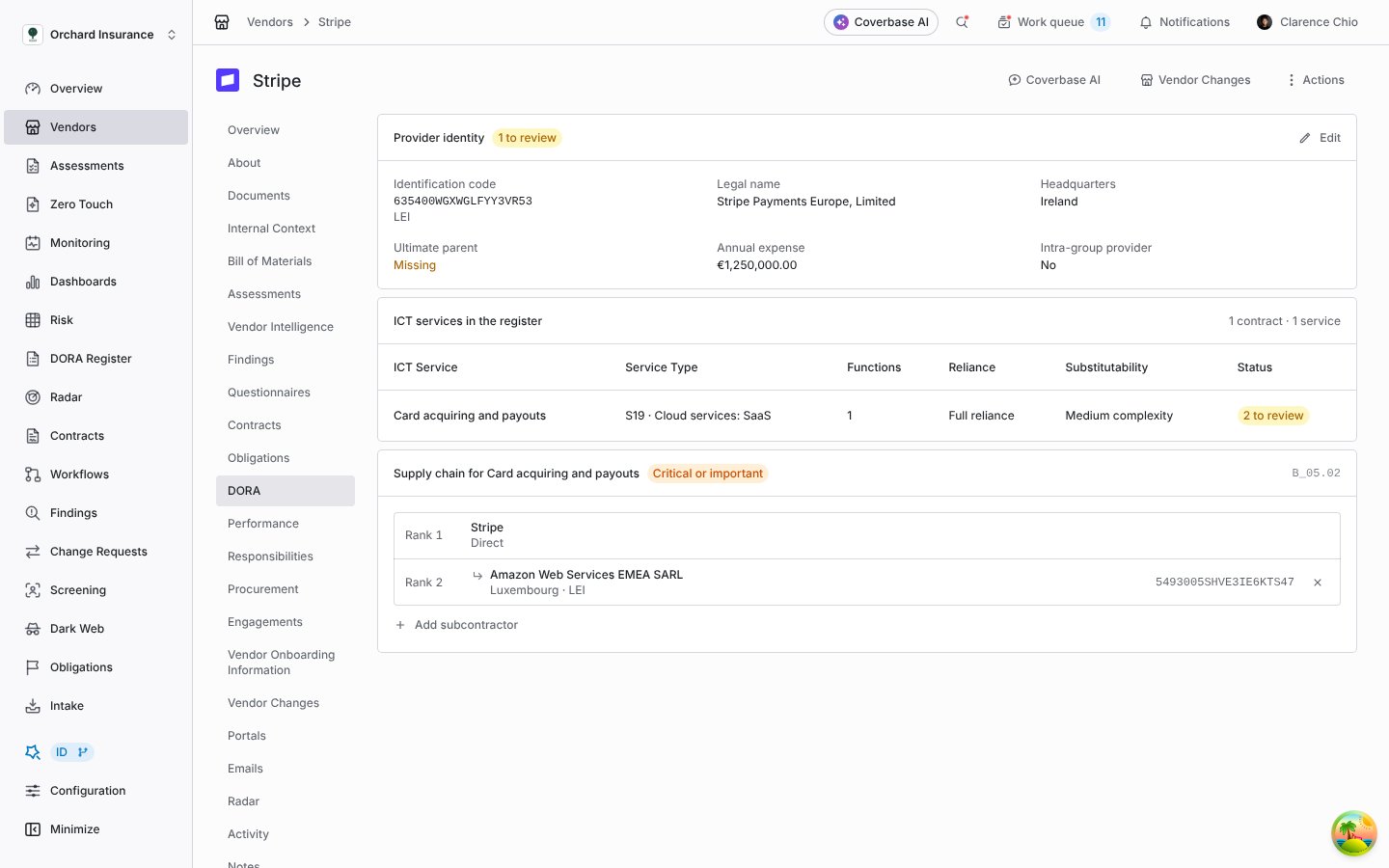
A vendor's DORA tab: its identity, its ICT services, and one service's supply chain.
Reading the Register tab
Register shows one template at a time, exactly as it will be filed. Choose a template in the list on the left; the dot beside it is its state. Each column shows its EBA column code (c0010, c0020, …). A cell shows the readable value with the code that will be filed under it, for example LEI over eba_qCO:qx2000. A red cell blocks the filing, a yellow one will be flagged, and Not applicable is filed as the placeholder the authority expects.
Click a row to open the record that owns it.
B_99.01 Definitions is a form rather than a table. Write what your organization means by each level: Low, Medium and High sensitivity and impact, each substitutability level, and each reintegration level. Save definitions stores them for every filing.
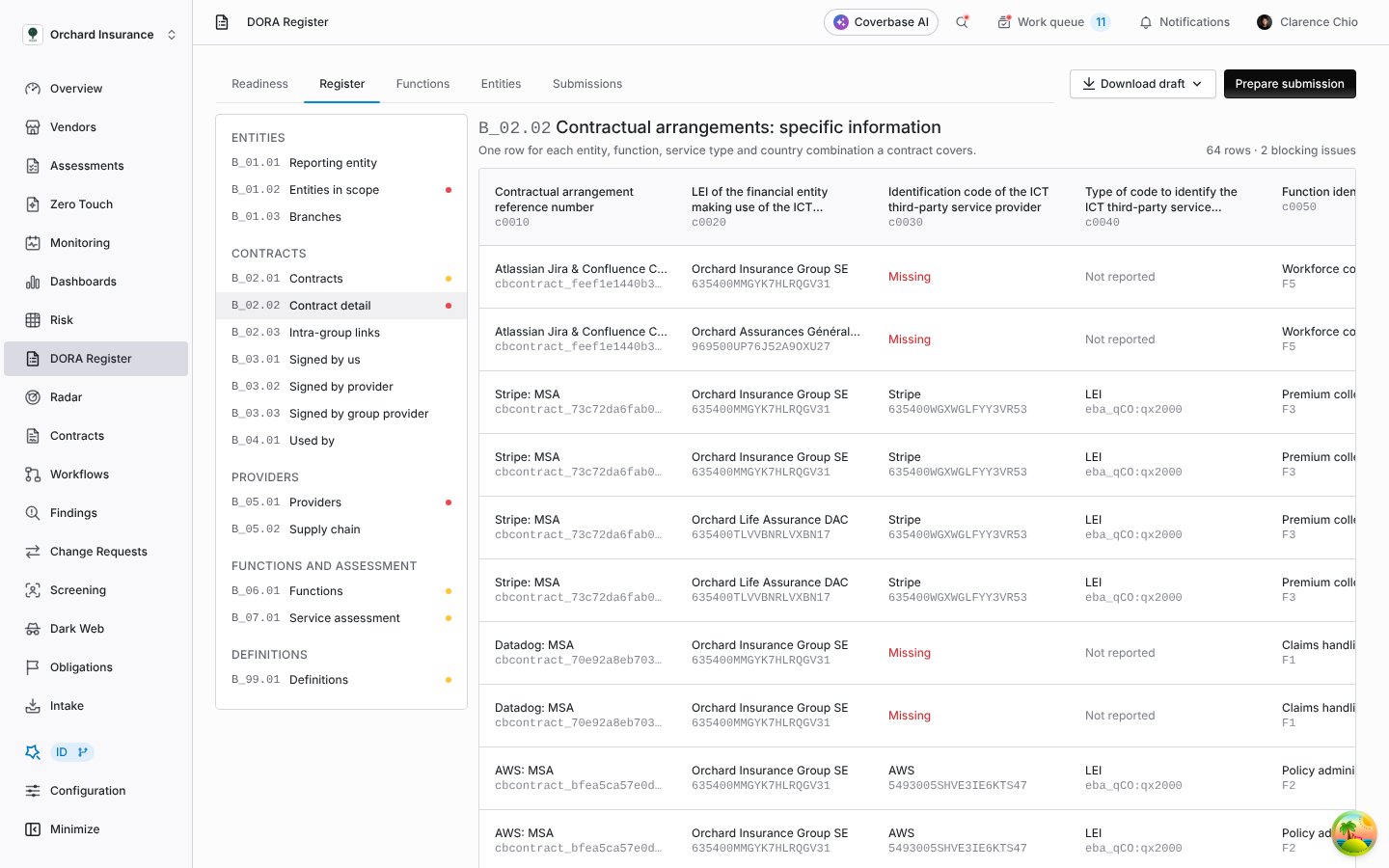
Template B_02.02, one row per contract, entity, function, service type and country.
Downloading and filing
Download draft offers two files built from the register as it stands now:- Excel workbook (15 templates): one sheet per template, with the column names and codes in the header rows. Use it to review the register with colleagues.
- Submission package (xBRL-CSV): the file the authority accepts. It is a zip whose name starts with the reporting entity’s LEI, and it holds one CSV per template plus the files the reporting format requires.
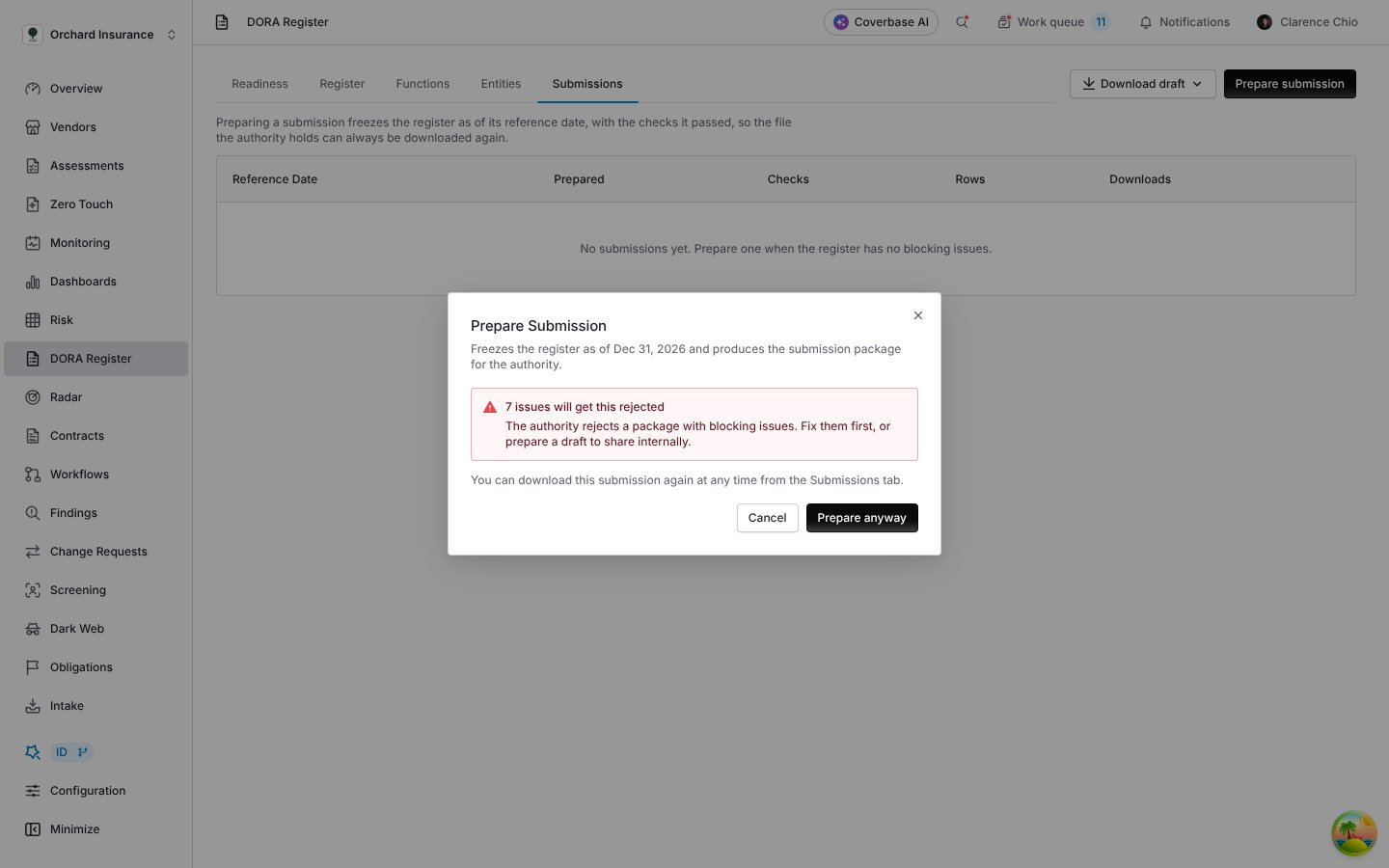
Prepare submission, with blocking issues still open.
The DORA sections on other records
On a contract
The contract’s DORA tab shows its register entry: the reference number filed for it, its arrangement type and annual expense, the signing and using entities, governing law and notice periods, and the ICT services under it. Edit opens the drawer. A contract that is not in force on the reference date says so at the top of the tab, and that year’s register leaves it out.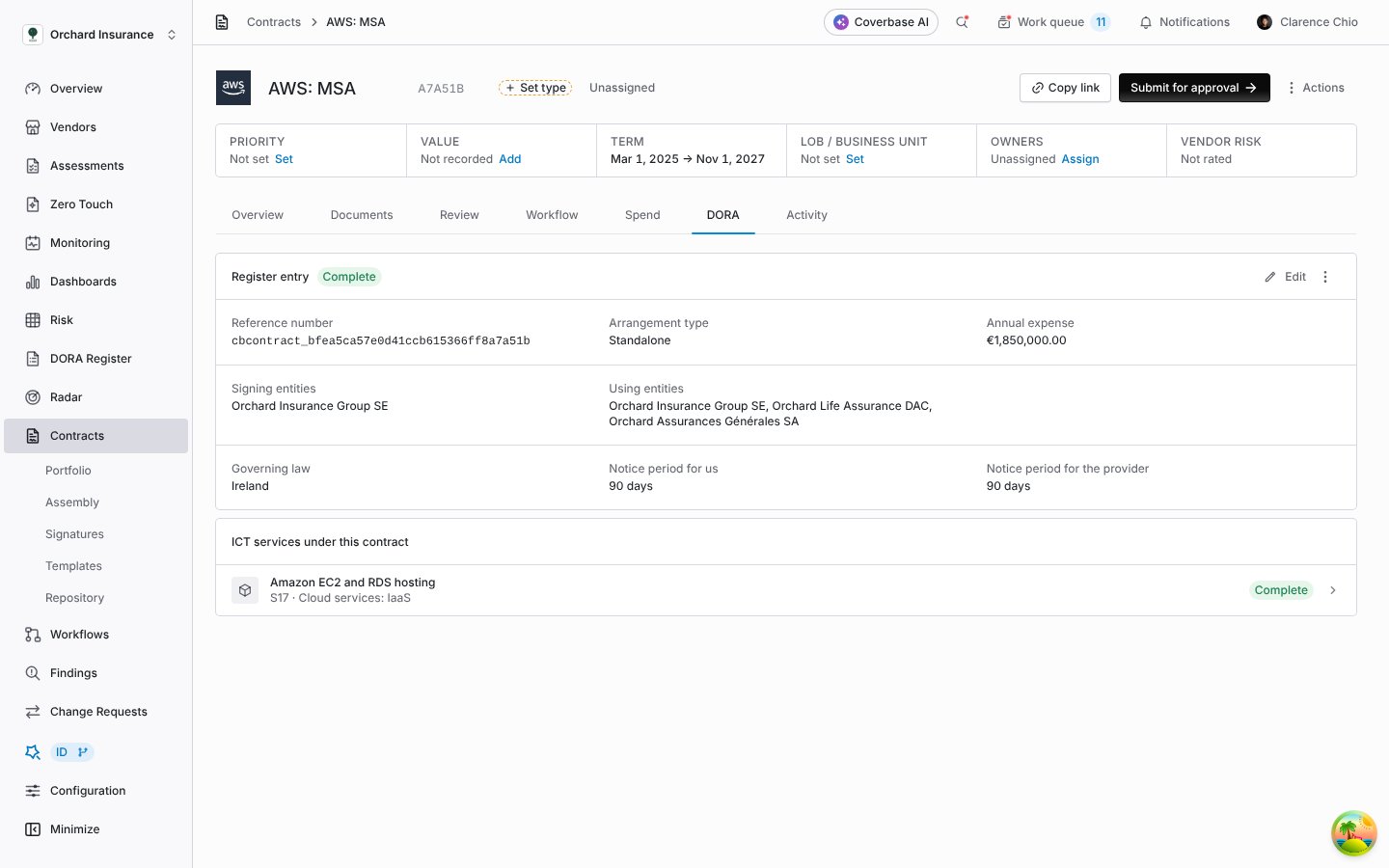
A contract's DORA tab.
On a service
The service’s sidebar has a DORA register card with its service type, functions, reliance, data storage countries, substitutability, exit plan and supply chain size. The pencil opens the drawer.On an assessment
The assessment’s sidebar has a DORA register card listing the ICT services the assessment covers. Completing the assessment sets the last audit date for those services. A service still missing its substitutability or exit plan is marked Needs answers; click it to answer in the drawer while you have the assessment open.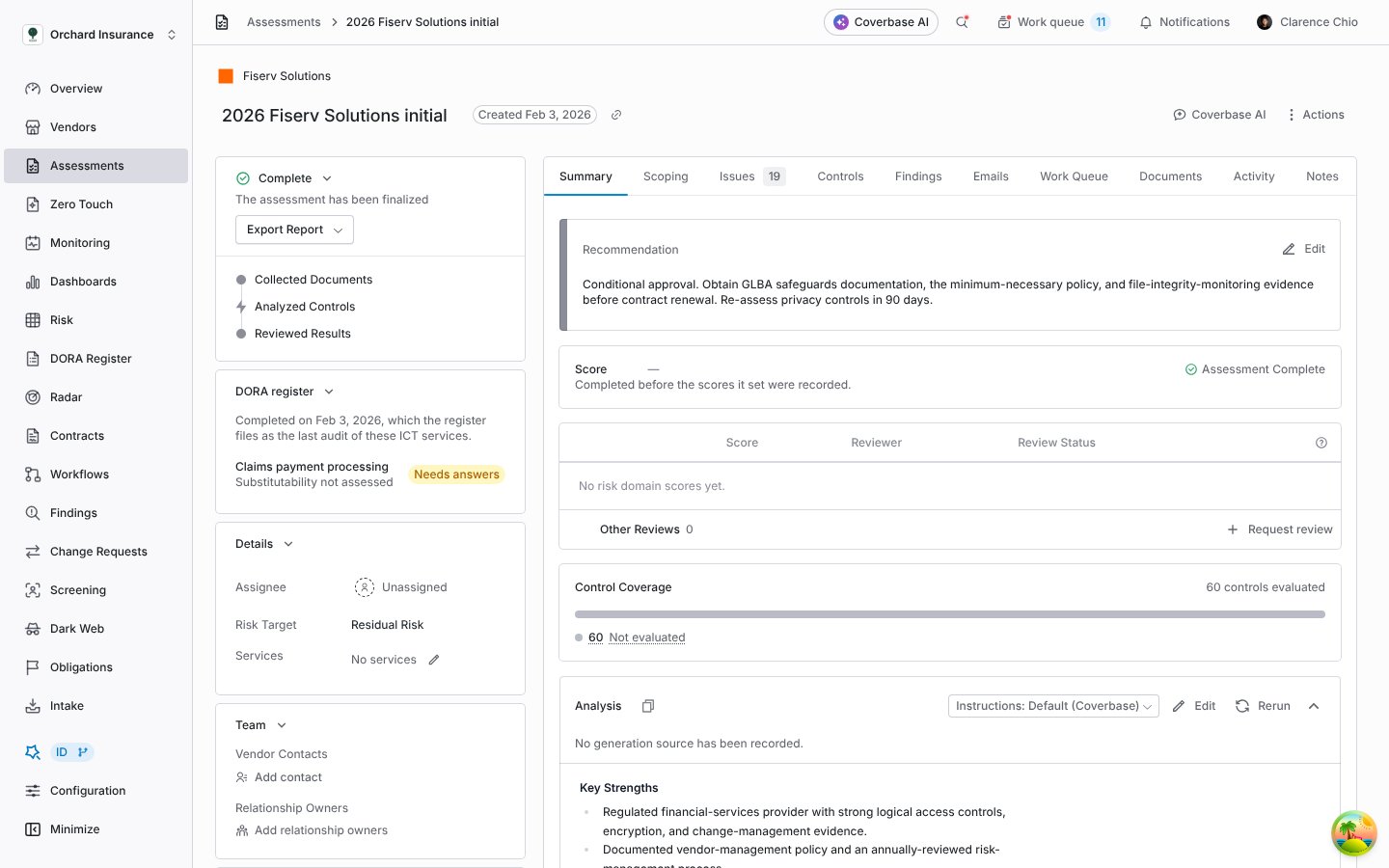
The DORA register card on a completed assessment.
Troubleshooting
Related
Contracts workspace
The contract record, including the dates and value the register reads.
The contract Spend tab
How a contract’s annual value is worked out, which becomes its annual expense.
The vendor record
Subprocessors, the risk profile and continuity plans that feed the register.
Corporate registrations
How a vendor is matched to its registry record and LEI.