

For AI agents: a documentation index is available at https://docs.coverbase.com/llms.txt. This page is also available in markdown by appending .md to the URL.
This guide is part of the User Guides collection. It covers an engagement’s page, its Risk Summary tab, and the Lifecycle Routing and Reminders settings under Configuration → Communications. It sits beside Front Door triage, which comes before it, and Monitoring plans and Offboarding and continuity, which come after. For what the module is, see Engagement record and Risk Summary.
Step 1: Name the TPRM Office and Supply Chain
Open Configuration, choose Communications, and find Lifecycle Routing and Reminders.- TPRM Office is the user group told when due diligence goes out to a vendor and when it completes. It also approves offboarding.
- Supply Chain is the user group that files the executed contract and approves offboarding with the TPRM Office. Left unset, the TPRM Office approves offboarding alone.
- Copy the TPRM Office, Copy relationship owners and Copy the requester decide who a past-due vendor reminder copies. Until you save a setting here, past-due reminders go to the vendor only.
- Risk Summary Open Tracking, off by default, adds a tracking pixel to the Risk Summary email only, and records when each recipient first opens it. Other emails are never tracked. Turn it on only if your privacy policy allows it.
Step 2: Open the engagement
Open the vendor, choose the engagement, and read Where This Request Is at the top. The stages are Request, Triage, Inherent risk, Due diligence, Decision, Contract, Active and Exit, or Not proceeding. Coverbase works out the current stage from the record, and everyone involved sees the same tracker.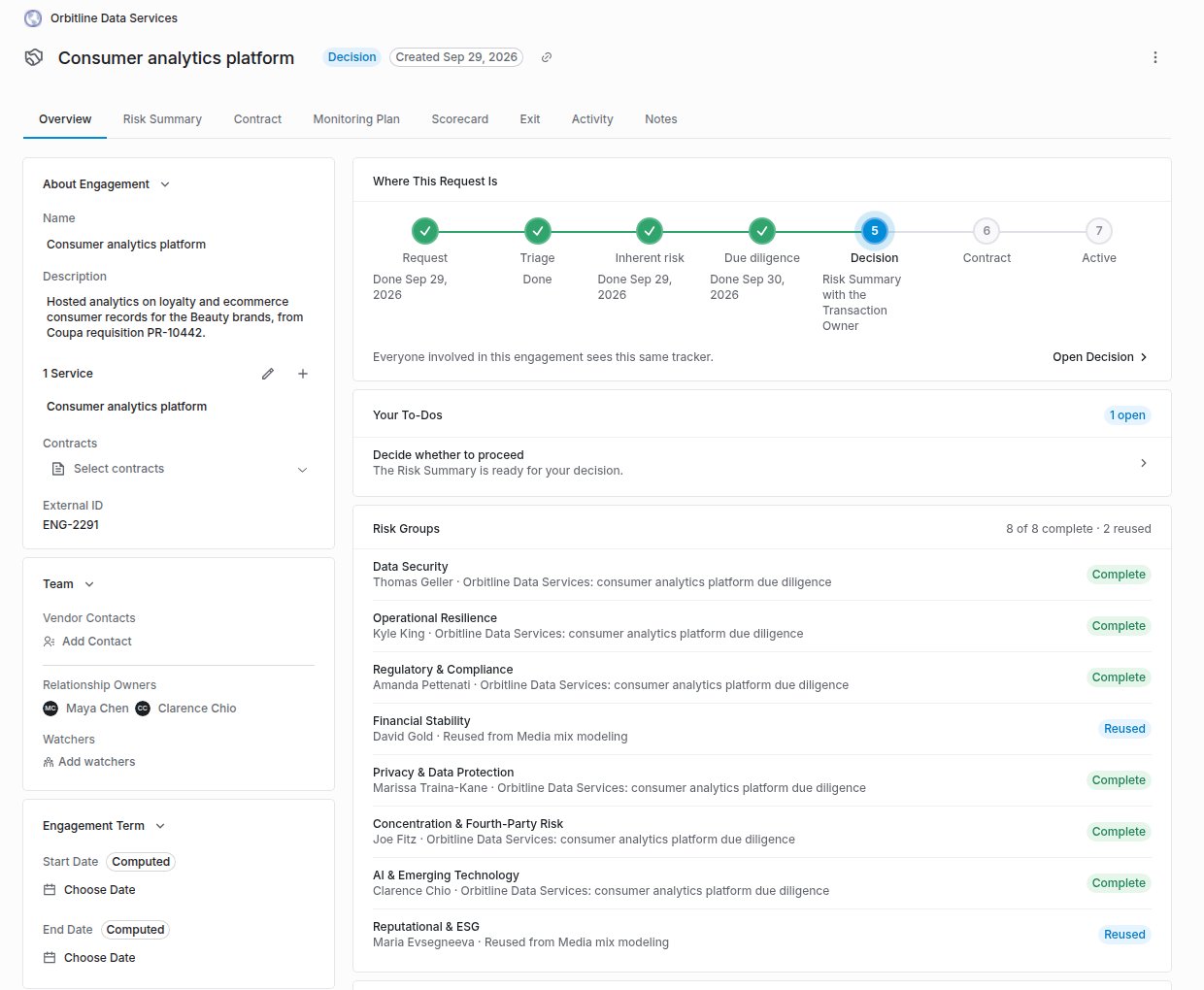
The engagement's Overview tab, with the tracker, Your To-Dos and the Risk Groups.
- When someone files an offboarding request for the engagement, Exit becomes the current stage and reads Exit under way. The header badge reads Exiting.
- When the offboarding completes, Exit reads Exited and the date, and the header badge reads Exited.
- A canceled offboarding request takes the engagement back to Active.

The tracker once the offboarding has completed.
Step 3: Read the Risk Groups
Risk Groups shows each domain that needs a review, with its reviewer and status:
The summary line reads, for example, 3 of 5 complete · 1 reused.
Step 4: Link due diligence
Due Diligence lists the assessments that count toward the engagement and their review progress. To add one, click Link assessment, choose it, and decide whether to turn on Reuse earlier diligence: the assessment was performed for something else, and its completed reviews satisfy this engagement’s domains without being repeated. Click Link.- A Front Door reuse decision links the prior assessment as reused for you, and satisfies exactly the domains that decision marked for reuse.
- Linking a prior assessment as reused by hand picks up the vendor’s latest decided reuse of it.
- Archived and canceled assessments drop out. Unlink assessment removes one.
Step 5: Write the recommendation
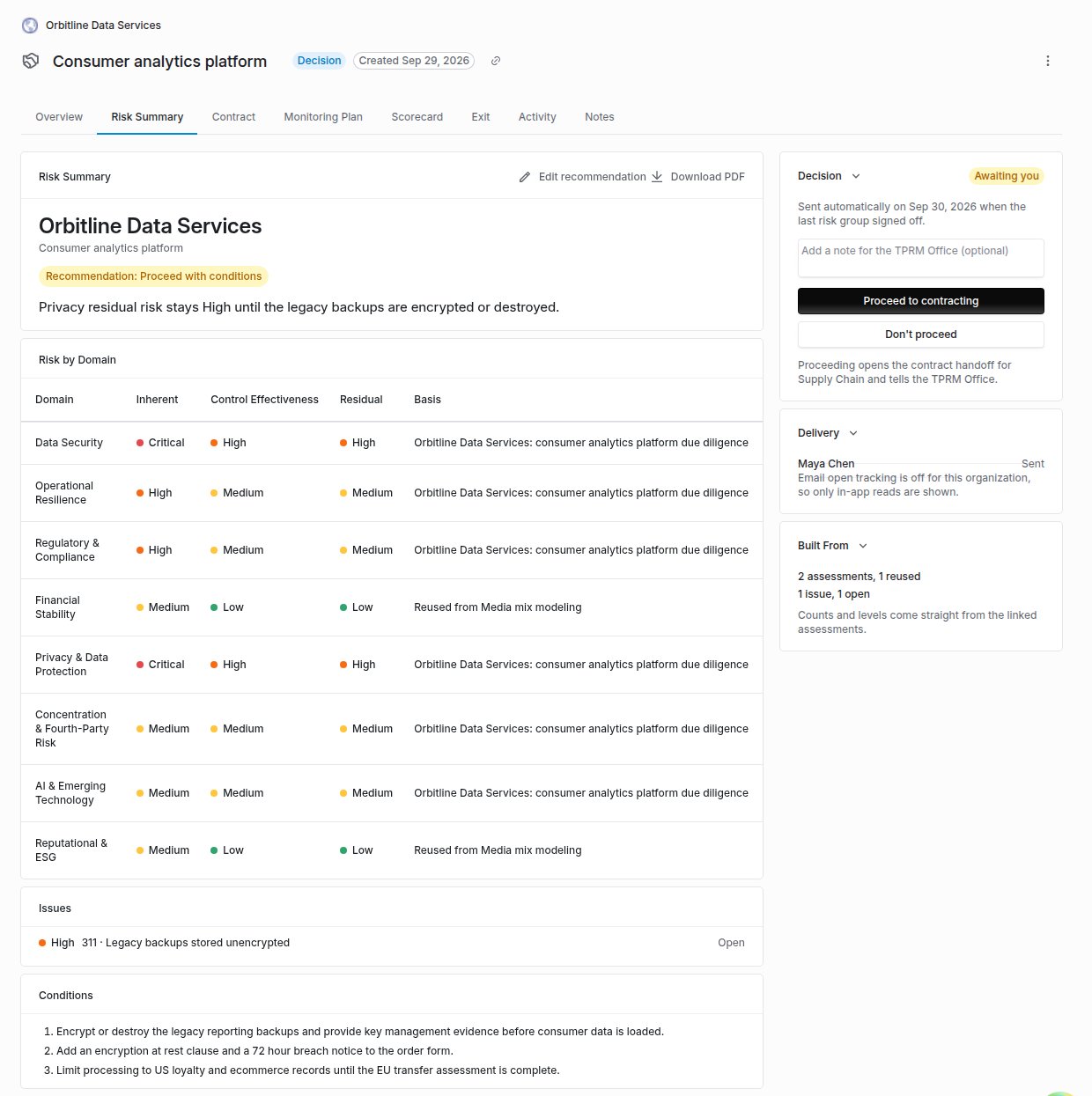
The Risk Summary tab, with the recommendation, conditions, risk by domain, the decision card, delivery and what the summary was built from.
Step 6: Record the decision
When the last Risk Group signs off, the Risk Summary is sent to the Transaction Owner automatically. The Transaction Owner, or anyone who can update the vendor, then clicks Proceed to contracting or Don’t proceed, with an optional note for the TPRM Office. Proceed to contracting opens the contract handoff and notifies whoever its task is assigned to, unless a handoff is already pending or done. See The contract handoff. The engagement’s Contract tab shows the clause pack and linked contracts on the left. On the right, CLM Sync shows each contract’s record in your contract lifecycle system (Ironclad or Icertis): its status there, when it was last received and pushed, when the executed copy was filed, and any open conflicts in the steward queue. Contract Family shows the parent agreement, the other agreements under it, and what the contract renews or is renewed by. Execution Handoff sits below them.Who is told what
Both completion notices list the domains satisfied by reused diligence. If a review reopens before anyone decided, the completion is cleared and sent again when it completes. After a decision, it is not.
The Transaction Owner is the engagement’s relationship owners (people and groups), plus whoever raised the intake request a linked assessment came from. An engagement with no owners of its own uses the vendor’s.
Delivery
Delivery on the Risk Summary shows, for each recipient, Sent, In their notifications, Seen or Read in app with dates, and Emailed with the time the email went out. With Risk Summary Open Tracking on (step 1), it also shows Email opened with the date of the first open, or Email not opened yet. The card says whether tracking is on. An open is an image load: a mail client that blocks images never reports one, and a security scanner can report one before anyone read the email, so Read in app is the stronger fact.The corporate family
On the vendor’s page, Corporate Family shows the vendor’s parent and subsidiaries. Click Set parent company, choose the parent vendor and Save. The family’s rating, contract value and engagements roll up to the ultimate parent. Remove parent detaches it. Vendors and engagements can also carry a Business Unit, which the reviewer matrix and dashboards use.Troubleshooting
Related
Front Door triage
Where reuse is decided.
Monitoring plans
What the engagement owes once active.
Offboarding and continuity
The contract handoff and the exit.
The vendor record
Vendors, services and engagements.