

For AI agents: a documentation index is available at https://docs.coverbase.com/llms.txt. This page is also available in markdown by appending .md to the URL.
This guide is part of the User Guides collection. It covers Configuration → Risk Methodology and the score editor’s override fields. It sits beside Configuring your data model, where risk domains and scales are created, and The IRQ library, where inherent risk questionnaires start. For what the module is, see Risk methodology.
Step 1: Weight your domains
The Risk Domains tab lists each domain with its Weight, its share of the roll-up, and its Risk Group (its reviewers). A domain with no weight reads Not weighted and is left out of the weighted roll-up. Click Edit risk domains to change them on the risk domains page.- Leave every weight empty to keep the questionnaire’s flat score. Weighting turns on only when at least one active domain has a weight.
- Weights are relative. They do not need to add up to 100, because the score is normalized by the weights of the domains that scored.
- A questionnaire section must name a risk domain for its answers to count toward that domain. Answers in sections without a domain, or in a domain without a weight, are counted and shown on the review as unweighted answers.
Step 2: Choose how ratings roll up
On Tiers, Scales & Cadence, under How Ratings Roll Up, choose one: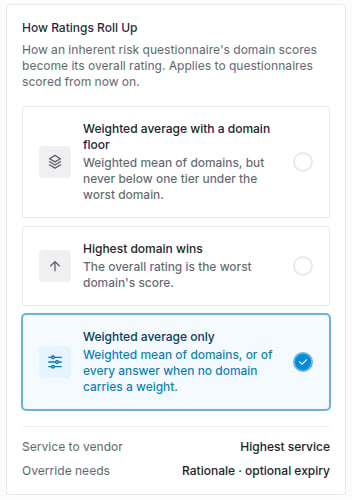
How Ratings Roll Up on the Tiers, Scales & Cadence tab, with Weighted average only chosen.
Step 3: Route reviews with the reviewer matrix
On Reviewer Matrix, click Add rule and fill in the Add Reviewer Rule dialog:
Leave a criterion on Any to match everything. The most specific matching rule wins, and the table lists rules in the order routing checks them: most specific first, then oldest first. A rule with exactly the same criteria as another is refused. With no rule matching, reviews go to the domain’s own reviewers and the portal defaults.
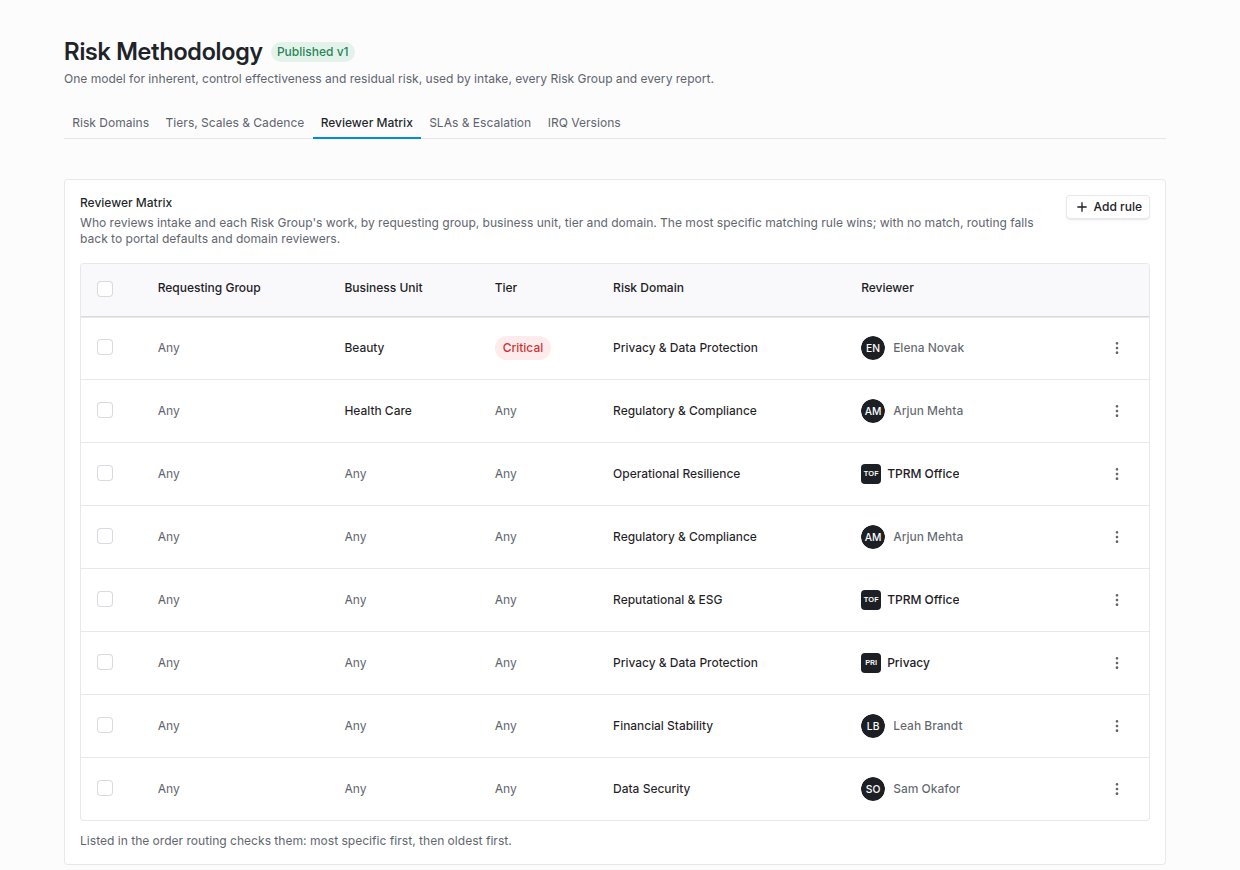
The Reviewer Matrix, listed in the order routing checks the rules.
Step 4: Escalate overdue work
On SLAs & Escalation, SLA Targets lists how long each stage of an assessment may take before it is overdue: the Organization default, and any risk domain that overrides it. Edit SLA targets changes them. These targets drive the engagement’s expected decision date. Under Escalation Rules, click Add rule and fill in the Add Escalation Rule dialog:- Name the rule, for example “Overdue Risk Group review”.
- Choose the Work it applies to. Leave it empty to escalate every kind of work.
- Set Days Overdue.
- Choose who it escalates to: a User, a Group, or a Group lead (the group’s lead at the time the item escalates).
- Choose Notify, so the target gets their own copy and the assignee keeps the item, or Reassign, so the item moves to the target.
Step 5: Version your inherent risk questionnaires
IRQ Versions lists each inherent risk questionnaire with its Version, Published date and Content Review Due. Use the row’s actions to Open template or View changelog: every change across all of its versions.1
Draft
Click Draft next version. The draft copies the published version and is not sent to anyone.
2
Edit
Open the draft and change its questions. Drafting, edits, publishing, retiring, content reviews and cadence changes are recorded in the changelog with the version and who acted.
3
Publish
Click Publish and confirm. The draft becomes the published version, and the previous version is retired for new sends. Questionnaires already out finish on the version they were sent with.
4
Set a review cadence
Click Review cadence, choose Review Every (in months) and an Owner. The owner is reminded when the published version is due for review. Mark reviewed restarts the clock.
Compare two versions
From a version’s actions, choose Compare with previous version or Compare with published, or Compare to pick any two. The page shows both side by side: Sections and Questions Added, Removed or Changed, with answer options, weights, risk domains, answer types and review flags. Swap versions reverses them, and Show unchanged questions shows everything.Retire versions
Select versions and choose Retire, or use Discard draft on one draft. A retired draft can no longer be published. Retiring the published version stops new sends of that questionnaire until a new version is published; questionnaires already sent finish on their version.Step 6: Override a score with a rationale
Anywhere you edit an inherent or residual score by hand (Edit Inherent Risk Score, Edit Residual Risk Score or Edit Assessment Score), the editor asks for a Rationale, recorded with the override in the score history, and Override Expires: Never, or After 30 days, 90, 180 or 365. The rationale is required. With an expiry, the editor says when the calculated score returns. While it is active, a chip beside the score reads Override ends in N days (or Override ends today). When an override expires, a daily job restores the last calculated score for each risk type the override changed, and the risk profile shows Override expired. If someone or something has replaced the override in the meantime, the newer score stands.Try a what-if
- On a submitted inherent risk questionnaire, Inherent Risk What-If lets you change answers and shows where each domain and the overall rating would land, for example “With 2 changed answers, inherent risk moves from High 72 to Medium 48”. Reset puts the answers back. Nothing is saved; the respondent’s answers are unchanged.
- On an assessment’s summary, Residual Risk What-If lists the open issues. Turn on Remediate for the ones to fix and read the Domain Change and Overall Change, for example “Remediating ISS-311 drops Privacy residual risk from High 61 to Medium 44”. A significant deficiency floor stays in force, so a floored score may not move until the deficiency itself is resolved.
Reading an IRQ result
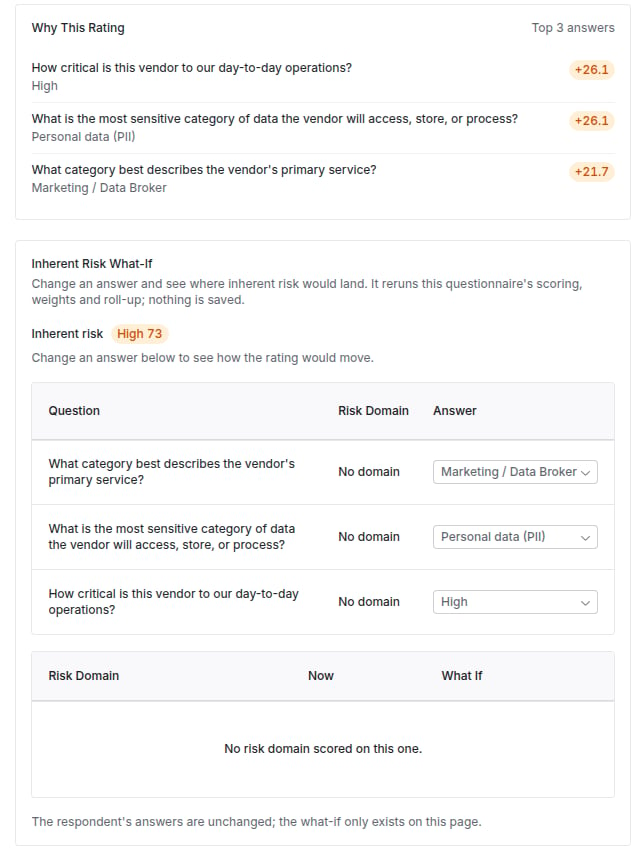
Why This Rating and the Inherent Risk What-If on a submitted IRQ.
Troubleshooting
Related
Configuring your data model
Risk domains, scales and statuses.
The IRQ library
The packaged inherent risk questionnaires.
Front Door triage
IRQ scoping rules on intake.
Reviews, approvals and gates
Domain-scoped reviews on an assessment.