

For AI agents: a documentation index is available at https://docs.coverbase.com/llms.txt. This page is also available in markdown by appending .md to the URL.
This guide is part of the User Guides collection. It covers the Front Door tab of an intake request and the Configuration → Front Door settings. It sits beside Requesting a new vendor, which covers the requester’s side, and The engagement record, which picks up once due diligence starts. For what the module is, see Front Door.
Before you start
You need the Admin role, or a role that can change organization settings, to change the Front Door settings. Triage itself needs permission to review intake requests. Decide three things with your team first:- Which user group is the TPRM Office and which is Supply Chain. Each disposition needs one sign-off from each, by two different people.
- How old a completed assessment can be and still be reused. The default is 12 months.
- Whether an IRQ is required by default, and which intake answers should change that.
Step 1: Configure the Front Door
Open Configuration and choose Front Door.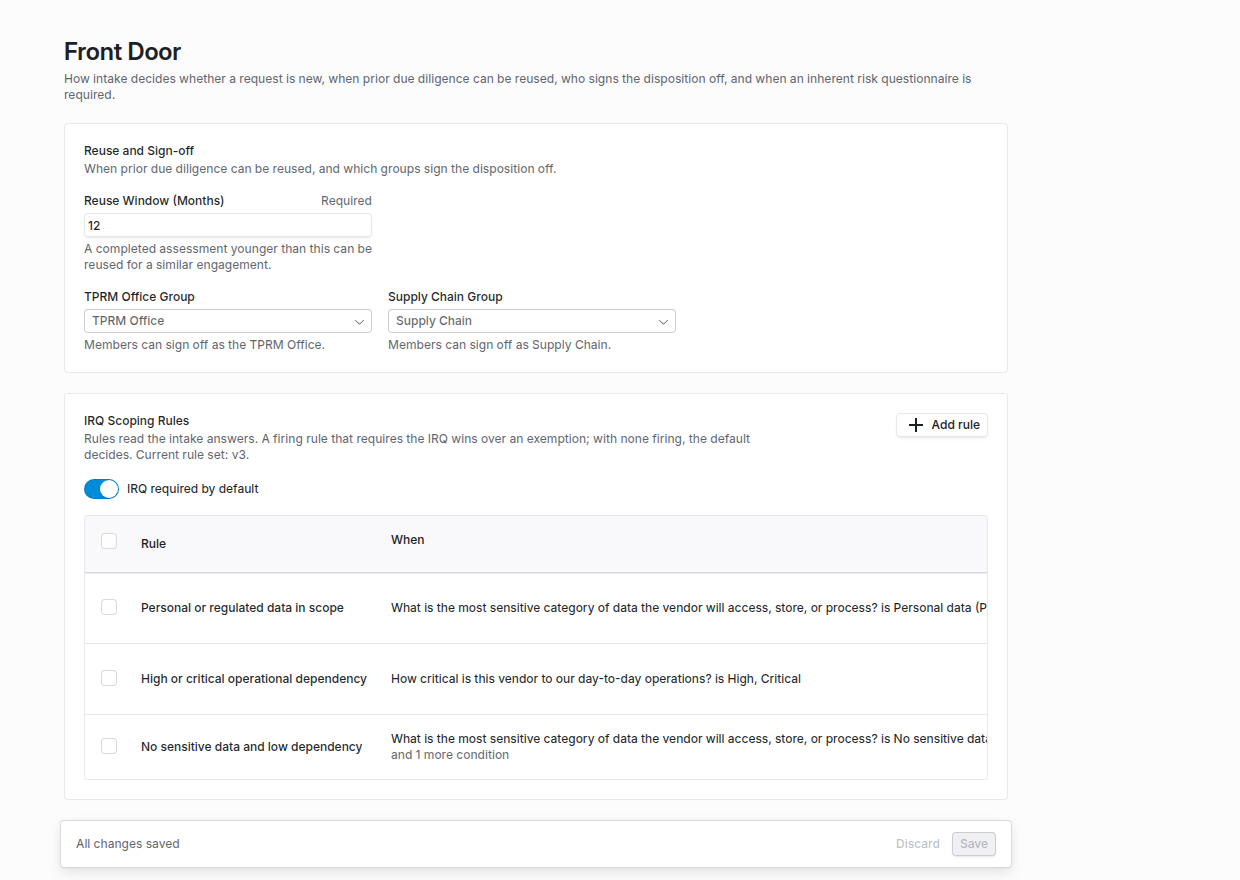
Configuration → Front Door, with the reuse window, the two sign-off groups and the IRQ scoping rules.
1
Reuse and Sign-off
Set Reuse Window (Months). A completed assessment younger than this can be proposed for reuse on a similar engagement. Choose the TPRM Office Group and the Supply Chain Group. Left on Any reviewer, anyone who can review the request may sign for that role, but the two sign-offs must still come from different people.
2
IRQ Scoping Rules
Choose whether IRQ required by default is on. Then click Add rule for each exception. In the rule dialog, give a Rule Name (for example, “processes consumer personal data”) and add Conditions: each picks a Questionnaire and a Question from your intake and holds When the Answer is any of or is none of the Answers you choose. Every condition must hold for the rule to fire; Add condition adds another. The Outcome is Require the IRQ, with the IRQ Templates to send (with none chosen, the standard IRQ is sent), or No IRQ needed. Click Update rule to put it in the table.
3
Save
Rules are listed in a table with their conditions, outcome and Enabled switch. Select several to Enable, Disable or Remove them together. Click Save; until you do, the page shows You have unsaved changes. Saving rules that differ from the last saved set increases the rule set version shown in the description. Each disposition records the version and the rules that fired when it was decided, so later edits do not rewrite past decisions.
Step 2: Mark vendors you must not use
Open the vendor, find the Do Not Use card on the overview, and click Mark Do Not Use. Give a Reason, then click Add to Do Not Use. To take the vendor off the list, click Remove from Do Not Use. The confirmation asks for a Reason for removing, and Coverbase refuses the removal without one. Both reasons are capped at 2,000 characters, and a counter under the field shows how many you have used. Every change, on or off, is recorded in the vendor’s activity with who made it and why. A Do Not Use vendor can still be requested. The requester is warned that a reviewer must approve an exception, and approving the request needs an override rationale (step 6).Step 3: Open a request
Open Intake in the left navigation and choose the request. The request opens on the Front Door tab. Submission shows the requester’s answers. If the request started as a purchase requisition in a connected procurement system, a Started From Procurement card shows the Source, Value, Category and when it was Synced. See Integration Hub.Step 4: Is this new?
The Is This New? card compares the request with your vendors.
If the requester did not give identifiers, enter the Tax ID, D-U-N-S (9 digits) or LEI (20 letters and digits) yourself and click Check identifiers. A stored tax ID is shown only as its last four characters.
For an existing vendor, the card then finds the most similar engagement, ranked by shared services and tags, and tells you whether its due diligence is inside or outside the reuse window. Choose the engagement to compare picks a different one. The comparison lists the services the two share and the attributes they differ on.
Step 5: Decide reuse and record the disposition
When a similar engagement has completed due diligence, Proposed Reuse by Domain lists each risk domain with its Prior Result and a Proposal: Reuse prior due diligence, Abbreviated review or New due diligence. Change any proposal you disagree with. Then pick the Disposition:- Add as new engagement, reuse due diligence reuses the domains you marked for reuse.
- Extend the existing engagement treats the request as an amendment. No new engagement is created.
- Full new due diligence ignores prior results.
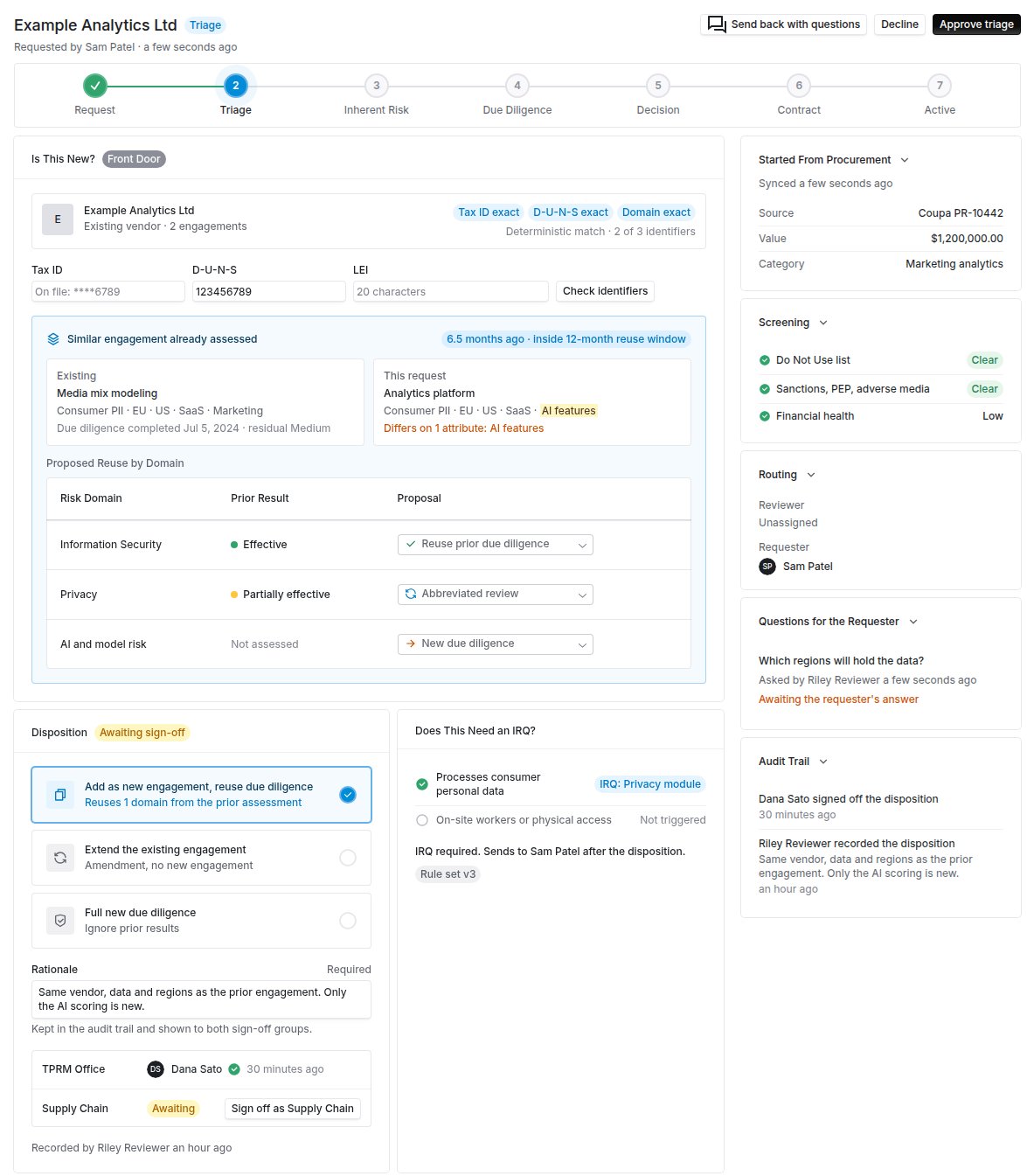
A recorded disposition awaiting sign-off. The TPRM Office has signed, and Decline sits beside Approve triage for the Supply Chain group.
Decline a disposition
To send a disposition back instead of signing it, click Decline beside Approve triage. Only a member of a sign-off group that has not signed yet can decline, and only before the disposition is decided. Write the Reason (what needs to change before your group can sign off) and click Decline and send back. The reason is required. What a decline does:- The disposition goes back to the TPRM Office as a draft, labeled Back with the TPRM Office. Any sign-off already given is cleared.
- The disposition shows who declined, for which group, and why. The Audit Trail records the same.
- The TPRM Office and whoever recorded the disposition are notified with the reason. The requester is told that the TPRM Office is revising the decision.
- Nobody can sign off or decline until the disposition is recorded again.
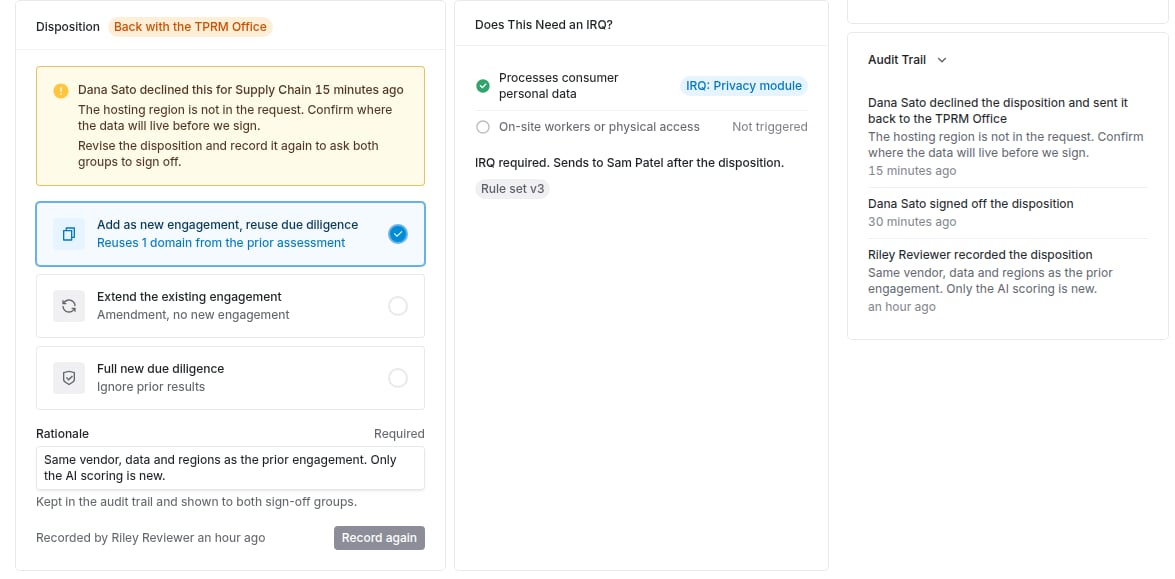
A declined disposition, back with the TPRM Office, with the decline in the audit trail.
Decide from Microsoft Teams
With Teams approvals on, Coverbase posts one card for both sign-off groups, and each group can sign off or decline from it. Declining from Teams does the same as Decline in Coverbase. A card for a disposition that has since been revised is refused, so nobody signs a decision they did not see. A sign-off or decline made in Coverbase also updates the Teams card. The card then shows who signed and which group is still waiting, the decided disposition, or who declined and why, and it cannot record a second decision.What happens when it is decided
- The IRQ is sent once. If an IRQ is required, the templates go to the requester as soon as the second sign-off lands. If the request has no vendor or requester yet, the card says Required but not sent yet; click Send IRQ once it does.
- Reuse waits for the next assessment. The vendor’s next assessment launched from an assessment plan drops the control sets for reused domains and copies the prior scores for them, labeled with their source. Zero Touch assessments do not use it.
Step 6: Handle a Do Not Use vendor
When the vendor is on the list, a banner names it and shows the reason. Enter an Override rationale and click Record override before approving the request. Approval without one is refused. The override applies to this request only, and is kept in the audit trail.A workflow that approves intakes automatically skips a request whose vendor is on the Do Not Use list, because no one is there to give a rationale.
Step 7: Ask the requester
Click Send back with questions, write one or more questions, and Send. The requester is notified and answers inside their request, including an anonymous requester on a public portal. Questions and answers stay under Questions for the Requester and in the Audit Trail.Budget and material change
Two more cards appear when the requester filled in the matching intake steps.- Budget. Shows the request amount, its amortization and First year’s draw against the synced budget line’s remaining balance, with Within budget or Exceeds budget. Coverbase works this out from the synced line, not from figures the requester typed. A line the procurement system reports no committed figure for shows Unknown. If the requester asked for a budget exception, Approve exception or Decline exception, with an optional Decision rationale.
- Material Change. For an existing vendor, lists what the requester flagged as changed, such as a new offshore location, a new AI use case or a new subprocessor, with Needs IRQ refresh. Refresh IRQ opens an IRQ refresh on the engagement’s monitoring plan for its Transaction Owner to answer. See IRQ refresh.
Troubleshooting
Related
Requesting a new vendor
What the requester sees, including Front Door notices.
The engagement record
Linked and reused diligence, and the Risk Summary.
Risk methodology
How the IRQ is scored and who reviews each domain.
Front Door
What the module does and does not do.