

For AI agents: a documentation index is available at https://docs.coverbase.com/llms.txt. This page is also available in markdown by appending .md to the URL.
This guide is part of the User Guides collection. It covers the Claim Check tab on a questionnaire submission. It sits beside Due diligence methods and the portal and The issue acceptance chain. For what the feature is, see Claim check.
Step 1: Run the check
Open the questionnaire submission and choose the Claim Check tab. Click Check all answers. The tab shows Checking N of M answers while it runs, and verdicts appear as each answer finishes. Stop ends the run; answers already checked keep their verdicts. A submission has one check running at a time. Starting another while one runs shows the running one. Each run checks up to 400 answers.Step 2: Read the verdicts
The table lists each Question, the vendor’s Answer, the Verdict, its Confidence, the Evidence cited and any Finding raised. The header counts contradicted answers, and you can filter the table by verdict.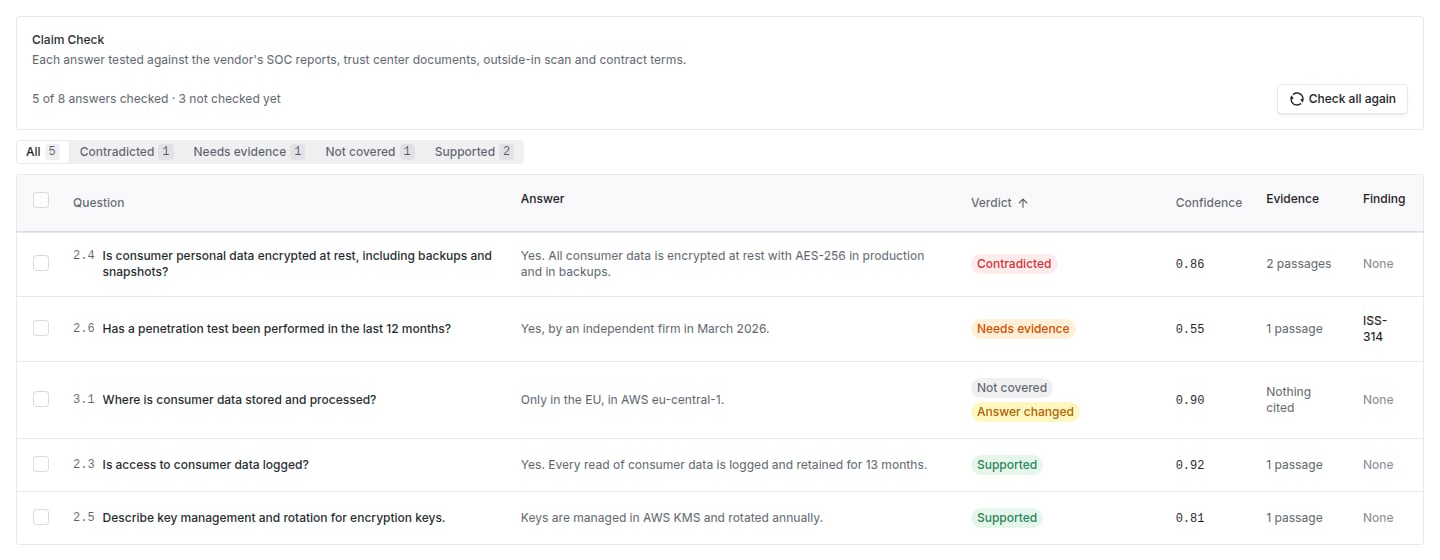
The Claim Check tab with the verdict filter above the table.
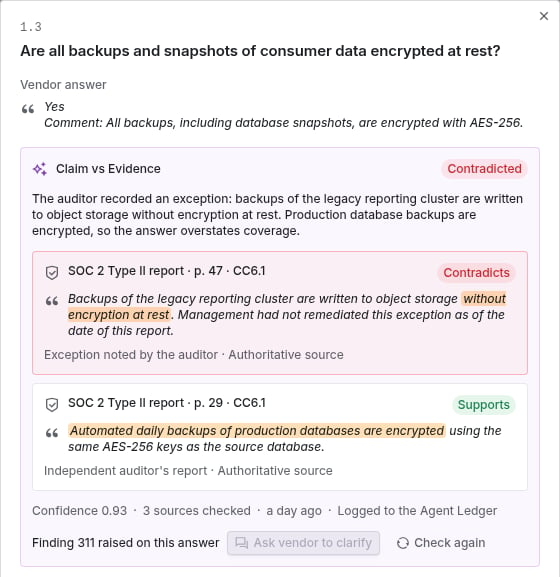
An answer's evidence panel: an auditor's exception contradicts the answer, while another passage supports part of it.
Step 3: Act on what you found
Select answers and choose:- Raise findings (or Raise finding with this evidence on one answer). Each finding is narrowed to its question and carries the answer, the verdict and the cited evidence. Answers that already have a finding are skipped.
- Ask vendor to clarify. Edit the message (a default asks the vendor to clarify and share evidence) and send it. The vendor gets it on their portal request, attached to each question. The vendor sees which question a message is about only when their own form on that request asks it. A submission that did not come through the portal has no thread to ask on.
- Check again, for answers whose evidence or wording changed.
Troubleshooting
Related
Due diligence methods and the portal
Raising a finding on a question by hand.
Agent Ledger
Every check, and your decision on it.
Evidence quality and source credibility
How sources are graded.
Claim check
What the feature does.