

For AI agents: a documentation index is available at https://docs.coverbase.com/llms.txt. This page is also available in markdown by appending .md to the URL.
This guide is part of the User Guides collection. It covers Configuration → Monitoring Plans and the Monitoring Plan and Scorecard tabs on an engagement or service. It sits beside The engagement record and Working Radar signals. For what the module is, see Monitoring plans and scorecards.
Your Coverbase representative turns on the third-party lifecycle features, including monitoring plans, for your organization.
Step 1: Set the methodology
Open Configuration and choose Monitoring Plans. Changing it needs a role that can change organization settings.1
Cadence Matrix
For each tier of your risk scale, set the interval in months for each activity: IRQ Refresh, Performance Scorecard, Owner Attestation, Evidence Request and Contract Review, and who owns it, the Transaction Owner or the TPRM Office. 0 means the tier does not need the activity. Until you save, the page shows the default intervals, ranked by tier. DD Reassessment reads your reassessment rules and Continuous Monitoring is Radar, so neither is set here.
2
Methodology
Choose the TPRM Office group (left unset, it is the TPRM Office named under Configuration → Communications, then the vendor’s risk analysts), the Upcoming Notice (Days) before an activity is due, the Overdue Escalation (Days) after which the owner and the TPRM Office are escalated to, and the Low Scorecard Threshold.
3
Signal Re-timing
Choose Alerts at or above a severity, whether Reassessment triggers count, how far forward to pull activities (Due within (days)), the Undo window (days), and which activities a signal Re-times. Signals move plans only while the Re-time monitoring from feed signals policy is on in the Agent Ledger. It is off by default, and the page warns when the rule is on but the policy is off.
4
Pausing Statuses
Canceled statuses always pause a plan. Add any other engagement or service status that should, such as On hold. Under Start Offboarding Moves To, choose the status an owner’s start offboarding answer sets (the first canceled status unless you choose one).
5
Scorecard Rubrics
Click Add binding to bind a Rubric to a tier (or Any tier) and a Service Category (or Any category), with its Respondents. The most specific match wins. With no binding, the default rubric is scored by the owner.
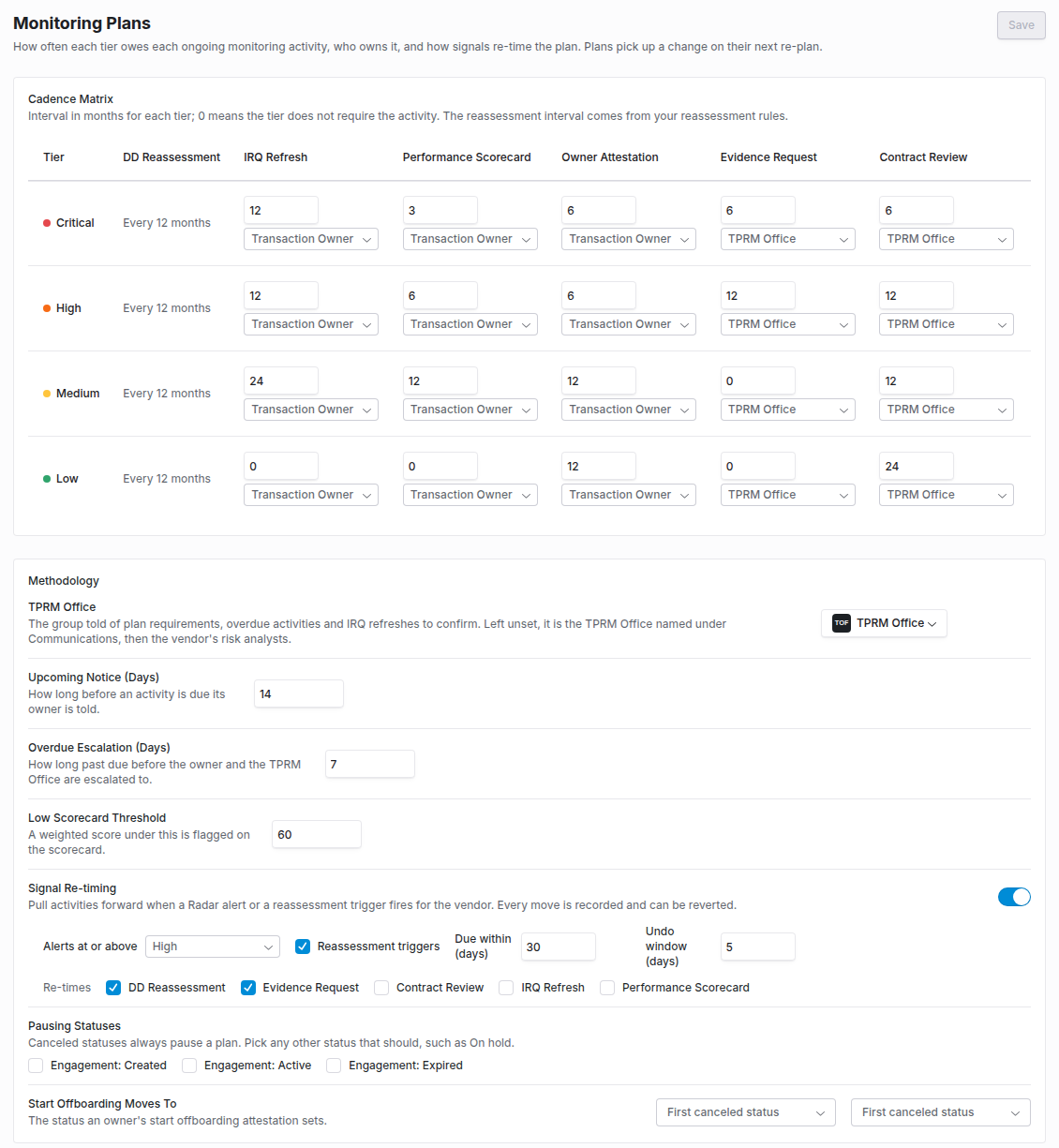
Configuration, then Monitoring Plans: the cadence matrix by tier, the methodology, signal re-timing, pausing statuses and scorecard rubrics.
Step 2: Read a plan
Open the engagement (or the service) and choose the Monitoring Plan tab. The header says when the plan was generated and why, for example when the engagement went active or at contract execution. If no plan exists yet, the TPRM Office can click Generate plan now. The timeline shows the next twelve months for each activity, with its owner and interval. Markers read Done, Planned, Overdue or Moved by a signal, and Today marks the current date. Continuous Monitoring reads Always on while Radar watches the vendor.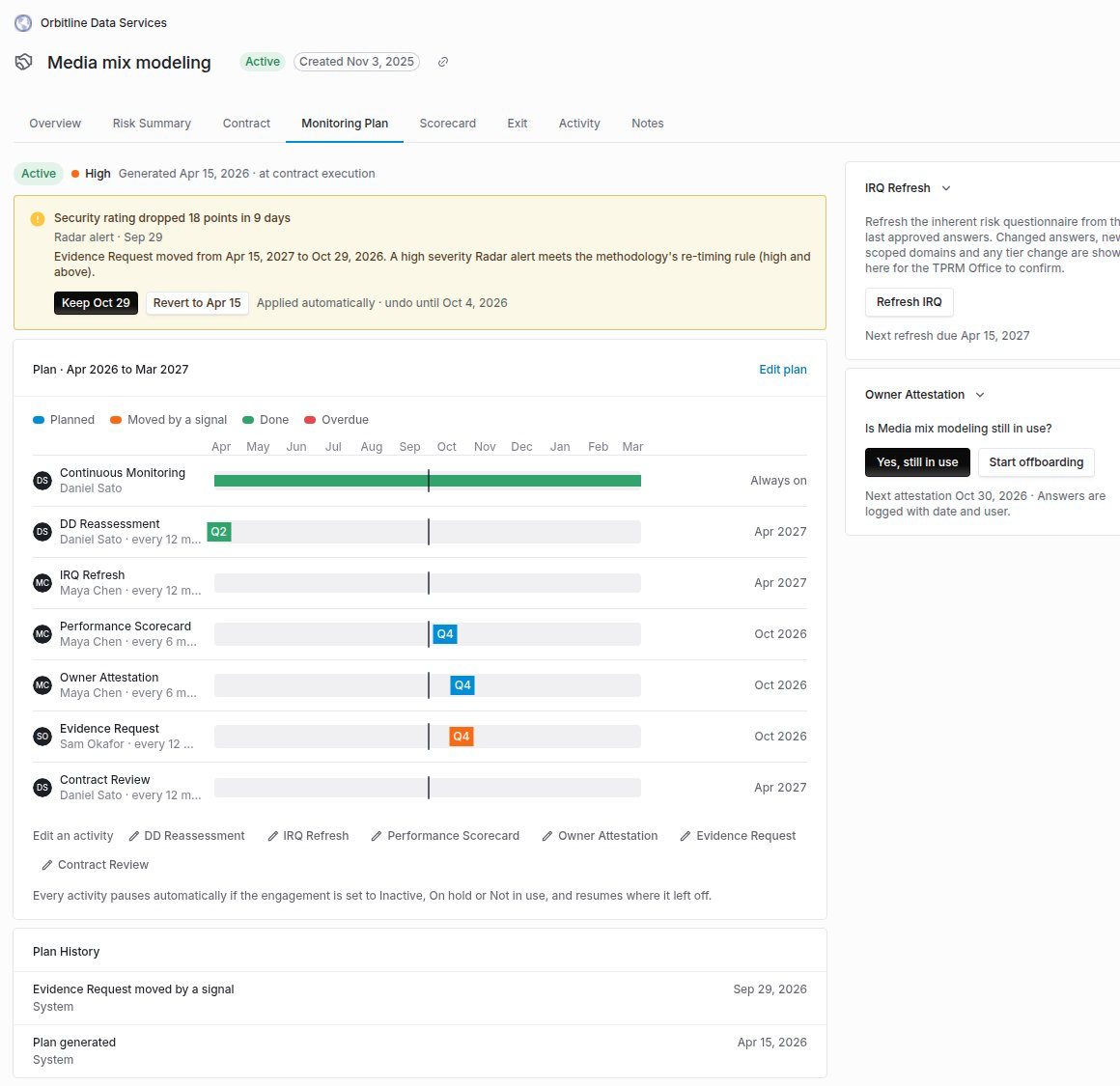
An engagement's Monitoring Plan tab, with a signal move to keep or revert above the timeline.
Step 3: Edit an activity
The TPRM Office clicks Edit plan, picks the Activity, and changes its Interval (Months), Next Due Date, Owner (a person, or By role) or Enabled, with a Reason. Click Save. An edited activity keeps its interval, owner and due date when the plan is re-planned. Moving the reassessment’s due date moves the vendor’s reassessment schedule, so the reassessment is created on the new date. A date is never moved inside the window reassessments need to be prepared in.Step 4: Keep or revert a signal move
When a Radar alert or a reassessment trigger matches your signal rule, the activities you chose move forward at once, and the plan shows what moved: IRQ Refresh moved from 12 March to 2 January, with the signal’s source and date. Within the undo window, the TPRM Office clicks Keep or Revert. Reverting restores each schedule the move changed. A signal moves a plan once, however often it is delivered.Step 5: Refresh an IRQ
The Transaction Owner opens the IRQ Refresh card and clicks Refresh IRQ. The questionnaire opens prefilled from the last approved IRQ, and every answer saves as you go. Change what is no longer true, then Submit for review. The card then shows the diff for the TPRM Office: each answer that changed, before and after, each domain’s score and level, Newly in scope domains, and the Engagement Tier before and after. The TPRM Office clicks Confirm and re-plan, or Confirm and schedule reassessment when a domain was newly scoped or the tier rose. A reassessment is then raised straight away for the engagement’s services. Withdraw abandons a refresh before it is confirmed. The Transaction Owner can refresh the IRQ and answer it without any vendor or questionnaire permission: access comes from owning the engagement.Step 6: Answer an owner attestation
When an attestation is due, its owner sees Is … still in use? Answer Yes, still in use, or Start offboarding. Every answer is logged with the date and user. Start offboarding files an offboarding request with you as the requester and your note as the justification, moves the engagement to its not-in-use status, and pauses the plan. Answering twice never files a second request. A service outside any engagement has no offboarding request.Step 7: Score a scorecard
When a scorecard comes due, each respondent is assigned and notified. On the Scorecard tab, click Score now, score each category (each shows its Weight), add Notes and Submit scorecard. The tab shows the Weighted Score for the period, the change from the previous period, a flag when it is Below the threshold, the Categories and Weights of the rubric, and SLA Adherence from the vendor’s SLAs (Met and On track count as adhering). The period closes when every respondent has scored or the escalation window passes.Work across plans in the Monitoring workbench
Open Monitoring in the left navigation. Activities lists every scheduled activity with its engagement or service, owner, due date and status. Plans lists every plan with its tier and when it was generated. Search, choose which Activities, the Due window (Overdue, Next 30 days, Next 90 days or All), and Owned by me. Select activities, then:- Reschedule: Move to a date or Shift by days (a negative number pulls them earlier), with an optional Note. Each move is logged as a TPRM Office edit. A reassessment moves its scheduled date too.
- Send scorecards: opens each scorecard’s current period today and asks its respondents to score.
Compare submissions
On the vendor’s Questionnaires tab, Compare shows a finished submission beside the vendor’s earlier submission of the same questionnaire: Domain Scores before and after (with Risk rose where it did), and every answer Changed, Added, Removed or Unchanged, with its score. Show only the changes, or all answers.Plan history
Plan History records everything that happened to a plan: generation, re-plans, every edit with before and after, completions, notices and escalations, signal moves and whether they were kept or reverted, pauses and resumes, attestations, IRQ refreshes, reassessments raised and offboarding requested.Troubleshooting
Related
The engagement record
The engagement page the plan lives on.
Working Radar signals
The alerts that re-time a plan.
Offboarding and continuity
What Start offboarding sets in motion.
Front Door triage
Opening an IRQ refresh from a material change.