

For AI agents: a documentation index is available at https://docs.coverbase.com/llms.txt. This page is also available in markdown by appending .md to the URL.
This guide is part of the User Guides collection. It covers Integration Hub → Intake Agent. It sits beside Requesting a new vendor and Front Door triage. For what the agent is, see Intake Agent.
Your Coverbase representative turns on the third-party lifecycle features, including the Intake Agent, for your organization.
Step 1: Open the Intake Agent page
Open the Integration Hub and click the Intake Agent card. Turning channels on or off needs permission to manage integrations. Others can see the channels and conversations. Each channel shows a status: Ready, Needs setup, Needs reinstall or Not available (not offered on this Coverbase environment).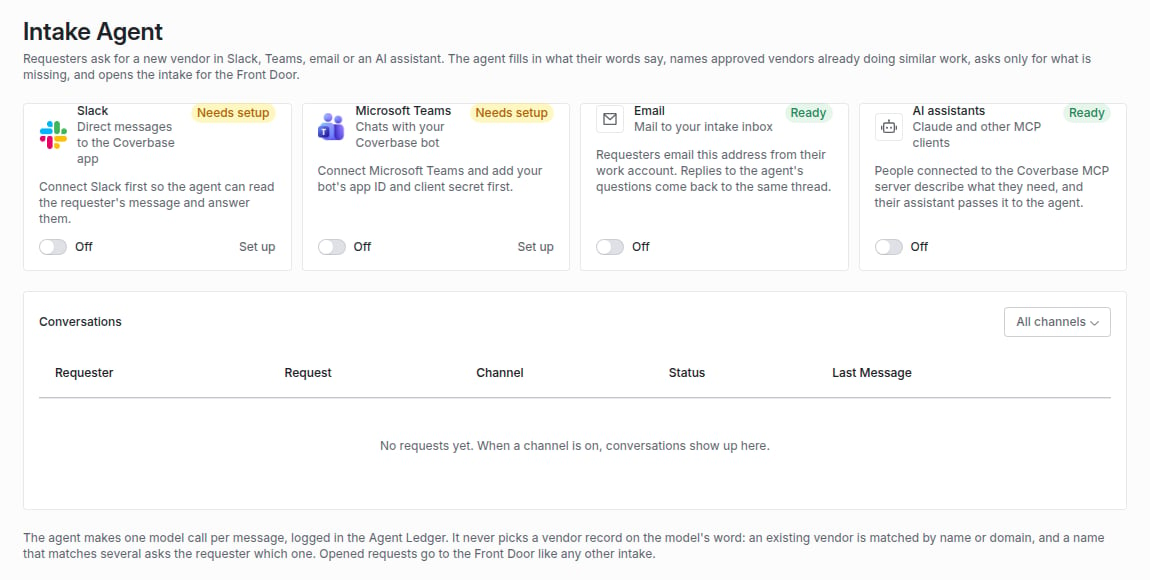
The Intake Agent page: each channel's status, its switch, and what it needs first.
Step 2: Turn on the channels you want
Switch the channel on. A toast confirms it now takes intake requests.
Step 3: Follow the conversations
Conversations lists every request with the Requester, the Request, the Channel, the Status and the Last Message. Filter by channel.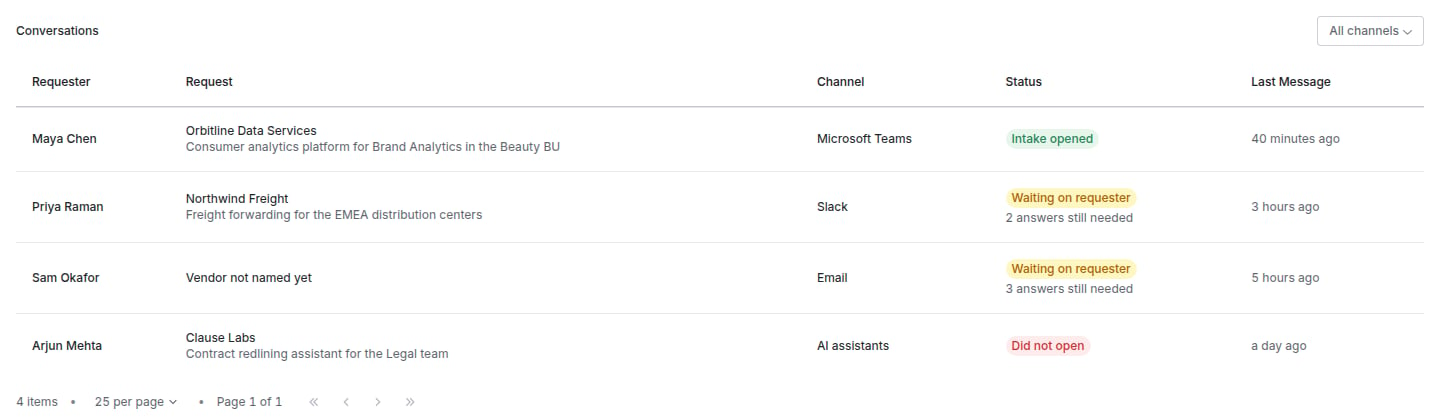
The Conversations table on the Intake Agent page, one row per request.
Open a conversation to see what the agent understood (Vendor, What It Is For, Data It Touches), what is Still Needed, the Similar Approved Vendors it named, and the whole Thread.
What the requester sees
The agent replies with what it understood and a numbered question for each gap: the vendor, which existing vendor if the name matched several, what it is for, or what data it touches. “No company data” is an answer. When nothing is missing it replies with a link to the opened request. The request is not an approval: it goes to the Front Door like any other.Troubleshooting
Related
Requesting a new vendor
The form-based way in.
Front Door triage
What happens to the intake.
Vendor intake through MCP
The assistant side.
Agent Ledger
Every message the agent read.