

For AI agents: a documentation index is available at https://docs.coverbase.com/llms.txt. This page is also available in markdown by appending .md to the URL.
This guide is part of the User Guides collection. It builds on the bank change review in the Supplier information guide. For the fields each country collects, see Supplier countries.
This is a gated feature, and it needs your own iPiD account. If you do not see the iPiD tile under External Integrations, ask your Coverbase contact.
The short version
1
Connect iPiD
An admin saves your iPiD API key and customer ID under External Integrations, and tests the connection.
2
Choose when checks run
In Know Your Vendor settings, switch on Check new bank details, then pick Automatically or When a reviewer asks. Automatic checks can be capped per supplier.
3
Read the answer on the change
Every pending bank change shows an Ownership Check row with iPiD’s answer. The people who hear about bank changes get it by email too.
4
Decide
Approve or reject as usual. A flagged account adds a warning to the approval dialog. It never approves or rejects anything by itself.
Connect your iPiD account
- Ask your iPiD representative for an API key and customer ID. iPiD issues sandbox keys first and live keys later.
- Ask Coverbase support for the addresses Coverbase calls iPiD from, and send them to your iPiD representative. iPiD only accepts requests from addresses it has allowlisted, so a key that works elsewhere fails here until it does.
- In Coverbase, go to External Integrations and open the iPiD tile, under Financial Crime & AML.
- Paste the API Key and Customer ID, pick an Environment, and click Save credentials.
- Click Test connection. Connected. means iPiD accepted the key and customer ID.
Choose when checks run
The Bank Ownership Check card is in Configuration → Know Your Vendor Settings, below Review and approval.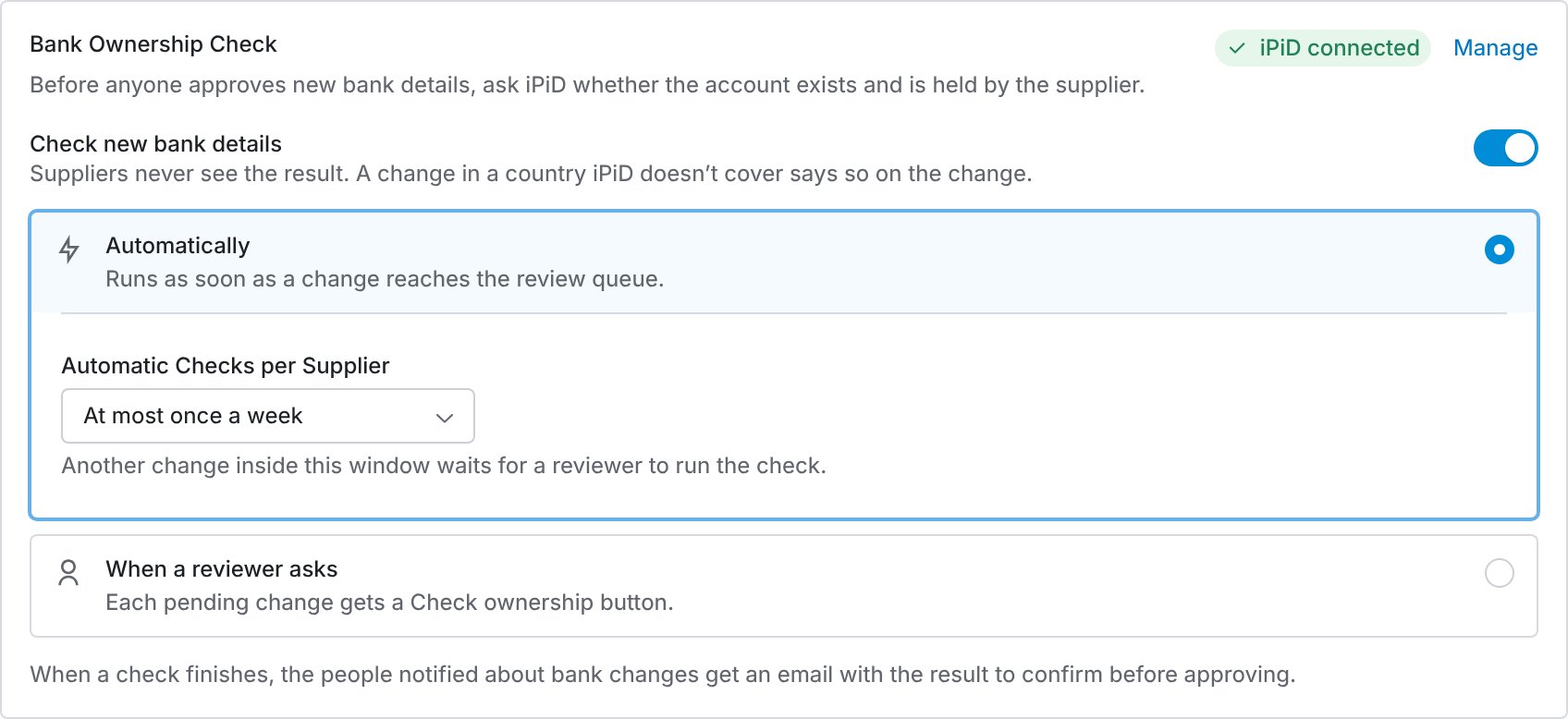
The Bank Ownership Check card with automatic checks capped at one a week per supplier.
How the limit counts
The limit caps how many checks Coverbase runs by itself for one supplier, so a supplier who changes their details repeatedly does not run up your iPiD usage. It counts automatic checks for that supplier that ran or are running inside the window, across all of its bank changes. A change that arrives inside the window is not checked. It shows Not checked, with when the last automatic check ran, and a Check now button.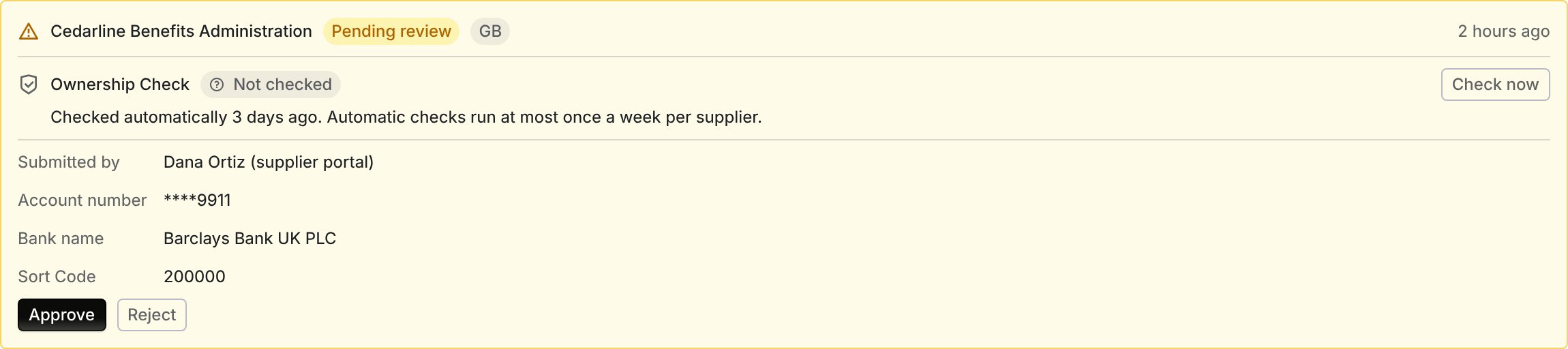
A change that arrived inside the weekly window. A reviewer can still run the check.
Reading a result
Every pending bank change shows an Ownership Check row under its header, on the Vendor changes page and on the vendor’s own Vendor Onboarding Information tab. It sits above the field changes, so a flagged account is the first thing you read.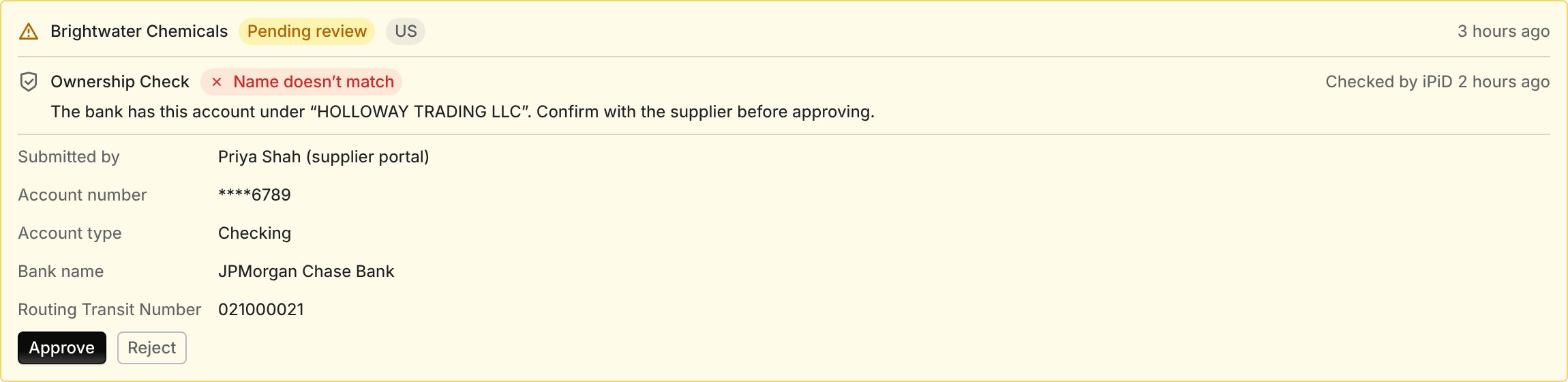
A flagged account. The bank holds the account under a different name from the one given with the change.
Green results are not a reason to skip the rest of the review. They answer one question about the account, and the field changes below still need reading.
Approving a flagged account
When the result is Name doesn’t match, Account not found, Account closed or blocked, Bank not recognized or Invalid account format, clicking Approve adds the result to the confirmation dialog.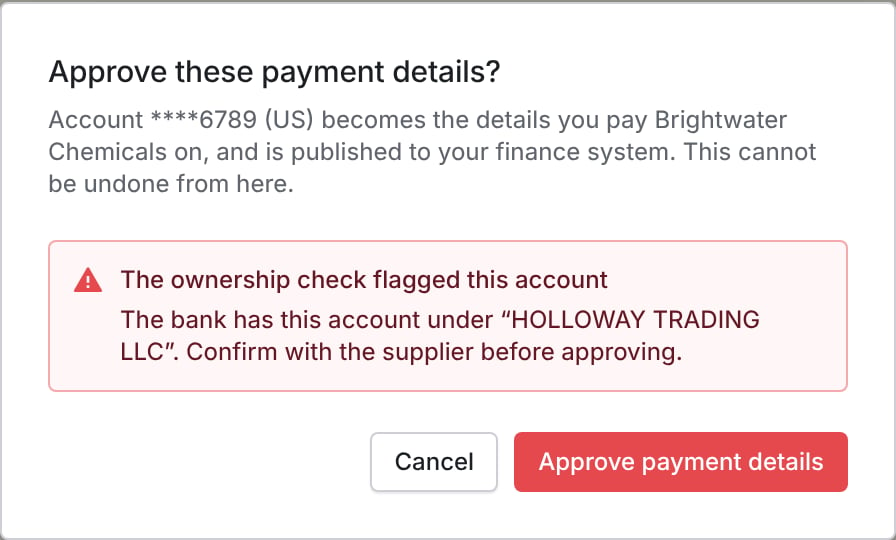
The approval dialog repeats the flag. You can still approve once you have confirmed the details.
Running a check by hand
With When a reviewer asks, each pending change shows Check ownership. With Automatically, the same button appears as Check now on a change the limit held back, and as Try again after a failed check. Running a check needs the Supplier banking: approve permission, the same one that decides the change. Clicking twice while a check runs does not start a second one. A change already decided cannot be checked. Neither can one in a country iPiD does not cover, which shows Not available with no button.Which countries are covered
iPiD confirms the holder’s name for accounts in these 55 countries: Argentina, Australia, Austria, Bangladesh, Belgium, Brazil, Bulgaria, Chile, China, Colombia, Croatia, Cyprus, Ecuador, Estonia, Ethiopia, Finland, France, Germany, Ghana, Greece, India, Indonesia, Ireland, Italy, Kenya, Latvia, Lithuania, Luxembourg, Malaysia, Malta, Mexico, Nepal, Netherlands, Nigeria, Pakistan, Panama, Peru, Poland, Portugal, Saudi Arabia, Slovakia, Slovenia, South Africa, South Korea, Spain, Tanzania, Thailand, Türkiye, Uganda, United Arab Emirates, United Kingdom, United States, Uruguay, Vietnam and Zambia. For an account anywhere else that has an IBAN, iPiD checks only that the IBAN is well formed, and the result is Format valid at best. Any other account shows Not available, and Coverbase sends nothing to iPiD. In a covered country, an account given without an IBAN also needs its bank identified, by SWIFT/BIC or by the local bank code: the routing number in the United States, the sort code in the United Kingdom, the IFSC in India, the BSB in Australia, or the branch code in Chile, Colombia, Ecuador, Panama, South Africa, South Korea and Zambia. Mexico checks the CLABE and Peru the CCI on their own. A change missing what its country needs shows Missing details, and nothing is sent.What is sent to iPiD
For each check, Coverbase sends the bank country, the account identifiers from the change (account number or IBAN, and the bank code and SWIFT/BIC where given), and the account holder name. That name is the one given with the change, or the vendor’s name when the change gave none. The request is encrypted to iPiD’s own key before it leaves Coverbase. The check keeps iPiD’s answer, including any holder name and bank name the bank returned, so the result can be shown on the change and in the email.Who is told
When a check finishes, Coverbase sends Supplier bank ownership check finished. It goes to the people your organization notifies about bank changes (Notify these people in Know Your Vendor settings, or the vendor’s relationship owners when that is empty), and to the reviewer who ran the check. The email names the supplier, the result, and the last digits of the account, and links to the vendor’s pending changes. It is on by default. Each person can turn it off under their notification settings. See Email and notifications. A check that fails or is held back by the limit sends nothing.Who can do what
Turning checks on and choosing when they run is part of Know Your Vendor Settings, and needs the same access as the rest of that page.
Troubleshooting
Related
Supplier information guide
How bank details are collected and validated, and the review queue a check runs in.
Supplier countries
The fields, formats and check digits each country uses.
Email and notifications
Who receives which email, and how to turn one off.
Permissions and roles
Building a role that can decide bank changes.