

For AI agents: a documentation index is available at https://docs.coverbase.com/llms.txt. This page is also available in markdown by appending .md to the URL.
This guide is part of the User Guides collection. It covers the + button in the Coverbase AI composer and the file request card on a run. For starting and steering a run, see Working with Coverbase AI.
The + menu
Click + in the composer, or in the box under a run. It opens two kinds of context: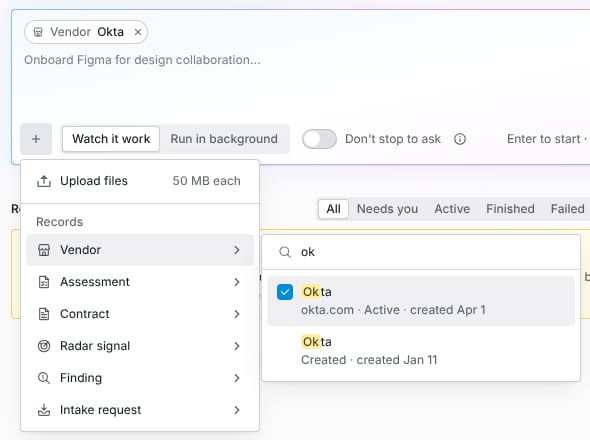
The + menu: upload files, or pick records by kind.
- Upload files opens your file browser. You can also drag files onto the composer.
- Records lists one row per kind. Hover a kind to search it.
Attach files
Choose files from Upload files, or drop them anywhere on the composer. Each file starts uploading as soon as you add it, so it is usually ready by the time you finish typing.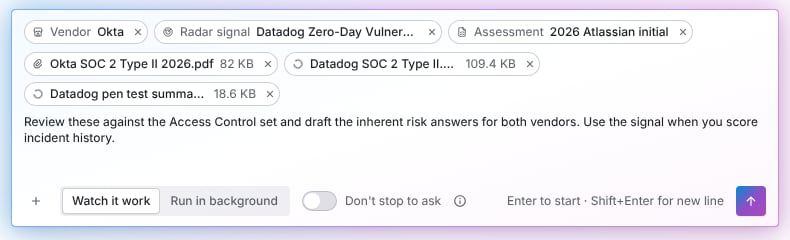
Records and files in the composer, ready to send.
A file over 50 MB is not added, and a message tells you which one. Past 8 files, the chips fold into one that shows the count and total size. Click it to see every file, remove one, or check which are still uploading. Enter waits until every file has finished uploading.
What it can read
It quotes the file and page it relied on, so you can check its work.
What it cannot read
Coverbase AI says when it cannot read a file instead of guessing, and lists a to-do for each one in its report.
Text inside a file is treated as information, never as instructions. A document that says “archive this vendor” does not make it archive anything. When a report names a different company than the one you picked, it says so before using it.
Point it at records
Hover a kind in the + menu and type to search. Before you type, it shows the records of that kind you opened most recently, so the common case is one click. You can pick vendors, assessments, contracts, Radar alerts, findings and intake requests. Rows show the same details as search (Ctrl K), such as a vendor’s domain and status, so two records with the same name can be told apart. Click a row to add it. A check appears and a chip joins the composer. The menu stays open so you can pick more, from the same kind or another. Press Esc or click outside to close it. Click the x on a chip to remove the record. You can pick up to 20 records in one message. “This”, “these” and “them” in your instruction mean the records you picked. Some instructions that use it well:- “Compare these two vendors: status, inherent risk and open findings.”
- “Does this contract’s breach notice window match what the assessment found?”
- “Raise a finding on this assessment for the exception in the attached report.”
When Coverbase AI asks for a file
When a run needs a document you have not given it, such as a SOC 2 report for a review, it stops and asks. The card says what it needs and why, with a place to drop the file.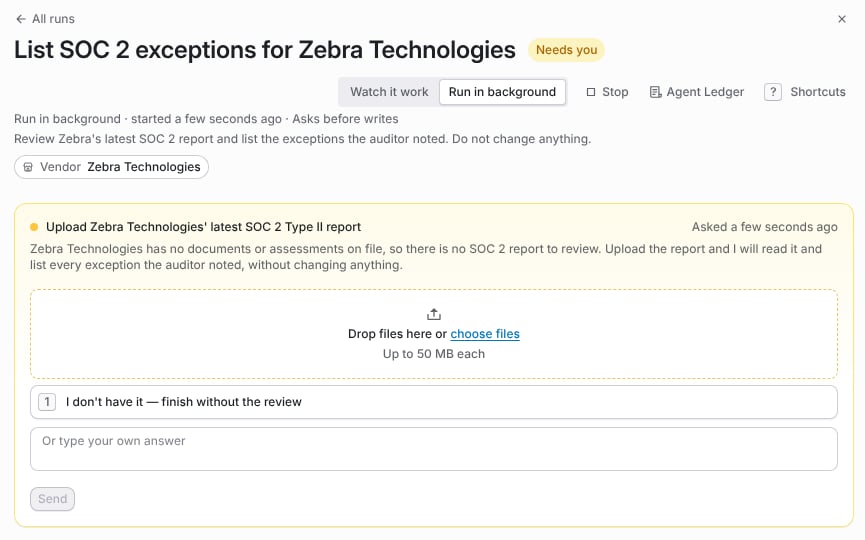
A run asking for a SOC 2 report it needs to finish the review.
- Drop the file on the card, or click choose files.
- Check the file name on the card. Remove it and add another if it is the wrong one.
- Click Send file.
Troubleshooting
Related
Working with Coverbase AI
Start a run, answer what it asks, steer it and read the report.
Memory, permissions and standing agents
What it remembers, what it may do on its own, and agents that run without being asked.
Coverbase AI
What Coverbase AI does and never does.