

For AI agents: a documentation index is available at https://docs.coverbase.com/llms.txt. This page is also available in markdown by appending .md to the URL.
This guide is part of the User Guides collection. It covers Coverbase AI in the left navigation and the Coverbase AI button in the top bar. It sits beside Files and records and Memory, permissions and standing agents. For what Coverbase AI is, see Coverbase AI.
Your Coverbase representative turns on Coverbase AI for your organization.
Step 1: Open Coverbase AI
Click Coverbase AI in the left navigation, or the Coverbase AI button in the top bar. The top bar button is on every page and shows what your latest run is doing: working, waiting on an assessment, needing you, or done with a count of to-dos. Hover it to see the plan, approve what it is waiting on, or start another run. When you open Coverbase AI from a record’s page, such as a vendor, an assessment, one control’s evaluation, a contract or a Radar signal, the composer names that record. “This”, “it” and “here” in your instruction mean that record.Step 2: Describe the job
Type what you want done and press Enter. Shift+Enter adds a new line. Some examples:
Pick Playbooks on the home page to start from a ready-made instruction.
Before you start, choose how the run works:
- Watch it work: the browser follows the agent through the product. A cursor moves to each field it fills and a caption says what it is doing and why.
- Run in background: nothing moves on your screen. You are notified when it needs you and when it is done. Closing the tab turns a watched run into a background run. The run itself never stops because you left.
- Don’t stop to ask: approves every step it would otherwise ask about, as long as the step can be undone. Archiving a record, submitting an intake request and anything else that cannot be undone still ask.
Step 3: Answer what it needs
When a run needs you, it stops and says why at the top of the run page. The top bar button shows Needs you, and you get a notification.
An archive card says exactly what goes with the record, such as “Its 3 assessments, 12 documents and 2 obligations go with it”, and its button carries the verb.
You can also answer from outside the app. A needs-you email has one button per option, and you can reply to it in your own words. If your organization uses Slack or Microsoft Teams with Coverbase, approvals can come to you there. A batch of changes and the inherent risk review are answered in the app.
Step 4: Steer it while it works
The box under the run says Tell Coverbase AI to change course. What you type depends on what the run is doing:
Click Stop to end a run at its next step. Nothing more is written after that.
Step 5: Read the report
Every run ends in a report. It says what it did, with a link to each record, what you need to do, and what it could not do and why. A run that answered a question shows the answer.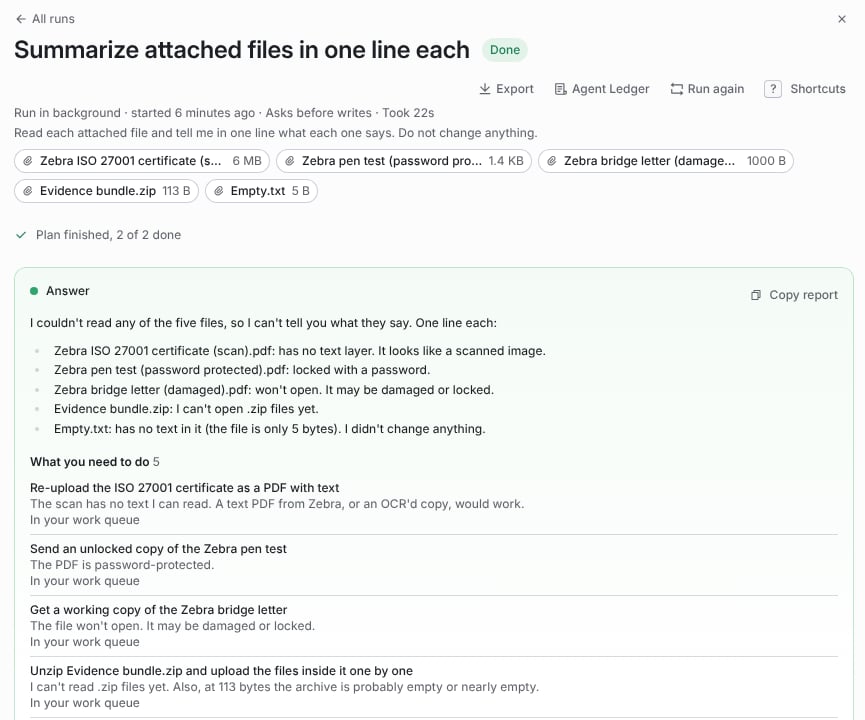
A finished run: the answer with its sources, and the to-dos it left you.
- What you need to do lists the to-dos. When the run is about one vendor, each becomes a work queue item assigned to you. Finishing the item ticks the to-do on the report.
- What cannot be undone lists every action the run took that has no way back. Read it first after a background run.
- Because you told me lists the remembered preferences that changed what it did. See Memory, permissions and standing agents.
- Copy report copies the whole report as text. Export downloads the run, step by step.
Keyboard shortcuts
Single keys work while no field has focus. Press ? on a Coverbase AI page to see them all.
A and K do not archive or submit anything. Those take a click.
Troubleshooting
Related
Files and records
Attach documents and point a run at the right records.
Memory, permissions and standing agents
Preferences, per-action permissions and agents that run on their own.
Agent Ledger
Every action an agent took, and who decided.