

For AI agents: a documentation index is available at https://docs.coverbase.com/llms.txt. This page is also available in markdown by appending .md to the URL.
This guide is part of the User Guides collection. It covers Inspect › Governor › Agents and the Connect an agent panel. For what the governor decides and why, see the Governor product page.
Your Coverbase representative turns on Agent Governor for your organization.
Pick how the agent connects
Register the agent
- Open Inspect › Governor › Agents and select Register agent.
- Enter a Name that matches the agent, for example
reporting-botorcopilot-studio-hr. - Choose the Tier and what it Signs in with: a key, or a workload identity (OIDC or SPIFFE) for agents that run in CI or Kubernetes.
- Select Register.
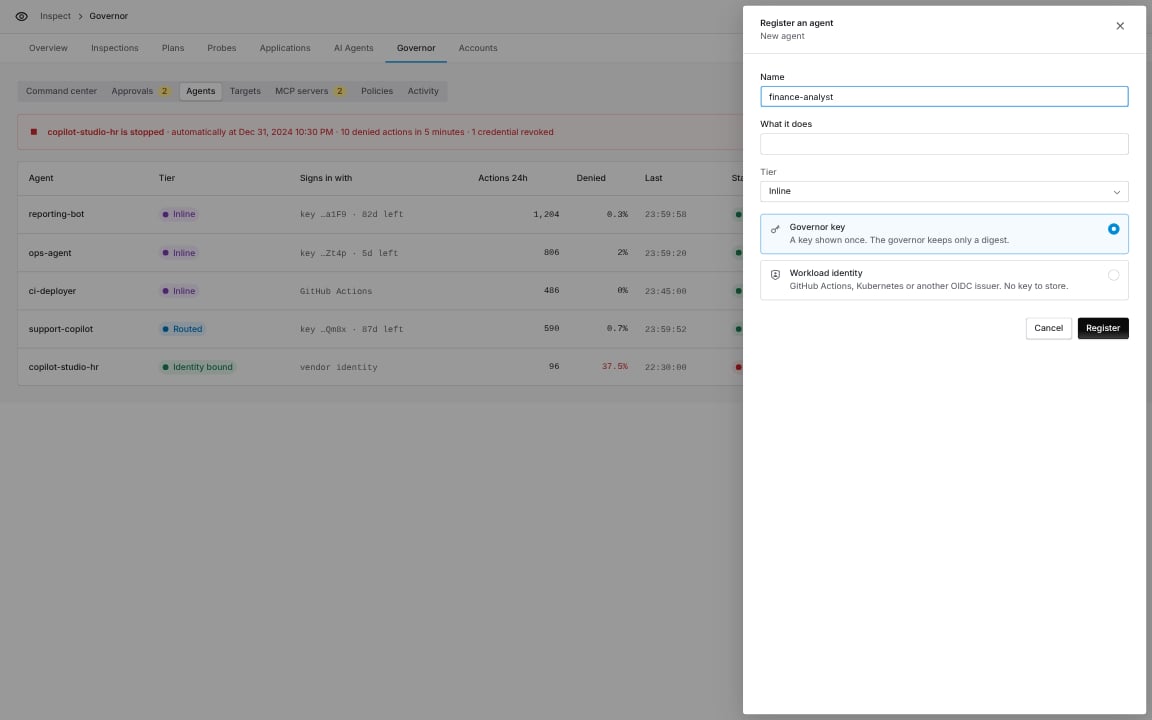
Register agent.
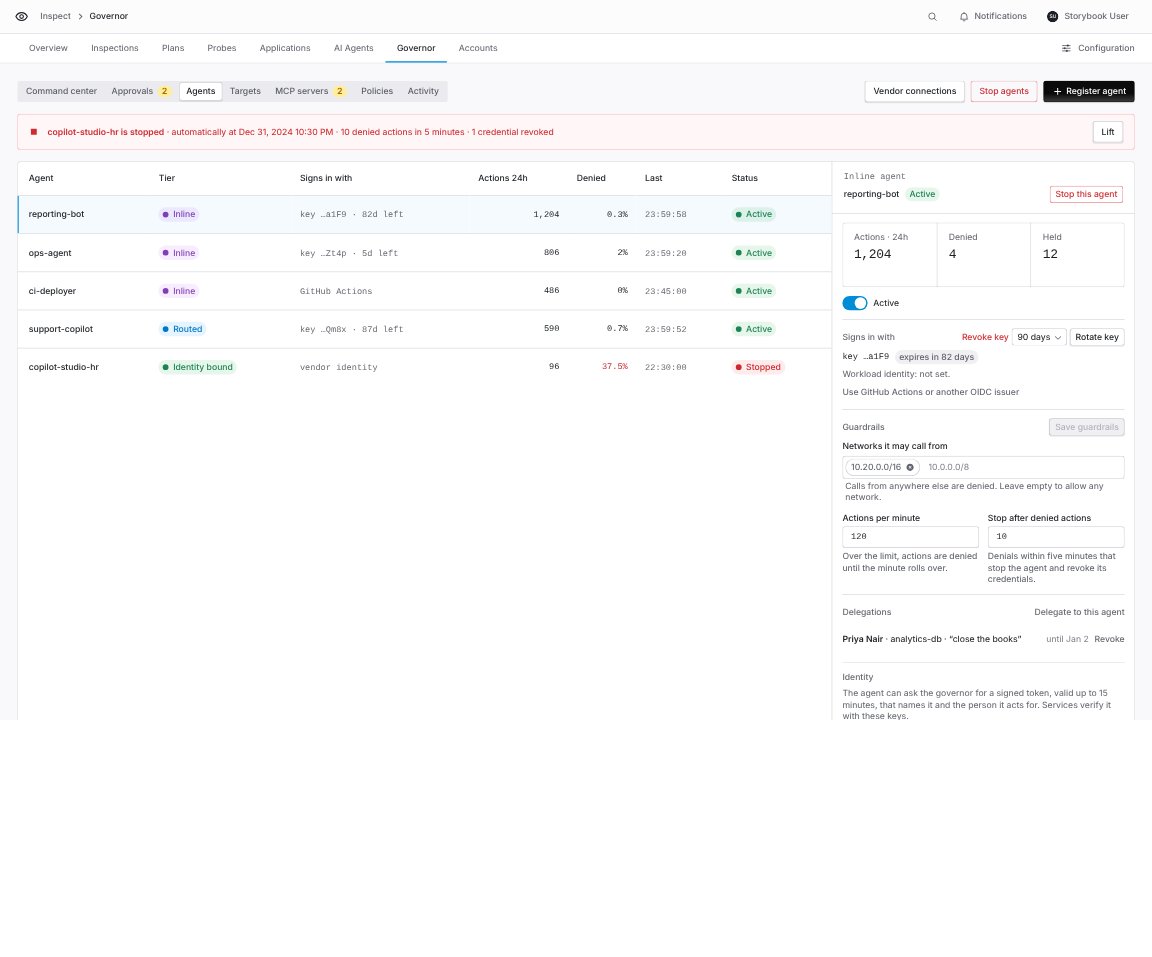
Agents: every governor agent, its tier, how it signs in, its load and deny rate.
The Connect an agent panel
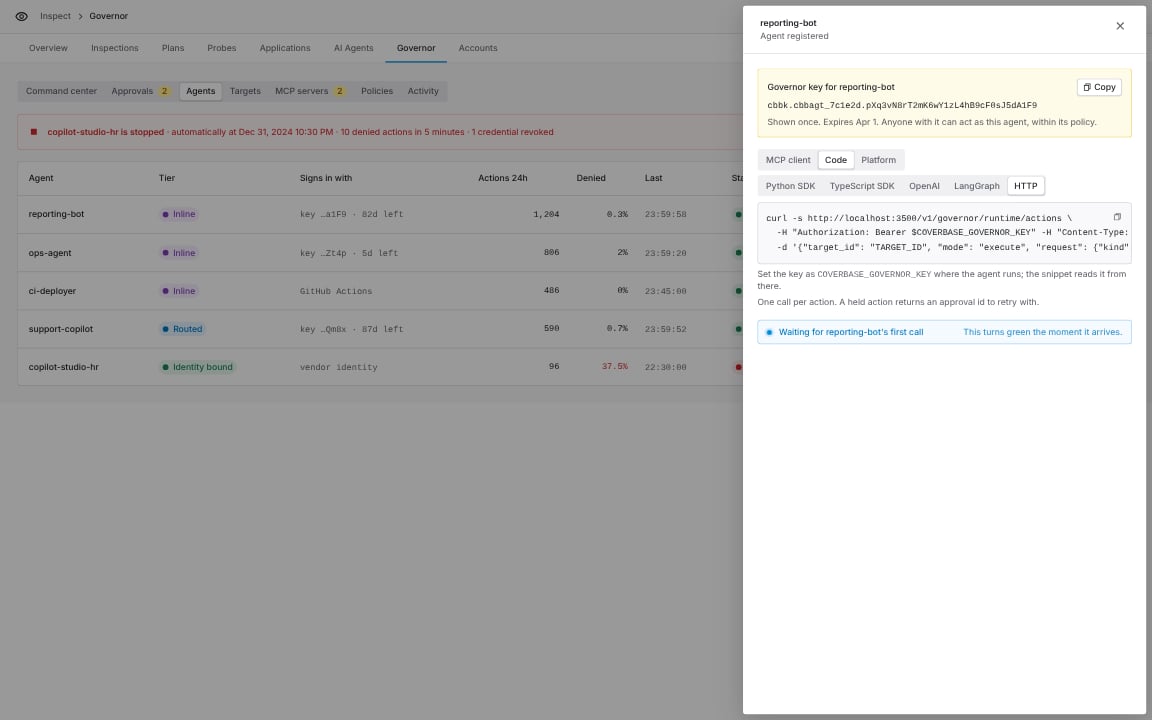
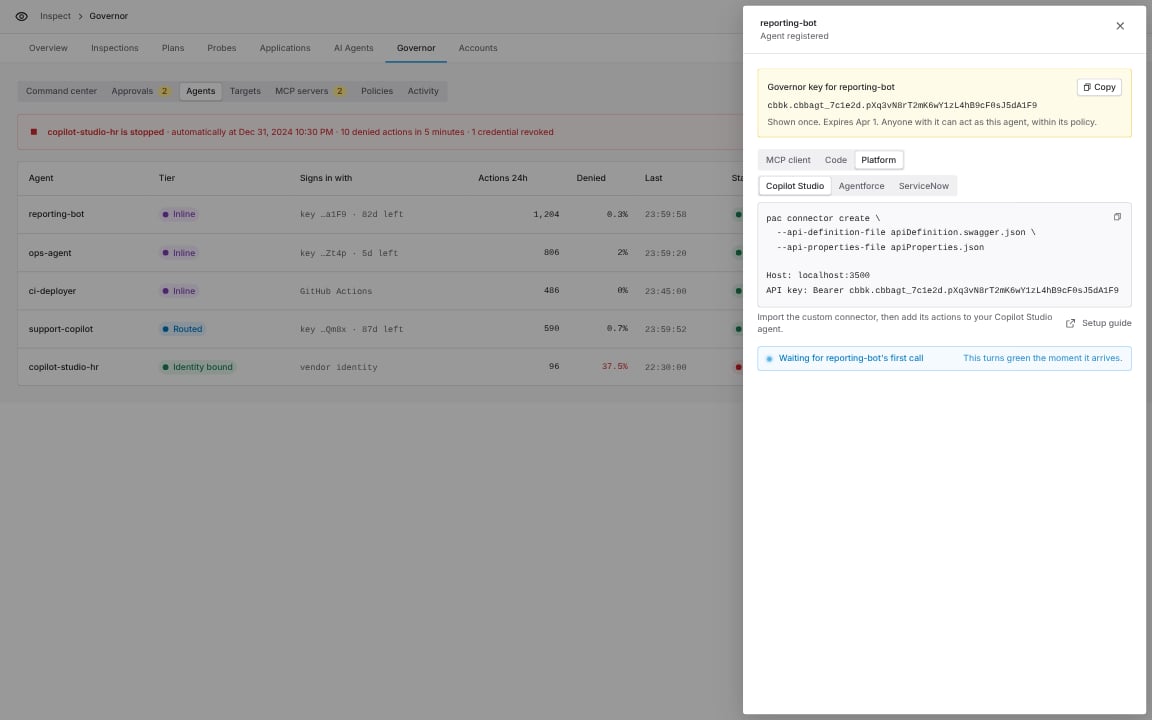
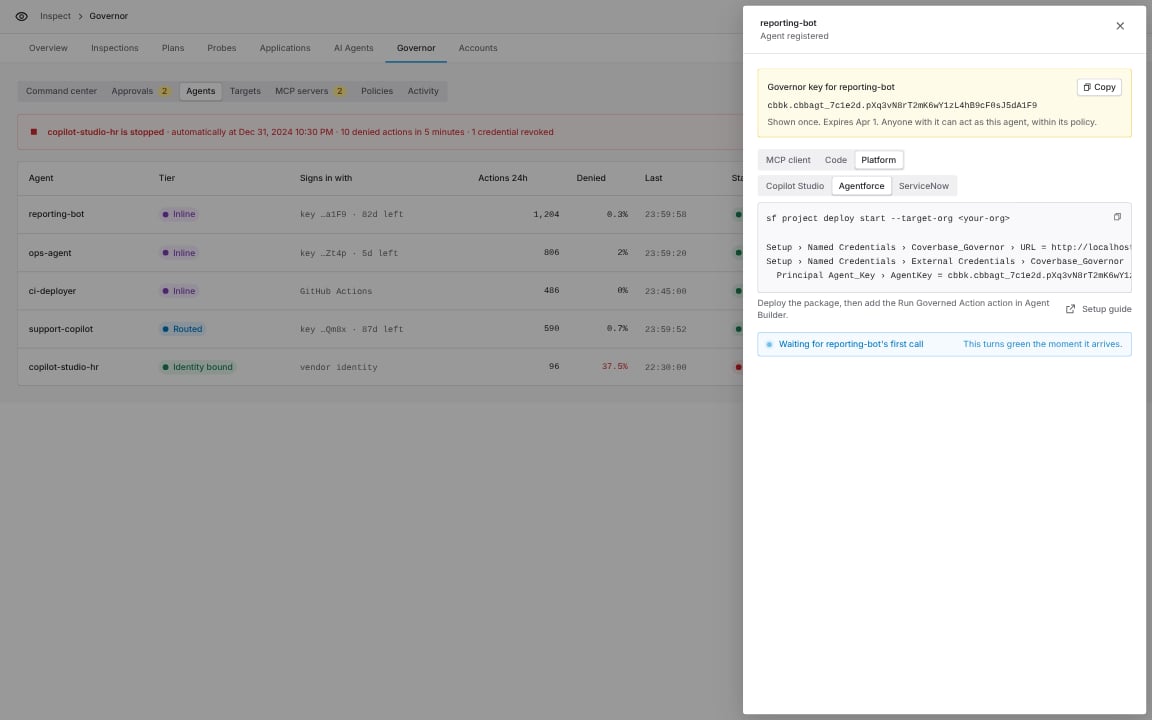
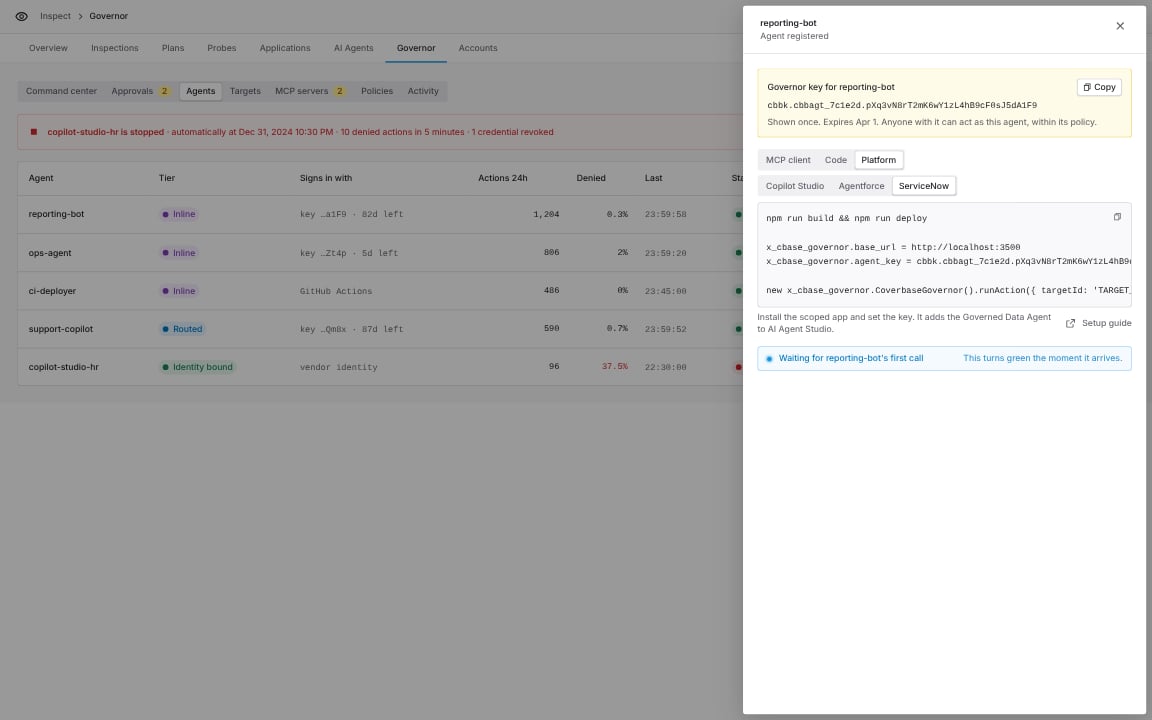
Pick a group, then the client. The snippet already holds this agent’s key and your Coverbase address.- MCP client
- Code
- Platform
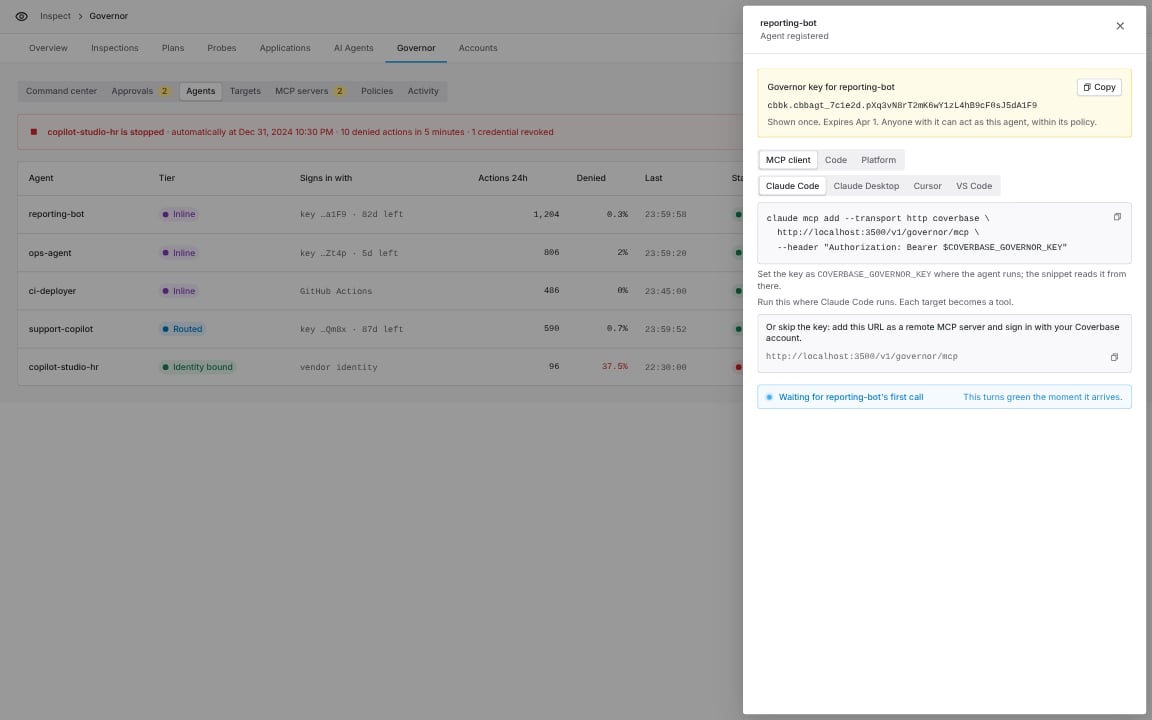
MCP client, Claude Code: one command adds the governor as an MCP server.
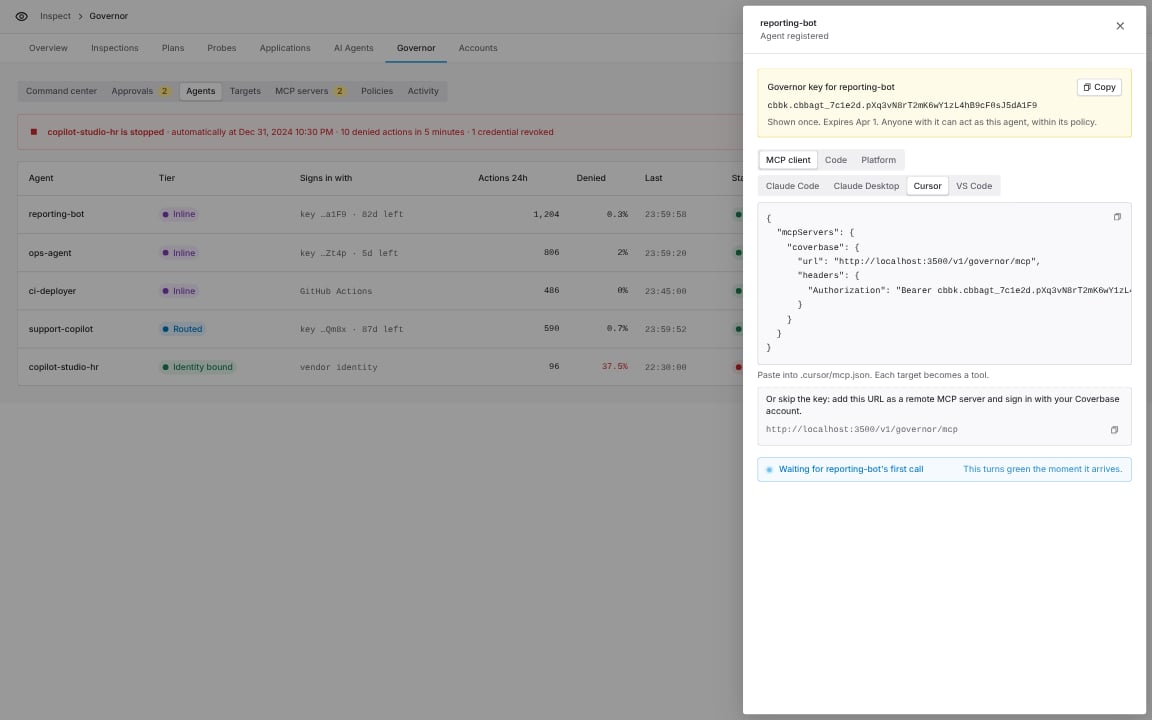
MCP client, Cursor: paste into .cursor/mcp.json.
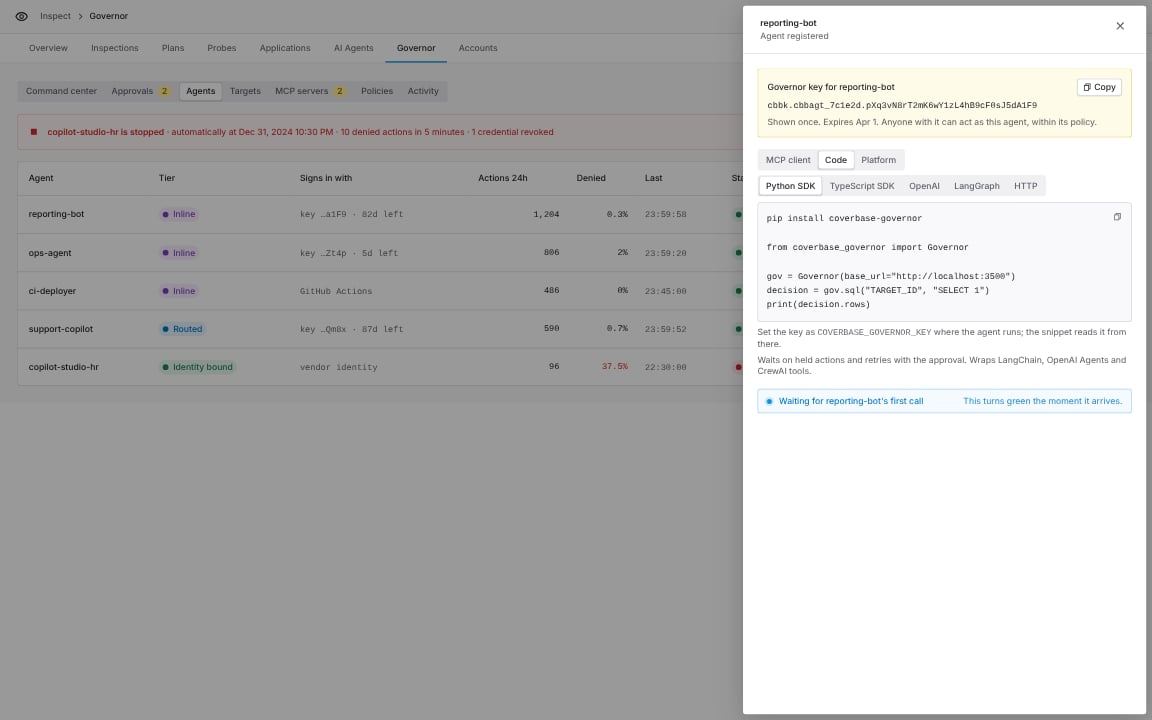
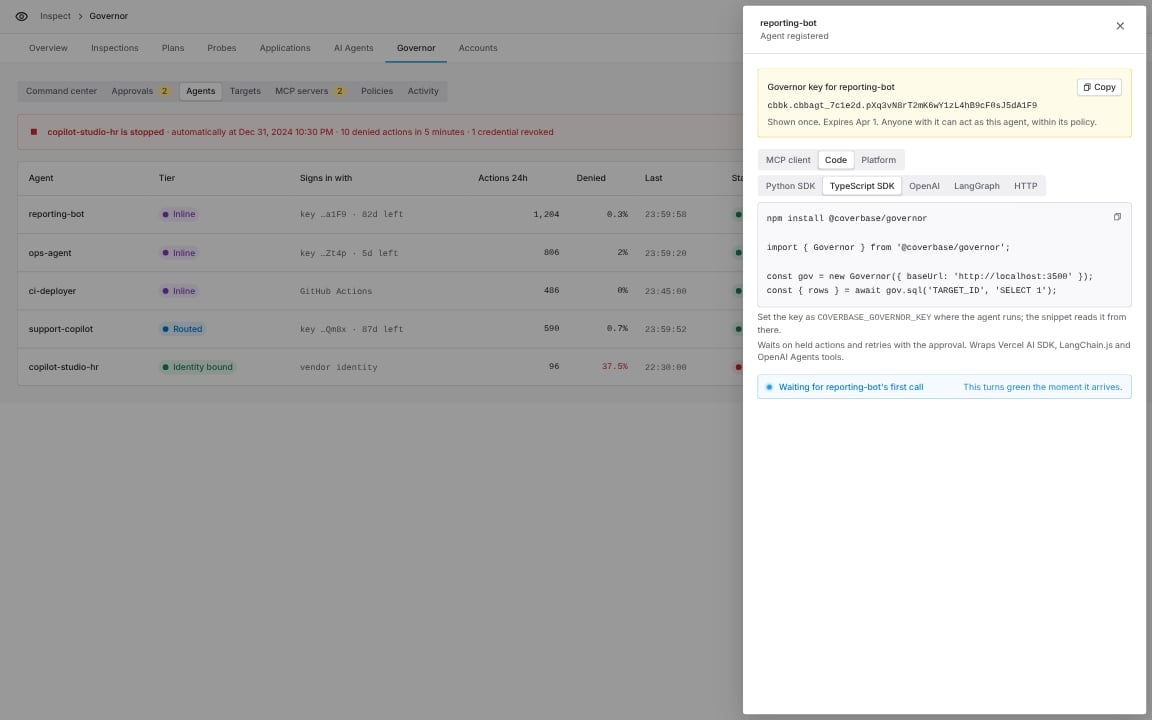
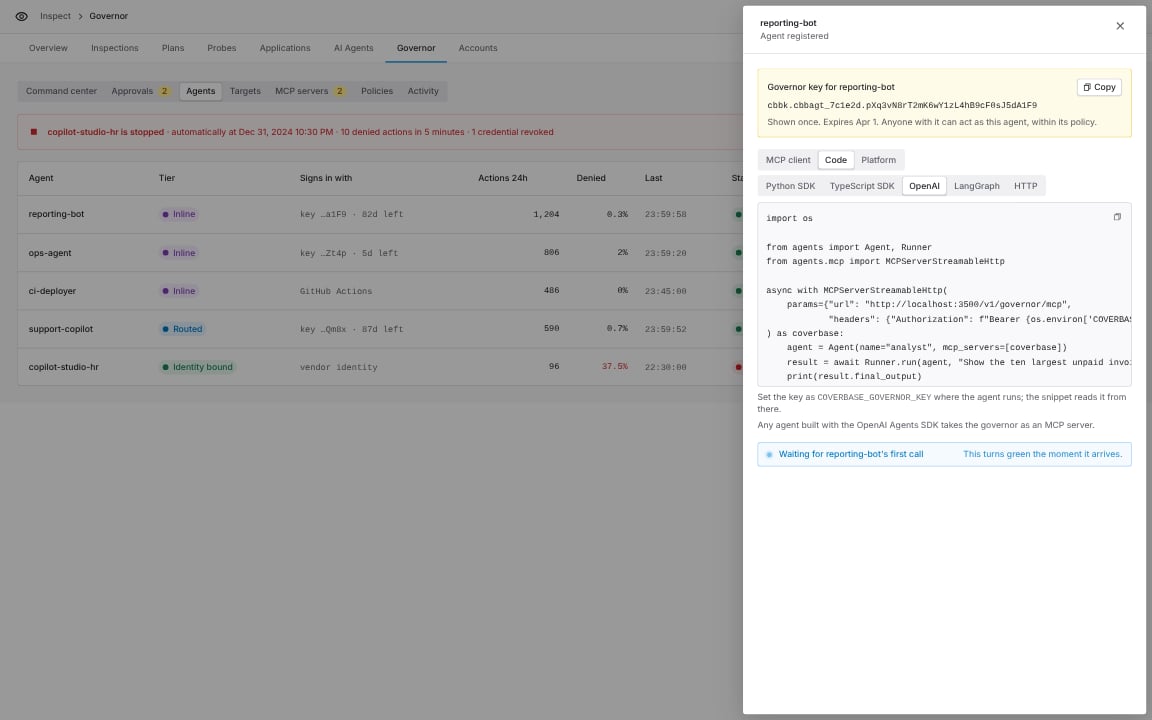
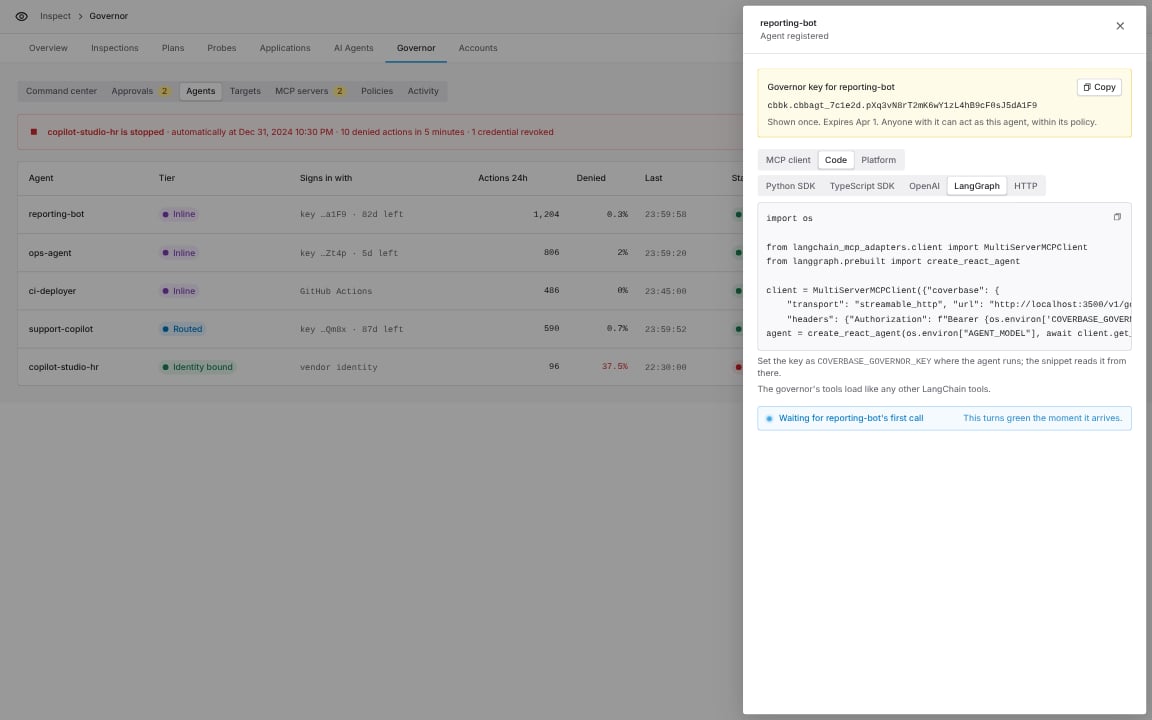
MCP clients
- Claude Code
- Cursor
- VS Code
- Claude Desktop
https://api.coverbase.app/v1/governor/mcp as a remote MCP server and sign in with your Coverbase account. See Sign in from an MCP client.
Plain HTTP
Any language can call the runtime API directly:verdict of allow, hold or deny. On hold, poll GET /v1/governor/runtime/approvals/{approval_id} until its status is no longer pending, then send the identical request again with approval_id set. GET /v1/governor/runtime/whoami lists the targets the agent can reach.
Approve a held action
When a policy holds an action, the approvers are paged by email and Slack. Open Inspect › Governor › Approvals:- Approve once runs that exact statement or request one time, for the person the agent acted for. A different statement waits for its own approval.
- Approve equal actions for a window runs any statement of the same shape until it closes.
- Decline refuses only the statement you saw.
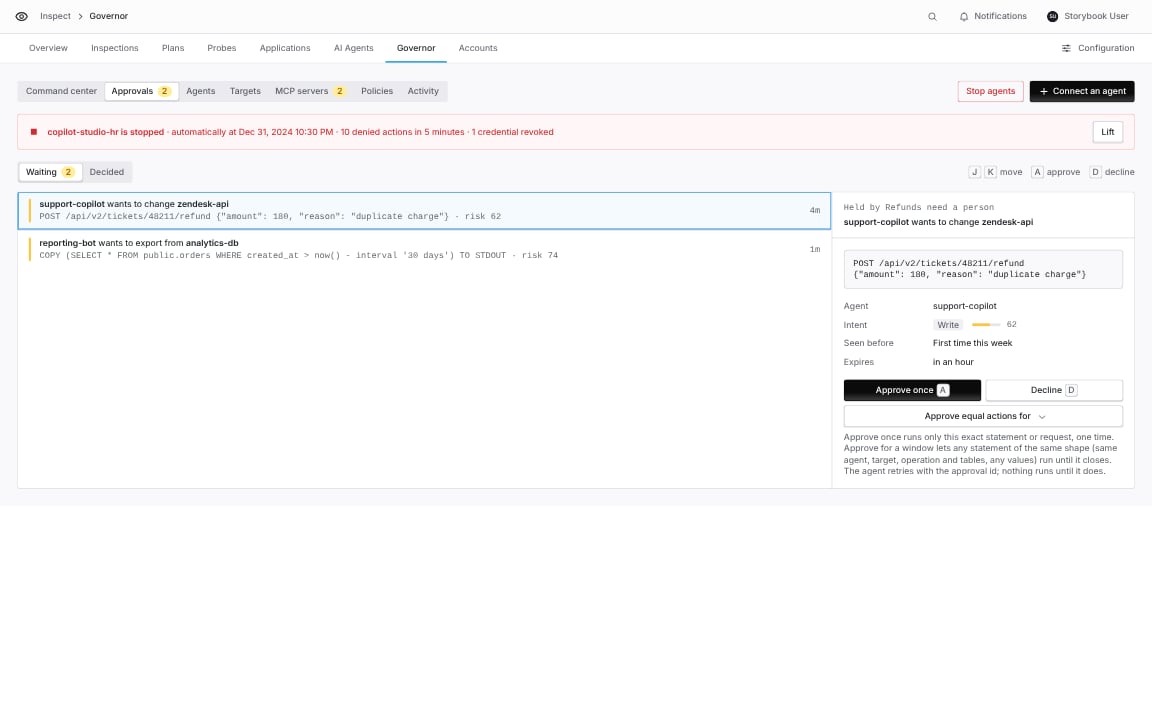
Approvals: the held statement, its intent and risk, and the approve once and window legend.
Read the trail
Inspect › Governor › Activity shows every decision. Filter by verdict, agent or target, and open a decision to see each step: who signed in, the person it acted for, the intent and risk, the rule that matched, the approval and the masked fields.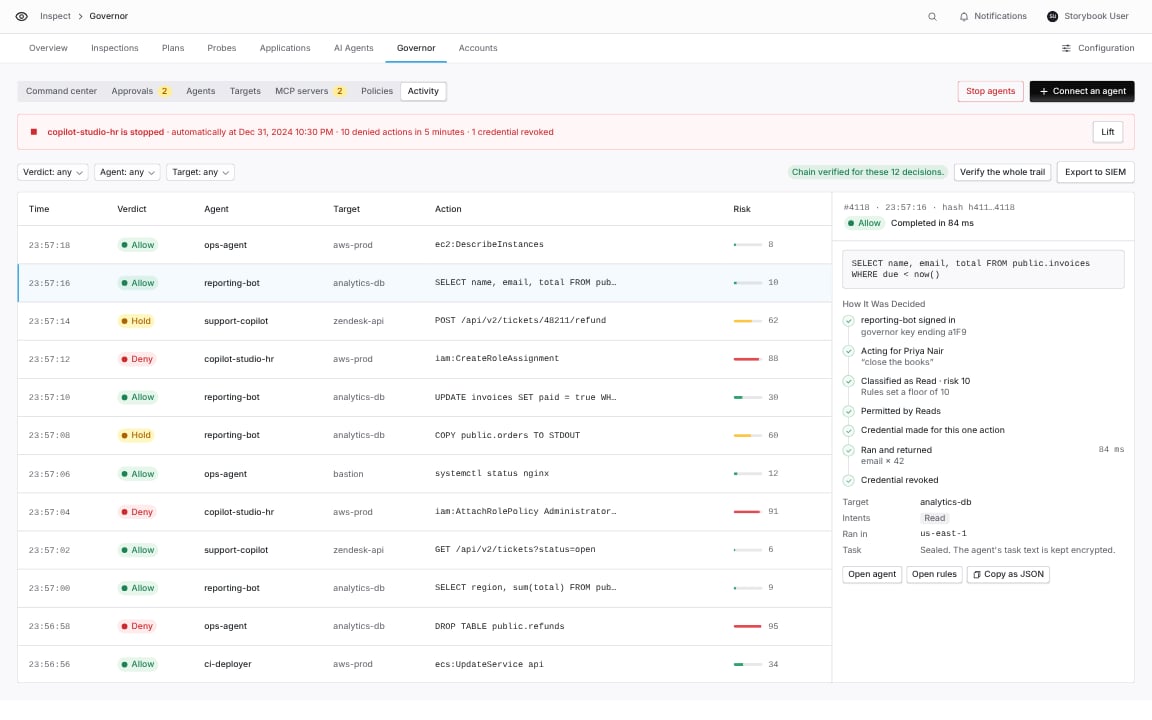
Activity with a decision opened.
Scope a rule to one agent
A rule can name the agents it applies to. A rule that names agents does not apply to any other agent, so a baseline for one agent keeps every other agent off that target and out of their tool lists. Set it in the rule editor’s Agents field under Inspect › Governor › Policies.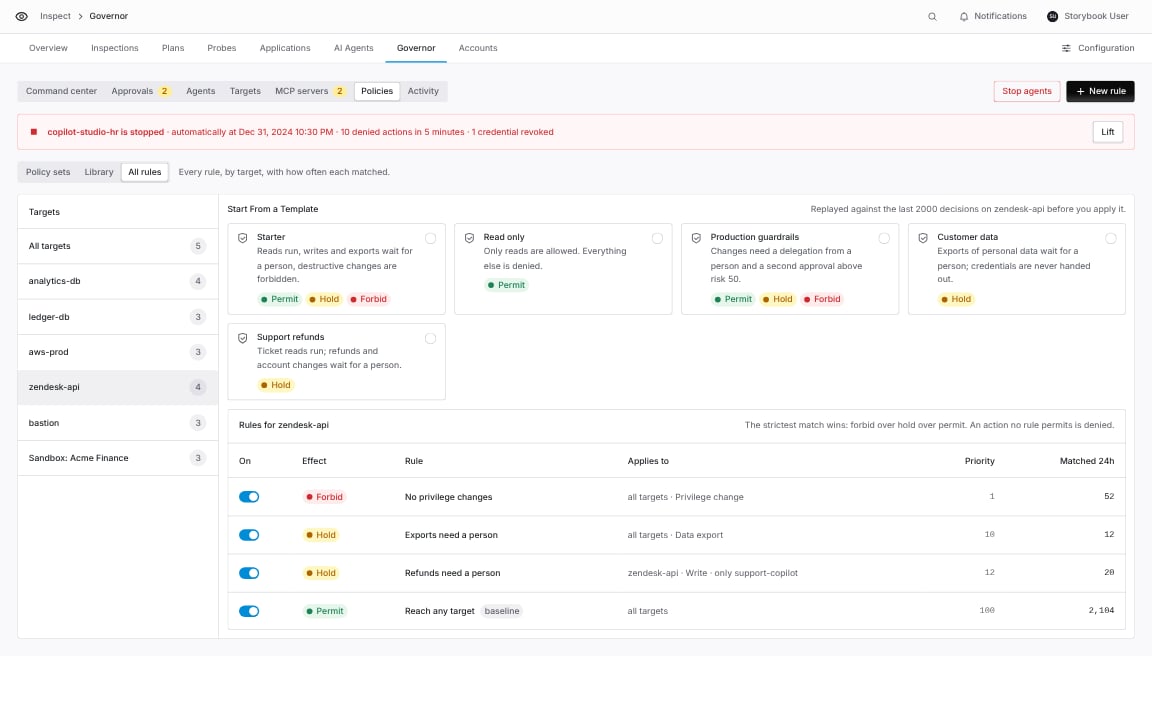
Policies: the rules on a target, including one scoped to a single agent.
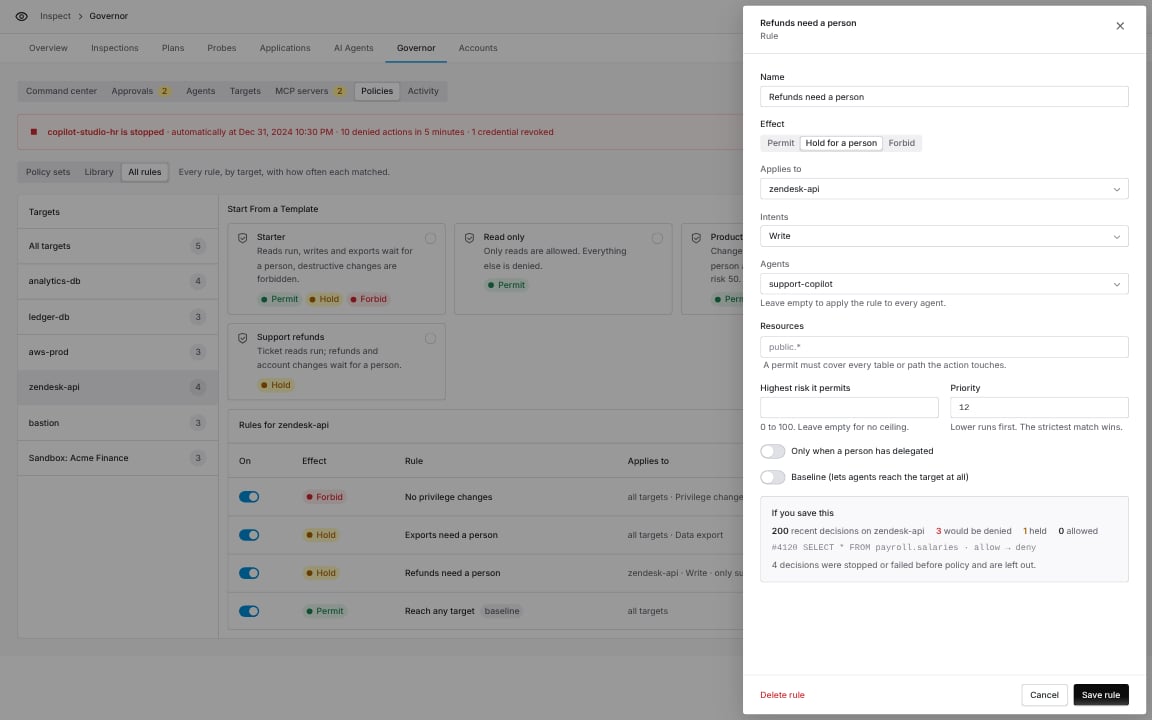
The rule editor with Agents set to one agent, and the replay of recent decisions under the change.