

For AI agents: a documentation index is available at https://docs.coverbase.com/llms.txt. This page is also available in markdown by appending .md to the URL.
This guide is part of the User Guides collection. Share it with your partners. For the rest of the portal, see The supplier portal, for suppliers. For the bank’s side, see the Marketing compliance guide.
Getting in
You sign in to your bank’s portal the way you do for everything else: from a link in an email the bank sent, or by entering your work email at the portal’s address and following the sign-in link. See Getting in. Marketing appears in the portal’s navigation when your bank has switched it on. If you do not see it, ask your contact at the bank.What is on the page
Marketing reviews opens with four tiles and two lists.
Submissions lists everything you have sent, with Open and All to switch between what is still in progress and the full history. Each row shows the Asset, its Channel, when it was Submitted, its Status, what is Next (a decision expected by a date, items to fix with a reply-by date, or Valid until a date) and the Approval code once there is one.
Live assets with open issues lists pages of yours the bank is watching that have something to fix, each with a short summary. A page marked Never submitted is live but was never sent for review: submit it, or tell the bank it is coming down.
Submitting an asset
Click New submission.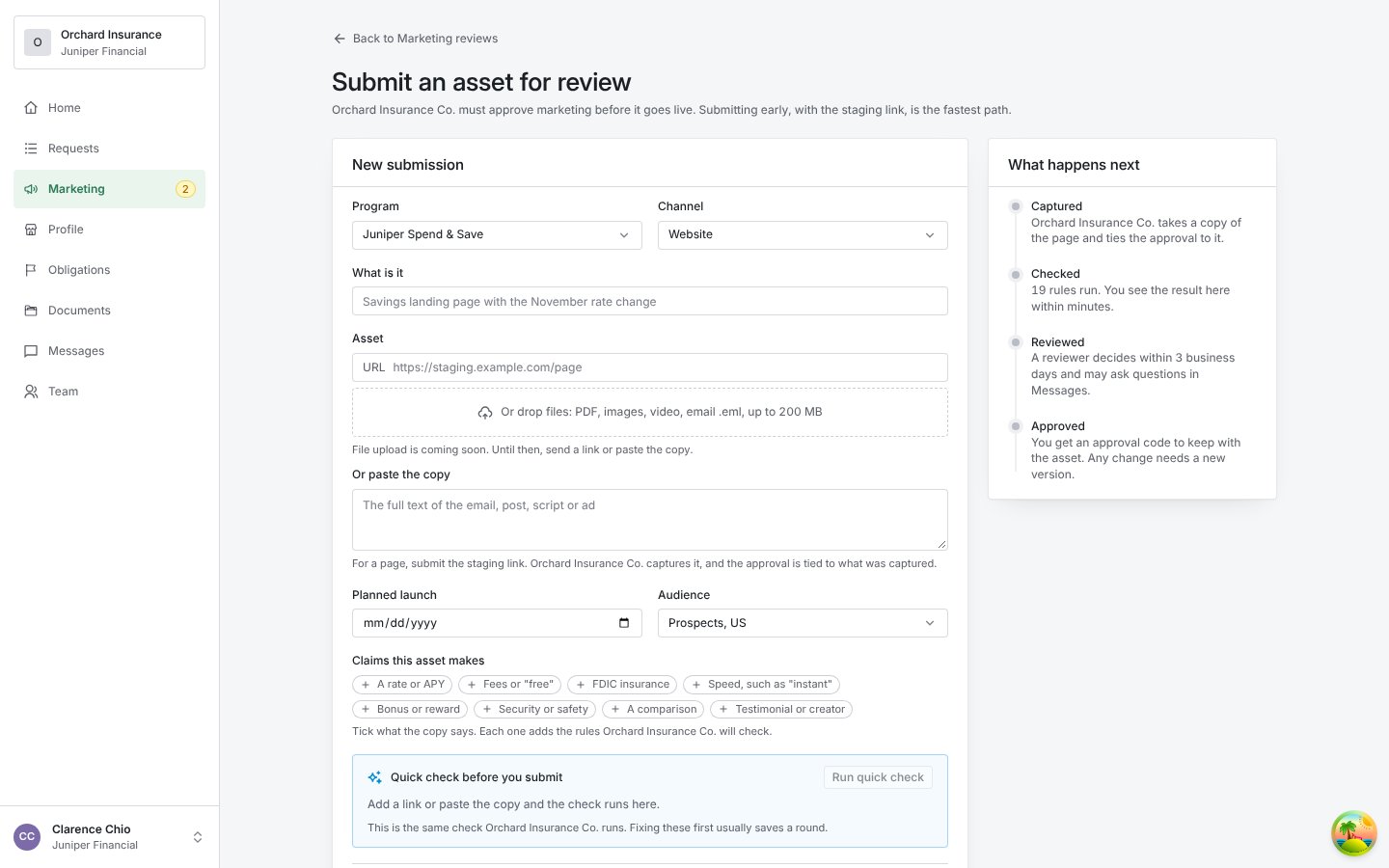
Submitting an asset: the program and channel, the link or pasted copy, the launch date, the audience, the claims the asset makes, and the quick check that runs before you submit.
Save draft keeps the form on this device so you can come back to it. Submit for review sends it. The page then reads Submitted to .
The quick check
Once a link or pasted copy is in the form, Quick check before you submit runs the same checks the bank runs. Click Run quick check to run it again after an edit. For a file, the card reads The check runs after upload: the bank’s checks run on the file’s text once it is submitted.- Nothing to fix. Every rule the check can test passes. means the checks the form can run found nothing. The bank’s reviewer may still raise something, and some rules need the bank’s full review.
- Each result quotes the passage, names the rule and gives a suggested fix. Fixing these before you submit usually saves a round.
- That page could not be fetched. means the link did not load. Check it, or paste the copy instead.
The rules before you submit
Before you submit, on the Marketing reviews page, lists the rules the bank checks every asset of yours against, with the bank’s sample language where there is some. All N rules expands the full list. Submissions that already meet them are usually approved in a day.What happens next
Every submission goes through four steps, shown as What happens next on the asset.- Captured. The bank takes a copy of the page and ties the approval to it.
- Checked. The bank’s rules run. You see the result on the asset within minutes.
- Reviewed. A reviewer decides within the bank’s SLA in business days, and may ask questions in Messages.
- Approved. You get an approval code to keep with the asset. Any change needs a new version.
When the bank asks for changes
The asset shows Items to fix: each item quotes the passage, names the rule and gives a Suggested fix, and Note from carries the reviewer’s note. Fix them, then under Send a new version paste the corrected link or copy and click Submit new version. The bank reviews the new version against the same rules. Versions lists every version you have sent.When it is approved
The asset shows the Approval code, such asMKT-2026-0418, and Valid until a date one year from the decision. Download approval gives you a file naming the asset, the program, the bank, the version that was approved, the date it is valid until and any Conditions. Keep the code with the asset in your own records; the bank’s examiner can ask for it by number.
An approval covers the captured version only. If you change the page, submit it again. Once the approval expires, submit it again too.
Messages
Each asset has a Messages thread with the bank’s reviewer. Use it to ask about an item, say when a fix will ship, or tell the bank a page is coming down. The bank uses it to ask questions during review and to tell you when it has confirmed an issue on a live page. A message from the bank reaches your portal members by email.Live issues
The bank watches your websites and app listings every day and compares what is live with what it approved. When the bank confirms an issue on a live page, the page appears under Live assets with open issues with the rule and the suggested fix, and the bank posts to the asset’s thread. Fix the page; the bank’s next sweep sees the change. You see only issues the bank has confirmed. An automated check the bank has not yet looked at is not shown to you.When something looks wrong
- Marketing is missing from the portal: the bank has not switched the section on. Ask your contact at the bank.
- The quick check reads “That page could not be fetched”: the link needs a sign-in, is blocked, or is mistyped. Paste the copy instead.
- A submission reads Withdrawn: you sent a newer version of the same asset, and the bank reviews that one.
- An approved page is listed under live issues: you changed the page after approval, or the approval expired. Submit the current page as a new version.
- A page you never sent is listed as Never submitted: the bank’s sweep found it live. Submit it, or tell the bank in Messages that it is coming down.
- Your draft is gone: drafts are saved on the device you wrote them on, not in the portal. Write it again, or submit from the device you used.