

For AI agents: a documentation index is available at https://docs.coverbase.com/llms.txt. This page is also available in markdown by appending .md to the URL.
This guide is part of the User Guides collection. It covers the Coverbase Agent Governor connector for Microsoft Copilot Studio, Power Automate and Power Apps. For all three platforms at a glance, see Governor platforms.
The connector is in early access and is not yet in the Microsoft connector gallery. Your Coverbase representative gives you its two files,
apiDefinition.swagger.json and apiProperties.json, to import as a custom connector.The actions
Every action takes a Delegation ID, so one connection can act on behalf of different people.
Set up the agent in Coverbase
- In Inspect › Governor › Agents, select Register agent. Name it after the Copilot Studio agent, for example
copilot-studio-hr. One governor agent per Copilot Studio agent keeps the trail readable. - Copy the key from the Connect an agent panel. It is shown once. Under Platform › Copilot Studio, the panel shows the host and the value to paste.
- In Policies, give the agent a baseline on the targets it should reach.
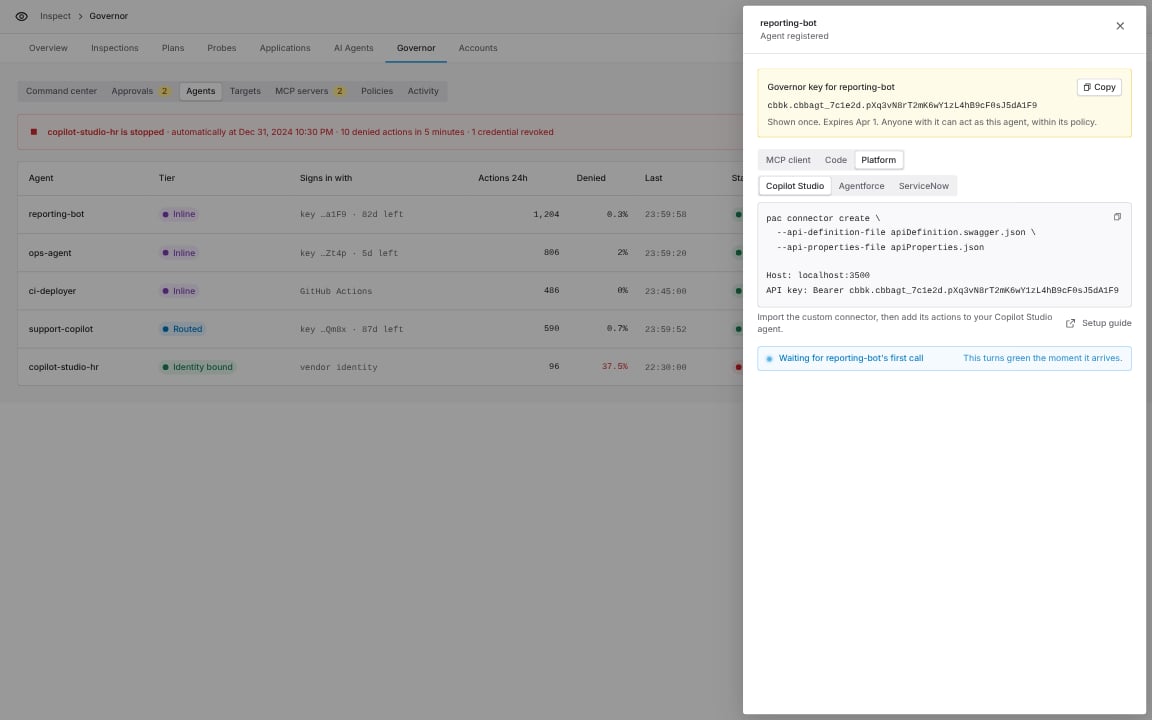
Connect an agent, Platform group, Copilot Studio: the import command and the connection values for this agent.
Import the connector
- Power Platform CLI
- Maker portal
pac connector list to get its ID and pac connector update with that ID.Create the connection
Create a connection and enter the key asBearer cbbk.<agent_id>.<secret>, with the word Bearer and a space in front. Power Platform does not let a connector set its own authorization header, so the connection carries the whole value.
Test it: on the connector’s Test tab, run Get my agent and targets. It returns the agent and its targets.
To use a non-production Coverbase environment, change the host to api.<env>.coverbase.app.
Add the actions to a Copilot Studio agent
- Open the agent and select Tools › Add a tool › Connector. Search for Coverbase Agent Governor.
- Add Run a governed SQL query (or Send a governed API request) and Get approval status.
- Under the tool’s Details › Additional details › Credentials to use, pick Maker-provided credentials so every user acts as the one governor agent.
- If the agent should use one target only, set Target to a fixed value. Otherwise leave it to the agent; it sees the target names.
- Add this to the agent’s instructions:
Held actions
A held action returnsverdict: hold, an approval ID and a note. The approvers are paged in Coverbase, Slack or email. Approve once runs only the exact statement it was given for, so the agent must send exactly the same action again with the approval ID.
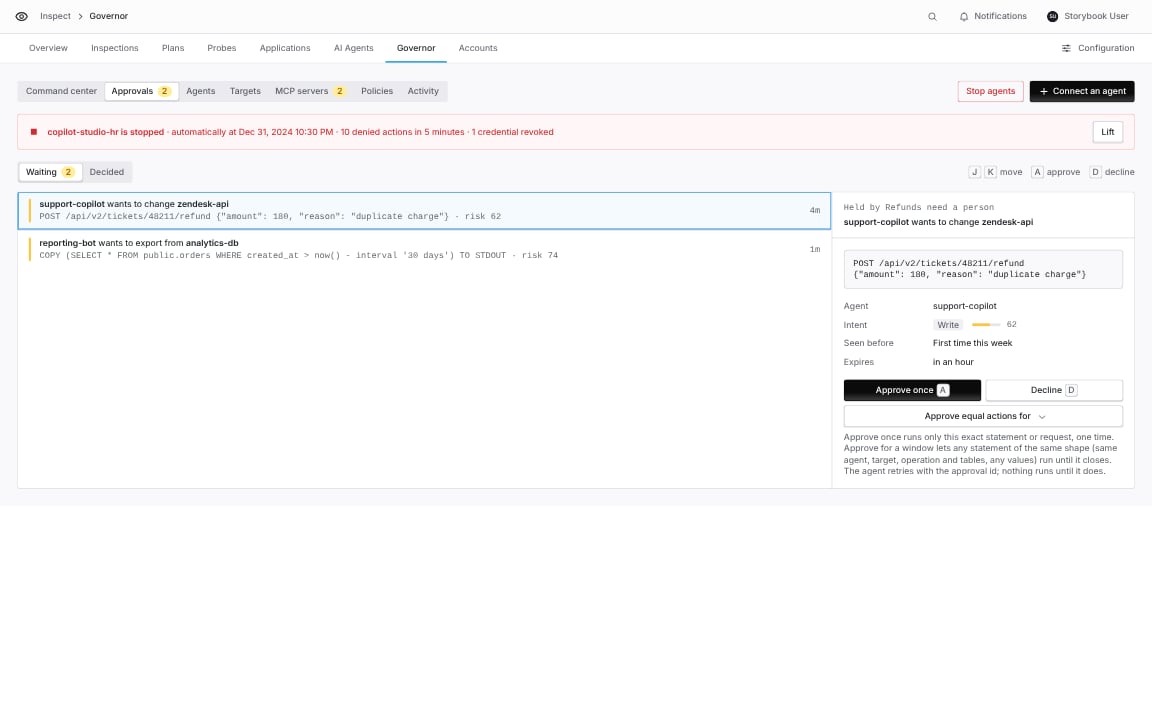
Inspect › Governor › Approvals: the approver sees the exact statement the Copilot Studio agent asked to run.
In a conversation
The instruction above is all you need. The agent tells the user it is waiting, and checks Get approval status when the user comes back.In an unattended flow
In Power Automate or an agent flow:- Call Run a governed SQL query.
- Add a condition: is
verdictequal tohold? - If yes, add Do until
statusis not equal topending, containing Get approval status with the approval ID, then Delay 30 seconds. Set the loop’s Count and Timeout to cover the approval window, for example 120 andPT1Hfor the default 60 minutes. - If
statusisapproved, call Run a governed SQL query again with the same inputs and the Approval ID. - If
statusisdeniedorexpired, stop and report the note.
result.body holds whatever the target returned: for SQL, an object with columns, rows, row_count and truncated; for an API, the response body. Add Parse JSON for a typed shape.
Act for many people
A common setup stores each person’s delegation ID in a Dataverse table keyed by their user ID, reads it in the topic with
System.User.Id, and sets Delegation ID from that variable.
Check the results in Coverbase
Every call appears in Inspect › Governor › Activity, under the governor agent you created.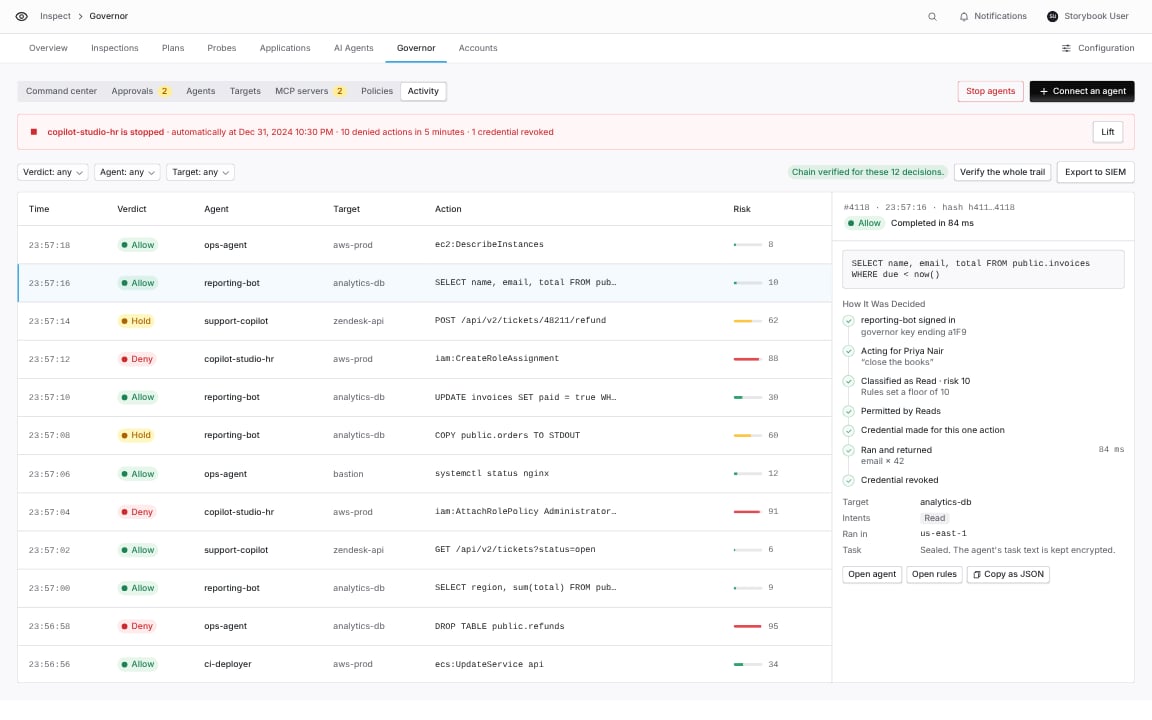
Inspect › Governor › Activity, filtered to one agent.